


 Video Converter Ultimate
 Screen Recorder
 Oprava videa
 Bezpečné stažení
Jak snadno a efektivně odstranit vodoznak Viva Video z videí
Viva Video je aplikace pro úpravu a tvorbu videa, kterou si můžete stáhnout do svých mobilních zařízení a vytvořit tak vynikající video, které s jiným editorem videa nedosáhnete. Díky tomu můžete využít jeho bezplatnou verzi nebo prémiový střih videa ve svůj prospěch. Uživatelé se tak při používání bezplatné verze setkávají s problémy, protože zanechává vodoznak a další editační funkce nejsou stejné jako u profesionální verze. Vodoznak vložený do videa by mohl bránit vizuálu a je lepší jej odstranit.
Nicméně na PlayStore a AppStore najdete několik nástrojů, pomocí kterých lze odstranit vodoznak – ale který je nejlepší? Pokračujte ve čtení tohoto článku, protože vám představíme nástroj, s nímž můžete vodoznak odstranit, a zároveň návod, jak odstranit vodoznak Viva Video z vašeho videa.

Část 1. Jak odstranit vodoznak Viva Video pomocí nejlepších aplikací pro odstraňování vodoznaků
Video Eraser – odstranění vodoznaku/loga z videa [Android]
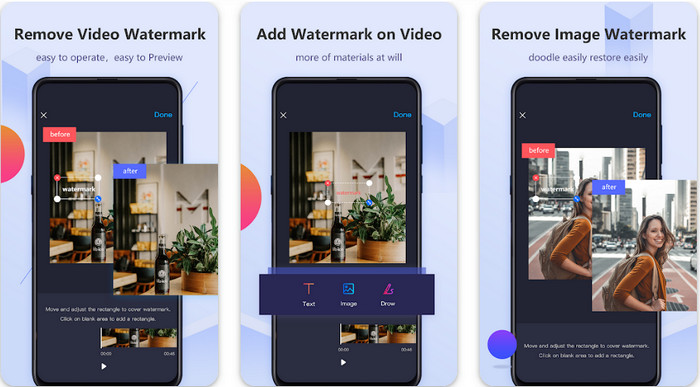
Video Eraser - Remove Watermark/Logo from Video je výkonný odstraňovač vodoznaků, který si můžete stáhnout do svého zařízení s Androidem a odstranit jím vodoznak vložený ve videu. Tato aplikace vám pomůže odstranit jakýkoli typ vodoznaku ve videu, například logo, text, razítka atd. Můžete ji také využít, pokud chcete přidat vlastní vodoznak, oříznout, zastřihnout, převrátit, komprimovat video nebo změnit rychlost videa. Přestože má bohatou škálu funkcí, tento nástroj si můžete stáhnout zdarma. Chcete‑li tedy odstranit vodoznak Viva Video na Androidu, postupujte podle níže uvedených kroků.
Krok 1. Nejprve si aplikaci stáhněte do svého zařízení s Androidem přes PlayStore a poté klikněte na Stáhnout.
Krok 2. Otevřete odstraňovač vodoznaků, klikněte na Remove Watermark from Video, povolte nástroji přístup k vašim videím a nahrajte video s vodoznakem.
Krok 3. Umístěte obdélník na vodoznak tak, aby jej zakryl.
Krok 4. Stiskněte Done, abyste uložili video bez vodoznaku.
Související:
Video Eraser – odstranění retuše [iOS]
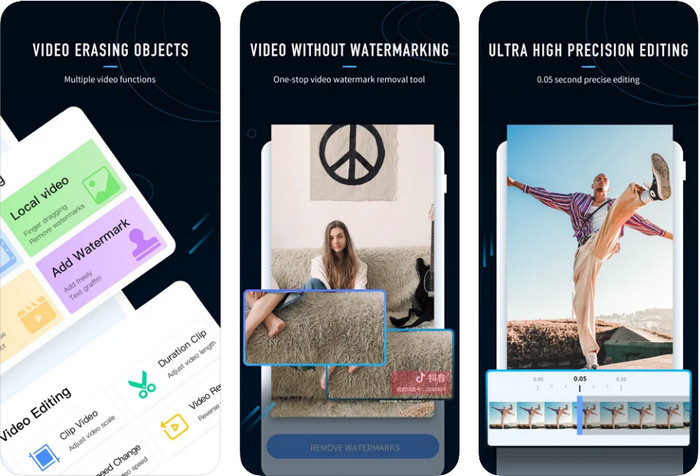
Pro iOS si můžete v AppStore stáhnout Video Eraser- Retouch Removal. Patří mezi odstraňovače vodoznaku Viva Video, které si můžete stáhnout zdarma a které vám umožní účinně se zbavit značky ve videu. Stejně jako odstraňovač vodoznaků pro Android, který zde představujeme, také podporuje další editační funkce, které můžete využít, například vylepšení videa (upscale), přidání vodoznaku, střih, ořez, kompresi a převrácení videa. To vše zde najdete. Ačkoli má podobné funkce jako aplikace pro Android, jejich konkrétní fungování se liší a než tento nástroj použijete k odstranění vodoznaku, je potřeba si jej zakoupit. Níže uvedené kroky vám ukážou, jak odstranit vodoznak z videa Viva Video, které exportujete – postupujte podle nich.
Krok 1. Stáhněte si aplikaci z App Store a po stažení ji otevřete.
Krok 2. Po otevření softwaru klikněte na Local Video/GIF a nahrajte video s vodoznakem. Nezapomeňte aplikaci povolit přístup k Fotkám.
Krok 3. Klepněte na část videa s vodoznakem; na obrazovce se poté zobrazí obdélníkový tvar.
Krok 4. Klepněte na Eliminate Watermark, abyste video vyexportovali a uložili bez rušivého vodoznaku.
Část 2. Jak odstranit vodoznak Viva Video na Windows a Mac [Ultimate Software]
Jako uživatel Windows a Mac budete potřebovat účinný software, který dokáže vodoznak z videa odstranit bez zanechání šmouh. FVC Video Converter Ultimate vám může ukázat, jak zdarma odstranit vodoznak Viva Video a dosáhnout přitom profesionálního výsledku. Stejně jako aplikace pro odstraňování vodoznaků na Androidu a iOS i tento nástroj nabízí více funkcí a možností, které můžete využít. Tento nástroj poskytuje ještě více, než dvě aplikace na odstranění vodoznaku, které jsme zmínili.
Čím je tento nástroj působivý? Funkce odstraňování, které tento nástroj podporuje, jsou lepší než jiné odstraňovače vodoznaků, které můžete na svém videu použít. Pokud to tedy použijete, můžete si video po odstranění zde užít bez vodoznaku. Potřebujete návod, jak to používat? Další podrobnosti vám umožní vědět, jak používat tento nástroj stejně snadno jako 1-2-3.
Krok 1. Chcete‑li si stáhnout tento špičkový software, klikněte na tlačítko pro stažení níže a poté jej nainstalujte do svého zařízení. Postupujte podle instalace WinRAR a klikněte na Start Now.
Zdarma ke staženíPro Windows 7 nebo novějšíBezpečné stažení
Zdarma ke staženíPro MacOS 10.7 nebo novějšíBezpečné stažení
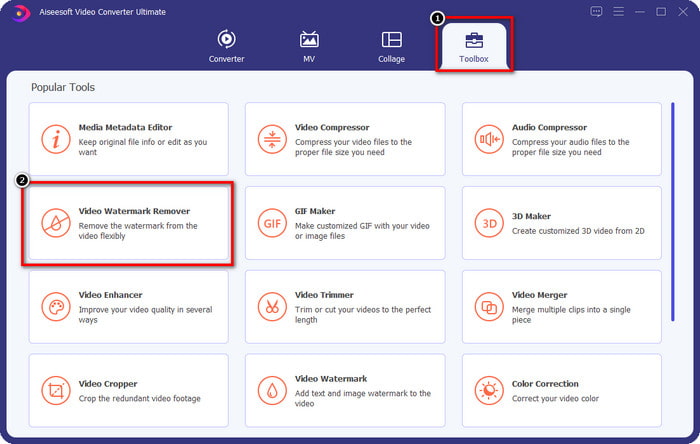
Krok 2. Přejděte do části Toolbox a klikněte na Video Watermark Remover, abyste začali používat účinný odstraňovač vodoznaků tohoto nástroje.
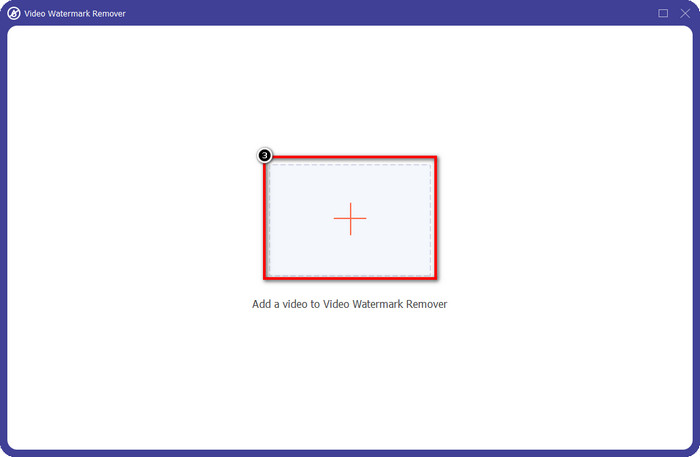
Krok 3. Kliknutím na ikonu + můžete nahrát video z Viva Video s vodoznakem uložené na ploše. Najděte videosoubor v okně složky, které se zobrazí na obrazovce, a kliknutím na Open jej úspěšně nahrajte.
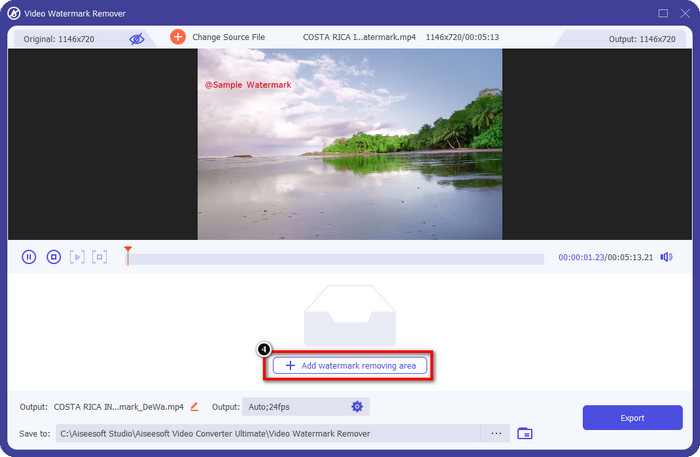
Krok 4. Klikněte na Add Watermark Removing Area, abyste mohli začít používat funkci odstranění vodoznaku.
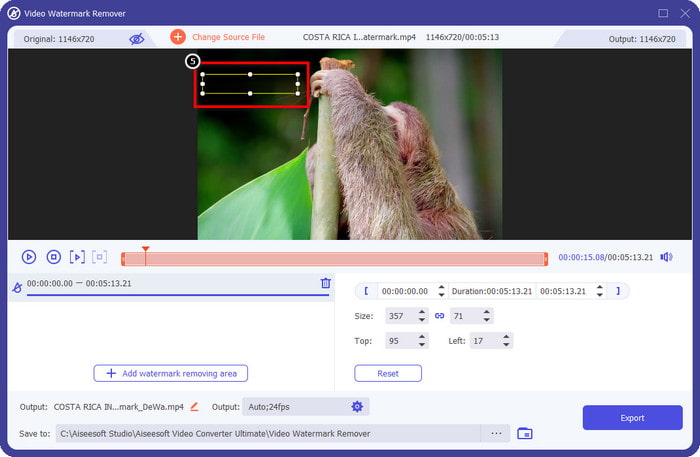
Krok 5. Přetáhněte a umístěte obdélníkový tvar na vodoznak ve vašem videu a zakryjte ho celý. Je důležité jej zakrýt celý, protože pokud to neuděláte, zůstane po vodoznaku stopa; tvar můžete také přizpůsobit (změnit velikost) podle potřeby.
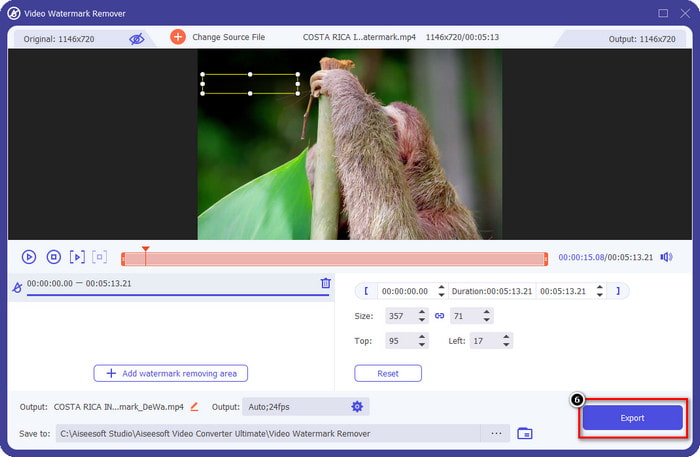
Krok 6. Poté klikněte na Export, abyste video uložili bez vodoznaku. Jednoduché? Přesně k tomu je tento špičkový nástroj určen – aby byl snadný na použití, ale přitom maximálně účinný.
Část 3. Často kladené otázky o tom, jak odstranit vodoznak Viva Video
Mohu si stáhnout Viva Video bez vodoznaku?
Ano, můžete si zakoupit profesionální verzi tohoto nástroje, takže při exportu videa, které zde upravíte, nezanechá na videu vodoznak. Po zakoupení profesionální verze tohoto nástroje také budete používat další prémiovou funkci tohoto nástroje, která není k dispozici zdarma.
Má Viva Video desktopovou verzi?
Verzi Viva Video si můžete stáhnout pouze na Android a iOS. Pokud si tedy chcete stáhnout desktopovou verzi, žádnou nenajdete, ale můžete hledat nejlepší alternativy pro střih videa, jako nabízí Viva Video.
Má Viva Video spyware?
V roce 2017 zprávy o této aplikaci později potvrdily, že obsahuje malware. Lidé, kteří si tento software stáhli, tuto aplikaci ze svých zařízení násilím smazali, aby se vyhnuli dalším následkům.
Závěr
Pomocí odstraňovače vodoznaku Viva Video v tomto článku můžete odstranit vodoznak, který Viva Video vloží do exportovaného videa. Můžete zkusit použít výše uvedené aplikace a postupovat podle přiložených pokynů, jak vodoznak odstranit. Ale pro uživatele Windows a Mac s vodoznakem Viva Video je lepší použít dokonalý software k rychlému a efektivnímu odstranění vodoznaku a dosažení profesionálního výsledku. Na co čekáš? Kliknutím na tlačítko stahování si ze svého zařízení hned odstraníte konečný vodoznak a použijte jej podle výše uvedených kroků.
-
 Jak odstranit vodoznak Lomotif pomocí těchto úžasných nástrojů
 Chcete se naučit, jak odstranit vodoznak Lomotif z vašeho videa? Přečtěte si tento článek a zjistěte nejlepší způsoby odstranění online a offline.
-
 Jak odstranit turisty z fotografií pomocí odstraňovačů vodoznaků
 Jak odstranit turisty z fotografií? Pokud se chcete naučit, jak odstranit nežádoucí věci z vaší fotografie, tyto nástroje vám pomohou. Přečtěte si tento článek a dozvíte se více.
-
 Odstraňovače vodoznaků 123rf – Důkladná kontrola nejlepších nástrojů
 Pokud chcete vědět, jaké jsou nejvýraznější odstraňovače vodoznaku 123rf, přečtěte si důkladně tento článek. Tento článek poskytuje hloubkový přehled nástrojů.
