


 Video Converter Ultimate
 Skærmoptager
 Video reparation
 Sikker download
Procedurer for, hvordan man klipper dele af en video ud på iPhone
Du har måske optaget en smuk video med din iPhone eller iPad i din fritid og vil dele den med dine venner eller lægge den på sociale medier. Men det er en fordel først at redigere de dele af videoen, du ikke vil have med. I denne situation kan du hurtigt redigere videoer med dine værktøjer ved at afkorte eller klippe dem. Så hvordan forkorter man en video på en iPhone? Du får de bedste metoder i dette indlæg. Hvis du vil lære alle trinene, så læs alle oplysningerne nedenfor.

Del 1. Effektive procedurer til at klippe video på iPhone
Brug af fotos-appen
Hvis du er iPhone-bruger og ønsker at forkorte længden af din video, kan appen Fotos måske hjælpe dig. Fotos-appen er ikke kun god til at vise billeder og videoer. Ved hjælp af denne forudbyggede applikation kan du også klippe eller trimme din video. Da det er en simpel applikation på iPhone, kan du forkorte videoen til blot et par tryk. På denne måde kan alle brugere, især begyndere, bruge applikationen. Da det er en forudbygget applikation, er installation ikke påkrævet. Men selvom det er en praktisk applikation til at klippe videoer, har Photos-appen nogle begrænsninger. Applikationen er uegnet, hvis du vil have avancerede redigeringsværktøjer til at forbedre en video udover at forkorte videolængden. Fotos-appen kan kun tilbyde grundlæggende redigeringsfunktioner som klipning, tilføjelse af filtre og mere. Hvis du vil vide, hvordan du trimmer en video på en iPhone, skal du følge trinene nedenfor.
Trin 1. Lås din iPhone op og åbn Fotos-appen.
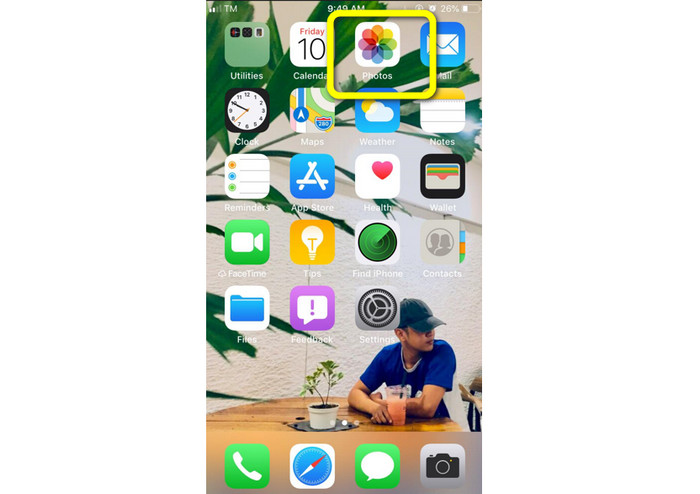
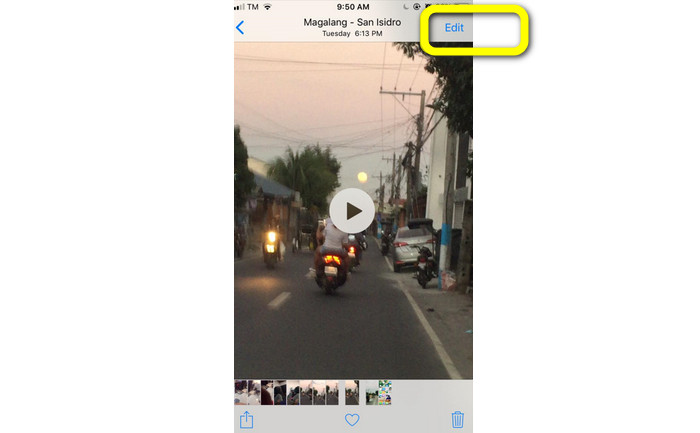
Trin 2. Klik derefter på den video, du vil forkorte. Tryk derefter på knappen Rediger i højre hjørne af skærmen.
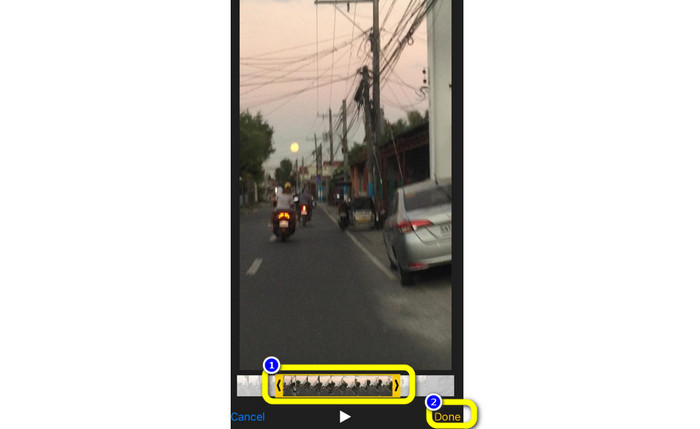
Trin 3. Nu kan du forkorte videoen ved at trække i videoklippets kant. Du kan trække i både venstre og højre kant af videoen. Når du har klippet videoen, klik på OK-knappen for at gemme den på din telefon.
Bruger iMovie
Vil du redigere nogle af de videoer, du har optaget med din iPhone – måske for at fjerne unødvendige dele, gøre dem kortere eller få dem til at se mere indbydende ud? Det er en ligetil og simpel proces, når du bruger programmet iMovie, som er tilgængeligt til iOS-enheder. Den indbyggede videoeditor i standardappen Fotos er tilstrækkelig for de fleste brugere, men du kan ikke bruge den til mere avancerede funktioner som at arbejde med tidslinjen, tilføje overgange, sammenflette flere videoer osv. I denne situation er et specialiseret videoredigeringsprogram som iMovie meget nyttigt. Apples iMovie er bedre end de fleste andre videoredigeringsværktøjer i App Store. Og du kan synkronisere lyd og video med iMovie. Men iMovie har også nogle ulemper. iMovie er kun tilgængelig på iPhone-enheder. Det betyder, at hvis du er Android-bruger, skal du bruge et andet program til at klippe en video.
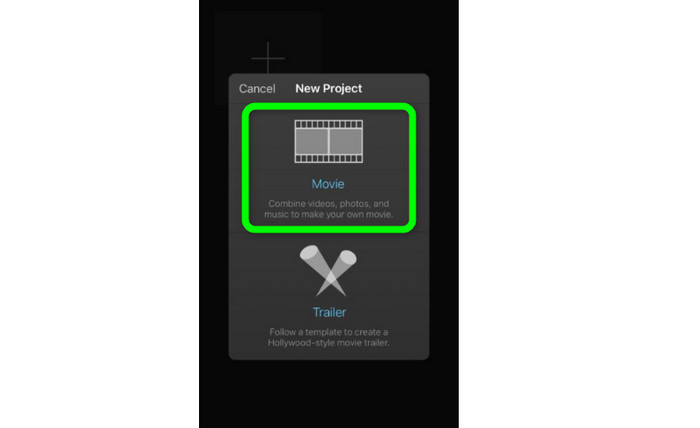
Trin 1. Download og installer iMovie-appen på din iPhone. Start derefter appen. Når brugerfladen vises på skærmen, klik på Create Project > Movie-indstillingen og tilføj videoen.
Trin 2. Den video, du har valgt, vil nu blive vist på iMovies tidslinje. Som standard vil markøren være ved slutningen af klippet, men du kan langsomt trække den mod højre og stoppe der, hvor du vil klippe videoen.
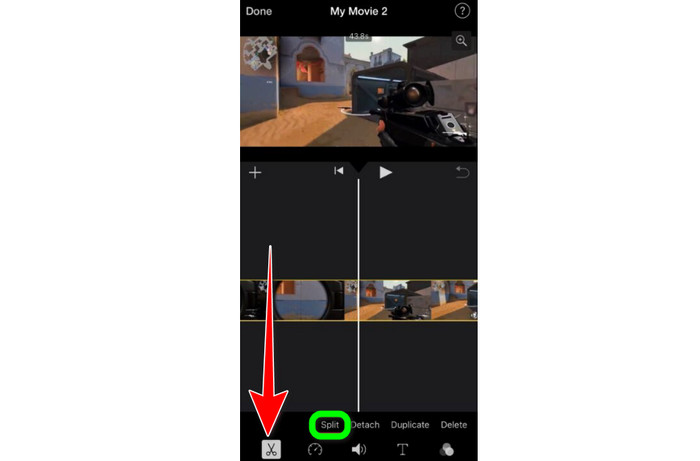
Trin 3. Nu kan du bruge flere af de funktioner, som iMovie tilbyder. Som vist nedenfor angiver ikonet med Saks valget af klippeværktøjet. Vælg Split-værktøjet i menuen for at trimme videoklippet præcis dér, hvor du har markeret det.
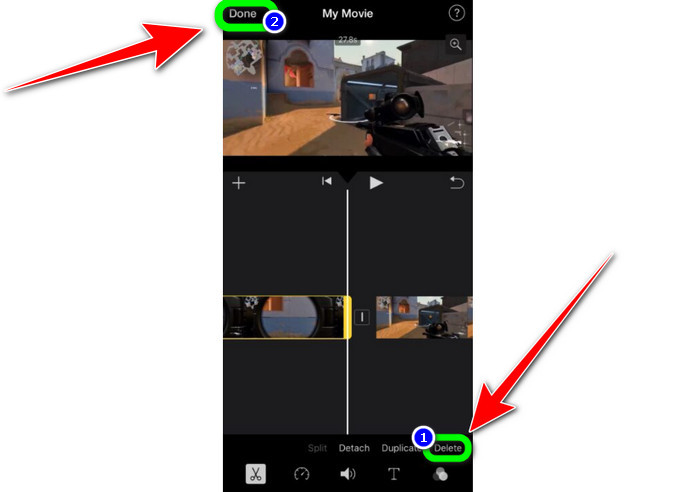
Trin 4. Klik derefter på Slet-indstillingen for at fjerne den unødvendige del af videoen. Når du er færdig med at trimme videoen, klik på OK-knappen.
Del 2. Sådan trimmes videoer på iPad
Hvis du vil klippe eller trimme video på en iPad, behøver du ikke længere at lede efter en app, der skal downloades. Ligesom på iPhone kan du klippe eller trimme din video med Fotos-appen. Fotos-appen kan dog have visse begrænsninger på en iPad. Hvis dit mål blot er at klippe video, er den velegnet. Men du kan ikke bruge appen, hvis du har brug for avancerede redigeringsværktøjer. Følg nedenstående trin for at klippe eller trimme videoen på en iPad.
Trin 1. Åbn Fotos-appen på din iPad, klik på det videoklip, du vil redigere, og klik på Rediger-indstillingen.
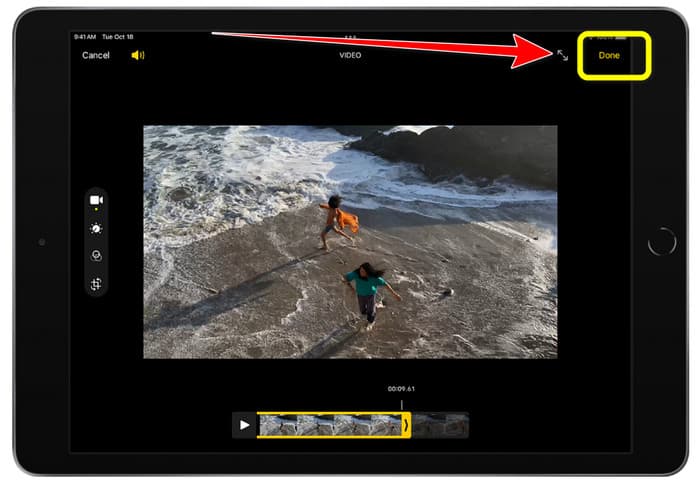
Trin 2. Træk i kanten af billedviseren for at forkorte videoens længde og begynde at trimme.
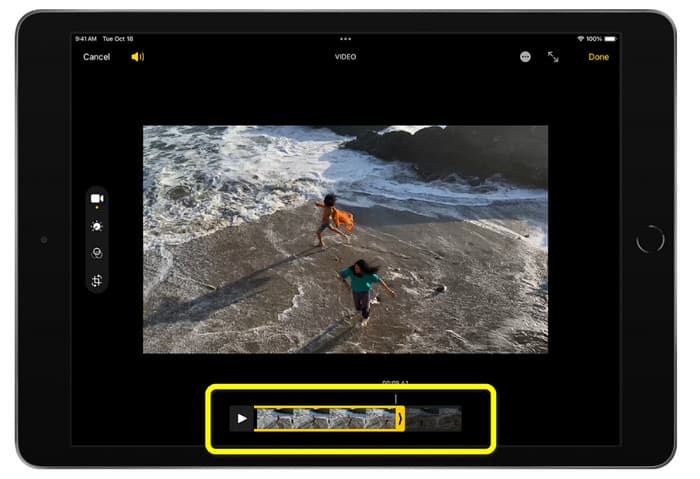
Trin 3. Når du er færdig med at trimme videoen, klik på knappen OK.
Del 3. Sådan klippes iPhone-videoer på pc
Leder du efter den bedste måde at klippe iPhone-videoer på en PC? Hvis det er tilfældet, så brug Video Converter Ultimate. Du kan uden besvær klippe din iPhone-video ved hjælp af dette offline-program. Det har også en brugervenlig grænseflade med enkle arbejdsgange. Det er derfor ideelt for alle brugere, især begyndere. Du kan også justere forskellige indstillinger under Output. Videoens opløsning, skarphed og billedhastighed kan alle ændres. Du kan også ændre lydens bitrate, samplingsfrekvens og andre parametre. Du kan gemme det endelige resultat i forskellige formater, f.eks. MP4, MOV, AVI, MKV osv. Det er en fordel for brugerne, at Video Converter Ultimate er tilgængeligt til både Windows- og Mac-computere. Desuden tilføjer programmet ikke vandmærker til den redigerede video, så du kan se videoen uden at blive generet.
Gratis download til Windows 7 eller nyere Sikker download
Gratis download til MacOS 10.7 eller nyere Sikker download
Trin 1. Download Video Converter Ultimate på din PC. Klik på knappen Download nedenfor for nemt at få adgang til programmet.
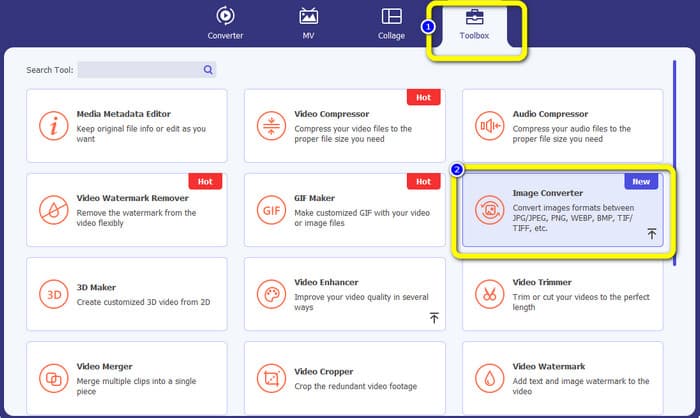
Trin 2. Når download er færdig, start programmet for at se hovedgrænsefladen. Sørg for, at iPhone-videoen allerede er overført til computeren. Klik derefter på Toolbox > Video Trimmer Tool, når brugerfladen vises.
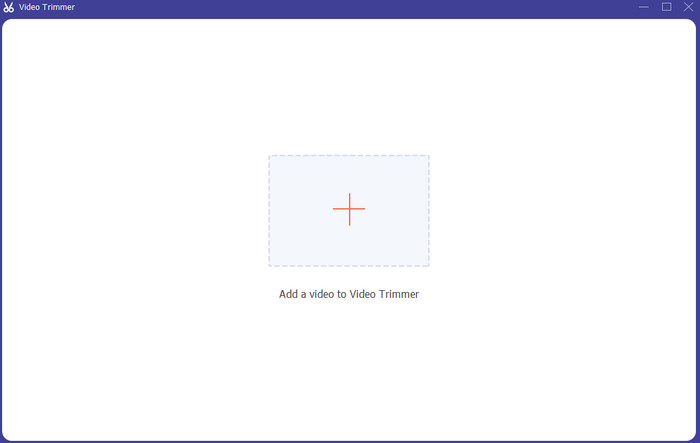
Trin 3. Når den nye brugerflade vises på skærmen, klik på +-symbolet for at tilføje iPhone-videoen.
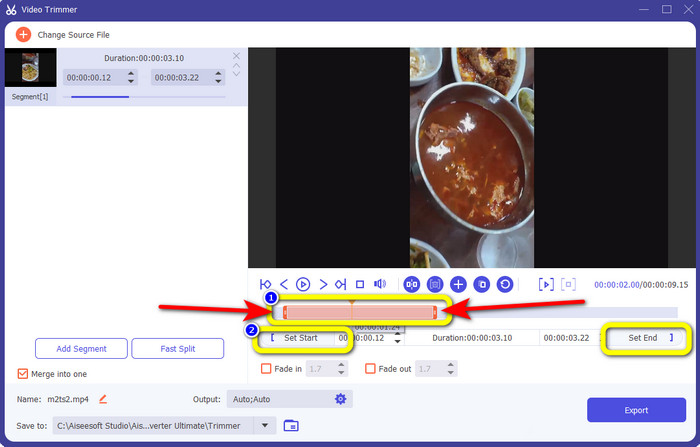
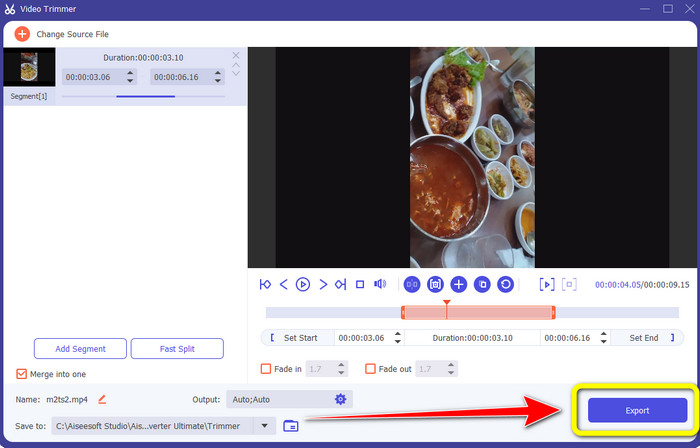
Trin 4. Nu kan du justere videoklippets kanter for at trimme det. Du kan også bruge indstillingerne Set Start and Set End til manuelt at trimme videoen.
Trin 5. Til sidst klikker du på knappen Export for at gemme videoen efter trimning.
Del 4. Ofte stillede spørgsmål om, hvordan man forkorter en video på iPhone
Hvordan trimmes midten af videoen på en iPhone?
Hvis du vil trimme den midterste del af din video ved hjælp af iPhone, kan du stadig bruge de ovennævnte metoder. Fotos-appen og iMovie kan også trimme den midterste del af en video.
Hvordan trimmes video på Android-telefon?
Du kan gå til din Galleri-applikation. Åbn derefter videoen, og klik på Rediger-indstillingen. Derefter kan du allerede trimme videoen ved at trække i kanterne af videoen.
Hvordan overfører jeg video til iPhone fra computeren?
Du kan bruge mange værktøjer til at overføre en video fra en computer til en iPhone. Du kan bruge iPhone Transfer Pro, Dropbox, AirDrop og mere.
Konklusion
At trimme en video er effektivt, når du vil dele eller uploade et videoklip. I dette tilfælde forklarer denne informative artikel, hvordan man forkorter en video på en iPhone. Desuden kan du, hvis du vil forkorte længden af en iPhone-video ved hjælp af en computer, bruge Video Converter Ultimate. Med hjælp fra dette offline-program kan du nemt og hurtigt klippe iPhone-videoer på en PC.
-
 [4 løsninger] Sådan sænker du en video på iPhone som en professionel
 Har du problemer med at bremse en video på iPhone? Hvis du støder på dette problem, skal du ikke bekymre dig mere, for vi hjælper dig med at løse problemet ved at læse denne artikel.
-
 Sådan spole frem en video på iPhone – Juster videohastighed
 Hvordan kan jeg spole en video frem på min iPhone? Hvordan spole frem en video på iPhone ved hjælp af iMovie? Lær 3 måder at fremskynde en video på iPhone- og iPad-enheder.
-
 Vejledning - 4 gratis måder at flette videoer på iPhone ind i en ny
 Læs og få 4 nemme måder at flette videoer på iPhone. Alle iPhone-modeller og iOS-versioner understøttes. Du kan hurtigt kombinere 2 og flere videoer på iPhone til en ny video.
