


 Video Converter Ultimate
 Skærmoptager
 Video reparation
 Sikker download
7 nemme måder til hurtigt at konvertere HEIC til PNG på få sekunder
Vil du gøre din HEIC‑fil bredt kompatibel med andre enheder? Vi har det, du leder efter! Denne artikel viser dig de bedste måder at konvertere din HEIC‑fil til PNG uden besvær. Så spænd sikkerhedsbæltet, mens vi dykker ned i de bedste metoder til at konvertere HEIC til PNG helt problemfrit.

Del 1. Hvorfor konvertere HEIC til PNG-format
HEIC-filformat er et billedformat, der er oprettet af Apple. Det er et billedformat, som Apple-enheder almindeligvis bruger. Selvom den har en opløsning i høj kvalitet, tager den ikke for meget plads på din enhed. HEIC-filer er dog ikke kompatible med ikke-Apple-enheder. I modsætning hertil er PNG, som står for Portable Graphics Format, et billedfilformat skabt til at erstatte GIF-formater.
Det er det mest brugte billedformat, der er ukomprimeret, hvilket betyder, at det har en enorm filstørrelse. Ikke desto mindre understøtter næsten alle enheder dette billedfilformat. Så hvis du vil åbne dit HEIC-billede på andre enheder bortset fra Apple, skal du hellere konvertere det til et PNG-filformat.
Del 2. 5 nemme måder at konvertere din HEIC-fil til PNG-fil online
Det er ret svært at lede efter de bedste måder, hvordan man konverterer HEIC til PNG. Vi søgte dog efter de bedste og enkleste metoder til at ændre HEIC til et PNG-filformat.
Brug FVC Free HEIC til PNG Converter
Den allerbedste måde at konvertere HEIC til PNG på er at bruge et konverteringsværktøj. Og det bedste værktøj, vi har fundet på internettet, er FVC Free HEIC to PNG Converter. Denne konverter er et onlineværktøj, som nemt konverterer din HEIC‑fil til PNG‑filformat. Derudover, hvis du vil konvertere flere HEIC‑filer til PNG på én gang, har dette værktøj også en batchfunktion til dig.
Det er også tilgængeligt i næsten alle almindelige browsere, hvilket gør det til et værktøj uden browserbegrænsning. Ydermere har den en ligetil softwaregrænseflade og har ingen filstørrelsesgrænse, så du kan konvertere HEIC-filer uden at tænke på filstørrelsen. Følg derfor den enkle guide nedenfor, hvis du er interesseret i at bruge denne online HEIC til PNG-konverter.
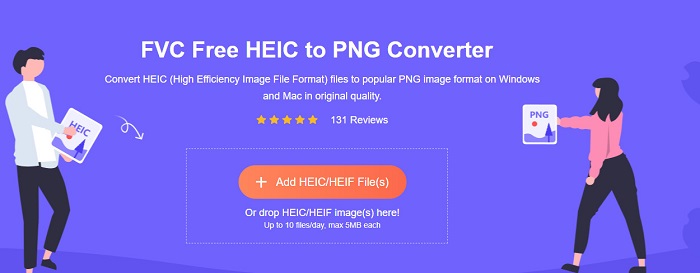
Trin 1. Søg efter FVC Free HEIC to PNG Converter i din browser. Du kan også klikke på dette link for at gå direkte til deres webside. Sådan ser den første grænseflade ud:
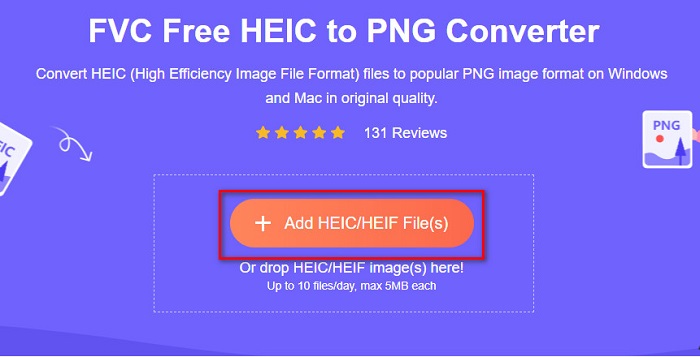
Trin 2. Klik derefter på knappen Add HEIC/HEIF File(s). Dine computermapper vises, hvor du skal vælge din HEIC‑fil.
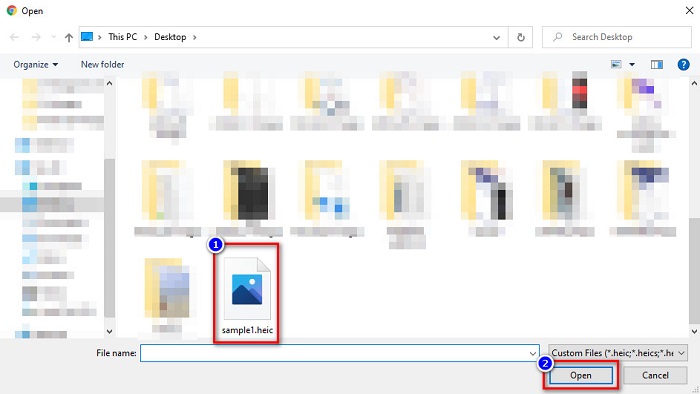
Trin 3. Derefter vises dine computermapper, hvor du vælger din HEIC‑fil. Tryk på Open. Så starter din konvertering fra HEIC til PNG.
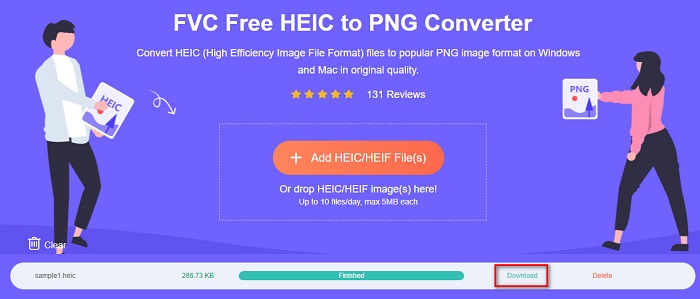
Trin 4. Til sidst skal du på softwarens grænseflade klikke på knappen Download for at downloade din PNG‑fil.
Simpelt, er det ikke? Du kan konvertere din HEIC-fil til en PNG-fil ved at følge disse nemme trin.
Brug Xconvert.com
Xconvert er en gratis online HEIC‑til‑PNG‑konverter, der nemt konverterer HEIC‑filer til PNG‑filer. Denne onlinekonverter har en brugervenlig grænseflade, som er fordelagtig for nybegyndere. Derudover kan du ændre billedopløsningen på dit billede, når du bruger denne onlinekonverter. Da det dog er et internetafhængigt værktøj, kan du opleve en langsom konverteringsproces, hvis din internetforbindelse er langsom. Det indeholder også reklamer, som kan virke forstyrrende.
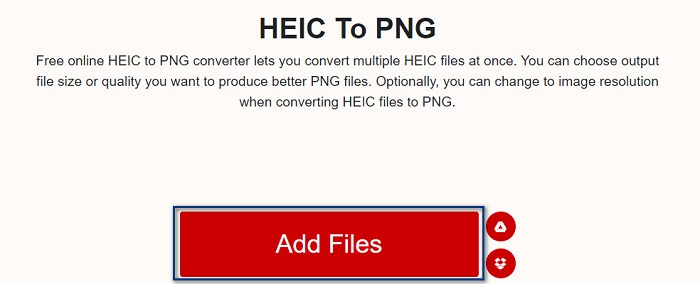
Trin 1. Søg efter Xconvert.com i din browser. På deres webside skal du klikke på knappen Add Files, hvorefter dine computerfiler vises, og så vælger du din HEIC‑fil.
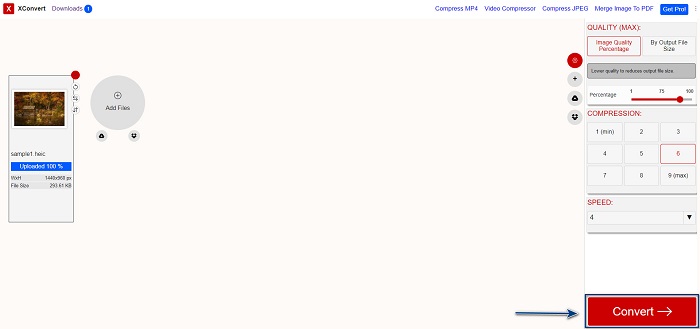
Trin 2. Dit billede uploades til softwarens grænseflade. Når uploaden er færdig, klik på knappen Convert nederst i højre hjørne af softwarens grænseflade. Vent derefter, til din fil er klar til download, og gå så videre til næste trin.
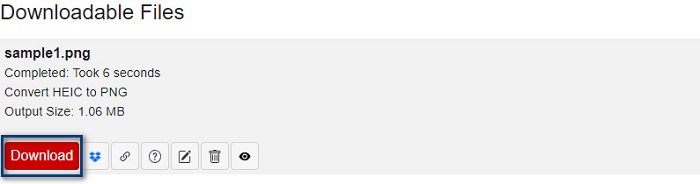
Trin 3. Når din fil er klar, skal du klikke på knappen Download for at downloade din PNG‑fil. Over download‑knappen kan du også se outputstørrelsen og hvor lang tid konverteringen tog.
Brug Zamzar
En anden måde at konvertere HEIC til PNG online på er ved at bruge onlinekonverteren Zamzar. Du har sandsynligvis set denne konverter, når du har søgt efter en HEIC‑til‑PNG‑konverter. Denne konverter kan tilgås i stort set alle tilgængelige browsere. Derudover har den en enkel brugergrænseflade, hvilket gør den brugervenlig. Din fil kan dog blive beskadiget, hvis internetforbindelsen afbrydes under konverteringsprocessen. Ikke desto mindre bruger mange denne konverter til at ændre HEIC til PNG‑filer.
Trin 1. I den browser, du bruger, skal du søge efter Zamzar. På deres webside skal du klikke på knappen Add Files. Dine computerfiler vises, og så uploader du dit HEIC‑billede.
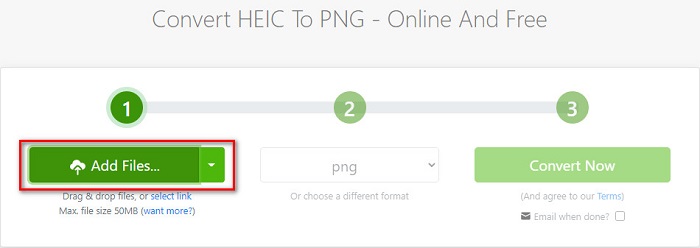
Trin 2. Når du har uploadet din HEIC‑fil, skal du klikke på drop‑down-knappen og derefter vælge PNG som dit outputfilformat.
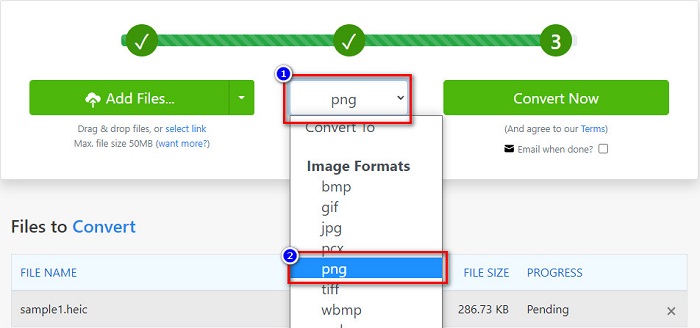
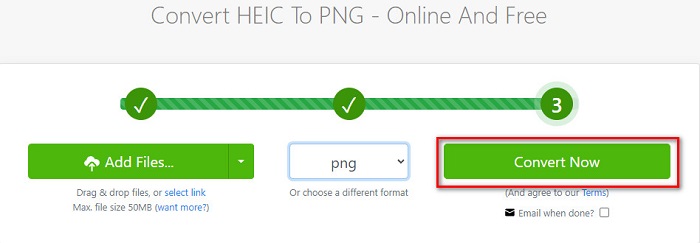
Trin 3. Til sidst skal du klikke på knappen Convert Now for at konvertere din HEIC‑fil til PNG‑filformat. Derefter downloader du din PNG‑fil. Vent blot et par sekunder, og så er du færdig!
Brug Conversion Tools.io
Conversion Tool er en online HEIC‑til‑PNG‑konverter med en simpel brugergrænseflade. Den kan konvertere din HEIC‑fil til PNG med høj hastighed. Desuden indeholder den ikke så mange reklamer som andre onlinekonvertere. Ulempen er dog, at du kun kan konvertere ti filer om dagen, og at der er en begrænsning på filstørrelsen. Men hvis du konverterer en lille fil, kan dette værktøj være velegnet til dig.
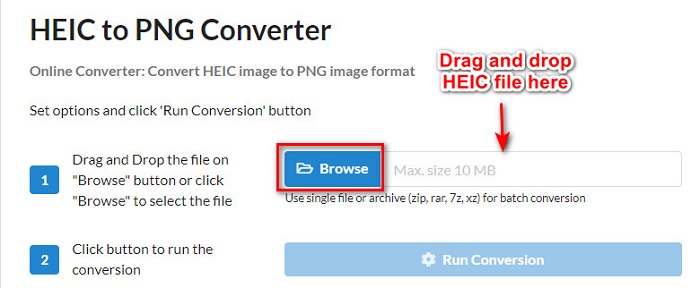
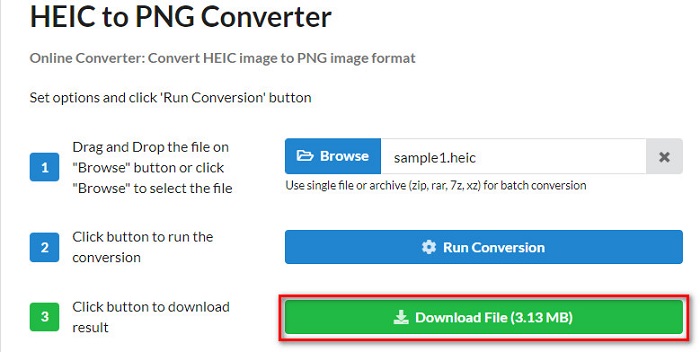
Trin 1. Søg efter Conversion Tools.io i din browser. Klik derefter på knappen Browse på softwarens hovedgrænseflade, eller træk og slip din HEIC‑fil hen på knappen Browse.
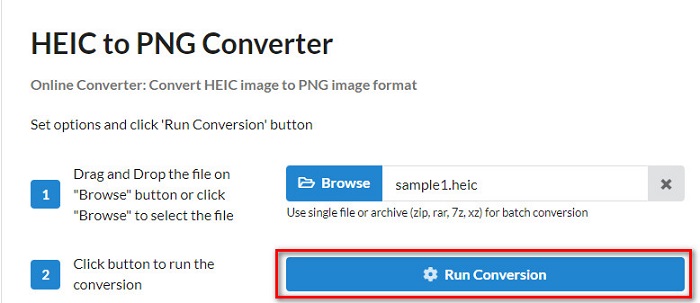
Trin 2. Klik derefter på knappen Run Conversion for at begynde at konvertere din HEIC‑fil til en PNG‑fil. Vent derefter, til dit billedfil er færdig med at blive behandlet, og gå så videre til næste trin.
Trin 3. Til slut skal du klikke på knappen Download for at downloade din PNG‑fil.
Brug CDKM
Det sidste værktøj, vi vil præsentere for dig, er CDKM. Dette værktøj giver dig mulighed for at konvertere HEIC‑filer til PNG med blot få klik. Brug af denne onlinekonverter kan dog tage nogle sekunder, afhængigt af din internetforbindelse. Den indeholder også reklamer, som kan virke irriterende. Til gengæld har den ingen begrænsning på filstørrelsen, så den er værd at prøve.
Trin 1. Søg efter CDKM online converter i din browser. På softwarens hovedgrænseflade skal du klikke på knappen Choose Files. Dine computermapper vises, hvorefter du vælger din HEIC-fil for at uploade den.

Trin 2. Klik derefter på knappen Start Conversion for at starte konverteringsprocessen.

Trin 3. Til sidst skal du scrolle en smule ned, hvor du ser knappen Download. Klik på knappen Download for at downloade din PNG‑fil.

Del 3. Konverter HEIC til PNG på Mac
Apple-enheder understøtter HEIC-filformater, og ved at bruge Mac kan du naturligt åbne en HEIC-fil. Men hvis du vil konvertere din HEIC-fil til PNG, kan du ændre den ved hjælp af Photo App i Mac. Derfor, hvis du er en Mac-bruger, bør du hellere læse denne del.
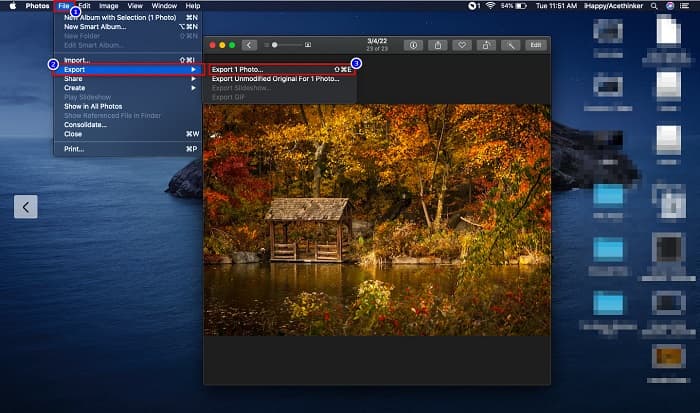
Trin 1. Først skal du trække og slippe din HEIC‑fil over i Photo‑appen. Forhåndsvis derefter dit HEIC‑foto, og klik på File > Export > Export 1 Photo.
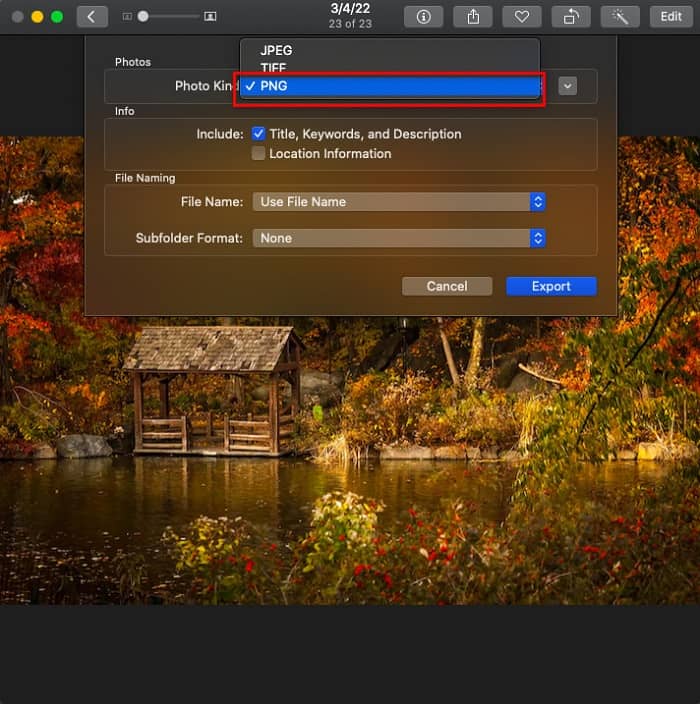
Trin 2. Vælg derefter under Photo Kind det outputformat, du ønsker. Vælg filformatet PNG.
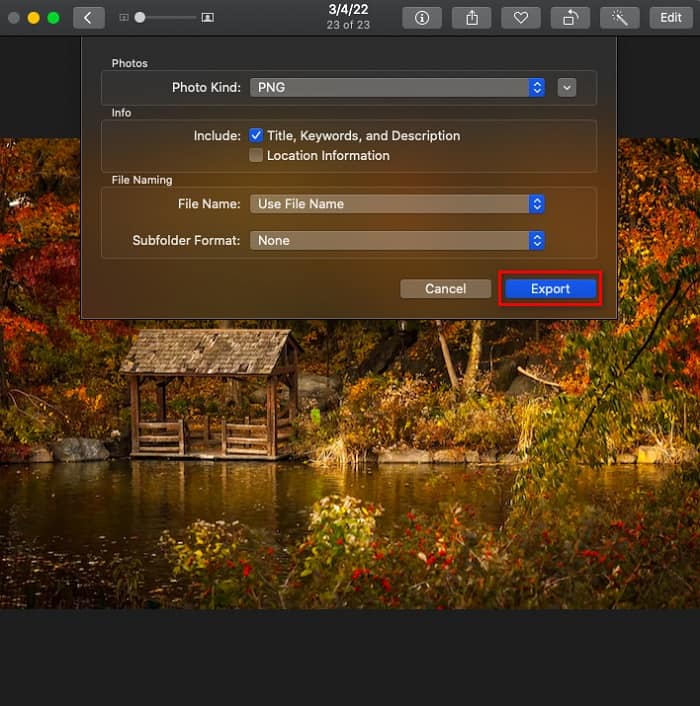
Trin 3. Klik derefter på knappen Export, og vælg destinationsmappen for din outputfil. Du vil se, at din HEIC‑fil er blevet ændret til PNG‑filformat.
Del 4. Konverter HEIC-fil til PNG på iPhone
Hvis du bruger en iPhone, kan du åbne en HEIC-fil på din enhed. Men hvis du vil konvertere din HEIC-fil til PNG ved hjælp af en iPhone-enhed, så har vi en måde for dig. Ved at følge disse enkle og nemme trin nedenfor, kan du konvertere HEIC til PNG ubesværet.
Trin 1. I Photo‑appen på din iPhone skal du trykke på knappen Select øverst på skærmen. Vælg derefter din HEIC-fil, og tryk på ikonet Share.
Trin 2. Skub skærmen op; du vil se muligheden Copy Photo – tryk på den.
Trin 3. Gå til sidst til appen Files, tryk på knappen browse, og vælg din ønskede outputplacering (tryk på iCloud Drive eller On My iPhone). Indsæt derefter din HEIC‑fil der.
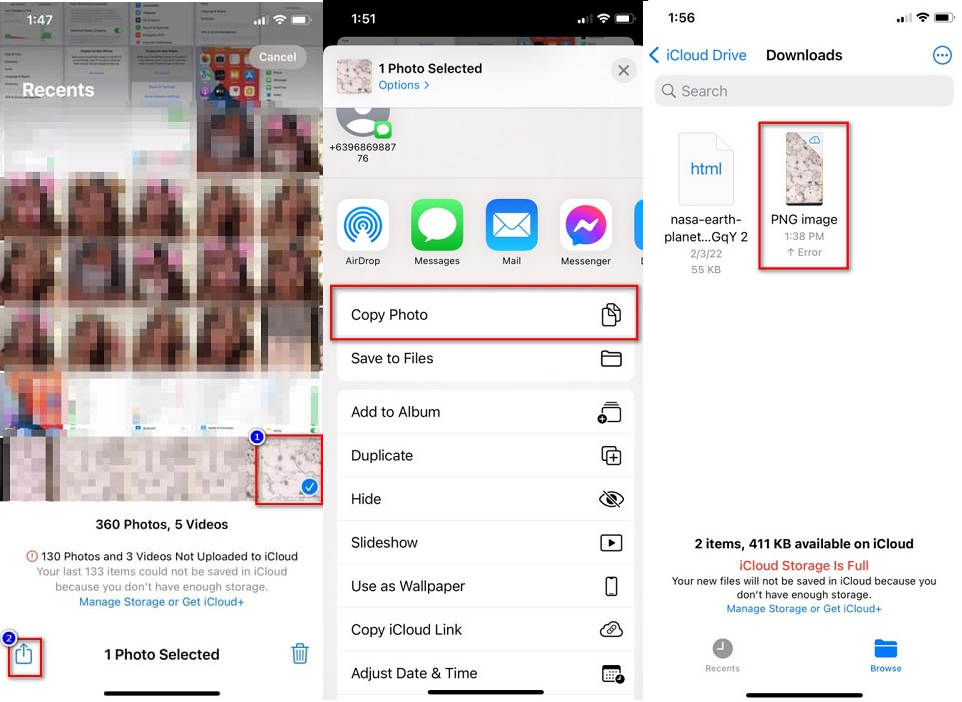
Når du har indsat din fil, vil du se, at din fil automatisk bliver konverteret til en PNG-fil.
Del 5. Udvidet viden om HEIC-fil og PNG-fil
Hvis du stadig er i tvivl, om du ønsker at konvertere din HEIC-fil til PNG, giver vi dig et sammenligningsskema for at hjælpe dig med at skelne forskellene mellem disse to filer. Desuden giver det dig et klart overblik over HEIC- og PNG-egenskaber. Læs omhyggeligt for at kende forskellen mellem HEIC-filer og PNG-filer.
| HEIC | PNG | |
| Kompatibilitet | Kun Apple-enheder understøtter dette filformat. | Næsten alle enheder understøtter denne fil, inklusive Apple-enheder. |
| Filstørrelse | Lille filstørrelse. | Kan opnå stor filstørrelse. |
| Billede kvalitet | Høj billedkvalitet. | Har en god kvalitet, men ikke bedre end HEIC-filen. |
| Komprimeret/ukomprimeret | Komprimeret | Ukomprimeret |
| Redigering | Bevarer billedkvaliteten ved redigering. | Kvaliteten kan forringes ved redigering. |
Del 6. Ofte stillede spørgsmål om konvertering af HEIC til PNG
Vil konvertering af HEIC til PNG påvirke filstørrelsen?
Ja. Når du konverterer HEIC til PNG, vil det øge filstørrelsen, selvom den ikke vil være høj.
Kan du åbne PNG-filer på Adobe Photoshop?
Sikkert. Du kan åbne PNG-filer på Adobe Photoshop, fordi Adobe Photoshop understøtter PNG-filformat.
Kan du åbne PNG-filformatet på Apple-enheder naturligt?
Ja. Når du tager skærmbilleder fra din iPhone, gemmes de automatisk på din kamerarulle som en PNG-fil.
Konklusion
Endelig! Vi er nu kommet til slutningen af vores lille rejse. Denne artikel giver dig de bedste løsninger til at konvertere din HEIC‑fil til PNG‑filformat. Alle de online HEIC‑til‑PNG‑konvertere, der er vist ovenfor, kan effektivt konvertere dine filer uden besvær. Derudover er der også andre muligheder, du kan bruge, hvis du er Mac‑ eller iPhone‑bruger. Men hvis du leder efter den bedste HEIC‑til‑PNG‑konverter med fremragende funktioner, er FVC Free HEIC to PNG-konverteren det bedste valg for dig.
-
 Sådan åbnes HEIC-fil på Windows, Mac og online
 Leder du efter en måde, hvordan man åbner HEIC filer? Denne artikel giver dig de bedste løsninger til at åbne HEIC-filer på Windows, Mac og Online.
-
 JPG VS GIF: 3 ubesværede måder til, hvordan man konverterer JPG til GIF
 Vil du vide forskellen mellem JPG og en GIF? Eller vil du skifte JPG til GIF-animeret format? Så læs denne artikel for at få en idé.
-
 5 bedste måder at ændre billede til animeret GIF [Opdateret 2022]
 Har du brug for et konverterbillede til GIF? Denne artikel vil give de fem bedste konvertere, vi kan finde på markedet. Så lad os finde ud af disse værktøjer ved at læse denne artikel.
