


 Video Converter Ultimate
 Skærmoptager
 Video reparation
 Sikker download
100% Gratis måder at komprimere M4V-filstørrelse fra GB til MB
M4V-filformat, der ligner MP4, er en fantastisk videokontainer produceret af Apple. Du kan afspille M4V-filer på næsten alle populære afspillere som iTunes, QuickTime, VLC Media Player, RealPlayer og mere. Men nogle gange kan du finde ud af, at din M4V-video er for stor til at gemme eller dele. I denne situation skal du reducere filstørrelsen.
Hvis du ikke ved, hvordan du skal komprimere M4V, kan du prøve mulighederne nedenfor.

Del 1. Sådan komprimeres M4V online gratis
Som vi nævnte, kan det være lidt svært at redigere og dele en stor videofil på YouTube, Facebook, Instagram eller andre streaming-sider. Fordi disse websteder normalt har en streng størrelsesbegrænsning på den video, du uploader. Desuden kan store filer optage meget plads på din computer, diskdrev, telefon, flashdrev, hukommelseskort osv.
Derfor bør du, når du har en stor M4V‑fil, formindske størrelsen med en professionel videokompressor. Hvis du leder efter et gratis program, hvorfor så ikke prøve FVC Free Video Compressor? Det er helt gratis at bruge. Desuden er det et online komprimeringsværktøj, hvilket betyder, at du kan komprimere enhver video til den ønskede størrelse uden at installere tung software på din computer.
Du kan bruge den i enhver almindelig browser som Google Chrome, Mozilla Firefox og Microsoft Edge. Og der tilføjes intet vandmærke til den komprimerede video. Du er endda i stand til at nyde videoen med høj billedkvalitet.
Her er trinene til, hvordan man komprimerer store M4V-filer online.
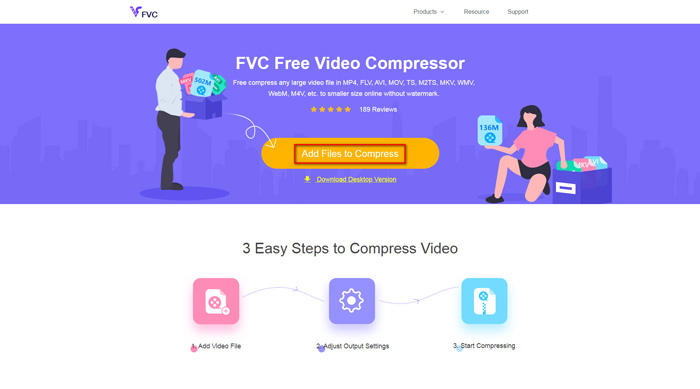
Trin 1. Gå til websitet for FVC Free Video Compressor i din browser. Du vil se en knap med teksten Add Files to Compress i banneret. Klik på den, og følg vejledningen for at downloade og installere FVC‑starteren på din computer.
Trin 2. Derefter skal du vælge den M4V‑fil, du vil komprimere. Så kan du flytte skyderen bagved Size-feltet for nemt at justere og finde den præcise filstørrelse, du ønsker. Du kan også ændre opløsning og bitrate hver for sig efter dine behov.
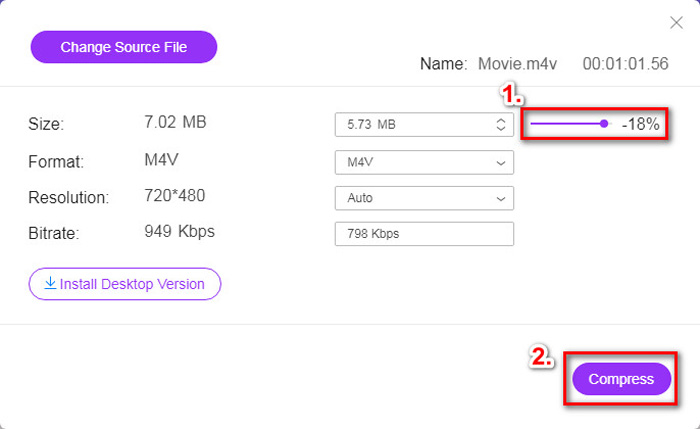
Trin 3. Hvis du vil komprimere M4V til MP4, skal du vælge MP4 som outputformat her. Hvis ikke, kan du klikke på Compress i højre hjørne direkte. Vælg en mappe til at gemme den komprimerede video, og vent et par sekunder, til du får den ønskede video.
Del 2. Sådan reduceres M4V-filstørrelse på Mac / Windows
Da M4V er et format udviklet af Apple, kan du også bruge Apples standardafspiller, QuickTime Player, til at komprimere M4V‑filer på Mac. QuickTime Player tilbyder også en Windows‑version til PC‑brugere. Men du skal være opmærksom på, at den seneste version til Windows er QuickTime 7.7.9, som blev udgivet i 2016. Så hvis det, du ønsker, er et nyere program, kan du prøve FVC Free Video Compressor, som endda kan håndtere 4K‑videoer.
Under alle omstændigheder skal du følge nedenstående trin for at reducere M4V-filstørrelsen i QuickTime.
Trin 1. Åbn M4V‑filen, der skal komprimeres, med QuickTime.
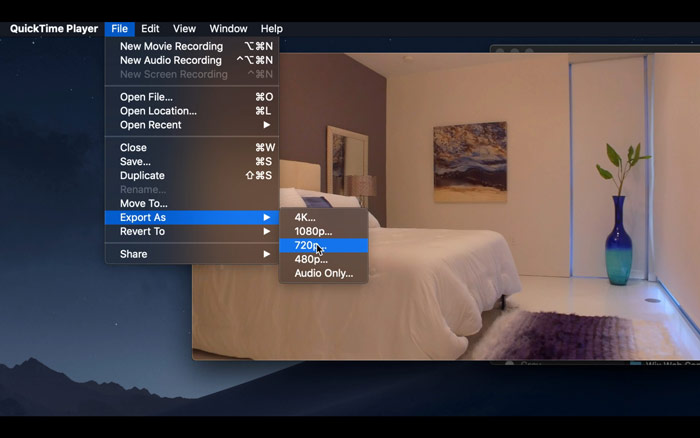
Trin 2. Find menuen File i øverste venstre hjørne. Klik på den, og find valgmuligheden Export As på listen. Vælg derefter en opløsning, der er lavere end den oprindelige video, for at komprimere videoen. Når alt kommer til alt, ønsker vi ikke at øge størrelsen her.
Trin 3. Hvis du ikke vil ændre gemmesti, kan du blot klikke på Save. Vent venligst tålmodigt, mens videoen eksporteres.
Del 3. Ofte stillede spørgsmål om komprimering af M4V
1. Kan jeg bare omdøbe M4V til MP4?
Nej, hvis det, du mener, er at konvertere M4V til MP4 ved blot at omdøbe filendelsen til .mp4. For deres kodning er ikke den samme. Du bør bruge et mere professionelt værktøj til at konvertere M4V til MP4.
2. Accepterer YouTube M4V-formatet?
Desværre understøtter YouTube kun et begrænset antal filformater, der ikke inkluderer M4V. Så hvis du vil uploade din M4V-video til YouTube, skal du konvertere den til et YouTube-understøttet format som MP4.
3. Hvordan flettes flere M4V-videoer til en?
Hvis du har flere M4V‑videofiler, der skal kombineres til én, kan du prøve FVC Free Online Video Merger til at flette forskellige videofiler.
Konklusion
Nu har du 2 enkle og gratis måder at komprimere M4V‑fil på. Hvis du er Mac‑bruger, kan du bruge QuickTime Player til at reducere videostørrelsen. Men hvis du ikke er tilfreds med de faste opløsninger, QuickTime tilbyder, eller du bruger en Windows‑PC, kan du give FVC Free Video Compressor en chance.
-
 M4V til MP3 Converter - 4 bedste metoder til at udtrække MP3 fra M4V filer
 Når du nemt vil udtrække MP3-lyd fra M4V-videoer, kan du lære mere om de 4 bedste M4V til MP3-konvertere for at få de ønskede lydfiler fra artiklen.
-
 4 måder at konvertere QuickTime-film til MP4 gratis på telefon / computer
 Læs og få 4 måder at konvertere QuickTime til MP4-videoer gratis på din telefon eller computer. Du kan nemt ændre filformat fra MOV til MP4 på Windows / Mac / iPhone / Android / online.
-
 4 bedste MP4 til M4V-konvertere til at gøre MP4-videoer til M4V med lethed
 Når du har brug for at ændre MP4 til M4V-filer, skal du lære flere detaljer om forskellene mellem de to formater samt de bedste MP4 til M4V-konvertere fra artiklen.
