


 Video Converter Ultimate
 Skærmoptager
 Video reparation
 Sikker download
Guide, hvordan man roterer en video på en iPhone og iPad med de bedste værktøjer
Er du træt af at knibe øjnene sammen for at se videoer, der er sidelæns eller på hovedet på din iPhone? Det har vi alle prøvet. Den gode nyhed er, at du ikke længere behøver at leve med skæve optagelser. Med få enkle trin kan du lære hvordan man roterer videoer på en iPhone og få dem til at se ud præcis, som du vil. Uanset om du er spirende filmmager, en influencer på sociale medier eller bare en, der kan lide at forevige særlige øjeblikke, er det en nyttig færdighed at vide, hvordan man justerer orienteringen på sine videoer.
I dette blogindlæg viser vi dig, hvordan du roterer videoer på din iPhone som en professionel, så du kan fremvise dine optagelser på den bedst mulige måde. Så gør dig klar til at tage dit videoredigeringsspil til næste niveau!

Del 1. Sådan roteres en video på iPhone
1. Fotos
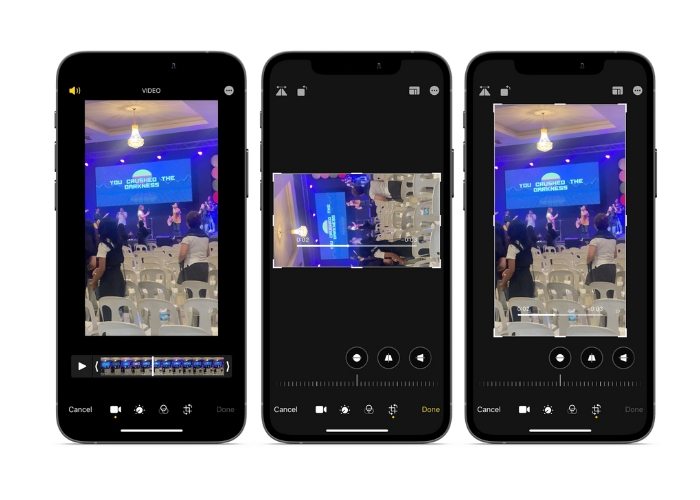
Hvis du er iPhone-bruger, er du sandsynligvis allerede bekendt med appen Fotos. Det er go-to-appen til at organisere og redigere dine billeder og videoer, og den er spækket med funktioner, der gør det nemt at administrere dit mediebibliotek. Denne app er ikke kun til at organisere og redigere billeder. En nyttig funktion er muligheden for at rotere videoer, hvilket kan være en livredder, hvis du ved et uheld har filmet noget i den forkerte retning. Se trinene for at lære, hvordan du konverterer en portrætvideo på iPhone-videolandskab eller omvendt.
Trin 1. Åbn Fotos‑appen på din iPhone, og vælg det klip, du vil rotere.
Trin 2. Tryk derefter på knappen Rediger øverst til højre på skærmen.
Trin 3. Tryk på knappen Beskær og roter, som ligner et kvadrat med en pil, der buer rundt om det.
Trin 4. Brug to fingre til at dreje videoen i den retning, du ønsker, for at rotere den. Du kan også bruge skyderen nederst på skærmen til at finjustere rotationen. Når du har roteret videoen til den ønskede orientering, skal du trykke på OK nederst til højre på skærmen. På den måde fungerer Fotos‑appen også som en app til at rotere videoer for iPhone‑brugere.
2. iMovie
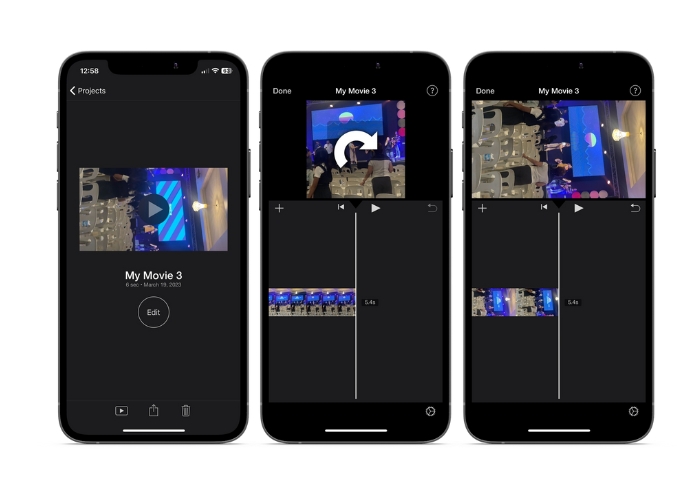
For håbefulde filmskabere, indholdsskabere eller bare nogen, der elsker at fange særlige øjeblikke på video, så skal du tjekke iMovie. iMovie er en kraftfuld videoredigeringsapp til Apple-enheder, der lader dig skabe fantastiske film. Med iMovie kan du nemt rotere dine videoer og sikre, at de ser perfekte ud til enhver skærmstørrelse eller betragtningsvinkel. Følg instruktionerne nedenfor for at udføre iMovie-rotation af video på en iPhone.
Trin 1. Start først iMovie på din iPhone. Opret derefter et nyt projekt.
Trin 2. Vælg derefter den video, du vil redigere, fra telefonens galleri.
Trin 3. Læg to fingre på videoen i forhåndsvisningspanelet. Drej derefter med eller mod uret for at rotere videoen.
Trin 4. Tryk til sidst på knappen OK øverst i venstre hjørne af skærmen. Sådan får du en video til at rotere på en iPhone ved hjælp af iMovie.
3. Video Roter & Vend
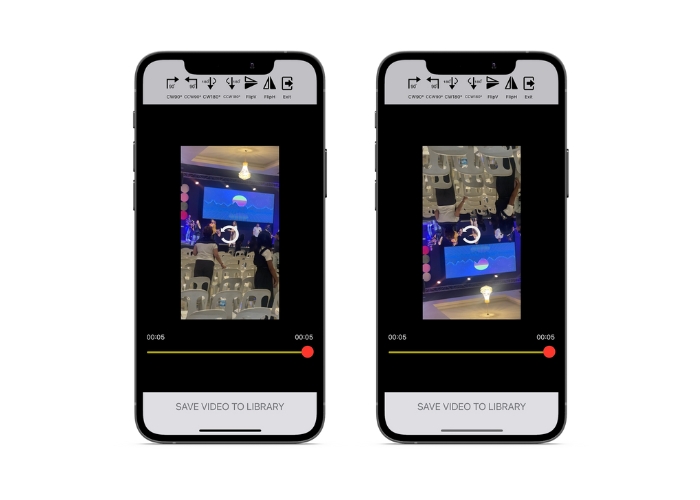
Video Rotate & Flip er en tredjepartsapp, som du kan downloade fra App Store. Det giver dig mulighed for nemt at rotere og vende videoer. Du skal blot åbne appen, vælge den video, du vil rotere, og bruge rotationsværktøjet til at justere vinklen på videoen. Du kan også bruge vendeværktøjet til at vende videoen vandret eller lodret. Når du er færdig, skal du gemme videoen på din kamerarulle eller dele den direkte fra appen.
Trin 1. Installer programmet fra Play Store. Åbn appen, og tryk på pil‑op‑knappen på hovedskærmen for at vælge den video, du vil rotere.
Trin 2. Når du har valgt videoen, vises den i forhåndsvisningsvinduet. Du kan bruge kontrollerne under forhåndsvisningsvinduet til at rotere videoen 90 grader med eller mod uret eller vende den vandret eller lodret.
Trin 3. Når du har roteret eller vendt videoen til den ønskede orientering, skal du trykke på knappen Gem for at gemme ændringerne. Det er sådan, du får en video til at rotere på en iPhone med dette program.
Del 2. Sådan roterer du en video på en iPad
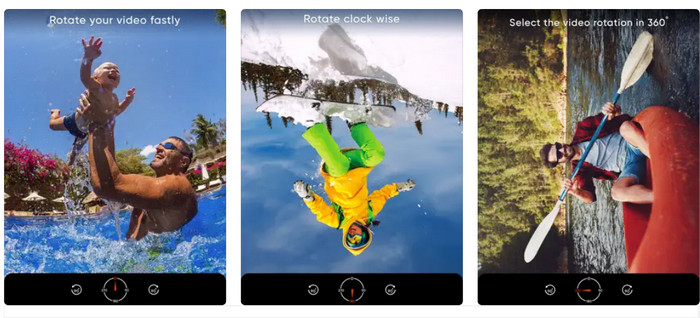
Hvis du ønsker at arbejde på en større skærm som en iPad, kan du bruge Video Rotate. Det er en tredjepartsapp, som du kan downloade fra App Store. Den gør det let at rotere videoer, og du kan også vende dem vandret eller lodret efter behov. Video Rotate kan mere end blot at dreje videoer. Den har også andre nyttige funktioner. Du kan klippe videoen for at fjerne dele, du ikke vil have med, ændre lysstyrke og kontrast eller endda tilføje tekst eller effekter.
Trin 1. Hent appen Video Rotate fra App Store, og installer den på din iPad.
Trin 2. Åbn appen, og tryk på knappen Vælg video for at vælge den video, du vil rotere. Du vil se videoen afspille på skærmen.
Trin 3. Brug rotationskontrollerne nederst på skærmen for at rotere videoen. Du kan rotere videoen 90 grader til venstre eller højre ved at trykke på den tilsvarende knap. Du kan også vende videoen vandret eller lodret ved at trykke på knappen Flip.
Del 3. Sådan roteres iPhone-videoer på en computer
Hvis du ønsker at lære, hvordan man roterer videoer på en pc, kan du bruge FVC Video Converter Ultimate. Det er en alsidig og komplet videokonverter, som også kan fungere som en kraftfuld videorotator. Den tilbyder en brugervenlig grænseflade og understøtter en bred vifte af videoformater, herunder MP4, AVI, MOV og mange andre. For at lære mere om dette værktøj kan du følge de angivne trin.
Trin 1. Hent værktøjet, og installer det.
Først skal du have fat i appen og installere programmet på din computer. Start derefter med det samme.
Free DownloadTil Windows 7 eller nyereSikker download
Gratis downloadTil macOS 10.7 eller nyereSikker download
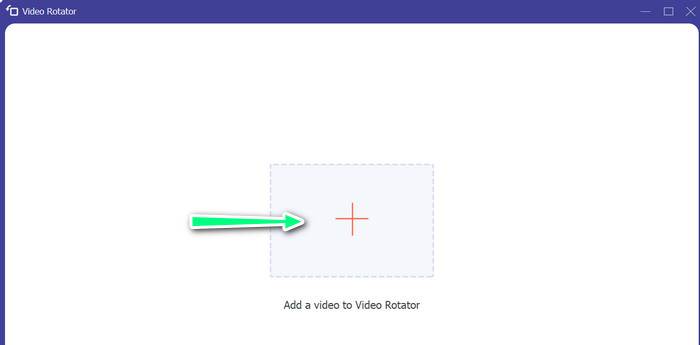
Trin 2. Tilføj en videofil
Klik derefter på fanen Værktøjskasse, og brug programmets funktion Video Rotator. Når du har klikket på denne mulighed, bliver du bedt om at uploade din video. Klik nu på plus-tegnet for at tilføje den video, du ønsker.
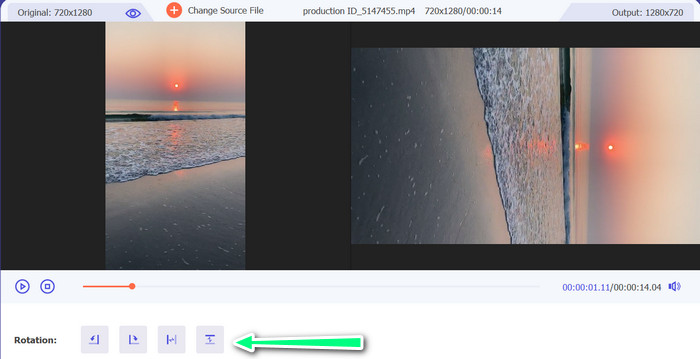
Trin 3. Drej videoen
På dette tidspunkt skal du klikke på knappen, der får videoen til at se ud, som du vil have den. Da forhåndsvisningen er live, kan du hurtigt foretage ændringer.
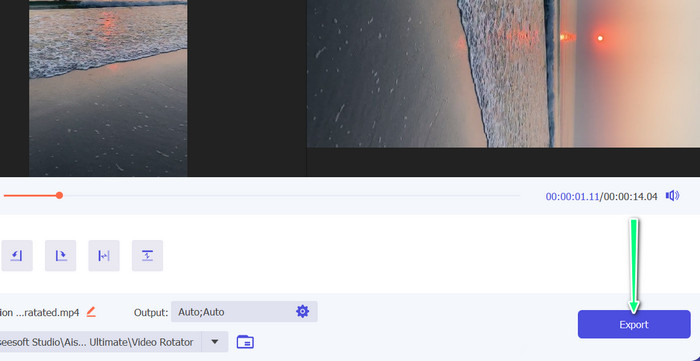
Trin 4. Få en kopi af den roterede video
Til sidst skal du klikke på knappen Eksporter for at få en kopi af den video, du lige har redigeret. Derefter dukker en meddelelse op, og mappen, hvor videoen ligger, vises.
Del 4. Ofte stillede spørgsmål om roterende videoer på iPhone
Hvorfor roterer iPhone-video ikke?
Der kan være flere årsager til, at din iPhone-video ikke vil rotere. De mest almindelige årsager er, at orienteringslåsen er slået til, videoformatet er ikke kompatibelt og mange andre.
Hvordan tager man portrætvideo på iPhone 12?
For at tage en portrætvideo på din iPhone 12 skal du starte med at åbne Kamera-appen og stryge til venstre for at skifte til videotilstand. Tryk derefter på knappen 1× eller 2× for at vælge det kamera, du vil bruge. Derefter skal du kigge efter Portræt-indstillingen over udløserknappen og trykke på den for at vælge den.
Vil rotation af en video på min iPhone påvirke kvaliteten?
At rotere en video på din iPhone bør ikke påvirke kvaliteten, så længe du ikke ændrer størrelse på eller komprimerer videoen i processen.
Konklusion
At rotere videoer på en iPhone kan være en enkel og effektiv måde at forbedre dit visuelle indhold på. Med den indbyggede Fotos‑app eller tredjepartsapps kan du rotere videoer på en iPhone til den ønskede orientering og skabe flotte videoer uden at skulle bekymre dig om orienteringen på det originale materiale.
-
 [4 løsninger] Sådan sænker du en video på iPhone som en professionel
 Har du problemer med at bremse en video på iPhone? Hvis du støder på dette problem, skal du ikke bekymre dig mere, for vi hjælper dig med at løse problemet ved at læse denne artikel.
-
 Sådan forkortes en video på iPhone [detaljerede vejledninger]
 Er du iPhone-bruger og vil du trimme dine videoer? Bekymre dig ikke mere. Denne guidepost vil give alle detaljer om, hvordan man klipper en video på iPhone og iPad.
-
 Rediger som en professionel: Sådan beskærer du dine iPhone-videoer uden problemer
 Hvis du ønsker at tage dine iPhone-videoredigeringsfærdigheder til det næste niveau, er videobeskæringsapps en game-changer. Vi dækker nogle af de bedste videobeskæringsapps til iPhone.
