


 Video Converter Ultimate
 Bildschirm recorder
 Videoreparatur
Hilfreiche Tipps zum Erstellen von Zeitlupenvideos in iMovie
iMovie ist ein großartiger Video-Editor, der in jedem iOS- und Mac-Betriebssystem verfügbar ist. Diese Anwendung kann kostenlos heruntergeladen werden und bietet verschiedene Werkzeuge, die sehr hilfreich sind, um wesentliche Änderungen an Ihrem Video vorzunehmen – insbesondere, wenn es um die Wiedergabegeschwindigkeit oder das Erstellen eines Zeitlupenvideos geht. Da diese Anwendung benutzerfreundlich ist, ist es nicht schwierig zu verstehen und zu verwenden, um die gewünschte Zeitlupe auf Ihr Video anzuwenden. Um jedoch jedes Detail vollständig zu verstehen, um Zeitlupenvideos in iMovie zu erstellen, lesen Sie diesen Artikel und folgen Sie den Schritten sorgfältig.

Teil 1. So erstellen Sie Zeitlupenvideos in iMovie mit dem iPhone
Wie oben angegeben, funktioniert iMovie nur in iOS-Systemen wie dem iPhone. Um mit dieser Anwendung die besten Zeitlupenvideos zu erstellen, finden Sie hier die bereitgestellten Verfahren, die Sie auch bei der Verwendung dieser Anwendung anleiten.
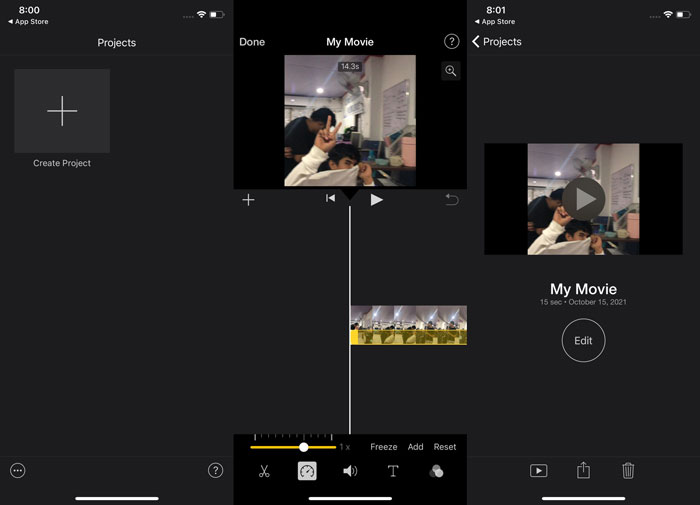
Schritt 1. Starten Sie auf Ihrem iPhone oder iPad die iMovie‑App. Die Schaltfläche Weiter wird angezeigt, wenn eine Übersicht der Benutzeroberfläche eingeblendet wird. Wählen Sie das Plus-Symbol + im Tab Projekte, um einen neuen Videoclip zu bearbeiten. Um fortzufahren, wechseln Sie zum Fenster Neues Projekt und wählen Sie Film.
Schritt 2. Nachdem Sie ein Video aus Ihrer Aufnahmenliste ausgewählt und unten auf dem Bildschirm auf die Schaltfläche Film erstellen getippt haben, können Sie das Geschwindigkeitswerkzeug, das wie ein Tachometer aussieht, finden, indem Sie auf einen Videoclip in der Zeitleiste tippen und warten, bis die Bearbeitungstools angezeigt werden. Wählen Sie dann eine der Optionen. Um Ihren Videoclip vor- oder zurückzuspulen, bewegen Sie einfach den gelben unteren Schieberegler nach rechts oder links. Sie können Elemente bis auf das Doppelte ihrer ursprünglichen Geschwindigkeit beschleunigen oder auf ein Achtel ihrer ursprünglichen Geschwindigkeit verlangsamen.
Schritt 3. Tippen Sie in der oberen linken Ecke des Bildschirms Ihres Telefons auf Fertig, wenn alles abgeschlossen ist. Um Ihren fertigen Film zu speichern, klicken Sie unten auf der Seite auf das Symbol Teilen und wählen Sie einen Speicherort aus.
Teil 2. So erstellen Sie Zeitlupenvideos in iMovie mit dem Mac
iMovie ist auch für Mac verfügbar und macht die besten Zeitlupenvideos auf einfachste Weise. Um zu wissen, wie Sie diese Art von Videos erreichen, die Sie sich wünschen, sind hier die Schritte, die Sie befolgen müssen:
Schritt 1. Ändern Sie die Geschwindigkeit des Clips in der iMovie-App auf Ihrem Mac, indem Sie ihn in der Zeitleiste auswählen und die Clipgeschwindigkeit anpassen.
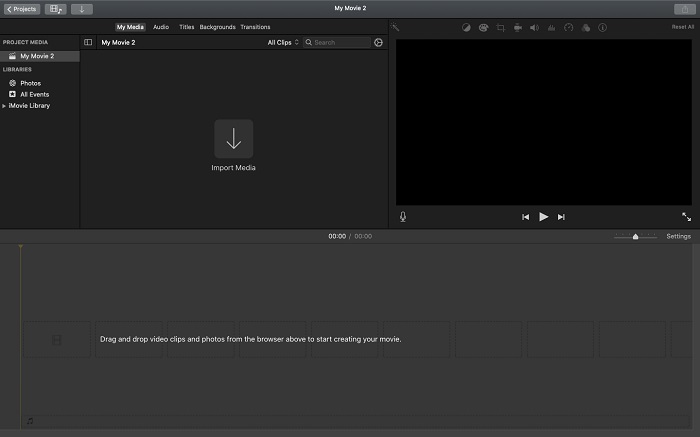
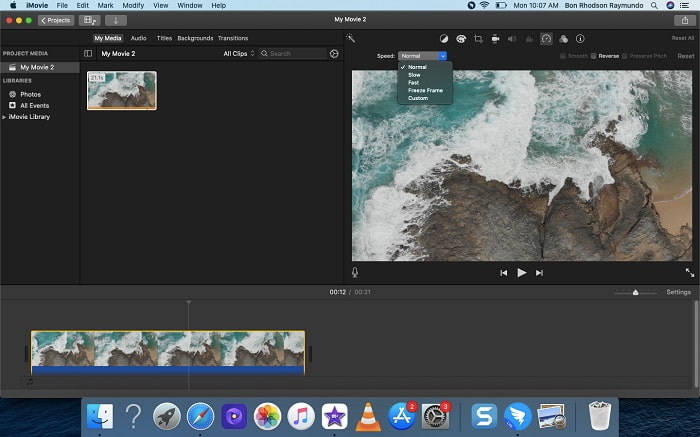
Schritt 2. Auf die Geschwindigkeitseinstellungen können Sie zugreifen, indem Sie auf die Schaltfläche Geschwindigkeit in der oberen rechten Ecke des Bildschirms klicken. Um Ihre Wiedergabegeschwindigkeit fein abzustimmen, wählen Sie einfach zwischen langsamen und schnellen Stufen über eine Geschwindigkeits-Schaltfläche auf dem Desktop Ihres Computers.
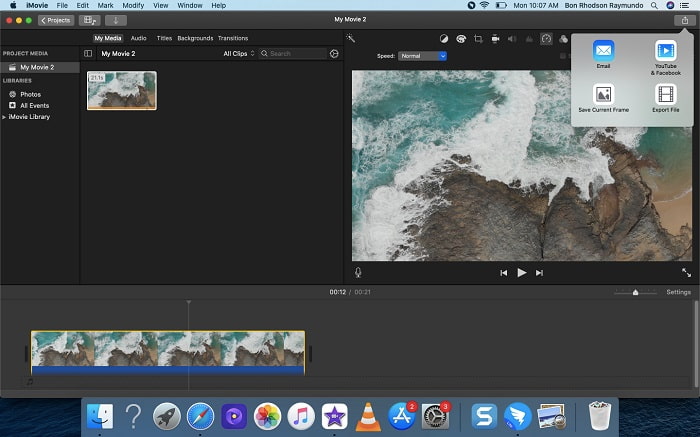
Schritt 3. Um die Datei auf der Festplatte Ihres Computers zu speichern, klicken Sie auf das Symbol Hochladen in der oberen rechten Ecke des Bildschirms.
Teil 3. Beste Alternative zum Erstellen von Zeitlupenvideos
Neben iMovie zum Erstellen von Zeitlupenvideos profitieren alle Desktop- und Laptop-Nutzer von dieser besten Alternative. Video Converter Ultimate ist eine kostenlos herunterladbare Software, die sowohl für Windows- als auch für Mac-Betriebssysteme verfügbar ist. Sie ist leicht zugänglich und verfügt über eine benutzerfreundliche Oberfläche, die verhindert, dass Sie Schwierigkeiten haben, die richtigen Werkzeuge zum Erstellen von Zeitlupenvideos zu finden. Sie bietet eines der besten Werkzeuge, den Video-Geschwindigkeitsregler (Video Speed Controller), den Sie zum Anpassen der Wiedergabegeschwindigkeit eines Videos verwenden können. Damit können Sie nun aus einem Video mit normaler Geschwindigkeit ein Zeitlupenvideo machen. Um mehr Details darüber zu erfahren, wie Sie diese Software nutzen können, um die gewünschte Zeitlupe zu erzielen, finden Sie hier die Schritte, die Sie kennen müssen:
Schritt 1. Bevor Sie die Software verwenden, müssen Sie sie zunächst herunterladen, indem Sie auf den Downloadlink unten klicken, entsprechend Ihrem Betriebssystem. Die Installation ist so einfach wie das Herunterladen auf Ihren Desktop und ein Klick auf Jetzt starten, um zu beginnen.
Gratis DownloadFür Windows 7 oder neuerSicherer Download
Gratis DownloadFür MacOS 10.7 oder neuerSicherer Download
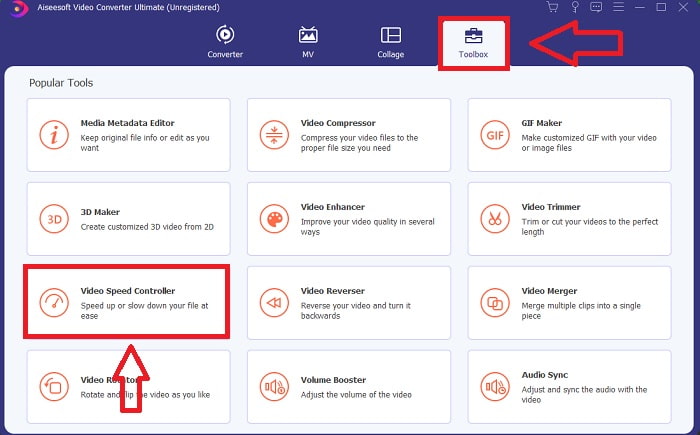
Schritt 2. Wenn Sie das Programm gestartet haben, sehen Sie in der Hauptoberfläche der Software die Funktion Converter. Verwenden Sie als Nächstes die Funktion Toolbox, um das zu finden, was Sie zum Erstellen von Zeitlupenvideos benötigen. Wenn Sie die Geschwindigkeit Ihres Videos ändern oder einfach ein Zeitlupenvideo erstellen möchten, wählen Sie Video Speed Controller aus der Liste der verfügbaren Werkzeuge.
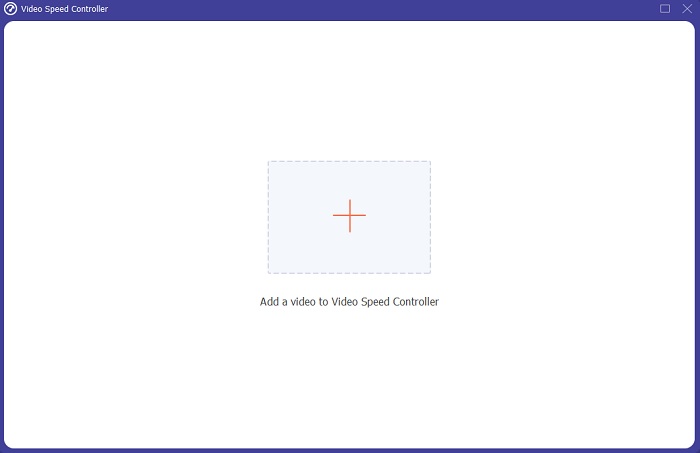
Schritt 3. Nachdem Sie fortgefahren sind, öffnet sich ein weiteres Fenster auf dem Bildschirm Ihres Computers. Um mit der Bearbeitung zu beginnen, klicken Sie auf das Pluszeichen +.
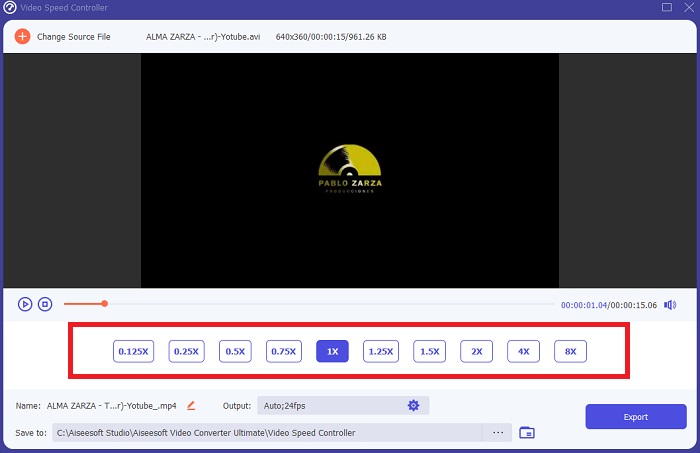
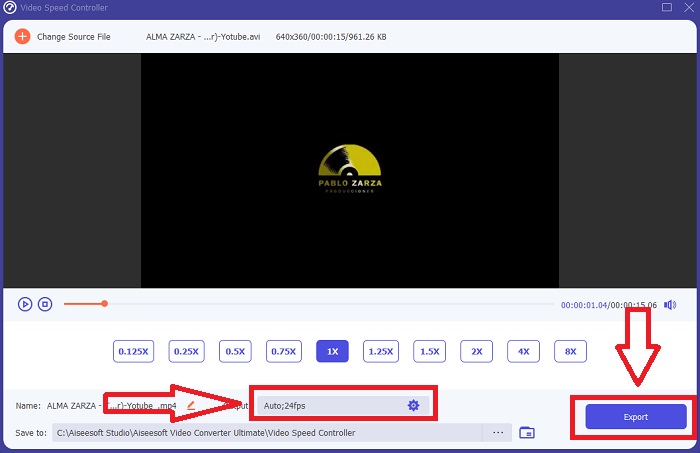
Schritt 4. Um mit der Bearbeitung zu beginnen, wählen Sie, um wie viel sich die Bildrate des Videos während der Wiedergabe erhöhen oder verringern soll, um zu sehen, wie schnell oder langsam es laufen wird; dies bestimmt den Zeitlupeneffekt, den Sie auf Ihr Video anwenden. Da Sie ein Zeitlupenvideo erstellen, werden Sie die Geschwindigkeit verringern, indem Sie eine Videogeschwindigkeit unterhalb der durchschnittlichen Geschwindigkeit auswählen. Wenn Sie mit der Geschwindigkeit Ihres Videos zufrieden sind, können Sie nun dessen Qualität feinabstimmen, indem Sie Format, Auflösung, Bildrate usw. ändern. Sie haben außerdem die Möglichkeit, Ihr Video-Output umzubenennen.
Schritt 5. Klicken Sie auf Exportieren und wählen Sie einen Speicherort im Dateisystem Ihres Computers, um Ihre Arbeit zu sichern.
Verwandt:
Wie man MP4‑Videos verlangsamt
Teil 4. Häufig gestellte Fragen zum Erstellen von Zeitlupenvideos in iMovie
Was ist, wenn iMovie nicht funktioniert?
Sofern keine Option verfügbar ist, ist der Videoclip nicht lang genug, um die beschleunigte Wiedergabe zu unterstützen. Es ist auch möglich, dass Sie Ihr Video konvertieren müssen. Bestimmte Arten von Videos, z. B. solche, die auf einem iPhone oder in H.264 auf einem Flip-Camcorder aufgenommen wurden, müssen konvertiert werden, bevor die Geschwindigkeit geändert wird. Klicken Sie im Projektbrowser auf die Videodatei und doppelklicken Sie darauf, um sie zu öffnen. Wenn Sie im sich öffnenden Inspektor die Schaltfläche Gesamten Clip konvertieren sehen, wählen Sie sie aus. Wiederholen Sie den Clip und fahren Sie dann mit dem Zeitlupen-/Schnellvorlauf-Prozess fort.
Können Sie ein Zeitraffervideo auf iMovie verlangsamen?
Ihr Zeitraffervideo wird abgespielt, sobald Sie den Auslöser loslassen, um die Aufnahme zu beenden. Der Schieberegler für die Zeitraffergeschwindigkeit befindet sich ganz unten auf dem Bildschirm. Wenn Sie die Aufnahme bei gedrücktem Auslöser stoppen, beginnt die Wiedergabe Ihres Zeitraffervideos automatisch. Der Schieberegler für die Zeitraffergeschwindigkeit befindet sich ganz unten auf dem Bildschirm.
Wie verlangsamt man Youtube-Videos?
Spielen Sie ein Video in der Youtube-App ab, suchen Sie das Zahnradsymbol oder das Einstellungssymbol. Klicken Sie auf Wiedergabegeschwindigkeit und wählen Sie die Optionen oberhalb der normalen Geschwindigkeit aus, um mit der Verlangsamung des wiedergegebenen Videos zu beginnen.
Fazit
Abschließend lässt sich sagen, dass iMovie ein großartiger Video-Editor ist, der ausschließlich für iOS- und Mac-Betriebssysteme verfügbar ist. Aber was ist, wenn Sie Windows verwenden, um ein Zeitlupenvideo zu erstellen? Wir empfehlen die Verwendung von Video Converter Ultimate, um das gewünschte Zeitlupenvideo zu erreichen. Diese Software ist für Windows und Mac verfügbar. Außerdem ist sie kostenlos und bietet eine Vielzahl von Werkzeugen zur Videobearbeitung. Sie verfügt zudem über ein Werkzeug, das insbesondere zum Anpassen der Wiedergabegeschwindigkeit verwendet wird und so Zeitlupenvideos ermöglicht. Neben den integrierten Werkzeugen unterstützt sie auch verschiedene Videoformate, damit Sie Ihr Video problemlos konvertieren können.
-
 [Kostenlos & kostenpflichtig] GIF Speed Changer: Hot Picks von 2021
 Sind Sie mit dem GIF, das Sie online erstellt haben, unzufrieden, da es mühsam und langsam ist? Dies wird Ihr Glückstag sein, denn wir präsentieren einen Artikel über den GIF-Geschwindigkeitswechsler und die Details, die Ihnen bei der Verwendung und Beherrschung helfen.
-
 Top 4 Videoplayer mit Geschwindigkeitsregler im Jahr 2021
 Haben Sie die Wiedergabegeschwindigkeit jedes Mediaplayers nicht bemerkt, wenn Sie ein Video abspielen? Dieser Artikel ist für Sie geeignet, um alles über Videoplayer mit Geschwindigkeitsregelung zu erfahren.
-
 3 Möglichkeiten, Videos auf dem iPhone zu beschleunigen [Bewährt&93;
 Haben Sie Probleme beim Anpassen der Wiedergabegeschwindigkeit Ihres Videos, weil Sie ein iPhone verwenden? Dies ist ein ausgezeichneter Artikel, um Ihnen bei Ihrem Problem zu helfen.
