


 Video Converter Ultimate
 Bildschirm recorder
 Videoreparatur
2 der besten M4V-zu-FLV-Konverter für Windows/Mac/Online
Ein Video- und Audio-Container, der in erster Linie für die Nutzung in Apple iTunes entwickelt wurde: M4V. Dieses Format ist durch DRM-Kopierschutz gesichert, um Urheberrechtsverletzungen zu vermeiden. Daher ist die Datei schwer abspielbar, wenn Sie kein iTunes‑Konto mit gültigen Zugangsdaten besitzen. Wenn Sie die Videos also auf Ihrem PC oder Android‑Telefon ansehen möchten, müssen Sie sie in ein abspielbares FLV-Format umwandeln. Um zu erfahren, wie Sie M4V in FLV konvertieren, lesen Sie diesen Artikel und verschaffen Sie sich einen kurzen Überblick über M4V und FLV.

Teil 1. Erste Wahl zum Konvertieren von M4V in FLV auf Mac und PC
Dies ist der effizienteste Konverter, den Sie gern verwenden werden, besonders wenn Sie M4V in FLV auf dem Mac oder PC umwandeln möchten. FVC Video Converter Ultimate ist der Konverter, auf den sich bereits viele Nutzer verlassen. Wenn Sie außerdem ein multifunktionales Tool mit beeindruckender Ausgabequalität suchen, ist dies ein Muss. Sie können damit jede Mediendatei konvertieren und die Qualität auf SD, HD, 1080p oder sogar 4K‑Videos einstellen. Erwarten Sie nichts Geringeres, wenn Sie dieses Tool auf Ihrem Laufwerk installieren, denn wie der Name schon sagt, ist es „Ultimate“. Befolgen Sie zudem das unten beschriebene Tutorial, wenn Sie die maximale Konvertierungsleistung dieses Tools erleben möchten.
So konvertieren Sie M4V in FLV mit Hilfe von FVC Video Converter Ultimate:
Schritt 1. Klicken Sie auf die Download-Schaltfläche unten und wählen Sie das Betriebssystem, das Sie derzeit verwenden. Nach dem Herunterladen klicken Sie auf Installieren, eine Willkommensoberfläche erscheint, und dann drücken Sie Jetzt starten.
Gratis DownloadFür Windows 7 oder neuerSicherer Download
Gratis DownloadFür MacOS 10.7 oder neuerSicherer Download
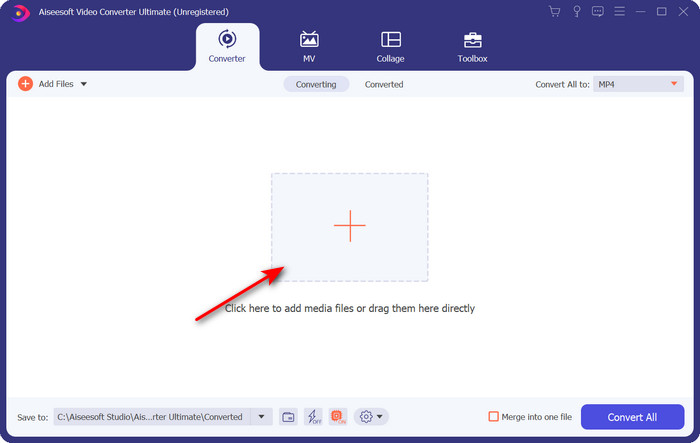
Schritt 2. Starten Sie das Tool, klicken Sie auf das +-Symbol in der Mitte der Oberfläche und wählen Sie die .m4v‑Datei im sich öffnenden Ordner aus, klicken Sie darauf und drücken Sie Öffnen.
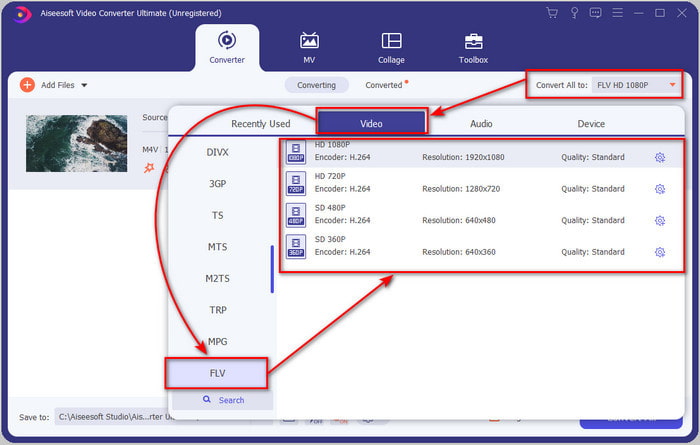
Schritt 3. Sobald sich die .m4v‑Datei in der Oberfläche befindet, klicken Sie auf Alle konvertieren in und suchen Sie das Format FLV.
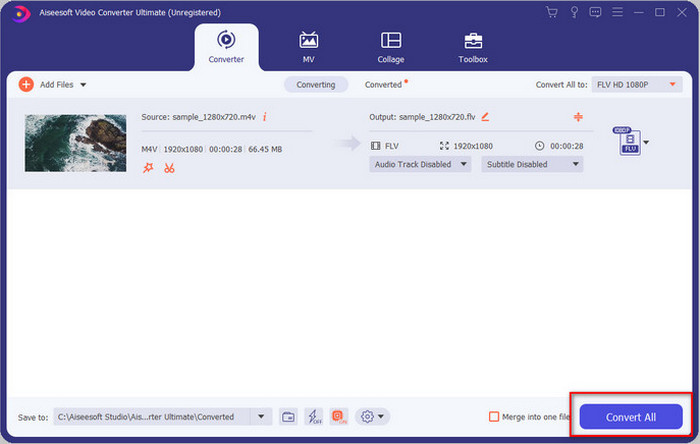
Schritt 4. Klicken Sie anschließend auf Alle konvertieren, um mit der Umwandlung von M4V in FLV zu beginnen.
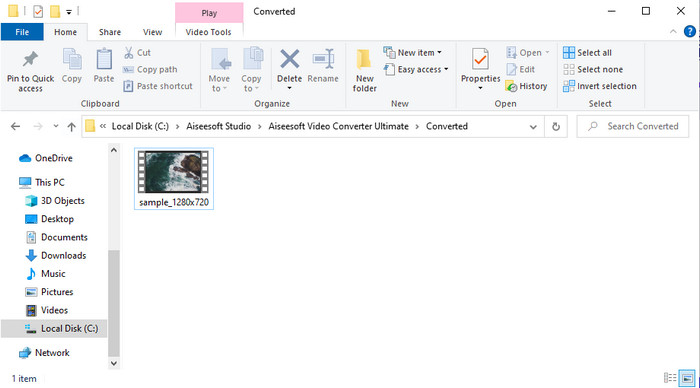
Schritt 5. Das Konvertieren der Datei dauert dank der schnellen Umwandlung dieses Tools weniger als eine Minute. Ein Ordner mit Ihrer konvertierten Datei wird angezeigt; klicken Sie auf die Datei, um sie anzusehen oder online zu teilen.
Vorteile
- Schnelle Konvertierung und Hardwarebeschleunigung sind für das beste Erlebnis verfügbar.
- Verfügbar auf allen Plattformen wie PC oder Mac.
- Das Bearbeiten von Videos, um sie hervorragend zu machen, kann hier übertroffen werden.
Nachteile
- Zahlung vor Gebrauch, aber der Preis ist erschwinglich.
- Laden Sie die Software vor der Verwendung herunter.
Teil 2. 2. Wahl zur kostenlosen Konvertierung von M4V in FLV über das Internet
Das Online-Konvertieren Ihrer Dateien kann besonders effizient sein, wenn Sie ein geeignetes Tool verwenden, um M4V online in FLV zu konvertieren, etwa den FVC Free Video Converter Online. Dieses Online-Tool ist der beste Konverter, auf den Sie in allen Webbrowsern mit Internetverbindung zugreifen können. Außerdem können Sie hier ohne Größenbeschränkung konvertieren, allerdings ist keine Stapelkonvertierung möglich. Auch wenn die Online‑Software hervorragend ist, ist eine Internetverbindung zwingend erforderlich. Wenn Sie also keine haben, ist dieses Tool – wie andere Web‑Konverter auch – keine Option. Haben Sie jedoch eine Internetverbindung und möchten eine rundum gelungene, kostenlose Online‑Konvertierung erleben, sollten Sie die folgenden Schritte befolgen.
So konvertieren Sie M4V in FLV mit Hilfe des FVC Free Video Converter Online:
Schritt 1. Klicken Sie auf diesen Link, um zu dem kostenlosen Online‑Konverter zu gelangen, den FVC Ihnen zur Verfügung stellt.
Schritt 2. Klicken Sie auf der Weboberfläche auf Dateien zum Konvertieren hinzufügen, um das Installationsprogramm herunterzuladen. Sobald der Download des Installationsprogramms abgeschlossen ist, klicken Sie erneut auf Dateien zum Konvertieren hinzufügen; ein Ordner öffnet sich, in dem Sie die M4V‑Datei auswählen.
Laden Sie die Desktop‑Version herunter, um Dateien stapelweise zu konvertieren.
Schritt 3. Eine neue Weboberfläche erscheint; wählen Sie unten das Format FLV, indem Sie darauf klicken.
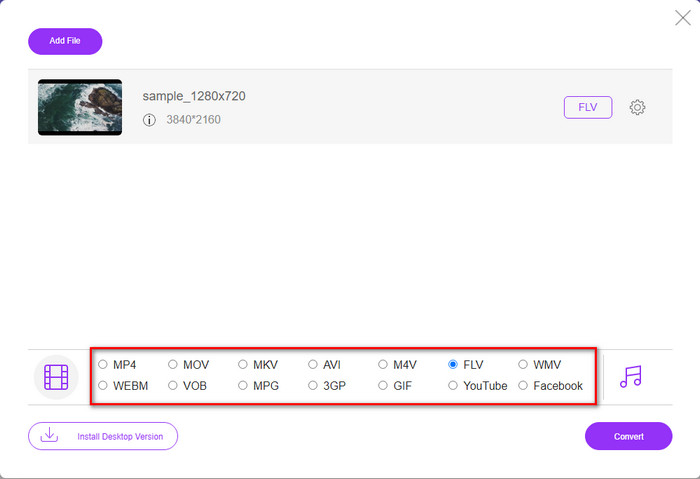
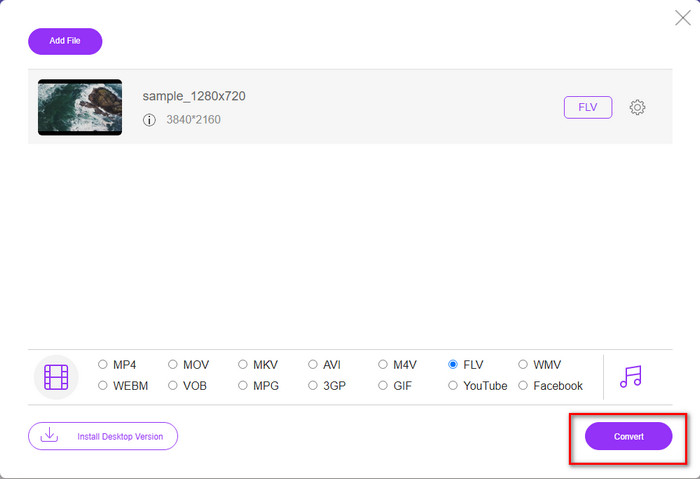
Schritt 4. Um nun kostenlos mit dem Konvertieren von M4V in FLV zu beginnen, klicken Sie auf Konvertieren.
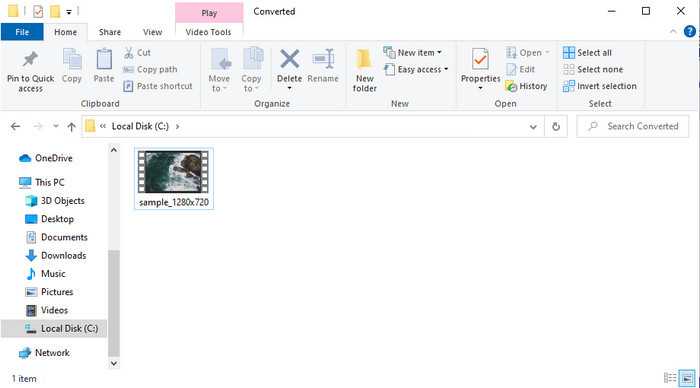
Schritt 5. Nach der Konvertierung wird auf der Oberfläche ein Ordner angezeigt; klicken Sie auf die Datei, um sie in Ihrem lokalen Medienplayer abzuspielen.
Vorteile
- Kostenlos und kompatibel in allen Webbrowsern.
- Unbegrenzte Dateigröße und Konvertierung.
- Sicher und werbefrei im primären Webtool.
Nachteile
- Für die Verwendung des Tools ist eine Internetverbindung erforderlich.
- Weniger unterstütztes Format zum Hochladen und Konvertieren.
Teil 3. Unterschiede zwischen M4V- und FLV-Formaten
M4V speichert die höchste Videoqualität, die in Ihrem Apple iTunes Store heruntergeladen wurde. Dieses Format ähnelt dem MP4, da es den MPEG-4-Codec als Kompressor verwendet. Die M4V-Videos sind jedoch durch den Apple FairPlay DRM-Urheberrechtsschutz geschützt. Das Abspielen von Videos in diesem Format ist also schwierig, da es nicht sofort abgespielt wird, wenn Sie sie auf einem anderen Mediaplayer als iTunes oder Quicktime Player einfügen. Auf ungeschützte M4V-Dateien kann auf Ihrem Mediaplayer zugegriffen werden, indem Sie die Dateierweiterung in .mp4 ändern.
Im Gegensatz dazu wird FLV verwendet, um Video- und Audiodaten so schnell wie möglich über das Internet zu übertragen. Flash-Video ist das günstigste Format, das auf jeder HTML-5-Website vorhanden ist. Dieses Format wurde jedoch eingestellt, da Adobe Flash bereits ausgemustert war. Sie können es jedoch immer noch auf Ihren Media Player-Plug-Ins abspielen, die Sie nach dem Herunterladen oder Konvertieren benötigen.
M4V im Vergleich zu FLV
M4V wurde von Apple entwickelt, das auch MPEG 4 verwendet. M4V-Dateien werden häufig zum Speichern von Videos verwendet, die aus dem Apple iTunes Store heruntergeladen wurden, wie Musikvideos, TV-Episoden usw. Einige M4V-Dateien sind möglicherweise kopiergeschützt, da sie verwendet werden Apples FairPlay DRM-Urheberrechtsschutz.
Adobe Flash Player verwendete FLV, um Videoinhalte wie Filme und Fernsehsendungen bereitzustellen. Heutzutage entwickelt Adobe den Player nicht mehr weiter und empfiehlt Benutzern, ihn aus Sicherheitsgründen zu deinstallieren. Sie können das FLV-Format jedoch weiterhin in vielen Nicht-Adobe/Macromedia-Programmen verwenden.
Teil 4. Häufig gestellte Fragen zur M4V-zu-FLV-Konvertierung
Welches ist besser; MP4 oder M4V?
Wenn Sie Ihre Datei schützen möchten, müssen Sie M4V verwenden, da dies nur auf Apples verfügbar und geschützt ist. Angenommen, Sie möchten ein Format, das mit allen Mediaplayern, dem Editor und mehr kompatibel ist. In diesem Fall ist MP4 das universelle Medienformat, das Sie gerne verwenden würden.
Kann ich M4V auf VLC abspielen?
VLC ist kostenlos, auf allen Plattformen verfügbar und kann fast alle Medienformate abspielen. Geschützte M4V‑Dateien können hier jedoch nicht wiedergegeben werden, da sie kopiergeschützt sind. Wenn Sie also .m4v‑Dateien in VLC ansehen möchten, müssen Sie die M4V‑Datei in MP4 oder AVI umwandeln.
Verliere ich die Qualität nach der Konvertierung von M4V?
Nach der Konvertierung von M4V sollte die Qualität die Standardrate der ursprünglichen M4V-Qualität beibehalten. Einige Konverter unterstützen jedoch nicht die Konvertierung des Videos in HD, 1080 oder 4k. Wählen Sie also besser das perfekte Tool und nicht das gute Tool, das Ihren Anforderungen beim Konvertieren genügt, ohne an Qualität zu verlieren.
Fazit
Alles in allem sind die hier vorgestellten Online‑ und Offline‑Tools hervorragend geeignet, wenn Sie M4V in FLV konvertieren möchten. Außerdem haben wir Einblicke in die beiden Formate M4V und FLV gewonnen. Auch wenn es notwendig ist, M4V zu verändern, um die geschützte Datei anzusehen, ist die Wahl des richtigen Tools für die jeweilige Aufgabe nicht immer leicht. Deshalb stellen wir Ihnen zwei Tools vor, mit denen Sie das Format kostenlos konvertieren können: den FVC Free Video Converter Online oder – wenn Sie neue Maßstäbe beim Konvertieren setzen möchten – den FVC Video Converter Ultimate. Worauf warten Sie also noch, wenn Sie Ihre M4V‑Dateien kostenlos ansehen möchten? Wählen Sie eines der oben genannten Tools, folgen Sie den schnellen und einfachen Schritten – und voilà, genießen Sie Ihr Video.
-
 [Anleitung] So konvertieren Sie M4V-Videos in animierte GIFs unter Windows/Mac
 Wenn Sie aus Ihren Lieblings-M4V-Videos animierte GIF-Dateien erstellen möchten, erfahren Sie mehr über 2 einfache und effiziente Möglichkeiten zum Konvertieren von M4V-Videos in GIFs mit benutzerdefinierten Einstellungen.
-
 3 Videokonverterprogramm zum Konvertieren von iTunes M4V in AVI auf dem Mac
 Haben Sie keine Ahnung, wie Sie MKV in ein AVI-Format konvertieren können? Während wir diesen Artikel weiterlesen, werden wir die 3 Tools kennen, die Ihnen bei der Konvertierung dieses Dateiformats helfen können.
-
 Kostenloser M4V-zu-MOV-Konverter – So konvertieren Sie M4V in MOV
 Wenn Ihr Mediaplayer M4V nicht unterstützt, hatten Sie jemals Probleme, einen Film auf Ihrem iPhone anzusehen? Das Hauptthema dieses Artikels ist die Konvertierung in eine MOV-Videodatei.

