


 Video Converter Ultimate
 Bildschirm recorder
 Videoreparatur
 Sicherer Download
Von 50 MB bis 5 MB - So komprimieren Sie MP4-Dateien in Sekunden
Nachdem Sie einige Videos aufgenommen haben, möchten Sie sie möglicherweise in die Instagram-Story hochladen oder mit Ihren Freunden teilen. Die meisten Social-Media-Plattformen haben jedoch eine Dateigrößenbeschränkung für Uploads. Wenn Sie also ein MP4-Video über WhatsApp senden oder Ihrer E-Mail einen MP4-Anhang hinzufügen, sind diese möglicherweise zu groß, um sie manchmal hochzuladen.
Um dieses Problem zu lösen, müssen Sie daher MP4-Dateien komprimieren, oder anders gesagt: Ihren Videos beim „Abspecken“ helfen.
Der folgende Artikel zeigt Ihnen, wie Sie die Größe von MP4-Videos verringern, ohne die Anzeigequalität zu beeinträchtigen.

Teil 1. So komprimieren Sie MP4-Videos online und kostenlos
Wenn Sie nach einem kostenlosen MP4-Kompressor online suchen, ohne Registrierung oder versteckte Gebühren, können Sie FVC Free Video Compressor ausprobieren. Damit können Sie jedes 4K-, HD- oder SD-Video ohne Wasserzeichen auf eine kleinere Dateigröße reduzieren. Und anders als bei vielen anderen Gratis-Kompressoren können Sie damit beliebig viele MP4-Videos kostenlos komprimieren – ohne Begrenzung der Dateigröße oder Videolänge.
Da dieser Kompressor ein webbasiertes Produkt ist, funktioniert er außerdem perfekt unter Windows, Mac und Linux. Sie können es problemlos online mit einem Browser verwenden, solange Sie mit dem Internet verbunden sind.
Führen Sie die folgenden Schritte aus, um dieses Komprimierungswerkzeug schnell zu beherrschen.
Schritt 1. Rufen Sie in Ihrem Browser den FVC Free Video Compressor auf und klicken Sie auf Add Files to Compress, um das Startprogramm auszuführen. Wenn Sie das Tool zum ersten Mal verwenden, laden Sie das Startprogramm bitte vorher herunter.
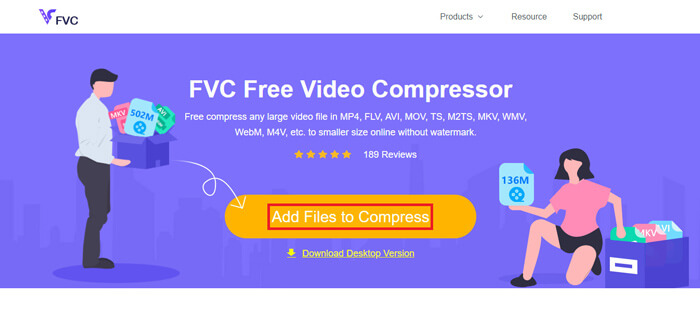
Schritt 2. Wählen Sie nach der Installation die MP4-Datei(en) aus, die Sie komprimieren möchten. Passen Sie Videogröße, Format, Auflösung und Bitrate nach Ihren Bedürfnissen an.
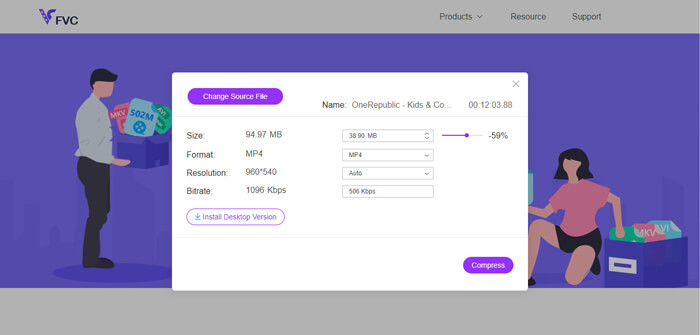
Schritt 3. Klicken Sie auf Compress, um die Komprimierung zu starten.
Teil 2. Komprimieren von MP4 mit einer Offline-Freeware
Wenn Ihr Netzwerk nicht so stabil ist, sollten Sie Videos lieber offline auf Ihrem Desktop komprimieren, um den Einfluss des Netzwerkstatus zu vermeiden.
Video Converter Ultimate ist eine All-in-one-Freeware zum Komprimieren, Konvertieren und Bearbeiten von Video- und Audiodateien auf Ihrem PC. Sie unterstützt über 1.000 Formate und bietet Ihnen 10 Optionen für die Ausgabeauflösung. Sie können das Video vor der Komprimierung umbenennen, damit Sie es später leicht von anderen MP4-Dateien unterscheiden können. Die völlig neue Version von Video Converter Ultimate enthält zahlreiche nützliche Bearbeitungsfunktionen und viele weitere leistungsstarke Features wie Metadaten-Editor, GIF-Maker, 3D-Maker, Video Enhancer usw.
Gratis DownloadFür Windows 7 oder neuerSicherer Download
Gratis DownloadFür MacOS 10.7 oder neuerSicherer Download
Schritt 1. Starten Sie Video Converter Ultimate auf Ihrem Computer.
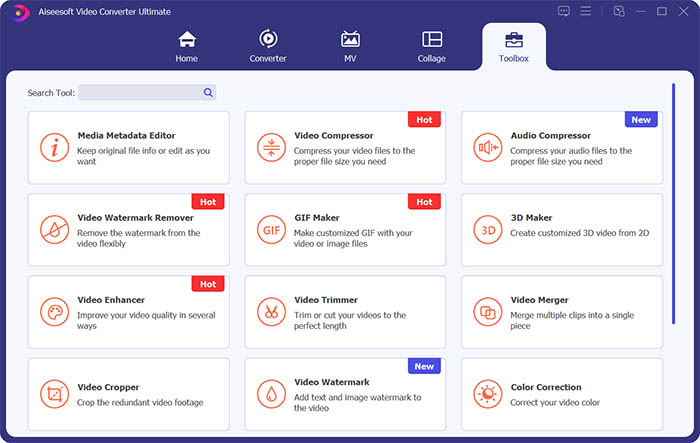
Schritt 2. Klicken Sie auf Toolbox. Suchen Sie in der Toolbox nach Video Compressor. Klicken Sie auf das +-Symbol, um ein zu komprimierendes Video hinzuzufügen.
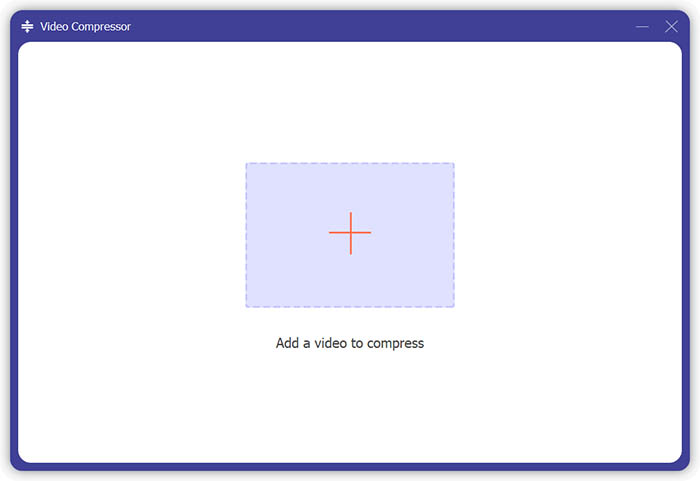
Schritt 3. Sie können die Größe, den Namen, das Format, die Auflösung und die Bitrate der Ausgabedatei anpassen.
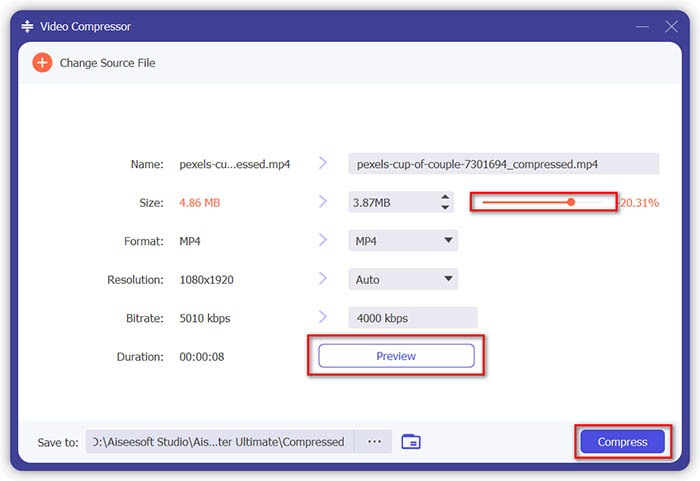
Schritt 4. Klicken Sie auf die Schaltfläche Compress und warten Sie, bis Sie Ihr MP4-Video erhalten.
Teil 3. Komprimieren von MP4-Dateien mit HandBrake
HandBrake ist auch ein kostenloses Tool zur Videokomprimierung, mit dem Sie die Größe von MP4-Dateien minimieren können.
Schritt 1. Laden Sie HandBrake auf Ihren Computer herunter und installieren Sie es. Öffnen Sie es dann und klicken Sie links auf File. Wählen Sie die Datei aus, die Sie komprimieren möchten.
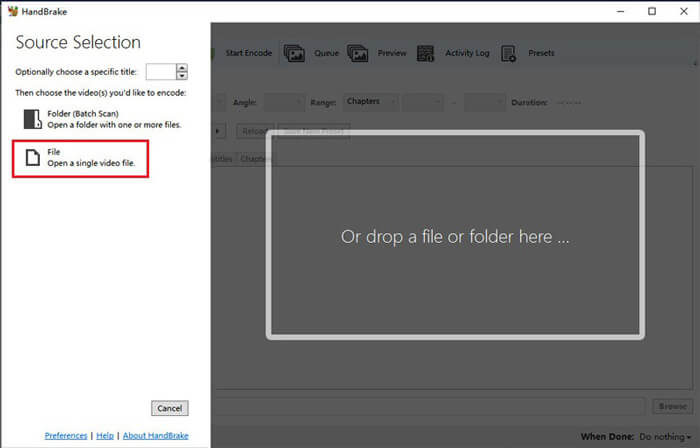
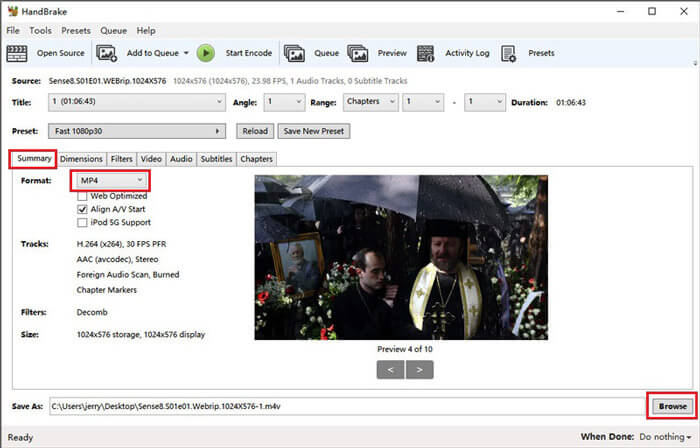
Schritt 2. Ändern Sie den Speicherort für das komprimierte Video, indem Sie auf Browse klicken. Sie können das Video auch umbenennen. Wählen Sie anschließend MP4 als Ausgabeformat.
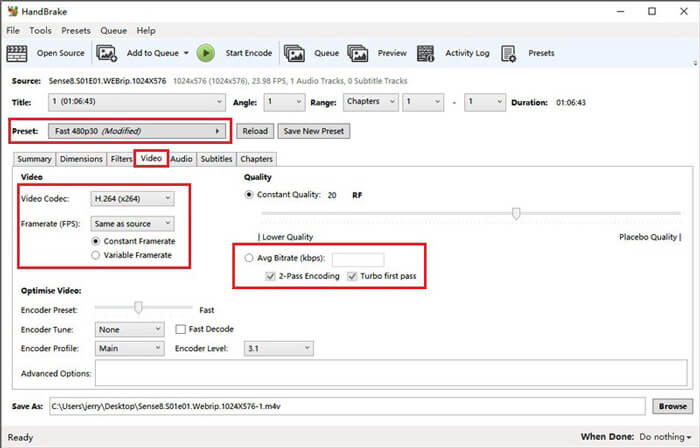
Schritt 3. Für das oben befindliche Preset reicht Fast 480p30 aus. Gehen Sie zum Reiter Video und prüfen Sie, ob der Video-Codec auf H.264 (x264) eingestellt ist. Wählen Sie die Bildrate entsprechend Ihrem Quellvideo. Wenn Sie nicht wissen, was Sie wählen sollen, nehmen Sie einfach Same as source. Aktivieren Sie Constant Framerate, um eine bessere Kompatibilität zu gewährleisten. Geben Sie eine Average Bitrate (kbps) für das Video ein (zwischen 5.000 und 10.000).
Schritt 4. Klicken Sie auf Dimensions und ändern Sie die Bildgröße bzw. Auflösung des Videos. Stellen Sie Anamorphic auf None und Modulus auf 2. Aktivieren Sie anschließend Keep Aspect Ratio. Falls nötig, können Sie mit dem Pfeil nach unten bei Width die Breite verringern.
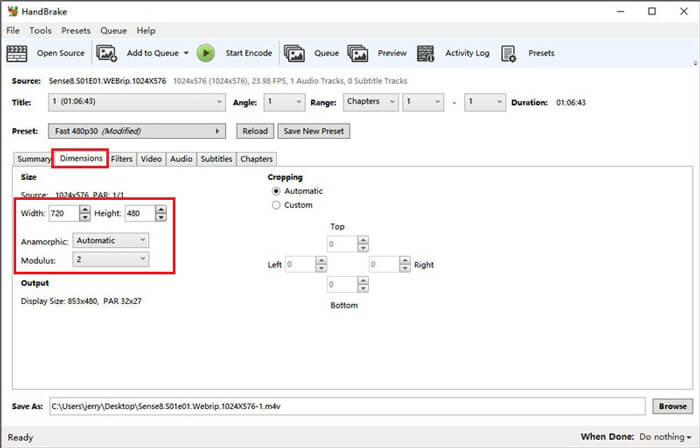
Schritt 5. Wählen Sie den Reiter Audio und klappen Sie das versteckte Einstellungsmenü auf. Wählen Sie 8 für die Samplerate und Stereo für Mixdown.
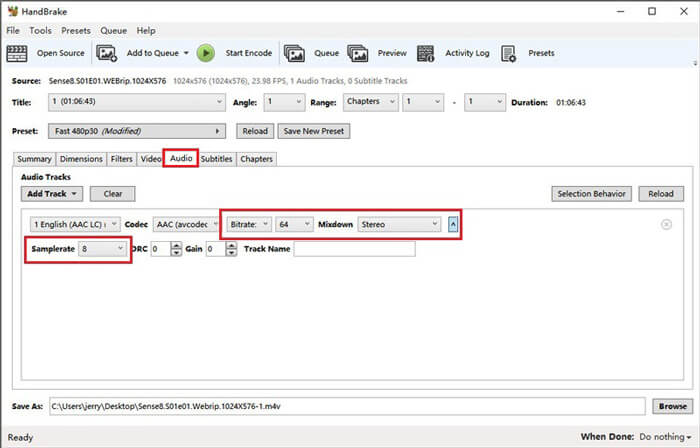
Schritt 6. Klicken Sie auf die Schaltfläche Start Encode, um mit der Komprimierung zu beginnen.
Für Anfänger empfehlen wir die Verwendung von HandBrake nicht, da es schwierig ist, die Parameter zu verstehen und anzupassen. Und es dauert wirklich lange, bis die komprimierte Datei verfügbar ist.
Teil 4. FAQs zur MP4-Komprimierung
1. Kann ffmpeg MP4 komprimieren?
Ja, Sie können die folgende Zeichenfolge verwenden, um eine MP4-Datei zu komprimieren:
$ ffmpeg -i input.mp4 -vcodec h264 -acodec mp2 output.mp4
Aber manche Nutzer stellen fest, dass die Dateigröße bei sehr kleinen Videos sogar zunimmt, anstatt zu sinken.
2. Kann HandBrake WMV, MOV und FLV exportieren?
HandBrake unterstützt nur die Komprimierung von Videos in die Formate MP4(.M4V) und MKV. Das bedeutet, dass es keine Dateien in anderen Formaten wie WMV, MOV, FLV, AVI usw. exportieren kann. Wenn Sie HandBrake verwenden, um komprimierte Videos zu erhalten, müssen Sie anschließend MP4 in WMV konvertieren oder in andere Formate umwandeln.
3. Verliert das Komprimieren von MP4-Videos an Qualität?
Bei der Komprimierung einer MP4-Datei von voller Größe auf eine kleinere geht die Qualität zwangsläufig – mehr oder weniger – verloren. Mit einem professionellen Videokompressor wie FVC Free Video Compressor und Video Converter Ultimate können Sie die ursprüngliche Bildqualität jedoch so weit wie möglich beibehalten. Außerdem kann ein guter MP4-Player zum Abspielen der MP4-Dateien dazu beitragen, eine hochwertige Wiedergabe zu erhalten.
Fazit
Bisher haben wir Ihnen 3 Methoden vorgestellt, um MP4 auf eine kleinere Größe zu komprimieren. Wenn Sie ungern zu viele Programme auf Ihrem Computer installieren, können Sie den FVC Free Video Compressor ausprobieren, der online verfügbar und kostenlos nutzbar ist. Wenn Sie jedoch einen leistungsstarken Video-Editor benötigen, ist Video Converter Ultimate die beste Wahl. Wir hoffen, dass dieser Beitrag für Sie hilfreich ist, und freuen uns, wenn Sie uns Ihre Meinung in einem Kommentar mitteilen.
-
 So konvertieren Sie MP4 in WMV für Mac / Windows
 In diesem Beitrag erfahren Sie, wie Sie MP4-Videos unter Mac oder Windows in das WMV-Format konvertieren. Wir bieten Ihnen auch verschiedene Optionen an, darunter Desktop-Software und webbasierte Online-Konverter. Sind Sie bereit, die besten Konvertierungswerkzeuge für MP4 in WMV zu kennen?
-
 So konvertieren Sie Ihre MP4-Videodateien in animierte GIF-Bilder ohne Qualitätsverlust
 Suchen Sie nach der besten Möglichkeit, Ihr MP4-Video in animierte GIFs umzuwandeln? Hier finden Sie eine ausführliche Anleitung dazu in Photoshop, Windows Movie Maker, Online-Videokonverter und mehr.
-
 MOV VS MP4 - Welches ist besser
 MOV VS MP4, welches ist besser? Dieser Beitrag zeigt den Unterschied zwischen MP4 und MOV, damit Sie die bessere Wahl für Ihre Videodateien treffen können.
