


 Video Converter Ultimate
 Bildschirm recorder
 Videoreparatur
[Bewährt] 2 der besten Tag-Editoren, die für Windows und Mac verfügbar sind
Most of the audio files we recorded on Windows are in WMA, and you can edit their metadata by using a WMA metadata editor. However, choosing the right metadata editor you can use on your desktop might be a bit hard of a task to handle by individuals. But today, this task isn't as hard as you think, with the help of the two editors you can use on Windows and Mac. Want to know what these two are? If you keep reading this article we will provide an unbiased review between the two software you can download and see which is better. Stay tuned and enjoy reading this blog post to know the two excellent tools you shouldn't miss this 2022.

Teil 1. Verwenden Sie den ultimativen WMA-Tag-Editor, der unter Windows und Mac verfügbar ist, um WMA-Tags zu bearbeiten
An erster Stelle auf unserer Liste steht der beste WMA-Metadaten-Editor FVC Video Converter Ultimate, das Tool, das einen leistungsstarken Editor für ihre Tags präsentiert, den jeder liebt. Mit diesem Tool können Sie dieses Problem wie ein Profi lösen, auch wenn Sie keine Erfahrung mit der Bearbeitung Ihrer WMA-Tags haben. Im Gegensatz zu anderen Tag-Editoren benötigen Sie keine großen Kenntnisse über diesen Metadaten-Editor, um ihn zu verwenden. Mit wenigen Klicks und Sekundenbruchteilen erhalten Sie Ihr WMA-Tag, ohne ins Schwitzen zu geraten.
Want more? One of the best features this tool presents is the Toolbox, where you can do multiple things that the other tools can't offer to you, such as compressing, trimming, watermark adding or removing, reversing, and many more. So the task on every media file you can even think of can easily be handled by you with the assistance you will get thru this tool. In addition to that, you can convert your WMA format into 1000+ new formats quickly with the help of the ultra-fast converting process. Notable, isn't it? Well, that is what the ultimate tool is capable of. And to learn how to add a WMA tag, the steps below will help you handle it like an expert.
Step 1. Firstly, click the download button below, choose whether you are currently using Windows or Mac. Install it promptly and after the process, launch it.
Gratis DownloadFür Windows 7 oder neuerSicherer Download
Gratis DownloadFür MacOS 10.7 oder neuerSicherer Download
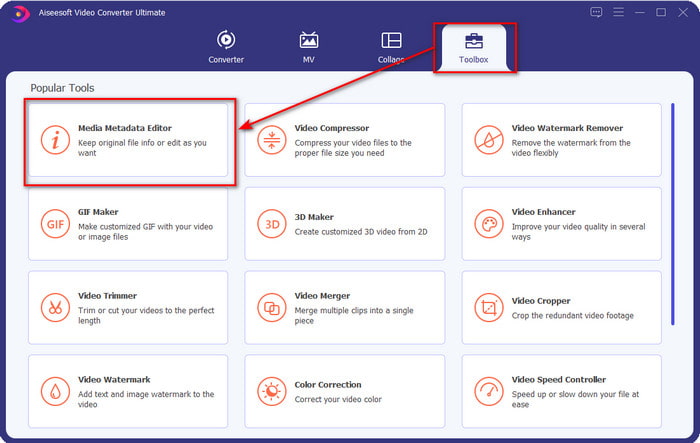
Step 2. On the upper section, click the Toolbox, and do the same thing on the Media Metadata Editor.
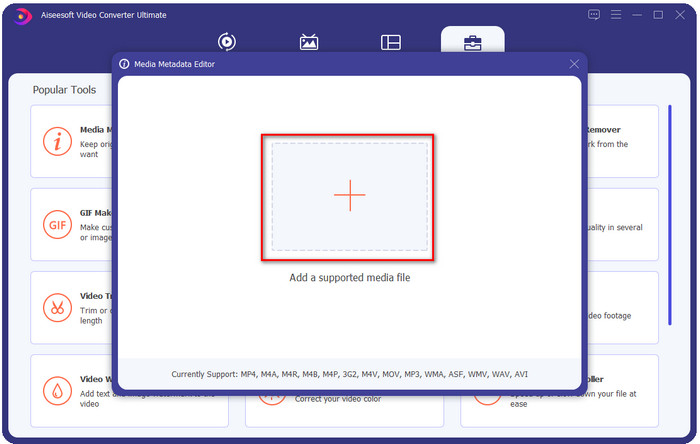
Step 3. Insert the file by clicking the + icon on the mini window that will show, locate the WMA file on the folder, and press Open to proceed to the next procedure.
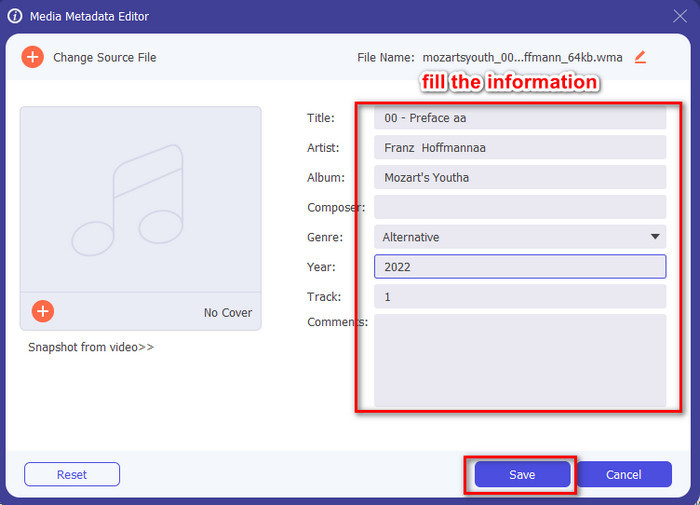
Step 4. In this area, you can edit the metadata or tags in your WMA and fill the textbox accordingly. After all of that, click Save to apply the changes you've made to your audio file. With that, you have tagged the metadata on the audio file as quickly as 1-2-3.
Teil 2. Verwenden Sie den kostenlosen WMA-Tag-Editor, der unter Windows und Mac verfügbar ist, um WMA-Metadaten zu ändern
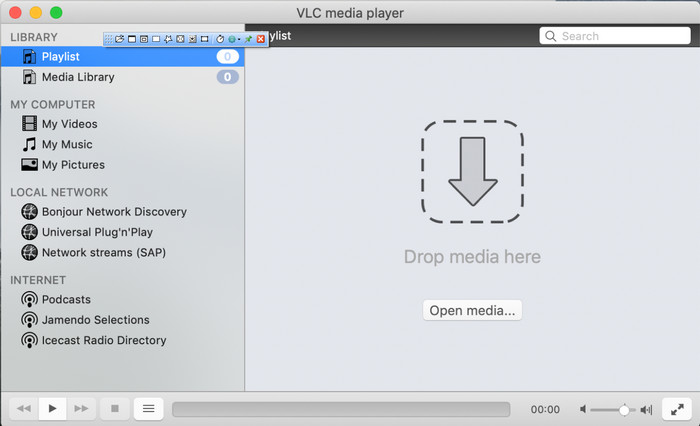
VLC Player is another WMA tag editor you can download for free on Windows and Mac. This media player can help you edit your video and audio file tags. Unlike the first software mentioned, this tool isn't made for adding metadata to any media file. It is used to play the different media files that the original or native media player can't play without downloading an additional codec to play it. Although the tool can add the tags, it is still not as effective as the other committed tag editor.
Darüber hinaus hat uns dieses Tool viele Dinge bewiesen, weil es zuverlässig und sicher herunterzuladen ist. Zusätzlich zu diesen Funktionen kann dieses Tool bei Bedarf auch konvertieren, einfach bearbeiten und Bildschirmaufnahmen machen. Wir können sagen, dass es sich um ein Mehrzweck-Tool handelt, das bei anderen Funktionen nicht so hervorragend ist, aber beim Abspielen von Videos ist es zweifellos das beste auf dem Markt.
Teil 3. Vergleichstabelle zwischen dem kostenlosen und dem ultimativen WMA-Tag-Editor
Um die Überprüfung für uns noch verständlicher zu machen, fügen wir eine Vergleichstabelle bei, um zu erfahren, welches Tool viel besser auf Ihr Laufwerk heruntergeladen werden kann. Bitte lesen Sie es gründlich durch, um den FVC Video Converter und den VlC Player zu vergleichen und gegenüberzustellen und zu beurteilen, welcher der beste WMA-Metadaten-Editor ist.
| FVC Video Converter Ultimate | VS | VLC-Player |
 | Verfügbar unter Windows und macOS | |
| Unterstützt eine Vielzahl von Formaten zum Bearbeiten von Tags |  |
| Mehrzweckfunktionen wie Trimmen, Schneiden, Bearbeiten und mehr | |
| Benutzerfreundlich | |
| Beste Grafik-Benutzeroberfläche | |
Teil 4. Häufig gestellte Fragen zum WMA-Metadaten-Editor
Kann ich WMA auf VLC spielen?
Yes, you can easily play the WMA file on VLC because it is supported. If you want to know more about the VLC, you can read this article; by tapping this link, you will learn VLC and its other available alternatives.
Was ist WMA?
WMA is an audio format used to store a series of audio codecs available created by Microsoft with the help of its composer Stan LePard. This audio format is one of the famous competitors of the standard audio format, MP3. However, the format isn't as popular as you expected, so if you want to transfer the file with a .wma extension, expect that you will need a third-party app if the users on the other end don't use Windows. So, what should you do? Can you convert the WMA into an MP3 to make it compatible with the receiver? With the help of this article, you will learn how to convert WMA to MP3 on Windows, Mac, and Online.
Benötige ich einen zusätzlichen Codec, um WMA abzuspielen?
Dies hängt von dem Programm ab, das Sie gerade verwenden; Wenn Sie ein Windows-Benutzer sind, müssen Sie keinen zusätzlichen Codec herunterladen, um die Audiodatei auf Ihrem Desktop abzuspielen. Allerdings waren nicht alle Windows-Benutzer, daher ist das Konvertieren der Audiodatei der beste Weg, um WMA mit Ihren Geräten kompatibel zu machen. Wenn Sie nach einem Konverter suchen, empfehlen wir Ihnen, den besten Audiokonverter zu wählen, den Sie für Windows und Mac herunterladen können, den FVC Video Converter Ultimate. Befolgen Sie diese Schritte, wenn Sie wissen möchten, wie. Laden Sie das Tool auf Ihren Desktop herunter und installieren Sie es dann als Nächstes. Öffnen Sie das Tool und klicken Sie auf das +-Symbol, um die WMA-Datei hochzuladen; Klicken Sie oben rechts auf Alle konvertieren in und wählen Sie das verfügbare Audioformat aus der Liste aus. Klicken Sie auf Alle konvertieren, um den Konvertierungsprozess zu starten. Einfach so.
Fazit
Nachdem wir nun eine Vorstellung vom FVC Video Converter Ultimate und dem VLC-Player haben, ist es an der Zeit, den besten WMA-Tag-Editor auszuwählen, den Sie verwenden sollten. Diese Tools eignen sich hervorragend zum Bearbeiten der Tags Ihrer WMA-Dateien, sodass Sie die Tags schnell bearbeiten können, wenn Sie dies bevorzugen. Aber wenn Sie möchten, dass ein Profi-Tool diese Aufgabe erledigt, entscheiden Sie sich für das ultimative Tool. Durch Drücken des Download-Buttons können Sie diesen auf beiden Betriebssystemen haben, um Ihre WMA-Tags anzupassen.
-
 Was sind Metadaten: Lernen Sie die grundlegenden Informationen über Metadaten kennen
 Was sind Metadaten? Ist das wichtig? Was sind die Bestandteile von Metadaten? Haben Sie die gleiche Frage? In diesem Artikel erfahren Sie die grundlegenden Informationen zu Metadaten.
-
 4 der besten Metadaten-Viewer online und offline [Aktualisiert 2025]
 Kann ich die Metadaten meiner Datei überprüfen? Ja, das können Sie, mit Hilfe dieses Beitrags stellen wir Ihnen die verschiedenen Metadaten-Viewer vor, die Sie verwenden können.
-
 6 beliebte Snapchat-Animationsfilter für Snapchat
 Möchten Sie wissen, wie Sie Snapchat-Videos am besten Filter hinzufügen können? Nun, Sie können darauf klicken und die verschiedenen Filter kennenlernen, die Sie zum Anwenden auf Snapchat-Videos verwenden können.
