


 Video Converter Ultimate
 Bildschirm recorder
 Videoreparatur
 Sicherer Download
3 Wasserzeichen-Entferner von Shutterstock zum Verwenden und Entfernen von Wasserzeichen auf Videos
Benötigen Sie hochwertige, lizenzierte Shutterstock‑Videos für Ihr Projekt, aber auf ihnen befindet sich ein Shutterstock‑Wasserzeichen? Mit Hilfe des Shutterstock-Wasserzeichen-Entferners können Sie das Wasserzeichen im heruntergeladenen Video ganz einfach entfernen. Beruflich wie privat mögen wir es nicht, wenn unsere Videos ein Wasserzeichen haben, weil es die gesamte Wirkung des Videos zerstört. Wenn Sie also das Shutterstock‑Wasserzeichen loswerden möchten, können Sie die Informationen und die kurze Anleitung, die wir in diesem Artikel aufführen, weiterlesen.

Teil 1. So entfernen Sie Shutterstock-Wasserzeichen mit dem ultimativen Wasserzeichen-Entferner auf dem Markt [Wahl der Redaktion]
FVC Video Converter Ultimate kann Ihnen präzise helfen und Sie dabei anleiten, wie Sie das Shutterstock‑Wasserzeichen aus dem gespeicherten Video entfernen. Es ist eine umfassende Lösung, die Sie auf Ihrem Windows- und Mac‑Computer herunterladen können, um Ihr Video anzupassen, etwa durch Entfernen von Wasserzeichen. Trotz der Tatsache, dass es eine All‑in‑One‑Software ist, hält der Entwickler dieses Programms die Benutzerfreundlichkeit auf einem einfachen Niveau, sodass jeder, der es nutzen möchte, dies auch ohne großes Vorwissen tun kann.
Selbst mit geringen Fähigkeiten können Sie am Ende eine erstklassige Ausgabe erhalten, wenn Sie diesen Editor verwenden. Immer noch nicht überzeugt von den Informationen, die wir hinzugefügt haben? Um dies zu beweisen, zeigen wir Ihnen, wie Sie das Shutterstock-Wasserzeichen kostenlos mit diesem Video-Editor entfernen.
Schritt 1. Um das Wasserzeichen aus dem Video zu entfernen, das Sie heruntergeladen haben, müssen Sie diesen Editor zunächst herunterladen, indem Sie auf die passende Download‑Schaltfläche für Ihr Betriebssystem klicken. Es folgt ein kurzer Installationsvorgang; danach können Sie die Software verwenden.
Gratis DownloadFür Windows 7 oder neuerSicherer Download
Gratis DownloadFür MacOS 10.7 oder neuerSicherer Download
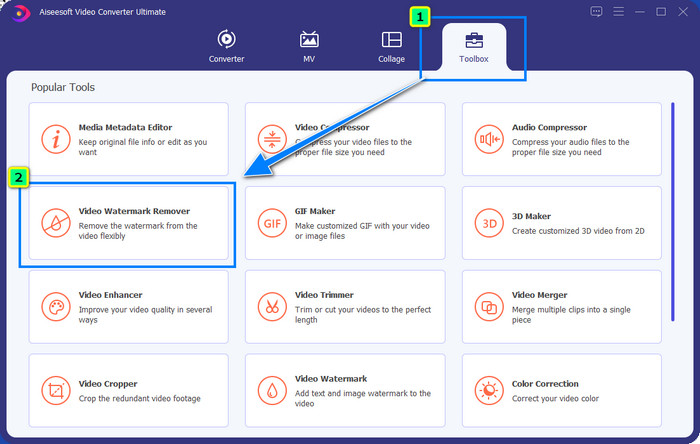
Schritt 2. Als Nächstes verwenden Sie den Video Watermark Remover; Sie finden diese Funktion unter der Toolbox. Wie Sie sehen, können Sie mehrere Bearbeitungsfunktionen nutzen, um Ihr Bild bzw. Video an Ihre gewünschte Darstellung anzupassen.
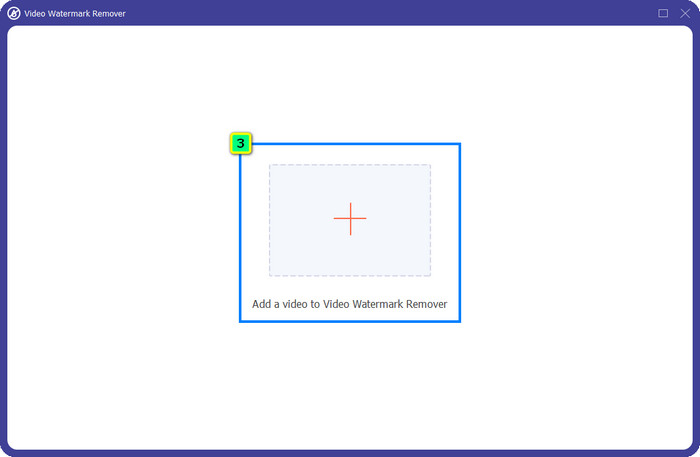
Schritt 3. Klicken Sie auf das Plus-Symbol, und ein Dateimanager erscheint auf Ihrem Bildschirm. Wählen Sie die Videodatei mit Wasserzeichen aus und klicken Sie dann auf Öffnen, um sie hochzuladen.
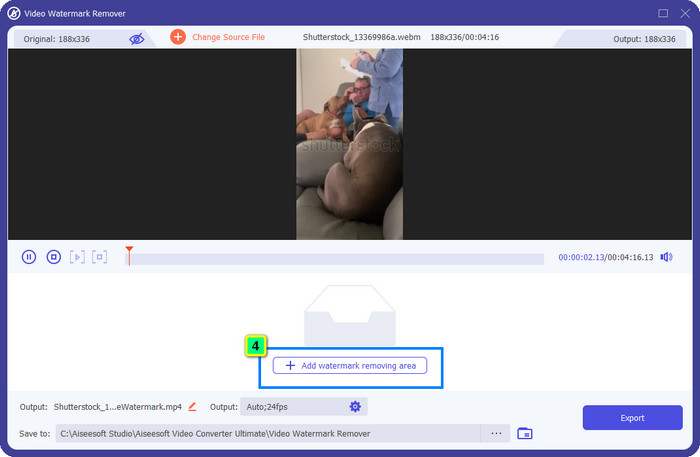
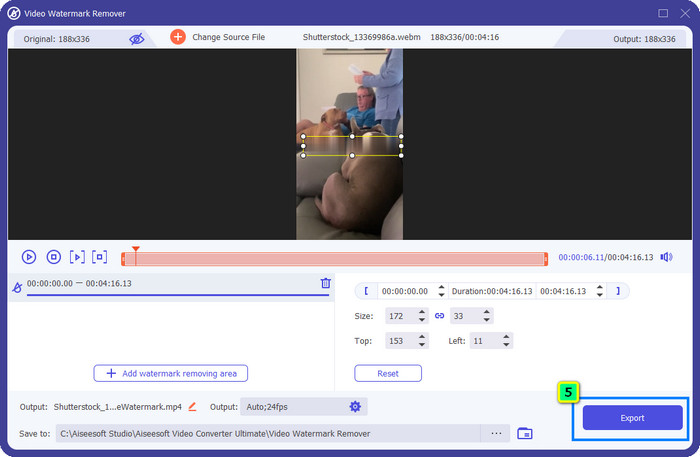
Schritt 4. Um das Wasserzeichen in dem Video zu entfernen, das Sie hochgeladen haben, klicken Sie auf Bereich zum Entfernen des Wasserzeichens hinzufügen, und ein neues Fenster erscheint.
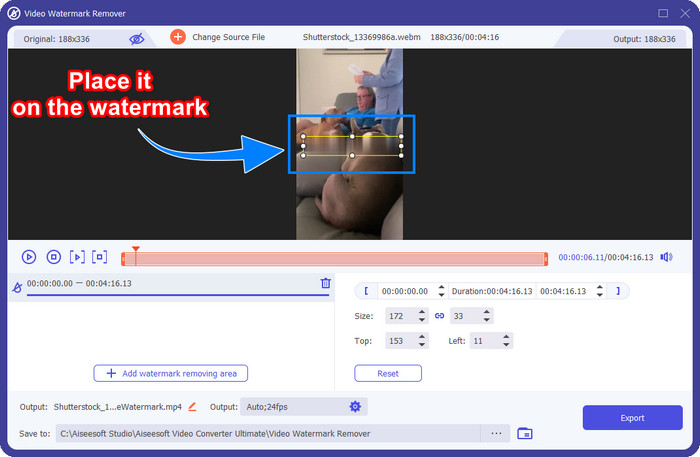
Schritt 5. In diesem Teil erscheint ein quadratischer Bereich auf Ihrem Video; platzieren Sie ihn auf dem Wasserzeichen. Sie können ihn in der Größe anpassen, ziehen, verkleinern oder vergrößern, damit er genau auf das Wasserzeichen passt, das Sie entfernen möchten.
Schritt 6. Klicken Sie abschließend auf die Schaltfläche Exportieren, um das endgültige Ergebnis des Shutterstock‑Videos auf Ihr Gerät herunterzuladen. Nun können Sie es genießen, ohne sich um das Wasserzeichen sorgen zu müssen, da es entfernt wurde.
Teil 2. So entfernen Sie das Shutterstock-Wasserzeichen kostenlos online
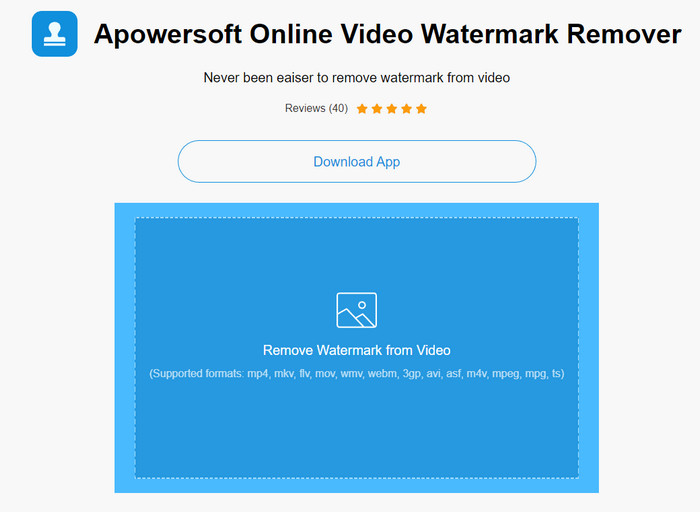
Ihnen gefällt die Idee nicht, einen Wasserzeichen‑Entferner auf Ihrem Desktop zu installieren? Dann können Sie den Apowersoft Online Watermark Remover verwenden, und wir zeigen Ihnen hier, wie Sie das Shutterstock‑Wasserzeichen online entfernen. Er ist eine ausgezeichnete Wahl für alle, die das Wasserzeichen in ihrem Video oder Bild entfernen müssen. Der Grund, warum wir dieses Tool aufgenommen haben, ist, dass die Software leicht zugänglich und mit verschiedenen Betriebssystemen kompatibel ist.
Im Gegensatz zu Offline-Tools benötigen Sie eine stabile und robuste Internetverbindung, um sie zu verwenden. Wie wir versprechen, finden Sie unten das Tutorial zur Verwendung dieses Wasserzeichenentferners, um das Wasserzeichen zu entfernen, das Shutterstock darauf hinterlässt.
Schritt 1. Öffnen Sie die offizielle Website von Apowersoft Online Watermark Remover mit Ihrer bevorzugten Suchmaschine und klicken Sie dann auf die +-Schaltfläche auf der rechten Seite, um die Videodatei hochzuladen.
Schritt 2. Platzieren Sie das Auswahlfeld auf dem Shutterstock‑Wasserzeichen im Video.
Schritt 3. Klicken Sie danach auf Erase, um das Wasserzeichen zu entfernen und das Ergebnis zu sehen.
Schritt 4. Drücken Sie auf Datei herunterladen, um das Shutterstock‑Video ohne Wasserzeichen zu erhalten.
Teil 3. So entfernen Sie das Shutterstock-Wasserzeichen mit Photoshop [Kostenpflichtig]
Viele Nutzer fragen, wie man das Shutterstock‑Wasserzeichen mit Photoshop entfernt, und wir sind hier, um Ihnen zu helfen! Adobe Photoshop bietet eine professionelle Funktion zum Entfernen von Wasserzeichen, die Sie lieben werden. Wie die in diesem Artikel vorgestellte Software erledigt sie die Aufgabe, allerdings ist der Ansatz zum Entfernen von Wasserzeichen hier Bild‑für‑Bild. Das bedeutet, dass Sie Zeit aufwenden müssen, um das Wasserzeichen für jedes einzelne Frame des Videos zu entfernen; je länger das Video ist, desto mehr Frames gibt es. Wenn Sie wissen möchten, wie das Tool funktioniert, lesen Sie die folgenden informativen Schritte.
Schritt 1. Laden Sie die Anwendung auf Ihren Desktop herunter und klicken Sie dann auf Datei. Wählen Sie darunter Öffnen, um das auf Ihrem Computer gespeicherte Video zu laden.
Schritt 2. Wählen Sie auf der linken Seite das Zauberstab-Werkzeug und klicken Sie dann auf das Wasserzeichen, das Sie entfernen möchten. Diese Funktion wird das Wasserzeichen im jeweiligen Frame automatisch nachzeichnen.
Schritt 3. Gehen Sie zu Bearbeiten und wählen Sie Inhaltsbasiertes Füllen, nachdem Sie das Wasserzeichen nachgezeichnet haben.
Schritt 4. Nachdem Sie „Inhaltsbasiertes Füllen“ geöffnet haben, wird das zuvor ausgewählte Wasserzeichen automatisch entfernt; klicken Sie anschließend auf OK.
Weiterführende Lektüre:
Einfache Methoden zum Entfernen des Shootproof-Wasserzeichens
Wie man das Bandicam-Wasserzeichen mühelos entfernt [3 effektive Methoden]
Teil 4. Häufig gestellte Fragen zum Entfernen des Shutterstock-Wasserzeichens
Wie entferne ich das Shutterstock-Wasserzeichen ohne Photoshop?
Sie können den FVC Video Converter Ultimate verwenden, um das an Ihr Video gebundene Shutterphoto zu entfernen. Es hat einen leistungsstarken Wasserzeichen-Radierer, den Sie gerne ausprobieren würden. Befolgen Sie die Schritte, die wir in diesem Artikel hinzufügen, um dies so effektiv wie Photoshop zu tun.
Funktioniert das Zuschneiden des Shutterstock-Wasserzeichens bei Videos?
Wenn Sie die Größe des Videos ändern möchten, indem Sie die Dimension ändern, können Sie das Video mit Hilfe mehrerer Video-Editoren online und offline zuschneiden. Da sich das Wasserzeichen von Shutterstock in der Mitte befindet, sollte man besser auf die Zuschneidefunktionen verzichten. Zahlreiche Wasserzeichen-Entferner sind hier, um zu helfen; Sie können das von uns hinzugefügte Tutorial lesen und kopieren, damit Sie es effektiv löschen können, ohne einen Fleck darauf zu hinterlassen.
Ist es legal, das Shutterstock-Wasserzeichen zu entfernen?
Das Entfernen des Wasserzeichens von Shutterstock ist nicht legal, aber wenn Sie es für nicht-kommerzielle Zwecke verwenden möchten, können Sie dies mit Hilfe eines Wasserzeichen-Entferners tun. Es ist besser, das gewünschte Foto auf Shutterstock zu kaufen, wenn Sie es für kommerzielle Zwecke verwenden möchten; Obwohl es Sie etwas kosten würde, werden Sie zumindest die gesetzlichen Rechte haben, es zu verwenden.
Fazit
Jetzt wissen Sie, wie Sie mit den in diesem Artikel erwähnten Programmen das Shutterstock-Wasserzeichen entfernen können. Welche Software bevorzugen Sie also – die kostenpflichtige, die kostenlose Online‑Lösung oder die ultimative Software? Ganz gleich, was Sie wählen, Sie können ein Shutterstock‑Foto ohne Produktlogo erhalten. Wenn Sie uns jedoch fragen, was wir verwenden würden, wählen wir ohne Zweifel den FVC Video Converter Ultimate, da er die Aufgabe am zufriedenstellendsten erledigt. Trotz seiner Rolle als ultimatives Werkzeug zum Entfernen von Wasserzeichen ist es immer noch leicht zu bedienen. Wenn Sie diese Software ausprobieren möchten, können Sie auf die Download‑Schaltfläche klicken, um das Tool auf Ihrem Desktop zu installieren.
-
 Ultimative Tools zum Entfernen von Wasserzeichen aus von Renderforest exportierten Videos
 Um das Wasserzeichen von Renderforest zu entfernen, benötigen Sie einen Wasserzeichenentferner auf Ihrem Gerät. Alle Tools, die Sie verwenden können, finden Sie hier.
-
 Einfache Schritte zum Entfernen des WOW-Slider-Wasserzeichens [Gelöst]
 WOW Slider ist eine App zum Erstellen einer fantastischen Diashow. Es bettet jedoch Wasserzeichen in seine Ausgabe ein. Lesen Sie weiter unten, um zu erfahren, wie Sie das WOW Slider-Wasserzeichen entfernen.
-
 So entfernen Sie das Power Director-Wasserzeichen kostenlos [vollständig]
 Wie kann man das Power Director-Wasserzeichen kostenlos entfernen? Die besten Tools zum Entfernen des Wasserzeichens finden Sie hier, also lernen Sie sie kennen, indem Sie dies lesen.
