


 Video Converter Ultimate
 Bildschirm recorder
 Videoreparatur
 Sicherer Download
So entfernen Sie mühelos beißbare Wasserzeichen aus Ihren Videos
Wenn Sie nach großartigen und zugleich einfachsten Methoden suchen, um Biteable-Wasserzeichen aus Ihren Videos zu entfernen, müssen Sie sich nicht länger den Kopf zerbrechen. Ehrlich gesagt ist es irritierend und frustrierend, ein Video mit Wasserzeichen anzusehen. Man kann das Video, das man gerade schaut, nicht wirklich genießen. Außerdem stören diese Wasserzeichen die Zuschauer. Natürlich dienen Wasserzeichen dem Schutz des Videoeigentümers. Aber ein großes Wasserzeichen zu platzieren, ist nicht gut. Es führt nur zu negativen Reaktionen bei Menschen, die gern ihre Lieblingsvideos ansehen. Ein Beispiel dafür sind die Biteable-Wasserzeichen. Diese Biteable-Wasserzeichen stammen aus der Biteable‑Anwendung, bei der Wasserzeichen nach dem Erstellen oder Speichern eines Videos automatisch eingefügt werden. Zum Glück können Sie Anwendungen verwenden, um diese Wasserzeichen aus Ihren Videos zu entfernen. So können Sie Ihre Lieblingsvideos ansehen, ohne sich irritiert oder frustriert zu fühlen. Wenn Sie wissen möchten, welche besten und zuverlässigsten Anwendungen Sie zum Entfernen dieser Wasserzeichen verwenden sollten, lesen Sie diesen Artikel weiter.

Teil 1: Der beste Weg, um beißbare Wasserzeichen aus Videos zu entfernen
Video Converter Ultimate ist die hervorragendste Anwendung, mit der Sie Biteable-Wasserzeichen aus Ihren Videos entfernen können. Darüber hinaus ist diese ausgezeichnete Software in der Lage, andere irrelevante und störende Objekte wie Logos, Texte, Signaturen usw. zu entfernen. Außerdem sind der Entfernungs- und Speicherprozess sehr schnell, sodass Sie keine große Zeit aufwenden müssen. Zudem bietet Video Converter Ultimate zwei einfache Methoden, um Wasserzeichen aus Ihren Videos zu entfernen: den Video-Zuschneider und den Video-Wasserzeichen-Entferner. Es stehen Ihnen auch weitere Bearbeitungswerkzeuge zur Verfügung, die Sie nutzen können, wie z. B. ein Video-Geschwindigkeitsregler, Videokonverter, Videokompressor, Farbkorrektur, Collagen-Ersteller, GIF‑Ersteller, Video-Zuschneider, Bildkonverter und vieles mehr. Das Beste an diesem Tool ist, dass Sie es mühelos verwenden können, da es über eine übersichtliche, leicht verständliche Oberfläche verfügt, die perfekt für Anfänger ist. Es unterstützt außerdem verschiedene Dateiformate wie MP4, MOV, FLV, MKV, OGV, DIVX und mehr. Schließlich ist Video Converter Ultimate sowohl unter Windows als auch unter Mac verfügbar, was für die Nutzer sehr praktisch ist. Wenn Sie ein Wasserzeichen aus einem Video entfernen möchten, folgen Sie den nachstehenden einfachen Schritten.
Verwenden des Tools zum Entfernen von Video-Wasserzeichen
Schritt 1: Gehen Sie auf die Website von Video Converter Ultimate und laden Sie die Anwendung herunter. Fahren Sie dann mit der Installation fort. Starten Sie die Anwendung nach der Installation.
Gratis DownloadFür Windows 7 oder neuerSicherer Download
Gratis DownloadFür MacOS 10.7 oder neuerSicherer Download
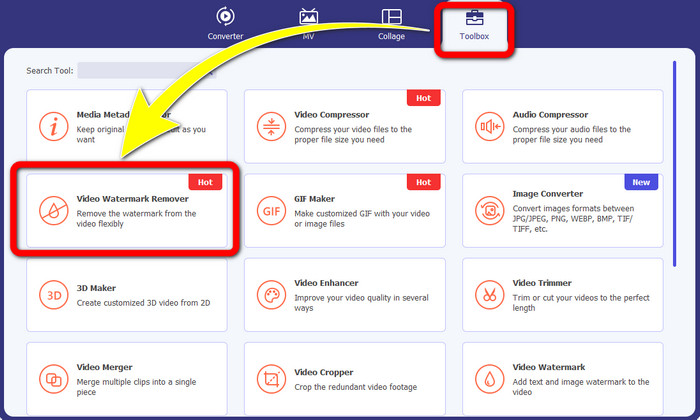
Schritt 2: Nachdem Sie Video Converter Ultimate geöffnet haben, klicken Sie auf die Schaltfläche Toolbox > Video Watermark Remover. Anschließend erscheint eine weitere Oberfläche auf dem Bildschirm.
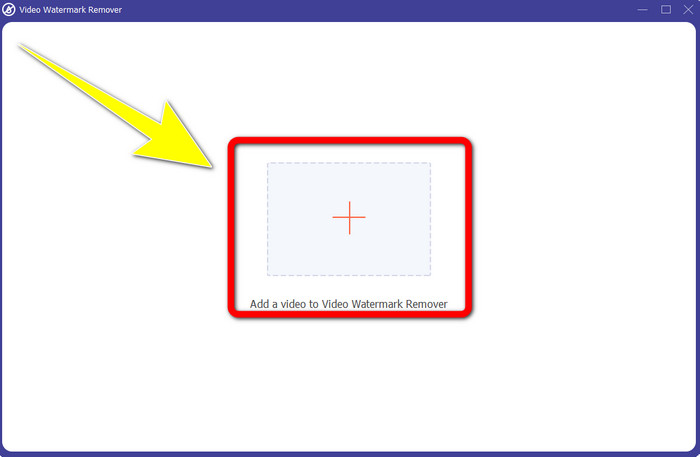
Schritt 3: Wenn die neue Oberfläche auf Ihrem Bildschirm erschienen ist, klicken Sie auf die Plus-Schaltfläche, um Ihr Video mit Biteable-Wasserzeichen hinzuzufügen.
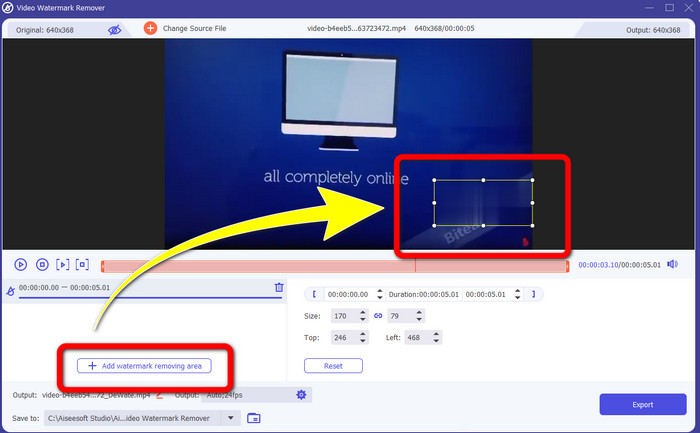
Schritt 4: Nachdem Sie Ihr Video hinzugefügt haben, klicken Sie auf Add Watermark Removing Area. Dann erscheint ein kleines Feld auf Ihrem Video. Ziehen Sie das Feld, um die Wasserzeichen zu überdecken.
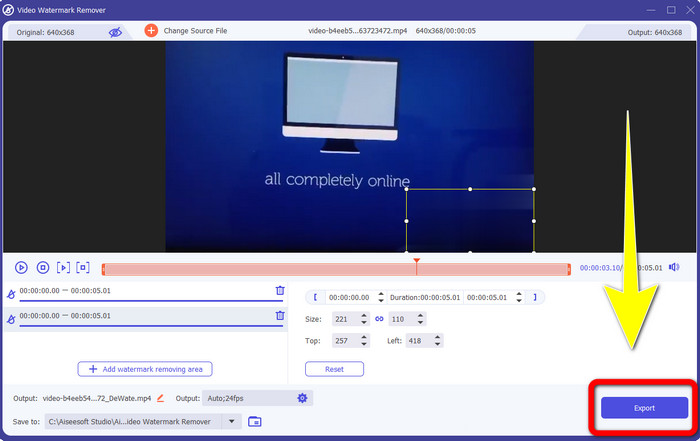
Schritt 5: Wenn Sie das Biteable-Wasserzeichen aus Ihrem Video entfernt haben, klicken Sie auf die Schaltfläche Export, um Ihr Endergebnis zu speichern.
Mit dem Video Cropper-Tool
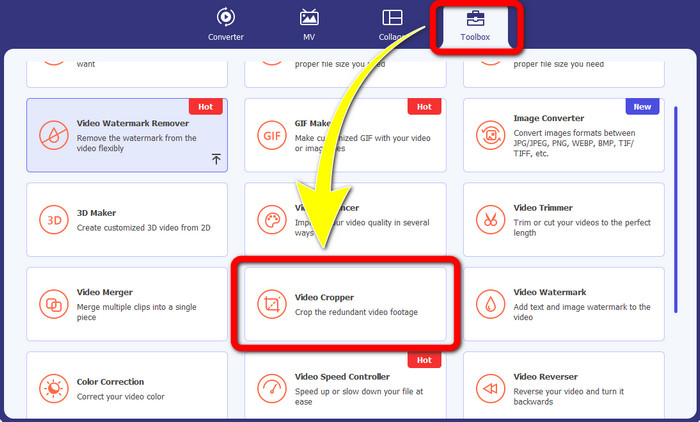
Schritt 1: Starten Sie Video Converter Ultimate. Klicken Sie auf die Schaltfläche Toolbox > Video Cropper.
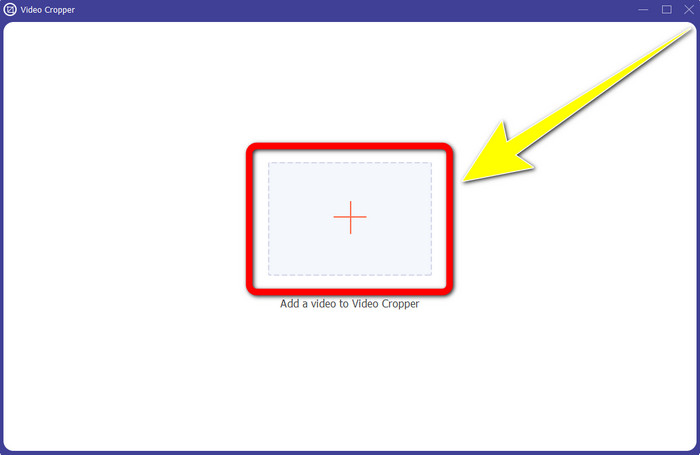
Schritt 2: Nachdem Sie auf Video Cropper geklickt haben, erscheint eine neue Oberfläche auf Ihrem Bildschirm. Klicken Sie auf das Plus-Symbol und fügen Sie Ihr Video mit Biteable-Wasserzeichen hinzu.
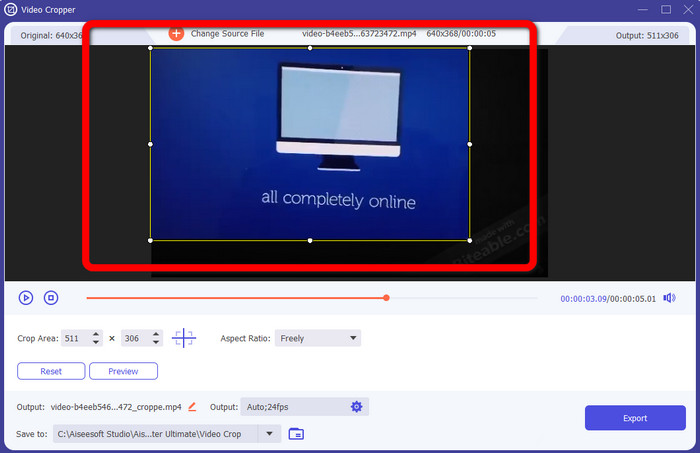
Schritt 3: Nachdem Sie Ihr Video hinzugefügt haben, können Sie es nun zuschneiden, um die Wasserzeichen zu entfernen.
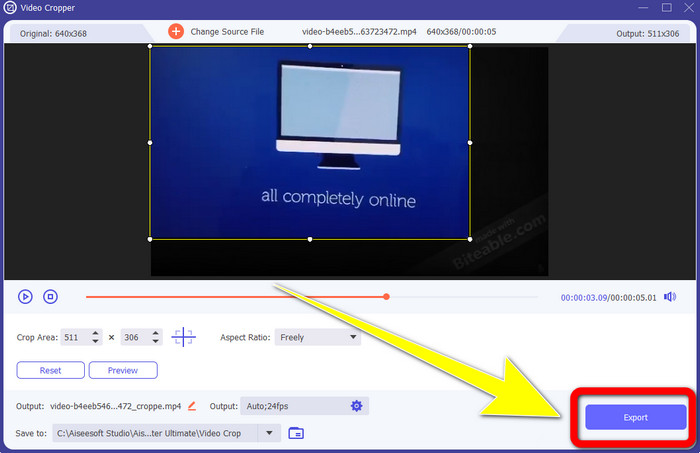
Schritt 4: Wenn Sie mit dem Zuschneiden Ihres Videos fertig sind, klicken Sie auf die Schaltfläche Export und speichern Sie Ihr Video ohne Biteable-Wasserzeichen.
Teil 2: So entfernen Sie beißbare Wasserzeichen aus Online-Videos
1. Mit BeeCut
Wenn Sie das beißbare Wasserzeichen kostenlos online entfernen möchten, ist BeeCut die beste Online-Anwendung, die Sie verwenden können. Es ist in der Lage, Wasserzeichen aus Ihren Videos zu entfernen. Es ist ein einfaches Online-Tool, das Sie verwenden können und das sich perfekt für Anfänger eignet. Sie können in wenigen Schritten beissbare Wasserzeichen aus vier Videos entfernen.
Darüber hinaus verfügt BeeCut über viele Bearbeitungswerkzeuge wie Trimmen, Schneiden, Teilen und Kombinieren von Videos. Wenn Sie außerdem ein Video erstellen möchten, können Sie Ihrem Video unten Untertitel hinzufügen, was für die Zuschauer praktisch ist. Das Hochladen von Dateien und Speichern von Prozessen mit diesem Tool ist jedoch langsam. Außerdem können Sie dieses Tool nicht verwenden, wenn Sie keine Internetverbindung haben. Wenn Sie mit diesem Online-Tool beißbare Wasserzeichen aus Ihrem Video entfernen möchten, befolgen Sie die folgenden Schritte.
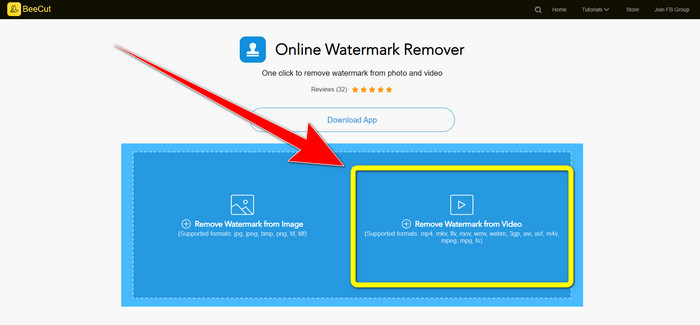
Schritt 1: Besuchen Sie die Website von BeeCut. Klicken Sie dann auf die Schaltfläche Remove Watermark from Video und fügen Sie Ihr Video mit Biteable-Wasserzeichen hinzu.
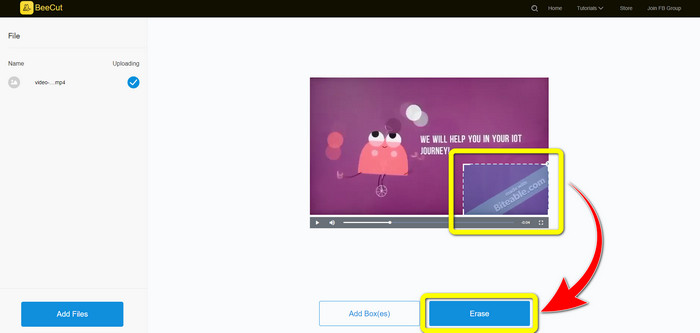
Schritt 2: Nachdem Sie Ihre Datei hinzugefügt haben, erscheint ein kleines Feld auf Ihrem Video. Ziehen Sie es und decken Sie das Biteable-Wasserzeichen ab. Wenn Sie mit dem Abdecken der Wasserzeichen fertig sind, klicken Sie auf die Schaltfläche Erase.
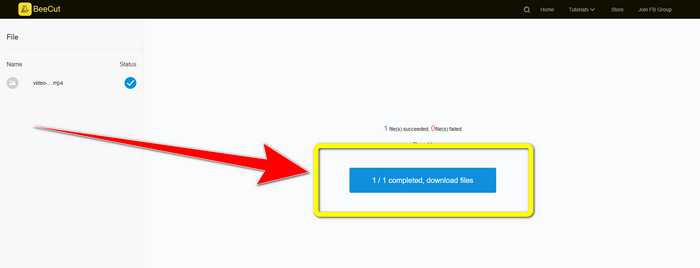
Schritt 3: Wenn Sie auf die Schaltfläche Erase geklickt haben, warten Sie auf den Entfernungsprozess. Anschließend können Sie die Datei herunterladen und Ihr Video ohne Biteable-Wasserzeichen genießen.
2. Verwendung von Blur-Video online
Wenn Sie immer noch nach einer anderen Anwendung suchen, mit der Sie das beißbare Wasserzeichen online aus Ihrem Video entfernen können, ist Blur Video Online ein großartiges Tool für Sie. Und Blur Video Online ist für fast alle Geräte und Browser verfügbar, wie Google Chrome, Opera, IE, Mozilla Firefox und mehr. Diese webabhängige Anwendung ist jedoch beim Importieren von Videodateien zu langsam, und das Entfernen von Wasserzeichen ist zeitaufwändig. Es ist auch ein internetabhängiges Tool, was bedeutet, dass es nur funktioniert, wenn Sie eine Internetverbindung haben. Befolgen Sie die nachstehenden einfachen Schritte, um ein Biteable-Wasserzeichen aus Ihrem Video zu entfernen/unkenntlich zu machen.
Schritt 1: Gehen Sie auf die Website von Blur Video Online. Klicken Sie dann auf die Schaltfläche Click to Add File und fügen Sie Ihr Video mit Wasserzeichen hinzu.

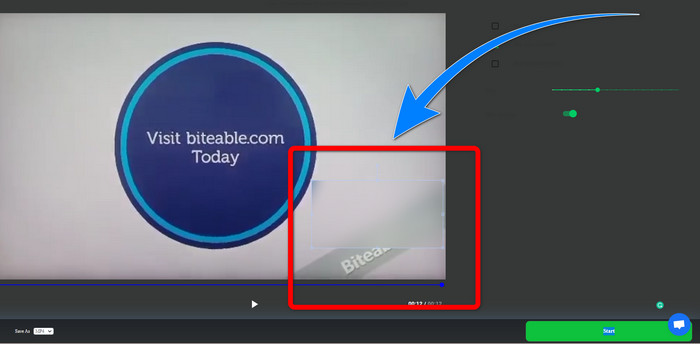
Schritt 2: Wenn Sie Ihr Video bereits eingefügt haben, erscheint ein Feld auf Ihrem Video. Ziehen Sie es, um die Wasserzeichen abzudecken, und speichern Sie Ihr Endergebnis.
Verwandte Themen:
Beste Methode, um das Wasserzeichen von Camtasia 9 unter Windows zu entfernen
Wie man das Wasserzeichen-Banner aus AVS Video Editor schnell entfernt
Teil 3: Häufig gestellte Fragen zum Entfernen von beißbaren Wasserzeichen aus Videos
Kann ich mit Video Converter Ultimate einen Datumsstempel entfernen?
Ja, du kannst! Video Converter Ultimate kann Ihnen dabei helfen, störende Objekte wie Datumsstempel, Wasserzeichen, Text usw. aus Ihren Videos zu entfernen.
Ist es zeitaufwändig, Wasserzeichen aus meinen Videos zu entfernen?
Es hängt von den Anwendungen ab, die Sie verwenden. Einige Anwendungen können die Wasserzeichen sofort aus Ihren Videos entfernen, und einige Anwendungen brauchen Zeit, um Wasserzeichen zu entfernen.
Gibt es einen Wasserzeichenentferner, den ich verwenden kann, ohne die Qualität meiner Videos zu verlieren?
Ja, die gibt es! Sie können Video Converter Ultimate verwenden. Es ist nicht nur gut im Entfernen von Wasserzeichen und Bearbeiten von Videos. Mit dieser Anwendung können Sie Wasserzeichen aus Ihren Videos entfernen, ohne an Qualität zu verlieren.
Fazit
Das Entfernen des Wasserzeichens aus Ihren Videos ist großartig, besonders wenn Sie Ihre Lieblingsvideos ohne unnötige Objekte ansehen möchten. Dieser Artikel hat Ihnen praktische Anwendungen vorgestellt, die Sie zum Entfernen von Biteable-Wasserzeichen aus Ihren Videos verwenden können. Abschließend ist die Verwendung von Video Converter Ultimate die beste Wahl, wenn Sie nach der hervorragendsten und bemerkenswertesten Anwendung suchen, um Wasserzeichen aus Ihren Videos zu entfernen.
-
 So entfernen Sie das Powtoon-Wasserzeichen mit 4 effektiven Methoden
 Lesen Sie diesen Artikel, um zu erfahren, wie Sie das Powtoon-Wasserzeichen mit den besten hier enthaltenen Tools und einem Tutorial entfernen können.
-
 Apowersoft Watermark Remover Review – Funktionen, Vor- und Nachteile und Preise
 Apowersoft Watermark Remover ist einer der besten Wasserzeichen-Entferner, der online und offline unterstützt, klicken Sie hier, um mehr zu erfahren!
-
 3 der neuesten Wasserzeichen-Entferner von Shutterstock, die Sie jemals brauchen werden
 Gefällt Ihnen das an das exportierte Video angehängte Shutterstock-Wasserzeichen nicht? Sie können einen Wasserzeichenentferner von Shutterstock verwenden, um es effektiv zu löschen.
