


 Video Converter Ultimate
 Bildschirm recorder
 Videoreparatur
 Sicherer Download
So entfernen Sie das Logo mit wenigen Klicks aus einem Video in Adobe Premiere Pro
Adobe Premiere Pro ist eine Videobearbeitungssoftware von Adobe Inc. Mit diesem Programm können Sie Ihre Videos optimieren, da es viele Bearbeitungstools bietet, die Sie nutzen können. Wenn Sie also wissen möchten, wie man in Adobe Premiere Pro ein Wasserzeichen aus einem Video entfernt, können Sie es in diesem Beitrag lernen. Außerdem haben wir mehrere Anwendungen getestet und können Ihnen eine Alternative anbieten, um ein Logo oder Wasserzeichen aus Ihren Videos zu entfernen. In diesem Artikel erfahren Sie die schnellsten und einfachsten Methoden, um ein Logo oder Wasserzeichen aus Ihren Videos zu entfernen.

Teil 1: So entfernen Sie Wasserzeichen aus einem Video in Adobe Premiere Pro
Mit nur wenigen Klicks können Sie mit Adobe Premiere Pro Wasserzeichen aus Ihren Videos entfernen. Wenn Sie dieses Programm haben, müssen Sie sich keine Gedanken darüber machen, wie Sie Wasserzeichen oder Logos aus Ihren Videos entfernen können, denn es löst dieses Problem für Sie. Zusätzlich können Sie mit dieser Anwendung Ihre Videos verbessern. Adobe Premiere Pro verfügt über viele Funktionen, wie etwa gleichzeitige Projekte, VR‑Bearbeitung, Übergänge, Effekte, Markierungen, verschiedene Videoformate, breite Video-Unterstützung, Direktveröffentlichung, Motion‑Graphics‑Vorlagen und mehr. Allerdings ist dieses Programm sehr kostspielig, wenn Sie es kaufen möchten. Zudem eignet es sich vor allem für fortgeschrittene Anwender, was bedeutet, dass Anfänger Schwierigkeiten bei der Bedienung haben werden. Sie benötigen auch eine große Speicherkapazität, da die Software viel Speicher benötigt, um gut zu funktionieren. Wenn Sie Adobe Premiere Pro verwenden möchten, um Logos aus Ihrem Video zu entfernen, befolgen Sie die einfachen Schritte unten.
Schritt 1: Laden Sie zunächst Adobe Premiere Pro auf Ihr Gerät herunter. Sie können die kostenlose Testversion nutzen oder die Vollversion erwerben. Starten Sie das Programm nach Abschluss der Installation.
Schritt 2: Öffnen Sie in der Anwendung Ihr Video mit Logo, indem Sie auf File > Open klicken. Kopieren Sie anschließend das Video und ziehen Sie es über den oberen Teil Ihres Hauptvideos.
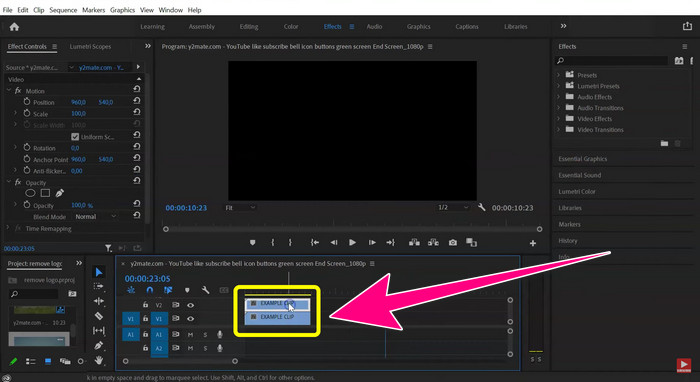
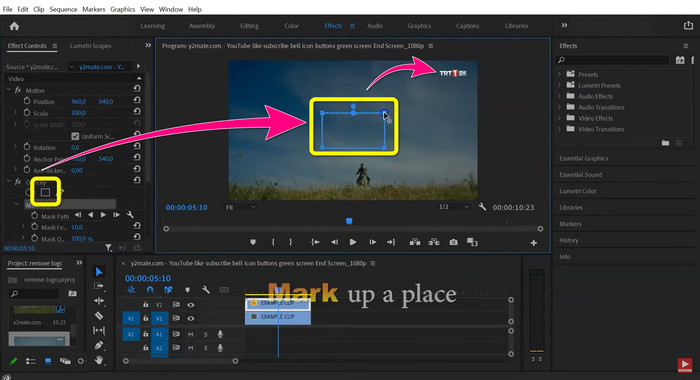
Schritt 3: Klicken Sie auf die Polygonmaske. Wenn das Feld auf Ihrem Bildschirm erscheint, verwenden Sie das Werkzeug Motion, um das Feld über das Logo zu ziehen. Wenn Sie mit dem Entfernen des Logos fertig sind, gehen Sie zu File > Save und genießen Sie Ihr Video.
Teil 2: Beste Alternative zur Verwendung von Premiere zum Entfernen von Wasserzeichen aus Videos
Wenn Sie Anfänger sind und Schwierigkeiten haben, mit Adobe Premiere Pro Logos oder Wasserzeichen aus Ihren Videos zu entfernen, brauchen Sie sich nicht zu sorgen. Wir haben die besten Alternativen für Sie. Wir bieten Ihnen eine wesentlich einfachere Möglichkeit, störende Objekte aus Ihren Videos zu entfernen. Dabei handelt es sich um Video Converter Ultimate. Es stellt Ihnen zwei hervorragende Methoden zum Entfernen von Wasserzeichen oder Logos aus Ihren Videos zur Verfügung: das Tool 'Video Watermark Remover' und das Tool „Video Cropper“. Diese Software ist einfacher zu bedienen als Adobe Premiere Pro. Daher können selbst Einsteiger ohne Erfahrung im Entfernen von Logos oder Wasserzeichen sie problemlos verwenden. Außerdem können Sie diese Software sowohl auf dem Mac als auch unter Windows einsetzen. Zusätzlich können Sie diese Anwendung kostenlos nutzen, haben aber auch die Möglichkeit, sie zu kaufen, um alle Funktionen zu verwenden. Sie ist günstiger als Adobe Premiere Pro. Befolgen Sie die Schritte unten, um Logos oder Wasserzeichen aus Ihren Videos zu entfernen.
Verwenden der Funktion zum Entfernen von Video-Wasserzeichen
Schritt 1: Laden Sie die offizielle Version von Video Converter Ultimate herunter, indem Sie auf die Schaltfläche Download unten klicken. Installieren Sie das Programm auf Ihrem Windows‑ oder Mac‑Computer. Starten Sie die Software.
Gratis DownloadFür Windows 7 oder neuerSicherer Download
Gratis DownloadFür MacOS 10.7 oder neuerSicherer Download
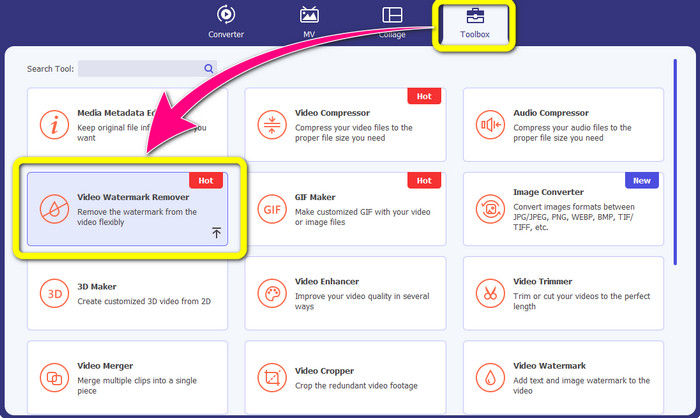
Schritt 2: Wenn die Software geöffnet ist, sehen Sie oben vier Optionen: Converter, MV, Collage und Toolbox. Wählen Sie den Bereich Toolbox und klicken Sie darunter auf Video Watermark Remover.
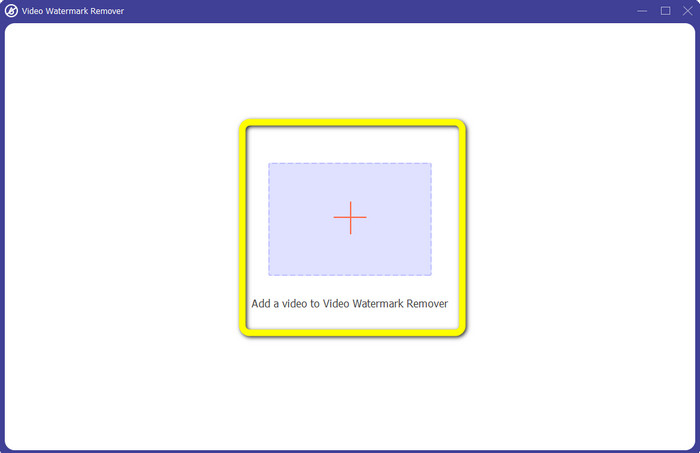
Schritt 3: Ein neues Fenster erscheint auf Ihrem Bildschirm. Um Ihr Video mit Wasserzeichen zu importieren, klicken Sie auf das +-Symbol in der Mitte der Oberfläche.
Schritt 4: Klicken Sie auf Add Watermark Removing Area. Ziehen Sie das Feld auf Ihrem Bildschirm und verschieben Sie es so, dass es das Wasserzeichen in Ihrem Video abdeckt.
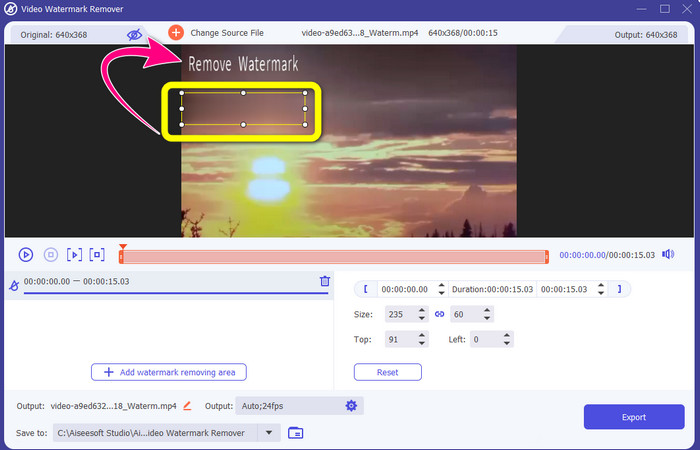
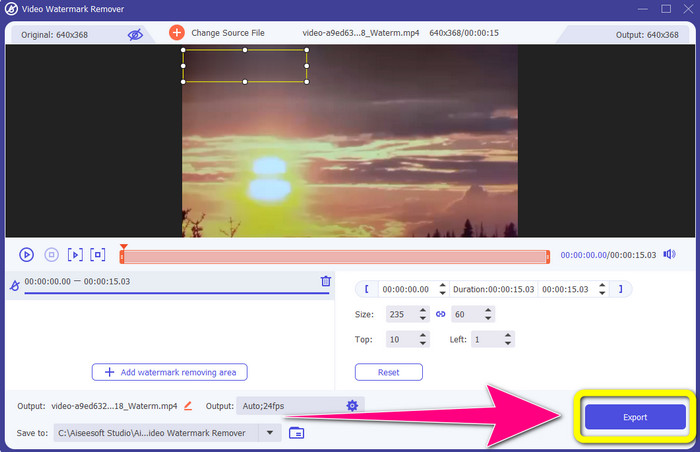
Schritt 5: Der letzte Schritt ist der einfachste. Sie müssen nur auf die Schaltfläche Export klicken und Ihr Endergebnis speichern. Warten Sie einen Moment, und Ihr finales Video ist vollständig fertiggestellt.
Verwenden der Video-Cropper-Funktion
Sie können diese Video Cropper-Funktion auch verwenden, um Wasserzeichen aus Ihren Videos zu entfernen, wenn sich das Wasserzeichen am Rand Ihres Videos befindet.
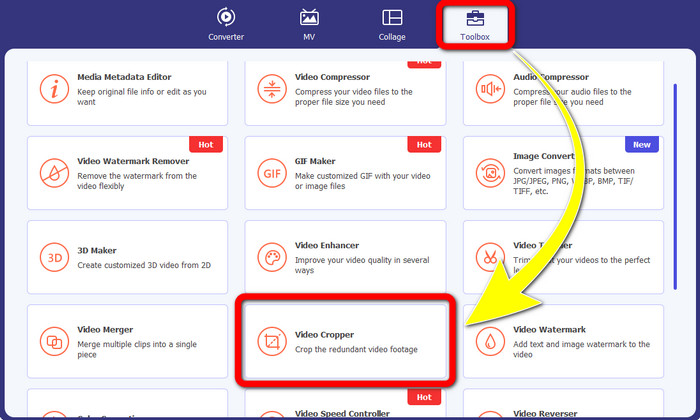
Schritt 1: Starten Sie die Anwendung auf Ihrem Windows‑ oder Mac‑Computer. Klicken Sie auf die Schaltfläche Video Cropper im Bereich Toolbox.
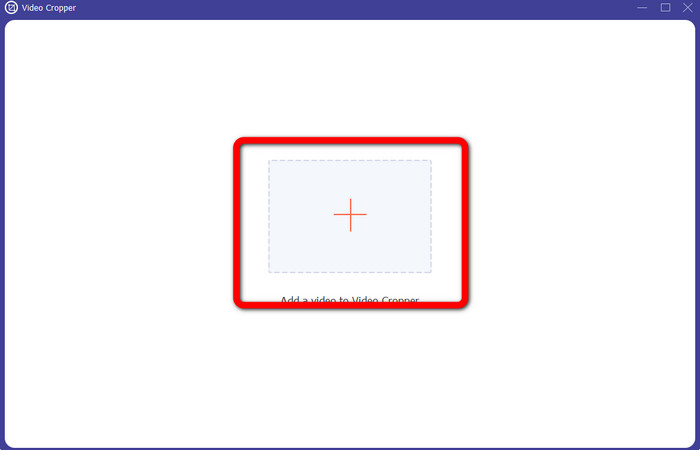
Schritt 2: Ein weiteres Fenster erscheint auf dem Bildschirm. Klicken Sie auf das +-Symbol, um das Video mit dem Wasserzeichen einzufügen, das Sie entfernen möchten.
Schritt 3: In diesem Abschnitt können Sie bereits Ihr Video zuschneiden, um das Wasserzeichen zu entfernen, indem Sie die Punkte verschieben.
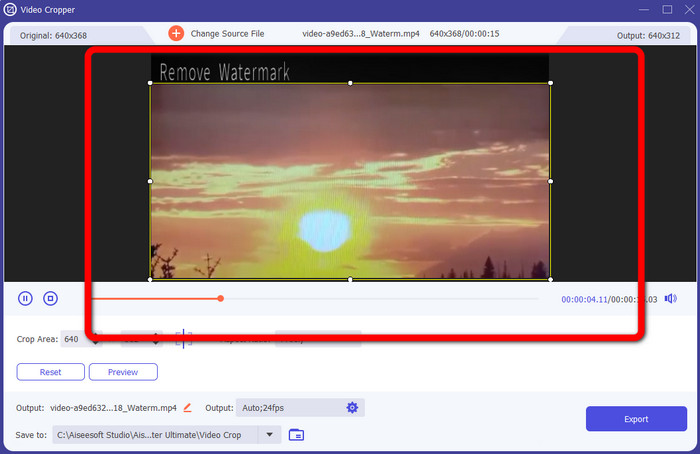
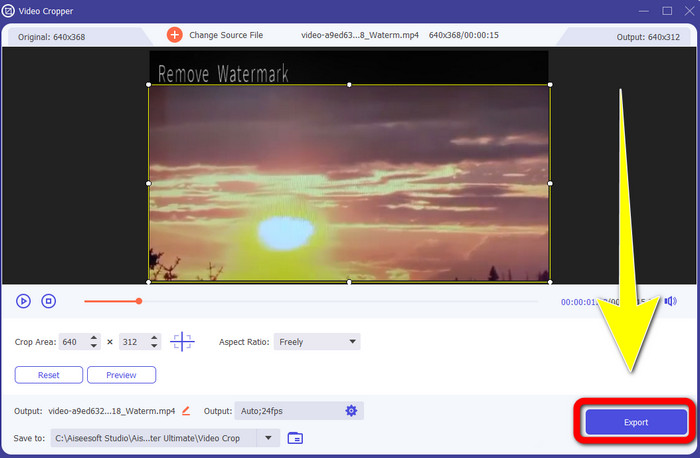
Schritt 4: Wenn Sie mit dem Ergebnis beim Entfernen der Wasserzeichen aus Ihren Videos zufrieden sind, klicken Sie auf die Schaltfläche Export und speichern Sie Ihr Video.
Teil 3: Häufig gestellte Fragen zum Entfernen von Wasserzeichen aus Videos in Premiere Pro
Wie entferne ich mit Premiere Pro das Wasserzeichen ohne Unschärfe aus dem Video?
Mit Adobe Premiere Pro können Sie ein Wasserzeichen aus Ihrem Video entfernen, ohne es zu verwischen. So können Sie die Qualität Ihres Videos weiterhin genießen. Befolgen Sie dazu die folgenden Schritte.
1. Fügen Sie Ihre Datei in Adobe Premiere Pro ein.
2. Kopieren Sie Ihr Video und ziehen Sie es über das Originalvideo.
3. Klicken Sie auf das Polygonmasken‑Werkzeug.
4. Decken Sie das Wasserzeichen ab und speichern Sie Ihr Endergebnis.
Wie entferne ich ein Markenlogo aus einem Video?
Sie müssen einen Logo-Entferner wie Video Converter Ultimate herunterladen, um ein Markenlogo aus Ihrem Video zu entfernen. Diese Offline-Software kann störende Elemente wie Logos, Wasserzeichen, Datumsstempel, Texte und mehr sofort aus Ihren Videos entfernen.
Wie entferne ich ein Logo aus einem Video, ohne dass es verschwommen ist?
Die beste Lösung ist, den Video Converter Ultimate auf Ihren Desktop herunterzuladen. Nachdem Sie das Logo und alle unerwünschten Objekte aus Ihren Videos entfernt haben, wird der Bereich nicht mehr verschwommen.
Welche Nachteile hat die Verwendung von Adobe Premiere Pro?
Es ist ein abonnementbasiertes Modell. Sie müssen monatlich oder jährlich bezahlen, um die Anwendung dauerhaft nutzen zu können. Außerdem ist es eine hohe RAM-Nutzung, bei der Ihnen der Speicher ausgehen kann, wenn Sie komplexes und langes Filmmaterial bearbeiten. Schließlich ist es kompliziert zu bedienen. Es dauert einen Monat, um diese Anwendung zu lernen. Selbst Profis geben zu, dass sie den Umgang mit Adobe Premiere Pro noch lernen.
Was sind die zuverlässigsten Anwendungen, mit denen ich Wasserzeichen aus meinen Videos entfernen kann?
Die Anwendungen, mit denen Sie Wasserzeichen aus Ihren Videos entfernen können, sind Video Converter Ultimate, Aiseesoft Free Watermark Remover Online, HitPaw Remove Watermark Online, BeeCut und Adobe Premiere Pro. Diese Anwendungen sind getestet und einen Versuch wert.
Fazit
Wie Sie oben sehen können, können Sie mit Premiere Pro ein Logo aus einem Video entfernen. Außerdem können Sie eine ausgezeichnete Alternative zu Adobe Premiere Pro verwenden: Video Converter Ultimate. Damit lassen sich Wasserzeichen oder Logos ganz einfach aus Ihren Videos entfernen.
-
 Bewährte Ansätze zum Erstellen von Zeitlupenvideos in Adobe Premiere
 Eine der besten Software von Adobe ist Premiere; Es dient eher dazu, Videos auf die nächste Stufe zu bringen, wie z. B. das Erstellen von Zeitlupenvideos. Lesen Sie diesen Artikel, um mehr über Adobe Premiere und seine hilfreichen Funktionen zu erfahren.
-
 Schnelle und einfache Möglichkeiten zum Synchronisieren von Audio und Video in Adobe Premiere Pro
 Möchten Sie wissen, wie Sie Audio und Video in Premiere Pro synchronisieren? Dann wird dieser Artikel Ihren Bedürfnissen entsprechen. Da wir es selbst ausprobieren, wie man synchronisiert, stellen wir nur die wirklichen und einfachen Schritte bereit.
-
 So beschleunigen Sie Video in Premiere Pro und mit seinen Alternativen
 Möchten Sie wissen, wie Sie mit Premiere Pro ein Video beschleunigen können? Dann sind Sie im richtigen Artikel, denn wir bieten Treppen und andere erschwingliche Alternativen.
