


 Video Converter Ultimate
 Bildschirm recorder
 Videoreparatur
 Sicherer Download
Lernen Sie die perfekten Methoden zum Erstellen einer URL aus einem Bild kennen
Heutzutage sind Bilddateiformate sehr beliebt geworden. Diese Formate gehören zu den besten Möglichkeiten, Bilder in verschiedenen Browsern und Programmen zu teilen und zu öffnen. Es gibt jedoch Situationen, in denen Sie Ihre Bilder nicht freigeben können, ganz gleich, welche Dateiendung Sie verwenden. Diese Situation kann für andere Personen problematisch sein. Dabei wissen viele gar nicht, dass es eine Lösung für diese Art von Schwierigkeiten gibt. Wenn Sie Ihre Fotos überall und jederzeit teilen möchten, ist es am besten, das Bild in eine URL zu transkodieren. Auf diese Weise können Sie das Foto ohne Hilfe irgendwelcher Erweiterungen mit anderen teilen. Glücklicherweise bietet Ihnen dieser Artikel eine hervorragende Lösung. Lesen Sie diesen Beitrag, denn wir zeigen Ihnen die besten Anleitungen dazu, wie Sie Ihre Bilder in einen Link verwandeln.

Teil 1. Effektive Methoden, um ein Bild in einen Link umzuwandeln
Konvertieren Sie das Bild mit i-Converter in einen Link
Einige Online-Bild-zu-URL-Konverter funktionieren nicht besonders gut, daher möchten wir Ihnen i-Converter vorstellen. Es ist ein Online-Konverter, auf den Sie sich verlassen können, um Ihre Bilddateien in einen URL-Link umzuwandeln. Sie können das Online-Tool in verschiedenen Browsern nutzen, darunter Firefox, Chrome, Edge, Explorer und andere. Außerdem ist der Konvertierungsprozess sehr einfach. So ist das Tool sowohl für erfahrene Anwender als auch für Einsteiger geeignet. Zusätzlich unterstützt es verschiedene Bildformate. Sie können Ihre Bilder in JPEG, BMP, TIFF, PNG, GIF, DOC und mehr umwandeln. Darüber hinaus ist i-Converter kostenlos. Das bedeutet, dass Sie Ihre Bilder konvertieren können, ohne ein Abonnement abschließen zu müssen. Allerdings ist i-Converter ausschließlich auf JPG-Bilddateien beschränkt. Wenn Ihr Bild keine .jpg-Dateiendung hat, können Sie es nicht in dieses Online-Tool hochladen. Außerdem gibt es Zeiten, in denen das Tool nicht optimal funktioniert. Da es sich um ein Online-Tool handelt, ist eine Internetverbindung dringend zu empfehlen.
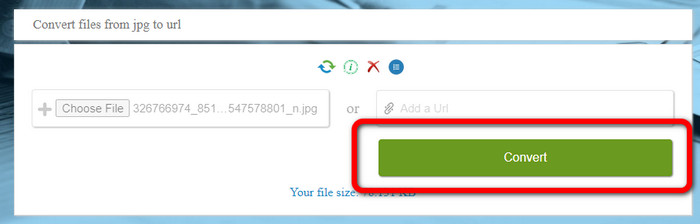
Schritt 1. Öffnen Sie einen beliebigen Browser auf Ihrem Desktop und rufen Sie die Website von i-Converter auf. Wenn Sie sich auf der Startseite befinden, klicken Sie auf die Schaltfläche Choose File. Wenn das Dateifenster Ihres Computers erscheint, öffnen Sie das Bild, das Sie in eine URL umwandeln möchten.
Schritt 2. Nachdem Sie die Bilddatei hochgeladen haben, die Sie konvertieren möchten, klicken Sie auf die Schaltfläche Convert. Warten Sie anschließend auf den Konvertierungsvorgang. Nach einigen Sekunden stellt Ihnen das Tool den Link bereit. Sie können den Link in den Browser kopieren, um das Bild zu öffnen, indem Sie auf die Schaltfläche Copy Code klicken.
Wie man ein Bild mit Image to Link zu einem Link macht
Ein weiteres Online-Tool, das Sie nutzen können, um Bilder in HTML zu konvertieren, ist Image to Link. Im Vergleich zum ersten oben genannten Tool unterstützt dieses verschiedene Eingabeformate wie JPG, PNG und GIF. Außerdem bietet es eine sehr einfache Vorgehensweise. Nachdem Sie das Bild hochgeladen haben, konvertiert das Tool es automatisch. Der Konvertierungsprozess ist schnell, sodass Sie den Link rasch erhalten. Zusätzlich ist Image to Link in verschiedenen Webbrowsern verfügbar. Sie können es in Google, Mozilla, Explorer und weiteren nutzen. Aufgrund der gut verständlichen Optionen können alle Nutzer dieses Tool bedienen. Das Beste ist, dass Sie mehrere Bilder auf einmal konvertieren können. Auf diese Weise eignet sich das Tool hervorragend, wenn Sie viele Dateien umwandeln möchten. Allerdings erscheinen bei der Nutzung des Konverters einige Werbeanzeigen auf dem Bildschirm, was für Anwender frustrierend sein kann. Zudem können Sie beim Konvertieren mehrerer Dateien höchstens fünf Bilder auf einmal hochladen. Sie benötigen außerdem einen Internetzugang, um den Online-Bildkonverter zu verwenden.
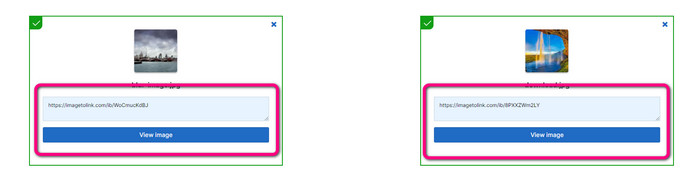
Schritt 1. Rufen Sie über Ihren Browser die Website von Image to Link auf. Klicken Sie auf der Webseite auf die Schaltfläche Start Uploading. Öffnen Sie dann im Dateifenster Ihres Computers die Bilddatei, die Sie konvertieren möchten. Bei einer Stapelkonvertierung können Sie bis zu fünf Bilder hochladen.
Schritt 2. Nach dem Hochladen wird das Tool das Bild automatisch in einen Link umwandeln. Anschließend stellt Ihnen das Tool einen Link zur Verfügung, mit dem Sie das Bild öffnen können. Um das Bild zu öffnen, kopieren Sie den bereitgestellten Link und fügen ihn in Ihren Browser ein.
Teil 2. So ändern Sie Bilder in JPG, PNG und GIF
Konvertieren Sie Bilder mit FVC Free Image Converter in JPG, PNG und GIF
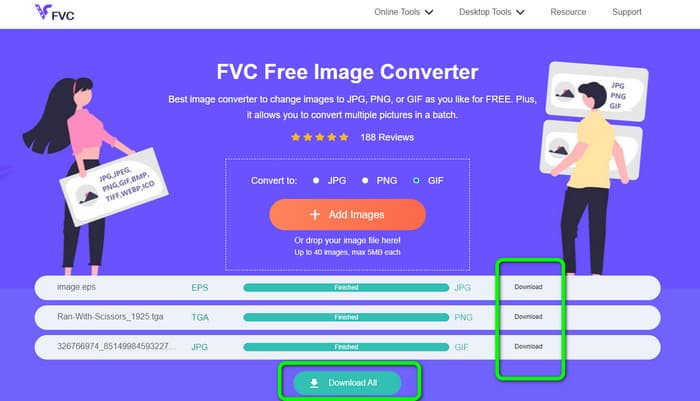
Einer der führenden Online-Bildkonverter, die Sie verwenden können, ist der FVC Free Image Converter. Das Tool kann Ihr Bild in verschiedene Formate wie JPG, PNG und GIF transkodieren. Außerdem unterstützt es unterschiedliche Eingabeformate, darunter BMP, SVG, ICO, WebP und mehr. Sie können Bilder mit nur wenigen einfachen Schritten konvertieren, was für Anwender sehr praktisch ist. Zusätzlich bietet der Bildkonverter großartige Funktionen, die Sie nutzen können. Dazu gehört die Stapelkonvertierung. Sie ermöglicht es Ihnen, mehrere Bilder hochzuladen und sie mit einem einzigen Klick zu konvertieren. Beachten Sie, dass Sie bis zu 40 Bilddateien umwandeln können. Zudem bietet das Tool einen schnellen Konvertierungsvorgang, sodass Sie Bilder innerhalb weniger Sekunden konvertieren können.
Darüber hinaus ist FVC Free Image Converter in allen Browsern verfügbar, sodass Sie ihn überall verwenden können, solange Sie eine Internetverbindung haben. Das Tool garantiert auch Ihre Privatsphäre. Während des Konvertierungsprozesses werden Sie niemals auf störende Anzeigen auf Ihrem Bildschirm stoßen. Nach dem Speichern Ihrer konvertierten Bilder löscht das Tool Ihre Daten, sodass niemand Ihre hochgeladenen und konvertierten Fotos sehen kann. Verwenden Sie die unten aufgeführten Methoden, um Bilder mühelos in das JPG-, PNG- oder GIF-Format zu konvertieren.
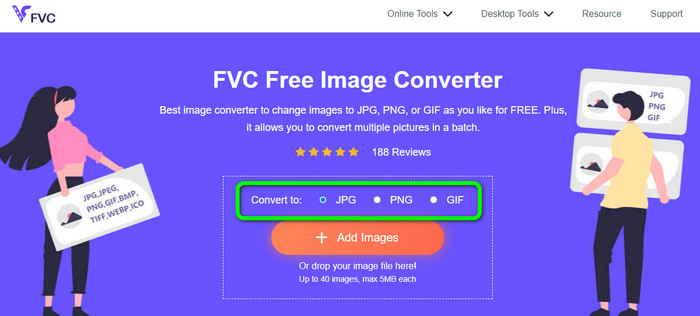
Schritt 1. Rufen Sie die offizielle Website des FVC Free Image Converter auf. Sie können diesen Online-Bildkonverter in allen Browsern nutzen. Danach können Sie im Formatbereich das Format JPG, PNG oder GIF auswählen.
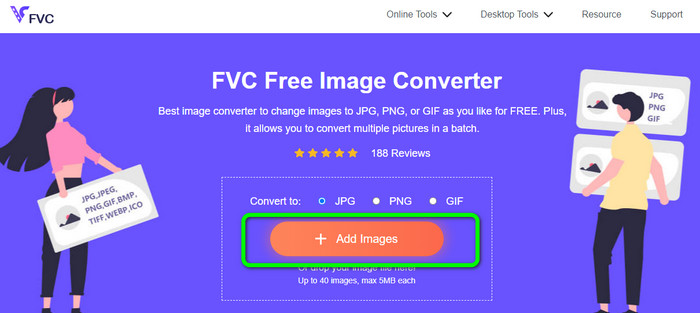
Schritt 2. Klicken Sie auf Add Images, um die Bilddatei von Ihrem Computer hochzuladen. Sie können die Datei auch per Drag & Drop in das Feld ziehen. Da das Tool einen Stapelkonvertierungsprozess bietet, können Sie mehrere Dateien gleichzeitig hochladen.
Schritt 3. Sie sehen, dass der Bildkonverter die Bilder nach dem Hochladen automatisch konvertiert. Wenn der Konvertierungsvorgang abgeschlossen ist, klicken Sie auf die Schaltfläche Download All, um alle in einem Schritt zu speichern. Wenn Sie die Bilder lieber einzeln speichern möchten, klicken Sie auf die Schaltfläche Download auf der rechten Seite.
Teil 3. Häufig gestellte Fragen zum Konvertieren von Bildern in Links
1. Warum ein Bild in einen Link umwandeln?
Sie können ein Bild als Schaltfläche verwenden, wenn Sie eine Website oder einen Blog haben. Auf diese Weise können Benutzer auf Ihre Homepage oder eine bestimmte Seite zugreifen. Außerdem ist es möglich, Fotos in Social-Media-Postings oder E-Mail-Signaturen zu verlinken. Außerdem ist es eine fantastische Möglichkeit, für Ihre Website oder Ihren Blog zu werben und den Traffic zu steigern. Hier sind nur einige der wichtigsten Gründe für die URL-Konvertierung von einem Bild.
2. Welche Vorteile hat es, ein Bild in einen Link umzuwandeln?
Es kann für Benutzer einfacher sein, auf Ihren Link zu klicken, wenn Sie ein Bild in einen Link umwandeln. Wenn Sie möchten, dass Besucher auf ein kleines Bild klicken, erhalten sie durch die Umwandlung des Bildes in eine URL einen größeren Bereich, auf den sie klicken können. Wenn Sie Ihr Material mit anderen teilen, wird es möglicherweise viel einfacher, neue Waren oder Dienstleistungen zu entdecken.
3. Wie finde ich die URL eines Bildes auf einer Website?
Klicken Sie mit der rechten Maustaste auf das Bild und wählen Sie Bildlink kopieren, um die URL eines Bildes auf einer Website abzurufen. Sie können die URL dann in einem neuen Tab öffnen, um das Bild zu speichern, oder die URL per E-Mail, Social Media und anderen Kanälen teilen.
Fazit
Das war’s! Jetzt haben Sie die besten Methoden kennengelernt, um Bilder in Links zu konvertieren. Zusätzlich haben Sie die einfachsten Wege entdeckt, Bilder in die Formate JPG, PNG und GIF umzuwandeln. Wenn Sie also Ihre Bilder in URL-Links ändern möchten, sehen Sie sich die oben beschriebenen effektiven Methoden an. Möchten Sie hingegen einen leistungsstarken Bildkonverter nutzen, um Bilder in andere Formate zu konvertieren, verwenden Sie den FVC Free Image Converter.
-
 Methoden zum Konvertieren von Bildern in JPG online und offline
 Möchten Sie die Datei aus irgendeinem Grund in das JPG-Format konvertieren? Dann ist dieser Artikel für Sie. Wir zeigen Ihnen die beste Methode, um Ihr Bild in JPG zu konvertieren
-
 Nützliche Methoden zum einfachen Konvertieren von Bildern in das PNG-Format
 Suchen Sie nach der besten Möglichkeit, Ihr Bild als PNG zu speichern? Dieser Wegweiser bietet Ihnen hervorragende Lösungen, um Bilder online und offline in PNG zu konvertieren
-
 Was ist JPEG/JPG: Konvertieren Sie Ihre Bilder mühelos in JPG
 Sind Sie neugierig auf die Bedeutung von JPEG? Wir haben eine Antwort für Sie. Außerdem erfahren Sie, wie Sie verschiedene Bildformate in JPG-Dateien konvertieren. Lesen Sie jetzt den Beitrag.
