


 Video Converter Ultimate
 Bildschirm recorder
 Videoreparatur
 Sicherer Download
Lösungen zum Online-Schneiden von Videos [Schritt-für-Schritt-Tutorials]
Wie verkürzt man ein langes Video? Wenn Sie die besten Methoden dafür noch nicht kennen, sollten Sie diesen Leitfaden lesen. In diesem Artikel geben wir Ihnen alle wichtigen Informationen dazu, wie Sie die Länge Ihres Videos reduzieren können. Außerdem stellen wir Ihnen Online- und Offline-Videobearbeitungsprogramme vor, die Sie nutzen können. So haben Sie mehr Möglichkeiten, Ihr Ziel zu erreichen. Lesen Sie also diesen Beitrag und erfahren Sie, wie Sie ein Video online schneiden können.

Teil 1. Hervorragende Methoden zum Online-Schneiden von Videos
1. InVideo
Eines der hilfreichen Videobearbeitungstools, die Sie online finden können, ist der InVideo-Videotrimmer. Diese webbasierte Software bietet ein benutzerfreundliches Layout. Nach dem Besuch der Website müssen Sie das Tool nicht installieren. Alles, was Sie tun müssen, ist das Video hinzuzufügen, und schon können Sie mit dem Trimmen fortfahren. Da es ein einfaches Layout hat, wird es außerdem eine verständliche Methode geben. Auf diese Weise können Sie InVideo verwenden, egal ob Sie ein professioneller oder ein nicht professioneller Benutzer sind. Darüber hinaus ist InVideo auf fast allen Webplattformen zugänglich. Sie können das Tool in Google Chrome, Mozilla Firefox, Internet Explorer und mehr verwenden. Allerdings hat InVideo einige Nachteile. Bei Verwendung der kostenlosen Version kann InVideo keine hohe Videoqualität bieten. Außerdem kann es nur eine geringe Videoqualität bieten, was unbefriedigend ist. Wenn Sie eine hervorragende Videoqualität wünschen, müssen Sie ein Abonnement erwerben. Führen Sie die folgenden Schritte aus, um Ihr Video mit dem InVideo-Video-Trimmer zu schneiden/zu trimmen.
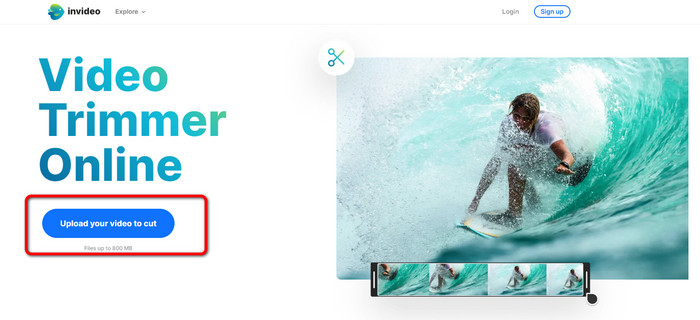
Schritt 1. Öffnen Sie Ihren Browser und rufen Sie die offizielle Website von InVideo auf. Wenn Sie sich bereits auf der Webseite befinden, klicken Sie auf die Schaltfläche Upload your video to cut. Wenn der Dateimanager auf dem Bildschirm erscheint, wählen Sie das Video aus, das Sie kürzen/schneiden möchten, und öffnen Sie es.
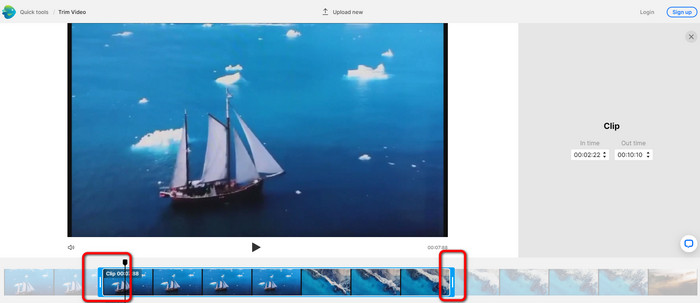
Schritt 2. Nachdem Sie ein Video ausgewählt haben, werden Sie zu dem Bereich weitergeleitet, in dem Sie es schneiden können. Um Ihren Film zu trimmen, verschieben Sie die Schieberegler an beiden Enden des Videos auf den gewünschten Zeitstempel.
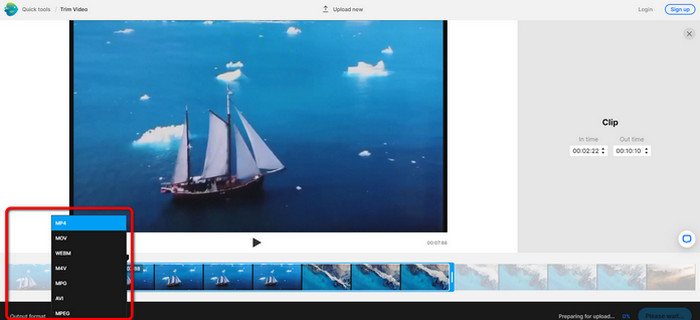
Schritt 3. Wenn Sie Ihr Video zugeschnitten haben, können Sie es in verschiedenen Formaten speichern. Gehen Sie unten links in der Benutzeroberfläche zur Option Output Format. Wählen Sie dann Ihr bevorzugtes Ausgabeformat aus, wenn die Formatoptionen erscheinen. Klicken Sie anschließend auf Done.
Schritt 4. Bevor Sie Ihr Video speichern können, müssen Sie ein Konto bei InVideo registrieren oder sich mit einem bereits bestehenden Konto anmelden. Nachdem Sie Ihre Zugangsdaten eingegeben haben, steht Ihr Video nach wenigen Sekunden zum Speichern bereit.
2. Ezgif
Ein weiteres kostenloses Online-Video-Trimm-Tool ist Ezgif. Es bietet einfache Schritte, um ein Video zu verkürzen. Ezgif ist ein kostenloses Online-Tool, sodass Sie keinen Cent ausgeben müssen. Außerdem können Sie von allen Browsern aus auf das Online-Tool zugreifen, darunter Google, Edge, Firefox, Explorer und mehr. Allerdings unterstützt das Online-Tool nur GIF. Wenn Sie also ein Video in einem anderen Format schneiden möchten, ist Ezgif nicht das richtige Werkzeug. Zudem erscheinen bei der Nutzung viele störende Werbeanzeigen auf dem Bildschirm, was den Bearbeitungsprozess beeinträchtigt.
Schritt 1. Gehen Sie auf die Website von Ezgif und wählen Sie die Option Cut.
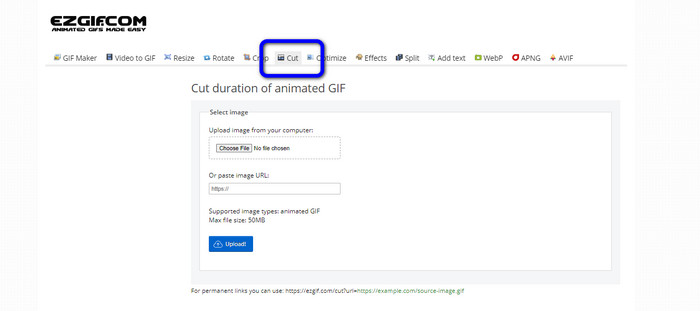
Schritt 2. Klicken Sie anschließend auf die Schaltfläche Choose File. Fügen Sie dann die GIF-Datei aus dem Computerordner hinzu, die Sie hochladen möchten.
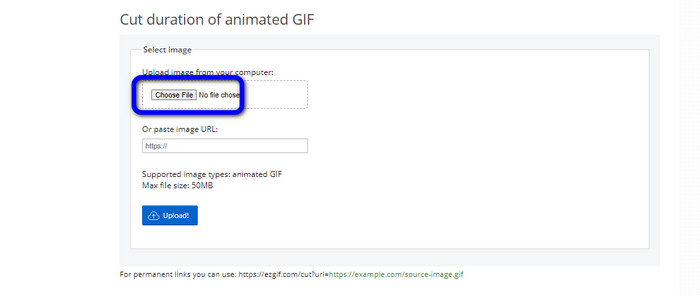
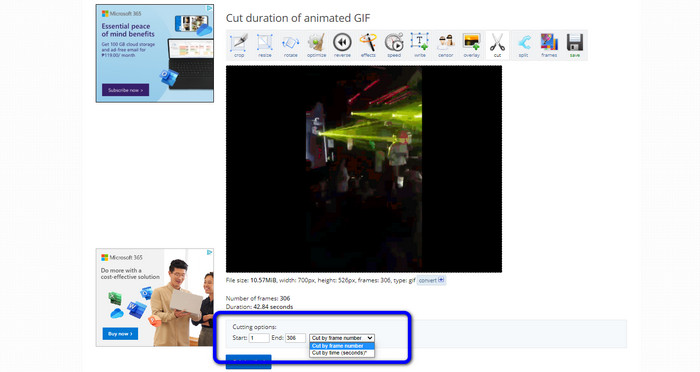
Schritt 3. Nach dem Hochladen der GIF-Datei können Sie sie bereits schneiden. Es gibt zwei Möglichkeiten, die GIF-Datei zu schneiden: nach Bildnummer (Frame) oder nach Zeit. Schneiden Sie sie auf die von Ihnen bevorzugte Weise.
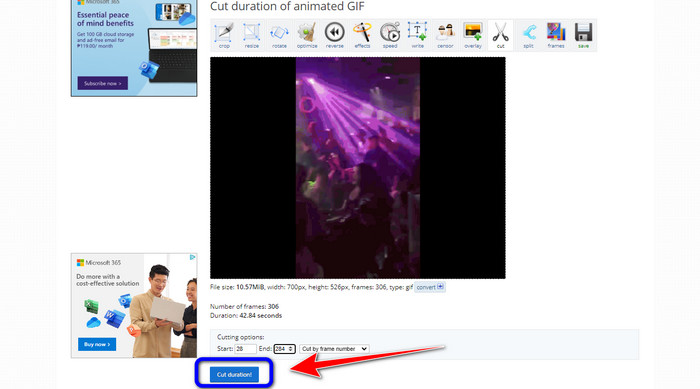
Schritt 4. Klicken Sie auf die Schaltfläche Cut Duration, um den Schneidvorgang zu starten.
Schritt 5. Danach wird die bearbeitete Version angezeigt. Klicken Sie auf die Option Save, um das Endergebnis auf Ihren Computer herunterzuladen.

3. Kapwing
Um ein Video zu schneiden, können Sie auch den Kapwing-Video-Trimmer verwenden. Dieses webbasierte Tool ermöglicht es, Videos auf unkomplizierte Weise zu schneiden. Außerdem können Sie das Tool auf verschiedenen Plattformen im Web nutzen, darunter Chrome, Mozilla, Edge und mehr. Darüber hinaus unterstützt Kapwing verschiedene Videoformate wie MP4, MOV, AVI, FLV, WEBM und andere, was es für alle Nutzer praktisch macht. Kapwing hat jedoch auch einige Nachteile. Es werden ständig störende Werbeanzeigen eingeblendet. Zudem können Sie in der kostenlosen Version nur Videos mit einer Qualität von bis zu 720p hochladen. Außerdem versieht das Tool das bearbeitete Video mit einem lästigen Wasserzeichen. Wenn Sie Videos ohne Wasserzeichen erhalten und weitere nützliche Funktionen nutzen möchten, müssen Sie ein Abonnement erwerben.
Schritt 1. Gehen Sie auf die Website von Kapwing. Klicken Sie dann auf die Option Choose a video, um zur Hauptoberfläche des Tools zu gelangen.
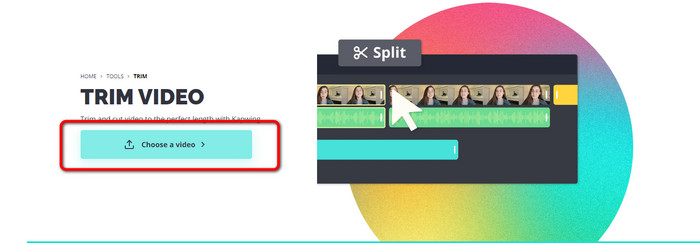
Schritt 2. Klicken Sie auf die Schaltfläche Click to upload, um das Video aus dem Dateimanager hinzuzufügen.
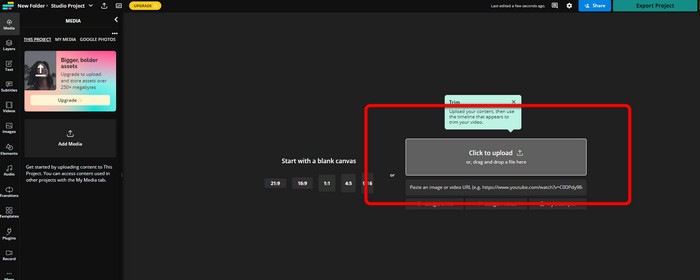
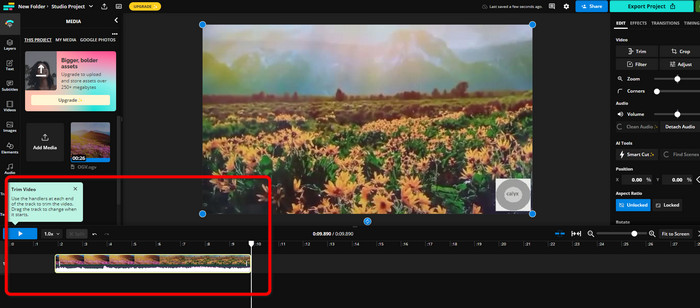
Schritt 3. Sobald sich das Video auf der Zeitleiste befindet, können Sie die Griffpunkte an beiden Seiten anklicken und ziehen, um mit dem Trimmen des Videos zu beginnen.
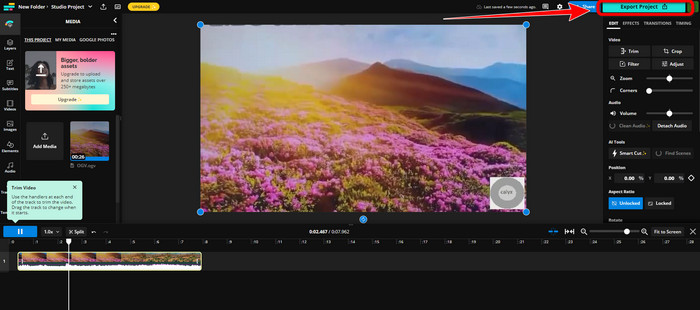
Schritt 4. Wenn Sie fertig sind, gehen Sie in die obere rechte Ecke der Benutzeroberfläche und klicken Sie auf die Schaltfläche Export Project. Auf diese Weise können Sie das bearbeitete Video auf Ihrem Desktop speichern.
Teil 2. Alternative Methode zum Offline-Trimmen von Videos
Verwenden Sie Video Converter Ultimate, um Videos offline auf bestmögliche Weise zu bearbeiten. Mit diesem Tool können Sie Ihr Video ganz einfach schneiden und/oder trimmen. Es verfügt zudem über eine einfache Oberfläche mit übersichtlicher Navigation und ist damit ideal für alle Benutzer. Ihr Endergebnis kann außerdem in verschiedenen Formaten gespeichert werden, darunter MOV, AVI, MP4, MKV und andere. Beim Schneiden von Videos können Sie noch mehr tun. Über die Ausgabeeinstellungen können Sie verschiedene Anpassungen vornehmen. Sie können die Bildrate, Auflösung, den Encoder, die Qualität usw. des Videos ändern. Außerdem fügt Video Converter Ultimate dem bearbeiteten Video keine Wasserzeichen hinzu. So können Sie den fertigen Film ohne störende Elemente ansehen. Video Converter Ultimate ist sowohl für Windows- als auch für Mac-Nutzer verfügbar. Das bedeutet, dass das Programm für Nutzer beider Betriebssysteme praktisch ist. Folgen Sie der nachstehenden Schritt-für-Schritt-Anleitung, um mit dem Schneiden des Videos zu beginnen.
Schritt 1. Klicken Sie auf die Download-Schaltfläche unten, um Video Converter Ultimate auf Ihrem Computer zu installieren. Öffnen Sie das Programm nach Abschluss der Installation.
Gratis DownloadFür Windows 7 oder neuerSicherer Download
Gratis DownloadFür MacOS 10.7 oder neuerSicherer Download
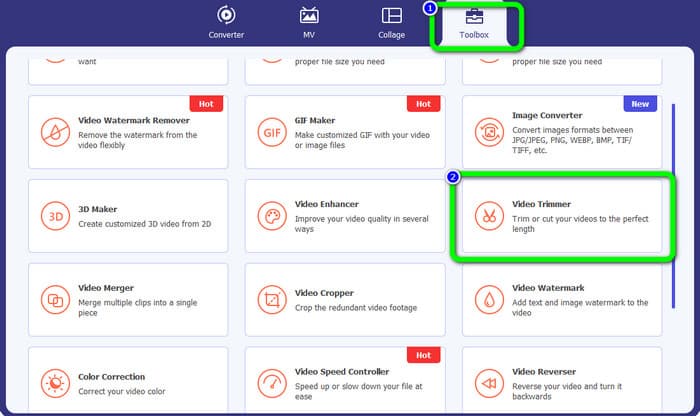
Schritt 2. Klicken Sie in der Oberfläche auf das Menü Toolbox und wählen Sie das Werkzeug Video Trimmer aus.
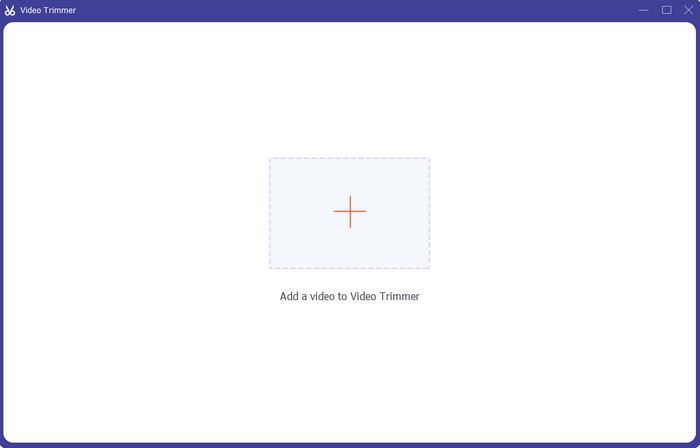
Schritt 3. Wenn die neue Oberfläche auf dem Bildschirm erscheint, klicken Sie auf das Plus-Symbol, um das Video hinzuzufügen, das Sie bearbeiten möchten.
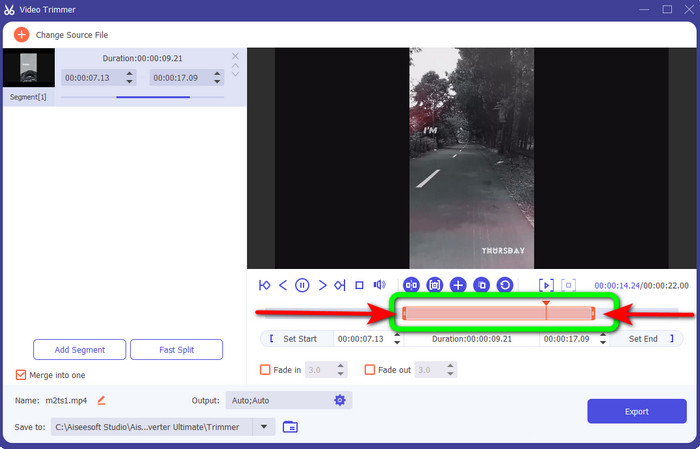
Schritt 4. Danach können Sie in diesem Bereich mit der Bearbeitung Ihres Videos beginnen. Sie können die Randbereiche des Videos verschieben, um zu bestimmen, wie Sie das Video schneiden/trimmen möchten. Bewegen Sie die rechten und linken Ränder entsprechend Ihren Anforderungen.
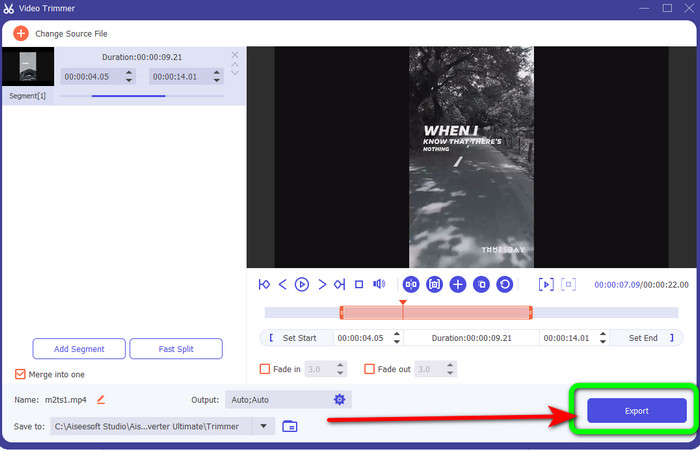
Schritt 5. Wenn Sie mit dem Video zufrieden sind, klicken Sie auf die Schaltfläche Export, um mit dem Exportieren fortzufahren. Speichern Sie anschließend Ihr endgültiges, bearbeitetes Video.
Teil 3. Häufig gestellte Fragen zum Online-Schneiden von Videos
Wie schneide ich ein Video auf einem iPhone?
Tippen Sie nach dem Start auf das Video, das Sie in der Bilder-App bearbeiten möchten. Klicken Sie auf Bearbeiten. Ändern Sie die Start- und Stoppzeiten, indem Sie die Schieberegler auf beiden Seiten der Videozeitachse ziehen. Verwenden Sie die Wiedergabeschaltfläche, um eine Vorschau Ihres bearbeiteten Videos anzuzeigen. Wählen Sie Video speichern oder Video als neuen Clip speichern, nachdem Sie Fertig ausgewählt haben.
Wie schneide ich Videos in Shotcut?
Ziehen Sie die Videodatei auf die Timeline, nachdem Sie sie in Shotcut importiert haben. Platzieren Sie die Abspielposition am Anfang des Segments, das Sie kürzen möchten. Drücken Sie dann die Tastenkombination I. Drücken Sie die Taste O, nachdem Sie den Abspielkopf zum Ende des Abschnitts bewegt haben. Das Segment würde nun vom Rest des Videos getrennt werden.
Was ist die beste Software, um MP4-Dateien offline zu schneiden?
Wenn Sie MP4-Dateien offline schneiden möchten, verwenden Sie Video Converter Ultimate. Dieses kostenlos herunterladbare Programm ermöglicht es Ihnen, MP4-Dateien ohne Aufwand zu schneiden.
Fazit
Dies sind die besten Methoden, um Videos online zu schneiden. Sie können alle oben genannten Videobearbeitungstools zum Schneiden eines Videos verwenden. Wenn Sie jedoch ein Online-Tool verwenden, kann es vorkommen, dass es aufgrund einer schlechten Internetverbindung nicht einwandfrei funktioniert. In diesem Fall sollten Sie Video Converter Ultimate nutzen. Es ist ein herunterladbares Programm, mit dem Sie Videos ohne Internetverbindung bearbeiten können.
-
 [4 Möglichkeiten] So beschleunigen Sie Ihre Videos online ganz einfach
 Möchten Sie ein Video online beschleunigen? Lesen Sie diesen Artikel, um mehr darüber zu erfahren, wie Sie ein Video auf verschiedene Arten beschleunigen können.
-
 Wie man Songs online ausschneidet und zusammenführt – 4 beste Möglichkeiten, die Sie kennen sollten
 Wenn Sie Songs online ausschneiden und zusammenführen möchten, um ein Musikstück zu erstellen, können Sie mehr über die 4 besten Online-Tools erfahren, um die Songs zu schneiden und Dateien aus dem Artikel zu kombinieren.
-
 Entdecken Sie den besten MP4-Trimmer mit Verfahren und Informationen
 Möchten Sie lernen, wie Sie Videos wie die Vlogger schneiden, die Sie sich ansehen? Dann lesen Sie diesen Beitrag weiter, um zu erfahren, welche MP4-Trimmer Sie verwenden können.
