


 Video Converter Ultimate
 Bildschirm recorder
 Videoreparatur
 Sicherer Download
VLC-Snapshot-Funktion - Hier finden Sie die Anleitung zum Aufnehmen von Screenshots in VLC Media Player
Wie machen Sie einen Screenshot im VLC Media Player, wenn Sie ein Video-Tutorial oder einen Film im VLC-Player abspielen? Unabhängig davon, ob Sie einen Schnappschuss als Miniaturansicht erfassen oder einem bestimmten Frame eine Anmerkung hinzufügen müssen, können Sie stattdessen einfach die Funktion für versteckte Schnappschüsse von VLC verwenden.
Wie machen Sie Schnappschüsse mit VLC Media Player? Wo werden die Screenshots gespeichert, nachdem Sie die gewünschten Bilder aufgenommen haben? Ist es möglich, die Schnappschüsse in den gewünschten Formaten zu speichern? Wenn Sie mehr über den Prozess und die beste Alternative erfahren möchten, finden Sie einige nützliche Informationen im Artikel.

Teil 1: So machen Sie Schnappschüsse in VLC und suchen nach einem Ort
1. So machen Sie einen Screenshot im VLC Media Player
Wenn Sie den neuesten VLC Media Player verwenden, befindet sich unten auf der Benutzeroberfläche ein Kamerasymbol. Klicken Sie einfach auf die Kamera, um einen Screenshot in VLC Media Player zu erstellen. Bei der anderen Version können Sie die folgenden Tastenkombinationen verwenden, um die Screenshots wie folgt zu erfassen.
Schritt 1: Nachdem Sie den VLC Media Player installiert haben, können Sie das Programm auf Ihrem Computer starten. Anschließend können Sie die gewünschten Filme in den Media Player importieren.
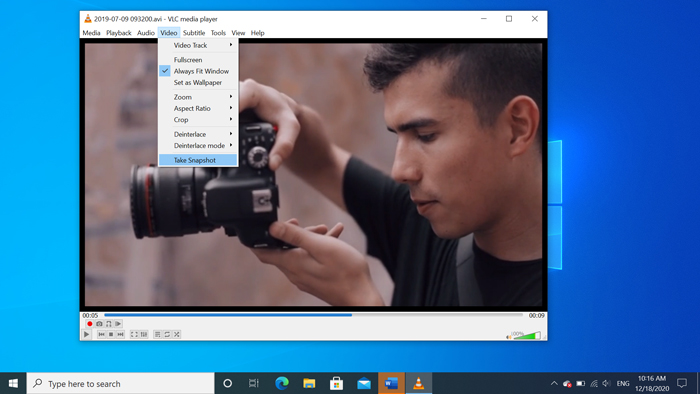
Schritt 2: Wenn Sie in VLC den gewünschten Frame erreicht haben, von dem Sie einen Schnappschuss machen möchten, klicken Sie auf das Menü Video und wählen Sie die Option Schnappschuss machen, um den gewünschten Schnappschuss zu speichern.
Sie können die Verknüpfung auch zum Erstellen eines Screenshots in VLC verwenden. Hier ist die Standardeinstellung für Ihre Referenz. UMSCHALT + S für Windows, Befehl + ALT + S für Mac und STRG + ALT + S für Linux.
Schritt 3: Danach wird oben im VLC Media Player ein Popup mit einer Miniaturansicht des Schnappschusses angezeigt, zusammen mit dem Speicherort der Datei und dem Dateinamen. Diese Einblendung verschwindet jedoch nach wenigen Sekunden.
2. Wo werden die Screenshots von VLC gespeichert?
Wenn Sie die Informationen nicht aus der Popup-Miniaturansicht abrufen können, finden Sie hier die Standardziele für die VLC-Screenshots. Natürlich können Sie mehrere Snapshots erstellen, um mehr über den Zielordner der Snapshots zu erfahren.
Windows 7/8/10: C: BenutzernameMeine Bilder
Windows XP: C: Eigene DateienMeine Bilder
Mac OS X: Schnappschüsse werden in Desktop / gespeichert
Linux: Snapshots werden in $ (HOME) /. Vlc / gespeichert
3. So richten Sie Einstellungen für Snapshots in VLC ein
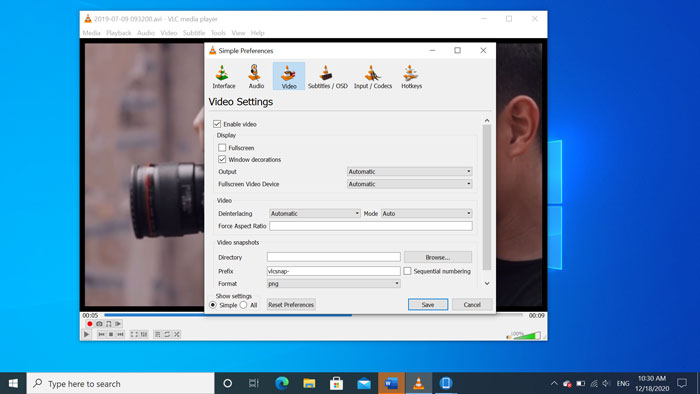
Ist es möglich, die Einstellungen für die Schnappschüsse festzulegen? Wenn Sie ein anderes Format oder einen anderen Zielordner auswählen möchten, können Sie zum Menü Werkzeuge gehen und Einstellungen auswählen, um die Optionen anzupassen.
Videoverzeichnis: Nachdem Sie auf die Schaltfläche Durchsuchen geklickt haben, können Sie den Speicherort für VLC-Screenshots, etwa Ihren Desktop oder ein anderes häufig verwendetes Ziel, auswählen.
Präfix: Den aufgenommenen Screenshots in VLC Media Player werden Präfixe und Suffixe hinzugefügt. Aktivieren Sie das Kontrollkästchen für die fortlaufende Nummerierung, wenn Sie anstelle des aktuellen Datums / der aktuellen Uhrzeit Nummern verwenden möchten.
Format: Sie können JPG, PNG und TIFF als Ausgabefotoformat auswählen.
Teil 2: Die Online-Alternative von VLC zum Erstellen von Screenshots
Der VLC Media Player ist eine einfache Methode, um Video-Screenshots aufzunehmen. Wenn Sie jedoch Anmerkungen hinzufügen, den Frame für die Aufnahme anpassen oder beliebige Schnappschüsse unter Windows und Mac machen müssen, ist FVC Free Screen Recorder eine Online-Alternative zu VLC, um Screenshots aufzunehmen. Damit können Sie jedes Video und jede Audioquelle mit hoher Qualität mit nur einem Klick aufzeichnen. Außerdem können Sie den Screenshot innerhalb des Online-Video-Recorders verwalten.
- 1. Erfassen Sie Filme, Desktops und andere Aktivitäten auf Ihrem Computer.
- 2. Optimieren Sie die Hotkeys, den Zielordner, die Video- / Audioqualität und vieles mehr.
- 3. Bearbeiten Sie den Screenshot in Echtzeit, z. B. Linien, Text, Markierungen, Linien usw.
- 4. Stellen Sie eine kostenlose Bildschirmaufnahme ohne Wasserzeichen und andere Einschränkungen bereit.
- 5. Nehmen Sie Videos mit hoher Qualität auf.
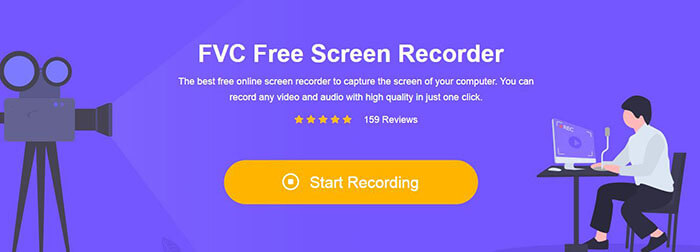
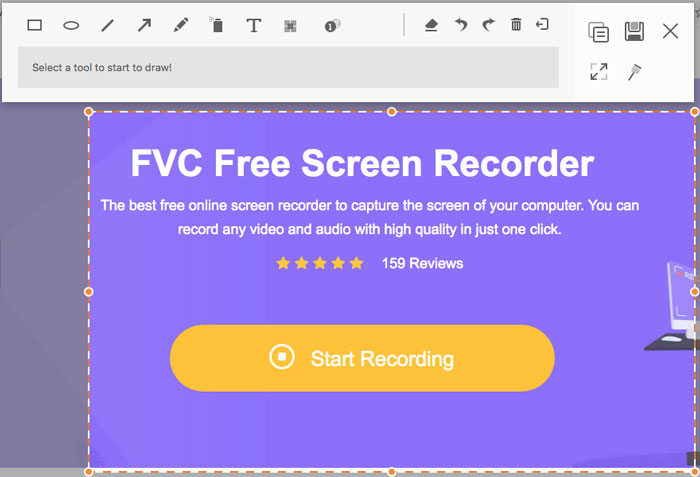
Schritt 1: Gehen Sie zum Online-Bildschirmrekorder, klicken Sie auf das Symbol Start Recording, um das Installationsprogramm herunterzuladen und zu installieren. Anschließend können Sie den Online-Bildschirmrekorder starten, um jede Aktivität auf Ihrem Computer aufzuzeichnen.
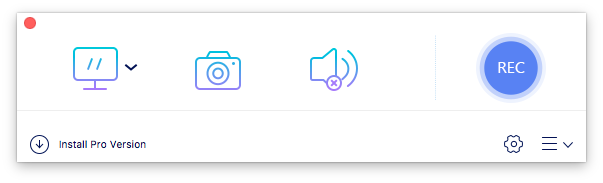
Schritt 2: Sobald Sie den Online-Bildschirmrekorder gestartet haben, klicken Sie auf das Kamerasymbol, um online als VLC-Alternative einen Schnappschuss zu machen. Passen Sie den Aufnahmebereich mit Ihrer Maus an, um einen Screenshot zu erstellen.
Schritt 3: Danach können Sie Anmerkungen hinzufügen, wie etwa Wasserzeichen, Sprechblasen, Pfeile, Text und weitere Elemente in den Screenshot einfügen. Außerdem können Sie den Screenshot direkt innerhalb des Programms verwalten.
Teil 3. FAQs zum Screenshot des VLC Media Player
1. Wie optimiere ich die Hotkeys für die Aufnahme eines Screenshots in VLC?
Wenn es zu Konflikten bei den Hotkeys kommt, insbesondere wenn Sie andere Aufgaben ausführen, können Sie zum Menü Werkzeuge gehen und die Option Einstellungen auswählen. Dann können Sie die Schaltfläche „Hotkeys“ wählen und „snapshot“ in die Suchspalte eingeben. Klicken Sie auf „Video-Schnappschuss machen“ und drücken Sie die neue Taste oder Tastenkombination für VLC-Schnappschüsse.
2. Wie werden Snapshots in VLC mit der besten Qualität aufgenommen?
Wenn Sie einen Video-Screenshot in VLC mit der Originalqualität aufnehmen müssen, können Sie den Vollbildmodus auswählen und das Dateiformat als PNG auswählen. Um unscharfe Bilder zu vermeiden, können Sie bei einem bestimmten Bild anhalten, das Sie zuvor aufnehmen möchten.
3. Ist es möglich, einen Screenshot von YouTube-Filmen in VLC aufzunehmen?
Ja. Um Screenshots von YouTube-Filmen in VLC aufzunehmen, können Sie die YouTube-Filme im Media Player streamen und abspielen. Klicken Sie auf die Option Medien und wählen Sie Netzwerkstream öffnen. Geben Sie dann die direkte YouTube-URL des Videos ein. Danach können Sie das Video abspielen und den gewünschten Schnappschuss entsprechend aufnehmen. Sie können auch FVC Free Screen Recorder oder andere Aufnahme-Tools wie DU Screen Recorder verwenden, um den Screenshot zu machen.
Fazit
Das Erstellen von Video-Schnappschüssen in VLC Media Player ist eine einfache Aufgabe. Wenn Sie jedoch den Zielordner suchen, die Einstellungen für Schnappschüsse anpassen oder sogar eine Online-Alternative auswählen möchten, ist FVC Free Screen Recorder immer die beste Wahl, um Ihnen zu helfen.
-
 Snagit 2021 Review - Vor- und Nachteile und die beste Alternative
 Was ist die beste Alternative zu Snagit? Gibt es ein Bildschirmaufnahme-Tool wie Snagit? In diesem Beitrag wird Snagit überprüft und die beste Alternative zu Snagit zur Erfassung des Bildschirms vorgestellt.
-
 QuickTime-Bildschirmaufnahme - Nehmen Sie Videos mit Audio auf Mac und PC auf
 Der Aufnahmebildschirm mit Audio auf dem Mac ist praktisch. Der eingebaute Player QuickTime Player kann dies tun. Lesen Sie seinen Beitrag und erfahren Sie, wie Sie einen Bildschirm mit Ton auf Mac und PC aufnehmen.
-
 Die unvoreingenommene Bewertung von Real Player und besten Alternativen
 Wenn Sie sich für Real Player als Media Player entscheiden, sollten Sie unsere kurze Einführung und unvoreingenommene Rezension lesen und mehr über die beste Alternative aus dem Artikel erfahren.
