


 Bildschirm recorder
 Videoreparatur
 Sicherer Download
So entfernen Sie den Hintergrund aus GIFs mit effektiven Programmen
GIF ist die Abkürzung für Graphics Interchange Format und wird häufig in der Online‑Kommunikation verwendet, etwa beim Versenden von Nachrichten oder beim Kommentieren eines Beitrags. Den Hintergrund von GIFs oder Bildern zu entfernen, kann schwierig sein, sofern man keine Software hat, die genau für diese Art von Aufgabe entwickelt wurde. Aufgrund seiner Beliebtheit interessieren sich immer mehr Nutzer dafür, wie sie ihre eigenen GIFs bearbeiten und erstellen können. Zum Glück haben wir zuverlässige und einfach zu bedienende Online‑Programme zusammengestellt, mit denen Nutzer den Hintergrund von GIFs entfernen können.

Empfohlen: FVC-freier Hintergrundentferner
FVC Free Background Remover ist ein nützliches Tool, wenn es darum geht, den Hintergrund aus Ihren Bildern zu entfernen. Es nutzt KI, um die Person im Foto zu erkennen und freizustellen. Außerdem ist das Tool für Windows und Mac verfügbar. Insgesamt ist es ein praktisches und zuverlässiges Werkzeug, das Sie jederzeit und überall verwenden können.
Schritt 1. Bild/GIF hochladen
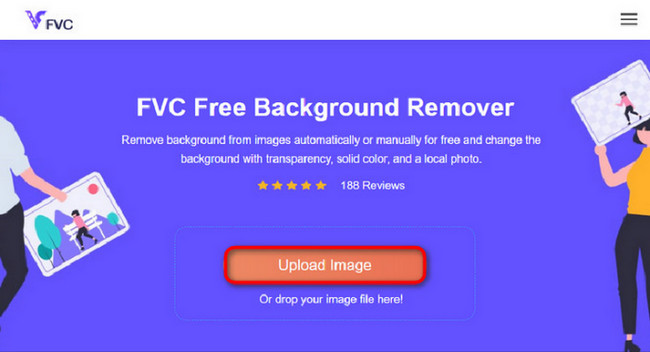
Der erste Schritt ist, den Browser auf Ihrem Computer zu öffnen. Sobald Sie das Online‑Programm aufrufen, erhalten Sie die Option, Ihr Bild hochzuladen. Klicken Sie auf Upload Image, um das GIF hinzuzufügen, bei dem Sie den Hintergrund entfernen möchten.
Schritt 2. Bild bearbeiten
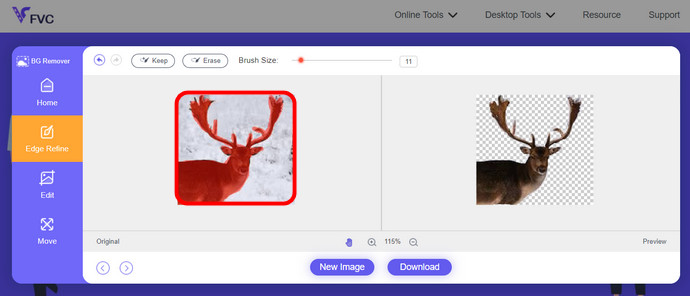
Nach dem Hochladen können Sie nun alle ungenauen Hervorhebungen aus der KI-Erkennung entfernen. Klicken und ziehen Sie einfach mit der Maus und machen Sie es nach Ihren Wünschen.
Schritt 3. Bearbeitetes Bild herunterladen
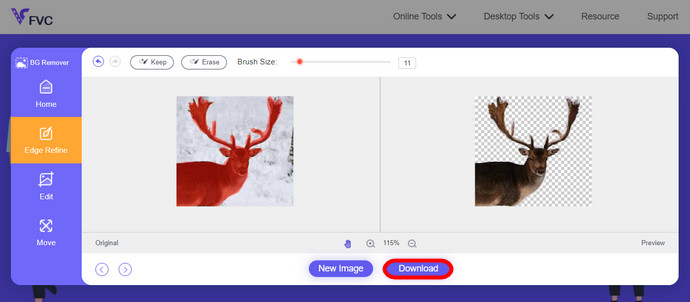
Klicken Sie zum Schluss auf die Schaltfläche Download. Sie haben nun den Hintergrund Ihres Bildes erfolgreich entfernt.
Teil 1. GIF-Hintergrund mit EZGIF.com entfernen
Bei dieser Online-Software handelt es sich um eine Foto-/GIF-Bearbeitungs- und Konvertierungssoftware. Es kann GIF, PNG, WEBP, IMG und viele weitere Formate bearbeiten und konvertieren. Hier können Sie Ihr GIF mit der Bearbeitungssoftware bearbeiten, die der Software beiliegt.
Schritt 1. Webseite aufrufen
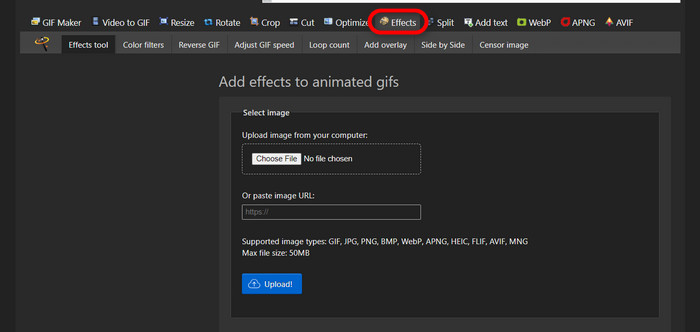
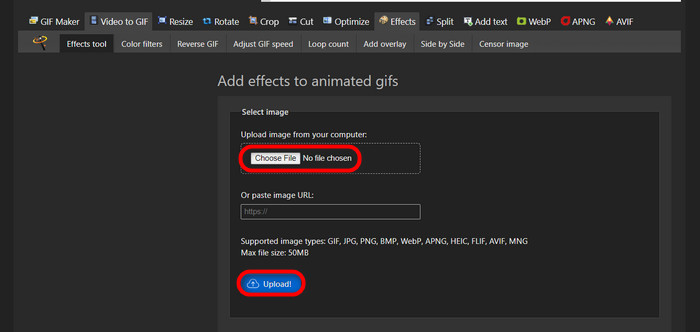
Um dieses Online‑Tool zu nutzen, öffnen Sie Ihren Browser und geben den Link ein. Ihnen werden sofort verschiedene Optionen entsprechend Ihren Bedürfnissen angezeigt. Auf dieser Seite können Sie den Hintergrund Ihres GIFs entfernen. Klicken Sie auf Effects, um zu beginnen.
Schritt 2. Bild/GIF auswählen und hochladen
Wählen Sie nun die gewünschte Datei zum Hochladen aus. Klicken Sie auf Choose Files, suchen Sie sie im entsprechenden Verzeichnis und klicken Sie auf Upload, um Ihre ausgewählte Datei hochzuladen.
Schritt 3. Bild bearbeiten
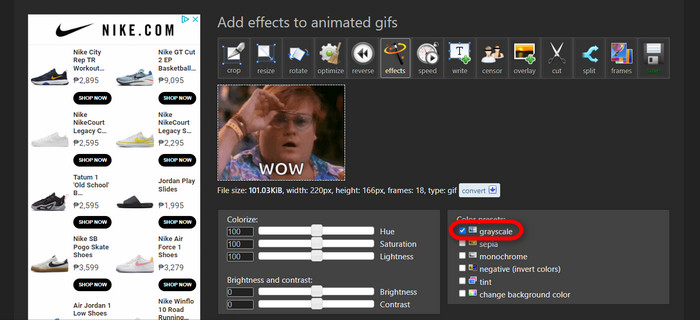
Nach dem Hochladen sind Sie fast fertig mit dem Entfernen des Hintergrunds Ihres GIFs oder damit, den Hintergrund Ihres GIFs schwarz zu machen. Klicken Sie nun auf grayscale, um Ihren Hintergrund dunkel zu machen.
Schritt 4. Bild/GIF anzeigen und konvertieren
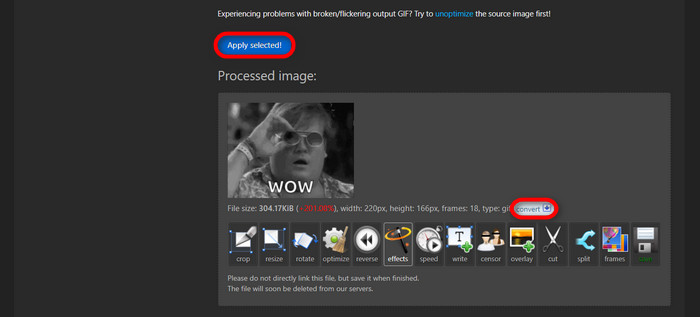
Nachdem Sie Effekte angewendet sowie Ihr neues GIF skaliert und zugeschnitten haben, klicken Sie auf Apply Selected. Es wird Ihnen eine Vorschau Ihres bearbeiteten GIFs angezeigt. Klicken Sie anschließend auf die Schaltfläche convert, um Ihre Datei herunterzuladen.
Teil 2. Erstellen Sie in Remove.bg ein GIF ohne Hintergrund
Diese Website dient auch dazu, den Hintergrund von jedem Foto zu entfernen. Hier haben Sie die Möglichkeit, Ihr automatisch entferntes Hintergrundfoto weiterhin zu bearbeiten. Es verfügt über eine geschickte KI, die das Hauptmotiv erkennen und seinen Hintergrund fehlerfrei entfernen kann.
Schritt 1. Bild/GIF hochladen
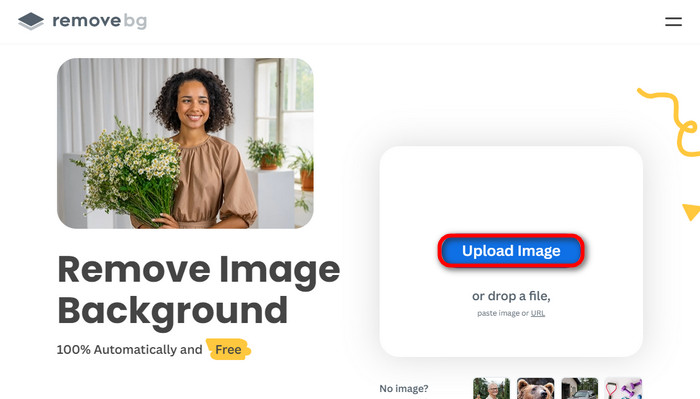
Beginnen wir damit, unser Bild hochzuladen. Öffnen Sie das Online‑Programm in Ihrem Browser, sobald Sie auf der Seite sind. Klicken Sie dann auf Upload Image.
Schritt 2. Bild prüfen und bearbeiten
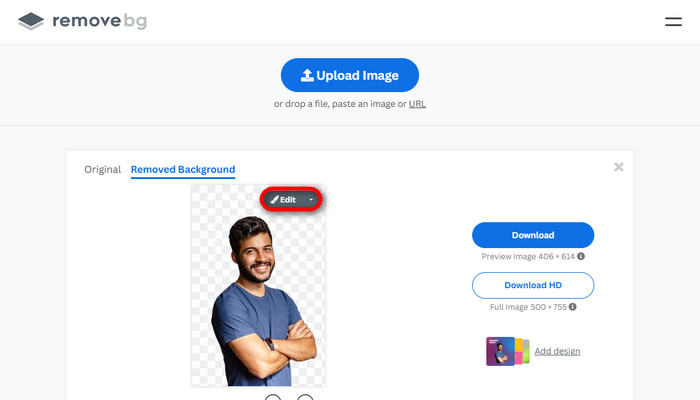
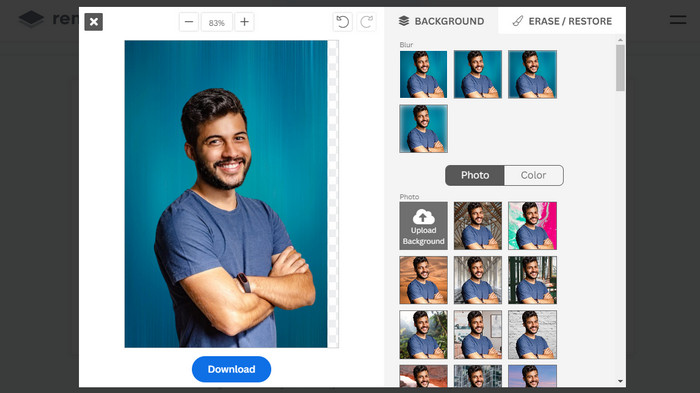
Sobald Ihr Bild hochgeladen ist, sollte der Hintergrund Ihres Fotos bereits automatisch entfernt sein, aber Sie können Ihr Foto weiterhin bearbeiten. Sie können das Originalfoto sehen, indem Sie auf die Schaltfläche Original neben der Schaltfläche Removed Background klicken. Nutzer können mit dieser Software nahtlos einen schwarzen Hintergrund in ihr Bild einfügen.
Schritt 3. Bearbeitetes Bild herunterladen
In diesem Teil sind Sie nun mit der Bearbeitung fertig und können Ihr Bild herunterladen. Klicken Sie einfach auf die Schaltfläche Download unter Ihrem Foto.
Teil 3. Verwenden Sie GIFMagic zum Entfernen des GIF-Hintergrunds
In GIFMagic Spezialeffekte, Text hinzufügen, Animationen und vieles mehr! Dies alles ist mit diesem Online-Programm möglich. Bei der Bearbeitung in dieser Software ist die Arbeit mit GIFs einfach!
Schritt 1. Bild/GIF hochladen
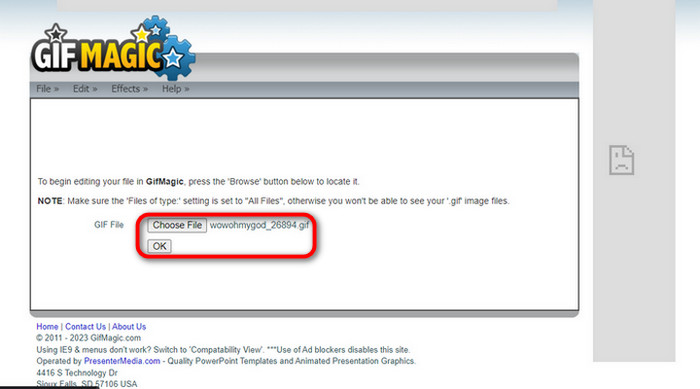
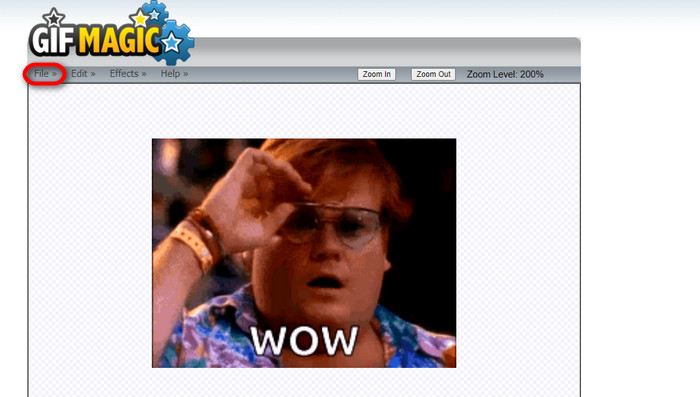
Nach dem Einloggen erlaubt Ihnen die Seite, Ihre ausgewählte Datei in die Software hochzuladen. Sie können .gif- oder .img‑Dateien hochladen, was auch für andere Nutzer hilfreich ist. Um Ihre Datei auszuwählen, klicken Sie auf Upload, und nachdem Sie Ihre Datei ausgewählt haben, klicken Sie auf die Schaltfläche OK.
Schritt 2. Bild bearbeiten
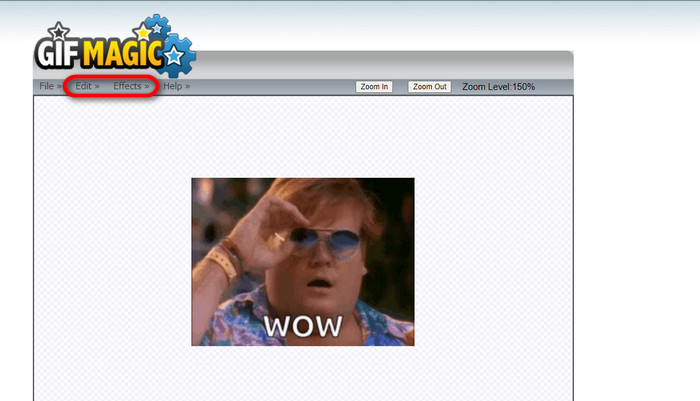
Sobald Sie auf der Seite sind, sehen Sie die Schaltflächen Edit und Effects neben der Schaltfläche File. Ihre Datei kann in diesem Bereich bearbeitet werden – legen Sie los und haben Sie Spaß beim Bearbeiten.
Schritt 3. Bearbeitetes GIF herunterladen
Nachdem Sie den Hintergrund Ihres GIFs transparent gemacht haben, klicken Sie einfach auf die Schaltfläche File und dann auf Save. Voilá! Fertig und heruntergeladen.
Teil 4. GIF-Hintergrund mit LunaPic transparent machen
LunaPic ist ein kostenloses Online-Tool, mit dem Hintergrund-GIFs online entfernt werden können. Es kann PNG, GIF, JPG, JPEG und viele weitere Bildtypen bewerten und bearbeiten. Es handelt sich um eine fundierte Software, die zur Bearbeitung auf vielen Plattformen eingesetzt wird.
Schritt 1. Bild/GIF hochladen
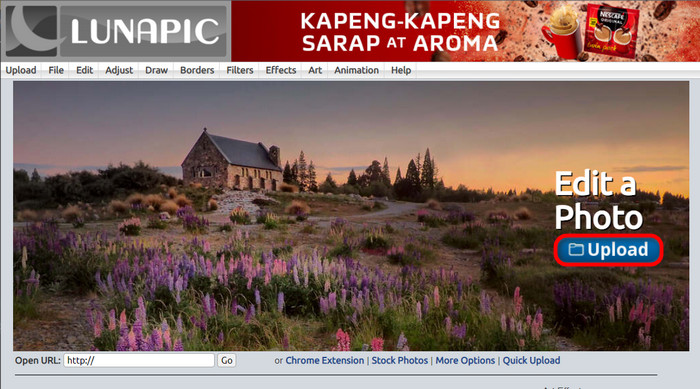
Nachdem Sie die Seite in Ihrem Standardbrowser oder einem Browser Ihrer Wahl aufgerufen haben, laden Sie Ihre .img- oder .gif‑Datei auf die Seite hoch. Klicken Sie dazu einfach auf die Schaltfläche Upload.
Schritt 2. Bild/GIF bearbeiten
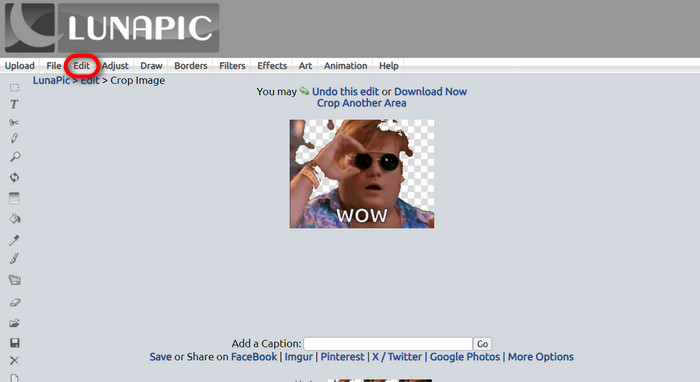
Anschließend können Sie Ihre Datei bearbeiten und den GIF‑Hintergrund transparent machen, indem Sie auf Edit und dann auf die Schaltfläche Crop Image klicken. Beginnen Sie damit, den Hintergrund zuzuschneiden.
Schritt 3. Bearbeitetes GIF herunterladen
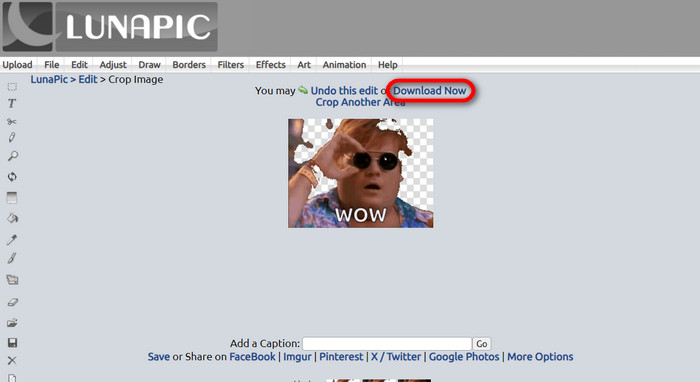
Nachdem Sie den Hintergrund zugeschnitten haben oder wenn Sie versucht haben, ein GIF mit weißem Hintergrund zu erstellen, können Sie nun auf die Schaltfläche Download now! klicken, um Ihre bearbeitete Datei zu speichern.
Weiterführende Lektüre:
4 großartige Möglichkeiten, das Wasserzeichen aus einem GIF zu entfernen [Online & Offline]
Die besten Tools für Desktop, Online und Mobile im Überblick

Video Converter Ultimate
Über 345 Downloads- Genießen Sie das Ansehen Ihrer Videos ohne die lästigen Wasserzeichen, die Ihre Inhalte blockieren.
- Produzieren Sie qualitativ hochwertige Videos mit hoher Auflösung für eine bessere Anzeige.
- Ermöglicht das Entfernen von Wasserzeichen aus jeder Art von Video.
- Stellen Sie unzählige Formate zur Verfügung, in die Sie Ihre Datei konvertieren können.
Kostenloser DownloadFür Windows 7 oder höherSicherer Download
Kostenloser DownloadFür macOS 10.7 oder höherSicherer Download
Teil 5. FAQs zum Entfernen des Hintergrunds
Kann ich ein animiertes PNG in ein GIF konvertieren?
Ja, es ist möglich, PNG in GIF zu konvertieren. Es gibt jedoch mehrere Arten von Daten, die in verschiedene Formate konvertiert werden können, sofern Sie über das richtige Programm verfügen.
Kann ich die Farbe meines GIF-Hintergrunds ändern, nachdem ich ihn entfernt habe?
Natürlich gibt es viele Programme, die solche Aufgaben anbieten. Probieren Sie FVC Background Remover für eine einfache Hintergrundentfernung aus.
Kann ich einen GIF-Hintergrund in Farbe transparent machen?
Nein, Farbe hat diese Fähigkeit nicht. Sie können sich aber auch nach anderen Programmen umsehen, die diese Art von Arbeit anbieten.
Was ist ein animiertes GIF mit Transparenz?
Ein animiertes GIF mit Transparenz ist ein Bild, das nur einen bestimmten Teil des Bildes anzeigt, wenn es auf einer bestimmten Website platziert wird. Es können mehrere Bilder angezeigt werden, wenn es auf einer anderen Website platziert wird.
Ermöglicht GIF Transparenz?
Ja, aber nicht völlig transparent. Es unterstützt nur 1-Bit-Transparenz.
Fazit
Es gibt inzwischen eine große Bedeutung und Nachfrage nach Programmen, mit denen man GIFs bearbeiten kann, wie den oben genannten. Zuschneiden, Bearbeiten, Ebenen anlegen und Löschen sind heutzutage mit nur wenigen Klicks möglich. Nutzer werden immer kreativer und denken sich Dinge aus, die noch niemand zuvor gemacht hat, wie etwa das Erstellen eines GIFs mit weißem Hintergrund. Genau wegen solcher Nutzer werden leistungsstarke Programme wie FVC Background Remover entwickelt.
-
 Wählen Sie den besten GIF-Zuschneider online und offline zum Zuschneiden von GIFs [2023]
 Die Auswahl des besten Zuschneidewerkzeugs ist ein Muss, solange diese Funktion bei GIF-Erstellern verfügbar ist. Was ist also Ihre beste Wahl zum Zuschneiden von Dateien und wie verwenden Sie es?
-
 Erfahren Sie 4 Möglichkeiten zum Erstellen von GIFs aus Bildern [Online & Offline]
 Möchten Sie wissen, wie Sie aus der Zusammenstellung Ihrer Bilder GIFs erstellen? Klicken Sie dann auf diesen Link und lesen Sie die folgenden Beispiele
-
 Schleifen Sie GIF mit dem besten animierten GIF-Looper für Windows und Mac
 Möchten Sie das Geheimnis für das beste Loop-GIF erfahren und eines erstellen? Dann sind Sie hier genau richtig. Erfahren Sie, wie Sie mit dem besten verfügbaren Looper einen Loop erstellen.
