


 Video Converter Ultimate
 Bildschirm recorder
 Videoreparatur
Laden Sie qualitativ hochwertige (HD-)Fotos auf Facebook hoch, um Ihr Profil zu verbessern
Die Bedeutung des Hochladens von HD‑Fotos auf Facebook kann kaum überschätzt werden. Dein Facebook‑Profil dient als digitale Darstellung deiner Person oder deiner Marke, und die Qualität der Bilder, die du hochlädst, hat großen Einfluss darauf, wie dein Publikum dich wahrnimmt. Niemand möchte sich in der digitalen Welt mit Bildern in minderer Qualität vorstellen. Auch wenn Probleme wie unscharfe, schlecht aufgelöste Fotos nie vollständig zu vermeiden sind, geht es dennoch darum, die richtigen Werkzeuge zu finden, um solche Probleme beim Hochladen von HD‑Fotos auf Facebook zu vermeiden oder zu beheben.
In diesem Artikel beschäftigen wir uns mit der Verbesserung Ihrer Bildqualität und bieten wertvolle Tipps und Techniken, um Ihr Profil auf ein neues Niveau zu heben, von Lösungen bis hin zur Anpassung Ihrer Facebook-Einstellungen, um einen qualitativ hochwertigen Upload zu gewährleisten. Lesen Sie also diesen Artikel durch und erfahren Sie, wie Sie die schlechte Qualität Ihrer Facebook-Fotos verbessern und beheben können.

Teil 1. So laden Sie qualitativ hochwertige Fotos auf Facebook hoch
Wie lädt man HD‑Fotos auf Facebook hoch? Das Hochladen von Fotos in HD‑Qualität auf Plattformen wie Facebook kann manchmal Probleme verursachen, etwa dass die Qualität automatisch herabgesetzt wird und die Fotos beim Betrachten auf deinem Profil unscharf oder weniger detailliert wirken. Wenn du hochwertige Fotos auf Facebook hochlädst, achte darauf, dass du die bestmögliche Bildgröße zur Verfügung hast und ein Werkzeug verwendest, das deine Fotos bestmöglich in hoher Qualität erhält. Genau dafür eignet sich ein Online‑Bild‑Upscaler, und dieses Tool ist der FVC Free Image Upscaler. Mithilfe fortschrittlicher KI‑Technologie sorgt dieses Tool für eine verbesserte Genauigkeit bei jedem Ergebnis und ist dabei sowohl schnell als auch sicher. Besonders hervorzuheben ist, dass keine Registrierung erforderlich ist, um auf die Funktionen zuzugreifen, sodass Nutzer das Tool frei für verschiedene Bildformate auf allen Geräten und in allen Webbrowsern verwenden können. Dank der benutzerfreundlichen Oberfläche und der unkomplizierten Schritte wird die Optimierung deiner Bilder zu einer mühelosen Aufgabe.
Schritte zur Verwendung des FVC Free Image Upscaler:
Schritt 1. Bevor du deine Fotos auf Facebook hochlädst, sorge dafür, dass die Bildqualität verbessert wird, indem du die Website des FVC Free Image Upscaler besuchst.
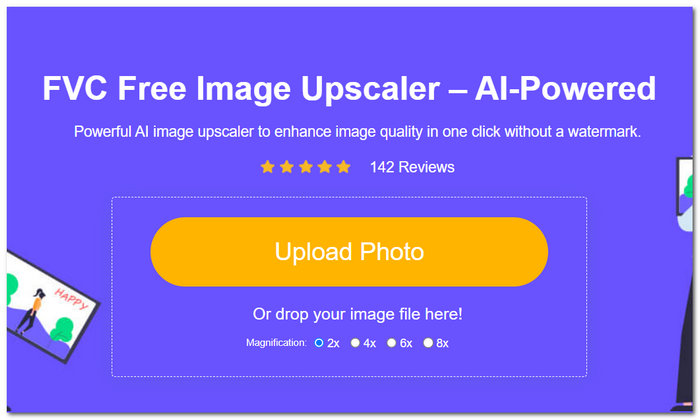
Schritt 2. Klicke in der Werkzeugoberfläche auf das Feld Foto hochladen. Sobald dein Foto im Tool geladen ist, wähle deine gewünschte Vergrößerungsstufe im oberen Bereich des Bildschirms aus, zwischen 2x und 8x.
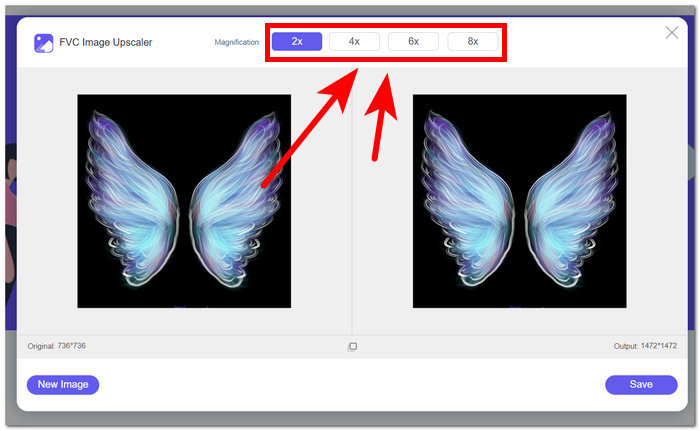
Schritt 3. Nachdem du deine ideale Vergrößerungsstufe ausgewählt hast, durchläuft dein Foto einen Prozess zur Erhöhung der Bildqualität.
Schritt 4. Wenn der Prozess abgeschlossen ist, lade dein hochskaliertes Foto herunter, indem du auf die Schaltfläche Speichern klickst.
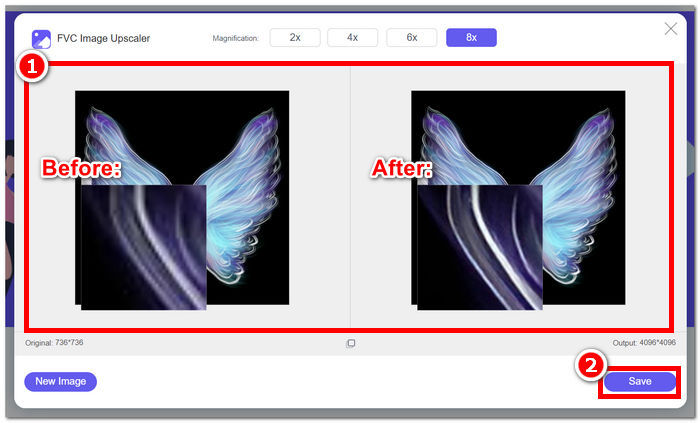
Schritte zum Hochladen deines hochskalierten Fotos auf Facebook:
Schritt 1. Um dein nun hochskaliertes Foto mit dem FVC Free Image Upscaler hochzuladen, gehe zu deinem Facebook-Konto.
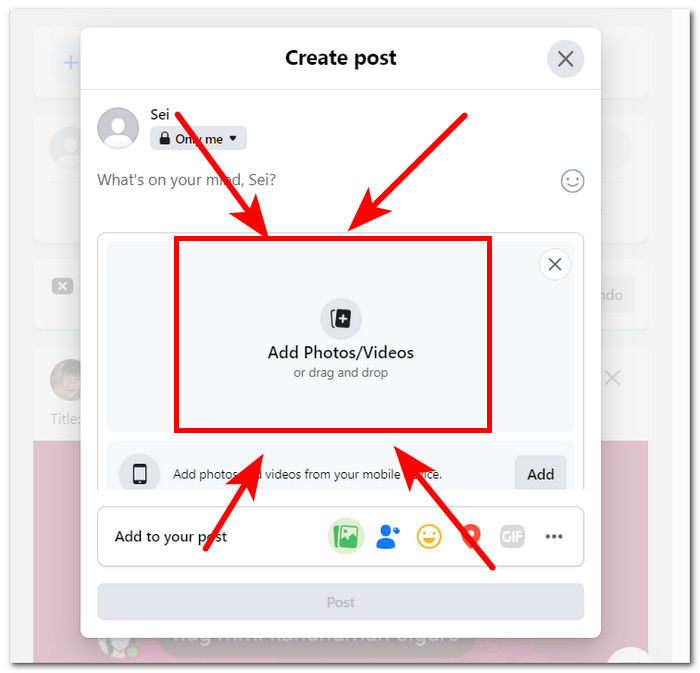
Schritt 2. Klicke auf den Bereich Foto/Video, der direkt unter deinem „Beitrag erstellen“-Bereich angezeigt wird.
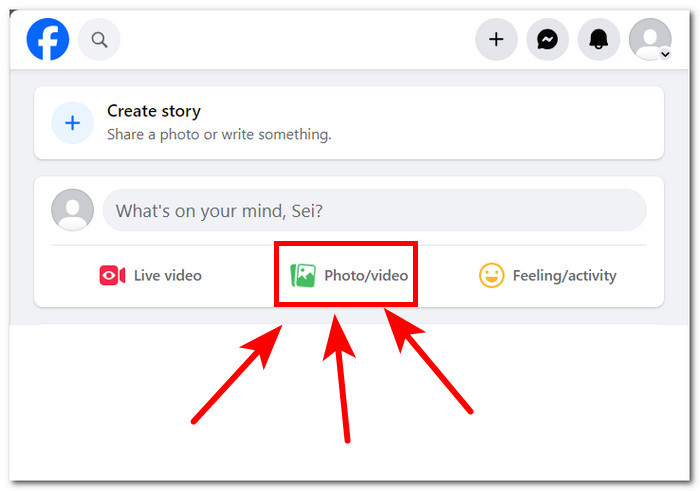
Schritt 3. Lade dein nun hochskaliertes Foto hoch, indem du auf den Bereich Fotos/Videos hinzufügen klickst.
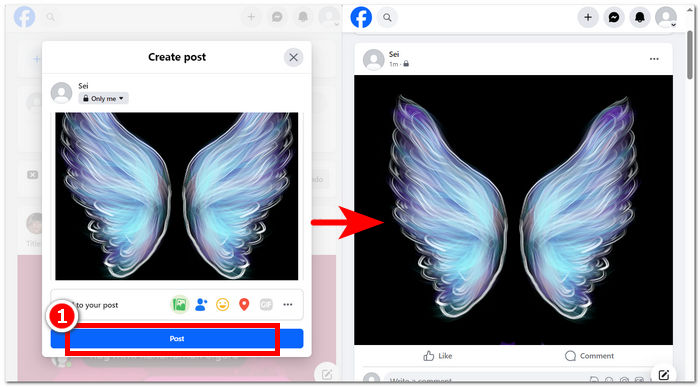
Schritt 4. Sobald dein Foto für den Beitrag geladen ist, klicke auf die Schaltfläche Posten und genieße die Ansicht deines Bildes in verlustfreier Qualität.
Zusammenfassend lässt sich sagen, dass die Verwendung von Online-Tools wie FVC Free Image Upscaler einen zeitsparenden Prozess garantiert, wenn Sie Ihre Fotos in HD-Auflösung auf Facebook hochladen möchten. Die kostenlose Nutzung ohne Anmeldung oder Bezahlung macht dieses Tool zu einem idealen Tool für jeden Benutzer. Wenn Sie die oben genannten Schritte befolgen, werden sicherlich Fragen beantwortet, wie Sie hochauflösende Fotos auf Facebook hochladen können.
Teil 2. Passen Sie die Qualitätseinstellungen für den Foto-Upload auf Facebook an
Das Hochladen Ihrer Fotos auf Facebook kann manchmal zu einer verschwommenen Qualität führen. Folglich können Benutzer ihre Zeit auf der Plattform nicht genießen, da Facebook-Fotos aufgrund Ihrer Upload-Qualitätseinstellung verschwommen und manchmal verpixelt hochgeladen werden. In diesem Teil können Sie Ihre Qualitätseinstellungen beim Hochladen Ihrer Fotos und Videos anpassen.
Schritt 1. Gehe in der Facebook‑App oder auf der Website zu deinem Konto.
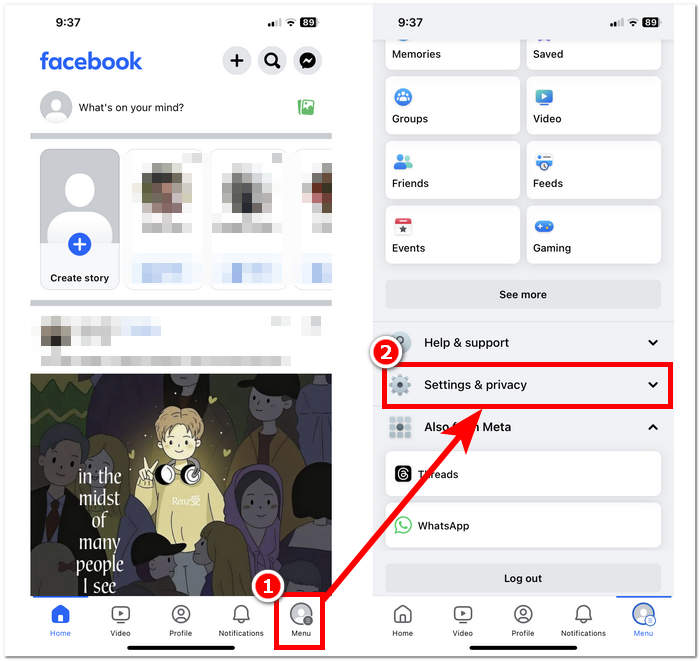
Schritt 2. Klicke auf den Menübereich und scrolle dann nach unten, um den Abschnitt Einstellungen & Datenschutz zu finden und auszuwählen.
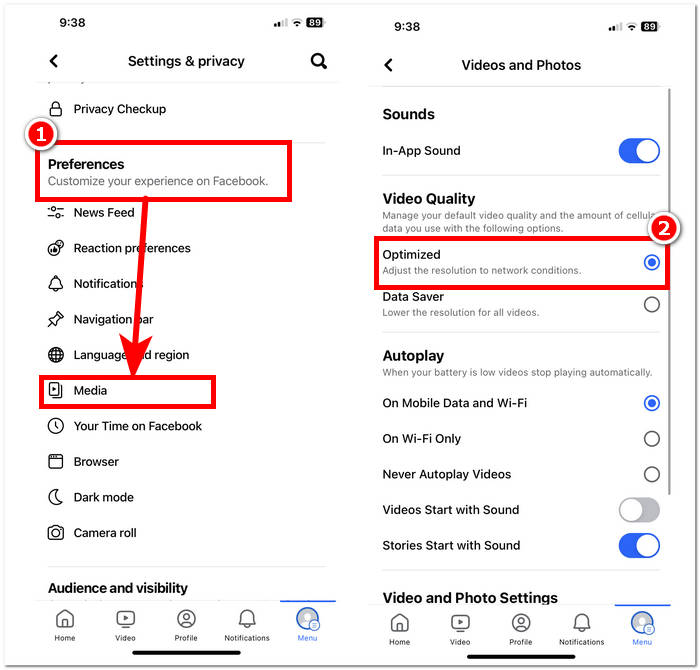
Schritt 3. Suche im Bereich Einstellungen & Datenschutz den Abschnitt Medien unter den Voreinstellungen und klicke darauf.
Schritt 4. Um die Upload‑Qualität deiner Fotos und Videos zu ändern, wähle bei der Videoqualität die Option Optimiert aus. Dadurch wird sichergestellt, dass – je nach Internetverbindung – nicht nur deine Videos, sondern auch deine Fotos stets in bestmöglicher Qualität hochgeladen werden.
Die oben beschriebenen Schritte sind einfacher, als du vielleicht erwartet hast. Damit werden auch die Fragen dazu beantwortet, wie man hochwertige Fotos über Facebook auf dem Handy hochlädt. Wenn du die Schritte befolgst, erhältst du Lösungen, um die Qualität deiner auf Facebook hochgeladenen Fotos und auch deiner Videos zu beheben oder zu optimieren.
Teil 3. Häufig gestellte Fragen zum Hochladen von HD-Fotos auf Facebook
Was ist die maximale Fotoqualität, die von Facebook unterstützt wird?
Die von Facebook unterstützte maximale Fotoqualität beträgt 2048 Pixel auf der längsten Seite für Bilder, die von einem Computer hochgeladen werden. Für Bilder, die von einem Mobilgerät hochgeladen werden, unterstützt Facebook jedoch Auflösungen von bis zu 960 Pixel auf der längsten Seite.
Kann man auf Facebook ein Livefoto hochladen?
Ja, Sie können Live Photos auf Facebook hochladen. Live Photos ist eine Funktion auf iOS-Geräten, die vor und nach der Aufnahme eines Fotos ein paar Sekunden Video aufnimmt. Wenn Sie ein Live Photo auf Facebook hochladen, wird es als Standbild angezeigt, aber Benutzer können auf das Foto drücken und es gedrückt halten, um die im Live Photo aufgenommene Bewegung anzuzeigen.
Warum sind meine Facebook-Fotos verschwommen?
Es kann mehrere Gründe dafür geben, dass Ihre Facebook-Fotos verschwommen erscheinen. Einige häufige Gründe sind das Hochladen von Fotos mit niedriger Auflösung oder zu starke Komprimierung, das Hochladen von Fotos, die zu klein für den auf Facebook bereitgestellten Speicherplatz sind, oder das Anzeigen von Fotos in einem Modus mit niedriger Auflösung bei einer langsamen Internetverbindung. Um sicherzustellen, dass Ihre Fotos auf Facebook scharf erscheinen, versuchen Sie, Bilder mit höherer Auflösung hochzuladen und übermäßige Komprimierung zu vermeiden. Stellen Sie außerdem sicher, dass Sie Fotos über eine stabile Internetverbindung anzeigen, um zu verhindern, dass sie in niedriger Auflösung geladen werden.
Warum sollte ich HD-Fotos auf Facebook hochladen?
Durch das Hochladen von HD-Fotos auf Facebook wird sichergestellt, dass die Qualität und Klarheit Ihrer Bilder erhalten bleibt, sodass Ihr Publikum ein besseres Seherlebnis hat. Hochauflösende Fotos fallen auch in den Newsfeeds der Benutzer besser auf und erhöhen die Wahrscheinlichkeit, dass sie sich mit Ihren Inhalten beschäftigen.
Hat das Hochladen von HD-Fotos Auswirkungen auf mein Speicherlimit bei Facebook?
Das Hochladen von HD-Fotos kann im Vergleich zu Bildern in Standardauflösung mehr Speicherplatz auf Facebook beanspruchen. Facebook bietet jedoch ausreichend Speicherplatz für Fotos und Videos, sodass Sie wahrscheinlich keine Speicherprobleme haben, es sei denn, Sie laden eine erhebliche Menge an Inhalten hoch.
Fazit
Es ist wichtig zu betonen, dass das Posten von HD‑Fotos auf Facebook sehr bedeutsam ist. Die Fotos, die du in deinem Facebook‑Profil veröffentlichst, sind eine digitale Version deiner Marke oder deiner Person, und die Wahrnehmung deines Publikums wird stark von der Qualität der von dir hochgeladenen Bilder beeinflusst. Letztlich trägt es dazu bei, dein Profil und das Nutzererlebnis deines Publikums zu verbessern, wenn du hochwertige Uploads auf Facebook priorisierst, da alles visuell ansprechender und fesselnder wird. In der heutigen digitalen Welt ist das Wissen, wie man hochwertige Fotos hochlädt, entscheidend – sei es für Einzelpersonen, die einen professionellen Online‑Auftritt aufbauen wollen, oder für Unternehmen, die ein professionelles Image vermitteln möchten.
-
 So erhöhen Sie die Bildgröße online und offline
 Entdecken Sie den einfachsten Weg, die Bildgröße zu erhöhen, ohne an Qualität zu verlieren. Sehen Sie sich unsere Tools und Software zur Größenänderung an, um eine optimale Qualität Ihrer Bilder sicherzustellen.
-
 Fotor Review für Hintergrundentferner und Fotoverbesserer
 Alles, was Sie über Fotor Background Remover und Photo Enhancer wissen müssen. Schauen Sie sich einige seiner Funktionen an und sehen Sie sich die vorgeschlagene Alternative an, die Ihren Anforderungen entspricht.
-
 Cutout Pro Image Enhancer: Hochladen, hochskalieren, um zu fesseln
 Erleben Sie die nächste Stufe der Bildverbesserung mit dem Fotoverstärker Cutout Pro. Informieren Sie sich über die Hauptfunktionen, die Ausgabequalität und die unterstützten Bildformate.
