


 Video Converter Ultimate
 Bildschirm recorder
 Videoreparatur
 Sicherer Download
[Gelöst] 4 Methoden zum Aufnehmen von Screenshots auf Android
Screenshots zu erstellen gehört heute zu den häufigsten Dingen, die wir mit unseren Handys tun. Wenn wir ein Bild, einen Text oder einen Beitrag speichern möchten, den wir beim Scrollen auf dem Bildschirm sehen, machen wir einen Screenshot davon. Wenn du nun ein Android‑Gerät benutzt und dich fragst, wie du seine Screenshot‑Funktionen optimal nutzen kannst, bist du hier genau richtig! In diesem Artikel erfährst du, wie du unter Android auf 4 Arten Screenshots machst und so das Beste aus den Funktionen deines Geräts herausholst. Lies weiter und erfahre, wie du wichtige Inhalte durch Screenshots speichern kannst!

Teil 1: So erstellen Sie einen Screenshot auf einem Android-Telefon
Sie fragen sich vielleicht, aber das Erstellen von Screenshots unter Android hängt vom Gerätehersteller und der Betriebssystemversion ab. Wenn Sie also Android-Benutzer sind und nicht wissen, welche Methode Sie zum Erstellen eines Screenshots verwenden sollen, überprüfen Sie die folgenden Schritte:
Methode 1: Verwenden der Hardwaretasten
Die gängigste Methode zum Erstellen von Screenshots auf einem Android-Gerät ist die Verwendung der Hardware oder der physischen Tasten. Aufgrund ihrer Zugänglichkeit und Benutzerfreundlichkeit ist dies die bekannteste Methode zum Erstellen von Screenshots auf Android.
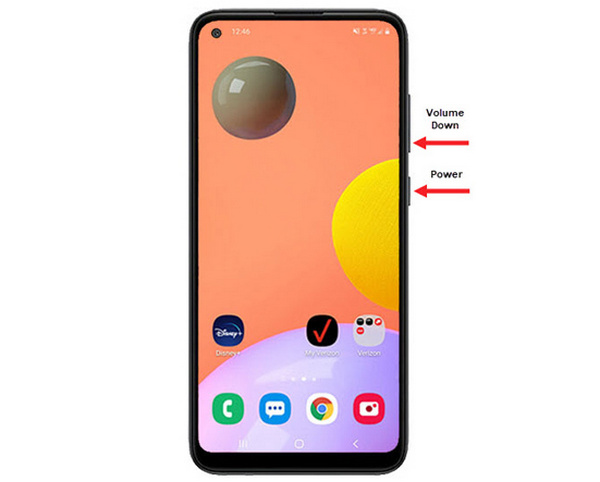
Schritt 1. Drücke auf deinem Android‑Smartphone gleichzeitig die Tasten Leiser und Power. Halte sie gedrückt, bis der Screenshot aufgenommen wurde.
Schritt 2. Öffne danach die Galerie‑App, um deinen Screenshot aufzurufen.
Wenn Ihre Hardwaretasten also ordnungsgemäß funktionieren, können Sie mit dieser Methode ganz einfach Screenshots auf Ihrem Android erstellen.
Methode 2: Tastenkombinationen verwenden
Heutzutage verfügen einige Android-Geräte über eine integrierte Screenshot-Funktion im Schnelleinstellungsfenster, die nützlich ist, um schnell einen Screenshot zu erstellen.
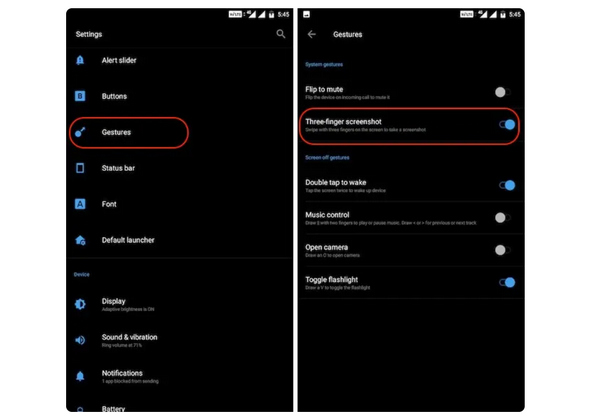
Schritt 1. Öffne zunächst auf deinem Android‑Smartphone die Einstellungen. Scrolle etwas nach unten und wähle die Option Gesten oder Tasten aus.
Schritt 2. Suche dort nach der Option Screenshot und aktiviere sie.
Schritt 3. Um damit einen Screenshot zu machen, wische einfach mit drei Fingern nach unten über den Bildschirm, den du aufnehmen möchtest.
Diese Methode eignet sich am besten, wenn Sie die Tasten nicht drücken möchten, um einen Screenshot zu erstellen. Sie müssen dies jedoch zuerst in Ihren Einstellungen einrichten. Wenn Sie damit nicht vertraut sind, folgen Sie einfach den obigen Schritten.
Methode 3: Verwenden von Google Assistant
Wenn Ihr Android-Telefon über einen Google Assistant verfügt, können Sie damit ganz einfach einen Screenshot erstellen.
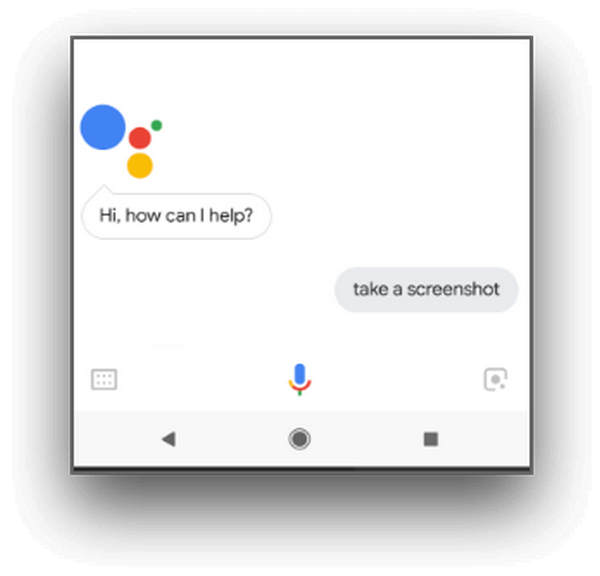
Schritt 1. Aktiviere zuerst den Google Assistant, indem du die Home‑Taste gedrückt hältst oder per Sprachbefehl OK, Hallo Google sagst.
Schritt 2. Sage nach der Aktivierung Mach einen Screenshot oder Screenshot.
Hinweis: Es sollte eine Animation erscheinen oder ein Ton zu hören sein, der anzeigt, dass der Screenshot aufgenommen wurde.
Schritt 3. Du findest deinen Screenshot in der Galerie‑App deines Smartphones im Ordner Screenshots.
Hinweis: Dies ist nicht bei allen Android‑Geräten verfügbar. Wenn dein Smartphone jedoch einen Google Assistant hat, mit dem du per Sprachbefehl Screenshots erstellen kannst, befolge einfach diese Schritte.
Teil 2: So erstellen Sie Screenshots auf einem Android-Tablet
Wenn Sie ein Android-Tablet besitzen und sich fragen, wie Sie damit einen Screenshot machen, gehen Sie wie folgt vor:
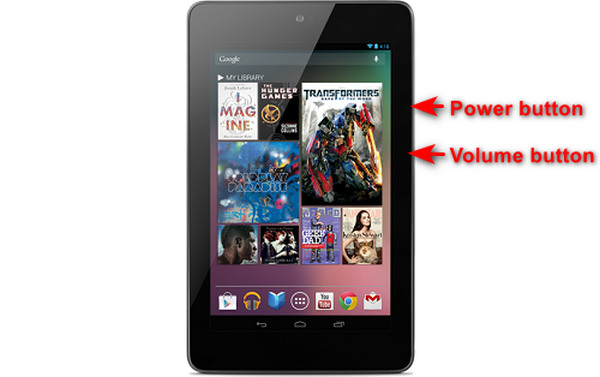
Schritt 1. Drücke auf deinem Android‑Tablet gleichzeitig die Power-Taste und die Leiser-Taste und halte sie ein paar Sekunden lang gedrückt.
Hinweis: Du solltest eine Benachrichtigung erhalten, dass dein Screenshot aufgenommen wurde.
Schritt 2. Öffne danach auf deinem Tablet die Galerie und dort den Ordner Screenshots, um deinen Screenshot aufzurufen.
Wenn diese Methode auf Ihrem Android-Tablet nicht funktioniert, müssen Sie als Nächstes Drittanbieter-Apps aus dem Google Play Store verwenden, um Screenshots erstellen zu können.
Teil 3: So erstellen Sie Screenshots auf Android mit einem Computer
Wenn du einen Screenshot unter Android mit einem Computer erstellen möchtest – zum Beispiel, weil keine der anderen Methoden auf deinem Gerät funktioniert –, ist das beste Tool dafür der FVC Screen Recorder. Dieses Programm ist dafür ausgelegt, Screenshots von jedem Handybildschirm zu machen, der auf den Computer gespiegelt wird, und ist daher perfekt mit Android‑Geräten kompatibel. Über die Funktion „Phone Recorder“ können Nutzer somit ganz bequem einen Screenshot auf Android mit Hilfe eines Computers erstellen. Außerdem hat dieses Tool im Vergleich zu vielen anderen Drittanbieter‑Programmen eine sehr intuitive und benutzerfreundliche Oberfläche, sodass du keinerlei Schwierigkeiten bei der Nutzung haben wirst.
Schritt 1. Lade zunächst den FVC Screen Recorder auf deinen Computer herunter und öffne ihn.
Kostenloser DownloadFür Windows 7 oder höherSicherer Download
Kostenloser DownloadFür macOS 10.7 oder höherSicherer Download
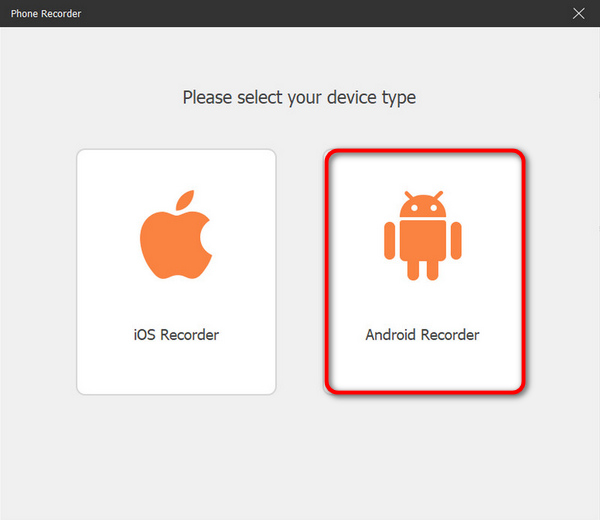
Schritt 2. Klicke nun auf die Option Phone Recorder. Du findest sie auf der rechten Seite des Programmfensters zusammen mit den anderen drei Optionen.
Schritt 3. Klicke anschließend auf Android Recorder.
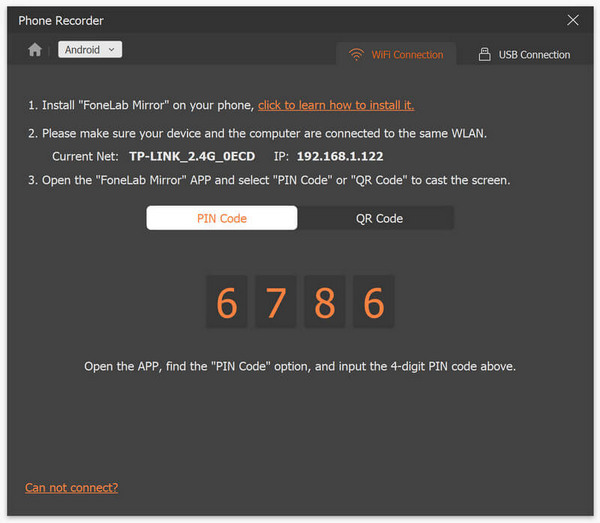
Schritt 4. Um den Bildschirm deines Handys zu spiegeln, kannst du entweder WLAN oder USB verwenden. Entscheidest du dich für WLAN, kannst du dein Handy ganz einfach über einen PIN‑Code oder QR‑Code mit der Phone‑Recorder‑Funktion des Tools auf deinem Computer verbinden.
Schritt 5. Sobald das Spiegeln aktiviert ist, klicke einfach auf das Snapshot-Symbol, um vom Android‑Bildschirm aus einen Screenshot auf deinem Computer zu erstellen.
Schritt 6. Greife abschließend direkt im dafür vorgesehenen Ordner auf deinem Windows‑Computer auf deine Screenshot‑Bilder zu.
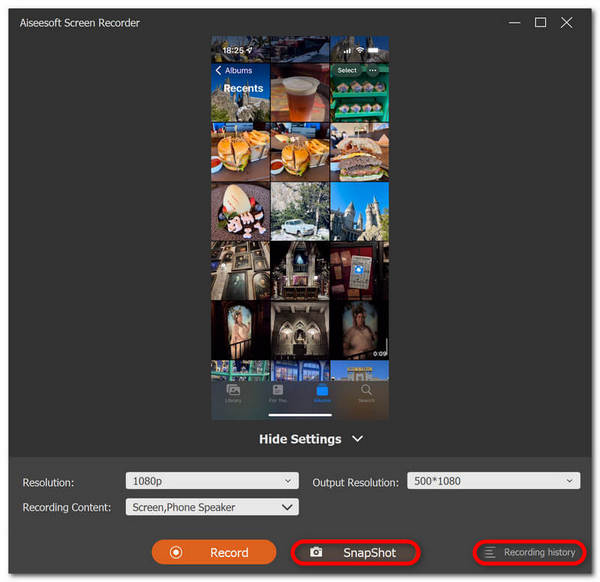
FVC Screen Recorder ist ein perfektes Tool, wenn Sie mit einem Computer einen Screenshot auf Android machen möchten. Mit der Telefonaufzeichnungsfunktion wird alles für Sie ganz einfach, vom Einrichten der Geräte bis zum eigentlichen Aufnehmen von Screenshots. Dieses Tool hat alles, was Sie brauchen.
Teil 4: So erstellen Sie Scrolling-Screenshots auf Android
Wenn Sie auf Android statt einer Reihe von Screenshots einen Screenshot einer Webseite oder einer langen Konversation auf einmal machen möchten, führen Sie die folgenden Schritte aus:
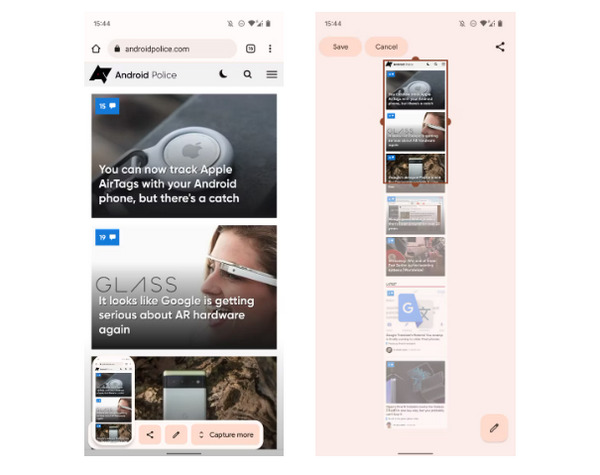
Schritt 1. Mache zunächst einen Screenshot auf deinem Android‑Smartphone.
Schritt 2. Tippe anschließend auf die Schaltfläche Mehr erfassen, nachdem du auf die Vorschau deines Screenshots getippt hast.
Hinweis: Wenn du das Fenster verwendest, um einen Screenshot zu erweitern, zeigt das System eine Lupe für mehr Präzision an.
Schritt 3. Tippe zum Schluss auf Speichern, um deinen Screenshot zu sichern.
Sie werden nicht mehr eine Reihe von Screenshots machen, nur um die gesamte Webseite oder die gesamte Screenshot-Konversation anzuzeigen.
Teil 5: Häufig gestellte Fragen zum Erstellen von Screenshots unter Android
Kann ich den Standardordner für Screenshots auf meinem Android-Gerät ändern?
Ja. Sie können den Standardordner für Screenshots ändern, wenn Sie möchten. Sie müssen lediglich einen neuen Ordner erstellen oder einen anderen Ordner für Ihre Screenshots auf Ihrem Android-Telefon auswählen.
Wie macht man auf einem Android-Telefon einen Screenshot, wenn die Hardwaretasten nicht funktionieren?
Wenn Sie sich zunächst fragen, ob Sie trotzdem einen Screenshot machen können, wenn die Hardwaretasten Ihres Android-Telefons nicht funktionieren, lautet die Antwort darauf: Ja. In solchen Fällen ist es also am besten, ein Bildschirmaufzeichnungstool eines Drittanbieters wie FVC Screen Recording zu verwenden, mit dem Benutzer Screenshots auf ihrem Android-Telefon machen können, indem sie einfach die Telefonaufzeichnungsfunktion nutzen.
Kann ich Screenshots auf meinem Android-Gerät mit Anmerkungen versehen oder bearbeiten?
Ja. Sie können Ihre Screenshots und Fotos auf Ihrem Android-Gerät mit Anmerkungen versehen oder bearbeiten. Dies ist direkt nach der Aufnahme des Screenshots mithilfe der integrierten Bearbeitungsfunktionen möglich. Sie können Ihren Screenshots Text, Zeichnungen, Pfeile und Formen hinzufügen sowie sie zuschneiden, in der Größe ändern und Filter anwenden.
Fazit
Damit ist alles gesagt. Bildschirmfotos auf deinem Android zu machen, ist jetzt kinderleicht. Du musst nur wissen, welche Methode zu deinem Gerät passt, und schon funktioniert alles einwandfrei. Wähle also deine bevorzugte Methode und beginne noch heute damit, unvergessliche Momente auf deinem Android festzuhalten!
-
 Mit dieser grundlegenden Anleitung machen Sie ganz einfach Screenshots auf dem Mac
 Sie möchten einen Screenshot auf Ihrem Mac erstellen, wissen aber nicht genau, wie das geht? Wir helfen Ihnen! Wir zeigen Ihnen die einfachsten und schnellsten Möglichkeiten, Screenshots Ihres Bildschirms zu erstellen und Bilder zu speichern.
-
 Mit dieser grundlegenden Anleitung machen Sie ganz einfach Screenshots auf dem Mac
 Sie möchten einen Screenshot auf Ihrem Mac erstellen, wissen aber nicht genau, wie das geht? Wir helfen Ihnen! Wir zeigen Ihnen die einfachsten und schnellsten Möglichkeiten, Screenshots Ihres Bildschirms zu erstellen und Bilder zu speichern.
-
 Mit dieser grundlegenden Anleitung können Sie ganz einfach einen Screenshot von Videos erstellen [2024]
 Erfahren Sie, wie Sie mit diesen einfachen Methoden ganz einfach Screenshots von Videos erstellen. Folgen Sie unserer Anleitung und beginnen Sie jetzt damit, Screenshots Ihrer Lieblingsvideos zu erstellen!
