


 Video Converter Ultimate
 Bildschirm recorder
 Videoreparatur
 Sicherer Download
Konvertieren Sie Ihre PPT mit 3 effektiven Methoden in MP4
PPT ist ein großartiges Tool zum Vorführen von Präsentationen, sei es in der Schule, bei der Arbeit usw. Manchmal bitten manche nach einer Präsentation um eine Kopie des PPT-Materials als Referenz.
Es ist jedoch wichtig zu wissen, dass manche Personen nicht auf die Datei zugreifen können, da sie die Anwendung oder das Softwaretool nicht auf ihren Geräten installiert haben. Die meisten Vortragenden verfügen daher über eine konvertierte MP4-Version der Präsentation, um das Material problemlos für alle freizugeben.
So, if you’re looking for a way to convert your PPT to MP4 for quick sharing and accessibility of the file material, you’re on the right page. Therefore, continue reading this article and immerse yourself in learning the 3 different methods of how you can turn your PPT file into a video.

Teil 1: So konvertieren Sie PowerPoint in PPT in MP4
Mithilfe der PowerPoint-Präsentation können Benutzer ihre PPT-Dateien ganz einfach in MP4 konvertieren. Dies ist eine großartige integrierte Funktion für Komfort und Flexibilität.
Step 1. Open your presentation using the PowerPoint presentation software tool on your device.
Step 2. Proceed to the File tab, look for the Export button, and click on it.
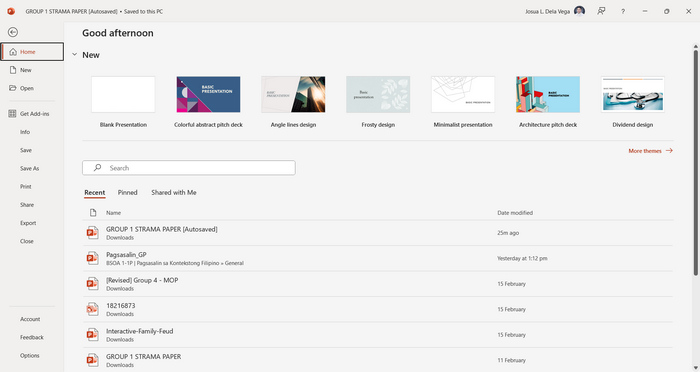
Step 3. Once you’re on the Export tab, click on the Create a Video option.
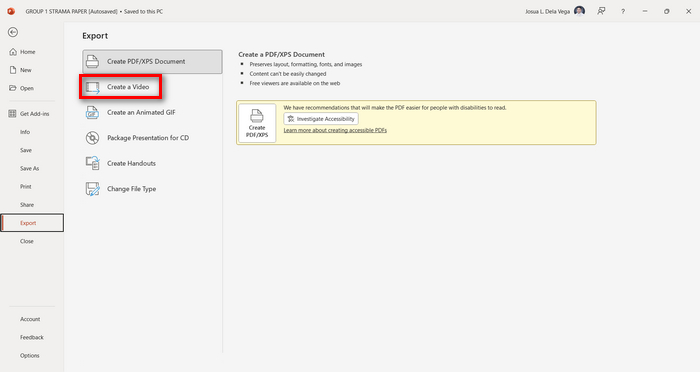
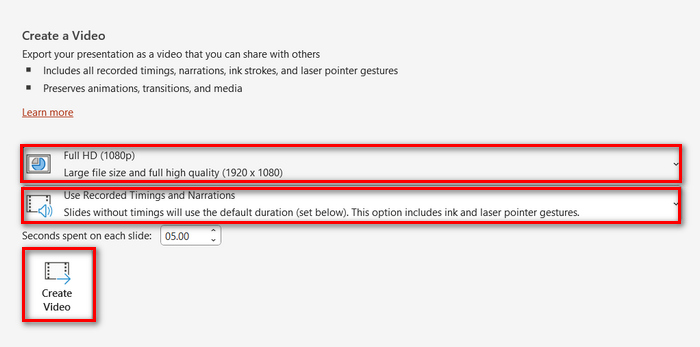
Step 4. Now, set your preferred video resolution. You can choose between 480p to 4K. Also, in the Use Recorded Timings and Narrations option, you can manually set the timing of your slides. After that, click on the Create Video button.
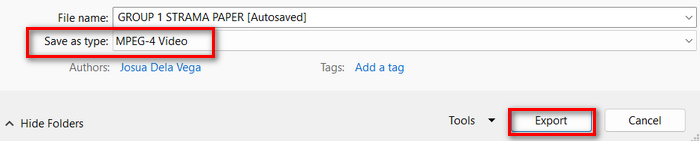
Step 5. After clicking the Create a Video button, there will be a new Window where you can check the format of your file output and where you want it to be saved. When set, just click the Export button and wait for it to be finished.
It is indeed convenient to convert PowerPoint to MP4 using its built-in feature. However, it lacks the customization feature if you want to add some background music. Nevertheless, if your goal is just for sharing purposes, then this is not a problem for you.
Teil 2: Konvertieren Sie PPT kostenlos online in MP4 mit Audio
Wenn Sie die PPT-Datei haben und diese online konvertieren möchten, da Sie auf Ihrem Gerät keine PowerPoint-Präsentationssoftware oder kein PowerPoint-Präsentationstool haben, können Sie MagicSlides verwenden. Mit diesem Online-Konvertierungstool können Sie PowerPoint ganz einfach in MP4 konvertieren, indem Sie die Datei einfach in Ihr System importieren.
Step 1. Upload the PPT file that you want to convert into MP4 by clicking the Upload your source file button.
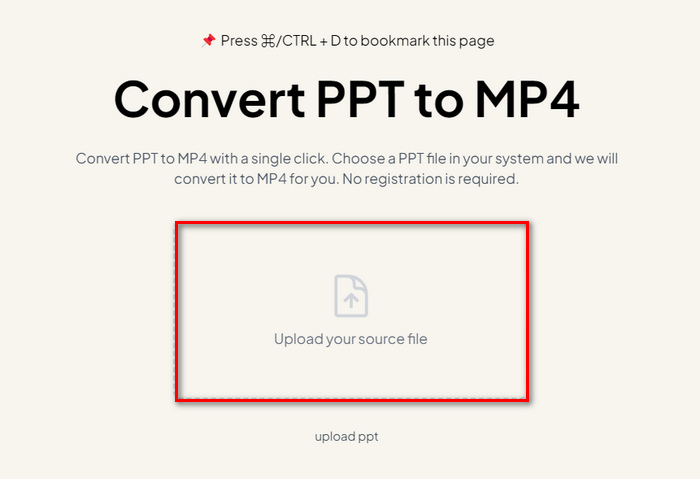
Step 2. Once the file is imported, click on the Create MP4 button to start the Conversion process.
Step 3. When it’s done, you can first preview the converted PPT file, and when you’re satisfied with the result, just click on the Download button to save it directly to your device.
Dieses Tool bietet zwar sehr einfache Schritte zum Konvertieren von PPT in MP4, das Importieren von PPT-Dateien nimmt jedoch sehr viel Zeit in Anspruch, was besonders dann störend sein kann, wenn Sie in Eile sind. Außerdem bietet es keine Anpassungsoptionen. Es hat einfach buchstäblich PPT-Dateien in ein Video umgewandelt.
Teil 3: So konvertieren Sie PPT mit Effekten und Audio in MP4
If you want to convert your PPT to MP4, but this time with effects and audio, then this is definitely for you. With FVC Screen Recorder, you are able to turn your PowerPoint presentation into a creative and interactive MP4 file using its editing features. Moreover, you have nothing to worry about the output quality as it supports up to 4K video resolution. So, to use this, follow the guide below:
Step 1. First, download the software tool and install it on your computer.
Kostenloser DownloadFür Windows 7 oder höherSicherer Download
Kostenloser DownloadFür macOS 10.7 oder höherSicherer Download
Step 2. Open your PowerPoint presentation, and make sure that it is opened in full screen.
Step 3. Now, on the screen recorder tool, choose the Video Recorder feature and select the recording area as Full.
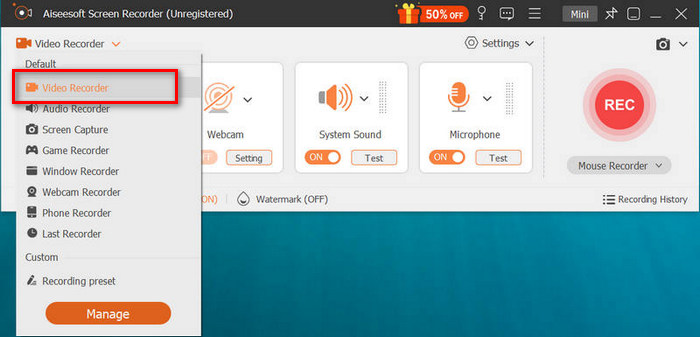
Step 4. After that, start to play the PowerPoint slideshow. Likewise, click the REC button to start recording the PowerPoint.
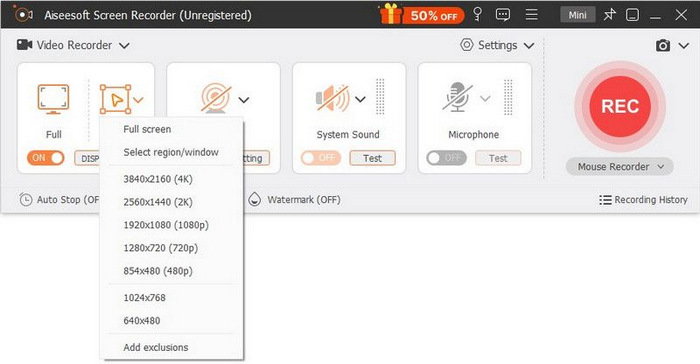
Step 5. When done, just click the Stop button, and it will bring you to the preview interface. From there, you can find in the bottom corner the editing features that you can utilize to edit audio and effects in converting your PPT to MP4.

Step 6. Lastly, you can access your file by clicking on the Open Folder button.
Das Gute an der Verwendung von FVC Screen Recorder zum Konvertieren von PowerPoint in MP4 ist, dass Sie die Zeit und das Tempo der Folien steuern können. Darüber hinaus verfügt dieses Tool im Gegensatz zu anderen Tools, die nur eine grundlegende Konvertierung bieten, über Bearbeitungsfunktionen, mit denen die konvertierte MP4-Datei weiter verbessert werden kann.
Teil 4: Häufig gestellte Fragen zur Konvertierung von PPT in MP4
Wie lange dauert die Konvertierung von PPT in MP4?
Die Dauer des Konvertierungsprozesses hängt von der Größe der zu konvertierenden Datei ab. Normalerweise dauert die Konvertierung einfacher Präsentationen jedoch nicht lange.
Kann ich beim Konvertieren von PPT in MP4 in PPT Animationen und Übergänge beibehalten?
Ja. Die integrierte Funktion ermöglicht es Benutzern, Animationen und Übergänge während des Konvertierungsvorgangs beizubehalten. Dadurch wird sichergestellt, dass die visuellen Elemente der Präsentation, wie Übergänge und Animationen, bei der Konvertierung in das MP4-Format erhalten bleiben. Es ist jedoch wichtig zu beachten, dass die Kompatibilität von Animationen und Übergängen je nach verwendeter PowerPoint-Version und Komplexität der angewendeten Effekte variieren kann.
Bleibt die Qualität meiner PowerPoint-Präsentation beim Konvertieren in MP4 erhalten?
Ja. PowerPoint-Präsentationen unterstützen Videoauflösungen bis zu 4K. Daher trägt die Wahl einer höheren Auflösung dazu bei, die Qualität der Präsentation zu erhalten. Wenn Sie Ihre PPT-Datei außerdem mit einem erweiterten Konvertierungstool in MP4 konvertieren, das Optionen zum Anpassen der Bitrate und Komprimierungseinstellungen bietet, um die Videoqualität weiter zu optimieren, können Sie eine hochwertige Ausgabe garantieren.
Fazit
Converting PPT to MP4 format indeed offers convenience and accessibility for sharing the file across various platforms and devices. Now that you have an idea of how to convert them, it's time to put this knowledge into action. Start converting today and enhance the reach and impact of your presentations!
-
 So ändern Sie die Größe eines Bilds in PowerPoint [Schnellste Methode zum Ändern der Größe]
 Es ist wichtig zu lernen, wie Sie die Größe von Bildern in PowerPoint ändern, insbesondere wenn Sie es in Ihrer Präsentation verwenden möchten. Lesen Sie diesen Artikel, um zu erfahren, wie es geht.
-
 Apowersoft Watermark Remover Review – Funktion, Vor- und Nachteile und Preis
 Apowersoft Watermark Remover ist einer der besten Wasserzeichen-Entferner, der online und offline unterstützt, klicken Sie hier, um mehr zu erfahren!
-
 So beheben Sie, dass Videos in PowerPoint nicht abgespielt werden | Kurzanleitung
 Wird Ihr PowerPoint-Video nicht abgespielt? Überwinden Sie die Frustration, dass eingebettete Videos jetzt nicht abgespielt werden, mit unseren fünf besten Lösungen, um das Problem mühelos zu beheben.
