


 Video Converter Ultimate
 Bildschirm recorder
 Videoreparatur
 Sicherer Download
Die besten Möglichkeiten zum Komprimieren von Bildern in PowerPoint
Eine PPT-Datei ist zunächst vielleicht nicht besonders groß, doch wenn Sie viele klare Bilder, hochwertige Videos und lange Textabschnitte einfügen, kann sie schnell riesig werden. Wenn Sie Ihre fertige PPT-Datei per E-Mail oder über soziale Medien versenden, werden Sie feststellen, dass die Dateigröße begrenzt ist. Zu große Bilder in der öffentlich präsentierten PPT können zudem zu Verzögerungen beim Laden des gesamten Seiteninhalts führen. Dies beeinträchtigt den Eindruck, den wir beim Publikum hinterlassen.
Wo sollten wir also anfangen, um dieses Problem zu lösen? Versuchen Sie, Fotos in PowerPoint zu komprimieren. Die PowerPoint‑Tools unter Windows und Mac bieten eine Bildkomprimierung. In dieser Anleitung zeigen wir Ihnen im Detail, wie Sie sie anwenden. Da Sie möglicherweise weitergehende Anforderungen für komplexere Bilder haben, empfehlen wir Ihnen außerdem die spezialisiertesten Kompressoren von Drittanbietern. All das, damit Sie eine möglichst flüssig laufende Präsentation erstellen können.

Teil 1. So komprimieren Sie Bilder in PowerPoint unter Windows
Beginnen wir mit PCs.
So komprimieren Sie ein Foto in PowerPoint auf einem Windows-Computer.
Schritt 1. Öffnen Sie PowerPoint, gehen Sie zu Einfügen > Bilder und fügen Sie die Bilder hinzu, die Sie komprimieren möchten.
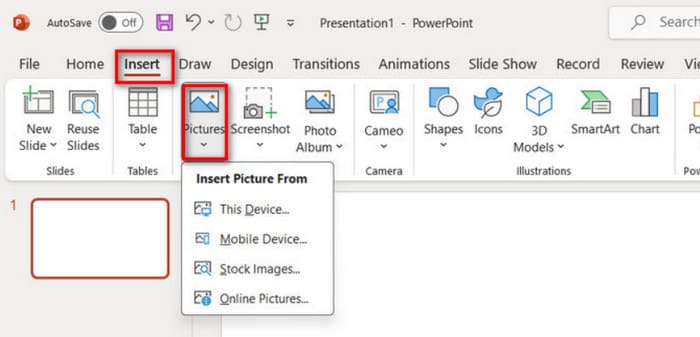
Schritt 2. Wählen Sie das Bild aus und klicken Sie dann auf Bilder komprimieren auf der Registerkarte Bildformat.
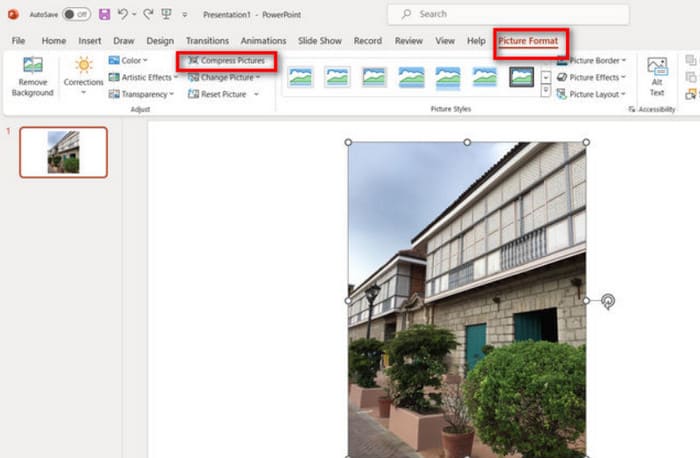
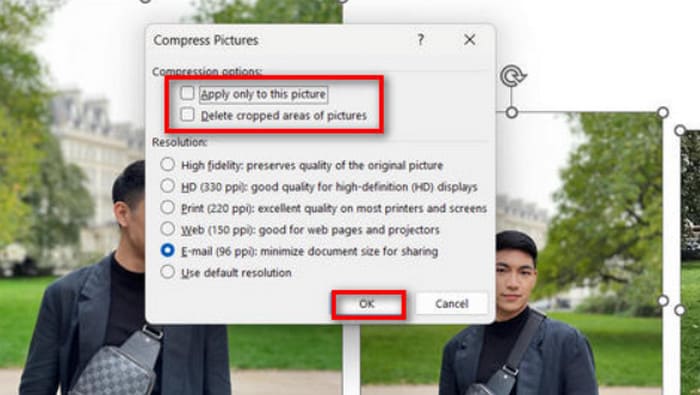
Schritt 3. Wählen Sie Ihre Komprimierungsoptionen und die Zielauflösung. Die von PowerPoint bereitgestellten Optionen sind flexibel. Sie ermöglichen es Ihnen, die Auflösung Ihrer Bilder nach der Komprimierung anzupassen.
Schritt 4. Um nur das ausgewählte Bild zu ändern, aktivieren Sie Nur auf dieses Bild anwenden und bestätigen Sie anschließend.
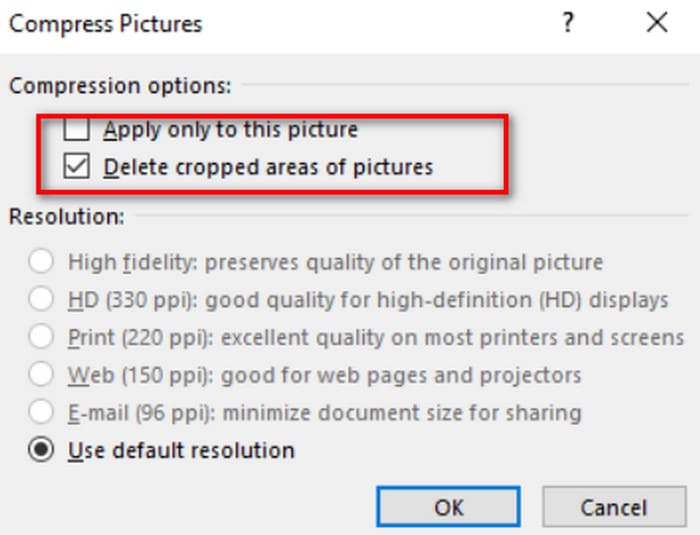
Die obigen Schritte gelten, wenn Sie das aktuelle Foto komprimieren möchten. Wenn Sie dieses Foto bereits zugeschnitten haben, vergessen Sie bitte nicht, die Option „Zugeschnittene Bildbereiche löschen“ zu aktivieren. Dadurch wird auch die Dateigröße des aktuellen Fotos etwas reduziert.
Wenn Sie unter Windows mehrere Bilder gleichzeitig komprimieren möchten, lesen Sie weiter.
So komprimieren Sie Bilder in PPT.
Schritt 1. Gehen Sie zur Registerkarte Einfügen und wählen Sie Bilder, um Ihre Bilder zu importieren.
Schritt 2. Klicken Sie mit der rechten Maustaste, um alle Fotos auszuwählen, gehen Sie dann zur Registerkarte Bildformat und klicken Sie auf Bilder komprimieren.
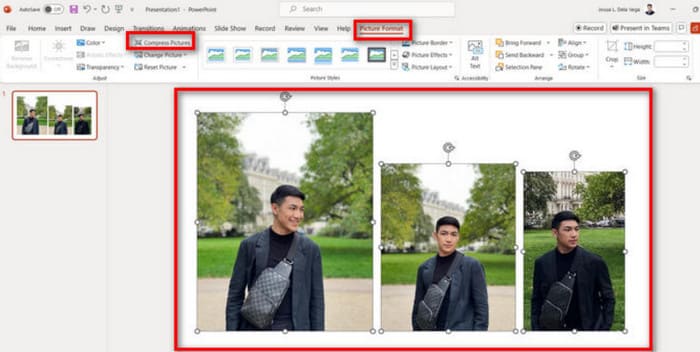
Schritt 3. Wählen Sie Ihre Komprimierungseinstellungen. Um alle Bilder in der Präsentation zu komprimieren, deaktivieren Sie Nur auf dieses Bild anwenden. Wenn Sie fertig sind, klicken Sie auf OK.
Teil 2. Fotos in PowerPoint auf dem Mac komprimieren
PowerPoint auf Mac-Computern unterstützt auch die Komprimierung von Bildgrößen. Wenn Sie Mac-Benutzer sind, lesen Sie bitte diesen Unterabschnitt.
So komprimieren Sie Bilder in PowerPoint auf dem MacBook.
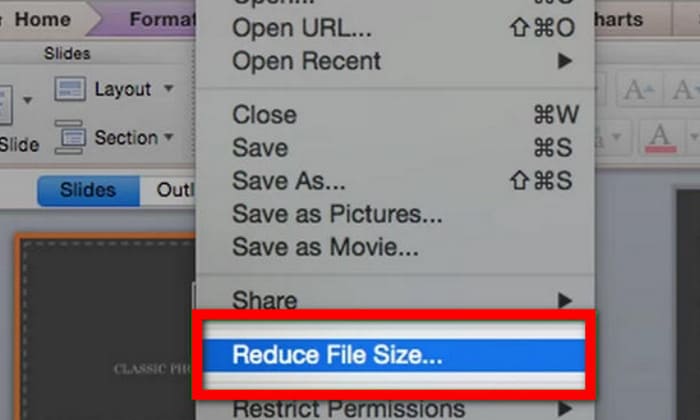
Schritt 1. Öffnen Sie Ihre PowerPoint‑Datei, gehen Sie zum Menü Datei und wählen Sie Dateigröße verringern.
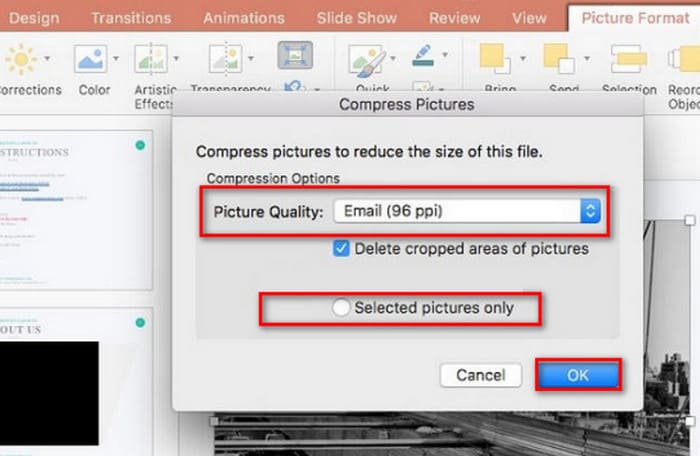
Schritt 2. Wählen Sie im Popup‑Dialogfeld E‑Mail (96 ppi) im Dropdown‑Menü Bildqualität und aktivieren Sie Ausgeschnittene Bildbereiche löschen.
Schritt 3. Wählen Sie Nur ausgewählte Bilder und klicken Sie dann auf OK.
Wenn Sie die Größe mehrerer Bilder auf einem Mac gleichzeitig komprimieren möchten, befolgen Sie bitte diese Schritte.
Schritt 1. Wählen Sie im Menü Datei die Option Dateigröße verringern.
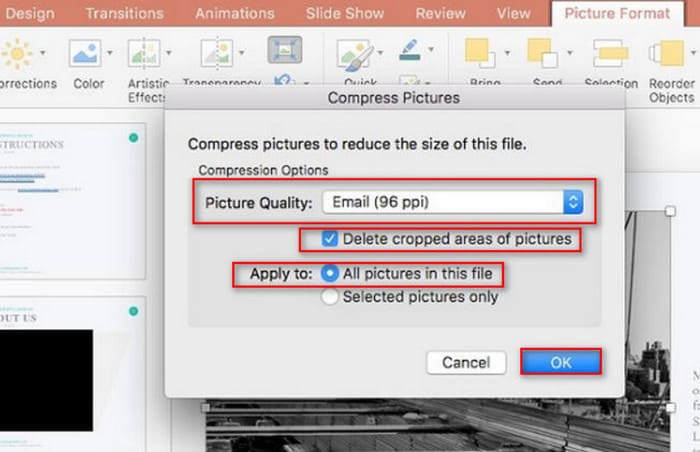
Schritt 2. Wählen Sie E‑Mail (96 ppi) unter Bildqualität. Aktivieren Sie Ausgeschnittene Bildbereiche löschen.
Schritt 3. Wählen Sie Alle Bilder in dieser Datei und klicken Sie dann auf OK.
Teil 3. So komprimieren Sie Bilder für PowerPoint mit Tools von Drittanbietern
Die Funktion 'Bilder komprimieren' in PowerPoint ist leicht zu bedienen und effizient, kann jedoch die Qualität Ihrer Bilder deutlich beeinträchtigen. Dadurch wirkt Ihre PPT unprofessionell und wird nicht optimal dargestellt. Deshalb empfehlen wir die Verwendung eines professionellen Tools wie dem FVC Free Image Compressor. Laden Sie zunächst die Bilder, die Sie in Ihre PPT einfügen möchten, auf diese Online‑Plattform hoch. Sie können sie mit einem Klick auf die gewünschte Größe komprimieren. Die Plattform verfügt über integrierte grundlegende Bildbearbeitungsfunktionen, mit denen Sie Bilder drehen, spiegeln oder die Größe ändern können. Wenn alles erledigt ist, speichern Sie das bearbeitete Bild auf Ihrem Computer und fügen es anschließend in Ihre PPT ein. Beachten Sie, dass Sie während des gesamten Prozesses keine Software herunterladen oder installieren müssen – öffnen Sie einfach Ihren Browser. Noch besser: Der FVC Free Image Compressor ist vollständig kostenlos.
So komprimieren Sie Fotos in PowerPoint mit FVC Free Image Compressor.
Schritt 1. Öffnen Sie den FVC Free Image Compressor in Ihrem Browser.
Schritt 2. Klicken Sie auf Bilder hochladen, um die Datei hinzuzufügen, die Sie komprimieren möchten.
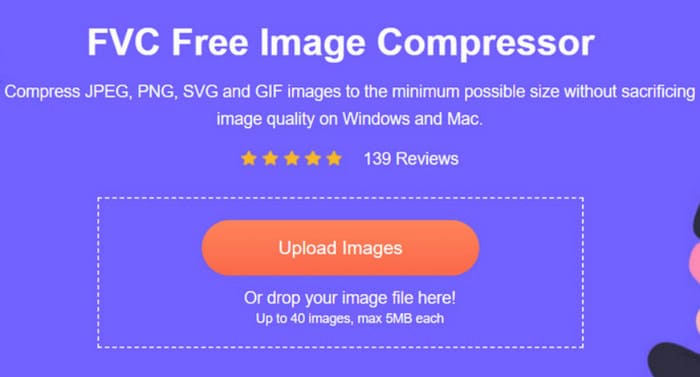
Schritt 3. Die Komprimierung startet automatisch. Überprüfen Sie anschließend das Ergebnis und klicken Sie auf Herunterladen, um das verkleinerte Bild zu speichern.
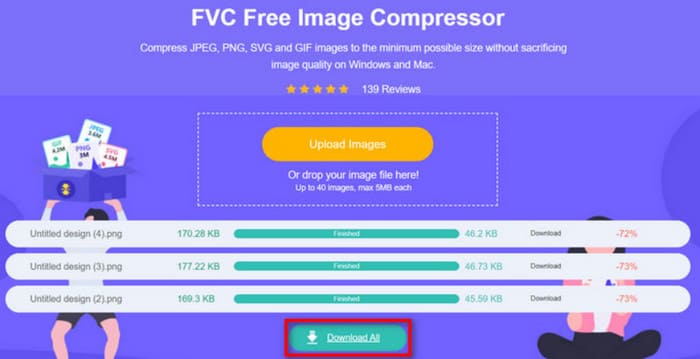
Nachdem die Komprimierung abgeschlossen ist, zeigt der FVC Free Image Compressor den Prozentsatz des komprimierten Bildes und die Größe vor und nach der Komprimierung auf dem Bildschirm an.
Obwohl die Komprimierungsrate enorm ist, werden wir überrascht feststellen, dass die Bildqualität nicht wesentlich beeinträchtigt wurde. Der kostenlose Bildkompressor FVC verwendet fortschrittliche Optimierungs- und Komprimierungsalgorithmen.
Teil 4. Häufig gestellte Fragen zum Komprimieren von Fotos in PowerPoint
Warum ist meine PowerPoint-Datei so groß?
Viele sind es gewohnt, hochauflösende Bilder in PowerPoint-Dateien einzufügen. Auch Videoanimationen und Übergangseffekte werden an geeigneten Stellen eingebettet. All diese Gestaltungselemente vergrößern die Dateigröße. Um PowerPoint einfacher speichern und übertragen zu können, empfehlen wir, die eingefügten Bilder oder Videos zu komprimieren. Beachten Sie dies jedoch und gehen Sie keine zu großen Kompromisse bei der Bildqualität der Fotos ein.
Wie komprimiert man ein Bild in PowerPoint?
PowerPoint verfügt selbst über eine Bildkomprimierung. Um sie zu verwenden, müssen Sie die gewünschten Bilder auswählen und in der Aktionsleiste Bildformat > Bilder komprimieren aufrufen.
Wie komprimiere ich ein Bild?
Es gibt viele professionelle Bildkompressoren. Sie können unter anderem Adobe Photoshop, FVC Free Image Compressor, Google Fotos, TinyPNG und viele weitere wählen. Wenn Sie nach GIF‑Kompressoren suchen, sehen Sie sich EZgif, VEED.io, FreeConvert und andere an.
Fazit
Egal ob Windows‑ oder Mac‑Nutzer, in dieser Anleitung finden Sie Möglichkeiten, wie Sie Fotos in PowerPoint komprimieren können. Obwohl PowerPoint über eine integrierte Bildkomprimierung verfügt, hilft sie Ihnen möglicherweise nicht dabei, ein besseres Gleichgewicht zwischen Bildqualität und Dateigröße zu finden.
Für eine effizientere PowerPoint-Bildkomprimierung empfiehlt sich ein professionelles Tool wie der FVC Free Image Compressor. Er ist benutzerfreundlich und lädt schnell. Die Schritte zur Bildverarbeitung sind bereits oben beschrieben.
-
 So ändern Sie die Größe eines Bilds in PowerPoint [Schnellste Methode zum Ändern der Größe]
 Es ist wichtig zu lernen, wie Sie die Größe von Bildern in PowerPoint ändern, insbesondere wenn Sie es in Ihrer Präsentation verwenden möchten. Lesen Sie diesen Artikel, um zu erfahren, wie es geht.
-
 So beheben Sie, dass Videos in PowerPoint nicht abgespielt werden | Kurzanleitung
 Wird Ihr PowerPoint-Video nicht abgespielt? Überwinden Sie die Frustration, dass eingebettete Videos jetzt nicht abgespielt werden, mit unseren fünf besten Lösungen, um das Problem mühelos zu beheben.
-
 2 Möglichkeiten zum Komprimieren von Videos für YouTube
 YouTube-Videos sind groß und langsam hochzuladen? Komprimieren Sie die Größe von Videodateien für YouTube auf zwei Arten online und am Computer.
