


 Video Converter Ultimate
 Bildschirm recorder
 Videoreparatur
 Sicherer Download
M4A-Datei kombinieren: Schnelle und einfache Schritte zum Zusammenführen von Audio
Die Verwendung einer M4A‑Datei ist schon kompliziert genug, da nicht alle Geräte und Audioprogramme dieses Audioformat unterstützen. Sie zu bearbeiten, stellt für Nutzer eine weitere Herausforderung dar. Natürlich gibt es zahlreiche Möglichkeiten, M4A-Dateien zusammenzufügen und zu einer einzigen Audiodatei zu verbinden, wobei der Einsatz von Drittanbieter-Tools wie Software und Online-Diensten dies ermöglicht. Diese Anleitung hilft überforderten Nutzern dabei, ein zuverlässiges Tool zu finden, um ihre M4A-Dateien zu kombinieren, und bietet gleichzeitig eine Schritt-für-Schritt-Anleitung, um den Einstieg in die Nutzung der Software und Online-Tools zu erleichtern.

Teil 1. Schnellste Methode zum Kombinieren von M4A-Dateien unter Windows/Mac [Für hohe Qualität]
An erster Stelle steht das vom FVC-Team empfohlene Video Converter Ultimate. Dieses Software-Tool kann präzise Schnitte, Kürzungen, komprimierte Dateien und – in diesem Fall – das Zusammenführen von M4A-Dateien effektiv durchführen. Das Zusammenführen von M4A-Dateien ermöglicht es den Nutzern, mehrere M4A-Dateien gleichzeitig hochzuladen, ohne sie vorher konvertieren zu müssen. Der Vorgang ist ziemlich schnell und einfach, da die Software sehr übersichtlich aufgebaut und leicht zu bedienen ist, was sie zu einem sofortigen Favoriten für Einsteiger macht.
Schritt 1. Laden Sie den vom FVC-Team empfohlenen Video Converter Ultimate herunter und starten Sie ihn auf Ihrem Desktop.
Gratis DownloadFür Windows 7 oder neuerSicherer Download
Gratis DownloadFür MacOS 10.7 oder neuerSicherer Download
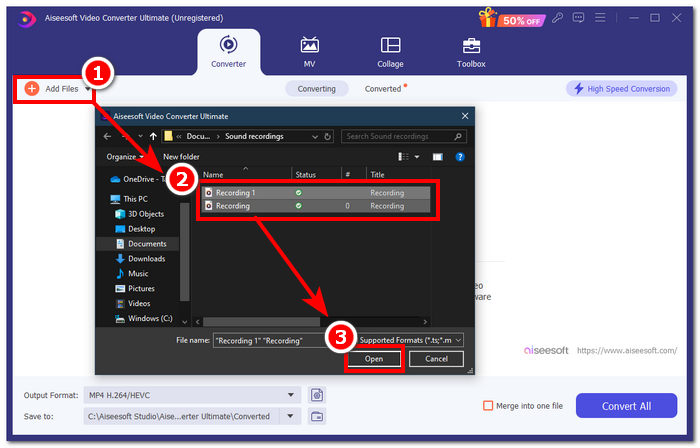
Schritt 2. Sobald die Software installiert ist, klicken Sie auf die Schaltfläche Dateien hinzufügen und wählen Sie die M4A-Dateien aus, die Sie zusammenführen möchten.
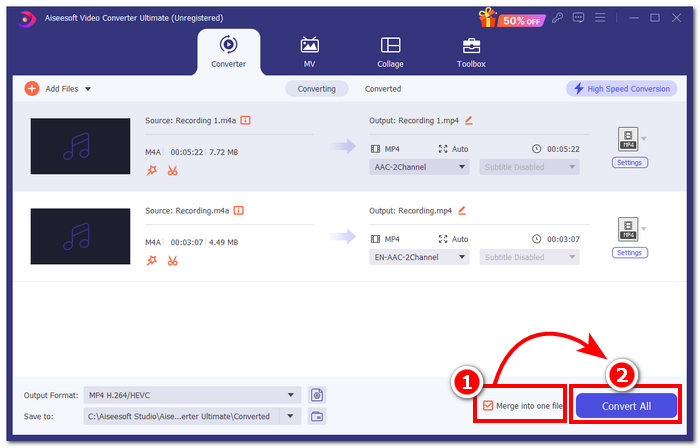
Schritt 3. Sobald Ihre M4A-Dateien in der Benutzeroberfläche des Tools geladen sind, aktivieren Sie das Kontrollkästchen in der rechten unteren Ecke des Tools, um das Zusammenführen Ihrer M4A-Dateien zu ermöglichen. Klicken Sie anschließend auf die Schaltfläche Alle konvertieren direkt daneben, um den Zusammenführungsprozess zu starten.
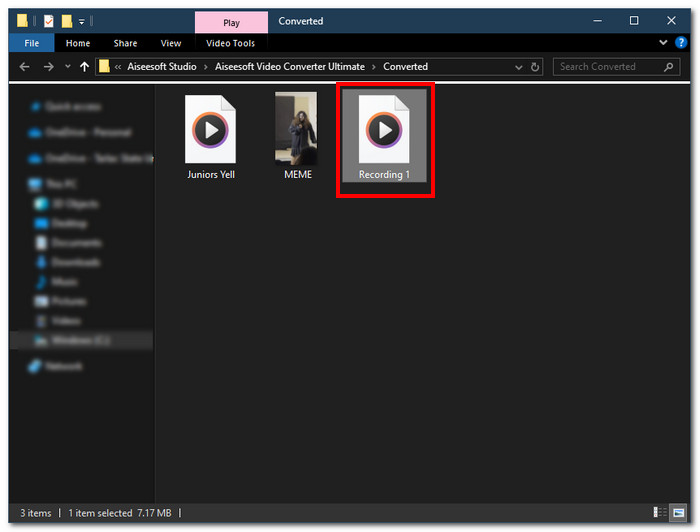
Schritt 4. Sobald der Zusammenführungsprozess abgeschlossen ist, öffnet sich ein neues Fenster auf Ihrem Bildschirm. Ihre zusammengeführten M4A-Dateien befinden sich in diesem Fenster. Glückwunsch, Sie haben Ihre M4A-Dateien erfolgreich zusammengeführt.
Der von FVC ausgewählte Video Converter Ultimate ist die schnellste der aufgelisteten Software, da er mit einer Hochgeschwindigkeitsverarbeitungstechnologie ausgestattet ist, die ein verlustfreies Qualitätsergebnis gewährleistet und gleichzeitig eine sehr intuitive Benutzeroberfläche bietet, die das nahtlose Zusammenführen Ihrer M4A-Dateien ermöglicht. Im Gegensatz zu anderer Software, die nur eine begrenzte Anzahl von Audiodateiformaten unterstützt, unterstützt diese Software eine breite Palette von Audio- und Videodateiformaten, darunter M4A, MP3, MP4, WAV, AAC usw.
Teil 2. M4A-Dateien auf dem Mac mit GarageBand kombinieren [Für Musikproduzenten]
Für professionelle Musikliebhaber oder Produzenten im Apple-Ökosystem ist GarageBand das Tool der Wahl zum Zusammenführen von M4A-Dateien. Das Zusammenführen von M4A-Dateien mit Ihren Mac-Geräten ist einfach, da Apples GarageBand ein auf Ihren Geräten vorinstallierter Audioeditor ist. Um zwei M4A-Dateien zu einer einzigen Audiodatei zusammenzuführen, folgen Sie einfach unseren Schritten unten. GarageBand gehört zu den Softwaretools, die unkompliziert und einfach funktionieren.
Schritt 1. Laden Sie GarageBand auf Ihren Mac‑Geräten herunter und starten Sie es.
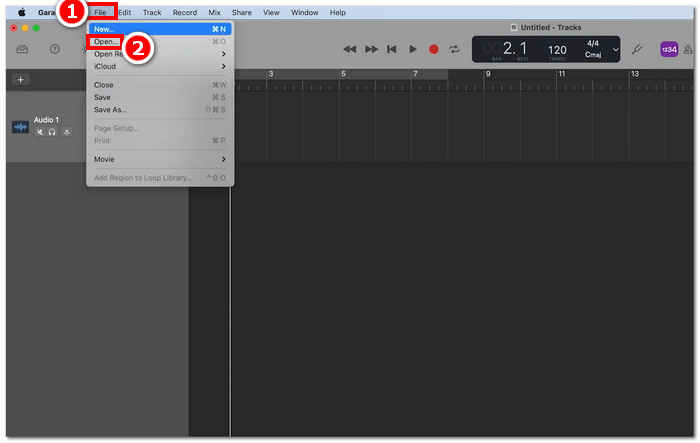
Schritt 2. Laden Sie auf der Hauptoberfläche Ihre M4A-Dateien, indem Sie oben links im Tool auf Ablage > Öffnen klicken.
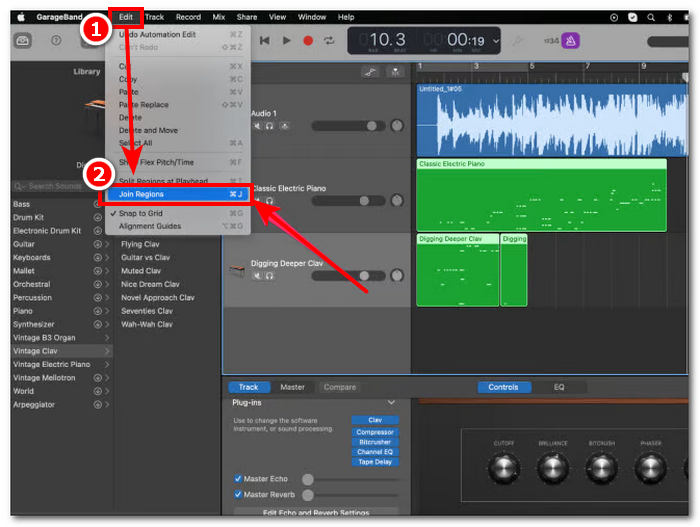
Schritt 3. Sobald Ihre M4A-Dateien in der Benutzeroberfläche des Tools geladen sind, klicken Sie auf Bearbeiten > Regionen verbinden, um mit dem Zusammenführen Ihrer hochgeladenen M4A-Dateien zu beginnen.
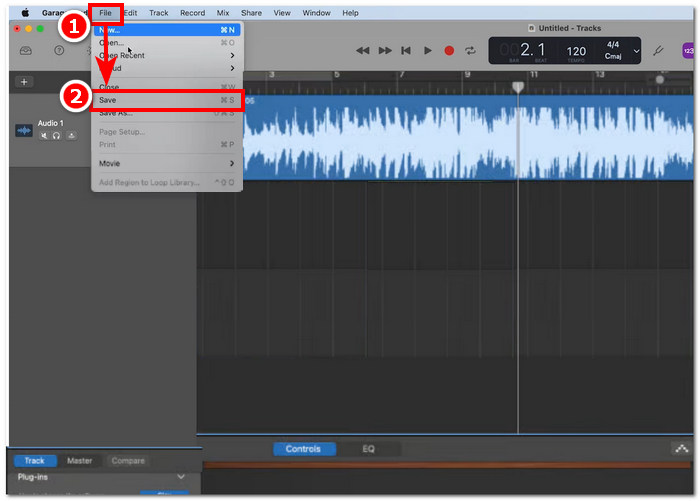
Schritt 4. Nachdem Ihre M4A-Dateien zu einer einzigen Audiospur zusammengeführt wurden, können Sie sie nun speichern oder herunterladen, indem Sie oben links im Tool auf Ablage > Sichern klicken.
GarageBand ist tatsächlich eine der einfachsten und dennoch professionell entwickelten Softwares zum Zusammenführen und Bearbeiten von M4A-Dateien. Das Befolgen der obigen Schritte ist eine hervorragende Methode, um zwei oder mehr M4A-Dateien zu einer einzigen Audiodatei zu organisieren, was das Teilen eines Mixes erleichtert.
Teil 3. M4A-Dateien unter Windows mit VLC kombinieren [Für einfache Benutzer]
Überraschenderweise kann der VLC Media Player M4A-Dateien zu einer zusammenfügen. Er ermöglicht einen nahtlosen und unkomplizierten Zusammenfügungsprozess, indem er seine Einstellungen im Medien- und Dateieigenschaften-Viewer nutzt. Dieser kostenlose und nützliche beliebte Audio- und Videoplayer kann alle Dateiformate, die Sie mit VLC zusammenfügen möchten, effektiv konvertieren und zusammenfügen.
Schritt 1. Laden Sie den VLC Media Player auf Ihren Desktop herunter und starten Sie ihn.
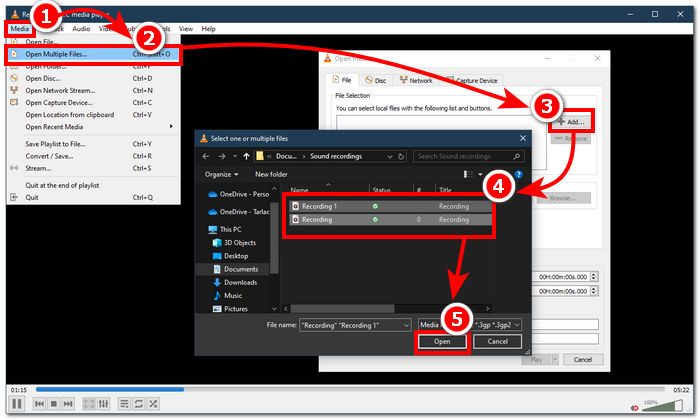
Schritt 2. Klicken Sie in der Hauptoberfläche oben links im Player zunächst auf Medien > Mehrere Dateien öffnen. Nachdem Sie darauf geklickt haben, erscheint ein neues Fenster. Klicken Sie zum Fortfahren auf die Schaltfläche + Hinzufügen und wählen Sie die M4A-Dateien aus, die Sie zusammenführen möchten.
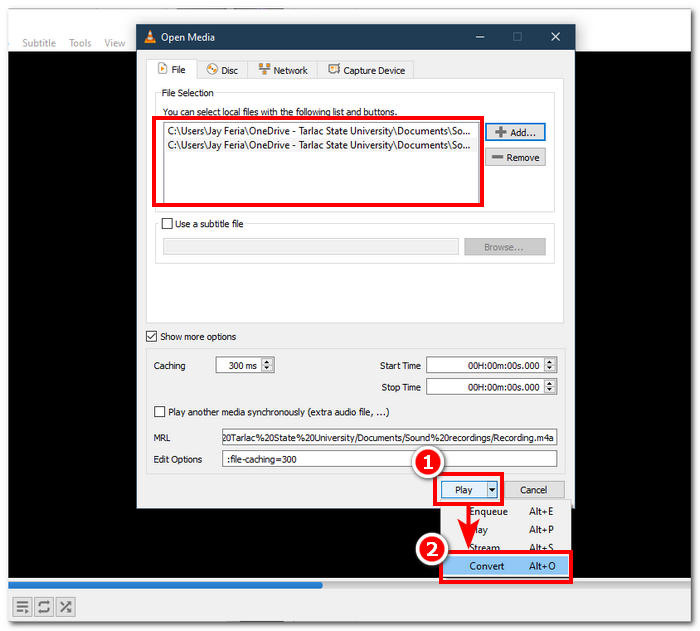
Schritt 3. Sobald sich Ihre M4A-Dateien im Dateifeld befinden, klicken Sie auf die Pfeil-nach-unten-Schaltfläche neben der Wiedergabe-Schaltfläche im unteren Bereich der Benutzeroberfläche und wählen Sie Konvertieren.
Schritt 4. Daraufhin erscheint ein neues Fenster. Aktivieren Sie das Kontrollkästchen An Dateinamen ‘-converted’ anhängen. Gehen Sie anschließend zu den Profileinstellungen und wählen Sie Audio. Sobald alles eingerichtet ist, klicken Sie auf die Schaltfläche Start, und Ihre zusammengeführte M4A-Datei wird im Ordner verfügbar sein, in dem sich auch Ihre M4A-Dateien befinden.
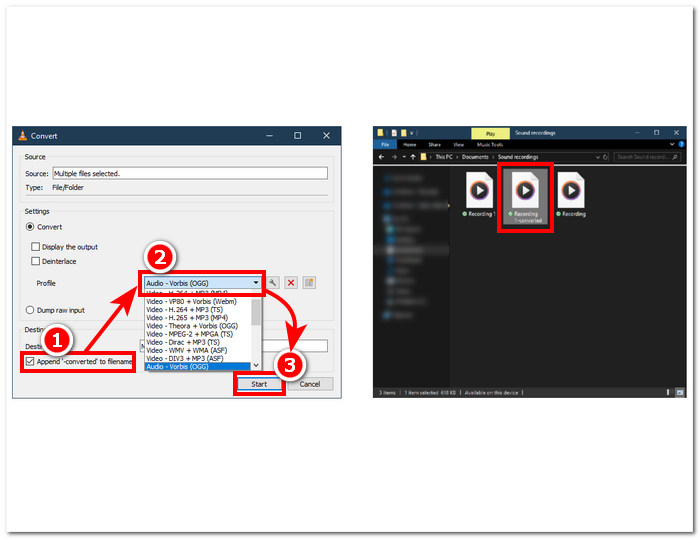
Vergessen Sie nicht, die Audiolänge anzupassen, wenn Sie die Dateien kombinieren, damit sie mit einer Videodatei synchronisiert sind. Wenn der Ton in VLC verzögert ist, hilft Ihnen dieser Artikel weiter: So beheben Sie die VLC-Audioverschiebung.
Wenn Sie die angegebenen Schritte befolgen, können Sie Ihre M4A-Dateien nahtlos zusammenführen. VLC Media Player ist nicht nur ein typischer Player für alle Arten von Medien, sondern kann auch als Metadaten-Editor verwendet werden und nicht nur M4A, sondern auch Videos kombinieren.
Teil 4. M4A-Dateien online kombinieren [Für kleine M4A-Dateien]
Wenn Sie nach einem effizienteren und zeitsparenderen M4A-Zusammenführungstool suchen, sollten Sie auf ein Online-Tool zurückgreifen. Um M4A-Dateien online zusammenzuführen, muss man ein zuverlässiges Tool verwenden, da es im Internet unzählige irreführende M4A-Zusammenführungstools gibt. Glücklicherweise steht Ihnen Audio Joiner zur Seite, da es sich um ein webbasiertes Tool zum Zusammenführen von M4A-Dateien handelt. Es funktioniert im Grunde so, dass Sie Ihre M4A-Dateien auf die Website hochladen und mit einem einzigen Klick sofort Ihre Audiodateien zu einer zusammenführen.
Schritt 1. Gehen Sie auf die offizielle Website von Audio Joiner, um auf den Dienst zuzugreifen.
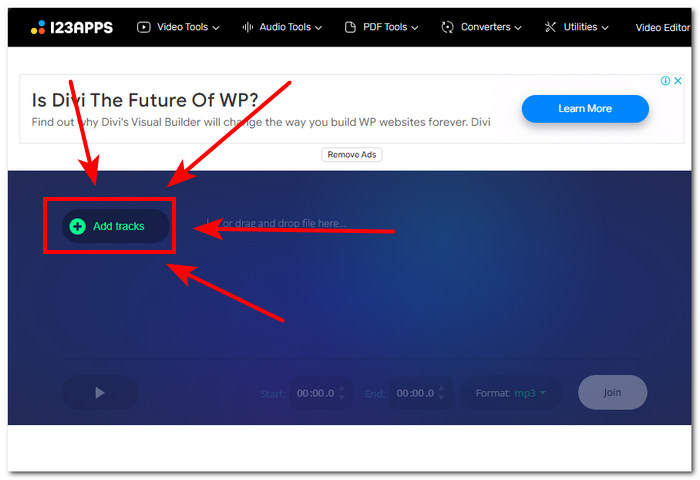
Schritt 2. Sobald Sie sich in der Benutzeroberfläche der Website befinden, klicken Sie auf die grüne Schaltfläche + Tracks hinzufügen und wählen Sie die M4A-Dateien aus, die Sie kombinieren möchten.
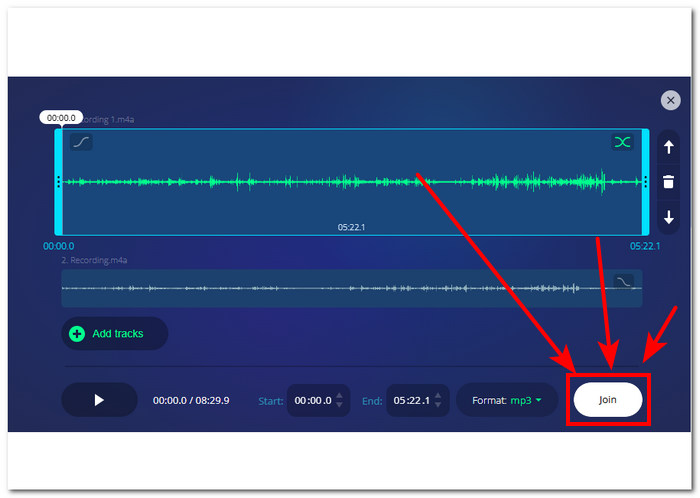
Schritt 3. Sobald Ihre M4A-Dateien in das Tool geladen sind, klicken Sie auf die Schaltfläche Join in der rechten unteren Ecke der Website und warten Sie einfach, bis der Zusammenführungsprozess abgeschlossen ist.
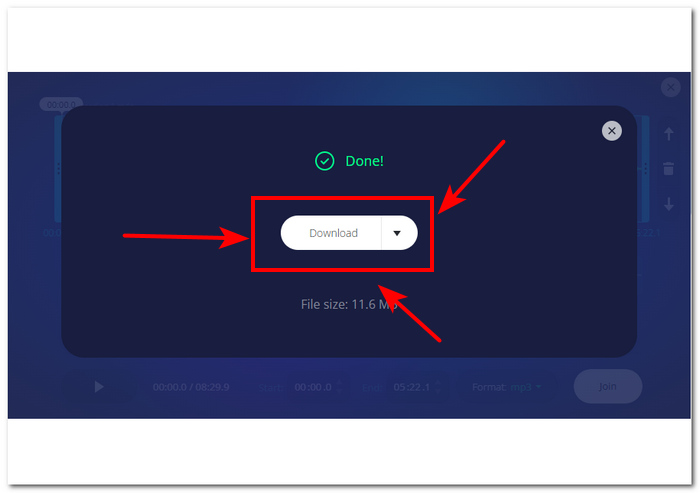
Schritt 4. Sobald das Zusammenführen abgeschlossen ist, können Sie auf die Schaltfläche Download auf Ihrem Bildschirm klicken, um Ihre zusammengeführte M4A-Datei auf Ihren Desktop herunterzuladen und zu speichern.
Obwohl dieses webbasierte Tool zum Zusammenführen von M4A-Dateien praktisch für Benutzer ist, die keine Zeit mit der Installation eines Softwaretools verbringen möchten, werden beim Ausführen Popup-Anzeigen angezeigt und Ihre Audiodateien werden leider langsamer geladen.
Teil 5. FAQs zum Kombinieren von M4A-Dateien
Was ist der einfachste Weg, Audiodateien zu kombinieren?
Der einfachste Weg, M4A-Dateien zu kombinieren, besteht in der Verwendung von Online-Tools, die das sofortige Zusammenführen von Audiodateien mit nur einem Klick ermöglichen. Bei der Verwendung solcher Tools ist jedoch Vorsicht geboten, da damit einige Risiken verbunden sind.
Wie lautet der Befehl zum Zusammenführen von Titeln in GarageBand?
Die Tastenkombination zum Zusammenführen eines Titels in GarageBand besteht darin, gleichzeitig Befehlstaste + J zu drücken.
Können Sie mit einem Windows Media Player Songs mischen?
Leider verfügt der Windows Media Player noch immer nicht über solche Features oder integrierte Funktionen zum Mischen oder Zusammenführen von Songs.
Gibt es eine Möglichkeit, M4A-Dateien ohne Qualitätsverlust zu kombinieren?
Ja, es gibt viele Möglichkeiten, M4A ohne Qualitätsverlust zu konvertieren. Einige Tools haben eine spezielle Einstellungsanpassung dafür, und andere bieten einfach jedes Mal einen qualitativ hochwertigen Export, wie der von FVC ausgewählte Video Converter Ultimate.
Kann ich M4A-Dateien auf meinem Smartphone zusammenführen?
Ja, M4A-Dateizusammenführungen sind auf Desktops und in Webbrowsern sowie auf Mobilgeräten verfügbar. GarageBand bietet eine mobile Version seiner Desktop-Version, die jedoch nur auf iOS-Geräten verfügbar ist, während WavePad Mobile sowohl für iOS als auch für Android verfügbar ist.
Fazit
Zu wissen, wie man M4A-Tracks zusammenführt, ist eine fantastische Fähigkeit beim Erlernen der Audiobearbeitung. Sie hilft Ihnen dabei, Ihre Projekte zu kürzen und zu organisieren, sodass nicht zu viele Spuren gleichzeitig aktiv sind. Um M4A-Dateien effizient zusammenzuführen, benötigen Nutzer möglicherweise zuverlässige Software oder Online-Tools, um eine solche Aufgabe zu bewältigen. Wenn Sie also anfangen möchten, kann Ihnen das Befolgen unserer Schritte dabei helfen, diese nützliche Fähigkeit zu meistern, bevor Sie auf fortgeschrittenere Aufnahmeplattformen umsteigen.
-
 So konvertieren Sie M4A in MP3 mit 4 kostenlosen Audiokonvertern
 Sie können M4A nicht abspielen und müssen es in MP3 konvertieren? Gibt es eine kostenlose Möglichkeit, M4A online in MP3 umzuwandeln? Dieser Beitrag bietet 4 kostenlose Möglichkeiten, wie Sie M4A mit iTunes, Online- und professionellen Audiokonvertern in MP3 konvertieren können.
-
 MP3 Player Download - 10 besten kostenlosen MP3-Musik-Player von 2021
 Was ist der beste MP3-Musikplayer? Wie lege ich Musik auf einen MP3-Player? Wie lade ich den MP3-Musik-Player herunter? Dieser Beitrag gibt Ihnen einen detaillierten Überblick über die 10 besten kostenlosen MP3-Player für Windows PC und Mac.
-
 Holen Sie sich Ihren besten MP4-Player zum Abspielen von MP4-Dateien mit hoher visueller Qualität
 Lesen und holen Sie sich Ihren besten MP4-Player anhand der Empfehlungen der 10 neuesten MP4-Video-Player-Software. Sie können MP4-Videodateien unter Windows und Mac reibungslos und ohne Verzögerung abspielen.
