


 Video Converter Ultimate
 Bildschirm recorder
 Videoreparatur
 Sicherer Download
WAV-Dateien nahtlos zusammenführen mit Software-Tools und Tipps
Egal, ob Sie ein Neuling in der Audiobearbeitung oder ein Profi sind – um WAV-Dateien zu kombinieren, brauchen Sie die richtigen Tools und Techniken, damit zwei unterschiedliche WAV-Dateien verlustfrei zusammengefügt und exportiert werden können. Die Suche nach dem passenden Tool kann allerdings Zeit und Mühe kosten. Mit Hilfe dieses Artikels jedoch erkunden wir verschiedene Werkzeuge, zeigen Schritt für Schritt deren Bedienung und geben Tipps, damit Sie leicht einsteigen und den Vorgang deutlich einfacher und effizienter gestalten können.

Teil 1. WAV-Dateien in Sekunden verlustfrei kombinieren [mit GPU-Beschleunigung]
Wenn Sie zwei WAV-Dateien kombinieren und als eine einzelne Datei exportieren möchten, ist der beste und einfachste Weg die Verwendung des von FVC empfohlenen Video Converter Ultimate. Diese Software von Aiseesoft ist für alle Arten von Nutzern zugänglich, da sie auf der offiziellen Website komplett kostenlos heruntergeladen werden kann. Das Tool bietet Funktionen zur Video- und Audiobearbeitung und kann mehrere WAV-Dateien zu einer einzigen Datei zusammenführen. Darüber hinaus ist die Software mit einer Hochgeschwindigkeits-Verarbeitungstechnologie ausgestattet, die das Zusammenführen und Exportieren von WAV-Dateien für den Nutzer deutlich effizienter macht. Um die Aufgabe „WAV-Dateien zusammenführen“ leicht zu bewältigen, folgen Sie bitte der Anleitung unten.
Schritt 1. Laden Sie den WAV-Datei-Merger auf Ihren Desktop herunter, installieren Sie ihn und öffnen Sie das Programm.
Gratis DownloadFür Windows 7 oder neuerSicherer Download
Gratis DownloadFür MacOS 10.7 oder neuerSicherer Download
Schritt 2. Wenn Sie sich in der Programmoberfläche befinden, klicken Sie oben links auf die Schaltfläche Dateien hinzufügen. Öffnen und wählen Sie dann die WAV-Dateien aus, die Sie zu einer einzigen Datei zusammenführen möchten, und klicken Sie anschließend auf die Schaltfläche Öffnen.
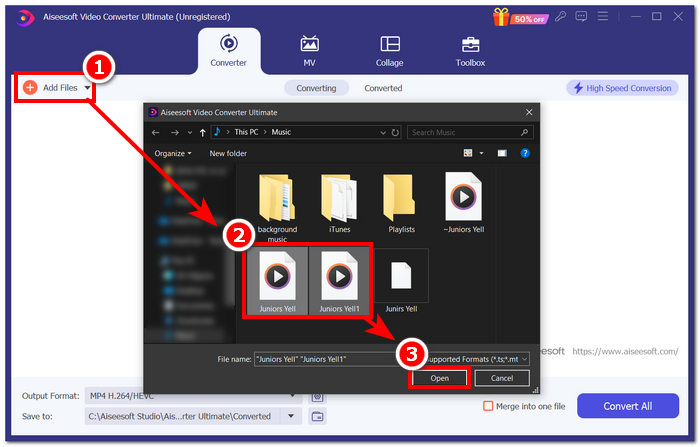
Schritt 3. Nachdem Sie die WAV-Dateien hochgeladen haben, möchten Sie diese im Programm zusammenführen. Setzen Sie dazu ein Häkchen bei Zu einer Datei zusammenfügen, das sich neben der Schaltfläche „Alles konvertieren“ im unteren rechten Bereich der Programmoberfläche befindet.
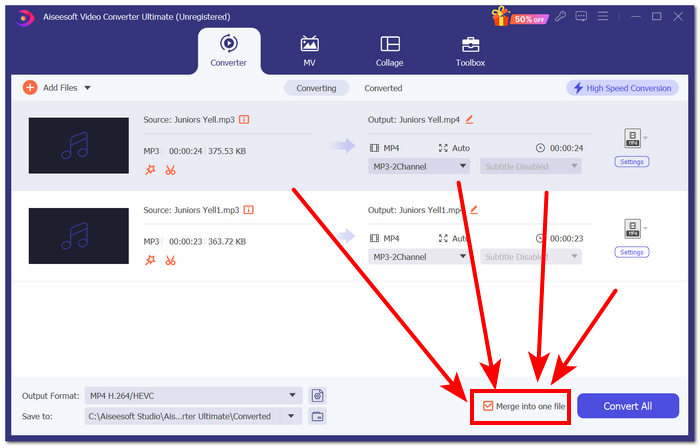
Schritt 4. Klicken Sie auf die Schaltfläche Alles konvertieren, um den Zusammenführungsvorgang zu starten. Die Dateien werden automatisch exportiert und in Ihrem Download-Ordner gespeichert.

Tipps
• Sie können im Softwaretool mehrere WAV-Dateien gleichzeitig zusammenführen.
• In der unteren linken Ecke der Softwareoberfläche können Sie vor dem Exportieren das Ausgabeformat auf das von Ihnen gewünschte Dateiformat einstellen.
• Sie können das Ziel Ihrer zusammengeführten WAV-Datei auch ändern, indem Sie den gewünschten Ordner in der unteren linken Ecke der Softwareoberfläche aufrufen und auswählen.
• Um die Hochgeschwindigkeitsverarbeitungstechnologie beim Zusammenführen und Exportieren Ihrer WAV-Datei zu maximieren, aktivieren Sie die Einstellung „Hochgeschwindigkeitskonvertierung“ in der oberen rechten Ecke der Softwareoberfläche.
• Dieses Tool unterstützt zudem verschiedene Formate, sodass Sie auch MP4-Dateien kombinieren sowie MKV, FLV, MP3, FLAC und viele weitere Formate zusammenführen können.
Teil 2. WAV-Dateien online kombinieren
Wenn Sie das Zusammenführen Ihrer WAV-Dateien mit einem softwarebasierten Tool als ziemlich schwierig empfinden, ist eine Online-Lösung möglicherweise das Richtige für Sie. Descript ist ein webbasiertes Tool, das als Audio-, Video- und Transkriptionseditor-Tool in einem fungiert. Das Zusammenführen von WAV-Dateien ist relativ einfach, da das webbasierte Tool KI verwendet, um Ihre WAV-Eingabedateien automatisch zusammenzuführen, sobald Sie sie hochladen, und Benutzern eine Vorschau vor dem Herunterladen bietet.
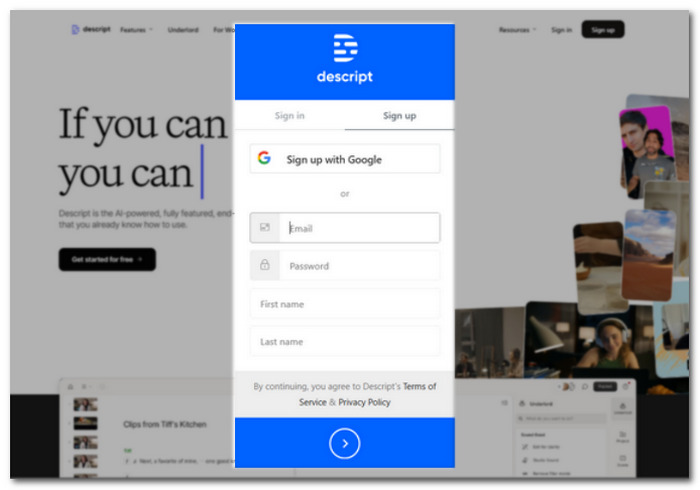
Schritt 1. Gehen Sie auf die offizielle Website von Descript und erstellen Sie ein Konto, damit Sie das Tool zum Kombinieren Ihrer WAV-Dateien verwenden können.
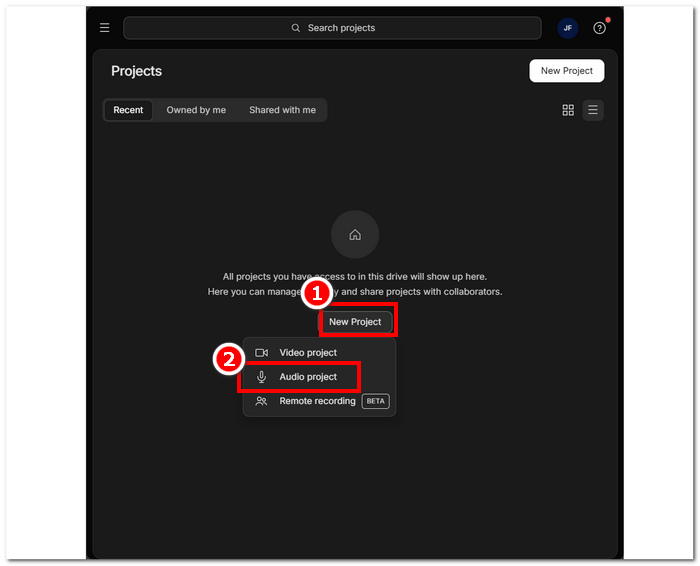
Schritt 2. Sobald Sie in die Oberfläche des Tools eingeloggt sind, klicken Sie auf New Project > Audio Project.
Schritt 3. Laden Sie die WAV-Dateien, die Sie kombinieren und zu einer einzelnen Datei zusammenführen möchten, im dafür vorgesehenen Feld Upload a file in der Programmoberfläche hoch.
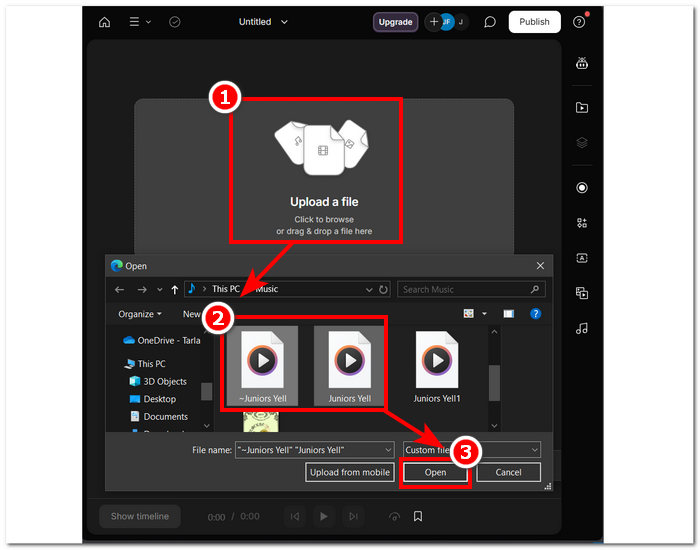
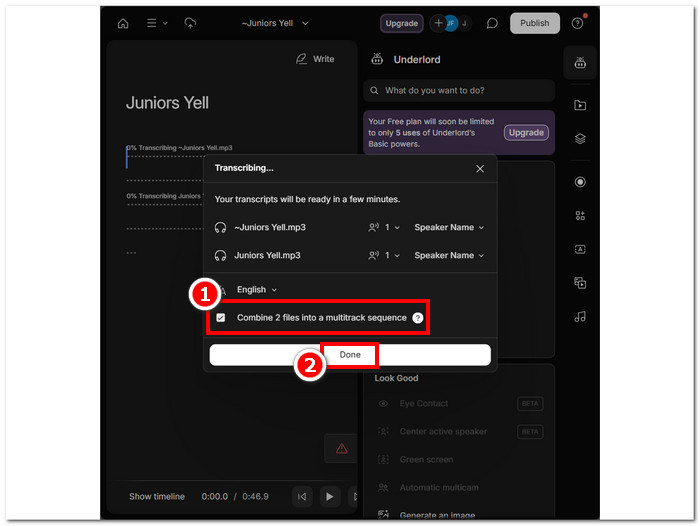
Schritt 4. Während Ihre WAV-Dateien im Tool hochgeladen werden, erscheint ein Fenster. Dort können Sie festlegen, ob die Dateien automatisch kombiniert werden sollen. Setzen Sie ein Häkchen, um den KI-Zusammenführungsvorgang zu erlauben, und klicken Sie dann auf die Schaltfläche Done.
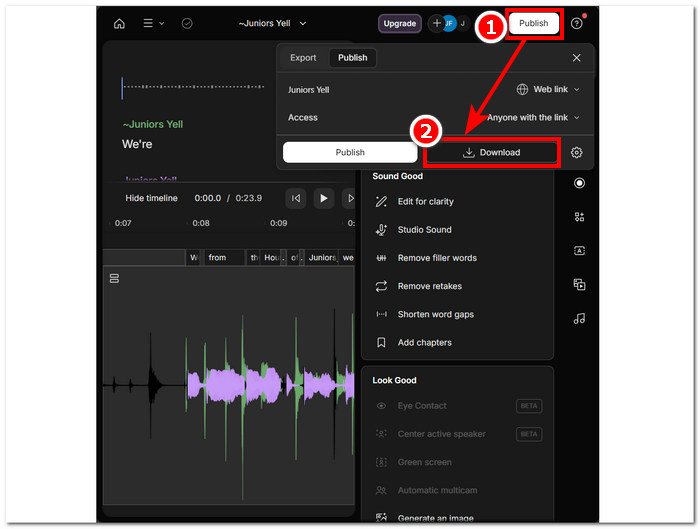
Schritt 5. Warten Sie, bis das Tool das Zusammenführen Ihrer WAV-Dateien abgeschlossen hat. Anschließend können Sie die fertige Ausgabe abspielen, um zu prüfen, ob die KI Ihre WAV-Dateien gut kombiniert hat, und bei Bedarf Anpassungen vornehmen. Wenn Sie zufrieden sind, klicken Sie auf Publish > Download, um Ihre zusammengeführten WAV-Dateien auf Ihren Desktop herunterzuladen.
Tipps
• Überprüfen Sie vor dem Herunterladen Ihrer kombinierten WAV-Dateien die Audiospur gründlich, um Unterbrechungen zu vermeiden.
• Wenn Sie mit dem Tool vertraut sind, können Sie den Zusammenführungsprozess von WAV-Dateien effektiv beschleunigen.
Teil 3. WAV-Dateien mit Audacity kombinieren
Als Open-Source-Audioeditor kann Audacity ebenfalls Spuren wie WAV-Dateien zusammenführen, ganz ohne zusätzliche Kosten. Diese kostenlos herunterladbare Software unterstützt Nutzer seit Langem bei ihren Audiobearbeitungsaufgaben und macht das Zusammenführen von WAV-Dateien deutlich einfacher. Audacity erlaubt es, mehrere WAV-Dateien auf einmal hinzuzufügen und unterstützt zudem den Import verschiedener Audioformate. Außerdem bietet es eine praktische Funktion, um jede Spur exakt am Ende der vorherigen auszurichten, was das Zusammenführen wesentlich vereinfacht, ohne dass man sich um Überschreibungen sorgen muss. Wenn Sie der ausführlichen Anleitung unten folgen, können Sie sich noch besser in der Software zurechtfinden.
Schritt 1. Laden Sie die Audacity-Software auf Ihren Desktop herunter. Öffnen Sie sie anschließend und laden Sie die WAV-Dateien, die Sie zu einer Datei zusammenführen möchten.
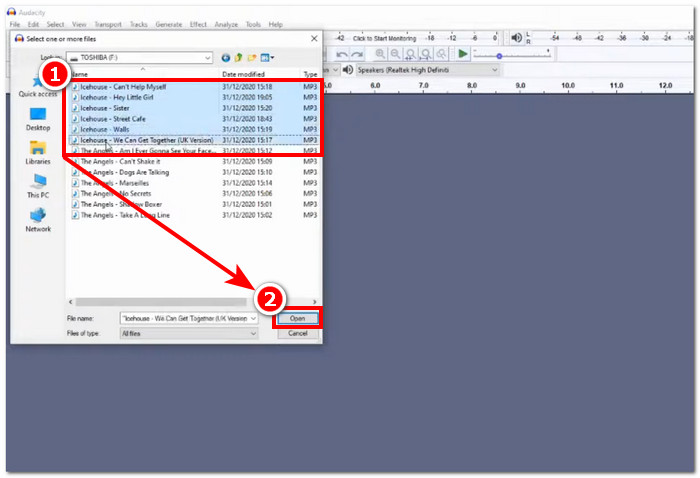
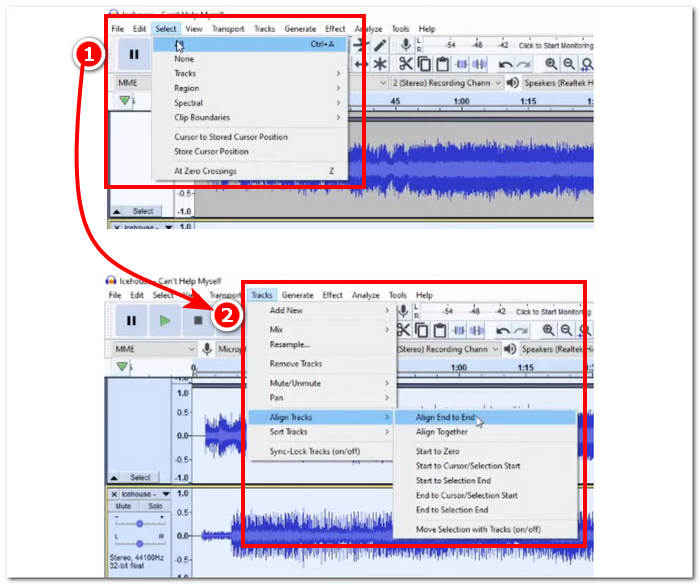
Schritt 2. Sobald Ihre WAV-Dateien in der Oberfläche des Tools geladen sind, wählen Sie zunächst alle Ihre Spuren aus, indem Sie oben im Menü auf Select > All klicken. Richten Sie anschließend die ausgewählten WAV-Spuren aus, indem Sie auf den Menüpunkt Track klicken und unter „Align Tracks“ die Option Align End to End auswählen.
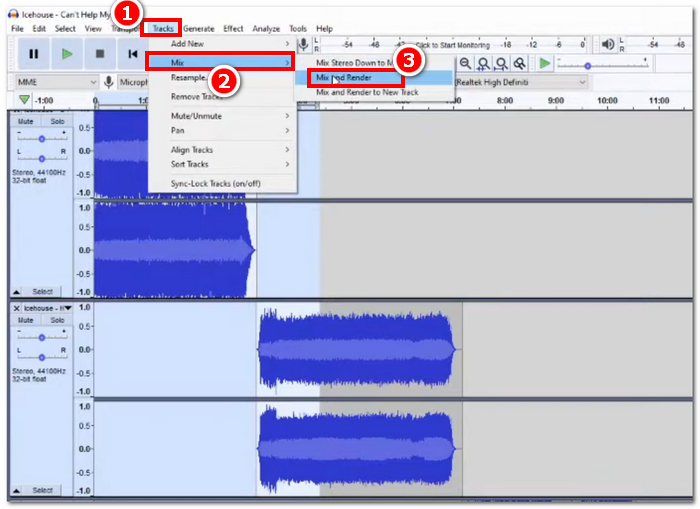
Schritt 3. Sobald Ihre WAV-Dateien spurweise hintereinander ausgerichtet sind, klicken Sie erneut auf den Menüpunkt Track und wählen unter dem Bereich „Mix“ die Funktion Mix and Render, um den Zusammenführungsvorgang zu starten.
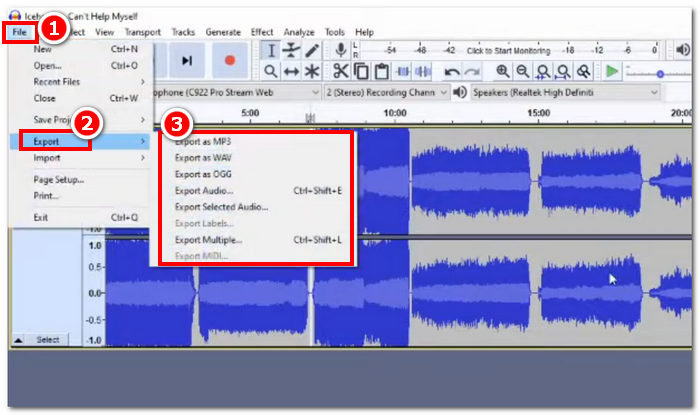
Schritt 4. Nachdem der Zusammenführungsvorgang abgeschlossen ist, können Sie Ihre WAV-Datei exportieren, indem Sie auf File > Export klicken und anschließend Ihr gewünschtes Ausgabeformat auswählen.
Tipps
• Wählen Sie beim Exportieren Ihrer kombinierten WAV-Dateien den Export als WAV, da dabei die ursprüngliche Audioqualität erhalten bleibt.
Teil 4. WAV-Dateien mit FFmpeg kombinieren
Ein weiteres Open-Source-Softwaretool zur Audio- und Videobearbeitung ist FFmpeg. Dieses leistungsstarke Multimedia-Framework kann als Konverter und zur Multimedia-Bearbeitung von Video-, Audio- und anderen Mediendateien verwendet werden. Bei Aufgaben wie dem Zusammenführen von WAV-Dateien gibt die Software einen bestimmten Code in die Eingabeaufforderung ein, um den Zusammenführungsprozess zu starten, der als Verketten von WAV-Dateien zu einer einzigen Ausgabedatei bezeichnet wird. Nachfolgend finden Sie eine ausführliche Anleitung zur Verwendung von FFmpeg als WAV-Dateizusammenführungsprogramm.
Schritt 1. Gehen Sie auf die FFmpeg-Website und installieren Sie das Programm entsprechend dem Gerät, das Sie verwenden.
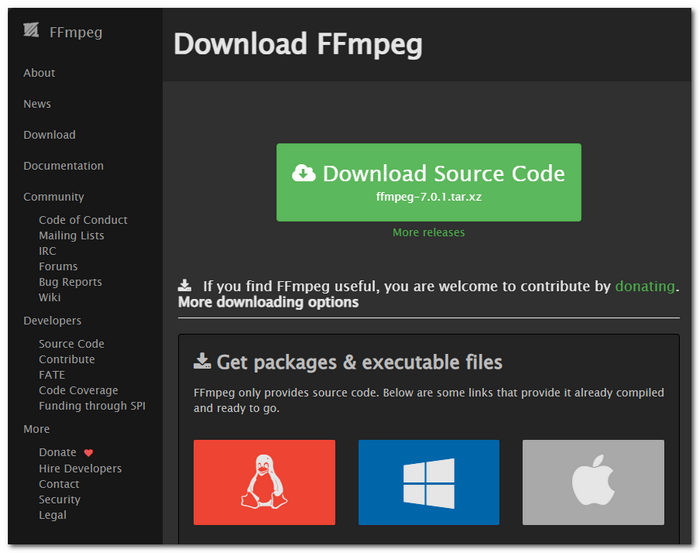
Laden Sie die ZIP-Datei von der Website herunter und erstellen Sie in Ihrem Systempfad einen neuen Ordner, um alle FFmpeg-ausführbaren Dateien zu speichern. Verschieben Sie auch die ZIP-Datei in den Ordner.
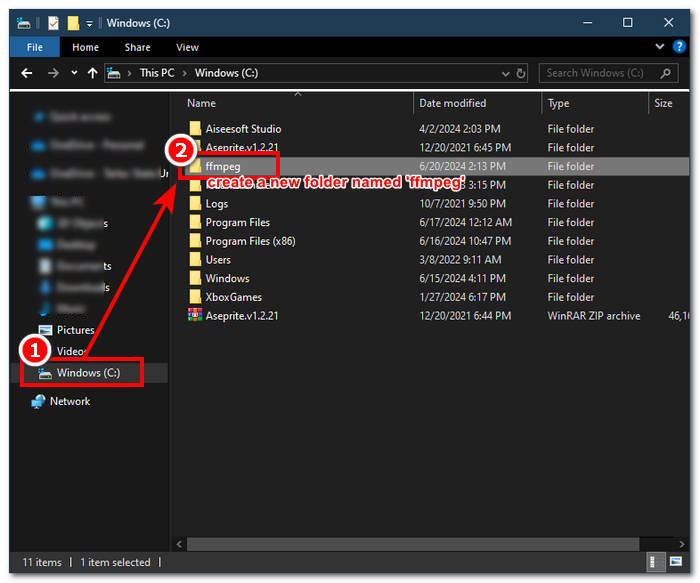
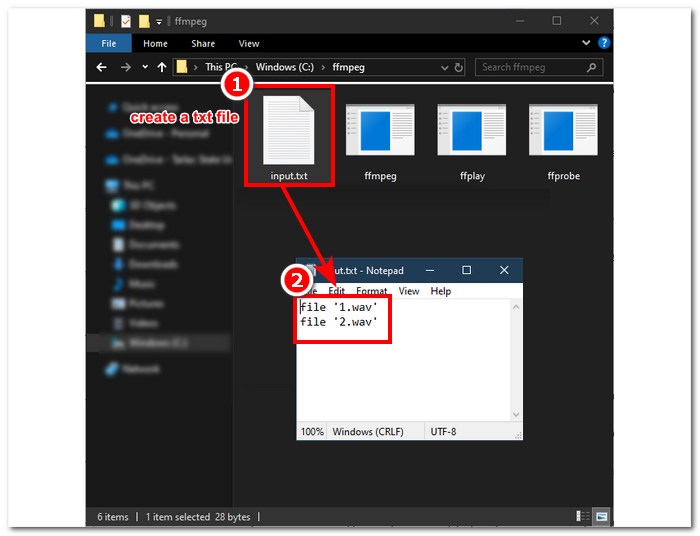
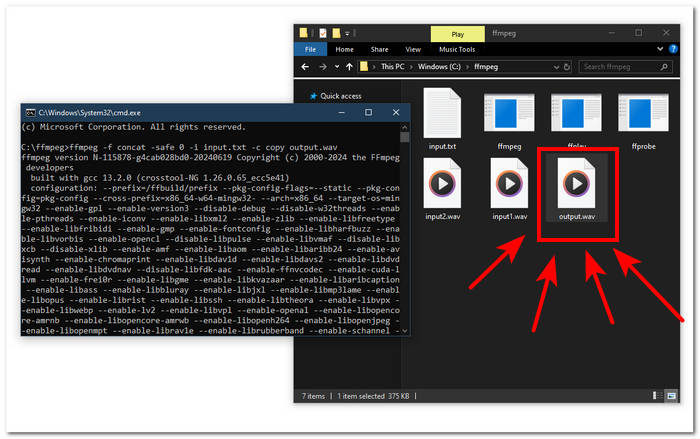
Schritt 2. Verschieben Sie Ihre WAV-Dateien in den soeben erstellten ffmpeg-Ordner und bereiten Sie sie vor, indem Sie sie im Verzeichnis in ‘input1.wav’ und ‘input2.wav’ umbenennen.

Hinweis: Erstellen Sie anschließend im gleichen Ordner eine Datei mit dem Namen ‘input.txt’ und tragen Sie folgenden Inhalt ein:;
file 'input1.wav'
file 'input2.wav'
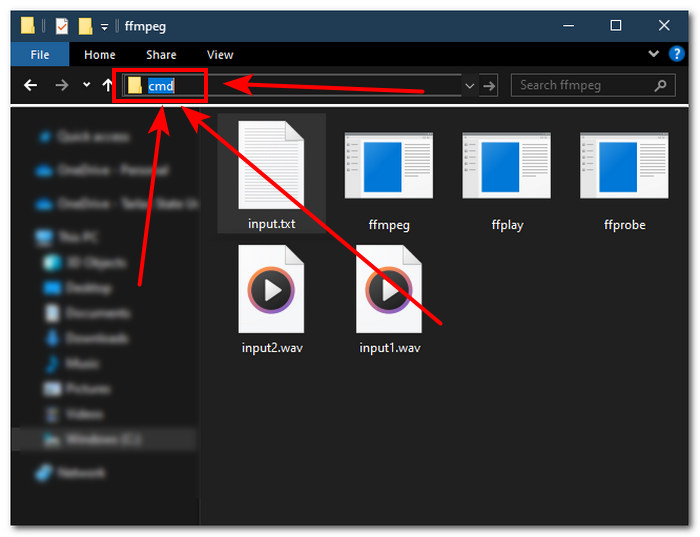
Schritt 3. Starten Sie die FFmpeg-Eingabeaufforderung, indem Sie ‘cmd’ in das Pfadfeld des Datei-Explorers oben im Fenster eingeben und die Eingabetaste drücken.
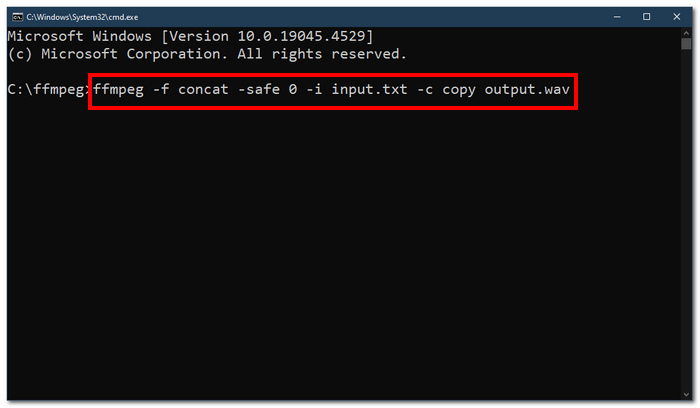
Schritt 4. Sobald Sie sich in der FFmpeg-Eingabeaufforderung befinden, geben Sie den folgenden Befehl ein und drücken Sie die Eingabetaste:;
ffmpeg -f concat -safe 0 -i input.txt -c copy output.wav
Schritt 5. In Ihrem Ordner erscheint eine neue WAV-Datei, was bedeutet, dass Sie Ihre WAV-Dateien erfolgreich zu einer einzelnen Datei zusammengeführt haben.
Tipps
• Da das Tool befehlszeilenbasiert ist, ist es wichtig, mit der grundlegenden Befehlszeile vertraut zu sein und sie zu kennen, um effektiv im Tool navigieren zu können.
• Bewahren Sie alle Ihre FFmpeg-bezogenen Ordner und Dateien zur Organisation und für einfachen Zugriff in einem einzigen Ordner auf.
• Sehen Sie sich Tutorials an und lesen Sie Anleitungen im Internet, wenn Sie andere Aufgaben als das Zusammenführen von WAV-Dateien erledigen möchten.
Teil 5. Häufig gestellte Fragen zum Kombinieren von WAV-Dateien
Können Sie WAV-Dateien mischen?
Ja, Sie können WAV-Dateien mithilfe von Software von Drittanbietern zum Zusammenführen von WAV-Dateien mischen, beispielsweise mit dem von FVC ausgewählten Video Converter Ultimate und Audacity.
Kann VLC Audiodateien zusammenführen?
Der VLC Media Player kann keine WAV-Dateien zusammenführen, da er ausschließlich für Medien-Streaming und Medienkonvertierung gedacht ist.
Wie füge ich Videodateien im Windows Media Player zusammen?
Windows Media Player unterstützt weder das Bearbeiten von WAV-Dateien noch das Zusammenführen von WAV-Dateien. Windows Media Player ist eine für Windows-Geräte entwickelte Software zum Abspielen von Medieninhalten.
Was ist der einfachste Weg, Audiodateien zu kombinieren?
Der einfachste Weg zum Zusammenführen von WAV-Dateien ist die Verwendung des von FVC ausgewählten Video Converter Ultimate. Diese Software ist mit Hochgeschwindigkeitsverarbeitungstechnologie ausgestattet und daher praktisch für Benutzer mit wenig Erfahrung in der Audiobearbeitung, beispielsweise dem Zusammenführen von WAV-Dateien.
Kann das Kombinieren von WAV-Dateien die Audioqualität beeinträchtigen?
Ja, Softwaretools können die Qualität einer WAV-Datei stark beeinträchtigen, je nach Qualität der von Ihnen verwendeten Software. Bei Verwendung eines lückenhaften Tools kann die Qualität am schlechtesten sein. Wenn Sie vertrauenswürdige und zuverlässige Softwaretools wie den von FVC ausgewählten Video Converter Ultimate, Audacity und mehr verwenden, kann dies dazu beitragen, die ursprüngliche Qualität beizubehalten.
Fazit
Abschließend lässt sich sagen: Fügen Sie WAV-Dateien zusammen, indem Sie die vorgestellten Softwaretools nutzen, um sie effektiv zu kombinieren und verlustfrei zu exportieren. Es ist wichtig zu beachten, dass die Wahl der passenden Tools und das Erlernen ihrer Bedienung ein entscheidender Teil des Prozesses sind. Daher hat dieser Artikel – von der Nutzung einer funktionsreichen Software wie dem von FVC empfohlenen Video Converter Ultimate bis hin zum fortgeschrittenen Kommandozeilen-Tool FFmpeg – die Schritte und hilfreichen Tipps zusammengestellt, sodass Sie nur noch den Anleitungen folgen müssen, um einen unkomplizierten und reibungslosen Zusammenführungsprozess zu erreichen.
-
 Wie kann ich MP4 kostenlos in WAV Online konvertieren?
 Versuchen Sie, MP4 in WAV umzuwandeln? Sie wissen nicht, welcher Konverter Ihnen dabei perfekt helfen kann, ohne einen Cent zu zahlen? Lesen Sie diesen Beitrag und alle Ihre Fragen werden beantwortet.
-
 Bewertung der 10 besten kostenlosen MP3-Musik-Player
 Was ist der beste MP3-Musikplayer? Wie lege ich Musik auf einen MP3-Player? Wie lade ich den MP3-Musik-Player herunter? Dieser Beitrag gibt Ihnen einen detaillierten Überblick über die 10 besten kostenlosen MP3-Player für Windows PC und Mac.
-
 8 besten MOV-Player für PC und Mac zum Abspielen von QuickTime MOV-Videodateien
 Erfahren Sie mehr über die 8 besten MOV-Player für Windows und Mac. Sie können die gewünschte und geeignete auswählen, um MOV-Dateien mit der Originalqualität abzuspielen.
