


 Video Converter Ultimate
 Bildschirm recorder
 Videoreparatur
 Sicherer Download
WMA-Dateien schneiden: Ultimativer Leitfaden für Windows- und Mac-Benutzer
Das Bearbeiten von Audiodateien macht Spaß – bis man es mit langen WMA‑Tracks zu tun hat, die sich scheinbar nicht kürzen lassen. Ob du Podcaster, Musiker oder einfach jemand bist, der gerne mit Audio experimentiert: Das Schneiden von WMA‑Dateien kann ohne die richtigen Tools und das nötige Wissen eine ziemlich anspruchsvolle Aufgabe sein. Dieser Artikel soll den Vorgang für Windows‑ und Mac‑User vereinfachen und bietet dir Schritt‑für‑Schritt‑Anleitungen sowie die besten verfügbaren Werkzeuge, damit deine Audio‑Bearbeitung reibungsloser und effizienter wird. Lies diesen Artikel weiter, um mehr zu erfahren.

Teil 1: Beste Möglichkeit zum Schneiden von WMA-Dateien unter Windows/Mac
Die beste und umfassendste Methode, WMA‑Dateien sowohl unter Windows als auch auf dem Mac zu schneiden, ist das von FVC empfohlene Video Converter Ultimate. Dieses All‑in‑One‑Video‑ und Audiokonvertierungstool arbeitet besonders gut mit WMA‑Formaten, insbesondere beim Zuschneiden. Das Tool verfügt über eine spezielle Funktion, mit der sich Audiodateien ganz leicht kürzen lassen. Das ist besonders hilfreich für alle, die WMA‑Dateien schneiden müssen, die unpraktisch lang sind oder unerwünschte Teile oder Segmente enthalten. Außerdem kannst du mit diesem Tool den Teil der WMA‑Datei, den du schneiden möchtest, entweder manuell auswählen oder ihn mithilfe der schnellen Schnittfunktion automatisch trimmen lassen.
Schritt 1. Lade zunächst auf deinem Mac oder Windows‑Computer den Video Converter Ultimate herunter und installiere ihn.
Gratis DownloadFür Windows 7 oder neuerSicherer Download
Gratis DownloadFür MacOS 10.7 oder neuerSicherer Download
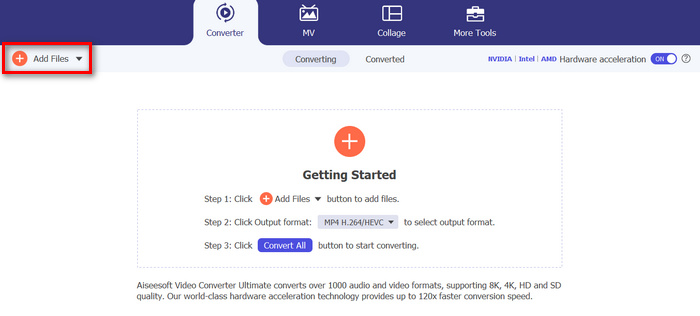
Schritt 2. Um die WMA‑Dateien zu importieren, die du schneiden möchtest, klicke auf die Schaltfläche Dateien hinzufügen.
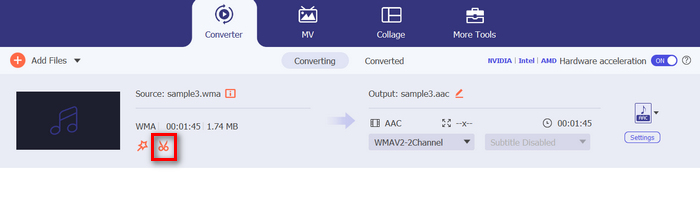
Schritt 3. Klicke danach auf die Schaltfläche Schneiden.
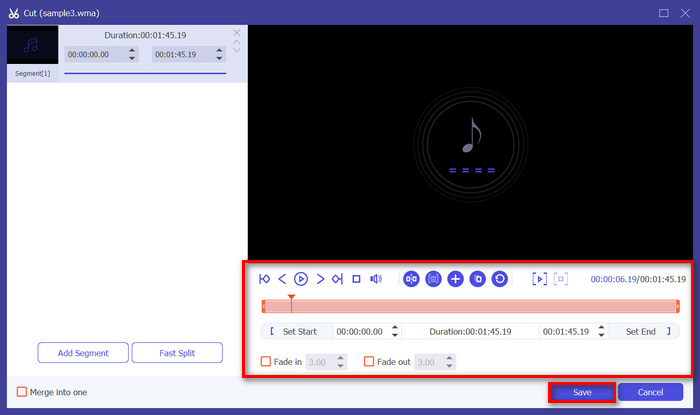
Schritt 4. Um deine WMA‑Dateien zu trimmen, kannst du dies manuell tun, indem du den Start‑ und Endbalken des Clips einfach anpasst oder verschiebst, indem du ihn nach links oder rechts ziehst, oder indem du die Start‑ und Endzeit des Teils der WMA‑Datei eingibst, den du trimmen möchtest.
Bei diesem Vorgang wird der Audioteil automatisch basierend auf der Zeit ausgeschnitten, zu der Sie mit dem Zuschneiden beginnen und enden möchten.
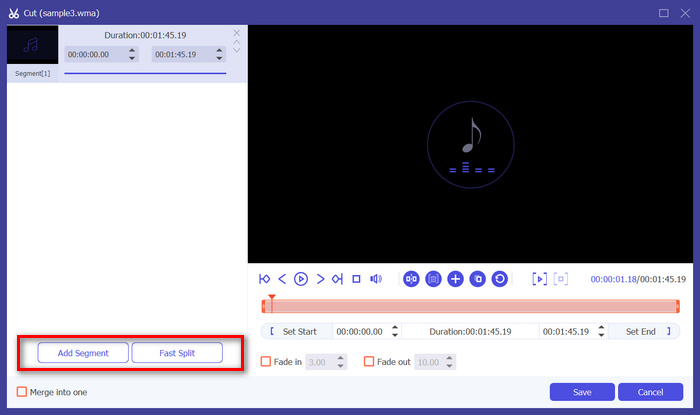
Schritt 5. Wenn du die Datei hingegen mit der Funktion Fast Slip Trimmer schneiden möchtest, musst du nur auf die Schaltfläche Fast Slip neben der Schaltfläche Segment hinzufügen klicken. Wähle anschließend einen Modus aus, in dem du das Segment teilen möchtest. Wenn du die Aufteilung nach Durchschnitt wählst, gib einfach die Anzahl an; wenn du nach Zeit aufteilen möchtest, gib die Zeit an. Klicke danach auf die Schaltfläche Speichern.
Schritt 6. Um die getrimmte WMA‑Datei zu exportieren, klicke abschließend auf die Schaltfläche Alle konvertieren.
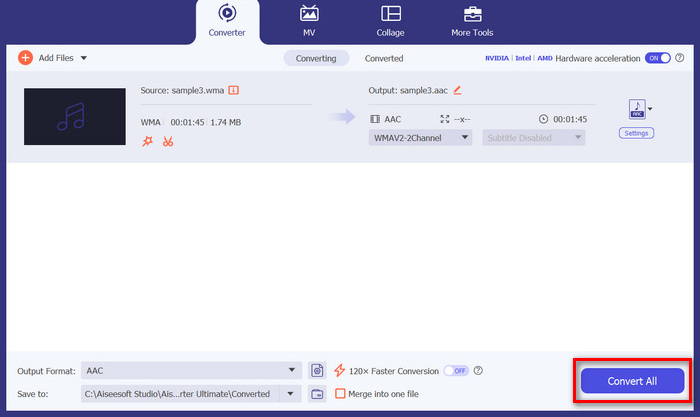
Wenn es um das Schneiden von WMA-Dateien geht, ist dieser von FVC ausgewählte Video Converter Ultimate in der Tat eine unverzichtbare Lösung. Seine einfache und benutzerfreundliche Oberfläche sorgt dafür, dass Sie Ihre WMA-Dateien mühelos und präzise zuschneiden können, und seine verschiedenen Zuschneideoptionen geben Ihnen Flexibilität beim Zuschneiden Ihrer Audiodateien.
Teil 2: WMA-Dateien kostenlos online schneiden
Audio Trimmer ist ein kostenloses Tool, mit dem Benutzer Audiodateien im Handumdrehen zuschneiden können. Es unterstützt eine Vielzahl gängiger Audioformate, einschließlich WMA. Dies macht dieses Tool zu einer der besten Alternativen, wenn Sie WMA-Dateien lieber online schneiden möchten.
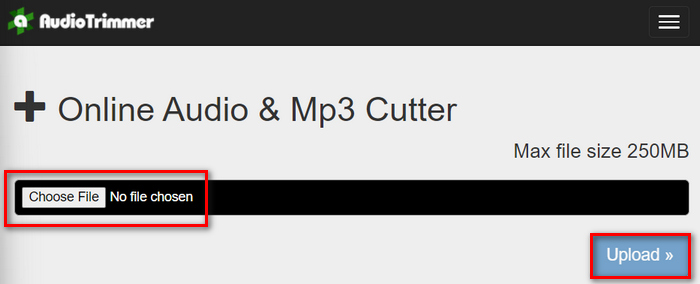
Schritt 1. Um die WMA‑Dateien zu importieren, die du schneiden möchtest, klicke auf die Schaltfläche Datei auswählen und anschließend auf die Schaltfläche Hochladen.
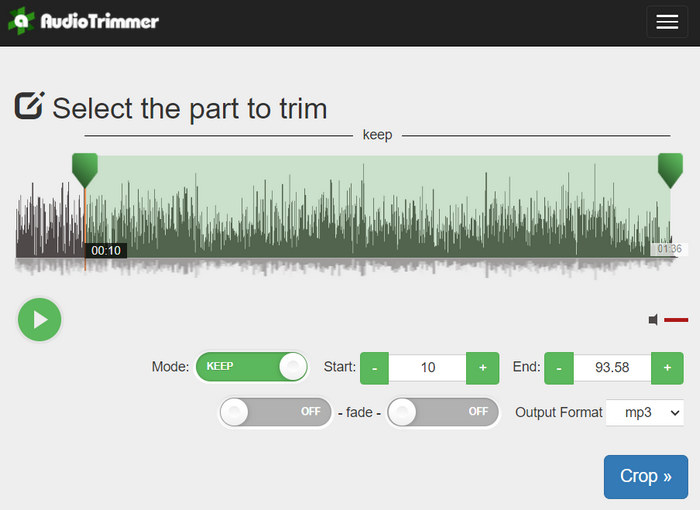
Schritt 2. Ziehe nun einfach den Regler nach unten und wähle den Teil des Audiotracks aus, den du trimmen möchtest. Wenn du fertig bist, klicke auf die Schaltfläche Crop.
Schritt 3. Um deine getrimmte WMA‑Datei zu speichern, klicke abschließend einfach auf die Schaltfläche Download.
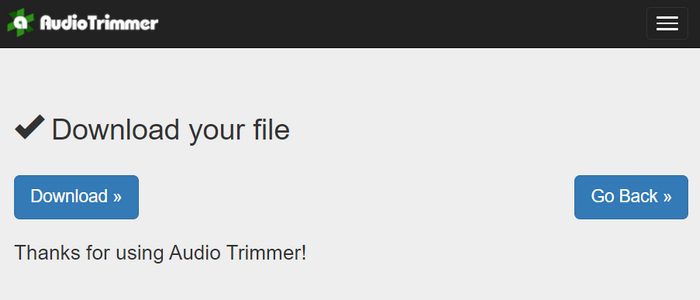
Damit hast du es geschafft und kannst deine Clips mit dem WMA‑Player abspielen, um zu überprüfen, ob du sie korrekt geschnitten hast. Mit seiner einfachen und sehr intuitiven Oberfläche erfordert das Schneiden von WMA‑Dateien nur 3 Schritte. Obwohl dieses kostenlose Online‑Tool das Trimmen von Audiodateien sehr einfach macht, können nicht alle Nutzer es voll ausnutzen, da es auf Dateien unter 250 MB beschränkt ist.
Teil 3: WMA mit VLC Media Player schneiden
VLC Media Player ist aufgrund seiner Vielseitigkeit ein weit verbreiteter Open-Source-Mediaplayer. Dieses Tool unterstützt eine Vielzahl von Audio- und Videoformaten, darunter auch WMA-Dateien. Zusätzlich zu seinen Funktionen zum Abspielen, Streamen und Aufzeichnen von Medien kann dieses Tool auch zum Schneiden von WMA-Dateien verwendet werden. Damit können Benutzer Abschnitte ganz einfach durch Aufzeichnen in Echtzeit zuschneiden, ohne die Wiedergabezeit manuell ändern zu müssen.
Schritt 1. Öffne den VLC Media Player. Ziehe die WMA‑Datei, die du trimmen möchtest, einfach per Drag & Drop hinein.
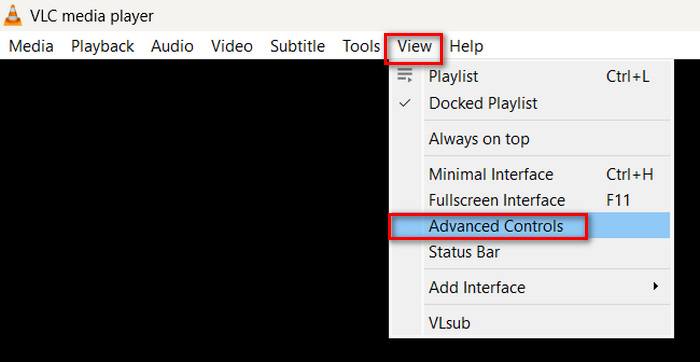
Schritt 2. Die Audioaufnahme wird automatisch abgespielt. Pausiere sie kurz und klicke dann auf die Schaltfläche Ansicht und aktiviere die Option Erweiterte Steuerung. Nun werden über dem Wiedergabesymbol vier neue Schaltflächen angezeigt.
Schritt 3. Ziehe die Fortschrittsleiste an die Stelle, an der du deinen Clip beginnen möchtest. Passe nun die Leiste an die Stelle an, an der du mit dem Trimmen deiner WMA‑Datei beginnen willst. Wenn du fertig bist, spiele die Datei ab und klicke auf die Schaltfläche Aufnehmen.
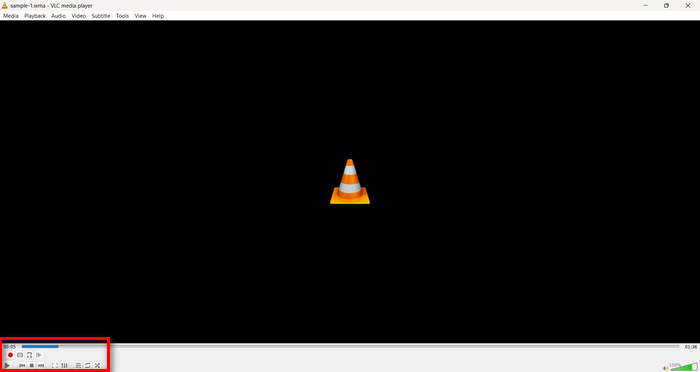
Schritt 4. Wenn du das Ende des Abschnitts erreicht hast, den du speichern möchtest, klicke erneut auf die Schaltfläche Aufnehmen, um die Aufnahme zu beenden.
Vermeide es, während der Aufnahme die Fortschrittsleiste zu ziehen, um die Wiedergabezeit zu ändern, da VLC das Segment in Echtzeit aufzeichnen muss. Wenn dir dieses Tool gefällt, solltest du die VLC‑Alternativen hier nicht verpassen.
Teil 4: Häufig gestellte Fragen zum Schneiden von WMA
Wie schneide ich einen Teil aus einer Audiodatei?
Um einen Teil aus einer Audiodatei auszuschneiden, können Sie Tools wie Video Converter Ultimate verwenden. Dazu müssen Sie nur Ihre WMA-Datei importieren, auf die Schaltfläche „Ausschneiden“ klicken und die Start- und Endzeiten anpassen.
Ist WMA besser als MP3?
WMA bietet oft eine bessere Klangqualität bei niedrigeren Bitraten im Vergleich zu MP3 und führt so zu kleineren Dateien mit guter Audioqualität. MP3 wird jedoch auf deutlich mehr Geräten und Plattformen unterstützt. Die Wahl zwischen WMA und MP3 hängt davon ab, ob dir Qualität oder Kompatibilität wichtiger ist. Außerdem kannst du WMA mit WMA‑zu‑MP3‑Konvertertools schnell in MP3 umwandeln.
Wie schneidet man Audiodateien im Windows Media Player?
Um Audiodateien im Windows Media Player zu trimmen, müssen Sie ein Plugin namens SolveigMM WMP Trimmer Plugin Home Edition verwenden. Mit diesem Plugin können Benutzer Audiodateien direkt in der Benutzeroberfläche von Windows Media Player trimmen und erhalten so eine praktische Lösung für Audiobearbeitungsaufgaben.
Fazit
Das Schneiden von WMA‑Dateien muss nicht stressig sein. Ob du Software wie Video Converter Ultimate, ein Online‑Tool wie Audio Trimmer oder den vielseitigen VLC Media Player bevorzugst – es gibt effiziente Methoden für sowohl Windows‑ als auch Mac‑Nutzer. Wähle die Methode, die am besten zu dir passt, und beginne ganz entspannt mit der Bearbeitung deiner Audiodateien. Bereit, deine Audio‑Bearbeitung zu vereinfachen? Probiere noch heute eine dieser Methoden aus!
-
 2 Methoden zum Konvertieren von FLV in WMA-Audio [kostenlos und online]
 Möchten Sie WMA-Audio aus FLV-Video extrahieren? Hier sind 2 kostenlose WMA-Audioextraktoren zum Konvertieren von FLV (Flash Video) in WMA (Windows Media Audio) mit schneller Konvertierungsgeschwindigkeit unter Mac OS X und Windows 10/8/7.
-
 Top-WMA-Metadaten-Editoren, die Sie nicht verpassen sollten [2024]
 Warum kann ich WMA-Tags nicht bearbeiten? Dieses Problem tritt häufig bei Benutzern auf' Abfragen. Aber heute stellen wir Ihnen die WMA-Meta-Editoren vor, die Sie im Jahr 2024 verwenden können.
-
 8 Möglichkeiten zum Konvertieren von MP4 in MP3-Audio (Stapelkonvertierung und große Größe)
 Wenn Sie MP3-Audio aus MP4-Video extrahieren möchten, können Sie diesen Artikel lesen und 8 Lösungen erhalten. Es gibt Online- und Offline-Möglichkeiten, um MP4 auf Ihrem Telefon oder Computer problemlos in MP3 zu konvertieren.
