


 Video Converter Ultimate
 Bildschirm recorder
 Videoreparatur
 Sicherer Download
Detaillierte Anleitung zum Umkehren von Audio in Audacity [2024]
Das Umkehren von Audiospuren kann Ihren Musikproduktionen eine einzigartige Dimension und Farbe verleihen und fesselnde Soundeffekte für kreatives Geschichtenerzählen erzeugen. Dieser Stil wird häufig verwendet und wird immer beliebter, wenn es darum geht, Audioprojekten Tiefe und Originalität zu verleihen. Wenn Sie also Audio in Audacity bearbeiten und durch Umkehren eine besondere Note hinzufügen möchten, sind Sie hier richtig!
In diesem Artikel führen wir Sie Schritt für Schritt durch die Umkehrung von Audio in Audacity und geben Ihnen wertvolle Tipps, wie Sie diese Funktion optimal nutzen können. Am Ende dieser Anleitung sind Sie bereit, Ihre Audiospuren umzukehren und ganz einfach neue kreative Horizonte zu erkunden. Machen Sie sich also bereit, Ihre Audioprojekte umzuwandeln und das aufregende Potenzial der Umkehrung von Audio zu entdecken!

Teil 1. So kehren Sie Audio in Audacity um
Audacity ist ein Programm, das es Benutzern ermöglicht, Audiodateien ohne teure Premium-Tools zu bearbeiten und so kostenlos eine hochwertige Ausgabe zu gewährleisten. Als Open-Source-Tool ist es für jeden frei zugänglich und bietet eine lange Liste von Funktionen, die normalerweise nur in kostenpflichtiger Software zu finden sind. Unter seinen zahlreichen Funktionen sticht Audacity mit seiner Fähigkeit hervor, Audiospuren umzukehren. Mit dieser Funktion können Benutzer ganz kreativ sein und den Klang ihres Audios gestalten. Normalerweise kehren Redakteure ihre Audiospuren um, weil dies ihren Projekten einen einzigartigen Effekt verleiht.
So können Sie Audio in Audacity rückwärts abspielen lassen.
Schritt 1. Laden Sie Audacity auf Ihren Computer herunter und installieren Sie es.
Schritt 2. Starten Sie das Programm, gehen Sie oben links zum Menü Datei und wählen Sie Öffnen. Suchen Sie anschließend auf Ihrem Computer nach der Audiodatei und wählen Sie sie aus, oder ziehen Sie die Audiodatei per Drag & Drop in das Programm, die Sie umkehren möchten.
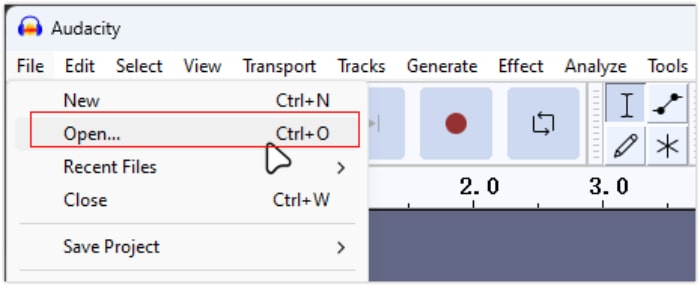
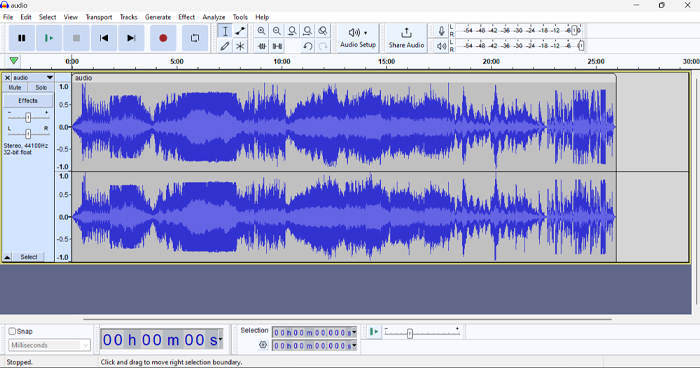
Schritt 3. Klicken Sie nun auf die Audiospur, gehen Sie zum Tab Auswahl und wählen Sie Alles, um die gesamte Audiodatei zu markieren.
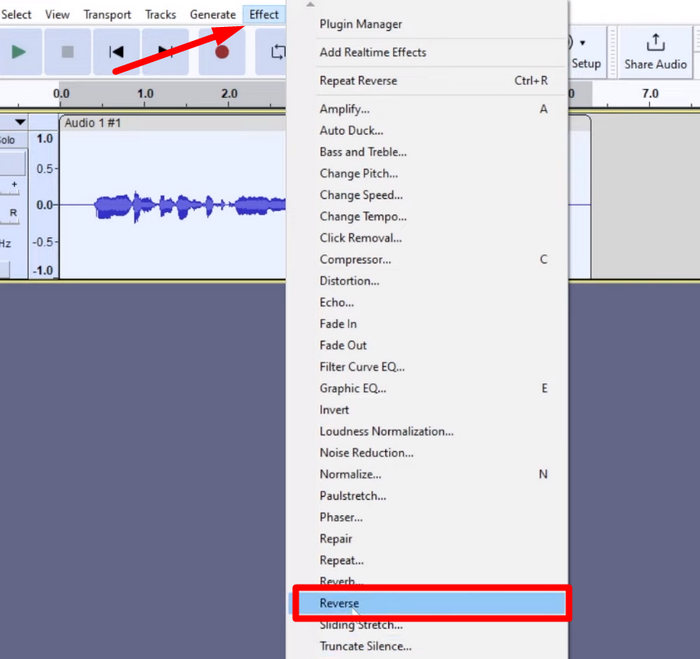
Schritt 4. Um das Audio rückwärts abzuspielen, gehen Sie zum Tab Effekt und wählen Sie im Dropdown-Menü Rückwärts. Audacity verarbeitet dann den ausgewählten Audioclip und kehrt ihn um.
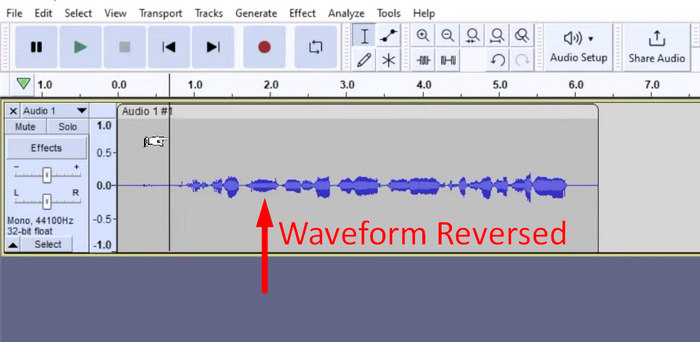
Schritt 5. Sie können das umgekehrte Audio anhören, indem Sie die Leertaste auf Ihrer Tastatur drücken. Alternativ können Sie die Wiedergabesteuerung oben links im Audacity‑Fenster nutzen und auf die Schaltfläche Play klicken.
Schritt 6. Um die umgekehrte Audiodatei zu exportieren, gehen Sie abschließend zurück zum Menü „Datei“ und wählen darunter „Exportieren“. So wird Ihr Audio als neue Datei gespeichert. Vergessen Sie dabei nicht, vor dem Export Ihr bevorzugtes Audioformat auszuwählen.
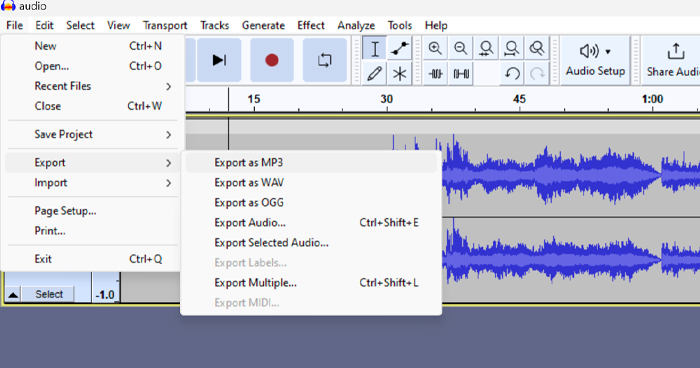
Da es Probleme mit unerwartetem Arbeitsverlust gibt, sollten Sie Ihr Projekt während der Bearbeitung regelmäßig speichern, um den Verlust von Fortschritten zu verhindern. Sie können Ihre Arbeit schnell speichern, indem Sie Strg + S unter Windows oder Cmd + S auf dem Mac verwenden. Erwägen Sie außerdem die Verwendung aussagekräftiger Dateinamen und die Organisation Ihrer Dateien in einem dedizierten Ordner, damit Ihre Projekte gut organisiert und leicht zugänglich bleiben.
Teil 2. So kehren Sie einen Teil des Audios in Audacity um
Es gibt Fälle, in denen Benutzer nur einen Teil des Audios in Audacity umkehren wollten, vielleicht weil es nur bestimmte Abschnitte gibt, die sie hervorheben oder einen bestimmten Effekt erzeugen möchten. Die folgenden Schritte sind fast dieselben wie beim Umkehren einer gesamten Spur. Das Auswählen eines Teils eines Audios ist jedoch etwas knifflig und muss in den Schritten hervorgehoben werden, um Verwirrung zu vermeiden, insbesondere für Anfänger.
So kehren Sie nur einen Teil eines Audios in Audacity um.
Schritt 1. Wenn Sie sich in der Hauptoberfläche des Programms befinden, gehen Sie zum Menü Datei oben links und wählen Sie Öffnen. Suchen Sie anschließend auf Ihrem Computer nach der Audiodatei und wählen Sie sie aus, oder ziehen Sie die Audiodatei per Drag & Drop in das Programm, die Sie umkehren möchten.
Schritt 2. Um nun einen Teil des Audios auszuwählen, den Sie umkehren möchten, verwenden Sie die Funktion Zoom, um in die Wellenform hineinzuzoomen, und ziehen Sie mit der Maus, um den Abschnitt bzw. Teil des Audios zu markieren, den Sie rückwärts abspielen lassen wollen.
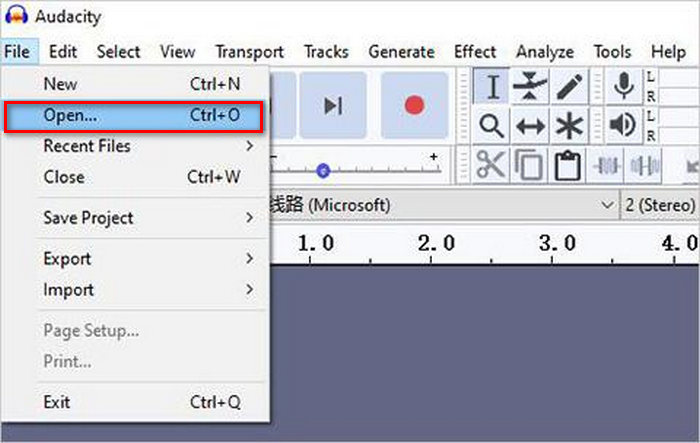
Schritt 3. Um das Audio rückwärts abzuspielen, gehen Sie zum Tab Effekt und wählen Sie im Dropdown-Menü Rückwärts. Audacity verarbeitet dann den ausgewählten Audioclip und kehrt ihn um.
Schritt 4. Sie können das umgekehrte Audio anhören, indem Sie die Leertaste auf Ihrer Tastatur drücken. Alternativ können Sie die Wiedergabesteuerung oben links im Audacity‑Fenster nutzen und auf die Schaltfläche Play klicken.
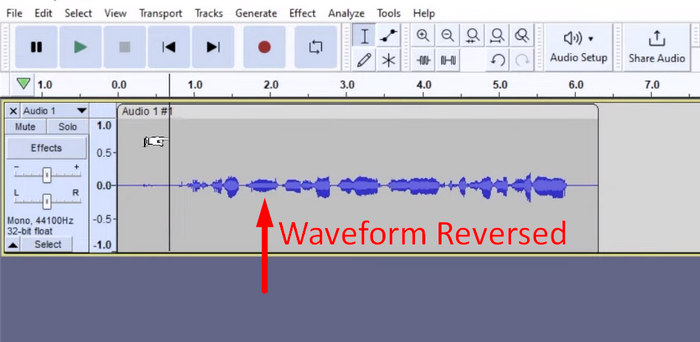
Schritt 5. Um die umgekehrte Audiodatei zu exportieren, wählen Sie abschließend im Menü „Datei“ die Option „Exportieren“. Wählen Sie Exportieren als und entscheiden Sie sich für Ihr bevorzugtes Audioformat, bevor Sie den Export abschließen.
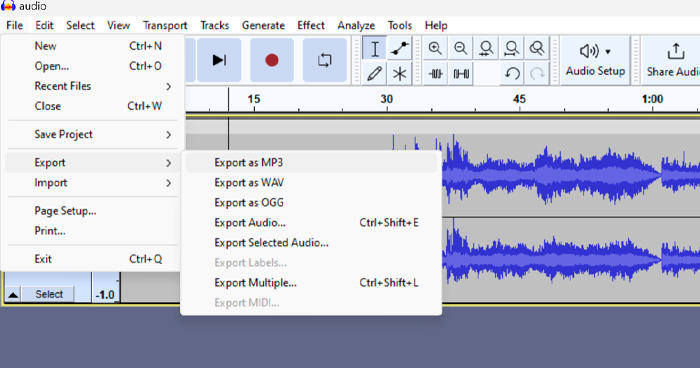
Wenn Sie in Audacity einen bestimmten Teil des Audios zum Rückwärtsabspielen auswählen, achten Sie darauf, ausreichend in die Wellenform hineinzuzoomen, um den genauen Anfangs- und Endpunkt des Abschnitts klar zu erkennen. So treffen Sie präzise Auswahlbereiche und vermeiden es, unbeabsichtigte Teile des Audios einzuschließen. Außerdem sollten Sie vor dem Umkehren bei Bedarf das Werkzeug 'Clip trennen' verwenden, um das Audio in Teilsegmente aufzuteilen, etwa beim Zerschneiden einer MP3‑Audiodatei. So lassen sich bestimmte Abschnitte leichter gezielt bearbeiten und manipulieren. Dieser Ansatz gibt Ihnen mehr Kontrolle über Ihre Bearbeitung und stellt sicher, dass das umgekehrte Audio den gewünschten Effekt nahtlos erzielt.
Teil 3. Audio/Video mit der Audacity-Alternative umkehren
Wenn Sie hingegen einen einfacheren und bequemeren Weg bevorzugen, Audio oder Video umzukehren, können Sie diese Audacity‑Alternative verwenden, nämlich den von FVC empfohlenen Video Converter Ultimate. Dieses Komplettpaket für Video und Audio ist zwar vor allem für seine leistungsstarken Konvertierungsfunktionen bekannt, eignet sich aber darüber hinaus auch hervorragend für Nutzer, die eine komfortable Methode zum Rückwärtsabspielen von Audio oder Video brauchen.
Schritt 1. Laden Sie auf Ihrem Computer den von FVC empfohlenen Video Converter Ultimate herunter und installieren Sie ihn.
Gratis DownloadFür Windows 7 oder neuerSicherer Download
Gratis DownloadFür MacOS 10.7 oder neuerSicherer Download
Schritt 2. Starten Sie das Programm und gehen Sie zum Tab „Moretools“. Wählen Sie dort Video Reverser.
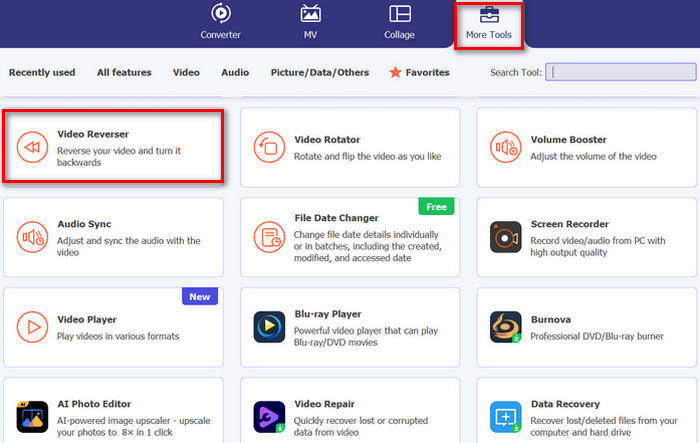
Schritt 3. Importieren Sie nun das Audio oder Video, das Sie umkehren möchten, indem Sie auf die Schaltfläche Add a Video to Video Reverser klicken.
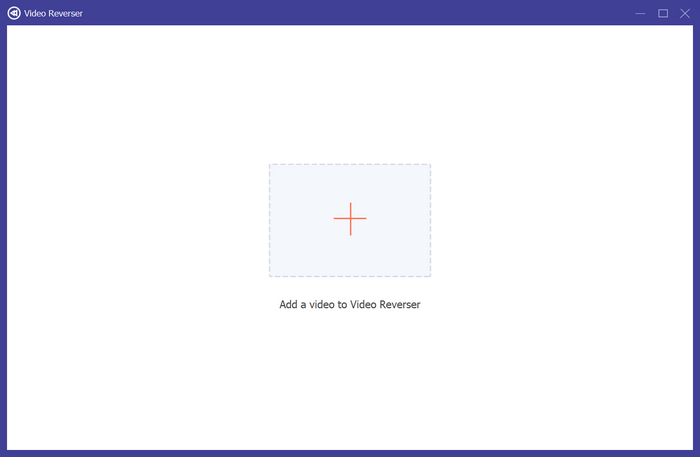
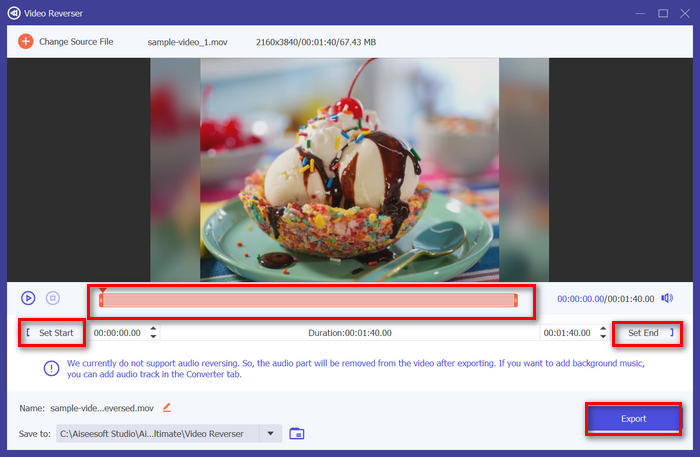
Schritt 4. Sobald Sie sich in der Oberfläche von Video Reverser befinden, können Sie, wenn Sie die gesamte Spur umkehren möchten, einfach direkt zur Schaltfläche „Exportieren“ gehen, um Ihre Datei automatisch umzukehren. Möchten Sie hingegen nur einen Teil umkehren, können Sie den Regler verschieben und den Abschnitt des Audios oder Videos sorgfältig auswählen, den Sie rückwärts abspielen lassen wollen. Alternativ können Sie einfach die Startzeit und Endzeit des gewünschten Dateiausschnitts eingeben. Klicken Sie anschließend auf die Schaltfläche Export.
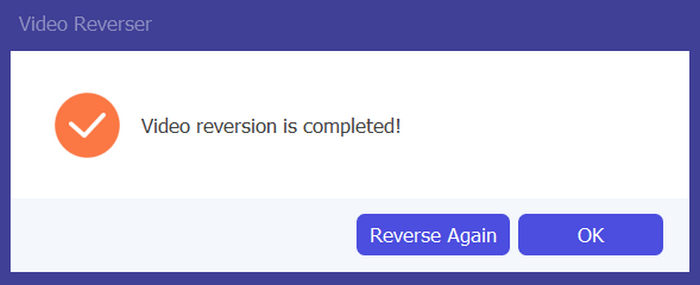
Schritt 5. Wenn der Export abgeschlossen ist, erhalten Sie eine entsprechende Meldung, und Sie können Ihr rückwärts abgespieltes Video im Ordner auf Ihrem Computer aufrufen.
Da haben Sie es! Kinderleicht, oder? Sie müssen sich nicht von einer komplexen Benutzeroberfläche verwirren lassen. Mit dem von FVC ausgewählten Video Converter Ultimate haben Sie alles, was Sie brauchen, direkt zur Hand.
Teil 4. Häufig gestellte Fragen zur Umkehrung von Audio in Audacity
Wie kann ich den umgekehrten Audioeffekt in Audacity rückgängig machen?
Wenn Sie in Audacity eine Umkehrung vorgenommen haben und dies rückgängig machen möchten, können Sie ganz einfach zum Originalton zurückkehren. Gehen Sie einfach zum Menü „Bearbeiten“ in der oberen linken Ecke der Audacity-Oberfläche und wählen Sie „Rückgängig machen“. Darüber hinaus können Sie die Tastenkombination Strg + Z für Windows oder Cmd + Z für Mac verwenden, um die letzte Aktion rückgängig zu machen. Dadurch wird der Ton in seinen ursprünglichen Zustand zurückversetzt, bevor der Umkehreffekt angewendet wird.
Welche Audioformate unterstützt Audacity zum Umkehren von Audio?
Audacity unterstützt verschiedene gängige Audioformate wie WAV, MP3, FLAC, AIFF und OGG.
Kann man Audio in Audacity verzerren?
Ja. Sie können Audio in Audacity verzerren. Audacity bietet mehrere Effekte und Werkzeuge, mit denen Sie Verzerrungen auf Ihre Audiospuren anwenden können. Um diese hinzuzufügen, gehen Sie zu Effekt, klicken Sie auf Verzerrung und Modulation und wählen Sie Verzerrung.
Kann man Audio in Audacity konvertieren?
Ja, das können Sie. Audacity unterstützt zahlreiche Audioformate. Wenn eine Ihrer Audiodateien zum Beispiel mit Ihrem Gerät nicht kompatibel ist, können Sie Audacity problemlos nutzen, um AIFF in MP3 umzuwandeln.
Fazit
Abschließend lässt sich sagen, dass das Lernen, wie man Audio in Audacity rückwärts abspielt, einfach ist und Ihren Audio‑ oder Videoprojekten einzigartige Effekte verleiht. Befolgen Sie die ausführlichen Schritte, um noch heute mit dem Umkehren Ihrer Audiospuren zu beginnen. Für eine noch einfachere Alternative probieren Sie den von FVC empfohlenen Video Converter Ultimate aus. Bereit, kreativ zu werden? Testen Sie jetzt eine dieser Methoden!
-
 Kostenlos bei MOV mitmachen - So führen Sie zwei MOV-Dateien zu einer zusammen
 Für Anfänger kann es schwierig sein, mehrere MOV-Videoclips zusammenzufügen. Gibt es eine einfache und schnelle Möglichkeit, MOV-Dateien zu kombinieren? Wenn ja, wie benutzt man es dann? Dieser Beitrag hilft Ihnen, diese Antworten zu erhalten.
-
 4 Möglichkeiten, Videos unter Windows / Mac / Online kostenlos zusammenzuführen
 Hier sind 4 schnelle Möglichkeiten, um Videos zu einem neuen Video zusammenzuführen. Keine Größe oder Formatbeschränkung für Videodateien. Sie können erfolgreich 2, 3, 4 und noch mehr Videoclips in verschiedenen Formaten und Auflösungen verbinden.
-
 Konkrete Anleitung zum kostenlosen Verbinden von M4V-Dateien unter Windows und Mac
 Wenn Sie nach einer Lösung suchen, um M4V-Videodateien zu einer zu kombinieren, verpassen Sie diese Passage nicht. Hier werden wir über die beiden besten Methoden zum Kombinieren von M4V-Videodateien sprechen.
