


 Video Converter Ultimate
 Bildschirm recorder
 Videoreparatur
Finden Sie heraus, welche die besten 3 FLV-zu-MKV-Konverter sind, um Ihre FLV-Dateien in MKV umzuwandeln
Sind Sie es leid, im Internet nach der besten Möglichkeit zu suchen, um FLV kostenlos in MKV zu konvertieren? Es mag ein Zufall sein, aber heute haben wir die besten FLV‑Converter gefunden, die Sie verwenden können – selbstverständlich haben wir nur die besten ausgewählt. Damit Ihre Suche deutlich einfacher wird, sollten Sie unbedingt weiterlesen, denn im folgenden Artikel erfahren Sie eine Menge über FLV und MKV sowie über die Converter, die Sie dafür nutzen können.

Teil 1. 2 Möglichkeiten, FLV kostenlos in MKV zu konvertieren
1. Weg. Verwenden Sie den Online-Konverter, um FLV in MKV zu konvertieren
Dieser Online‑Converter ist ohne Zweifel einer der großen Transcoder, um FLV online in MKV zu konvertieren. FVC Free Video Converter Online ist ein einfacher und leicht verständlicher Converter, den Sie direkt im Browser nutzen können. Dieses Tool ist jedoch vom Internet abhängig, das heißt: Wenn Sie keine Internetverbindung haben, ist es für die Konvertierung keine Option. Auch wenn das Tool webbasiert ist, enthält die Oberfläche keine Werbung, die Sie stören könnte, und es ist frei von Malware. Wenn Sie dieses Tool nun selbst ausprobieren möchten, folgen Sie den nachstehenden Schritten.
Schritt 1. Klicken Sie auf diesen Link, um den FVC Free Video Converter Online in einem neuen Tab zu öffnen.
Schritt 2. Klicken Sie auf die Schaltfläche Add Files to Convert, um den Ordner auf dem von Ihnen verwendeten Computer zu öffnen. Wählen Sie die FLV‑Datei aus, die Sie konvertieren möchten, und klicken Sie auf Open, um die Datei hochzuladen.
Laden Sie die Desktop‑Version herunter, um Dateien stapelweise zu konvertieren.
Schritt 3. Wählen Sie das Format MKV aus der unten angezeigten Formatliste aus.
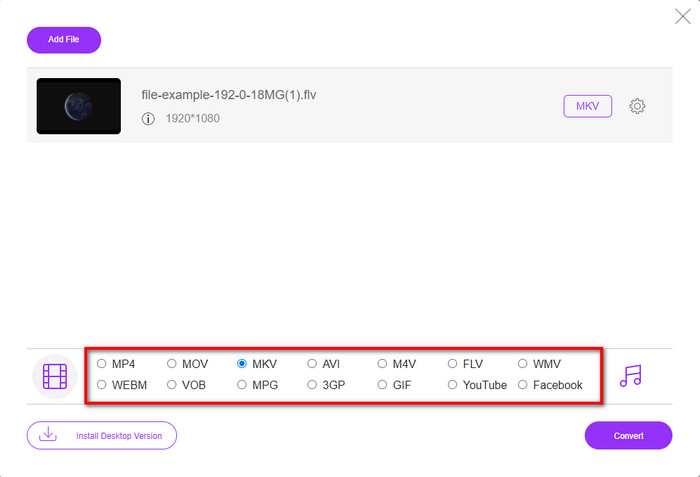
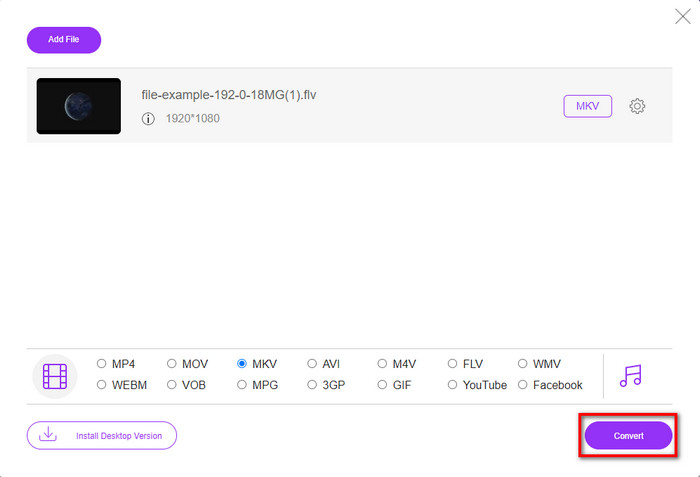
Schritt 4. Starten Sie den Konvertierungsvorgang, indem Sie auf die Schaltfläche Convert klicken; die konvertierte Datei wird anschließend automatisch auf Ihrem Laufwerk gespeichert.
2. Weg. Verwenden Sie den kostenlosen Konverter, der unter Windows und Mac zum Download verfügbar ist
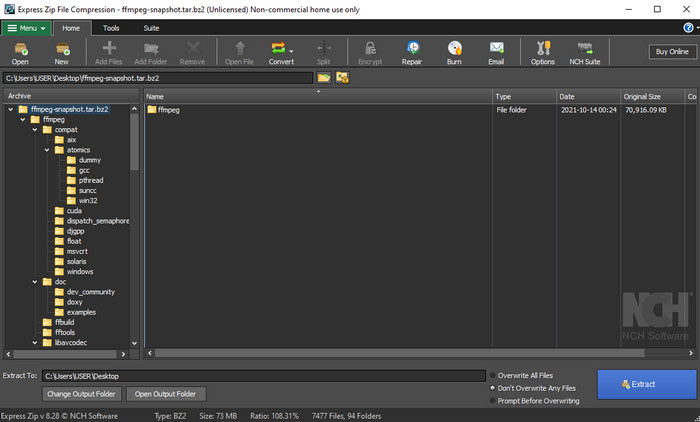
FFmpeg ist nicht der klassische Converter, den Sie vielleicht bereits nutzen. Auch wenn es kein gewöhnlicher Converter ist, kann er Ihre FLV‑Datei dennoch umwandeln. Was dieses Tool besonders macht, ist seine CLI‑basierte Oberfläche; das bedeutet, dass Sie vor der Konvertierung Befehle eingeben müssen – vereinfacht gesagt: Sie tippen Ihre Anweisungen ein. Wenn Sie diesen Converter interessant finden, lesen Sie die Details unten und verwenden Sie dieses FFmpeg‑Tool für FLV zu MKV, indem Sie die Schritte befolgen.
Schritt 1. Laden Sie FFmpeg herunter und öffnen Sie die Datei FFmpeg.exe.
Schritt 2. Öffnen Sie die Eingabeaufforderung (Command Prompt) auf Ihrem Computer.
Schritt 3. Navigieren Sie mit CMD zu der FLV‑Datei. Kopieren Sie dann diesen Code und fügen Sie ihn in die Eingabeaufforderung ein: ffmpeg -i input.flv -vn -ar 44100 -ac 2 -b:a 192k output.mkv. Drücken Sie anschließend die Eingabetaste, um den Vorgang zu starten.
Teil 2. Konvertieren Sie FLV zu MKV mit dem besten verlustfreien FLV zu MKV Konverter
3. Weg. Verwenden Sie den Professional Converter, um FLV in WMV zu konvertieren
Sie sind mit den ersten beiden vorgestellten Convertern noch nicht zufrieden? Dann sollten Sie unbedingt den FVC Video Converter Ultimate ausprobieren. Warum? Weil er ein professionelles Ergebnis liefert, selbst wenn Sie nur wenig Aufwand in die Konvertierung stecken. Außerdem unterstützt er deutlich mehr Formate, um Ihre FLV‑Datei in MKV, AVI, MOV, MP4 und über 200 weitere Formate zu konvertieren. Immer noch nicht überzeugt? Vielleicht möchten Sie Ihrem Video ein wenig Magie verleihen? Dann haben Sie Glück, denn dieser Converter bietet fortgeschrittene Videobearbeitungsfunktionen, die Sie nutzen können. Haben Sie Bedenken, dass das Tool zu komplex sein könnte? Folgen Sie in diesem Fall den unten aufgeführten Schritten, um praktische Erfahrung zu sammeln und zu lernen, wie Sie diesen FLV‑zu‑MKV‑Converter verwenden.
Schritt 1. Bevor Sie diesen Converter verwenden, müssen Sie ihn zunächst herunterladen, indem Sie auf die Download‑Schaltfläche unten klicken. Folgen Sie nach dem Herunterladen den Installationsanweisungen und starten Sie das Programm.
Gratis DownloadFür Windows 7 oder neuerSicherer Download
Gratis DownloadFür MacOS 10.7 oder neuerSicherer Download
Schritt 2. Um die FLV‑Datei hinzuzufügen, die Sie konvertieren möchten, klicken Sie auf die +-Schaltfläche. Suchen Sie die FLV‑Datei im Ordner, der auf Ihrer Oberfläche erscheint, und klicken Sie auf Open, um mit dem nächsten Schritt fortzufahren.
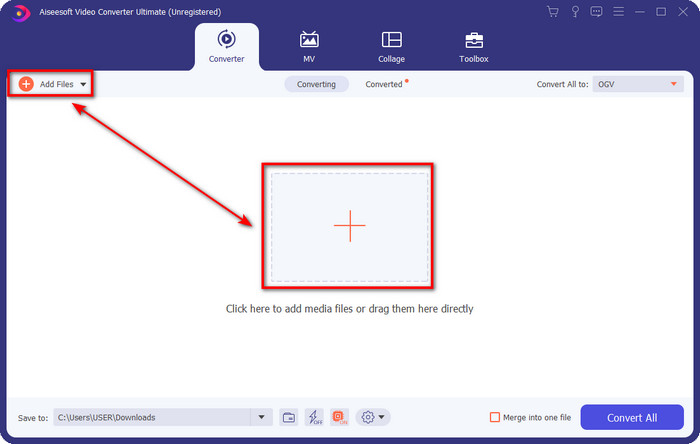
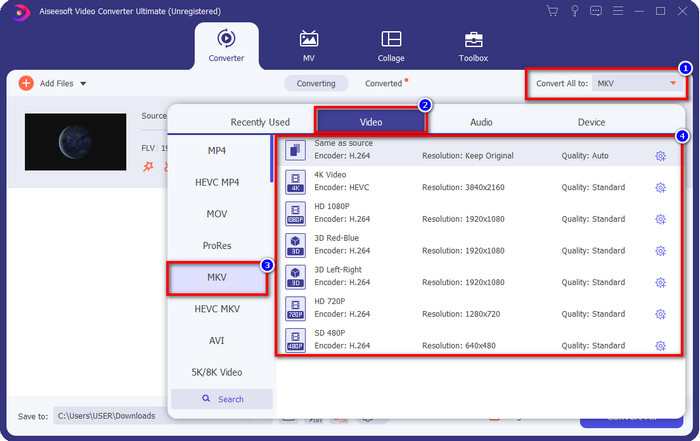
Schritt 3. Ändern Sie danach das Ausgabeformat in MKV, indem Sie auf die Drop‑down-Schaltfläche oben rechts in der Benutzeroberfläche klicken.
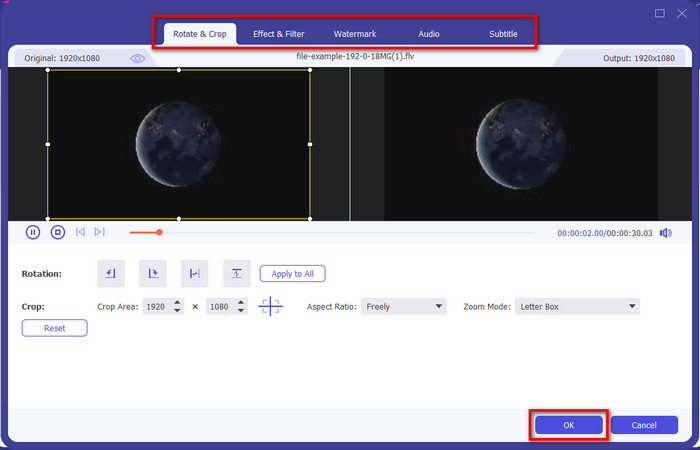
Optional. Wenn Sie das Video bearbeiten möchten, können Sie, falls gewünscht, auf die Zauberstab-Schaltfläche klicken. Es erscheint eine neue Oberfläche, in der Sie Drehen, Zuschneiden, Effekte, Filter, Wasserzeichen, Audio und Untertitel einstellen können. Grenzen Sie Ihre Kreativität nicht ein – tun Sie, was Sie möchten, und klicken Sie auf OK, um alle vorgenommenen Effekte zu übernehmen.
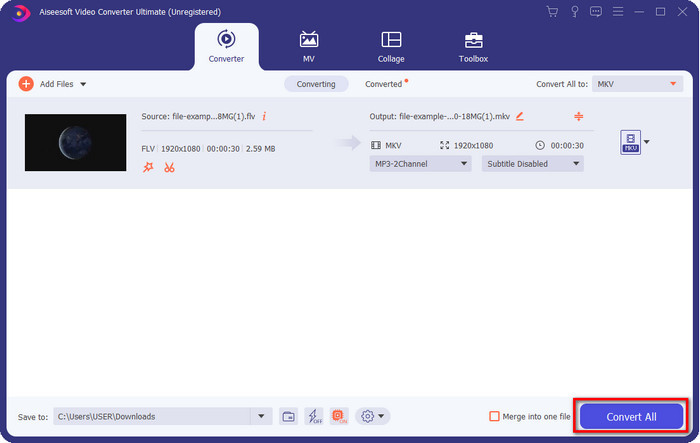
Schritt 4. Klicken Sie anschließend auf Convert All, um FLV ins MKV‑Format zu konvertieren. Der Vorgang dauert weniger als eine Minute, Sie müssen also nicht lange warten. Ein Ordner mit den konvertierten FLV‑Dateien wird danach auf Ihrem Bildschirm angezeigt.
Verwandt:
FLV in iPod‑Format konvertieren
Teil 3. Was ist der Unterschied zwischen FLV und MKV
FLV und MKV sind dafür bekannt, zu den besten Containern zu gehören, die jeder kennt. Aber lassen Sie uns vor allem anderen vergleichen und detailliertere Informationen zu den beiden Formaten anzeigen.
FLV ist auf allen Websites bekannt, weil es auf Webseiten beliebt ist, hauptsächlich weil Adobe es erstellt hat. Darüber hinaus spielt .flv Videostreams online ab, da sie viel einfacher zu laden sind als das andere Format. Außerdem benötigt dieses Format ein Plug-in-Play, bevor Sie das Video in diesem Format anzeigen oder ansehen können, oder Sie können einfach den Flash Player herunterladen. Obwohl das Format ausgezeichnet ist, haben sich die verwendeten Plug-in-Spiele bereits durchgesetzt, was bedeutet, dass das Format nicht die beste Wahl ist. Viele Mediaplayer unterstützen dieses Format jedoch immer noch und Benutzer, die es immer noch verwenden.
MKV ist dafür bekannt, das zukunftsweisendste verfügbare Format zu sein. Dieses Format wäre im Grunde nicht wie jedes andere Format, wenn wir es vergleichen wollten. Zum Beispiel ist die in diesem Format aufgebaute Struktur nicht die gleiche wie bei MP4 oder AVI, aber sie ist anders. Das Design und die einzigartige Speicherung von Mediendateien machen es noch beeindruckender. Heutzutage ist es schwer zu entscheiden, welches Format veraltet ist, und eines ist das MKV.
Wenn wir uns eingehender mit den Details befassen, werden wir viele Gründe finden, warum Sie FLV in MKV konvertieren müssen. Obwohl die beiden Formate Medieninhalte enthalten, ist MKV leistungsfähiger als FLV. Wenn Sie also die einzigartige Leistung von MKV haben möchten, müssen Sie Ihre Datei in dieses Format konvertieren.
FLV vs. MKV
Adobe Flash Player verwendete FLV, um Videoinhalte wie Filme und Fernsehsendungen bereitzustellen. Heutzutage entwickelt Adobe den Player nicht mehr weiter und empfiehlt Benutzern, ihn aus Sicherheitsgründen zu deinstallieren. Sie können das FLV-Format jedoch weiterhin in vielen Nicht-Adobe/Macromedia-Programmen verwenden.
Das 2002 veröffentlichte Multimedia-Containerformat Matroska ist ein Open-Source-Format, das eine Reihe von Video-, Audio-, Bild- und Untertitelspuren enthalten kann. So können Sie damit ganz einfach kurze Videoclips, Fernsehsendungen und Filme speichern. Es ist sehr beliebt für Anime-Fans.
Teil 4. Häufig gestellte Fragen zur Konvertierung von FLV in MKV
Ist es sicher, FLV online in MKV umzuwandeln?
Nun, das Konvertieren des Formats sollte sicher sein, wenn Sie ein Web-Tool verwenden. Allerdings können nicht alle Online-Konverter Ihr Dateiformat sicher konvertieren. Da es einige Tendenzen gibt, treten viele unerwartete Fehler auf, wenn Sie den falschen Konverter verwenden. Beispielsweise sind Qualitätsverluste ein weit verbreitetes Problem, Viren beim Herunterladen der Datei nach der Konvertierung, mehrere Popup-Anzeigen, infektiöse Malware und vieles mehr. Wenn Sie also einen sicheren Online-Konvertierungsprozess wünschen, müssen Sie stattdessen den FVC Free Video Converter Online verwenden.
Wird das Konvertieren von FLV Zeit in Anspruch nehmen?
Der Konvertierungsprozess hängt von vielen Faktoren ab, und einer davon ist das von Ihnen verwendete Tool und die Dateigröße. Wenn Sie eine große FLV-Datei haben, müssen Sie den FVC Video Converter Ultimate verwenden, besonders in Eile. Da dieses Tool einen blitzschnellen Prozess bietet, benötigen Sie keine Internetverbindung, um es zu verwenden. Und jetzt, wenn Sie nach einem Konverter suchen, der Ihr Format schneller verarbeiten kann, dann ist das ultimative Tool die Wahl.
Warum kann ich meine FLV-Datei nicht öffnen?
Es gibt mehrere Gründe, warum Sie Ihre FLV-Dateien nicht öffnen können. Etwas beachten; Dieses folgende Detail ist einer der hundertsten Gründe, warum Sie die FLV-Datei nicht öffnen können. Zunächst einmal können Sie eine FLV-Datei nicht öffnen, wenn die Datei geknackt ist oder einen Virus enthält. Zweitens wird das häufigste Problem, dass die Videodatei von der von Ihnen verwendeten App nicht unterstützt wird. Drittens, wenn Sie eine FLV-Datei aus dem Internet herunterladen, kann es vorkommen, dass die Datei einige wichtige Informationen zum Abspielen verliert. Obwohl dies ein Problem ist, können wir Ihnen dennoch helfen, indem wir Ihr FLV in ein anderes Format konvertieren. Denken Sie jedoch daran, dass Sie das FLV nicht wiederherstellen können, indem Sie das Format ändern, wenn es beschädigt oder unvollständig ist.
Fazit
Wir haben gelernt, was wir wissen müssen, um FLV auf verschiedene Arten in MKV zu konvertieren. Die oben genannten Tools eignen sich hervorragend, wenn wir das Format in eine neue Version umwandeln möchten. Jetzt liegt es an Ihnen zu entscheiden, welches Tool und welches Format Ihrer Meinung nach am besten zu Ihnen passt. Mit allen drei oben genannten Programmen stehen Ihre Erfolgschancen gut; wenn Sie jedoch ein professionelles Ergebnis erzielen und das Beste aus Ihrer Videodatei herausholen möchten, sollten Sie sich für den FVC Video Converter Ultimate entscheiden. Es bedarf keiner weiteren Erklärung – dieses Tool schließt die Lücke bei all Ihren Anforderungen.
-
 3 Lösungen zum verlustfreien Konvertieren von FLV in PSP
 Wie konvertiert man FLV in PSP? Hier erhalten Sie die Schritt-für-Schritt-Anleitung zum Konvertieren von Flash-Videos in von PSP unterstützte Formate (WMV, MP4, AVI, FLV usw.) unter Windows und Mac.
-
 2 Methoden zum Konvertieren von FLV in WMA-Audio [kostenlos und online]
 Möchten Sie WMA-Audio aus FLV-Video extrahieren? Hier sind 2 kostenlose WMA-Audioextraktoren zum Konvertieren von FLV (Flash Video) in WMA (Windows Media Audio) mit schneller Konvertierungsgeschwindigkeit unter Mac OS X und Windows 10/8/7.
-
 [Gelöst] So konvertieren Sie FLV-Videos kostenlos in animierte GIF-Dateien
 Wenn Sie zum besseren Senden GIFs aus den FLV-Videosegmenten erstellen möchten, erfahren Sie in diesem Artikel mehr darüber, wie Sie FLV-Videos einfach in GIF-Dateien konvertieren.

