


 Video Converter Ultimate
 Bildschirm recorder
 Videoreparatur
 Sicherer Download
So kommentieren Sie GIF auf Instagram-Newsfeeds und -Reels
GIF oder Graphics Interchange Format sind animierte und kombinierte Bilder oder komprimierte Videos, mit denen Sie Ihren Interaktionen in sozialen Medien Spaß und Unterhaltung verleihen können. Manche verwenden diese Bildformate sogar als Memes oder um Reaktionen auf einen Beitrag auf humorvolle Weise zu zeigen. Wussten Sie jedoch, dass GIFs kurz davor waren, aus der Onlinewelt zu verschwinden, bevor sie 2012 populär wurden? Zum Glück sind diese animierten Bilder vor dem Aussterben bewahrt worden, da sie mit dem Wachstum der Social-Media-Nutzung immer häufiger eingesetzt werden, um die virtuelle Kommunikation aufzulockern. Sie dominieren inzwischen Social-Media-Apps, einschließlich des Posteingangs und der Kommentarspalten von Instagram. In diesem Artikel erfahren Sie daher, wie man GIFs auf Instagram kommentiert.

Teil 1. Unterstützt Instagram GIF?
Instagram ist eine der beliebtesten Social-Media-Apps, mit der Menschen ihre ästhetischen Fotos mit kurzen Bildunterschriften teilen und unterstreichen können. Diese Foto-Sharing-Plattform wurde kontinuierlich weiterentwickelt, um das Benutzererlebnis zu verbessern. Eine dieser Verbesserungen ist die Verwendung von GIFs, die es Benutzern ermöglichen, ihren Interaktionen eine zusätzliche Ebene an Kreativität und Ausdruck zu verleihen. Ursprünglich war die App nur dazu gedacht, eine Nachricht mithilfe lustiger GIFs oder durch das Erstellen niedlicher IG-Geschichten zu senden. Aber jetzt können Sie bereits GIFs auf Reels und Newsfeed-Beiträgen kommentieren.
Wann hat Instagram diese Funktion eingeführt?
GIF im Instagram-Kommentarbereich wurde letzten Mai 2023 von Adam Mosseri, dem Chef des Unternehmens, zusammen mit Meta-CEO Mark Zuckerberg ins Leben gerufen. Die Einführung dieser neuesten Funktion galt als einer der Meilensteine für die Gründer und Miteigentümer von Instagram. Sie haben sogar darüber gesprochen, wie sie darauf warten, dass es auf IG erscheint, da das Kommentieren von GIFs im Facebook-Kommentarbereich seit Jahren üblich ist. Es wird erwartet, dass dieser Erfolg zu mehr Engagement bei IG-Benutzern führt, da sie GIFs verwenden können, um Newsfeed-Beiträge und Reels zu kommentieren.
Gibt es beim Support eine regionale Beschränkung?
Die GIF-Kommentarfunktion von IG war während der Testphase auf Argentinien, Irland, Italien, Japan, Mexiko und die Vereinigten Staaten beschränkt. Obwohl Meta nicht bekannt gegeben hat, wann diese Funktion für alle verfügbar sein wird, versprechen sie, dass sie, wenn diese neue Funktion auf der Plattform viel Anklang gefunden hat, diese Funktion langsam für Benutzer auf der ganzen Welt einführen werden. Dementsprechend liegen auch keine Angaben zur regionalen Beschränkung vor.
Teil 2. So kommentieren Sie GIFs auf Instagram
Wenn Sie diese neue Funktion noch nicht kennen, finden Sie im Folgenden die Schritte, die Sie befolgen können, um GIFs in Instagram-Beiträgen zu kommentieren (vorausgesetzt, Sie haben Ihr Instagram-Konto bereits aktualisiert):
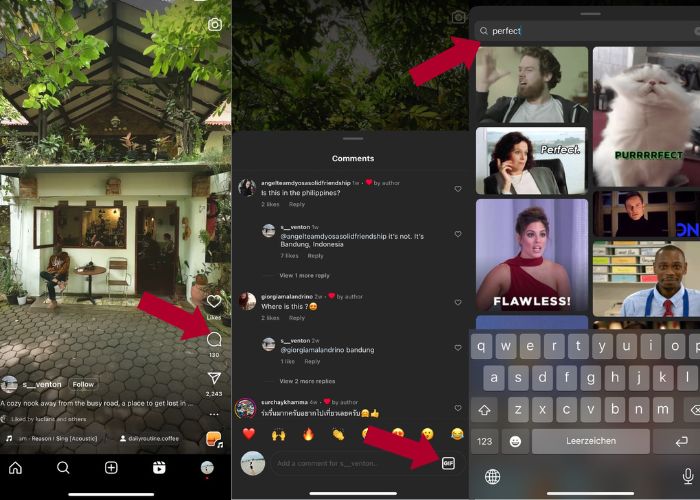
So kommentieren Sie GIFs auf Instagram-Reels:
Schritt 1. Gehen Sie zunächst zu dem Reel, mit dem Sie interagieren möchten, und tippen Sie auf Kommentieren.
Schritt 2. Tippen Sie anschließend auf das GIF-Feld, um ein GIF zu kommentieren.
Schritt 3. Wählen Sie nun ein GIF aus der Sammlung aus, die Sie kommentieren möchten. Sie können gründlich stöbern oder ein Stichwort zu der Animation eingeben, die Sie hinzufügen möchten.
Schritt 4. Wenn Sie Ihre Auswahl getroffen haben, tippen Sie auf das GIF, und es wird sofort gesendet.
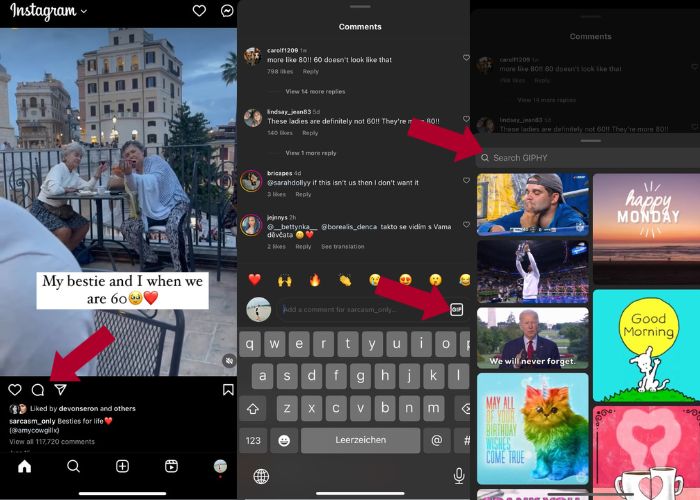
So posten Sie GIF-Kommentare auf Instagram:
Schritt 1. Gehen Sie zum Newsfeed Ihrer Freunde oder anderer IG-Nutzer, tippen Sie auf das Foto, dem Sie Ihr GIF hinzufügen möchten, und klicken Sie dann auf das Kommentar-Symbol.
Schritt 2. Tippen Sie anschließend auf das GIF-Symbol im Kommentarfeld.
Schritt 3. Suchen Sie nach einem GIF oder scrollen Sie nach unten, um weitere GIFs zu sehen, und überprüfen Sie im Kommentarbereich, ob das von Ihnen gewählte GIF erfolgreich hinzugefügt wurde.
Teil 3. Warum kann ich GIFs auf Instagram nicht kommentieren?
Wenn Sie mit GIF keinen Kommentar zu Ihrem Instagram hinzufügen können, können Sie versuchen, Ihre App zu aktualisieren. Wenn Sie die GIF-Schaltfläche zufällig immer noch nicht finden können, gehört Ihr Land möglicherweise zu den Regionen, in denen Meta diese neue Funktion noch nicht veröffentlicht hat. Sie müssen also warten, bis es Ihr Land erreicht.
Teil 4. Wie man mit Best GIF Maker ein GIF für Instagram erstellt
Um Ihre GIFs zu personalisieren, müssen Sie Ihr Video im MP4-Format in ein GIF umwandeln. Sie müssen außerdem mehrere Bilder animieren, um GIF-Dateien zu erstellen. Dabei hilft Ihnen Video Converter Ultimate. Diese Software ist ein umfassendes Videobearbeitungstool, mit dem sich Videos ganz einfach bearbeiten und konvertieren lassen. Sie verfügt über ein GIF-Maker-Werkzeug, mit dem Nutzer sofort GIFs für ihr Instagram erstellen können. Mit Hilfe der Loop-Animation-Funktion werden Sie überrascht sein, wie diese App statische Bilder in GIFs verwandeln kann.
Darüber hinaus verfügt dieses Tool auch über wichtige Bearbeitungswerkzeuge zur Verbesserung Ihrer GIFs – zum Bearbeiten von Kontrast, Sättigung, Helligkeit und Farbton. Sie können den Filter auch verwenden, um die Stimmung Ihres GIFs festzulegen. Und wenn Sie ein längeres Video haben, können Sie es auch mit diesem GIF Maker zuschneiden. Darüber hinaus können Sie mit dieser Software das Ausgabeformat und die Bildrate Ihres GIF ändern. Und das Beste daran ist, dass diese App über eine intuitive Benutzeroberfläche für Anfänger verfügt.
Und wenn Sie diesen Videokonverter einschüchternd finden, zeigen wir Ihnen, wie einfach Video Converter Ultimate zu verwenden ist. Befolgen Sie einfach die folgenden Schritte:
Schritt 1. Video Converter Ultimate installieren und starten
Um mit dem Konvertierungsprozess zu beginnen, laden Sie die Software herunter, indem Sie auf die Schaltfläche Kostenloser Download unten klicken, und installieren Sie sie anschließend. Sobald die Installation abgeschlossen ist, starten Sie das Programm auf Ihrem Computer, warten Sie den Konfigurationsprozess ab und klicken Sie auf Jetzt starten, um zu beginnen.
Kostenloser DownloadFür Windows 7 oder höherSicherer Download
Kostenloser DownloadFür macOS 10.7 oder höherSicherer Download
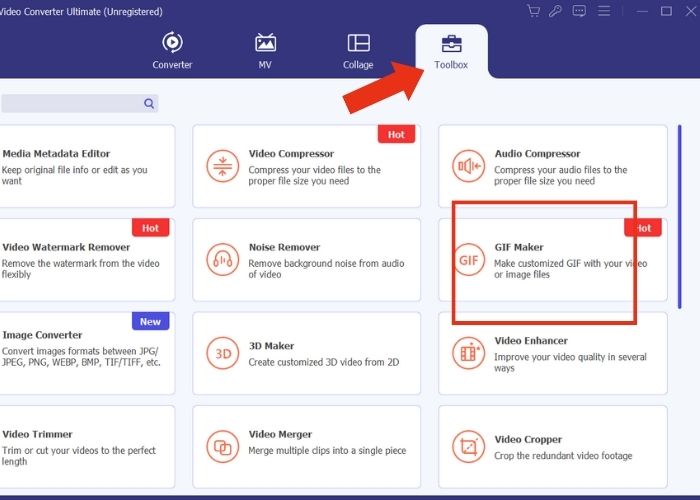
Schritt 2. Medien hochladen
Wechseln Sie in der Programmoberfläche zur Registerkarte Toolbox, durchsuchen Sie das Toolkit und suchen Sie nach dem Werkzeug GIF Maker. Klicken Sie hier entweder auf Video zu GIF, wenn Sie ein Video konvertieren möchten, oder auf Foto zu GIF, wenn Sie mehrere Bilder in ein GIF umwandeln wollen.
Schritt 3. Datei anpassen
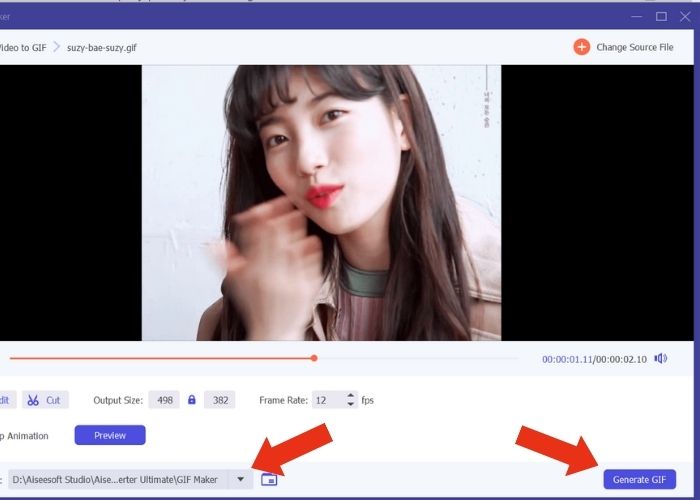
Nachdem Sie die Datei hinzugefügt haben, konfigurieren Sie die Eigenschaften des GIF, indem Sie Ausgabegröße und Bildrate anpassen. Klicken Sie dann auf Bearbeiten, um die Farbintensität des Videos zu steuern oder einen Filter zur Verbesserung hinzuzufügen. Anschließend klicken Sie auf Schneiden, um die Länge des Rohmaterials zu kürzen, da die meisten GIFs in der Regel nicht länger als 6 Sekunden dauern sollten.
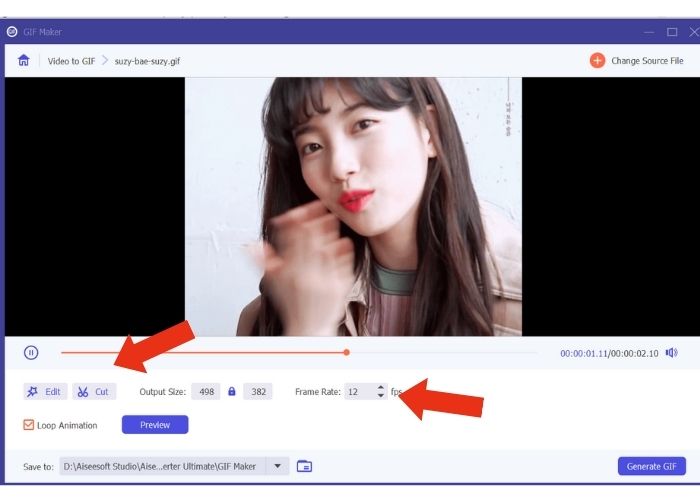
Schritt 4. Exportieren und Ergebnis speichern
Wählen Sie vor dem Exportieren aus, in welcher Datei oder welchem Ordner Sie Ihr Ergebnis speichern möchten. Exportieren Sie das GIF dann, indem Sie auf die Schaltfläche GIF erstellen klicken. Warten Sie einen Moment, während das Tool Ihr GIF verarbeitet. Sobald dies abgeschlossen ist, erscheint ein neues Fenster, in dem Sie das endgültige Ergebnis ansehen können.
Teil 5. So laden Sie das GIF in einen Instagram-Kommentar hoch
Da Sie nun bereits über Ihr eigenes GIF verfügen, erfahren Sie in diesem Teil, wie Sie es auf die GIPHY-Website hochladen. Hier sind die Schritte, die Sie ausführen müssen:
Schritt 1. Erstellen Sie ein GIPHY-Konto.
Schritt 2. Importieren Sie Ihr vorgefertigtes GIF.
Schritt 3. Fügen Sie Tags hinzu und klicken Sie auf die Schaltfläche Auf GIPHY hochladen.
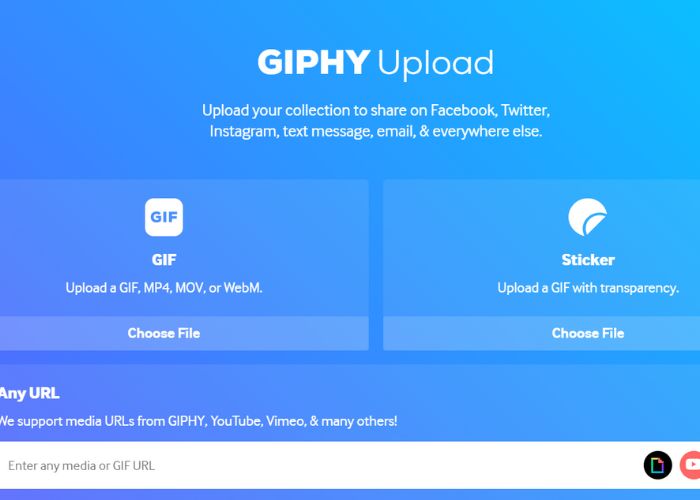
Warten Sie Tage, bevor Ihr GIF in die GIPHY-Bibliothek Ihres Instagram hochgeladen wird. Dies ist eine Versuch-und-Irrtum-Aktivität, obwohl diese Methode in Ihrem Land möglicherweise nicht funktioniert.
Weiterführende Lektüre:
Fotos für Instagram auf Desktop, iPhone oder Android in der Größe anpassen
GIF mit dem besten animierten GIF‑Looper unter Windows & Mac in Endlosschleife abspielen
Teil 6. FAQs zum Posten von GIFs in Instagram-Kommentaren
Können Sie GIFs für Instagram-Profilbilder verwenden?
Nein. Derzeit sind GIFs auf Instagram nur auf ihre Stories, Messaging, Kommentarfelder auf Reels und Newsfeed-Beiträge beschränkt.
Werden GIFs in Instagram-Nachrichten angezeigt?
Ja. GIFs funktionieren auch bei Instagram-Nachrichten.
Kannst du mit Bildern auf Instagram antworten?
Für Nachrichten, ja, das geht. Das Beantworten von Storys und Kommentarfeldern in Reels und Newsfeeds ist jedoch noch nicht erlaubt.
Wie fügt man ein GIF aus der Kamerarolle in seine Instagram-Story ein?
So posten Sie ein GIF in Ihrer Instagram-Story:
Konvertieren Sie Ihr Video mit Video Converter Ultimate in ein GIF und speichern Sie das Ergebnis in Ihrer Kamerarolle. Laden Sie es dann auf die GIPHY-Website hoch und warten Sie ein paar Tage, bis es in der Bibliothek erscheint. Verwenden Sie das von Ihnen eingegebene Tag, um Ihr vorgefertigtes GIF zu finden.
Warum kann ich auf Instagram nicht auf einen Kommentar antworten?
Derzeit unterstützt Instagram nur das Kommentieren von GIFs in einem Newsfeed-Beitrag und in Reels. Leider ist es seinen Benutzern nicht möglich, mit GIF auf einen Kommentar zu antworten.
Fazit
Jetzt, da Sie wissen, wie man ein GIF unter einen Instagram-Beitrag kommentiert, können Sie noch intensiver mit Ihren Instagram-Freunden interagieren, indem Sie lustige GIFs zu ihren Newsfeeds und Reels kommentieren. Sie können mit dem besten Videokonverter – Video Converter Ultimate – auch eigene GIFs erstellen. Denken Sie aber daran, GIF-Kommentare nur sparsam zu verwenden, sonst könnten Sie als Spam eingestuft werden.
-
 Die 5 besten Websites zum Speichern eines GIFs auf dem iPhone als Video
 Kann ich ein GIF nicht auf meinem iPhone speichern? Bleiben Sie bei diesem Beitrag und wir zeigen Ihnen die möglichen Lösungen zum Speichern von GIFs auf dem iPhone.
-
 [Kostenlos & kostenpflichtig] GIF Speed Changer: Hot Picks von 2023
 Sind Sie mit dem GIF, das Sie online erstellt haben, unzufrieden, da es mühsam und langsam ist? Dies wird Ihr Glückstag sein, denn wir präsentieren einen Artikel über GIF-Geschwindigkeitswechsler und die Details, die Ihnen bei der Verwendung und Beherrschung helfen.
-
 So fügen Sie einen Instagram-Filter hinzu und erstellen ihn, bevor Sie Bilder und Videos veröffentlichen
 Was sind die Filter auf Instagram? Wie wende ich es an? Wie macht man einen? Diese Fragen werden in diesem Beitrag direkt beantwortet, also lesen Sie sie.
