


 Video Converter Ultimate
 Bildschirm recorder
 Videoreparatur
 Sicherer Download
So trimmen Sie GIFs fachmännisch, um Ihr visuelles Storytelling zu verbessern
GIFs oder animierte Bilder sind in der Online-Kommunikation und der Erstellung von Inhalten allgegenwärtig geworden. Ganz gleich, ob Sie Ihren Social-Media-Beiträgen etwas visuelles Flair verleihen, auffällige Marketingmaterialien erstellen oder sich einfach durch eine lustige Animation ausdrücken möchten, die Attraktivität eines gut gemachten GIF lässt sich nicht leugnen. Mit der Popularität dieser animierten Bilder entsteht jedoch die Notwendigkeit, sie zu bearbeiten und an Ihre speziellen Bedürfnisse anzupassen.
Einer der wichtigsten Aspekte bei der Arbeit mit GIFs ist zu wissen, wie man sie effektiv schneidet. Zum Glück gibt es eine Vielzahl von Tools für Online- und Offline‑Nutzer, die das Zuschneiden von GIFs einfach und unkompliziert machen. Von einsteigerfreundlichen Optionen bis hin zu fortgeschrittener Software für Profis ist für alle etwas dabei, die ihre GIF‑Bearbeitungsfähigkeiten auf das nächste Level bringen möchten. Tauchen wir also ein und lernen wir, wie man GIFs schneidet – online und offline.

Teil 1. GIF offline schneiden
1. FVC Video Converter Ultimate
Die GIF‑Schneidefunktion in FVC Video Converter Ultimate ist ein echter Gamechanger für alle, die professionelle GIFs erstellen möchten. Dieses Tool ist die beste Option zum Trimmen von GIFs – ganz gleich, ob Sie als Videoeditor Animationen für einen Kunden erstellen oder als Social‑Media‑Marketer neue Ideen für Posts entwickeln möchten.
Damit können Sie die Start- und Endpunkte Ihrer GIF-Datei festlegen. Diese Funktion ist besonders hilfreich, wenn Ihre GIF-Datei zu lang ist. Darüber hinaus ermöglicht es Ihnen, ein GIF mit großer Leichtigkeit zu teilen. Darüber hinaus können Sie Effekte wie Ein- und Ausblenden anwenden. Wenn Sie lernen möchten, wie Sie GIFs offline oder auf Ihrem PC schneiden, befolgen Sie die angegebenen Schritte:
Schritt 1. Programm herunterladen und installieren
Klicken Sie zunächst auf eine der unten angegebenen Schaltflächen Gratis herunterladen, um zu starten. Folgen Sie dann dem Installationsvorgang, um die Software vollständig auf Ihrem Gerät zu installieren. Sobald sie installiert ist, starten Sie das Programm, um die Hauptoberfläche aufzurufen.
Kostenloser DownloadFür Windows 7 oder höherSicherer Download
Kostenloser DownloadFür macOS 10.7 oder höherSicherer Download
Schritt 2. GIF‑Datei hochladen
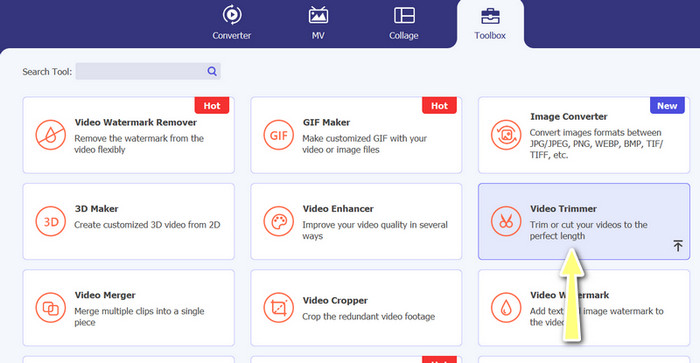
Gehen Sie nun zum Tab Toolbox und öffnen Sie die Option Video Trimmer. Anschließend können Sie eine GIF‑Datei hochladen, indem Sie auf das Plus-Symbol klicken.
Schritt 3. GIF‑Datei trimmen
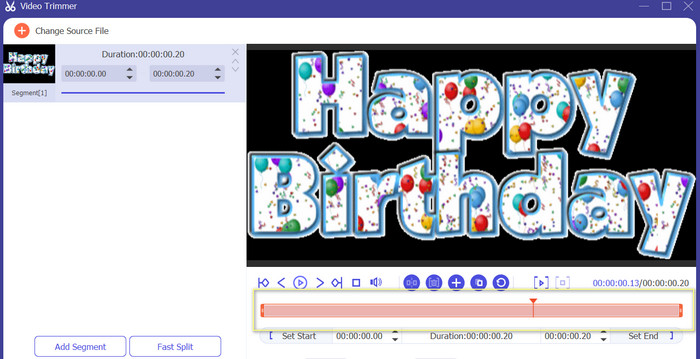
Sobald das GIF hochgeladen ist, sehen Sie es auf der Bearbeitungsoberfläche des Programms. Identifizieren Sie mithilfe des Schiebereglers den Start- und Endpunkt der GIF-Datei, die Sie entfernen möchten.
Schritt 4. GIF‑Datei speichern
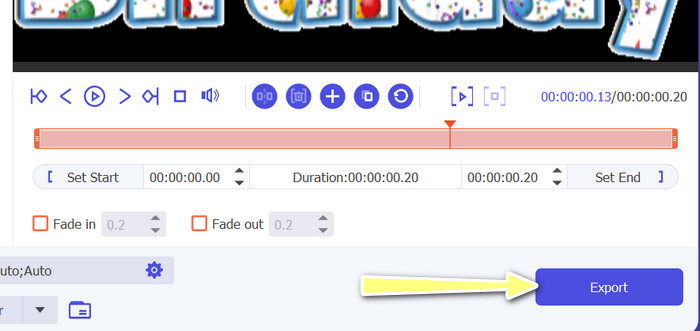
Wenn Sie das Zuschneiden des GIFs beendet haben, klicken Sie unten rechts in der Oberfläche auf die Schaltfläche Exportieren, um mit dem Rendern der Datei zu beginnen.
2. GIF-Ersteller
Das Erstellen eines GIF kann eine Herausforderung für diejenigen sein, die keine Erfahrung in der Videobearbeitung oder im Grafikdesign haben. Hier kommt GIF Maker ins Spiel und bietet eine einfache und effiziente Möglichkeit, animierte GIFs zu erstellen, zu bearbeiten, zu teilen und zu schneiden. Außerdem ermöglicht dieses Programm Benutzern, GIFs zu trimmen, die Wiedergabegeschwindigkeit anzupassen und Text oder andere Effekte hinzuzufügen, um das perfekte GIF für ihre Bedürfnisse zu erstellen. Hier sind die Schritte zum Offline-Schneiden von animierten GIFs mit Ihrem Telefon
Schritt 1. Laden Sie das Programm zunächst aus dem Play Store herunter, indem Sie seinen Namen in die Suchleiste eingeben. Installieren Sie es anschließend auf Ihrem Mobilgerät.
Schritt 2. Starten Sie nun die mobile App auf Ihrem Gerät. Beim Start zeigt das Programm alles an, was auf Ihrem Gerät gespeichert ist, einschließlich Ihrer GIF‑Dateien. Wählen Sie als Nächstes das gewünschte GIF aus.
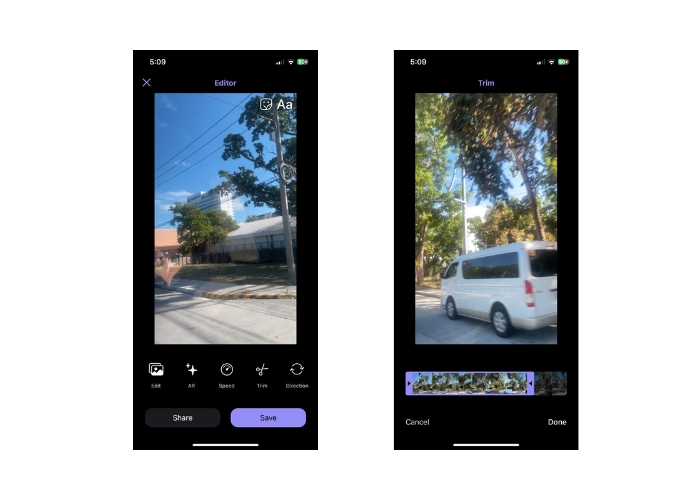
Schritt 3. Danach wird die GIF‑Datei geladen. Tippen Sie dann auf die Schaltfläche Trimmen, legen Sie Start‑ und Endpunkt des GIFs fest und passen Sie den Schieberegler an.
Schritt 4. Tippen Sie zum Schluss auf die Schaltfläche Fertig, um den Vorgang des Zuschneidens von GIF‑Dateien abzuschließen.
Teil 2. GIF online schneiden
1. EZGIF
Wenn Sie GIF‑Dateien einfach online auf Ihrem Computer schneiden und bearbeiten möchten, können Sie EZGIF verwenden. Zu den Hauptfunktionen gehört die Möglichkeit, das GIF zuzuschneiden oder in der Größe zu ändern, die Wiedergabegeschwindigkeit anzupassen, Text oder Sticker hinzuzufügen, die Dateigröße zu optimieren und das GIF sogar in andere Dateiformate wie MP4 oder WebM zu konvertieren. Folgen Sie den vereinfachten Schritten, um GIFs online mit EZGIF zu schneiden.
Schritt 1. Öffnen Sie Ihren bevorzugten Browser auf dem Computer und rufen Sie die offizielle Website von EZGIF auf.
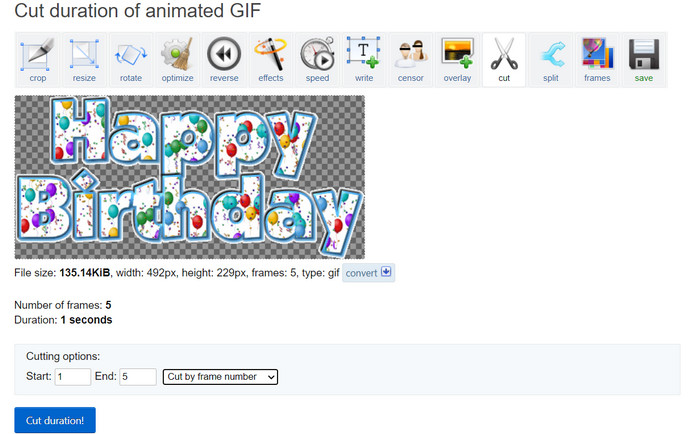
Schritt 2. Gehen Sie nun zur Option Cut, um die GIF‑Länge online zu kürzen. Klicken Sie dann auf die Schaltfläche Datei auswählen, gefolgt von der Schaltfläche Upload.
Schritt 3. Legen Sie im Bereich für die Schneideoptionen Start‑ und Endpunkt über die Bildnummer fest.
Schritt 4. Sobald diese bestimmt sind, klicken Sie auf die Schaltfläche Cut duration, um mit dem Schneiden der GIF‑Datei zu beginnen.
2. GIPHY
Sie können auch versuchen, die mobile App von GIPHY zu verwenden, um GIFs online mit Ihrem Telefon zu bearbeiten oder zu schneiden. Mit der mobilen Giphy-App können Benutzer einfach auf ihre Lieblings-GIFs zugreifen und sie teilen sowie ihre eigenen benutzerdefinierten GIFs mit ihrer Smartphone-Kamera oder vorhandenen Videodateien erstellen. Darüber hinaus bietet diese App Bearbeitungsfunktionen wie Schneiden und Trimmen. Hier sind ohne weiteres die Schritte, die Sie befolgen müssen, um GIFs online auf Ihrem Mobilgerät zu schneiden:
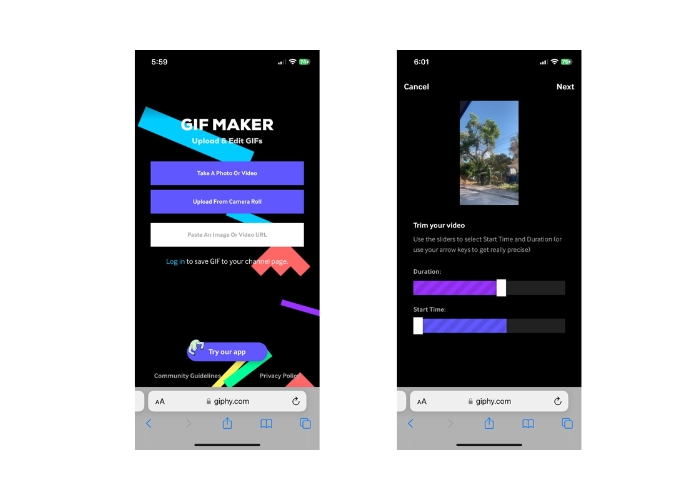
Schritt 1. Laden Sie die Giphy‑App aus Ihrem App‑Store herunter und installieren Sie sie. Öffnen Sie die App und wählen Sie die GIF‑Datei, die Sie bearbeiten möchten, aus der Kamerarolle oder Galerie Ihres Handys aus.
Schritt 2. Verwenden Sie den Schieberegler, um Start‑ und Endpunkt des Abschnitts auszuwählen, den Sie behalten möchten. Sie können dem GIF außerdem Text oder Sticker hinzufügen.
Schritt 3. Tippen Sie nach Abschluss der Bearbeitung auf die Schaltfläche Weiter und nehmen Sie einige Anpassungen nach Ihrem Geschmack vor. Anschließend können Sie Ihr Werk online mit anderen teilen.
Teil 3. Häufig gestellte Fragen zum Online-Schneiden von GIFs
Kann ich mit einem Online-Cutter an einem GIF vorgenommene Änderungen rückgängig machen?
Dies hängt von dem spezifischen Online-GIF-Cutter ab, den Sie verwenden, aber viele bieten eine Schaltfläche zum Rückgängigmachen oder eine Option zum Rückgängigmachen von Änderungen an einem GIF. Es ist jedoch erwähnenswert, dass möglicherweise nicht alle Online-GIF-Cutter die Möglichkeit bieten, Bearbeitungen rückgängig zu machen, daher ist es immer eine gute Idee, eine Sicherungskopie der Originaldatei zu speichern, bevor Sie Änderungen vornehmen.
Kann ich mithilfe eines Online-Cutters mit anderen an einem GIF-Bearbeitungsprojekt zusammenarbeiten?
Die meisten Online-GIF-Cutter sind für den individuellen Gebrauch konzipiert und bieten möglicherweise keine integrierten Funktionen für die Zusammenarbeit. Einige Online-Tools ermöglichen es Ihnen jedoch, Ihre bearbeiteten GIFs hochzuladen und mit anderen zu teilen, indem Sie einen Link oder Einbettungscode bereitstellen, der auf Social-Media-Plattformen oder Websites geteilt werden kann. Darüber hinaus können Sie Collaboration-Tools von Drittanbietern wie Google Drive oder Dropbox verwenden, um die ursprüngliche GIF-Datei und alle bearbeiteten Versionen für Feedback oder weitere Bearbeitung mit anderen zu teilen.
Kann ich ein GIF mit einem Online-Cutter in ein anderes Dateiformat konvertieren?
Ja, viele Online-GIF-Cutter bieten die Möglichkeit, GIF in Videoformate wie MP4, AVI, WebM oder MOV zu konvertieren. Das Konvertieren eines GIF in ein anderes Dateiformat kann nützlich sein, wenn Sie es in einem Videobearbeitungsprojekt verwenden oder auf eine Plattform hochladen möchten, die nur bestimmte Dateitypen unterstützt.
Fazit
GIFs online zu schneiden, ist eine schnelle und einfache Möglichkeit, animierte GIF‑Dateien zu bearbeiten und zu verändern, ohne dass spezielle Software oder technisches Know‑how erforderlich ist. Online‑GIF‑Cutter bieten verschiedene Funktionen wie Trimmen, Größenänderung, Anpassung der Wiedergabegeschwindigkeit, Hinzufügen von Text und Stickern, Optimierung der Dateigröße und Konvertierung in andere Dateiformate. Offline‑Tools hingegen sind nicht durch die Rechenleistung einer Website oder eines Servers begrenzt und können lokal auf Ihrem Computer oder Gerät ausgeführt werden. Dadurch bieten Offline‑Tools oft präzisere Bearbeitungsmöglichkeiten, eine höhere Ausgabequalität und mehr Anpassungsoptionen. Glücklicherweise gibt es zahlreiche Online‑ und Offline‑Tools, mit denen Sie GIFs schneiden können.
-
 5 neueste Software, mit der Sie ein unglaubliches Reverse-GIF erstellen können
 Möchten Sie wissen, wie Sie Ihr GIF verbessern können? Versuchen Sie dann, GIF umzukehren, um mit Hilfe dieser Tools unglaubliche Effekte hinzuzufügen.
-
 5 der besten GIF-Resizer, die auf allen Plattformen verfügbar sind [2023]
 Möchten Sie wissen, welche GIF-Resizer Sie verwenden können? In diesem Fall beziehen sich die unten bereitgestellten Informationen auf die Resizer, die Sie für Ihre GIFs auf allen Plattformen verwenden können.
-
 [Kostenlos] 4 einfache Möglichkeiten, animierte GIFs online und offline zuzuschneiden
 Möchten Sie GIFs einfach zuschneiden? Nun, Sie können es mit Hilfe dieser GIF-Cropper tun, die in diesem Artikel verfügbar sind, lesen Sie es gut und lernen Sie, wie es geht.
