


 Video Converter Ultimate
 Bildschirm recorder
 Videoreparatur
 Sicherer Download
Schritt-für-Schritt-Tutorials zum Konvertieren von GIF in JPG
GIF ist das beliebteste Dateiformat, das wir verwenden, um übertriebene Emotionen zu versenden, etwa in Memes. Es enthält Animationen und statische Bilder, aber nicht alle Plattformen unterstützen das GIF-Format. Es gibt Situationen, in denen Sie ein GIF-Bild teilen möchten, weil es lustig ist. Dennoch können Sie es nicht senden, weil das Programm oder der Browser, den Sie verwenden, dieses Format nicht unterstützt. Das ist frustrierend. Wenn Sie das Bild ohne Probleme versenden möchten, ist es besser, Ihr GIF-Bild in andere Formate wie JPG zu konvertieren. Da das JPG-Format sehr verbreitet ist, können Sie es in jedem Browser und Programm verwenden. In diesem Artikel erfahren Sie zum Glück verschiedene Verfahren, um mit Hilfe von Bildkonvertern GIF in JPG zu konvertieren. Wenn Sie dieses Problem in Zukunft vermeiden möchten, lesen Sie den Artikel und beginnen Sie damit, Ihre Bilder zu konvertieren.

Teil 1. GIF vs. JPG/JPEG
| Datei Format | GIF | JPG / JPEG |
| Dateinamenerweiterung | .gif | .jpg / .jpeg |
| Entwickelt von | Compuserve | Gemeinsame Fotoexpertengruppe |
| Mime Typ | Bild/GIF | Bild/JPEG |
| Beschreibung | GIF ist das beliebteste Dateiformat im Internet, da es Bilder animieren kann. GIF-Dateien verwenden Bitmap-Fotos und erlauben bis zu 8 Pixel/Bit. Außerdem erlaubt es 256 Farben im 24-Bit-RGB-Farbraum. Nicht alle GIF-Fotos sind animiert. | JPG Format, das heutzutage ein beliebtes Dateiformat ist. Sein Zweck ist es, Bilder zu komprimieren, um die Download- und Upload-Zeit zu verkürzen. Alle Programme können auf dieses Format zugreifen. Dadurch entfällt die Notwendigkeit, darüber nachzudenken, wie diese Datei in verschiedenen Programmen und Browsern geöffnet werden kann. |
| Zugehörige Programme / Browser | Adobe Photoshop Coreldraw Corel Paint Shop Pro Leinwand Google Chrome Internet Explorer Microsoft Edge | Farbe Adobe Photoshop Fotoprogramm IrfanView Fotobetrachter Internet Explorer Mozilla-Firefox Google Chrome |
Teil 2. Einfache Methoden zum Online-Konvertieren von GIFs in JPG
So konvertieren Sie GIF in JPG mit FVC Free Image Converter
FVC Free Image Converter ist der beste Online-Bildkonverter, um GIF in JPG umzuwandeln. Mit seinen einfachen Abläufen können Sie Ihr GIF-Dateiformat schnell in JPG konvertieren. Auf diese Weise ist das Online-Tool auch für Einsteiger hervorragend geeignet. Zudem können Sie die Batch-Konvertierungsfunktion des FVC Free Image Converter nutzen. Mit diesem Tool können Sie mehrere Fotos in nur einem Vorgang konvertieren. Außerdem fügt das Tool den konvertierten und gespeicherten Fotos keine unerwünschten Elemente hinzu. So können Sie die Bilder übersichtlich betrachten. Darüber hinaus werden während des Konvertierungsvorgangs keine Werbeanzeigen auf Ihrem Bildschirm eingeblendet. Infolgedessen können Sie Dateien ohne Ablenkung konvertieren. Befolgen Sie die folgenden einfachen Anweisungen, um Ihr GIF in ein JPG-Bild umzuwandeln.
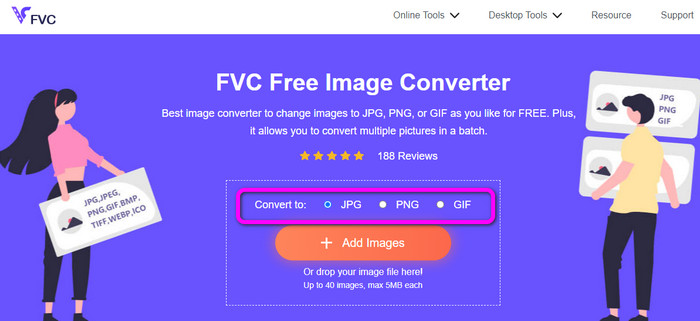
Schritt 1. Besuchen Sie die Hauptseite des FVC Free Image Converter. Sie können jeden Browser auf Ihrem Computer verwenden, um auf den Online-Konverter zuzugreifen. Klicken Sie dann im Bereich Convert to auf das Format JPG.
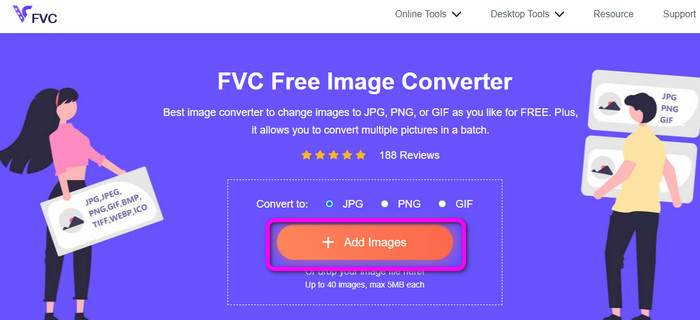
Schritt 2. Klicken Sie auf die Schaltfläche Add Images. Wenn sich der Ordner auf dem Bildschirm öffnet, wählen Sie das GIF-Bild aus, das Sie konvertieren möchten. Sie können auch Ihren Computerordner öffnen und die Bilddatei per Drag & Drop in das Feld ziehen. Sie können bis zu 40 Bilder hochladen, wenn Sie mehrere Dateien konvertieren möchten.
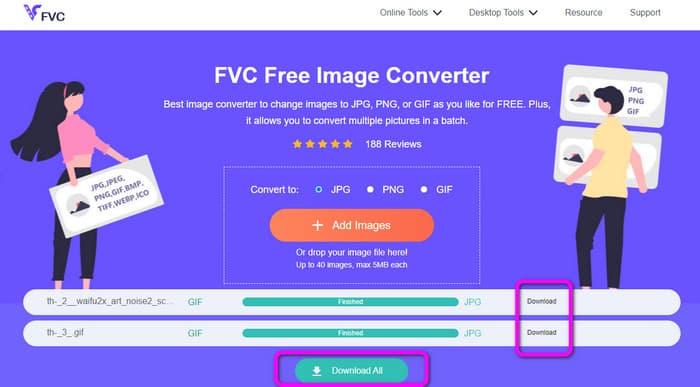
Schritt 3. Das Tool konvertiert Ihre Bilder nach dem Hochladen automatisch. Wenn der Konvertierungsvorgang abgeschlossen ist, klicken Sie auf die Schaltfläche Download All. Wenn Sie das Bild jedoch manuell speichern möchten, klicken Sie auf die Schaltfläche Download daneben. Sie können dieses Tool auch verwenden, um WebP in GIF zu konvertieren.
So konvertieren Sie GIF in JPG mit Online Convert
Ein weiteres nützliches und hilfreiches Online-Tool zum Konvertieren von GIFs in JPG ist Online Convert. Mit Hilfe dieses Online-Tools können Sie verschiedene Dateien konvertieren, darunter JPG, PNG, GIF, TIFF, BMP und mehr. Der Konvertierungsprozess ist schnell. Außerdem ist das Tool leicht zu bedienen, was besonders für nicht professionelle Anwender von Vorteil ist. Zusätzlich bietet Online Convert eine Batch-Konvertierung. Sie können mehr als ein Bild einfügen, das Sie konvertieren möchten. Sie können diesem Tool auch beim Konvertieren von Videos, Audiodateien, Dokumenten und mehr vertrauen. Der Online-Bildkonverter ist in nahezu allen Browsern verfügbar, darunter Firefox, Chrome, Explorer und weitere. Allerdings können Sie bei der Batch-Konvertierung nur drei Bilder hochladen. Wenn Sie zahlreiche Bilder gleichzeitig hochladen möchten, müssen Sie die kostenpflichtige Version erwerben.
Schritt 1. Rufen Sie in Ihrem Browser die Website von Online Convert auf. Klicken Sie auf der Webseite auf die Schaltfläche Choose Files, um das GIF-Bild hochzuladen. Sie können die Datei auch in das grüne Feld ziehen.
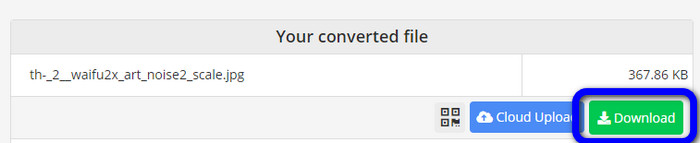
Schritt 2. Klicken Sie nach dem Hochladen des GIF-Bildes auf die Schaltfläche Start. Nach dem Klicken beginnt der Konvertierungsvorgang. Klicken Sie anschließend auf die Schaltfläche Download, um das konvertierte Bild auf Ihrem Computer zu speichern.
Teil 3. Wie man GIF schnell offline in JPG konvertiert
Sie können auch Video Converter Ultimate verwenden, um GIF in JPG zu konvertieren. Dieses Offline-Programm bietet eine hervorragende Methode zur Konvertierung. Es verfügt zudem über eine intuitive Benutzeroberfläche, wodurch es sich für nicht professionelle Nutzer eignet. Darüber hinaus bietet Video Converter Ultimate eine Batch-Konvertierungsfunktion. Das bedeutet, dass Sie Bilder mit einem einzigen Klick konvertieren können. Es stellt außerdem einen schnellen Konvertierungsprozess bereit. Mit dieser Funktion können Sie viele Dateien zügig konvertieren. Zudem unterstützt es verschiedene Bildformate, darunter JPG, PNG, BMP, GIF, TIFF und mehr. Neben der Konvertierung können Sie auch die Qualität Ihres Fotos in den Ausgabe-Einstellungen ändern. So können Sie die Bildqualität an Ihre Bedürfnisse anpassen. Schließlich ist Video Converter Ultimate sowohl für Windows als auch für Mac verfügbar, was es sehr praktisch macht.
Schritt 1. Laden Sie Video Converter Ultimate auf Ihren Desktop herunter. Unten befinden sich zwei Download-Schaltflächen. Wenn Sie Windows verwenden, klicken Sie auf die Windows-Version. Und wenn Sie einen Mac-Computer verwenden, nutzen Sie die Mac-Version. Starten Sie das Programm nach der Installation.
Gratis DownloadFür Windows 7 oder neuerSicherer Download
Gratis DownloadFür MacOS 10.7 oder neuerSicherer Download
Schritt 2. Klicken Sie in der oberen Oberfläche auf die Registerkarte Toolbox. Wählen Sie dann das Tool Image Converter. Eine weitere Oberfläche wird auf dem Bildschirm angezeigt.
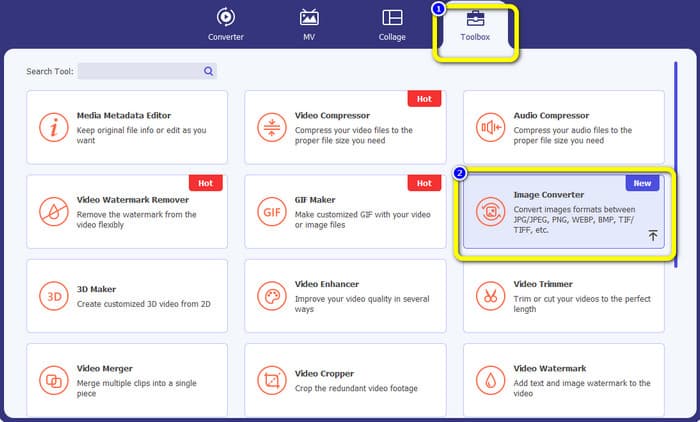
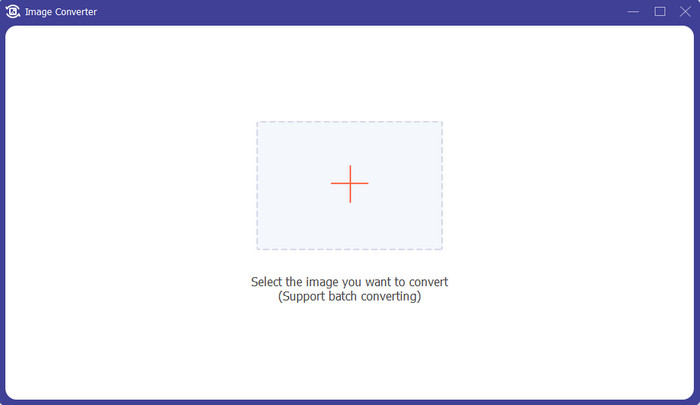
Schritt 3. Klicken Sie auf das Plus-Symbol in der Mitte der Oberfläche. Wenn der Dateimanager erscheint, wählen und öffnen Sie das GIF-Format. Sie können weitere Dateien hinzufügen, da das Programm eine Batch-Konvertierungsfunktion bietet.
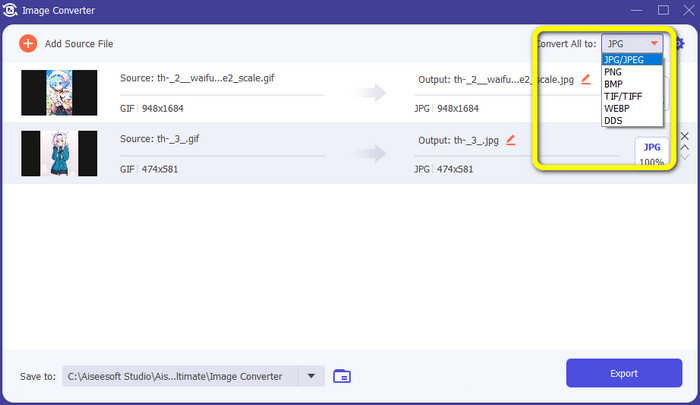
Schritt 4. Gehen Sie zum rechten Teil der Oberfläche und öffnen Sie die Formatoption. Wählen Sie JPG als Ihr Ausgabeformat.
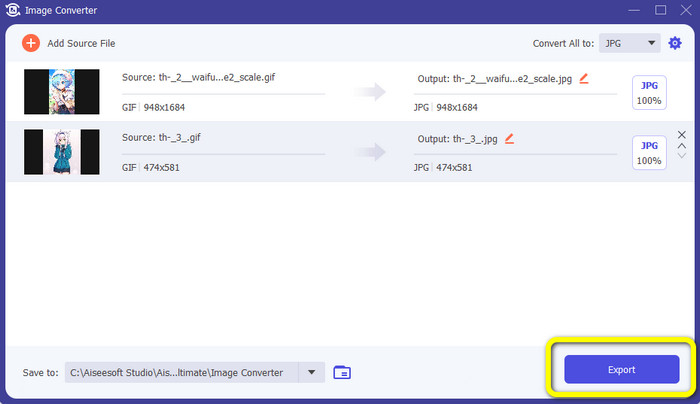
Schritt 5. Wenn Sie das JPG-Format ausgewählt haben, klicken Sie auf die Schaltfläche Export. Nach dem Vorgang können Sie Ihre konvertierten Bilder bereits in Ihrem Ausgabeverzeichnis öffnen.
Teil 4. So konvertieren Sie GIF in JPG in Android und iPhone
Wenn Sie GIFs auf iPhone- und Android-Geräten in JPG umwandeln möchten, verwenden Sie File Converter. Diese Anwendung bietet eine einfache Möglichkeit, verschiedene Dateien in JPG zu konvertieren. Außerdem ist File Converter kostenlos herunterzuladen. Es ist im Google Play Store und im App Store verfügbar. Allerdings ist der Installationsvorgang sehr langsam. Zudem sind einige Optionen schwer zu verstehen. Und schließlich funktioniert die App nur gut mit einer Internetverbindung.
Schritt 1. Öffnen Sie den Google Play Store oder den App Store. Laden Sie File Converter herunter und starten Sie die App.
Schritt 2. Wählen Sie in der Benutzeroberfläche die Option Image Converter. Wählen Sie danach JPG als Ausgabeformat.
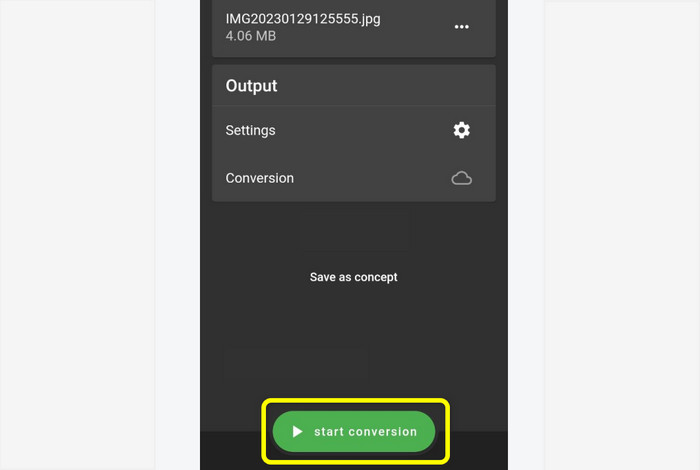
Schritt 3. Klicken Sie auf die Option File, um das GIF-Bild einzufügen, das Sie konvertieren möchten. Klicken Sie dann auf Start Conversion. Danach können Sie Ihr Bild in Ihrer Galerie speichern.
Teil 5. Häufig gestellte Fragen zum Konvertieren von GIF in JPG
1. Ist es möglich, eine GIF-Datei zu bearbeiten?
Absolut ja. Wenn Sie Ihre GIF-Bilddatei bearbeiten möchten, können Sie ein Offline-Tool wie Video Converter Ultimate verwenden. Es verfügt über verschiedene Bearbeitungswerkzeuge, die Sie verwenden können, z. B. Drehen, Zuschneiden, Hinzufügen von Filtern und mehr.
2. Wie speichere ich iPhone-Fotos als JPG?
Standardmäßig werden Fotos, die mit einem iPhone aufgenommen werden, automatisch im HEIC-Format gespeichert. Allerdings erkennen die meisten Geräte dieses Dateiformat nicht. Sie können die Speicherung der Fotos ändern, indem Sie zu den iPhone-Einstellungen gehen. Öffnen Sie Einstellungen > Kamera. Klicken Sie dann auf die Option Format. Wählen Sie in den Formatoptionen Most Compatible, um das Foto als JPG zu speichern.
3. Wie konvertiert man GIF in JPG in Photoshop?
Starten Sie Photoshop auf Ihrem Desktop. Navigieren Sie dann zum Menü Datei und klicken Sie auf Öffnen, um die GIF-Datei in das Programm zu laden. Danach können Sie Ihr Foto mit den Bearbeitungstools des Programms verbessern. Um das Foto anschließend im JPG-Format zu speichern, gehen Sie zu Datei > Speichern unter. Gehen Sie dann zur Formatoption und wählen Sie das Format JPG.
Fazit
Es ist die richtige Entscheidung, Ihre GIFs in JPG zu konvertieren, wenn Sie Fotos über alle Browser und Programme hinweg teilen möchten. Daher bietet Ihnen dieser Artikel die einfachsten Methoden, um Ihre Bilddateien mit dem FVC Free Image Converter zu konvertieren.
-
 Lernen Sie die einfachsten Ansätze zum schnellen Konvertieren von WebP in JPG kennen
 Lassen Sie uns alle effektive Möglichkeiten kennenlernen, um Webbilder einfach in JPG zu konvertieren. Dieser Artikel stellt Ihnen hervorragende Bildkonverter zur Verfügung, die Sie zum Konvertieren von Bilddateien verwenden können.
-
 Hervorragende Techniken zum sofortigen Konvertieren von GIF in M4V
 Dieser Leitfaden bietet Ihnen die effektivsten Strategien zum Konvertieren von GIF in M4V. Außerdem stellen wir Ihnen die besten zwei Konverter vor, die Sie ausprobieren können.
-
 Einfache Anleitung zum Konvertieren von GIF in MKV auf dem Desktop
 Kommen Sie zu diesem Artikel, wenn Sie nach den herausragendsten Methoden zum Konvertieren von GIF in MKV-Dateiformate mit einem außergewöhnlichen herunterladbaren Konverter suchen.
