


 Video Converter Ultimate
 Bildschirm recorder
 Videoreparatur
 Sicherer Download
Professionelle Möglichkeiten zum Konvertieren von Bildern in Vektoren
The best graphics format for logos and drawings is vector graphics. It is a result of their distinct curves and lines. Additionally, instead of using pixels, equations are used to construct them. It can use any size to rescale vectors without sacrificing clarity. The user needs to be able to convert photos to vectors. The good news is that you are able to learn everything you need to know online, thanks to the abundance of tools and lessons available. Designers and marketers must learn how to work with the widespread file type known as vector pictures. After all, billboards and other forms of advertising favor this format. There are numerous techniques for transforming images into vectors. If you want the best way to convert images to vectors, then there is a reason for reading this guide post.

Teil 1. Was ist ein Bildvektor?
Ein Computerbild mit Punkten, Linien und Kurven wird als Vektorbild bezeichnet. Basierend auf mathematischen Gleichungen wird es verwendet, um verschiedene Formen zu erstellen. Jede mathematische Gleichung hat einzigartige Eigenschaften wie Farbe, Dicke, Kurve und mehr. Aus diesem Grund kann ein Vektorbild vergrößert und vergrößert oder verkleinert werden, ohne dass Bilddetails verloren gehen. Dies impliziert, dass die Linien, Kurven und Punkte unabhängig von der Größe oder dem Zoomgrad des Bildes glatt bleiben. Es wird niemals verschwommene oder ausgefranste Kanten im Bildmaterial geben. Logos sind oft Vektordateien. Zusätzlich werden Farben in verschiedene Formen unterteilt. So einfach wie das Klicken auf eine Schaltfläche vereinfacht das Ändern der Farben dieser Grafiken.
Teil 2. Der beste Weg, ein Bild zu vektorisieren
So vektorisieren Sie ein Bild in Illustrator
If you want to vectorize your images, then you can use Illustrator. This program allows you to vectorize an image perfectly. It has complete tools and options that you need. Also, it supports almost all the most common image formats to add any images. You can add JPG, BMP, PNG, EPS, TIFF, and more. However, you must purchase the program if you want to use it daily. Illustrator can only offer you a few days free trial version. Also, it has a confusing installation process. You will find it hard to operate if you are a beginner. You need to ask for assistance for advanced users if you want to vectorize your images on Illustrator. Additionally, the program has complicated options. It is necessary to study the program first before using it. Also, when vectorizing an image, it has lots of processes. See the procedure below to learn how to vectorize an image.
Step 1. Download Illustrator on your desktop. You can use the free trial version if you want. After the installation process, launch the program. Go to the File > Open menu to add the image you want to vectorize.
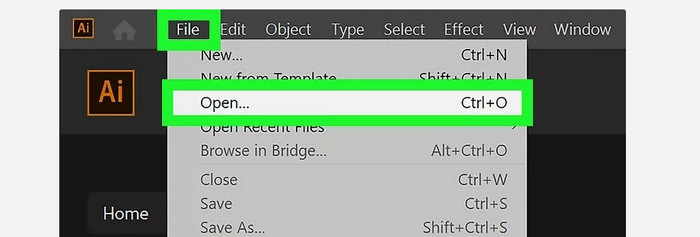
Step 2. In a newly appeared window, check the Preview box to view your image in vector format in real-time.
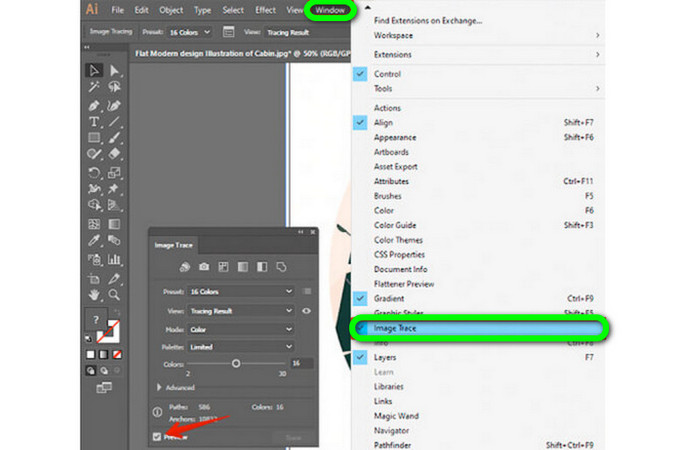
Step 3. Selecting the mode is the next step in understanding how to vectorize in Illustrator. Locate the Mode drop-down option in the Image Trace panel, then select the mode that best fits your design from the list. Grayscale, black and white, or color are all possible modes.

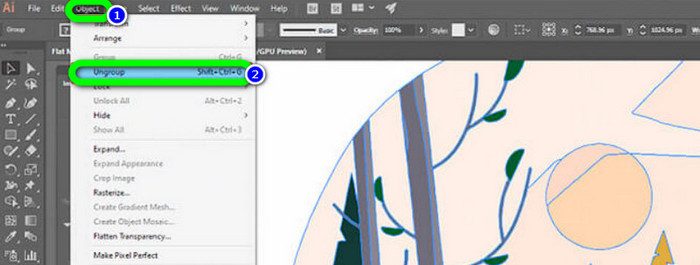
Step 4. Right-click on your image after that. Choose Ungroup from the dropdown menu on the Object tab. Shift+Ctrl+G/Shift+Cmd+G key combinations can also be used if you prefer shortcuts for easier access. Your color shapes will be divided into parts due to this operation.
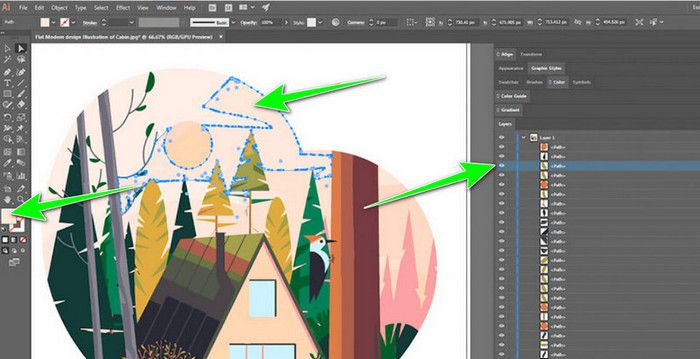
Step 5. You can freely alter the image once your conversion is finished. Select > Same > Fill Color after clicking on a shape to delete any color groups you'd want.
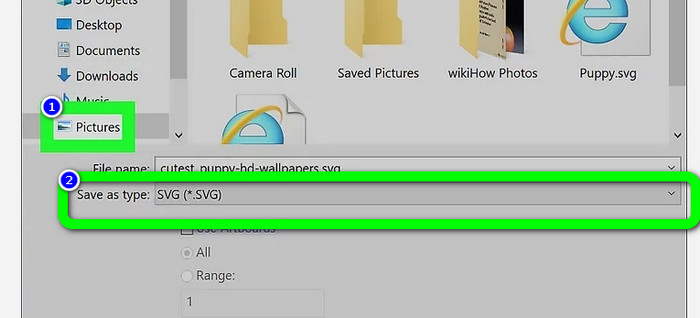
Step 6. Lastly, save your image as a vector file. Go to the File > Save as option. Then, select the SVG file format.
So vektorisieren Sie ein Bild in Photoshop
Adobe Photoshop is good at vectorizing an image. It has effective methods making it easy for all users. Also, you can vectorize an image with a few steps. In addition, Photoshop is also capable of editing images. If you want to edit images before saving them, you can do so. However, Photoshop has some drawbacks. It only offers a 7-day free trial. Then, after the trial version, you must pay for the subscription plan. The installation process is also time-consuming.
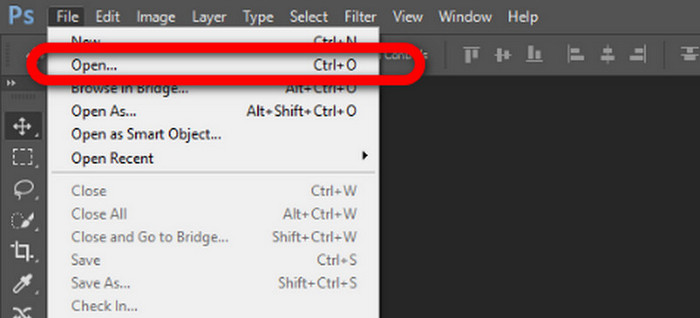
Step 1. Launch Adobe Photoshop on your computer. Then, go to the File menu and select the Open option to add the image you want to vectorize.
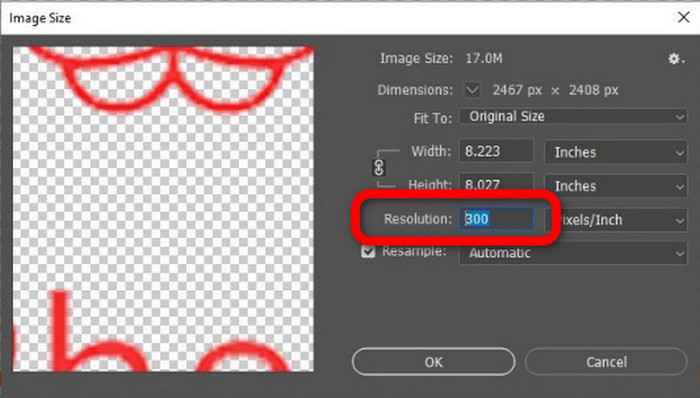
Step 2. Press the Ctrl + Alt + I on your keyboard to see the Image Size window and turn the resolution to 300.
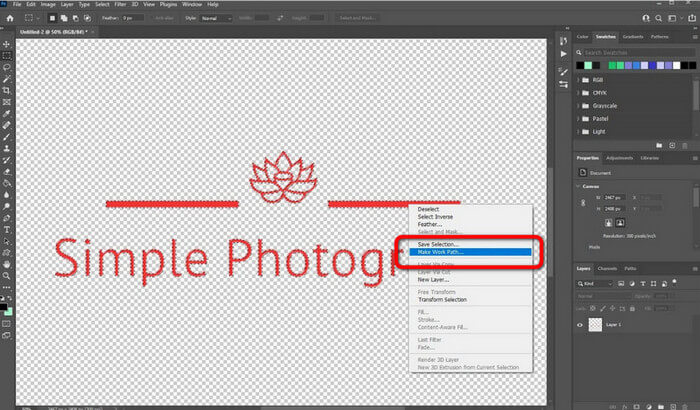
Step 3. Move the cursor above the selection, choose the Marquee Tool from the tools panel, and right-click. Choose the Make Work Path option from the menu after that.
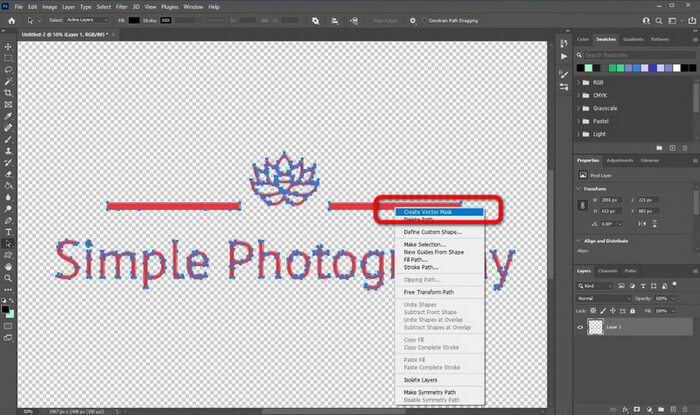
Step 4. Then, press the Ctrl + A on the keyboard to switch on the Direct Selection tool. After that, right-click the image and select the Create Vector Mask option. This way, it will create a vector mask over the layer.
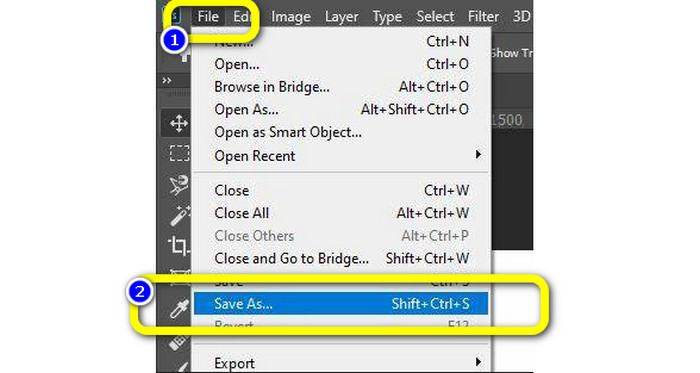
Step 5. To save the vectorized image, navigate to the File menu and select the Save as option.
Teil 3. So konvertieren Sie Vektorbilder
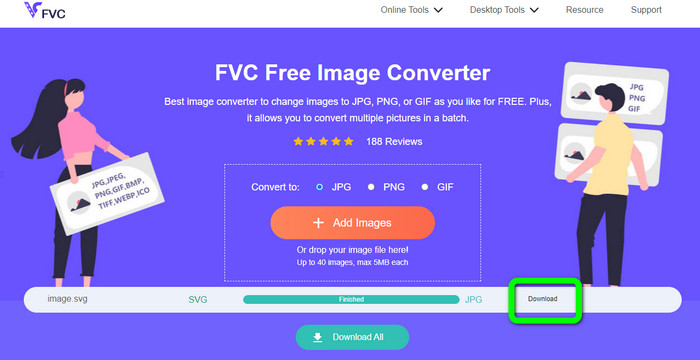
An excellent online image converter is FVC Free Image Converter. It can convert vector graphics into other formats like JPG and PNG. The user interface is excellent. You can concentrate on file conversion because it contains no distracting ads. Additionally, installing this converter is not necessary. It is directly controllable through your browser. Additionally, the image quality will be the same as the original file after conversion. It provides an easy-to-follow UI and instructions, which is ideal for users. Also, it is possible to convert several image files. This picture converter has the capability of batch conversion. Moreover, you can download numerous converted files with a single click. Also, it accepts input files in various extra formats, such as PNG, BMP, TIFF, and GIF. This tool's lack of annoying advertisements is one of its positive aspects. Doing so can ensure that your end product is pleasing to use and view. Using FVC Free Image Converter, your privacy is protected. It won't save your data after saving the image.
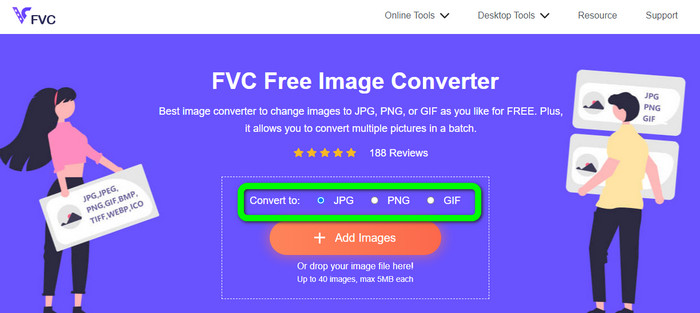
Step 1. Go to the website of FVC Free Image Converter. Go to the convert option and select your desired output format.
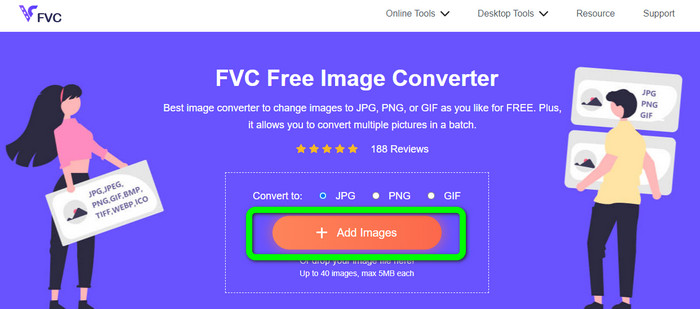
Step 2. Click the Add Images button to upload the vector image. You can drop the image into the box.
Step 3. After uploading the vector image, the tool will convert the image automatically. Then, after the conversion process, click the Download button.
Im Zusammenhang mit:
Trouble-Free Methods to Convert Images to Black and White
Best Ways on How to Convert Images to Links [Full Methods]
Teil 4. Häufig gestellte Fragen zum Konvertieren von Bildern in Vektoren
1. Was sind die verschiedenen Verwendungen von Vektorgrafiken?
Es gibt viele Gründe, warum Sie Vektordateien verwenden müssen. Wenn Sie vorhaben, Bilder zu drucken, ist es besser, das Bild in einer Vektordatei abzulegen. Neben dem Drucken eignet es sich auch perfekt für Animationen. Benutzer verwenden dies für Frame-by-Frame-Bilder, die weniger Rechenleistung benötigen. Außerdem verwenden einige Designer Vektorbilder für Werbetafeln und Werbespots.
2. Was sind die wichtigsten Arten von Vektorbildformaten?
Die primären Vektorbildformate sind Scalable Vectors Graphics (SVG), Windows Metafile (WMF), Adobe Illustrator Artwork (AI), Encapsulated PostScript (APS) und Portable Document Format (PDF).
3. Benötige ich immer eine Vektordatei, wenn ich Designarbeiten machen lasse?
Nicht immer. Es gibt Möglichkeiten, verschiedene Dateiformate zu verwenden. Aber ob Sie Vektordateien benötigen oder nicht, hängt letztendlich von der Art Ihrer Arbeit ab. Am Ende, wenn Sie Designarbeit geleistet haben, besprechen Sie Ihre Dateiformate mit Ihrem Designer. Auf diese Weise können Sie die richtigen Dateien sammeln oder generieren, wenn sie nicht verfügbar sind.
4. Wie konvertiert man ein beliebiges Bild in eine schwarz-weiße Vektorsilhouette?
Um das Bild in Schwarz-Weiß umzuwandeln, können Sie Photoshop verwenden. Gehen Sie zum Menü Datei und wählen Sie die Option Öffnen, um das Bild hinzuzufügen. Klicken Sie dann auf der oberen Oberfläche auf das Menü Bild. Wählen Sie Anpassungen > Schwellenwert. Dann öffnet sich das Threshold-Fenster. Klicken Sie dann auf OK.
Fazit
Vector images are great when using it for commercials, billboards, and more. Because of that, the article taught you the best methods on how to vectorize an image. Also, you learned how to convert vector images to other formats like JPG and PNG. If you want to vectorize an image and convert images to other formats, use FVC Free Image Converter.
-
 Leicht verständliche Möglichkeiten zum Konvertieren von PSD in PNG oder JPG
 Dieser Beitrag gibt Ihnen überschaubare Schritte zum Konvertieren von PSD in JPG oder PNG. Es gibt verschiedene Konverter, mit denen Sie Ihre Dateien konvertieren können. Lesen Sie mehr, um es herauszufinden.
-
 Getestete Methoden zum einfachen, aber professionellen Konvertieren von TGA in PNG
 Sehen Sie sich diese Anleitungen an, um zu erfahren, wie Sie TGA mit Bildkonvertern online in PNG umwandeln. Klicken Sie auf den Artikel, um alle Details zur Bildkonvertierung zu erfahren.
-
 Unvergleichliche Tutorials zum Konvertieren von Bildern in das SVG-Format
 Möchten Sie Ihre Fotos in das SVG-Dateiformat konvertieren? Dann erhalten Sie in diesem Beitrag hervorragende Konverter, die Sie online, offline und auf Mobilgeräten verwenden können.
