


 Video Converter Ultimate
 Bildschirm recorder
 Videoreparatur
 Sicherer Download
4 effektive Methoden: So reduzieren Sie die Fotodateigröße auf dem iPhone
Normalerweise müssen wir mit unseren iPhones Fotos direkt auf bestimmten Webseiten hochladen oder sie per E‑Mail oder über andere Plattformen versenden. Allerdings haben Fotos, die mit iPhones aufgenommen werden, in der Regel eine große Dateigröße, da die fortschrittlichen Kameras sehr hochauflösende Bilder erzeugen. Um die Dateigröße von Fotos auf Ihrem iPhone zu reduzieren, ohne zu viel Bildqualität einzubüßen, stellen wir Ihnen hier vier effektive Methoden vor, die Sie sich ansehen sollten. Lesen Sie weiter, um sie alle kennenzulernen!

Teil 1. Reduzieren Sie die Fotodateigröße auf dem iPhone in den Kameraeinstellungen
Die einfachste und schnellste Möglichkeit, die Dateigröße von Fotos auf dem iPhone zu verkleinern, ist über die Einstellungen‑App. Mit dieser Methode können Sie das Format für alle Fotos festlegen, die Sie mit der iPhone‑Kamera aufnehmen. Bei iPhones ist in der Regel das kompatibelste Format eingestellt, das Fotos in entsprechend großen Dateigrößen speichert. Wenn Sie jedoch Speicherplatz sparen möchten, müssen Sie das Kameraformat auf Hohe Effizienz umstellen und das HEIC‑Format deaktivieren. Diese Kameraeinstellung verringert die Bildqualität nicht, spart Ihnen aber eine Menge Speicherplatz auf Ihrem iPhone.
So können Sie die Dateigröße in den Kameraeinstellungen reduzieren:
Schritt 1. Öffnen Sie auf Ihrem iPhone die Einstellungen, suchen Sie den Eintrag Kamera und wählen Sie Formate.
Schritt 2. Wählen Sie oben auf dem Bildschirm Hohe Effizienz. Dieses Format ermöglicht Ihnen die kleinstmögliche Fotogröße, ohne die Qualität zu reduzieren.
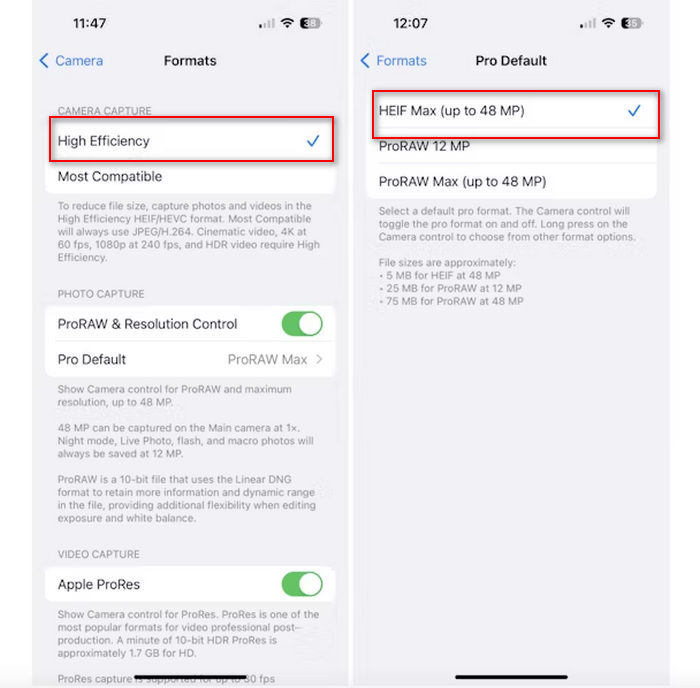
Schritt 3. Um die Größe Ihrer Bilddateien weiter zu verringern, tippen Sie auf Pro Standard und wählen Sie HEIF Max bis zu 48 MP. Dadurch wird die Fotogröße auf ungefähr 5 MB begrenzt.
Das Reduzieren der Dateigröße auf einem iPhone durch Ändern der Kameraeinstellungen kann eine gute Möglichkeit sein, Bilder zu komprimieren. Es würde jedoch einige Zeit dauern, wenn Sie die Kameraeinstellungen ändern möchten, wenn Sie auch qualitativ hochwertige Fotos aufnehmen möchten, die möglicherweise eine große Dateigröße haben.
Teil 2. Fotos auf dem iPhone durch Zuschneiden komprimieren
Zuschneiden ist eine effektive Methode, um die Größe eines Bildes auf einem iPhone zu reduzieren, da es unnötige Teile des Fotos entfernt und so die Gesamtdateigröße verringert. Wenn Sie ein Foto zuschneiden, schneiden Sie im Wesentlichen Teile des Bildes aus, die Sie nicht benötigen, wodurch Sie sich nicht nur auf die wichtigen Elemente des Bildes konzentrieren, sondern auch die in der Datei enthaltene Datenmenge reduzieren. Dies kann besonders nützlich sein, um Speicherplatz auf Ihrem iPhone zu sparen und das Teilen von Fotos auf verschiedenen Plattformen zu erleichtern.
So können Sie Fotos auf Ihrem iPhone komprimieren, indem Sie sie zuschneiden:
Schritt 1. Öffnen Sie in der App Fotos das Foto, dessen Dateigröße Sie reduzieren möchten, und tippen Sie auf Bearbeiten.
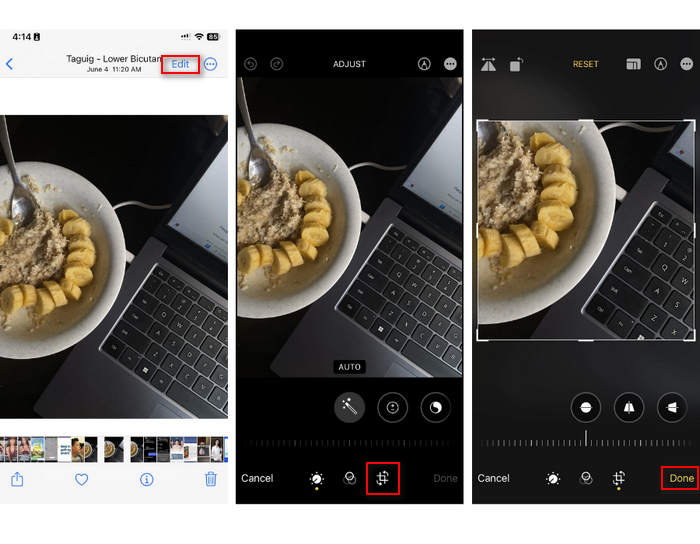
Schritt 2. Tippen Sie nun unten auf die Schaltfläche Zuschneiden und schneiden Sie die unerwünschten Teile des Fotos weg.
Schritt 3. Passen Sie den Zuschnitt nach Wunsch an und tippen Sie anschließend auf Fertig.
Dadurch kann zwar die Fotodateigröße auf einem iPhone verringert werden, diese Methode ist jedoch nicht immer anwendbar. Daher wird empfohlen, neben diesem Tool auch andere Tools zum Komprimieren von Fotos auf einem iPhone zu verwenden.
Teil 3. Reduzieren Sie die Fotodateigröße auf dem iPhone über die Social Media-App
WhatsApp ermöglicht es Nutzern, die Größe von Fotodateien zu reduzieren, die sie auf ihren iPhones gespeichert haben. Die App bietet eine Option, das Bild vor dem Senden auf eine kleinere Größe zu komprimieren. So sparen Sie Speicherplatz und können Fotos leichter teilen.
So können Sie mit WhatsApp Fotos auf Ihrem iPhone komprimieren:
Schritt 1. Öffnen Sie in WhatsApp eine Textnachricht.
Schritt 2. Tippen Sie anschließend auf das Fotosymbol und wählen Sie das Foto aus, das Sie senden möchten.
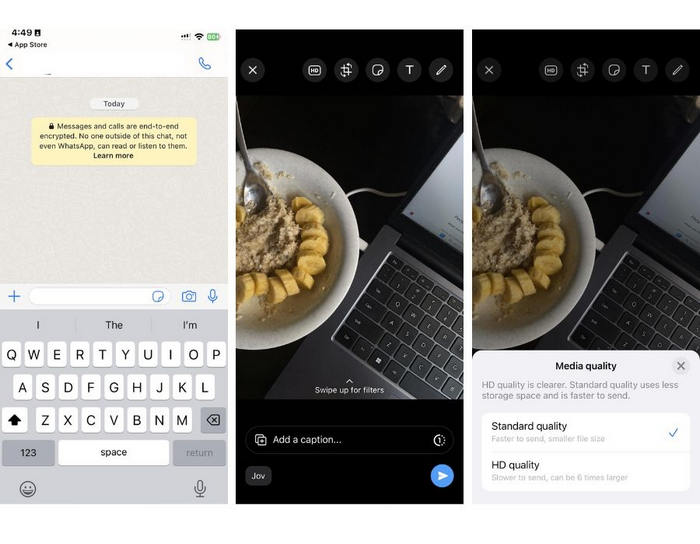
Schritt 3. Tippen Sie danach auf HD, um die Dateigröße anzupassen, und wählen Sie, dass Ihr Foto in Standardqualität gesendet werden soll.
Schritt 4. Tippen Sie auf den Pfeil, um Ihre Nachricht zu senden, und laden Sie das Foto herunter.
Diese Methode wird allen dringend empfohlen, die WhatsApp auf ihrem iPhone installiert haben. Dies ist zwar eine großartige Möglichkeit, die Fotodateigröße auf einem iPhone zu reduzieren, die Qualität des Fotos wird jedoch erheblich beeinträchtigt.
Teil 4. Fotos auf dem iPhone mit einem Online-Tool komprimieren
Wenn Sie hingegen eine direkte und besonders einfache Möglichkeit suchen, die Dateigröße von Fotos auf iPhones zu reduzieren, ist das beste Tool dafür der FVC Free Image Compressor. Sie müssen dieses Tool lediglich online aufrufen, das Foto hochladen, das Sie komprimieren möchten, und schon ist es erledigt. Außerdem können Sie mit diesem Tool mehrere Fotos direkt von Ihrem iPhone aus komprimieren und sie deutlich verkleinern, ohne im Vergleich zu den oben genannten Methoden viel von deren Qualität einzubüßen.
So können Sie Fotos auf Ihrem iPhone mit dem FVC Free Image Compressor komprimieren:
Schritt 1. Suchen Sie in Safari nach FVC Free Image Compressor.
Schritt 2. Tippen Sie auf die Schaltfläche Bilder hochladen, um die Fotos zu importieren, deren Dateigröße Sie reduzieren möchten.
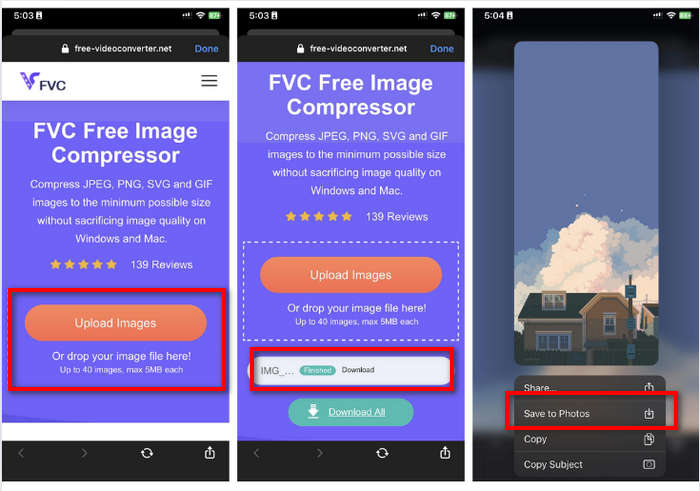
Schritt 3. Anschließend werden Ihre Fotos automatisch komprimiert. Tippen Sie auf die Schaltfläche Download, drücken Sie lange auf das komprimierte Foto und wählen Sie die Option In „Fotos“ sichern.
Mit dem kostenlosen Bildkompressor FVC können Sie die Größe von Fotodateien auf dem iPhone schnell und ohne großen Qualitätsverlust reduzieren. Darüber hinaus ist es dank seiner Zugänglichkeit und benutzerfreundlichen Oberfläche ein unverzichtbares Tool für iPhone-Benutzer, um ihre Fotos zu komprimieren.
Teil 5. Häufig gestellte Fragen zur Reduzierung der Fotodateigröße auf dem iPhone
Wie reduziere ich die Dateigröße eines JPEG, ohne an Auflösung zu verlieren?
Um die Größe eines JPEGs zu reduzieren, ohne an Auflösung zu verlieren, können Sie den kostenlosen Bildkompressor FVC verwenden. Mit diesem Online-Tool können Sie Ihre Fotos komprimieren, ohne dass die Qualität verloren geht. Laden Sie die Bilddatei einfach hoch oder importieren Sie sie in das Tool, und es komprimiert sie automatisch für Sie. Anschließend können Sie das komprimierte Foto wieder auf Ihr iPhone herunterladen.
Wie kann ich die Dateigröße von Fotos auf einem iPhone anzeigen?
Sie können die Dateigröße Ihrer Fotos in der Dateien-App Ihres iPhones sehen. Wenn sich Ihr Foto nicht in der Dateien-App befindet, müssen Sie es zuerst in Ihre iCloud hochladen. Sobald sich das Foto in iCloud befindet, können Sie seine Dateigröße anzeigen, indem Sie über die Dateien-App darauf zugreifen.
Welche Art von Fotos werden mit dem iPhone aufgenommen?
iPhones speichern Fotos standardmäßig im HEIC- oder High-Efficiency Image Coding-Format. HEIC bietet eine bessere Komprimierung als JPEG bei gleichbleibend hoher Qualität. Sie können diese Einstellung im Abschnitt „Kamera“ der App „Einstellungen“ unter „Formate“ ändern.
Fazit
Da iPhones beim Fotografieren Dateien mit großer Dateigröße erzeugen, können das Teilen und Hochladen der Bilder schwierig sein. Daher ist es sehr sinnvoll, zu lernen, wie man die Dateigröße von Fotos auf iPhones reduziert, wenn Sie Ihre Bilder für eine reibungslose Nutzung optimieren möchten. Jetzt liegt es an Ihnen, welche Methode Sie zum Komprimieren Ihrer Fotos verwenden. Worauf warten Sie noch? Komprimieren Sie Ihre Fotos jetzt auf Ihrem iPhone!
-
 So ändern Sie die Bildgröße – Adobe Resize Image [Online und Offline]
 Wenn Sie nach Adobe-Bildern zur Größenänderung suchen, haben wir die Lösung für Sie. Sehen Sie sich diesen Beitrag gründlich an, um zu erfahren, wie Sie die Bildgröße mit Adobe auf Ihrem PC ändern können.
-
 Tools für das Programm zur kreativen GIF-Größenänderung sind bequem verfügbar
 Die Größenänderung von GIFs kann eine mühsame Aufgabe sein. Verwenden Sie die richtigen Programme, um die Größe Ihrer GIFs zu ändern und Ihre Arbeit fehlerfrei zu erledigen. Weitere Informationen finden Sie in diesem Artikel.
-
 3 Möglichkeiten, die Bildgröße für Twitter zu ändern, ohne an Qualität zu verlieren
 Um die Größe des Bildes für Twitter zu ändern, müssen Sie einen Foto-Resizer in der Hand haben. Hat keine? Wählen Sie dann in der Liste aus.
