


 Video Converter Ultimate
 Bildschirm recorder
 Videoreparatur
 Sicherer Download
Erfahren Sie, wie Sie mit diesen einfachen Methoden ein Bild klarer machen
Wenn du ein Bild aufnimmst, das sich später als unscharf herausstellt, gilt das als Mangel. Und ein verschwommenes Bild ist äußerst unzufriedenstellend. Zum Glück gibt es heutzutage zahlreiche Anwendungen, mit denen du dein Bild schärfen und entunschärfen kannst. Adobe Photoshop gehört zu den bekanntesten Fotobearbeitungsprogrammen. Allerdings ist es für Einsteiger nicht sehr benutzerfreundlich. Daher stellen wir dir einfachere Methoden vor, mit denen du deine verschwommene Aufnahme in ein Bild mit hervorragender Qualität verwandeln kannst. Lies den folgenden Abschnitt, um zu erfahren, wie man ein Bild klarer macht – Schritt für Schritt und ganz leicht.

Teil 1. Wie man ein Bild online klarer macht
Durch den Einsatz von KI-Technologie gibt es jetzt viele Online-Bild-Upscaler, die Ihr Bild automatisch schärfen können. Die Verwendung von Online-Apps, um Ihr Bild klarer zu machen, ist praktisch, da Sie nichts auf Ihr Gerät herunterladen müssen. Es spart auch Speicherplatz auf Ihrem Gerät, da Sie über Ihren Browser darauf zugreifen können.
FVC Free Image Upscaler ist die bekannteste Online-Anwendung, wenn du dein Bild schärfen oder klarer machen möchtest. Dieses Tool ist leicht zu bedienen, da es über eine sehr übersichtliche Benutzeroberfläche verfügt. Außerdem kannst du die Qualität deines Bildes mit einer Vergrößerung von 2x, 4x, 6x oder 8x verbessern. Darüber hinaus verwendet FVC Free Image Upscaler KI‑Technologie (künstliche Intelligenz), die die unscharfen Bereiche deines Bildes automatisch erkennt und anschließend optimiert. So kannst du verlorene Pixel, Farbtexturen und weitere Details präzise wiederherstellen.
Darüber hinaus unterstützt es mehrere Bildformate wie PNG, JPG, JPEG und WebP. Und das Tolle an diesem Online-Tool ist, dass Sie keine Konten benötigen, um darauf zuzugreifen. Es ist außerdem kostenlos und sicher in der Anwendung. Und obwohl es sich um eine Online-App handelt, enthält sie keine lästigen Anzeigen, die Sie ablenken könnten, und sie ist schnell und effizient zu bedienen. Wenn Sie also nach einem praktischen Tool suchen, ist FVC Free Image Upscaler das beste Tool.
So machen Sie ein Bild online mit FVC Free Image Upscaler klarer:
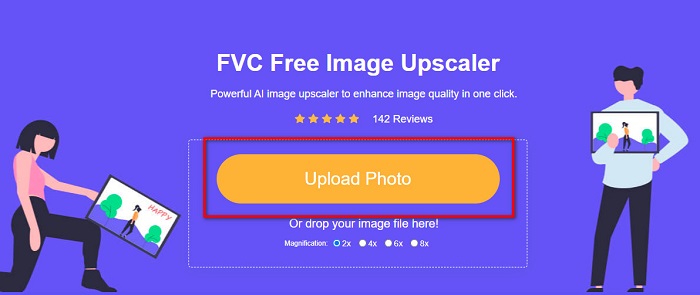
Schritt 1. Öffne auf deinem Computer deinen Browser und suche im Suchfeld nach FVC Free Image Upscaler. Oder klicke auf den bereitgestellten Link, um direkt zur Startseite der App zu gelangen. Klicke auf die Schaltfläche Upload Photo, um die App zu starten.
Schritt 2.0 Nachdem du die App gestartet hast, klicke erneut auf Upload Photo, um das Bild hinzuzufügen, das du hochskalieren/schärfen möchtest. Es öffnet sich ein Fenster mit deinen Computerdateien, in dem du dein Bild suchen und öffnen kannst.
Schritt 3. Wähle anschließend die gewünschte magnification-Voreinstellung. Je höher die Vergrößerung, desto stärker wird dein Bild geschärft. Beachte jedoch, dass mit höherer Qualität auch die Dateigröße zunimmt. Du kannst eine magnification von 2x, 4x, 6x oder 8x auswählen.
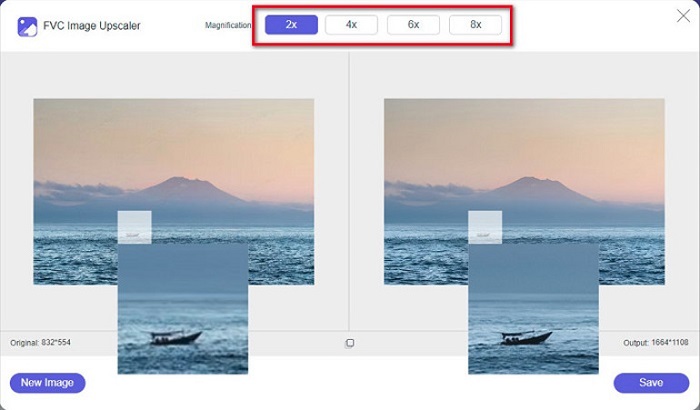
Schritt 4. Auf der rechten Seite der Benutzeroberfläche siehst du das Ergebnis. Wenn du mit deinem Ergebnis zufrieden bist, klicke auf die Schaltfläche Save, um das Bild auf deinem Gerät zu speichern.
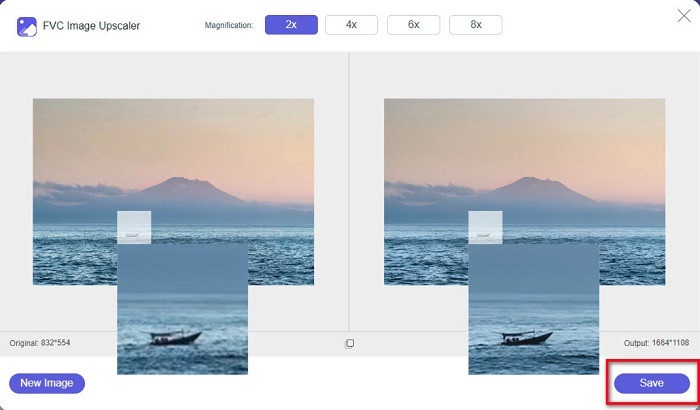
Warten Sie einfach, bis Ihr Bild gespeichert ist, und voila! Sie können Ihr tolles Foto jetzt mit Freunden oder auf anderen Social-Media-Plattformen teilen.
Teil 2. Wie man ein Bild offline klarer macht
Es ist auch gut, eine Offline-Anwendung zu verwenden, wenn Sie Ihr Bild schärfen oder bearbeiten möchten. Viele Fotobearbeitungsanwendungen sind offline; Sie müssen sie kaufen, bevor Sie sie verwenden. Aber keine Sorge; In diesem Teil stellen wir Ihnen ein kostenloses Offline-Tool zur Verfügung, das Sie auf Ihrem Desktop verwenden können.
Paint.net gehört zu den beliebtesten kostenlosen und sicheren Fotobearbeitungsprogrammen. Dieses Offline‑Tool besitzt eine deutlich einfachere Benutzeroberfläche als Adobe Photoshop, das von vielen Profis verwendet wird. Trotz der schlichten Oberfläche kann es hervorragende Ergebnisse liefern und ermöglicht es dir, dein verschwommenes Bild zu schärfen. Zusätzlich bietet es weitere Bearbeitungsfunktionen, mit denen du dein Bild verbessern kannst. Mit Paint.net kannst du dein Bild schärfen, Farben korrigieren und einen Hintergrund hinzufügen.
Darüber hinaus können Sie durch Bewegen des Schiebereglers die Schärfe Ihres Bildes auswählen und die verschwommenen Teile davon entfernen. Es ist jedoch nur auf Windows-Geräten verfügbar. Wenn Sie jedoch ein Bild beim Schärfen vergrößern möchten, können Sie Paint.net verwenden.
So machen Sie ein Bild mit Paint.net größer und klarer:
Schritt 1. Lade Paint.net zunächst auf deinen Desktop herunter, installiere es und öffne das Programm nach der Installation. Lade dann dein Bild hoch, indem du auf File > Open klickst.
Schritt 2. Gehe anschließend zu Effects > Photo > Sharpen. Es öffnet sich ein weiteres Fenster, in dem du die Schärfe deines Bildes anpassen kannst, um es zu entunschärfen.
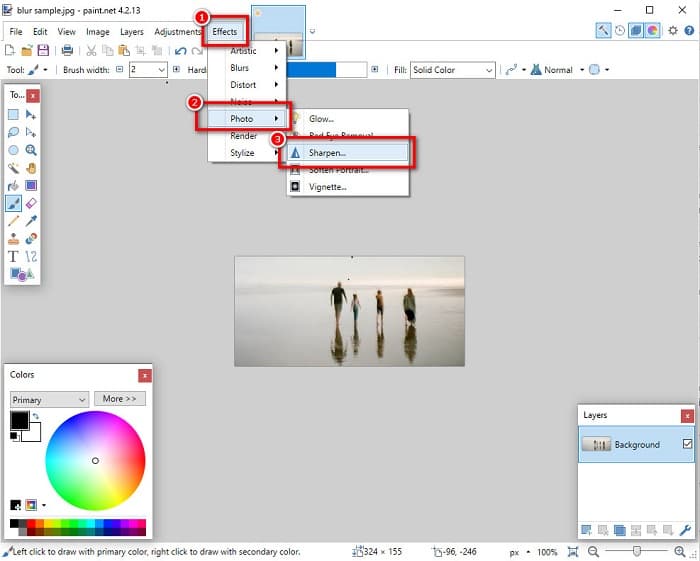
Schritt 3. Bewege im Reiter Sharpen den Schieberegler, um die gewünschte Schärfe deines Bildes festzulegen. Du kannst außerdem auf die Pfeile nach oben/unten klicken, um den Schärfewert numerisch auszuwählen.
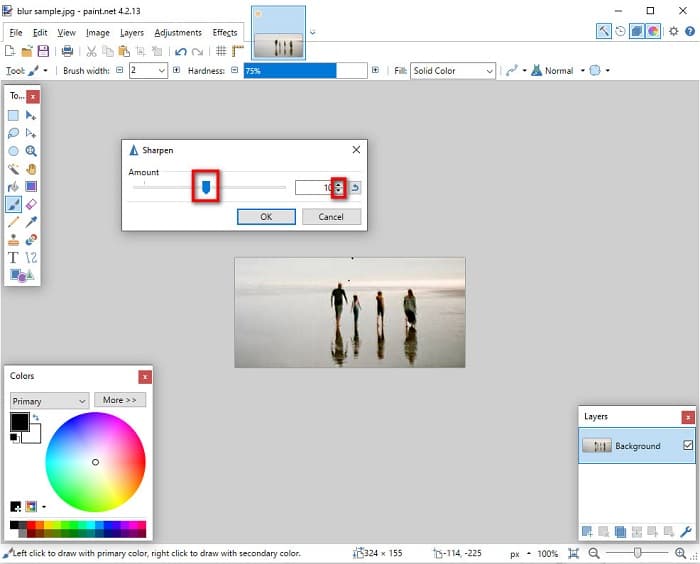
Schritt 4. Klicke zum Schluss auf die Schaltfläche OK und gehe zu File > Save, um dein Ergebnis auf deinem Desktop zu speichern.
Teil 3. So machen Sie ein Bild auf Ihrem iPhone klarer
Und wenn Sie mit Ihrem iPhone ein verschwommenes Bild aufgenommen haben, können Sie auch eine Unschärfe-App für Ihr iPhone-Gerät verwenden. Zahlreiche Bildbearbeitungs-Apps, die Sie aus dem AppStore herunterladen können, können Ihnen dabei helfen, Ihr Bild unscharf zu machen. Allerdings sind nicht alle Apps kostenlos nutzbar; Sie müssen sie kaufen, bevor Sie sie verwenden. Glücklicherweise haben wir im AppStore eine App zum Entschärfen von Bildern gefunden, die kostenlos verwendet werden kann. Lesen Sie diesen Abschnitt vollständig durch, um zu erfahren, wie Sie ein Bild auf Ihrem iPhone-Gerät klarer machen.
Wenn du dich fragst, welche kostenlose Fotobearbeitungs-App dir beim Entschärfen eines Bildes helfen kann, ist VSCO genau die App, die du suchst. VSCO ist eine bekannte Fotobearbeitungsanwendung, die im App Store heruntergeladen werden kann. Wenn du ein Bild mit VSCO entunschärfst, gibt es einige Einstellungen, auf die du besonders achten musst. Um dein Foto mit VSCO zu entunschärfen, solltest du vor allem die Klarheit, Schärfe und Belichtung deines Bildes anpassen. VSCO verfügt außerdem über weitere Bearbeitungstools, mit denen du deine Bilder optimieren kannst. Zudem unterstützt es die gängigsten Bildformate des iPhones, wie HEIC und HEIF. Ein kleiner Nachteil dieser App ist, dass sie nur wenige Bildformate unterstützt und du ein Upgrade kaufen musst, um auf weitere Bearbeitungsfunktionen zugreifen zu können.
So machen Sie ein Bild auf dem iPhone mit VSCO klarer:
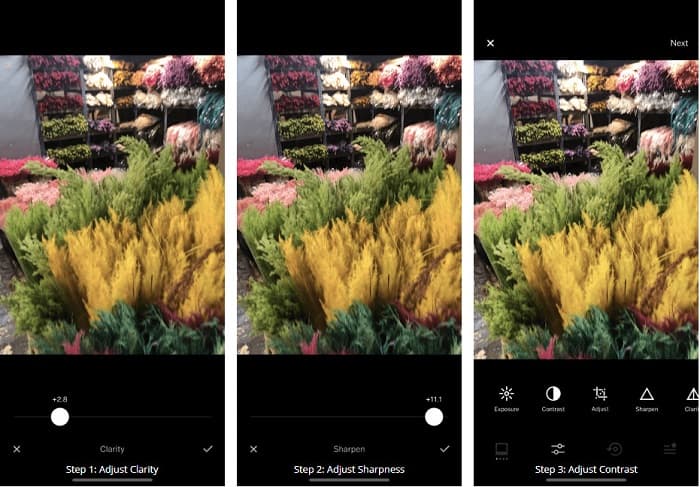
Schritt 1. Installiere VSCO aus dem App Store und öffne die App anschließend auf deinem iPhone.
Schritt 2. Öffne dein Bild und gehe dann zu Clarity. Die Option Clarity hilft dir, grobkörniges Rauschen in deinem Bild zu entfernen. Bewege einfach den Clarity‑Schieberegler etwas unterhalb der Benutzeroberfläche.
Schritt 3. Als Nächstes passen wir die Schärfe deines Bildes an. Die Funktion Sharpen hilft dir, die gewünschte Knackigkeit in dein Bild zu bringen. Durch Bewegen des Sliders kannst du die gewünschte Schärfestufe für dein Bild auswählen.
Schritt 4. Wenn du mit der Bearbeitung von Klarheit und Schärfe fertig bist, stellen wir nun den Kontrast ein. Bewege die Option Contrast und den Contrast slider, um den gewünschten Helligkeits- und Dunkelheitsgrad für dein Bild zu bestimmen.
Schritt 5. Zum Schluss passen wir nun die Exposure deines Fotos an, um es etwas aufzuhellen. Eine höhere Belichtung hilft dir, die Dunkelheit mit dem Kontrast auszugleichen. Und das war’s! Durch das Anpassen dieser Funktionen kannst du dein verschwommenes Bild entunschärfen. Klicke hier, um zu erfahren, wie man ein Bild auf einem iPhone in der Größe ändert.
Teil 4. So machen Sie ein Bild auf Ihrem Android klarer
Es gibt auch Apps auf Android, mit denen Sie ein Bild klarer machen können. Wenn Sie also ein verschwommenes Bild in Ihrer Galerie speichern möchten, kann Ihnen diese App dabei helfen, Ihr Bild zu verbessern. Lesen Sie diesen Teil, um zu erfahren, wie Sie ein Bild auf Ihrem Android-Gerät unscharf machen.
Die Remini-App (für Android) ist wahrscheinlich eine der besten Fotobearbeitungs-Apps, die du auf deinem Android-Gerät verwenden kannst. Mit dieser App kannst du dein Bild bearbeiten und sogar ein verschwommenes Bild entunschärfen. Außerdem ist sie einfach zu bedienen und kostenlos. Mit der Option „Enhance“ kannst du dein Bild klarer machen. Allerdings musst du zuerst ein Konto erstellen, bevor du die App verwenden kannst. In der Pro-Version erhältst du Zugriff auf die erweiterten Entschärfungsfunktionen dieser App.
So machen Sie ein Bild mit Remini für Android unscharf:
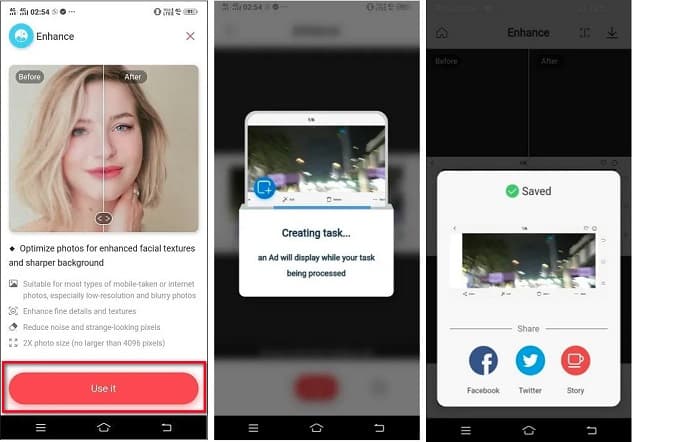
Schritt 1. Installiere Remini auf deinem Android-Gerät. Öffne die App sofort nach der Installation. Tippe auf der Hauptoberfläche der App auf die Schaltfläche Use it, um mit dem Entschärfen deines Bildes zu beginnen.
Schritt 2. Wähle dann das Bild aus und tippe auf die rote Schaltfläche am unteren Rand der Benutzeroberfläche. Es wird ein Auftrag erstellt, und während der Verarbeitung wird eine Werbeanzeige angezeigt.
Schritt 3. Danach erscheint das Endergebnis, bei dem du dein Bild vorher und nachher vergleichen kannst. Wenn du mit deinem Ergebnis zufrieden bist, speichere dein Bild.
Teil 5. FAQs darüber, wie man ein Bild klarer macht
Kann ich GIMP verwenden, um ein Bild unscharf zu machen?
Ja. GIMP ist eine erstaunliche Fotobearbeitungssoftware, mit der Sie Ihr Bild unscharf machen können. Sie können diese App auch auf Ihr Windows-Gerät herunterladen.
Erhöht das Entschärfen eines Bildes die Dateigröße?
Ja. Ein Bild unscharf zu machen bedeutet, die Qualität und Auflösung Ihres Bildes zu erhöhen. Wenn die Auflösung zunimmt, nimmt auch die Dateigröße Ihres Bildes zu.
Mit welcher App kann ich mein Bild unkenntlich machen?
YouCam Perfect ist eine Anwendung, mit der Sie Ihr Bild verwischen können. Mit seiner KI-Technologie können Sie Ihr Bild sofort unkenntlich machen.
Fazit
In diesem Beitrag hast du alles gelesen, was du über wie man ein Bild klarer macht wissen musst. Wenn du also nach Anwendungen suchst, mit denen du ein Bild entunschärfen kannst, helfen dir die oben genannten Methoden bei deinem Ziel. Wenn du jedoch lieber ein Online-Tool mit einer leicht zu bedienenden Oberfläche verwenden möchtest, nutze FVC Free Image Upscaler.
-
 Factual PicResize Review, das Sie dieses Jahr 2022 kennen müssen
 Möchten Sie wissen, ob PicResize die beste Option zum Bearbeiten von Bildern ist? Lesen Sie diesen Artikel, während wir das gesamte Tool überprüfen.
-
 Alles, was Sie über Waifu2x und Alternative wissen müssen
 Möchten Sie mehr über das Waifu2x wissen? Dieser Artikel enthält die Informationen, die in dieser App und ihrer Alternative hervorgehoben werden müssen.
-
 So optimieren Sie Bilder für das Web mit den besten Lösungen [Schnell]
 Wie optimiert man das Bild für das Web? Sie benötigen eine zuverlässige Software und ein Tutorial; alle Informationen sind hier.
