


 Video Converter Ultimate
 Bildschirm recorder
 Videoreparatur
 Sicherer Download
6 effektivste Methode, um die Größe eines Bildes im Web und auf dem Desktop zu ändern
Mit Milliarden prestigeträchtiger Fotografien, die wir herunterladen können, machen die meisten von uns schöne Bilder, aber es gibt Fälle, in denen ihre Größe nicht das ist, was wir am meisten bevorzugen. Benutzer versuchten, die Größe des Bildes zu ändern, indem sie die Höhe, Breite und das Seitenverhältnis des Bildes mit dem Editor anpassten, wodurch sich der PPI des Bildes änderte. Das Ergebnis ist nicht das, was jeder erwartet hat; Hochauflösende Bilder werden pixelig.
Warum? Weil der Editor, den sie zum Vergrößern oder Verkleinern verwendet haben, keine neuen Pixel erzeugen oder die Lücken in der skalierten Version ausfüllen kann. Daher wurden Fragen zu diesem Thema immer häufiger, und wir sind hier, um Ihnen bei der Lösung des Problems zu helfen. In diesem Blogbeitrag erhalten Sie praktische Erfahrung darin, wie man ein Bild skaliert, ohne dass Verzerrungen im Endergebnis zurückbleiben.

Teil 1. Die besten Foto-Resizer, auf die Sie im Web zugreifen können, um die Bildgröße online zu ändern [3 kostenlose Tools]
Diese Online-Tools, die wir hier hinzufügen, sind in verschiedenen Webbrowsern verfügbar, die Sie auf Ihrem Gerät haben. Auch diese sind kostenlos, aber es gibt ein Tool, das Sie kaufen müssen, um es ohne Einschränkungen nutzen zu können. Dennoch sind dies leistungsfähige Online-Tools, auf die Sie zugreifen können, um mit der Größenänderung des Bildes zu beginnen, das Sie haben. Lesen Sie die Schritte, um zu erfahren, wie Sie sie verwenden.
1. FVC-freier Bild-Upscaler – Bester Bild-Resizer im Web [günstige Option]
Mit dem FVC Free Image Upscaler Online steht Ihnen ein KI-gestütztes Webtool zur Verfügung, das Bilder schnell und ohne Qualitätsverlust vergrößern oder verkleinern kann. Das Onlinetool passt jedes Bild, das Sie hier hochladen, automatisch an. Trotz seiner Online-Natur ist die Leistung beim Skalieren schnell und effizient. Jedes Bild, das Sie hier hochladen, wird nach der Größenänderung automatisch vom Server gelöscht. Außerdem verfügt das Tool über den saubersten und vielseitigsten Resizer, den Sie je brauchen werden; selbst wenn Sie unterschiedliche Geräte benutzen, können Sie darauf zugreifen, solange Sie eine Internetverbindung haben. Möchten Sie sehen, wie dieses Programm bei dieser Aufgabe abschneidet? Dann lesen Sie die folgenden Schritte und befolgen Sie sie, um die Bildgröße schnell und effektiv zu ändern.
So ändern Sie die Bildgröße mit FVC Free Image Upscaler:
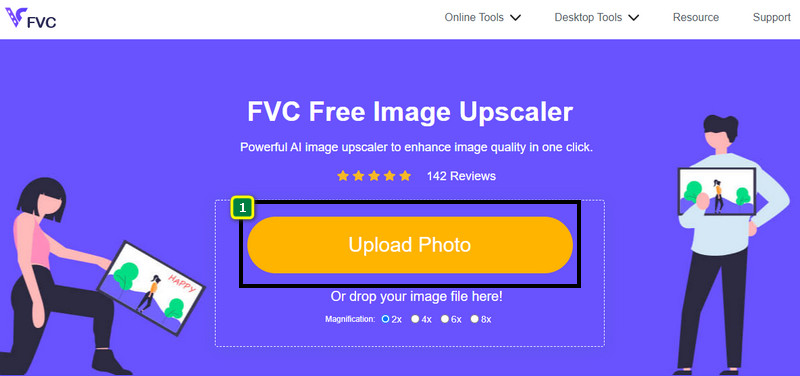
Schritt 1. Um auf das Webtool zuzugreifen, können Sie auf diesen Link klicken, der Sie automatisch zur offiziellen Website des Resizers führt.
Schritt 2. Klicken Sie auf Add Image, damit ein Ordner auf Ihrem Bildschirm erscheint, wählen Sie die Bilddatei aus, die Sie hochladen möchten, und klicken Sie auf Open.
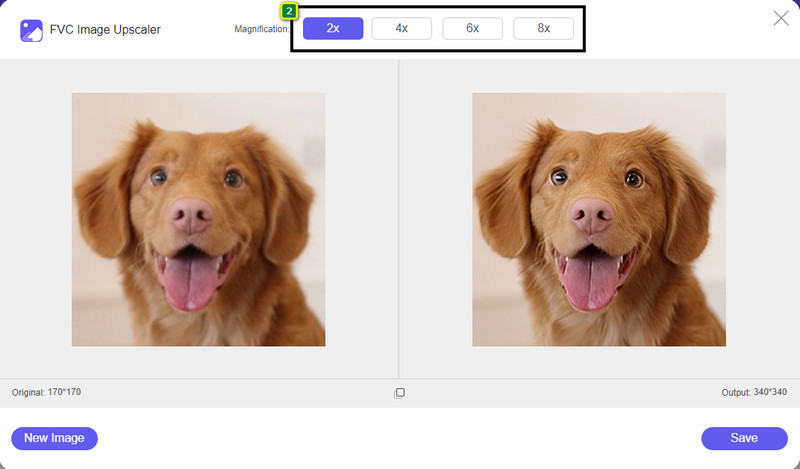
Schritt 3. Um die Bildgröße zu ändern, müssen Sie auswählen, welche Vergrößerung Sie auf Ihr Bild anwenden wollen. Sie sehen, dass sich die Gesamtmaße des Bildes ändern, sobald Sie 2x, 4x, 6x oder 8x anklicken.
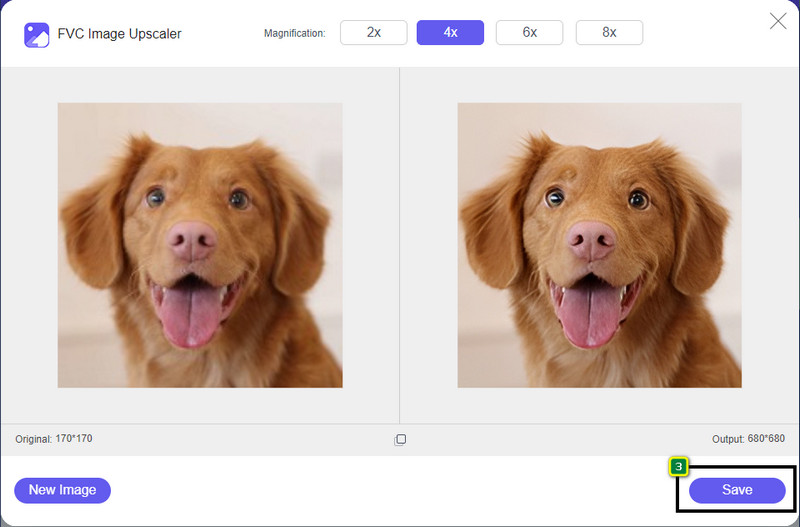
Schritt 4. Nachdem Sie die gewünschte Vergrößerung ausgewählt haben – voilà –, können Sie nun auf Save klicken, um die skalierte Version auf Ihrem Desktop-Laufwerk herunterzuladen.
2. Be Funky - Bildbearbeitung [kostenlos und kostenpflichtig]
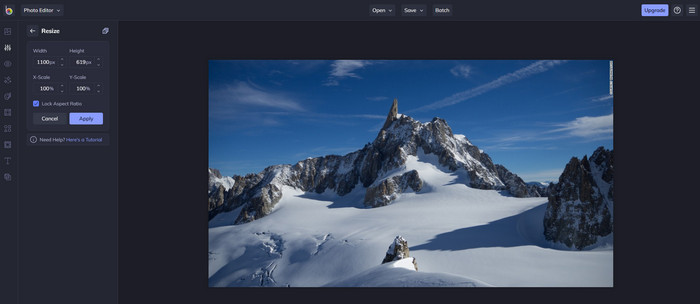
Be Funky – Photo Editor ist eine kreative Plattform, mit der Sie außergewöhnliche Ergebnisse bei Ihren Bildern erzielen können. Sie kann BMP-Bilder ohne Qualitätsverlust skalieren. Dieses Tool gilt als einer der besten Online-Bildeditoren, auf die Sie im Web zugreifen können. Obwohl es eine ähnliche Benutzeroberfläche wie Photoshop hat, sind die Funktionen schlicht und leicht verständlich, sodass man sagen kann, dass es sehr benutzerfreundlich ist. Wenn Sie dieses Onlinetool ausprobieren möchten, um Ihr Bild mühelos zu skalieren, folgen Sie den von uns aufgeführten Schritten.
So ändern Sie die Bildgröße mit Be Funky:
Schritt 1. Suchen Sie den Namen in Ihrem Webbrowser und klicken Sie dann auf Get Started and Edit Photo.
Schritt 2. Drücken Sie Open, um das BMP- oder ein anderes Bild hochzuladen, das Sie hier skalieren möchten.
Schritt 3. Gehen Sie zu Edit und klicken Sie auf die Option Resize.
Schritt 4. Hier können Sie Breite und Höhe bzw. die x- und y-Skalierung des Bildes frei ändern. Drücken Sie anschließend Apply, um zu sehen, wie die skalierte Version aussieht.
3. Einfacher Bildgrößenveränderer [kostenlos]
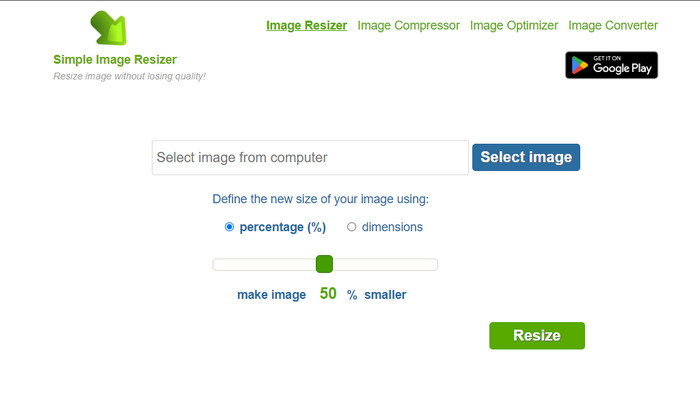
Simple Image Resizer ermöglicht es Ihnen, ein Bild zu skalieren, indem Sie die neue Größe über Prozentangaben oder konkrete Maße definieren. Es ist der letzte Bild-Resizer, den wir in diesen Artikel aufgenommen haben. Die einfache Benutzeroberfläche und leichte Bedienbarkeit waren die Hauptgründe, warum wir ihn hinzugefügt haben. Zusätzlich zur Größenänderung können Sie Ihr Bild hier kostenlos optimieren, komprimieren und konvertieren – allerdings mit störender Werbung auf der Website. Wenn Sie diesen Online-Resizer ausprobieren möchten, folgen Sie den nachstehenden Schritten.
So ändern Sie die Bildgröße mit Simple Image Resizer:
Schritt 1. Suchen Sie den Namen des Tools in Ihrem Webbrowser, um diesen Web-Resizer zu verwenden.
Schritt 2. Drücken Sie Select Image, um das Foto hinzuzufügen, dessen Größe Sie hier ändern möchten.
Schritt 3. Wählen Sie, ob Sie die Größe über Prozentangaben oder genaue Maße ändern möchten, und passen Sie diese entsprechend an. Beide Methoden führen zum gleichen Ergebnis.
Schritt 4. Klicken Sie auf Resize, um das Endergebnis auf Ihrem Desktop zu speichern.
Teil 2. So ändern Sie die Größe eines Bildes unter Windows und Mac [kostenpflichtig und kostenlos offline]
Im Gegensatz zu den ersten 3 genannten Online-Tools sind die nächsten von uns vorgestellten Tools nicht internetabhängig, was bedeutet, dass Sie sie auch ohne Internet problemlos verwenden können. Denn sie sind herunterladbar oder bereits auf Ihrem Desktop vorinstalliert. Erfahren Sie, wie Sie sie noch heute verwenden, indem Sie die Informationen lesen, die wir jedem von ihnen hinzufügen.
1. Adobe Photoshop [Windows & Mac]
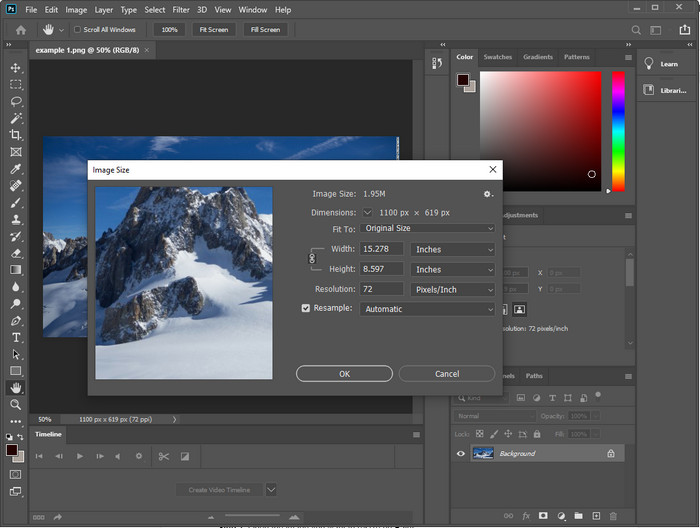
Unsere erste Wahl unter den Offline-Bild-Resizern, die Sie auf Ihr Gerät herunterladen können, ist Adobe Photoshop. Warum? Weil das Programm beim Skalieren neue Pixelinformationen erzeugt und so ein minderwertiges Ergebnis am Ende des Prozesses vermeidet. Außerdem ist diese Software als professioneller Bildeditor bekannt, der Raster- und Vektorbilder mühelos verarbeiten kann. Auch wenn es sich um ein Profiwerkzeug handelt, ist der Kauf etwas überdimensioniert, wenn Sie es nur zum Skalieren nutzen wollen. Wenn Sie jedoch daran interessiert sind, wie man in Photoshop ein Bild skaliert, lesen Sie weiter.
So ändern Sie die Bildgröße mit Adobe Photoshop:
Schritt 1. Laden Sie die Software von der offiziellen Website herunter und installieren Sie sie auf Ihrem Desktop.
Schritt 2. Klicken Sie auf File und suchen Sie im Ordner nach dem Bild, nachdem Sie auf Open geklickt haben.
Schritt 3. Drücken Sie oben im Menü auf Image und wählen Sie dann Image Size.
Schritt 4. Ändern Sie die Maße für Width und Height entsprechend Ihren Vorstellungen und klicken Sie dann auf OK, um die Änderungen zu übernehmen.
Schritt 5. Gehen Sie zurück zu File und speichern Sie das Bild auf Ihrem Desktop.
2. Malen [Standard-App unter Windows]
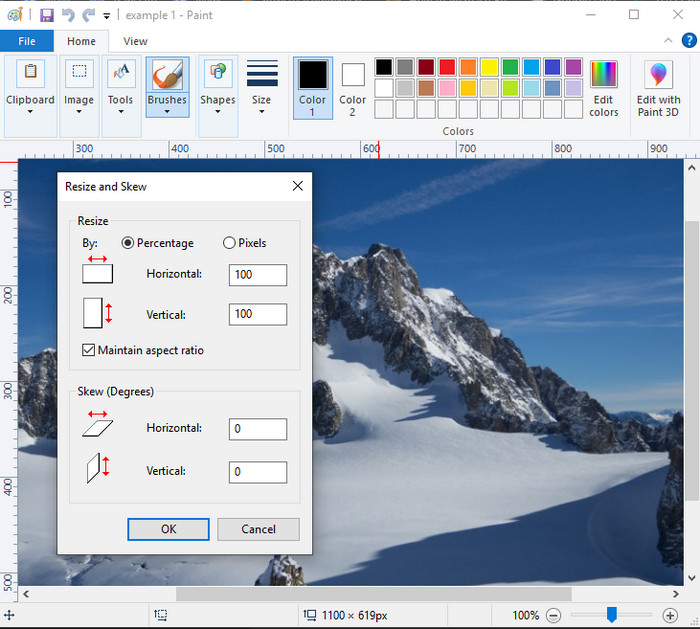
Paint ist als Anwendung bekannt, mit der Sie auf einer leeren Leinwand zeichnen können. Unterschiedliche Windows-Nutzer verwenden es in der Regel, um etwas auf einer leeren Seite zu erstellen, Details zu Bildern hinzuzufügen und diese nach Bedarf zu skalieren. Obwohl es kein spezialisierter Editor ist, kann es dennoch jedes Rasterbild auf Ihrem lokalen Laufwerk skalieren. Der Vorteil ist, dass Sie die Software unter Windows nicht herunterladen müssen, da sie vorinstalliert ist. Wenn Sie also wissen möchten, wie man niedrig aufgelöste Bilder mit dieser App skaliert, lesen Sie das folgende Tutorial.
So ändern Sie die Bildgröße mit Paint:
Schritt 1. Öffnen Sie das Bild, dessen Größe Sie ändern möchten, in Paint.
Schritt 2. Nachdem Sie das Bild geöffnet haben, klicken Sie auf das Symbol mit den zwei Quadraten, um mit der Größenänderung des Bildes zu beginnen.
Schritt 3. Zum Skalieren des Bildes können Sie die Größe in Prozent oder in Pixeln ändern. Nachdem Sie die Werte angepasst haben, drücken Sie OK, um die Änderungen zu übernehmen.
Schritt 4. Klicken Sie auf das Speichern-Symbol, um das hier skalierte Bild zu exportieren.
3. Vorschau [Standard-App auf Mac]
Preview ist eine integrierte App, auf die Sie sich verlassen können, wenn Sie lernen möchten, wie man auf einem Mac ein Bild skaliert. Wenn Sie keine zusätzliche Anwendung auf Ihrem macOS installieren möchten, sollten Sie diese App verwenden. Sie ist eine unterschätzte Lösung, kann aber Ihre Fotos direkt auf dem Desktop skalieren. Wenn Sie lernen, wie man sie nutzt, kann das für Sie ein großer Vorteil sein, um das volle Potenzial dieser Software auszuschöpfen. Wenn Sie daran interessiert sind, wie dieses Tool funktioniert, lesen Sie die folgenden Informationen.
So ändern Sie die Bildgröße mit Preview:
Schritt 1. Klicken Sie mit der rechten Maustaste auf das Bild auf Ihrem Mac, wählen Sie Open with und dann Preview.
Schritt 2. Klicken Sie oben auf Tools und wählen Sie anschließend Adjust Size.
Schritt 3. Ändern Sie die Bildmaße entsprechend Ihren Anforderungen und drücken Sie dann OK, um die vorgenommenen Änderungen zu speichern.
Teil 3. Zusätzlich: Top Image Resizer, den Sie auf Android und iPhone herunterladen können
1. Foto- und Bildgrößenanpassung [Android]
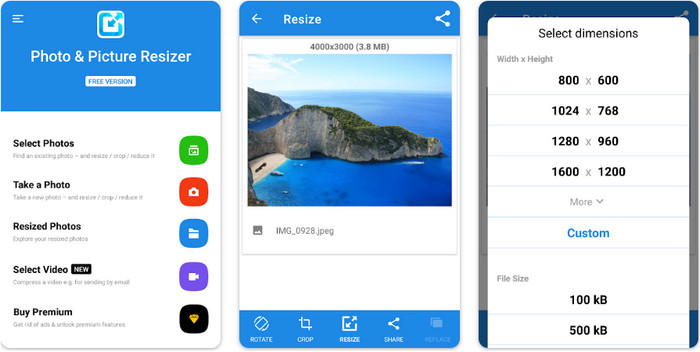
Photo & Picture Resizer ist eine der schnellsten und einfachsten Möglichkeiten, Bilder auf Ihrem Android-Gerät zu skalieren. Selbst unerfahrene Nutzer, die nur die Bildgröße ändern möchten, können diese App herunterladen und als Bild-Resizer verwenden. Die App ist kostenlos; wenn Sie jedoch zusätzliche Funktionen nutzen wollen, müssen Sie dafür bezahlen. Insgesamt sind die Funktionen zur Größenänderung hervorragend, und Sie können sie schon beim ersten Versuch sicher beherrschen.
2. Image Resizer Free [iPhone]
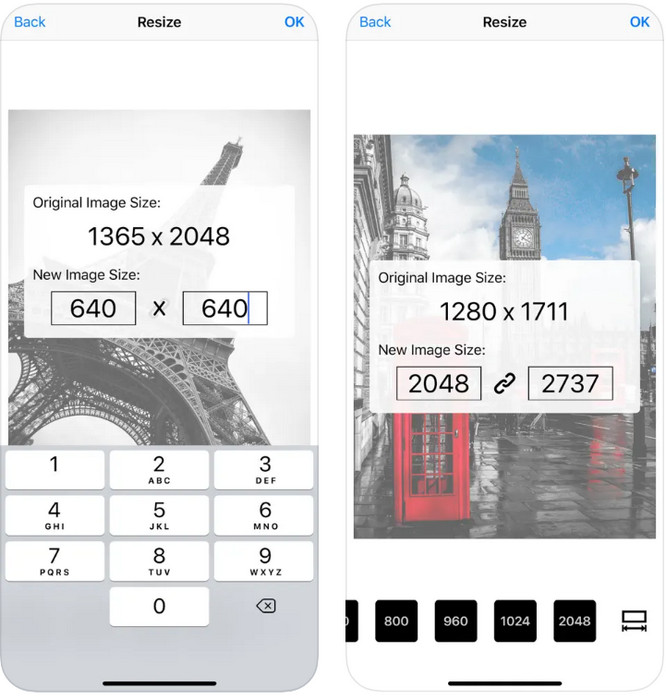
Image Resizer Free ist eine iOS-basierte Anwendung, die Sie auf iOS 7.0 oder höher herunterladen können. Diese Anwendung ist ein gezielt auf Bildgrößenänderung ausgerichteter Resizer, den viele iOS-Nutzer verwenden. Sie bietet keine Zusatzfunktionen über ihre Hauptaufgabe – das Skalieren – hinaus. Obwohl das Tool benutzerfreundlich ist, bemängeln viele Nutzer, dass es das Originalbild nicht durch die skalierte Version überschreiben kann.
Teil 4. Häufig gestellte Fragen zum Ändern der Bildgröße
Welches Format lässt sich besser skalieren, Raster oder Vektor?
Rasterformate bestehen aus winzigen Pixeln, um das Erscheinungsbild des Bildes zu erzeugen, und wenn Sie seine Größe oder Abmessung ändern, werden diese Pixel gestreckt und sichtbar. Anders als bei der Größenänderung des Vektorbildes ist es speziell für die Größenänderung und Hochskalierung des Bildes gedacht, ohne dass es durcheinander kommt.
Kann ich die Größe von BMP online ändern?
Ja, Sie können die Größe des BMP mit der Online-Lösung ändern, die wir hier hinzufügen. Wenn Sie das Bild jedoch vergrößern, neigt BMP dazu, verpixelt zu werden, da es sich um Rasterbilder handelt. Wenn Sie also das Problem der Größenänderung der BMP-Datei vermeiden möchten, wählen Sie besser den FVC Free Image Upscaler Online, da er keine Pixelierung auf der endgültigen Ausgabe der BMP-Datei mit geänderter Größe hinterlässt.
Erhöht sich die Dateigröße nach der Größenänderung des Bildes?
Ja tut es. Hauptsächlich, weil das Bild, dessen Größe Sie geändert haben, der tatsächlichen Ausgabe zusätzliche Pixeldaten hinzufügt. Die Dateigröße unterscheidet sich jedoch nicht wesentlich von der ursprünglichen Dateigröße.
Fazit
Welche Technik zur Bildgrößenänderung passt Ihrer Meinung nach am besten zu Ihnen? Wählen Sie aus den Resizern, die wir hier vorgestellt haben. Wenn Sie aufgrund Ihrer Internetverbindung Schwierigkeiten bei der Auswahl haben, empfehlen wir Ihnen besonders den FVC Free Image Upscaler Online aufgrund seiner Skalierungsleistung. Mit diesem Online-Resizer ist die Größenänderung eines Bildes völlig unkompliziert.
-
 1440p-Bild – All-Inclusive-Informationen, die Sie benötigen [2022 aktualisiert]
 Möchten Sie mehr über 1440p-Bilder erfahren? Oder wo bekommt man das? Drehen Sie Ihr Bild auf 1440p? Lesen Sie dies, um sie alle kennenzulernen.
-
 Tutorial zum Entpixeln eines Bildes mit dem 3 Best Photo Unpixelator
 Haben Sie Probleme mit verpixelten Bildern? Heute haben wir das Problem gelöst und Sie können die Tools verwenden, die wir hier hinzufügen.
-
 So schärfen Sie das Bild im Foto auf 3 Arten [Kurzanleitung]
 Problem mit dem unscharfen Bild? Hier stellen wir Ihnen vor, wie Sie Bilder in Photoshop mithilfe der drei hinzugefügten Methoden schärfen.
