


 Video Converter Ultimate
 Bildschirm recorder
 Videoreparatur
 Sicherer Download
So konvertieren Sie MP3 mühelos in einen Klingelton auf dem iPhone
Findest du die Standardklingeltöne auf deinem iPhone nicht besonders gelungen und würdest dir wünschen, einen aus deinen MP3-Dateien als iPhone-Klingelton zu verwenden? Was wäre, wenn wir dir sagen würden, dass es möglich ist, auf dem iPhone MP3 in einen Klingelton zu konvertieren?
In diesem Artikel erfahren Sie 3 verschiedene Möglichkeiten, wie Sie Ihre MP3-Musikdateien auf Ihrem iPhone in einen Klingelton umwandeln können. Die Konvertierung ist etwas knifflig, aber mit dem richtigen Tool und der richtigen Methode wird es für Sie so einfach und bequem wie möglich. Worauf warten Sie noch? Lassen Sie uns loslegen!

Teil 1. MP3 in Klingelton für iPhone auf Mac/Windows umwandeln
Eine der einfachsten und schnellsten Methoden, MP3 in einen Klingelton auf dem iPhone zu konvertieren, ist die Verwendung des von FVC empfohlenen Video Converter Ultimate auf deinem Windows- oder macOS-Computer. Dieses All-in-One-Konvertierungstool unterstützt bis zu 300 verschiedene Formate, einschließlich des M4R-Formats, was es zu einem zuverlässigen Werkzeug macht, um MP3-Musikdateien in einen iPhone-Klingelton zu verwandeln. Außerdem ist dieser Konverter bis zu 120-mal schneller als andere Konvertertools, sodass der Konvertierungsprozess schnell und mühelos abläuft.
So verwendest du den von FVC empfohlenen Video Converter Ultimate, um deine MP3-Datei in einen Klingelton zu konvertieren:
Schritt 1. Lade das Tool zunächst auf deinen Computer herunter und installiere es – entweder unter Windows oder auf dem Mac.
Schritt 2. Starte das Tool und klicke in der Hauptoberfläche auf die Schaltfläche Dateien hinzufügen. Dadurch kannst du die MP3-Datei importieren, die du in einen iPhone-Klingelton umwandeln möchtest.
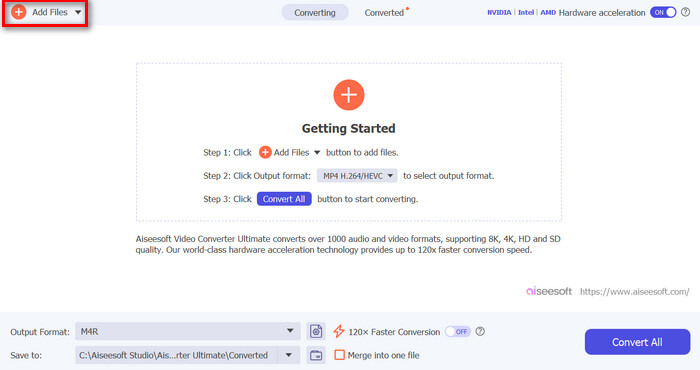
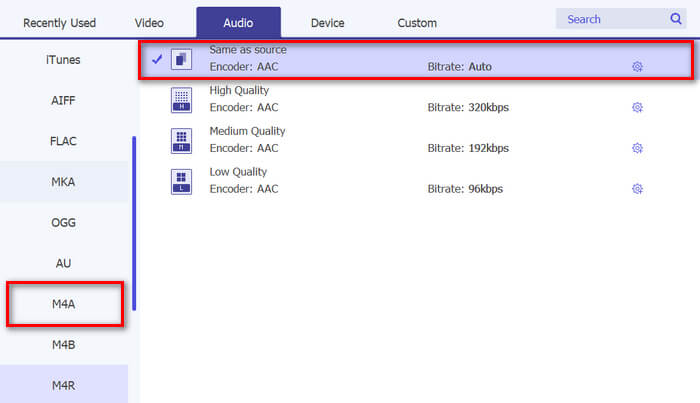
Schritt 3. Gehe nun zu Ausgabeformat und wähle aus der Liste der verfügbaren Audioformate M4R aus. M4R ist das Dateiformat für iPhone-Klingeltöne.
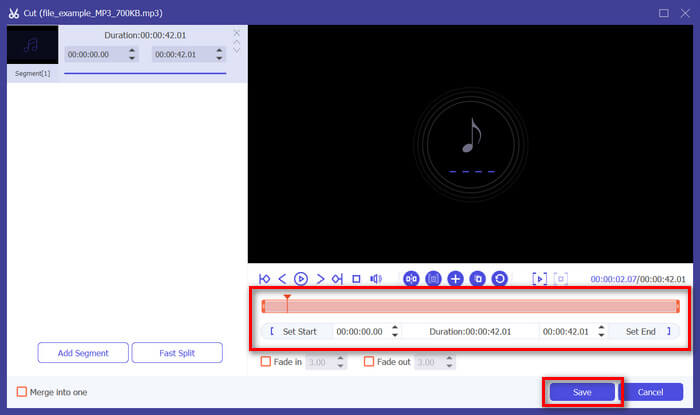
Schritt 4. Stelle anschließend sicher, dass deine MP3-Datei nur 30 Sekunden lang ist. Wenn sie länger ist, klicke auf die Schaltfläche Schneiden und passe die Länge deiner Datei an, indem du den Balken in der Zeitleiste verschiebst oder die Endzeit manuell auf 30 Sekunden setzt.
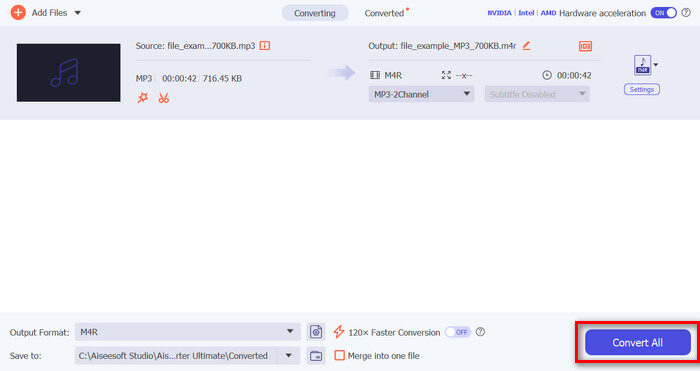
Schritt 5. Klicke nun auf die Schaltfläche Alle konvertieren, um mit der Konvertierung deiner MP3-Dateien in iPhone-Klingeltöne zu beginnen. Die konvertierten Dateien werden direkt in einem Ordner auf deinem Computer gespeichert.
Das geht doch schnell, oder? Es ist wirklich unglaublich, wie einfach und schnell dieses von FVC ausgewählte Video Converter Ultimate-Tool die Konvertierung von MP3 in einen iPhone-Klingelton macht. Wenn Sie also nach einem Konvertierungstool suchen, mit dem Sie Zeit sparen können, probieren Sie dieses Tool jetzt aus.
Teil 2. MP3 in Klingelton auf dem iPhone umwandeln
Wenn Sie eine direkte Methode ohne Computer bevorzugen, bietet GarageBand eine praktische Lösung, um MP3 direkt auf Ihrem iPhone in Klingeltöne umzuwandeln. Dieses Tool ist eine leistungsstarke App zum Erstellen von Musik, die auf den meisten iPhones vorinstalliert ist. Dieses Tool ist nicht nur benutzerfreundlich, sondern bietet auch verschiedene Funktionen zum effektiven Anpassen Ihrer Audiodateien.
So verwendest du GarageBand, um deine MP3-Datei in einen Klingelton zu konvertieren:
Schritt 1. Starte zuerst die GarageBand-App auf deinem iPhone. Wenn du die App nicht installiert hast, gehe in den App Store und installiere sie.
Schritt 2. Tippe auf das Projekt-Symbol und dann auf das Loop-Symbol in der Nähe der oberen rechten Ecke.
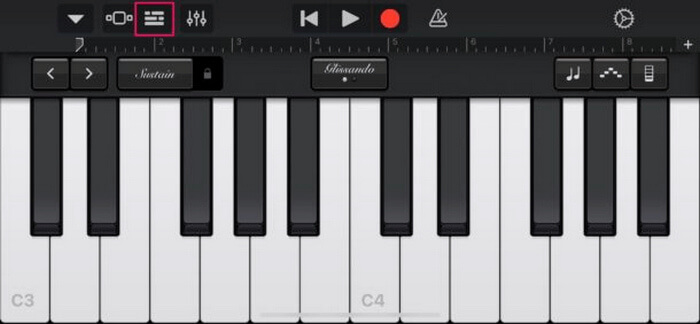
Schritt 3. Tippe nun auf Musik oder Dateien, um die MP3-Datei auszuwählen, und halte sie lange gedrückt, um sie in GarageBand zu importieren.
Schritt 4. Tippe anschließend auf die Spur und ziehe beide Enden, um das Audio zu kürzen. Stelle sicher, dass der Klingelton kürzer als 30 Sekunden ist.
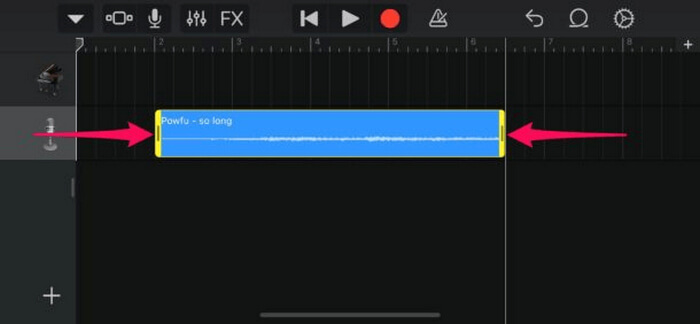
Schritt 5. Oben links siehst du den nach unten zeigenden Pfeil. Tippe darauf und wähle „Meine Songs“, um den Clip zu speichern.
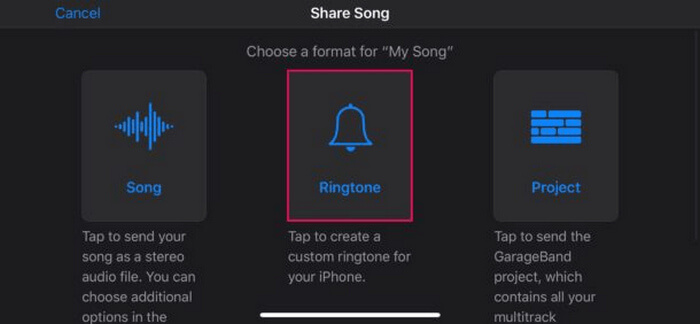
Schritt 6. Suche den von dir erstellten Clip, halte ihn lange gedrückt, tippe auf Teilen und wähle die Option Klingelton. Vergiss nicht, den Klingelton zu benennen, und tippe auf Exportieren.
Schritt 7. Um die konvertierte MP3-Datei als Klingelton auf deinem iPhone zu verwenden, tippe auf „Als Ton verwenden“, um den Klingelton als Standard-Benachrichtigungston oder für einen bestimmten Kontakt festzulegen. Alternativ kannst du zu Einstellungen, Töne & Haptik und Klingelton gehen, um den Klingelton auf deinem iPhone zu ändern.
Wenn Sie MP3-Dateien lieber direkt auf Ihrem iPhone in Klingeltöne umwandeln möchten, ist diese Methode perfekt für Sie geeignet. Neue Benutzer werden jedoch einige Zeit benötigen, um dies zu erlernen, da es komplexe Funktionen enthält, die sie zunächst überfordern könnten.
Teil 3. MP3 in iPhone-Klingelton konvertieren [Online und kostenlos]
Wenn du eine kostenlose Online-Methode bevorzugst, um MP3 in einen iPhone-Klingelton zu konvertieren, ist der FVC Free Audio Converter genau das Richtige für dich. Mit diesem Tool kannst du jedes Audioformat ganz einfach konvertieren, insbesondere MP3 in M4R, da es die Audioformate MP3, AAC, AC3, WMA, WAV, AIFF, FLAC, MKA, M4A, M4B und M4R unterstützt. Darüber hinaus ist dieses Tool perfekt für alle, die einen Audio-Konverter für unterwegs benötigen, da es über eine sehr intuitive und einfache Benutzeroberfläche verfügt.
So verwendest du den FVC Free Audio Converter, um deine MP3-Datei in einen Klingelton zu konvertieren:
Schritt 1. Klicke auf die Schaltfläche „Dateien hinzufügen“, um die MP3-Dateien zu importieren, die du in einen Klingelton umwandeln möchtest.
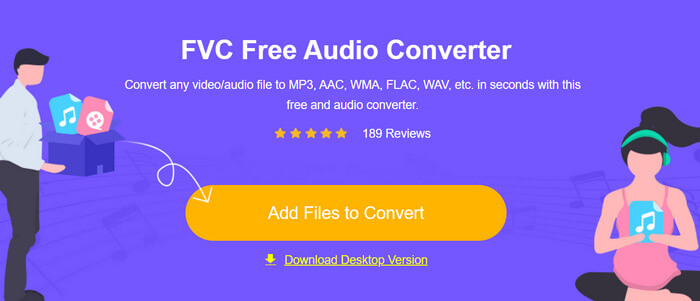
Schritt 2. Wähle M4R als Audioausgabeformat aus.
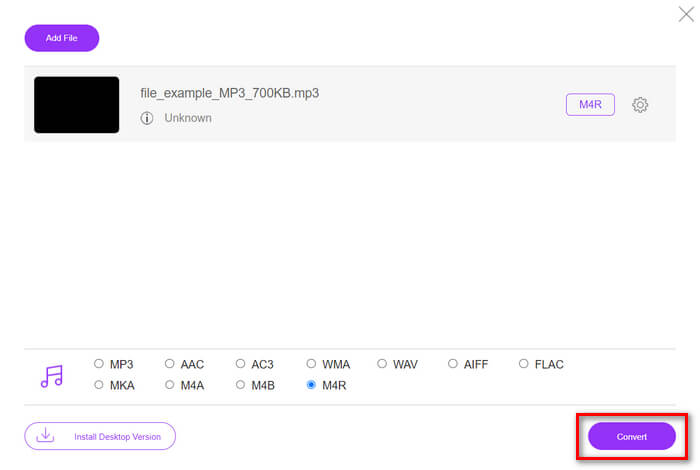
Schritt 3. Klicke schließlich auf die Schaltfläche Konvertieren, um die Umwandlung deiner MP3-Datei in einen Klingelton zu starten. Die konvertierte Datei wird direkt auf deinem Computer gespeichert.
Wenn du nach einer kostenlosen Online-Alternative suchst, um MP3 in einen M4R-Klingelton auf dem iPhone zu konvertieren, ist der FVC Free Audio Converter eine ideale Lösung. Die intuitive Benutzeroberfläche vereinfacht den Konvertierungsvorgang, und das Tool unterstützt eine Vielzahl von Audioformaten, wodurch die Kompatibilität mit unterschiedlichen Dateitypen sichergestellt ist.
Teil 4. So übertragen Sie konvertierte Klingeltöne vom Computer auf das iPhone
Nachdem Sie Ihre MP3-Dateien nun endlich auf Ihrem Computer in Klingeltöne umgewandelt haben, können Sie sie am schnellsten mit iTunes auf Ihr iPhone übertragen.
So überträgst du konvertierte Klingeltöne mit iTunes auf das iPhone:
Schritt 1. Öffne iTunes auf deinem Computer und verbinde dein iPhone mit einem USB-Kabel.
Schritt 2. Ziehe die konvertierte Klingeltondatei in die iTunes-Mediathek. Stelle sicher, dass sie im Bereich „Töne“ erscheint.
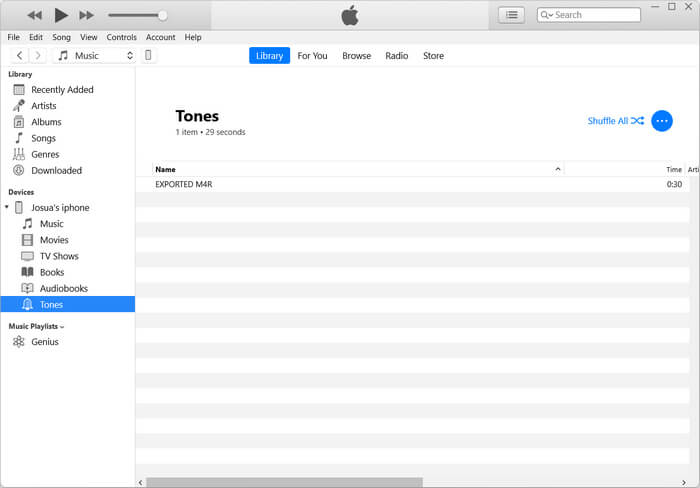
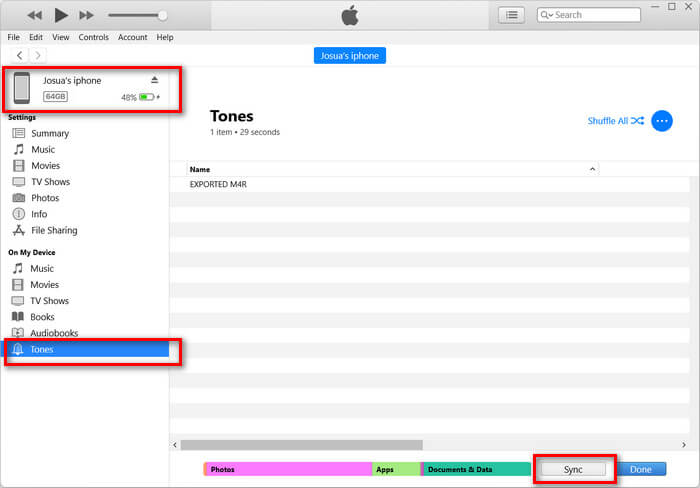
Schritt 3. Wähle in iTunes das Symbol für dein iPhone, gehe zum Tab Töne und aktiviere Töne synchronisieren. Wähle dann die importierte Klingeltondatei aus und klicke auf „Anwenden“, um zu synchronisieren.
Schritt 4. Gehe nun auf deinem iPhone zu „Einstellungen“, wähle „Töne & Haptik“, tippe auf „Klingelton“ und wähle deinen neuen Klingelton aus.
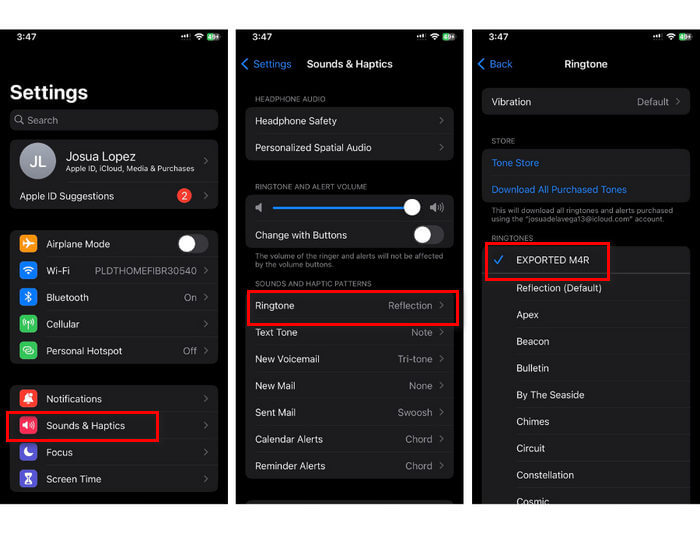
Das war’s. Sie können die konvertierte MP3-Datei jetzt ganz einfach als Klingelton auf Ihr iPhone übertragen und verwenden, um Ihrem Gerät mit Ihren Lieblingssounds eine persönliche Note zu verleihen.
Teil 5. Häufig gestellte Fragen zur Konvertierung von MP3 in Klingeltöne
Was ist die beste Website mit kostenlosen Klingeltönen?
Viele Websites bieten kostenlose Klingeltöne an, aber einige beliebte und zuverlässige sind Zedge, Mobile9 und Tones7. Diese Websites bieten eine große Auswahl an Klingeltönen, die Sie herunterladen und auf Ihrem Telefon verwenden können.
In welchem MP3-Format liegt der iPhone-Klingelton vor?
Das iPhone-Klingeltonformat ist M4R. Wenn Sie eine MP3-Datei konvertieren, um sie als Klingelton auf einem iPhone zu verwenden, muss sie im M4R-Format gespeichert werden.
Wie füge ich MP3 zum iPhone-Klingelton hinzu?
Um MP3 zu Ihrem iPhone-Klingelton hinzuzufügen, müssen Sie die MP3-Datei zunächst mit einem Konvertierungstool wie dem von FVC ausgewählten Video Converter Ultimate in M4R konvertieren. Nachdem Sie die MP3-Datei konvertiert haben, übertragen Sie sie mit iTunes auf Ihr iPhone und verwenden Sie sie als neuen Klingelton.
Fazit
Jetzt kannst du deine Lieblings-MP3-Dateien verwenden und damit einen Klingelton für dein iPhone erstellen. Wähle einfach das Konvertierungstool, das am besten zu deinen Bedürfnissen passt. Jedes davon bietet eine unkomplizierte Möglichkeit, MP3 in einen Klingelton auf dem iPhone zu konvertieren. Worauf wartest du noch? Fang jetzt an, deinen einzigartigen Klingelton zu erstellen und mache dein iPhone wirklich zu deinem persönlichen Gerät!
-
 MOV VS MP4 - Welches wählen Sie?
 MOV VS MP4, welches ist besser? Dieser Beitrag zeigt den Unterschied zwischen MP4 und MOV, damit Sie die bessere Wahl für Ihre Videodateien treffen können.
-
 FLAC vs. MP3: Welches Audiodateiformat regiert?
 In diesem Beitrag werden die wichtigsten Unterschiede zwischen FLAC und MP3 verglichen. Dazu gehören ihre Klangqualität, Dateigröße, Kompatibilität und mehr.
-
 So konvertieren Sie MP3 in M4A für verbesserte Klangqualität
 Verbessern Sie die Qualität Ihrer Musikdateien, indem Sie mit unseren Expertentipps und -tricks MP3 in M4A konvertieren. Unser Leitfaden bietet Schritt-für-Schritt-Anleitungen und empfohlene Software.
