


 Video Converter Ultimate
 Bildschirm recorder
 Videoreparatur
 Sicherer Download
Wie können wir M4A auf dem Computer kostenlos in das MP3-Format konvertieren?
M4A ist ein proprietäres Audiodateiformat von Apple, das den MPEG-4-Codec verwendet. Es ist dem MP4-Format sehr ähnlich, mit dem Unterschied, dass MP4 neben Audiodateien auch Videodaten speichern kann. MP3 wurde deutlich früher, nämlich 1993, veröffentlicht und ist bis heute der maßgebliche Standard für die Speicherung von Musik. Sein größter Vorteil ist die sehr effiziente Komprimierung von Audiodaten, wodurch sichergestellt wird, dass die Audioqualität bei gleichzeitig kleinerer Dateigröße nicht signifikant beeinträchtigt wird.
M4A bietet uns eine bessere Klangqualität als MP3. Wenn du denkst, dass M4A‑Dateien größer bzw. umfangreicher sind als MP3‑Dateien, liegst du falsch. Tatsächlich können M4A‑Dateien nahezu nur halb so groß sein wie MP3 und unterstützen zudem das Hinzufügen von DRM‑Schutz, um eine unbefugte Weiterverbreitung der Audiodateien zu verhindern. M4A gilt als Nachfolger von MP3, ist jedoch noch deutlich weniger kompatibel. M4A‑Musik kann nur auf einigen Geräten und Plattformen abgespielt werden. Daher ist es sinnvoll, M4A‑Musik in MP3 umzuwandeln, wenn wir Audiodateien bequemer mit Freunden teilen möchten. Hier stellen wir dir fünf Methoden vor, um M4A in MP3 umzuwandeln, jeweils mit den entsprechenden Anwendungsschritten.

Teil 1. Der beste Weg, M4A in MP3 zu konvertieren [Schnell und ohne Qualitätsverlust]
FVC Video Converter Ultimate
Nach tatsächlichen Tests und Vergleichen hat sich FVC Video Converter Ultimate als der beste M4A‑zu‑MP3‑Konverter erwiesen, den man ausprobieren sollte. Als Desktop‑Anwendung ist er sowohl mit Windows‑ als auch mit Mac‑Betriebssystemen kompatibel und unterstützt über 1000 Ein- und Ausgabeformate. Damit lassen sich nahezu alle Konvertierungsaufgaben problemlos erledigen. Obwohl M4A‑Dateien normalerweise eine höhere Qualität als MP3 haben, können wir beim Konvertieren von M4A zu MP3 mit FVC Video Converter Ultimate kaum einen Unterschied in der Klangqualität feststellen. Außerdem ist diese App mit einer Hardware‑Beschleunigung ausgestattet, die eine bis zu 30‑mal schnellere Ausgabe gewährleistet und sogar mehrere Aufgaben per Stapelverarbeitung mit einem Klick erledigt.
Es lohnt sich nicht nur wegen seiner hervorragenden Leistung bei der Formatkonvertierung, es auszuprobieren. Die Benutzeroberfläche enthält auch eine ganze Reihe von Audiobearbeitungswerkzeugen, mit denen Sie die Klangqualität verbessern, Rauschen entfernen, die Länge kürzen und vieles mehr können. Mit dieser All-in-One-Software wird die Konvertierung von M4A in MP3 zum Kinderspiel.
Kostenloser DownloadFür Windows 7 oder höherSicherer Download
Kostenloser DownloadFür macOS 10.7 oder höherSicherer Download
So konvertieren Sie M4A mit FVC Video Converter Ultimate in MP3.
Schritt 1. Lade FVC Video Converter Ultimate auf dein Gerät herunter. Nimm die Grundeinstellungen vor und starte das Programm auf deinem Desktop. Nach dem Aufrufen der Hauptoberfläche klicke auf Dateien hinzufügen, um deine M4A‑Audiodatei auszuwählen.

Schritt 2. Die ausgewählte Audiodatei wird sehr schnell geladen. Gehe zu Alles konvertieren in und wähle Audio > MP3. Auf der Seite werden mehrere Ausgabeoptionen mit unterschiedlichen Bitraten und Klangqualitäten angezeigt. Wähle die Option, die deinen Anforderungen entspricht.
Wenn du weitere Bearbeitungen vornehmen möchtest, klicke auf das Symbol Schneiden.
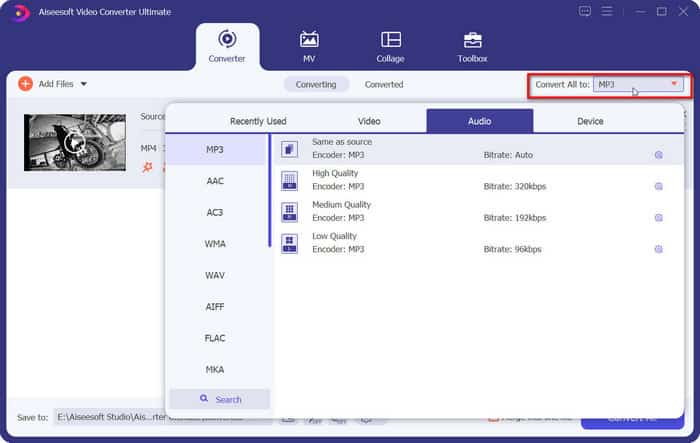
Schritt 3. Gehe zu Speichern unter und lege einen Speicherpfad für deine konvertierte M4A‑Audiodatei fest. Klicke dann auf Alles konvertieren.

Teil 2. So konvertieren Sie M4A online in MP3
FVC Free Audio Converter
Während das Desktop‑Tool stabiler ist und mehr Funktionen bietet, müssen wir vor Beginn der Konvertierung eine ganze Reihe von Downloads und Installationen durchführen. Das Installationspaket der Software nimmt zudem einiges an Speicherplatz ein. Wenn wir sofort mit der Konvertierung beginnen und dabei Speicherplatz sparen möchten, können wir auf einen Online‑M4A‑zu‑MP3‑Konverter zurückgreifen. In diesem Bereich empfehlen wir FVC Video Converter Ultimate. Die Plattform unterstützt viele gängige Audioformate, darunter MP3, WMA, AAC, WAV, AC3, FLAC und so weiter. Einige Online‑Konverter haben Beschränkungen bei der Dateigröße, aber bei FVC Free Audio Converter gibt es diese nicht, und wir können sogar eine große Anzahl von Dateien auf einmal konvertieren lassen.
So konvertieren Sie M4A mit dem kostenlosen Audiokonverter FVC in MP3.
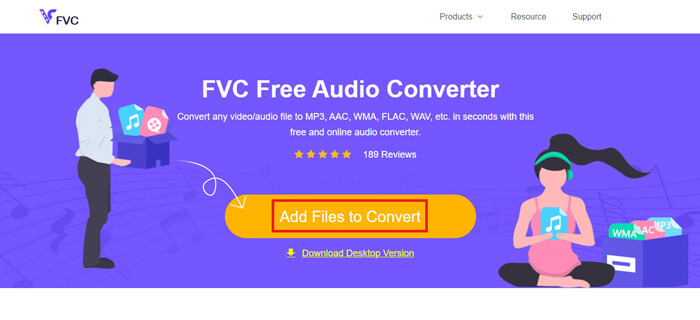
Schritt 1. Öffne den FVC Free Audio Converter in deinem Browser. Wenn die Webseite geladen ist, klicke auf Dateien zum Konvertieren hinzufügen und lade deine M4A‑Audiodateien hoch.
Schritt 2. Nachdem du die Dateien hinzugefügt hast, gehe zum unteren Bereich und wähle MP3 als Ausgabeformat. Klicke auf das Einstellungs‑Symbol, wenn du weitere Anpassungen vornehmen möchtest.
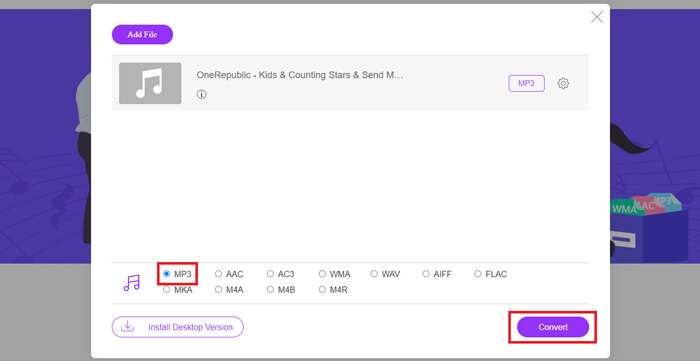
Schritt 3. Klicke abschließend auf Konvertieren, um die Umwandlung zu starten.
Teil 3. So konvertieren Sie M4A in MP3 auf dem Mac
M4A mit iTunes in MP3 umwandeln
Beide oben genannten Methoden funktionieren sowohl unter Windows als auch unter Mac. Wenn Sie Mac-Nutzer sind und einen kostenlosen Konverter suchen, der besser mit Ihrem Betriebssystem kompatibel ist, empfehlen wir iTunes. Diese Software ist in das Apple-System integriert und wird zwar oft als Multimedia-Player und Verwaltungstool angesehen, unterstützt aber auch einige einfache Formatkonvertierungen. Übrigens: Auch Windows-Nutzer können iTunes ausprobieren.
So ändern Sie M4A mit iTunes auf dem Mac in MP3.
Schritt 1. Wenn auf deinem Computer iTunes installiert ist, öffne es. Falls nicht, lade es herunter und installiere es. Melde dich mit deiner Apple‑ID und deinem Passwort an.
Schritt 2. Klicke auf Datei > Ordner zur Mediathek hinzufügen und wähle den Ordner aus, in dem sich deine M4A‑Audiodateien befinden. Klicke anschließend auf Öffnen, um deine M4A‑Dateien in iTunes zu importieren.
Schritt 3. Wähle Bearbeiten > Einstellungen, um ein weiteres Fenster zu öffnen.
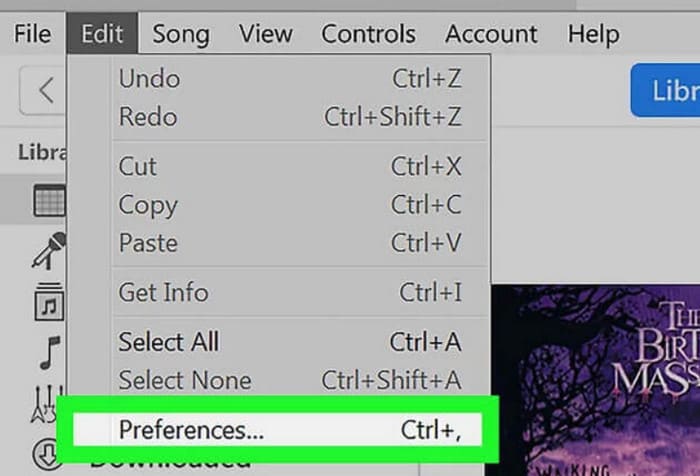
Schritt 4. Klicke im neuen Fenster auf Importeinstellungen und gehe zum Dialogfeld Importieren mit. Wähle MP3‑Codierer und klicke auf OK, um die Einstellungen zu speichern.
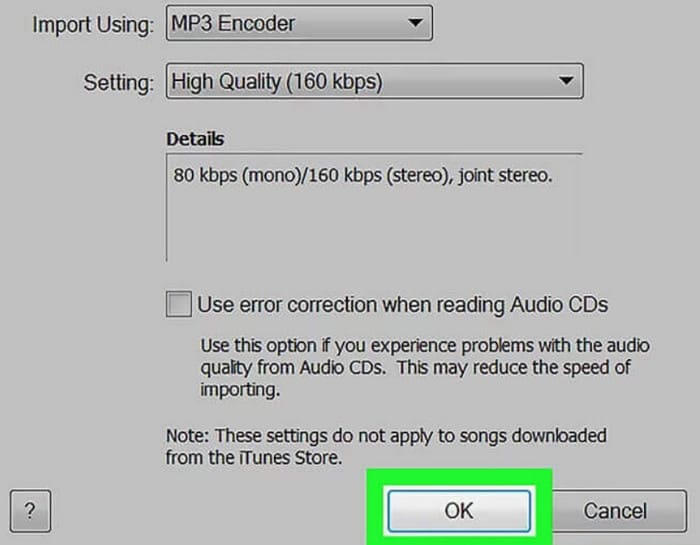
Schritt 5. Gehe zurück in die iTunes‑Mediathek und suche die gewünschte M4A‑Datei. Klicke auf Datei > Konvertieren > MP3‑Version erstellen.

Teil 4. So konvertieren Sie M4A kostenlos in MP3
Unter den kostenlosen gängigen Tools gibt es zwei weitere, die uns beim Konvertieren von Dateiformaten helfen können: FFmpeg und VLC Media Player. In diesem Teil zeigen wir, wie man sie jeweils verwendet.
Verwenden Sie FFmpeg, um M4A in MP3 zu konvertieren
FFmpeg ist für seine vielfältigen Aufgaben bekannt. Im Vergleich zu herkömmlicher Multimedia-Bearbeitungssoftware mit Schaltflächen und Vorschaufenstern funktioniert FFmpeg jedoch anders. Wir müssen die Codevorlage vorbereiten und den Dateispeicherpfad angeben. Geben Sie den Codebefehl in FFmpeg ein, und wir erhalten die konvertierte Datei. Diese Anwendung ist jedoch für unerfahrene Anfänger nicht besonders benutzerfreundlich; die Erstellung des Codes ist mühsam.
Lesen Sie diese Anleitung zur Verwendung von FFmpeg zum Konvertieren von M4A in MP3.
Schritt 1. Lade FFmpeg auf deinen Computer herunter und installiere es. Öffne das Terminal‑Programm.
Schritt 2. Bereite den Befehl vor, den du verwenden möchtest.
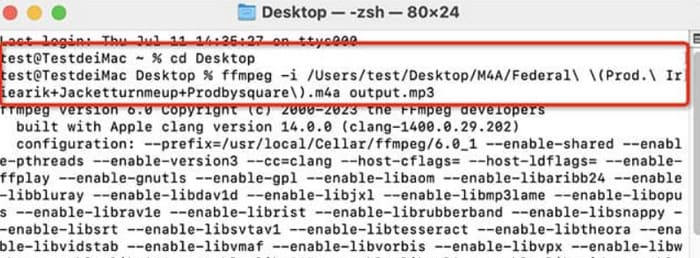
ffmpeg -i input.m4a output.mp3
Ersetze im obigen Beispiel den Speicherort von 'input' durch den Pfad, in dem sich die ursprüngliche M4A‑Datei befindet. Ersetze anschließend „output“ durch den gewünschten Ausgabepfad. Wenn du MP3 in M4A umwandeln möchtest, vertausche einfach die beiden Speicherpfade.
Schritt 3. Gib den Befehl in FFmpeg ein. Drücke dann die Eingabetaste, um die Konvertierung zu starten.
Führen Sie die Konvertierung von M4A in MP3 über den VLC Media Player durch
VLC Media Player ist einer der bekanntesten kostenlosen M4A‑Player und Formatkonverter. Er ist dafür bekannt, Multimedia‑Dateien nahezu aller Formate zu öffnen und ist mit Windows‑, Mac‑ und Linux‑Geräten kompatibel. Auf seiner Oberfläche finden wir außerdem einige grundlegende Werkzeuge zur Audiobearbeitung.
So konvertieren Sie M4A mit VLC Media Player in MP3.
Schritt 1. Öffne den VLC Media Player auf deinem Computer. Klicke auf Medien > Konvertieren/Speichern.
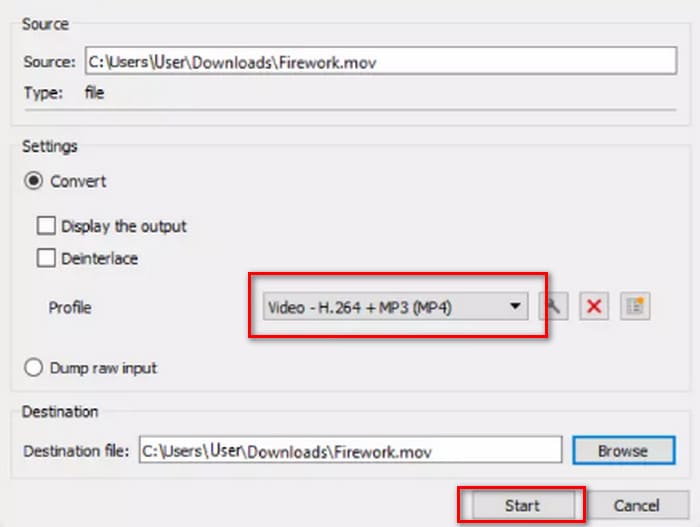
Schritt 2. Öffne das Fenster Medien öffnen. Klicke dann auf + Hinzufügen, um deine M4A‑Datei zu importieren. Klicke anschließend erneut auf Konvertieren/Speichern.
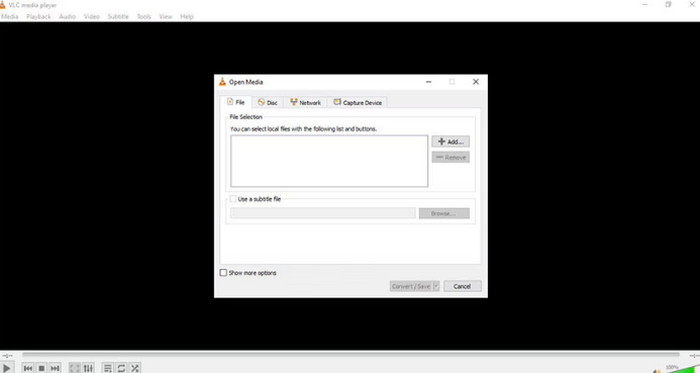
Schritt 3. Es erscheint ein Fenster Konvertieren. Wähle Profil > Audio – MP3. Klicke zum Schluss auf Start.
Teil 4. Fazit
In diesem Artikel empfehlen wir fünf Tools zum Konvertieren von M4A in MP3 und erklären, wie man sie verwendet. Unter den Desktop‑Programmen ist FVC Video Converter Ultimate der vielseitigste und schnellste Konverter; iTunes eignet sich vor allem für Mac‑Nutzer; VLC Media Player ist komplett kostenlos, bietet aber weniger Bearbeitungsfunktionen; FFmpeg kann sehr viele Aufgaben erledigen, ist aber etwas schwieriger zu bedienen. Wenn du Software‑Downloads und Installationen umgehen möchtest, kannst du den FVC Free Audio Converter verwenden.
-
 Top 4 Möglichkeiten, WMA in MP3 zu konvertieren
 Ist es möglich, WMA mit Windows Media Player in MP3 zu konvertieren? Wie konvertiere ich WMA in MP3 kostenlos? In diesem Beitrag werden 4 einfache Methoden vorgestellt, mit denen Sie die Audiokonvertierung von WMA in MP3 auf Mac, Windows-PC und online durchführen können.
-
 8 Möglichkeiten zum Konvertieren von MP4 in MP3-Audio (Stapelkonvertierung und große Größe)
 Wenn Sie MP3-Audio aus MP4-Video extrahieren möchten, können Sie diesen Artikel lesen und 8 Lösungen erhalten. Es gibt Online- und Offline-Möglichkeiten, um MP4 auf Ihrem Telefon oder Computer problemlos in MP3 zu konvertieren.
-
 M4A Player - Top 5 M4A Player für Android und Computer
 Wie spiele ich M4A-Dateien auf einem Android-Handy ab? Welcher Spieler kann M4A spielen? Dieser Beitrag enthält die 5 besten kostenlosen M4A-Player für Android, Mac und PC.

