


 Video Converter Ultimate
 Bildschirm recorder
 Videoreparatur
 Sicherer Download
So konvertieren Sie WAV mit den 5 besten kostenlosen Konvertern in MP3
WAV ist das Hauptformat, das auf Windows-Systemen für unformatiertes und unkomprimiertes Audio und CDs verwendet wird. An den gegenüberliegenden Enden von WAV ist MP3 komprimiert und klein. Darüber hinaus ist es beim Streaming oder bei anderen Playern akzeptabler als WAV.
In diesem Sinne sind Sie bei uns genau richtig.
Diese Seite ist die detaillierte Anleitung zum Konvertieren von WAV in MP3 mit den Top 5 der kostenlosen Konverter.

Teil 1. Kostenlos WAV in MP3 Online konvertieren
Es gibt viele Konverterprogramme, und auf Platz 1 der Liste steht der Free Audio Converter. Es ist ein Online‑Tool, um WAV in MP3 umzuwandeln. Im Vergleich zu anderen Online-WAV-zu-MP3-Konvertern ist diese Freeware zu 100 % kostenlos und werbefrei auf Windows- und Mac-Computern. Von dieser WAV-zu-MP3-Konvertersoftware profitieren Sie wie folgt:
- 1. Konvertieren Sie WAV in MP3 ohne Größen- oder Zahlenbeschränkungen.
- 2. Konvertieren Sie WAV kostenlos in MP3 ohne Anmeldung.
- 3. Ändern Sie WAV stapelweise in MP3, um Zeit zu sparen.
- 4. Passen Sie die Bitrate an, um die Größe der Ausgabedatei zu komprimieren.
- 5. Extrahieren Sie Hintergrundaudio aus YouTube-Videos und anderen Filmen.
Die Schritte zum Transcodieren von WAV in MP4 sind ziemlich einfach.
Schritt 1. Öffnen Sie diese Website auf Ihrem Computer. Klicken Sie auf Add Files to Convert und laden Sie einen Konverter-Launcher herunter und installieren Sie ihn. Damit können Download und Konvertierung in einem Vorgang kombiniert werden.
Laden Sie die Desktop‑Version herunter, um Dateien stapelweise zu konvertieren.
Schritt 2. Nach der erfolgreichen Installation erscheint das Dialogfenster „Öffnen“. Wählen Sie die WAV-Datei oder -Dateien auf Ihrem Computer aus, um sie dieser Freeware hinzuzufügen.
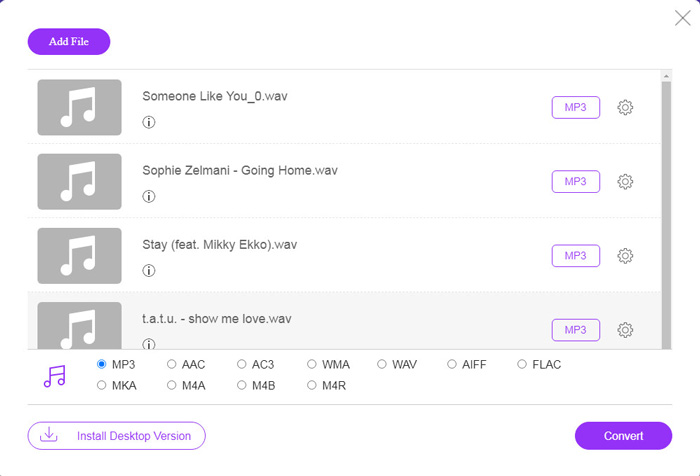
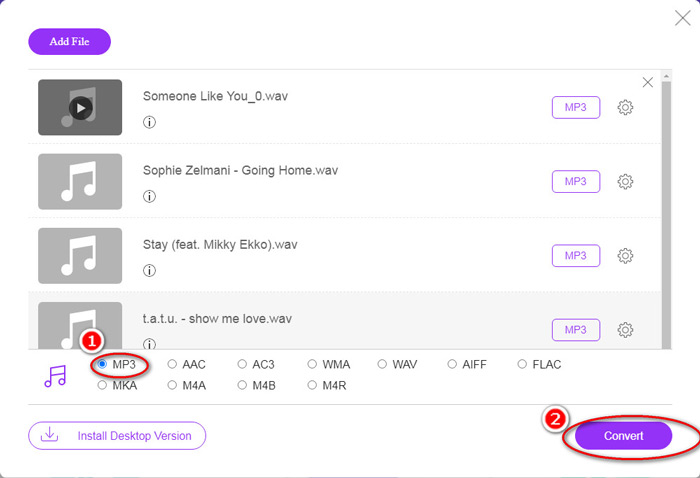
Schritt 3. Aktivieren Sie unten das Kontrollkästchen MP3 als Ausgabeformat und klicken Sie auf Convert, um den Zielordner zum Speichern der konvertierten MP3-Dateien auszuwählen. Klicken Sie dann erneut auf Convert, um online mit der WAV-zu-MP3-Konvertierung zu beginnen.
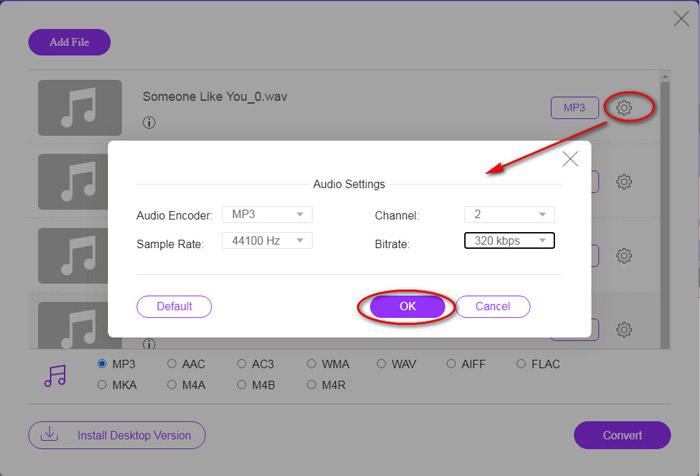
Wenn Sie die MP3-Datei komprimieren möchten, klicken Sie einfach auf das Zahnradsymbol und passen Sie den Wert der Bitrate von 96 bis 320 kbps an.
Ein zusätzlicher Vorteil dieser Methode ist, dass Sie auch Videos in MP3 umwandeln können, um beliebige Hintergrundmusik kostenlos zu extrahieren.
Teil 2. Kostenlos Konvertieren Sie WAV in MP3 in iTunes
iTunes ist eine weitere Freeware zur Konvertierung von WAV in MP3. Mit diesem Programm können Sie WAV problemlos in MP3, AAC, AIFF und Apple Lossless konvertieren. Im Gegenteil, es kann MP3, AAC, AIFF usw. in WAV verwandeln.
Befolgen Sie die unten aufgeführten einfachen Schritte, um Know-how zu erhalten.
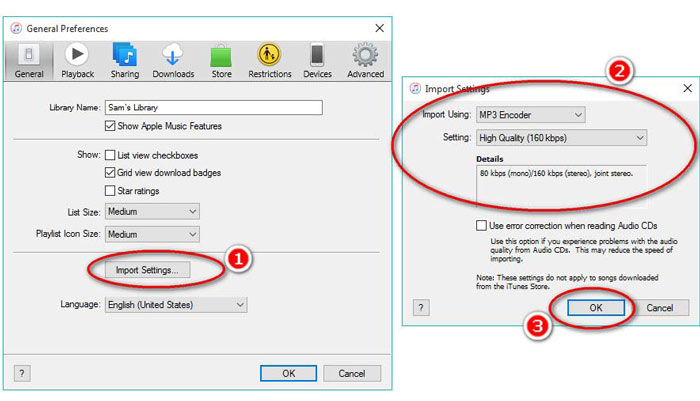
Schritt 1. Starten Sie iTunes auf einem Windows- oder Mac-Computer. Klicken Sie im Menü auf Bearbeiten und wählen Sie Einstellungen. Klicken Sie auf „Importeinstellungen“, um die MP3-Ausgabeeinstellungen vorzunehmen.
Wählen Sie MP3 Encoder aus der Dropdown-Option Importieren mit.
Wählen Sie die MP3-Qualität im Dropdown-Menü Einstellung (von 16 bis 320 kbps).
Klicken Sie auf OK, um die Einstellungen zu speichern und zu schließen.
Schritt 2. Ziehen Sie die WAV-Dateien per Drag & Drop in die iTunes-Mediathek. Wählen Sie den oder die WAV-Songs aus, die Sie in MP3 umwandeln möchten, wählen Sie im Menü Ablage, dann Konvertieren und anschließend MP3-Version erstellen.
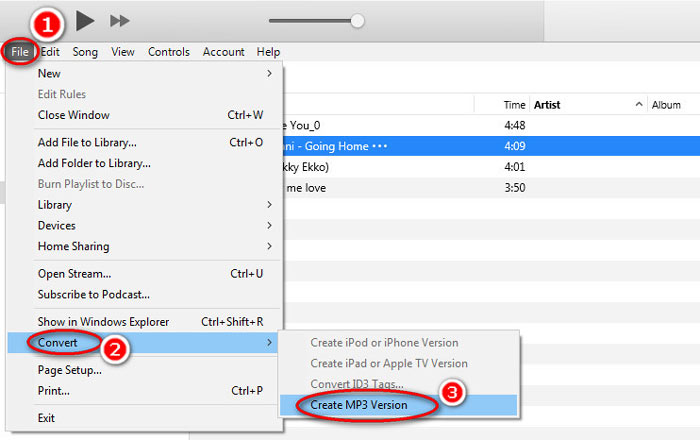
Das war’s! Die neuen MP3-Songdateien erscheinen in Ihrer Mediathek direkt neben den ursprünglichen WAV-Dateien. Sie können die beiden Versionen unterscheiden, indem Sie mit der rechten Maustaste auf die Datei klicken und Informationen auswählen.
Schritt 3. Anschließend können Sie die erstellten MP3-Songs (Rechtsklick auf die Songs und Kopieren wählen) in der iTunes-Mediathek kopieren und an anderen Orten auf Ihrem Computer einfügen.
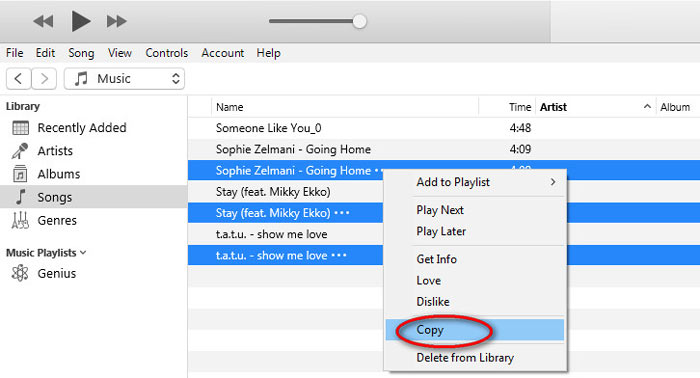
Es ist wichtig zu beachten, dass iTunes keine Musikdateien mit Urheberrechten verarbeitet.
Teil 3. Kostenlos Konvertieren von WAV in MP3 über Windows Media Player
Windows Media Player kann als integrierter Player auf einem Windows-Computer WAV-Dateien direkt öffnen. Hier führt es die MP3-Konvertierung durch. Neben der Konvertierung von WAV in MP3 werden auch CDs unterstützt, die die Konvertierung von WAV-Audio in MP3 enthalten.
So fangen Sie an:
Schritt 1. Starten Sie Windows Media Player auf Ihrem Computer und suchen Sie in der Seitenleiste die geladenen WAV-Dateien. Klicken Sie im linken Bereich des Bildschirms auf Organisieren und dann auf Optionen.
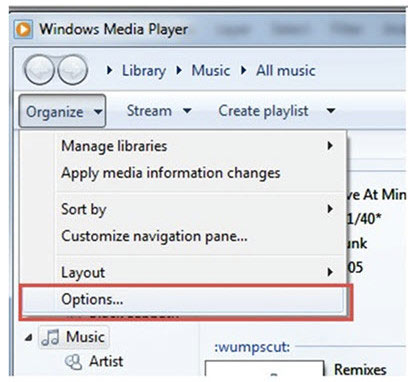
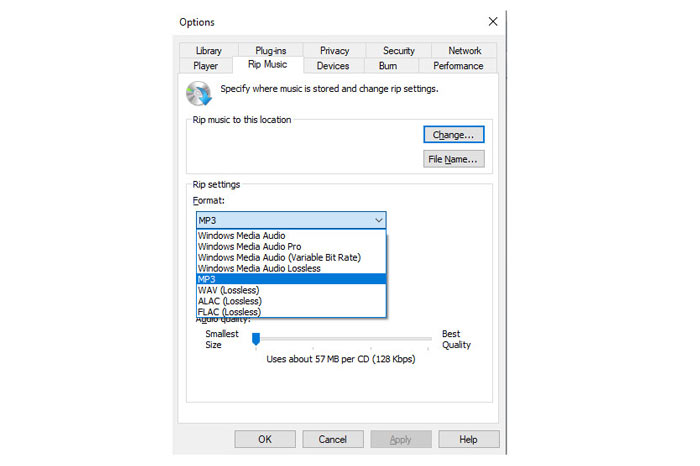
Schritt 2. Wechseln Sie zur Registerkarte Musik kopieren und wählen Sie MP3 unter Format im Abschnitt Einstellungen für Musik kopieren.
Schritt 3. Optional können Sie die Audioqualität anpassen und auf Übernehmen klicken, um mit der Umwandlung von WAV in MP3 zu beginnen.
Anschließend startet Windows Media Player die Konvertierung, und die konvertierten MP3-Dateien werden in dem Speicherort abgelegt, der im Menü Musik kopieren nach diesem Speicherort innerhalb der Registerkarte Musik kopieren festgelegt ist.
Es gibt nur einen Haken: Diese Methode zur Umwandlung von WAV in MP3 ist nur für Benutzer von Windows 10/8/7 verfügbar, da Windows Media Player nur auf Windows-Computern funktioniert.
Teil 4. Free Konvertieren Sie WAV mit VLC in MP3
VLC, Sie haben es möglicherweise als Media Player zum Öffnen von WAV-Dateien verwendet. Es kann jedoch auch als WAV-Konverter wie Windows Media Player verwendet werden. Die Schritte zum Konvertieren von WAV in MP3 unterscheiden sich von denen in Windows Media Player.
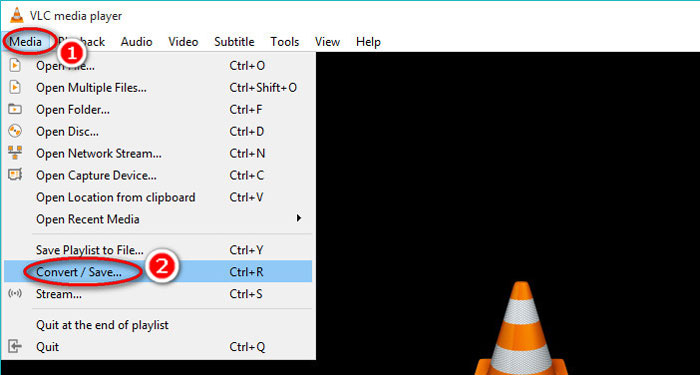
Schritt 1. Starten Sie VLC auf Ihrem Computer, klicken Sie im oberen Menü auf Medien und wählen Sie Konvertieren/Speichern, um das Fenster Medien öffnen zu öffnen.
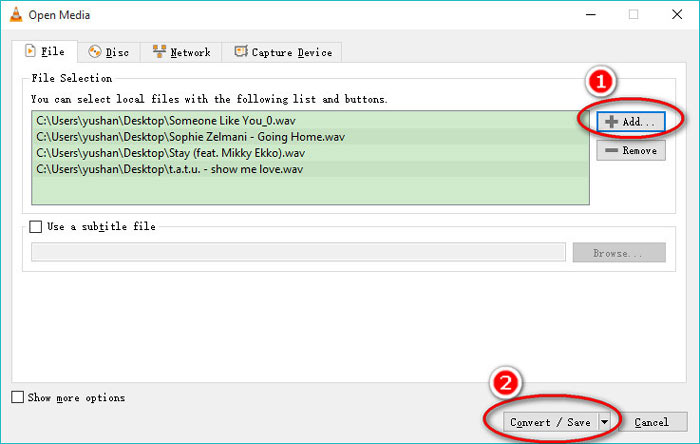
Schritt 2. Klicken Sie im Fenster Medien öffnen auf 'Hinzufügen', um die WAV-Dateien zu importieren, die Sie in MP3 umwandeln möchten. Klicken Sie auf Konvertieren/Speichern, um fortzufahren.
Schritt 3. Klicken Sie auf den Abwärtspfeil neben Profil, um MP3 als Ausgabedatei auszuwählen.
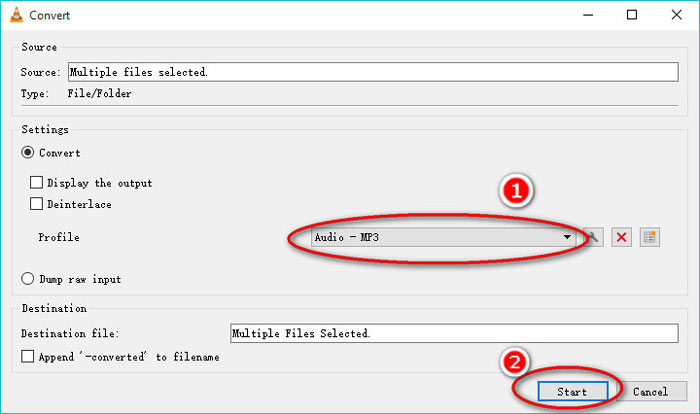
Mit VLC können Sie außerdem Audiodateien in Vorbis (OGG), FLAC und CD-Formate konvertieren. Die konvertierten MP3-Dateien finden Sie im selben Ordner wie die ursprünglichen WAV-Dateien.
Zur Klarstellung: Obwohl VLC auf Computer und Mobiltelefon verwendet werden kann, steht die Konvertierungsfunktion nur Computernutzern zur Verfügung; Sie können WAV also nicht auf iPhone oder Android-Telefon in MP3 umwandeln.
Teil 5. Kostenlose Konvertierung von WAV in MP3 mit Audacity
Audacity ist eine kostenlose Audiobearbeitungssoftware, mit der Sie vertraut sein müssen. Neben den leistungsstarken Bearbeitungsfunktionen kann Audacity Ihnen auch beim Exportieren von WAV in MP3 helfen.
Lassen Sie uns den Prozess rationalisieren.
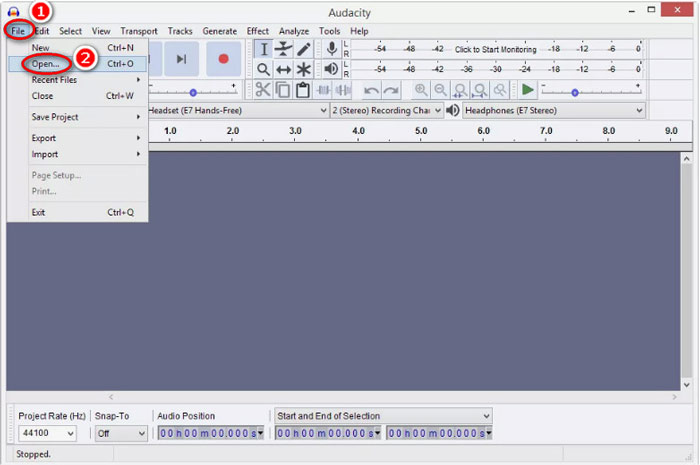
Schritt 1. Laden Sie Audacity auf Ihren Windows- oder Mac-Computer herunter. Gehen Sie im oberen Menü zu 'Datei' und wählen Sie Öffnen, um die auf Ihrem Computer gespeicherte WAV-Datei auszuwählen.
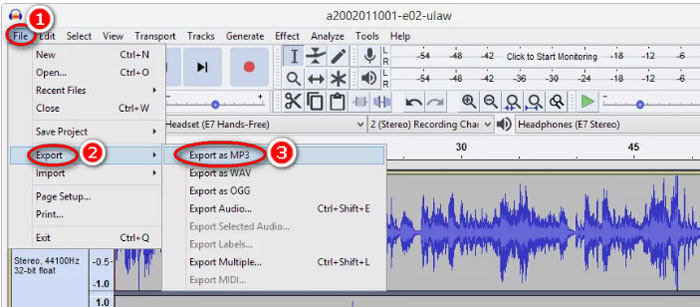
Schritt 2. Klicken Sie erneut auf Datei, wählen Sie Exportieren und dann Als MP3 exportieren.
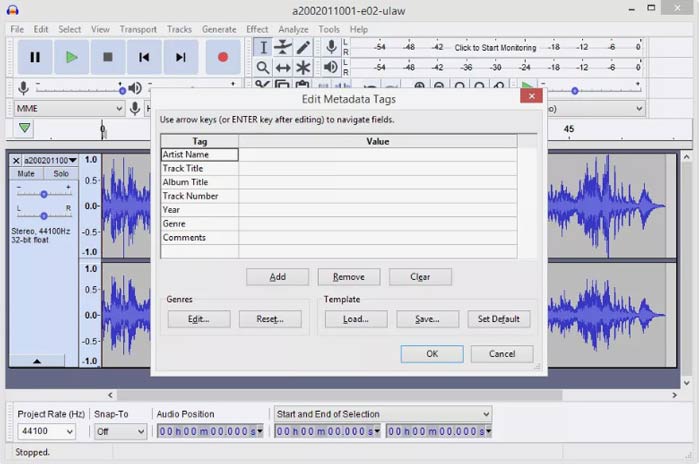
Schritt 3. Wählen Sie den Speicherort für die konvertierte MP3-Datei, bearbeiten Sie optional die Metadaten-Tags und klicken Sie auf OK, um die Umwandlung von WAV in MP3 zu starten.
Beachten Sie, dass Audacity keine Stapelkonvertierung zulässt und Sie WAV nacheinander in MP3 konvertieren müssen.
WAV vs. MP3
WAV, auch als WAVE-Format bekannt, basiert auf dem Resource Interchange File Format (RIFF). Es wird Anfang der 1990er Jahre gemeinsam von Microsoft und IBM entwickelt. Es ist eine Option zum Speichern von rohem, unkomprimiertem Audio in Microsoft Windows. Daher werden WAV-Dateien häufiger auf Windows-Computern abgespielt.
Das MP3-Format wurde 1993 von der Moving Picture Experts Group (MPEG) veröffentlicht. Es war der Standard zum Speichern von Musik, da es Audio auf eine viel kleinere Größe als andere unkomprimierte Formate komprimieren konnte. Es wird auch heute noch häufig verwendet, insbesondere für die Online-Verteilung von Audio.
Teil 6. FAQs zum Konvertieren von WAV in MP3
WAV VS MP3, welches ist besser?
Welche Variante besser ist, hängt von Ihren Bedürfnissen ab.
1. Was die Dateigröße angeht, ist WAV deutlich größer als MP3.
2. Hinsichtlich der Audioqualität ist WAV verlustfrei und unkomprimiert, während MP3 ein verlustbehaftetes Format ist; WAV bietet daher eine bessere Audioqualität als MP3.
3. In Bezug auf die Kompatibilität wird MP3 weit verbreitet in Streaming-Diensten und Playern genutzt, während WAV hauptsächlich im Windows-System und auf CDs verwendet wird.
Verliert die Konvertierung von WAV in MP3 an Qualität?
Ja. Beim Konvertieren einer verlustfreien WAV-Datei in eine verlustbehaftete MP3-Datei geht die Qualität verloren.
Kannst du den Unterschied zwischen MP3 und WAV hören?
Wenn Sie eine MP3-Datei mit niedrigerer Bitrate mit einer WAV-Datei mit hoher Bitrate vergleichen, können Sie einen kleinen Unterschied feststellen. Wenn Sie jedoch eine MP3-Datei mit hoher Bitrate und eine WAV-Datei mit niedriger Bitrate anhören, werden Sie möglicherweise keinen Unterschied in Ihren Ohren feststellen.
Soll ich MP3 oder WAV auf YouTube hochladen?
WAV wird empfohlen, YouTube hochzuladen. Denn nachdem Sie eine Video- oder Audiodatei in YouTube hochgeladen haben, wird die hochgeladene Datei erneut komprimiert. Um die beste Audioqualität zu gewährleisten, wird verlustfreies WAV im Vergleich zu MP3 besser empfohlen.
Fazit
Sowohl WAV als auch MP3 sind die Audiodateien, die Sie häufig treffen. Aufgrund der Größe von WAV und der weniger beliebten Kompatibilität möchten viele von Ihnen WAV in MP3 konvertieren. Auf dieser Seite werden die fünf besten kostenlosen WAV-zu-MP3-Konverter zusammengestellt, mit denen Sie WAV auf dem Computer in MP3 umwandeln können.
Welchen kostenlosen WAV-MP3-Konverter aus dieser Liste werden Sie zuerst ausprobieren?
Möchten Sie eine kostenlose Online-Konvertierung?
Oder möchten Sie WAV unter Windows Media Player in MP3 umcodieren?
In jedem Fall lass es mich in den Kommentaren unten wissen.
-
 Wie kann ich MP4 kostenlos in WAV Online konvertieren?
 Versuchen Sie, MP4 in WAV umzuwandeln? Sie wissen nicht, welcher Konverter Ihnen dabei perfekt helfen kann, ohne einen Cent zu zahlen? Lesen Sie diesen Beitrag und alle Ihre Fragen werden beantwortet.
-
 So konvertieren Sie MP3 in MP4 mit Image unter Windows 10 und Mac
 Wie konvertiere ich MP3 in MP4 in hoher Qualität? Dieser Beitrag zeigt 3 effiziente und kostenlose Methoden zum Ändern von MP3 in MP4 mit Bildern unter Windows und Mac.
-
 Von 50 MB bis 5 MB - So komprimieren Sie MP4-Dateien in Sekunden
 MP4-Video ist zu groß zum Hochladen? Möchten Sie die Videogröße reduzieren? Hier sind 3 effiziente Möglichkeiten, eine MP4-Datei ohne Einschränkung auf eine kleinere Größe zu komprimieren.

