


 Video Converter Ultimate
 Bildschirm recorder
 Videoreparatur
 Sicherer Download
So konvertieren Sie MKV in MP4 unter Windows / Mac
Wenn Sie einen Film abspielen, können Sie ihn nicht öffnen, da einige Programme das MKV-Format nicht unterstützen. Dann fragen Sie sich vielleicht, warum dies geschieht und wie Sie es lösen können.
Der Grund, warum Sie MKV nicht spielen können, kann durch das Fehlen bestimmter Codecs auf Ihrem Gerät verursacht werden. Aus diesem Grund unterstützen einige Geräte oder Programme das MKV-Format immer noch nicht, obwohl Sie MKV heutzutage überall sehen können. Sie müssen es also in ein gängigeres Format konvertieren, z. B. MP4, ein viel benutzerfreundlicheres Format, das auf fast jedem Gerät ordnungsgemäß geladen werden kann.
Heute stellen wir dir zwei kostenlose Konverter vor, mit denen du MKV-Dateien in MP4 umwandeln kannst.

Teil 1. So ändern Sie MKV in MP4 Online & Free
Wenn Sie es nicht ertragen können, genau wie ich viel Software auf Ihrem Computer zu installieren, empfehlen wir Ihnen, einen webbasierten Online-Konverter zu verwenden.
Es gibt viele kostenlose Online-Videokonverter auf dem Markt, aber um ehrlich zu sein, haben die meisten dieser sogenannten "kostenlosen" Konverter eine Vielzahl von Grenzen. Sie müssen sie bezahlen, um einen besseren Plan zu erhalten. Nur so können Sie große Dateien schnell in Stapeln ohne Wasserzeichen konvertieren.
Gibt es also einen wirklich kostenlosen, schnellen und leistungsstarken Videokonverter? Die Antwort ist ja.
FVC Free Online Video Converter ist ein effizienter MKV-zu-MP4-Videokonverter, mit dem du Videos ohne Einschränkung konvertieren kannst. Er unterstützt die Umwandlung nahezu aller gängigen Videoformate in beliebte Formate wie MP4, MOV, WMV, AVI und FLV in Sekundenschnelle. Außerdem unterstützt er die Stapelkonvertierung, sodass du mehrere Videos auf einmal konvertieren und dabei gleichzeitig deren Originalqualität beibehalten kannst.
Da FVC Free Online Video Converter ein webbasiertes Tool ist, kannst du es sowohl unter Windows als auch auf dem Mac ganz einfach nutzen, solange du über ein stabiles Netzwerk und einen Browser verfügst. Was die Bedienung betrifft, beherrschst du diesen MKV-zu-MP4-Konverter in nur wenigen Schritten.
Schritt 1. Rufe in deinem Browser die Website von FVC Free Online Video Converter auf. Klicke dann auf die Schaltfläche Add Files to Convert. Wenn du den FVC Launcher bisher noch nicht auf deinem Computer installiert hast, wirst du zunächst daran erinnert, den Launcher herunterzuladen. Folge einfach der Aufforderung und installiere den Launcher.
Laden Sie die Desktop‑Version herunter, um Dateien stapelweise zu konvertieren.

Schritt 2. Nach der Installation wird das Fenster Open File automatisch eingeblendet. Wähle nun die MKV-Datei aus, die du konvertieren möchtest. Wenn du gleich mehrere MKV-Videos auf einmal umwandeln willst, markiere einfach alle benötigten MKV-Dateien.
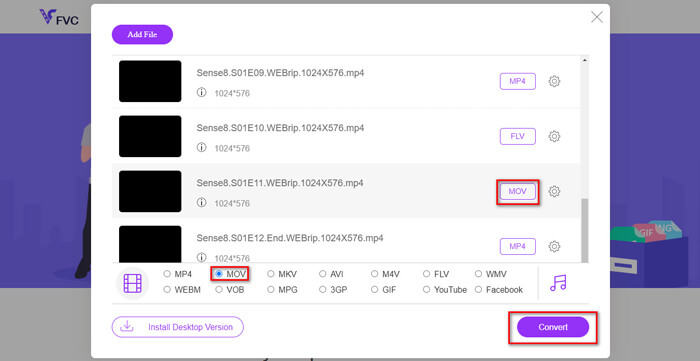
Schritt 3. Klicke anschließend auf Open, und du siehst eine Liste der ausgewählten Dateien. Wähle unter dieser Liste das Ausgabeformat MP4 aus.
Du kannst für die einzelnen Dateien auch unterschiedliche Formate auswählen, indem du auf das Format neben dem Setting-Symbol klickst und das Ausgabeformat unten änderst. Du kannst diesen Schritt aber auch einfach überspringen und auf die Schaltfläche Convert klicken. Wähle danach einen Zielordner aus, in dem die konvertierten Videos gespeichert werden sollen.
Teil 2. Konvertieren von MKV in MP4 mit VLC Media Player
Du kennst VLC vermutlich als Multimediaplayer, der für die meisten Desktop-Betriebssysteme erhältlich ist. Tatsächlich ist er jedoch auch ein versteckter Videokonverter. Mit ihm kannst du MKV-Dateien in das MP4-Format umwandeln. Wenn du VLC bereits auf deinem Computer installiert hast, kannst du es einfach ausprobieren.
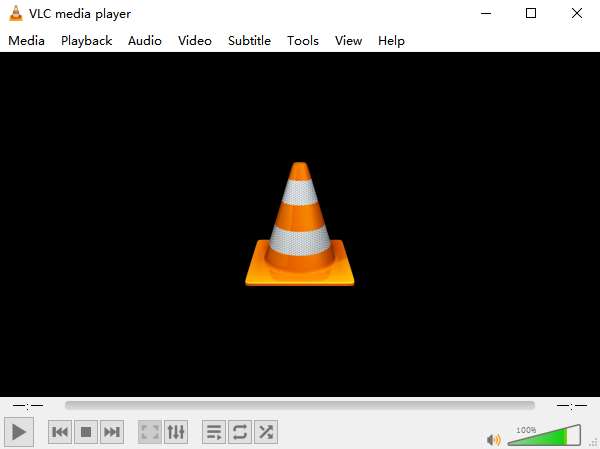
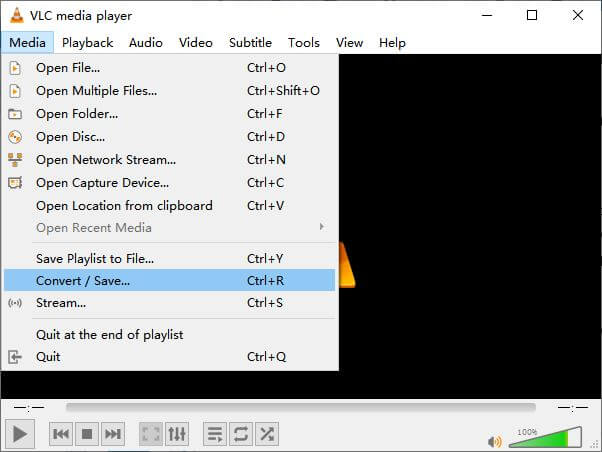
Schritt 1. Starte zunächst den VLC Media Player auf deinem Computer. Klicke im Menü auf Media. Suche im Drop-down-Menü nach Convert / Save.
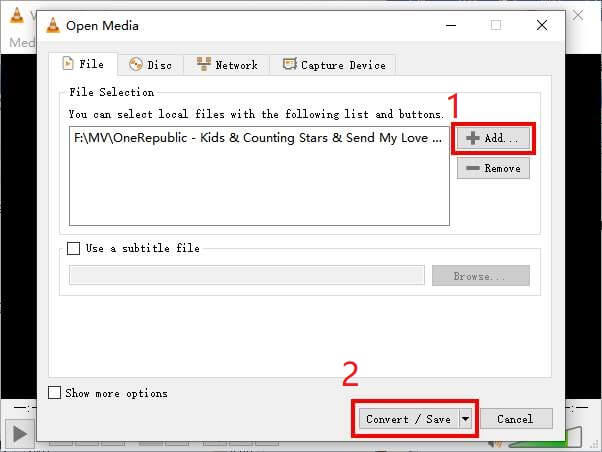
Schritt 2. Klicke auf + Add und suche das MKV-Video, das du konvertieren möchtest. Klicke anschließend unten auf die Schaltfläche Convert / Save.
Schritt 3. Wähle im Fenster Convert das Format MP4 aus.
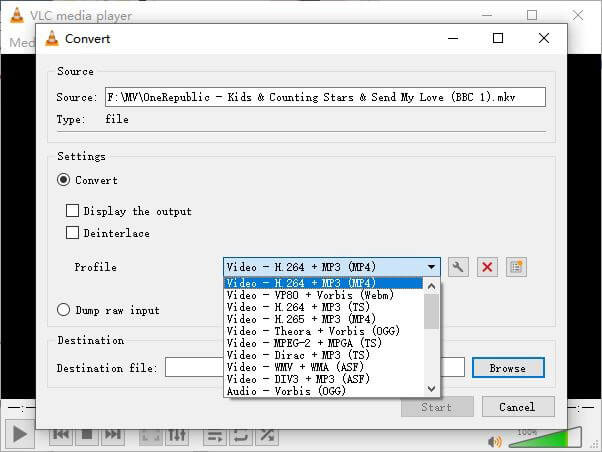
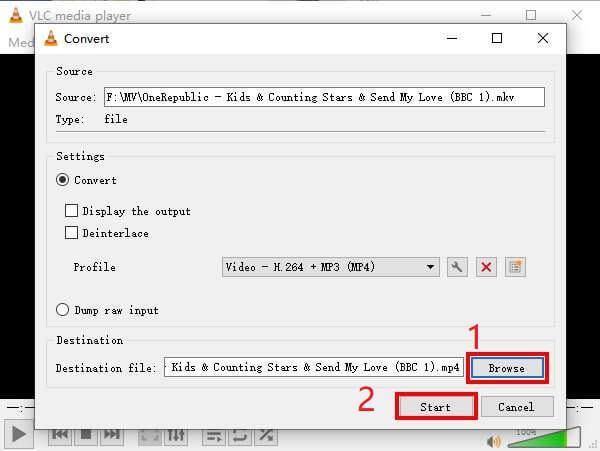
Schritt 4. Klicke auf die Schaltfläche Browse, um den Speicherort festzulegen. Starte abschließend mit Start die Konvertierung und warte, bis dein MP4-Video erstellt ist.
MKV im Vergleich zu MP4
Das 2002 veröffentlichte Multimedia-Containerformat Matroska ist ein Open-Source-Format, das eine Reihe von Video-, Audio-, Bild- und Untertitelspuren enthalten kann. So können Sie damit ganz einfach kurze Videoclips, Fernsehsendungen und Filme speichern. Es ist sehr beliebt für Anime-Fans.
Das 2001 von der Moving Picture Experts Group (MPEG) veröffentlichte MP4-Format kann Ihnen helfen, Video-, Audio-, Untertitel- und Bilddaten in separaten Spuren zu speichern. Es ist die Abkürzung für MPEG-4 Part 14. Außerdem ist es eines der beliebtesten Formate für das Streamen und Teilen von Videos.
Teil 3. FAQs zum Konvertieren von MKV in MP4
1. Kann ffmpeg MKV in MP4 konvertieren?
Ja, du kannst MKV mit ffmpeg in MP4 umwandeln. Allerdings kann es etwas kompliziert sein zu verstehen, wie das genau funktioniert, auch wenn der effektivste Schritt im Grunde nur aus einer Befehlskette besteht: ffmpeg -i my_movie.mkv -vcodec copy -acodec copy my_movie.mp4
2. Kann HandBrake MP4 aus MKV exportieren?
Wenn du nach der Konvertierung lediglich eine MP4-Datei benötigst, kann dir HandBrake dabei tatsächlich helfen. Es kann deine Dateien jedoch nicht in andere Formate wie WMV, MOV oder FLV umwandeln. HandBrake unterstützt die meisten gängigen Multimediadateien – aber das betrifft seine Input Sources, also die Eingabequellen. Bei den Ausgabeformaten stehen dir MP4(.M4V) und MKV zur Auswahl.
3. Verliert die Konvertierung von MKV in MP4 an Qualität?
Die meisten Videokonverter verlieren an Qualität, wenn Sie MKV-Dateien in MP4 konvertieren, möglicherweise 1% oder 5%. Beim Neukodieren der MKV-Dateien in MP4 ist es schwierig, Datenverlust vollständig zu vermeiden. Sie können jedoch die Auflösung von Bildern erhöhen, um die Qualität exportierter MP4-Videos dem Originalvideo nahe zu bringen.
Fazit
Es stehen unzählige Videokonverter zur Auswahl. Es ist schwer, alleine einen kostenlosen und effizienten Konverter zu finden. In diesem Beitrag wurden zwei Methoden zum Konvertieren von MKV in MP4 vorgestellt. Einer ist der VLC Media Player und der andere ist der FVC Free Online Video Converter.
Wenn Sie nur eine MP4-Datei möchten, reicht VLC aus. VLC unterstützt jedoch nur eine begrenzte Anzahl von Formaten. Wenn Sie also einen professionelleren Konverter suchen, ist FVC Free Online Video Converter die bessere Wahl.
Ich hoffe, Sie finden diesen Beitrag hilfreich. Und zögern Sie nicht, uns Ihre Meinung mitzuteilen.
-
 So konvertieren Sie Ihre MP4-Videodateien in animierte GIF-Bilder ohne Qualitätsverlust
 Suchen Sie nach der besten Möglichkeit, Ihr MP4-Video in animierte GIFs umzuwandeln? Hier finden Sie eine ausführliche Anleitung dazu in Photoshop, Windows Movie Maker, Online-Videokonverter und mehr.
-
 So konvertieren Sie MOV in MP4, ohne an Qualität zu verlieren
 Möchten Sie MOV-Dateien (Apple QuickTime Movie) in MP4 konvertieren? Dieser Beitrag enthält 4 kostenlose Methoden zum Konvertieren Ihrer MOV-Videodateien in das MP4-Format unter Windows 10/8/7 / XP und Mac OS X.
-
 4 einfache Möglichkeiten zum Konvertieren von WMV in MP4 unter Mac und Windows
 Wie konvertiere ich WMV-Dateien in MP4? Hier sind die 4 einfachen Möglichkeiten, WMV in Mac und Windows mit einfachen Schritten in MP4 zu konvertieren.

