


 Video Converter Ultimate
 Bildschirm recorder
 Videoreparatur
 Sicherer Download
Konvertieren von QuickTime in MP4 unter Windows / Mac / Online / iOS / Android
In den meisten Fällen bezieht sich das QuickTime-Dateiformat auf MOV. QuickTime speichert Videos standardmäßig im MOV-Format. QuickTime MOV-Dateien sind jedoch nicht mit allen Mediaplayern kompatibel. Im Vergleich zu MOV ist MP4 die bessere Wahl. Sie können denselben Videoinhalt mit kleinerer Dateigröße und besserer Kompatibilität erhalten. Aus diesem Grund konvertieren viele Leute QuickTime in das MP4-Format. Dann kommt hier die Frage, wie man ein QuickTime-Video auf Ihrem Computer in MP4 konvertiert. Hier sind 3 Lösungen, die Sie verwenden können.

Teil 1: So konvertieren Sie QuickTime kostenlos in MP4 Online
FVC Free Online Video Converter ist ein kostenloser Video-zu-MP4-Konverter für Windows- und Mac-Nutzer. Sie können QuickTime-MOV- und andere Dateien online kostenlos in MP4 umwandeln. Anders als bei üblichen Online-Videokonvertern gibt es keine maximale Dateigrößenbeschränkung. Sie können große MOV-Dateien stapelweise ohne Qualitätsverlust in MP4 konvertieren. Ihren Ausgabedateien wird kein Wasserzeichen hinzugefügt. So können Sie QuickTime-Filme ganz unbesorgt online in MP4 exportieren.
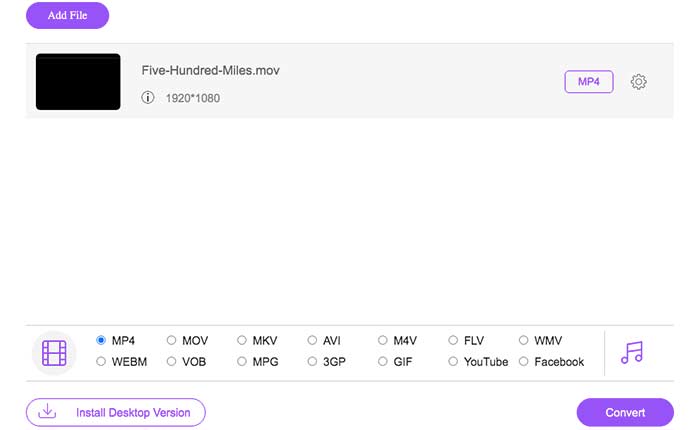
Schritt 1: Öffnen Sie die offizielle Website von FVC Free Online Video Converter. Klicken Sie auf die Option Add Files to Convert. Wenn Sie zum ersten Mal ein Video online in MP4 konvertieren, müssen Sie den FVC-Launcher herunterladen.
Schritt 2: Suchen und importieren Sie Ihr QuickTime-Video im Popup-Fenster.
Schritt 3: MP4 ist das standardmäßige Ausgabevideoformat. Falls nicht, können Sie das Ausgabeformat unten manuell auf MP4 ändern.
Schritt 4: Klicken Sie auf Convert, um QuickTime kostenlos online in MP4 zu konvertieren.
Teil 2: Konvertieren von QuickTime MOV in MP4 unter Windows
Wenn Sie ein MOV-Video auf dem PC schnell in MP4 umwandeln möchten, können Sie die Dateierweiterung ändern. QuickTime MOV ist ein MPEG-4-Videocontainerformat, während MP4 ebenfalls ein MPEG-4-Videodateiformat ist. MP4 ist eine Teilmenge des QuickTime-MOV-Formats. Daher können Sie MOV in MP4 umwandeln unter Windows, indem Sie die Erweiterung direkt ändern.
Schritt 1: Öffnen Sie den Ordner, der Ihre MOV-Datei enthält.
Schritt 2: Stellen Sie sicher, dass die Dateierweiterung sichtbar ist. Mit anderen Worten: Sie müssen die Dateierweiterung .mov sehen können. Falls nicht, müssen Sie die Dateinamenerweiterungen manuell einblenden.
Schritt 3: Wählen Sie Rename im Rechtsklickmenü.
Schritt 4: Ändern Sie die Dateierweiterung von .mov in .mp4.
Schritt 5: Drücken Sie die Enter-Taste auf Ihrer Tastatur. Dann können Sie ein QuickTime-Video unter Windows in MP4 ändern.
Teil 3: Konvertieren von QuickTime-Filmen in MP4 auf einem Mac
Für Mac-Benutzer können Sie iMovie als kostenlosen MOV-zu-MP4-Konverter verwenden. iMovie ist für MacOS- und iOS-Geräte verfügbar. Sie können QuickTime MOV-Dateien problemlos auf Ihrem Mac-Computer konvertieren und bearbeiten. In diesem Abschnitt erfahren Sie, wie Sie QuickTime auf einem Mac in MP4 konvertieren.
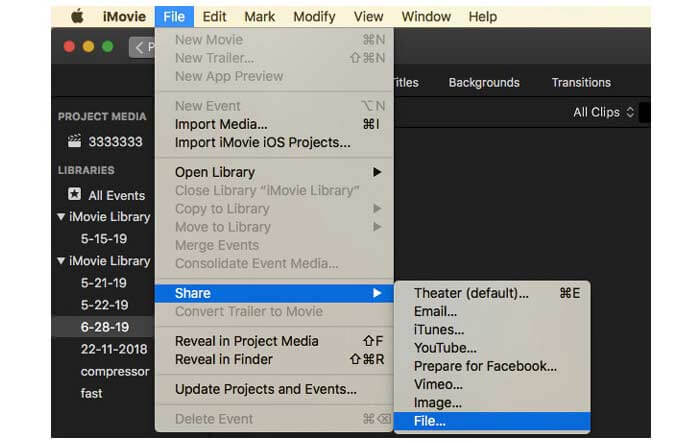
Schritt 1: Laden Sie iMovie auf dem Mac herunter, installieren und öffnen Sie es. Wählen Sie New Movie im Dropdown-Menü File.
Schritt 2: Klicken Sie auf Import Media, um einen QuickTime-Film in iMovie hinzuzufügen.
Schritt 3: Wählen Sie das importierte QuickTime-MOV-Video aus. Wählen Sie dann Share aus der Dropdown-Liste File. Wählen Sie File aus dem Untermenü.
Schritt 4: Passen Sie die Ausgabevideowiedereinstellungen für Speicherort, Auflösung, Qualität und mehr an. Klicken Sie auf Next, um fortzufahren.
Schritt 5: Legen Sie einen Dateinamen und einen Ausgabespeicherort fest. Klicken Sie zum Schluss auf Save, um QuickTime mit iMovie auf dem Mac in MP4 zu konvertieren.
Teil 4: Konvertieren eines Videos von MOV nach MP4 mit VLC
VLC ist ein kostenloser Open-Source-Videokonverter, Player und Editor für Multiplattform. Sowohl mobile als auch Desktop-Benutzer können MOV mithilfe von VLC kostenlos in MP4-Dateien konvertieren. So können Sie QuickTime auch auf iPhone und Android mit VLC in MP4 konvertieren. VLC kann kostenlos und sicher heruntergeladen werden. Sie können die offizielle Website besuchen, um das saubere Download-Paket zu erhalten.
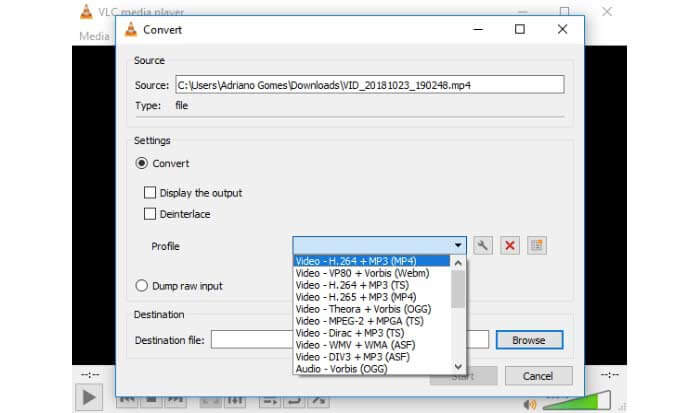
Schritt 1: Starten Sie VLC. Wählen Sie Convert/Save aus der Liste Media.
Schritt 2: Klicken Sie im Fenster Open Media auf Add, um ein QuickTime-MOV-Video zu importieren. Klicken Sie dann auf Convert/Save, um fortzufahren.
Schritt 3: Klappen Sie die Liste Profile auf. Wählen Sie Video – H.264 + MP3 (MP4).
Schritt 4: Klicken Sie auf Start, um QuickTime mit VLC in MP4 zu konvertieren.
Teil 5: FAQs zum Konvertieren von QuickTime in MP4
Können Sie MOV mit QuickTime in MP4 konvertieren?
Nein. Sie können MOV-Videos mit QuickTime Player öffnen. Es wird jedoch nicht unterstützt, ein MOV-Video mithilfe von QuickTime in MP4 zu konvertieren.
Ist QuickTime Pro verfügbar?
Ja. Die neueste Version ist QuickTime Player 7. Apple bietet das QuickTime Pro-Upgrade nicht mehr an. Sie können QuickTime Player Pro weiterhin auf Ihrem Windows- oder Mac-Computer verwenden. Aber Apple hat die Unterstützung von QuickTime erhöht.
Welche Programme können MOV-Videos öffnen?
Sie können MOV-Dateien mit QuickTime Player, iTunes, VLC, Windows Media Player, Adobe Flash und mehr abspielen.
Mit den oben genannten Online- und Offline-Videokonvertern können Sie QuickTime kostenlos auf Ihrem Handy und Computer in MOV umwandeln. Sie können einen Online-MOV-zu-MP4-Konverter verwenden, die Dateierweiterung ändern, iMovie und VLC nutzen, um das Videoformat von QuickTime MOV in MP4 zu konvertieren. Wenn Sie QuickTime-Dateien stapelweise in MP4 umwandeln möchten, ohne Drittanbieter-Apps zu verwenden, kann FVC Free Online Video Converter Ihre erste Wahl sein. Es ist 100% sicher und kostenlos nutzbar. Sie können QuickTime-Videos stapelweise mit hoher Qualität in MP4 und andere Formate umwandeln.
-
 MOV VS MP4 - Welches ist besser
 MOV VS MP4, welches ist besser? Dieser Beitrag zeigt den Unterschied zwischen MP4 und MOV, damit Sie die bessere Wahl für Ihre Videodateien treffen können.
-
 Top 4 kostenlose Möglichkeiten, MTS in MOV umzuwandeln
 Sie können die MTS-Datei nicht auf Ihrem Computer oder iPhone / Android-Handy abspielen? Was ist eine MTS-Datei und wie wird sie abgespielt? Was ist der beste MTS Video Converter? Dieser Beitrag enthält 4 einfache und kostenlose Möglichkeiten, mit denen Sie MTS für eine bessere Wiedergabe in MOV konvertieren können.
-
 6 einfache Möglichkeiten zum Konvertieren von TS in AVI / MKV / MOV / WMV unter Windows / Mac
 Möchten Sie TS-Dateien schnell in AVI / MKV / MOV / WMV konvertieren? Dieser Artikel zeigt Online- und Offline-Videokonverter mit vollständiger Anleitung. Vielleicht können Sie hier den besten kostenlosen TS-Konverter bekommen.
