


 Video Converter Ultimate
 Bildschirm recorder
 Videoreparatur
 Sicherer Download
VLC Rip DVD: So konvertieren Sie DVDs einfach mit VLC [2024]
Sicherlich gehörte das Ansehen von Filmen auf einem DVD-Player auch zu Ihrem Leben? Erzählen Sie uns, wo Sie als Kind Ihren ersten Zeichentrickfilm oder Film gesehen haben. Nostalgisches Gefühl, nicht wahr? Heute, da Netflix alle Streaming-Plattformen überflügelt, ist Filmeschauen so einfach und zugänglich wie nie zuvor. Dadurch geraten viele DVDs in Vergessenheit und verrotten mit der Zeit.
Wenn Sie nun nach einer Möglichkeit suchen, Ihre Sammlungen zu sichern, können Sie dies nur tun, indem Sie jede einzelne davon mit Hilfe von VLC rippen. VLC ist ein kostenloser Multimedia‑Player, mit dem Benutzer verschiedene Arten von Videos abspielen, konvertieren und reparieren können. Außerdem kann dieses Tool DVDs rippen und deren Medieninhalte extrahieren. Daher haben wir in diesem Artikel eine Anleitung vorbereitet, die Ihnen dabei hilft, DVDs mit VLC zu rippen. Darüber hinaus erwartet Sie am Ende des Artikels eine VLC‑Alternative, die möglicherweise einfachere und noch bessere Funktionen bietet. Worauf warten Sie noch? Scrollen Sie jetzt nach unten und tauchen Sie in diesen Artikel ein.

Teil 1. DVD auf VLC rippen
VLC ist eine Mediaplayer-Software für Windows, macOS und Linux. Das Tool ist bekannt für seine vielseitigen Funktionen. Es ermöglicht nicht nur das Abspielen verschiedener Videos, sondern auch das Rippen von DVDs, wodurch die Wiedergabe auf verschiedenen Geräten erleichtert wird. Das Tool extrahiert den Inhalt von der Disc und konvertiert ihn anschließend in eine digitalisierte Videodatei, die problemlos gespeichert oder geteilt werden kann.
Preis: 100% kostenlos
Hier finden Sie eine Schritt‑für‑Schritt‑Anleitung zum Rippen von DVDs mit VLC:
Schritt 1: Laden Sie zunächst VLC auf Ihr Gerät herunter und installieren Sie es. Legen Sie anschließend die Disc ein.
Schritt 2: Gehen Sie anschließend zum Tab Medien und wählen Sie in der Liste die Option Konvertieren/Speichern.
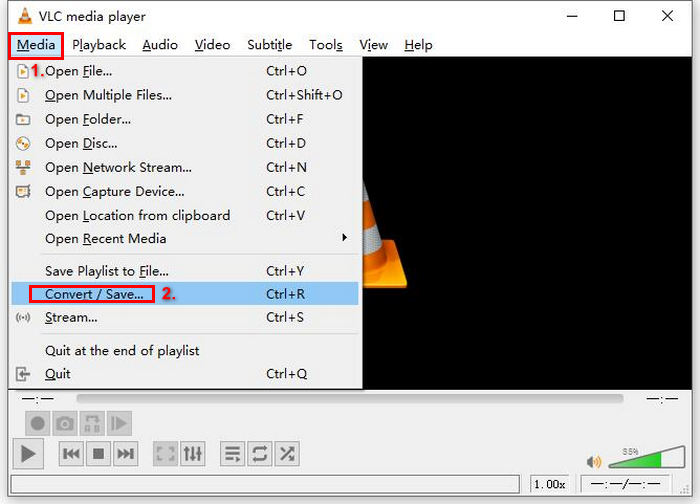
Schritt 3: Klicken Sie danach oben auf den Tab Medium, aktivieren Sie die Option DVD und wählen Sie unter Disc-Gerät die DVD aus, die Sie rippen möchten.
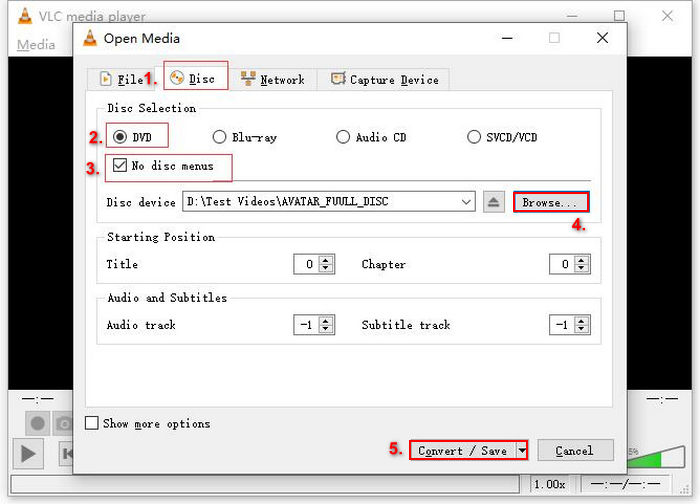
Schritt 4: Klicken Sie nun auf die Schaltfläche Konvertieren/Speichern und stellen Sie das Ausgabeformat im Dropdown‑Menü „Profil“ darunter auf MKV ein.
Schritt 5: Klicken Sie danach im Bereich Ziel unten auf Durchsuchen, wählen Sie einen Ordner und geben Sie der Ausgabedatei einen Namen.
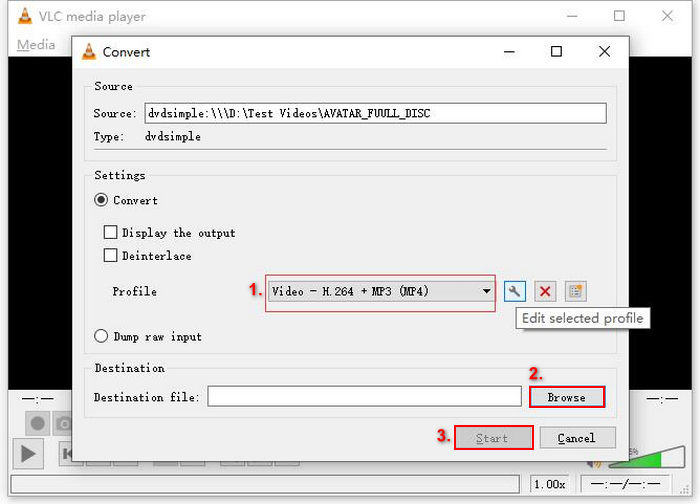
Schritt 6: Wenn alles eingestellt ist, klicken Sie auf die Schaltfläche Start, um die DVD mit VLC zu rippen.
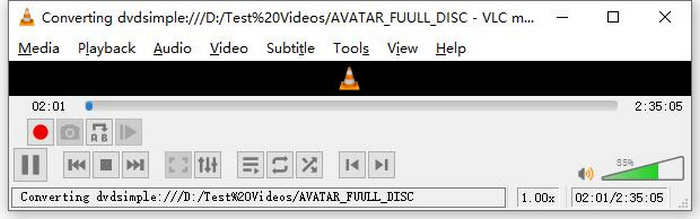
Hinweis: Unten sehen Sie die Fortschrittsleiste für die Konvertierung. Warten Sie einfach, bis VLC den Rip‑Vorgang abgeschlossen hat.
Kommentar:
Was uns am VLC Media Player besonders gefällt, ist seine Zuverlässigkeit und Vielseitigkeit, insbesondere für Nutzer, die eine kostenlose Möglichkeit zum DVD-Rippen suchen. Trotz dieser Funktion kann die Benutzeroberfläche für Anfänger etwas technisch sein, und der Vorgang kann im Vergleich zu spezialisierterer DVD-Ripper-Software langwierig erscheinen. Außerdem kann er bei kopiergeschützten Discs Probleme haben, was seine Effektivität in diesen Fällen einschränkt. Dennoch ist das Rippen von DVDs mit VLC empfehlenswert.
Teil 2. Alternativen zum VLC DVD Ripper
Wenn Sie neben VLC eine Alternative zum DVD-Rippen suchen, ist AnyMP4 DVD Ripper genau das Richtige für Sie. Dieser VLC-DVD-Ripper ist ein vollwertiges Tool, das zahlreiche gängige Videoformate unterstützt, darunter MP4, MOV, AVI, MKV und mehr. Damit können Sie DVDs problemlos in digitale Formate konvertieren und auf verschiedenen Geräten ohne Qualitätsverlust abspielen. Die DVD-Ripping-Leistung ist hervorragend und unterstützt die Konvertierung aller DVD-Typen, egal ob selbstgebrannte, kommerzielle, Fitness- oder DVD-Sammel-DVDs.
Kostenloser DownloadFür Windows 7 oder neuerSicherer Download
Kostenloser DownloadFür macOS 10.7 oder neuerSicherer Download
Schritte zum Rippen einer DVD mit AnyMP4 DVD Ripper:
Schritt 1: Laden Sie zunächst das Tool auf Ihr Gerät herunter und installieren Sie es. Denken Sie daran, die DVD in das DVD‑Laufwerk Ihres Computers einzulegen und einige Minuten zu warten, bis sie erkannt wird.
Kostenloser DownloadFür Windows 7 oder neuerSicherer Download
Kostenloser DownloadFür macOS 10.7 oder neuerSicherer Download
Schritt 2: Starten Sie nun das Tool und klicken Sie auf "DVD laden", um die Disc zu laden.
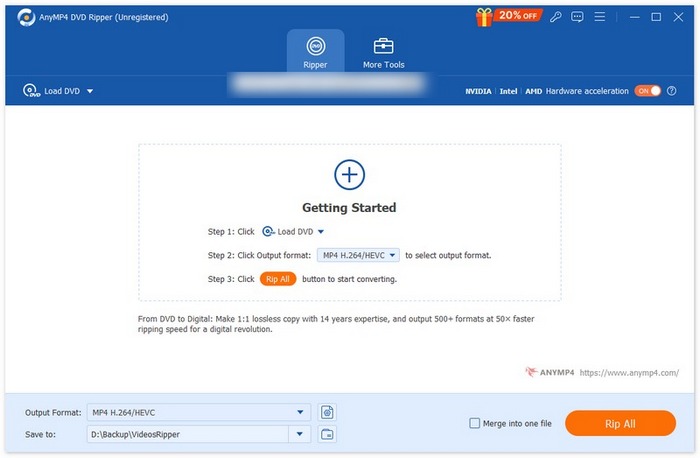
Schritt 3: Klicken Sie danach unten auf "Ausgabeformat" und wählen Sie im Tab "Video" das gewünschte Videoformat aus. Auf diese Weise können Sie Ihre DVD in ein Video‑Dateiformat umwandeln, das besser zugänglich ist und von verschiedenen Geräten unterstützt wird. Sobald Sie fertig sind, klicken Sie einfach auf die Schaltfläche "Alle rippen", um mit dem Rippen Ihrer DVD zu beginnen.

Viel einfacher, oder? Der AnyMP4 DVD Ripper ist wirklich eine hervorragende Alternative zum VLC DVD Ripper. Von der Benutzeroberfläche über den Rippvorgang bis hin zu allen anderen wichtigen Funktionen – dieses Tool ist revolutionär und dem DVD-Rippen mit VLC um Längen überlegen.
Teil 3. FAQs zum Rippen von DVDs mit VLC
Welches ist das beste Format zum Rippen einer DVD?
Das beste Format zum Rippen einer DVD hängt vom Gerät des Benutzers ab. MP4 ist jedoch ein weit verbreitetes Videoformat. Daher ist MP4 beim Rippen einer DVD das sicherste Format, das Sie wählen können.
Kann ich unter Windows 7 eine DVD rippen?
Ja. Sie können DVDs unter Windows 7 mit dem VLC Media Player rippen. VLC unterstützt verschiedene Betriebssysteme, darunter auch Windows 7. Zum Rippen von DVDs mit VLC folgen Sie einfach dem gleichen Verfahren wie bei anderen Windows-Versionen. Stellen Sie jedoch sicher, dass Ihr DVD-Laufwerk funktioniert und VLC auf dem neuesten Stand ist, um Kompatibilitätsprobleme zu vermeiden.
Wie lange dauert das Rippen einer DVD?
Die Zeit, die zum Rippen einer DVD benötigt wird, hängt von mehreren Faktoren ab. Sie müssen die Größe der DVD, die Geschwindigkeit Ihres DVD‑Laufwerks und die von Ihnen gewählten Ripping‑Einstellungen berücksichtigen, zum Beispiel Auflösung, Format usw. In der Regel dauert das Rippen einer Standard‑DVD etwa 20 Minuten bis über eine Stunde. Höhere Qualitätsstufen und größere Dateigrößen benötigen im Allgemeinen mehr Verarbeitungszeit. Wenn Sie die Wiedergabegeschwindigkeit von VLC wissen möchten, schauen Sie hier nach.
Kann ich kopiergeschützte DVDs mit VLC rippen?
Nein. Aufgrund der Verschlüsselung und des digitalen Rechtemanagements ist es für jede Software schwierig, kopiergeschützte DVDs zu rippen.
Fazit
Da Sie nun wissen, wie man DVDs mit VLC rippt, gibt es keinen Grund mehr, all Ihre DVDs für immer aufzubewahren. Befolgen Sie einfach diese Anleitung, und Sie können all Ihre Discs in digitale Dateien umwandeln, die Sie überall und auf jedem gewünschten Gerät abspielen können. Wenn VLC bei Ihnen nicht funktioniert, können Sie als Alternative AnyMP4 DVD Ripper ausprobieren. Sind Sie bereit dafür? Dann lassen Sie uns loslegen und mit dem Rippen beginnen.
-
 So streamen Sie DVD-Filme über Chromecast vom PC/Mac auf den Fernseher
 Sie wissen nicht, wie Sie DVD-Filme über Chromecast im Fernsehen ansehen können? Dieser Artikel zeigt die einfachste Möglichkeit, Ihre DVD-Filme über Chromecast vom PC auf den Fernseher zu übertragen.
-
 Android DVD Player – So spielen Sie DVD-Videos auf Android-Handys ab
 Wie spielt man DVD-Dateien auf Android-Handys ab? Gibt es Android-DVD-Player? In diesem Artikel erfahren Sie, wie Sie DVD-Videos auf Android-Handys mit oder ohne externem Treiber abspielen können.
-
 Die besten 3 Alternativen zum DVDFab Player zum Abspielen von DVD-Videos auf dem PC
 Lohnt sich der Kauf eines DVDFab Players? Kann es 4K-Videos abspielen? Wie wäre es mit der kostenpflichtigen Version? Dieser Artikel stellt seine Funktionen im Detail vor und es gibt die 3 besten Alternativen zum DVDFab Player, aus denen Sie wählen können.
