


 Video Converter Ultimate
 Bildschirm recorder
 Videoreparatur
 Sicherer Download
So zeichnen Sie das Gameplay auf der PS5 unbegrenzt auf [Umfassende Richtlinien]
In just a matter of three years, the PlayStation 5 has flown off the shelves. It has hit over 50 million units sold ever since it was released, as it is a cool hardware and 4K gaming-giving console. Now, If you're keen to show off your gaming skills or share your epic gameplay moments with your fans, recording on a PlayStation 5 is a great option. If you are wondering how to record on PS5, it comes with this cool feature that you can use to capture, tweak, and share your gaming adventures on various platforms. But how exactly do you do all of this? Stick around to discover how to record and snap screenshots on your PS5, even how to do it using a limitless recording technique.

Teil 1. So zeichnen Sie das Gameplay auf der PS5 auf
Natürlich verfügt die PS5 über einen integrierten Rekorder, mit dem Sie Ihr atemberaubendes Gameplay aufzeichnen können. Beachten Sie jedoch, dass der Rekorder Ihrer Konsole Einschränkungen und Leistungseinschränkungen hat. Was die Leistung betrifft, kann man mit Sicherheit sagen, dass er sehr gut für die Erstellung hochwertiger Videoaufzeichnungen geeignet ist. Was die Einschränkungen betrifft, müssen Sie jedoch bedenken, dass Sie mit dieser Konsole nur maximal 60 Minuten Spielzeit aufzeichnen können. Außerdem können Sie nur Videos in den unterstützten Ausgabeformaten MP4 und WebM erstellen.
Wenn Sie wissen möchten, wie Sie mit dem integrierten Gameplay-Recorder der PS5 Ihren Bildschirm aufzeichnen, finden Sie Antworten auf die folgenden Schritte.
Ein Gameplay aufzeichnen
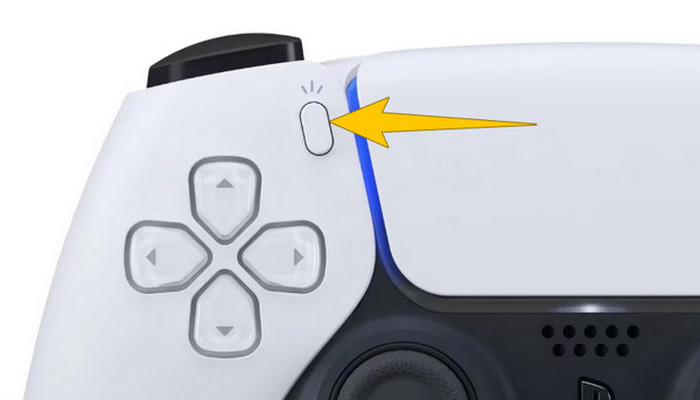
Step 1. Grab your DualSense controller and press the button above the arrow buttons. This represents the Create function and can be pressed when you are about to record your gameplay.
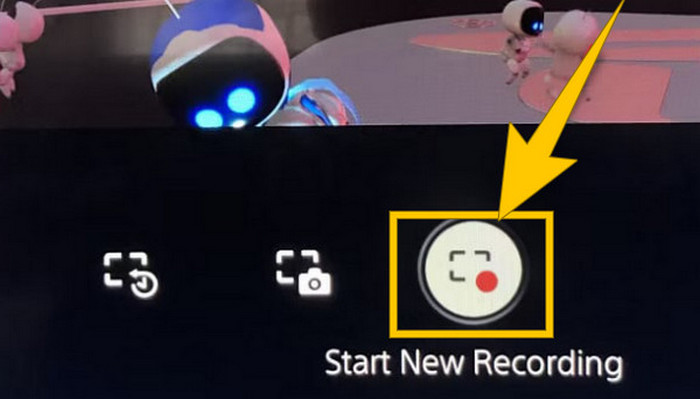
Step 2. After pressing the button, look at your screen and click the Start New Recording option. You will see this option at the bottom part. Immediately, the recording will start so you may begin your gameplay.
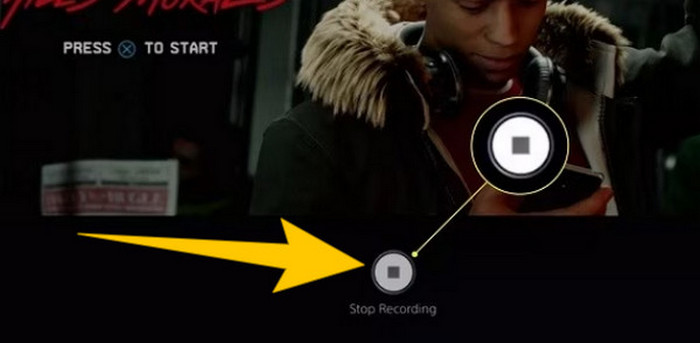
Step 3. Suppose you are done with your game, so here’s how to turn off gameplay recording on PS5. You just need to press the Create button again, and this time, click Stop Recording, which you will see on the screen.
Laden Sie die Aufzeichnungen herunter
Nach der Aufnahme speichert PS5 die Ausgabe automatisch in Ihrer Mediengalerie, wo alle Dateien gespeichert werden. Wenn Sie nun eine Kopie für Ihr separates Gerät behalten möchten, müssen wir Ihnen leider mitteilen, dass die besagte Galerie keine Download-Option bietet. Es gibt jedoch immer noch eine Möglichkeit, die Dateien aufzubewahren.
Step 1. Connect your external SD or USB drive to your console. Then, go to your Media Gallery and open it.
Step 2. Select the screen recording that you recently saved. Then, click the Ellypsis or the three-dot button at the bottom part of the screen, along with the other options given.
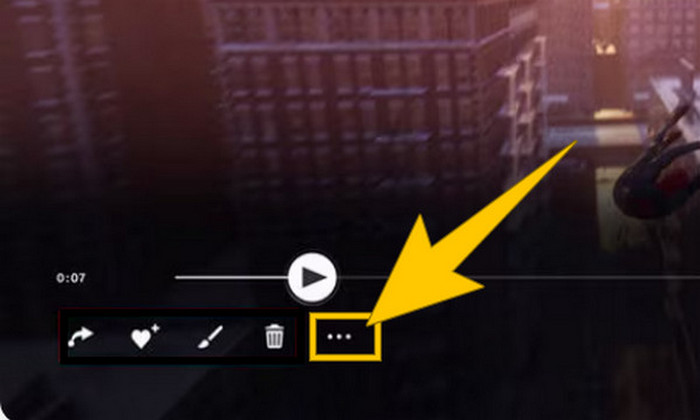
Step 3. Once clicked, select the Copy to USB Drive option to start copying the recorded video to your USB. Once done, transfer the video to the device where you want to keep the recorded file.
Teil 2. So nehmen Sie den Bildschirm auf der PS5 in 4K-Qualität ohne Einschränkungen auf
Do not fret if PlayStation 5 only lets you capture up to an hour of gameplay in good quality. We know how frustrating it is for most gamers, and not all games support this. So, for your unlimited recording with 4K quality on all PS5 games, you might want to check out FVC Screen Recorder. Yes, this screen recorder doesn't limit your recording time, just your computer's storage. Plus, it won't slow down your gameplay. With this amazing game recorder, you can also tweak your recordings before saving them. In fact, you can trim, merge, compress, convert, edit metadata, enhance the recording, and share it to your selected platforms breezily.
Es ist auch erwähnenswert, dass FVC Screen Recorder verschiedene Aufnahmetools bietet, um Ihre Aufnahmeaufgaben zu erfüllen. Damit können Sie Video, Audio, Fenster, Webcams, Telefone usw. aufnehmen. Bemerkenswert ist, dass Sie Ihre Aufnahmen ohne eingebettete Wasserzeichen genießen können! Um mehr über den FVC Screen Recorder zu erfahren, folgen Sie den nachstehenden Schritten, um zu sehen, wie Sie auf PS5 einen Bildschirm aufnehmen.
Step 1. Get the FVC Screen Recorder by downloading it onto your computer. To do so, just click the Free Download button, then follow the instructions to install and open it.
Kostenloser DownloadFür Windows 7 oder höherSicherer Download
Kostenloser DownloadFür macOS 10.7 oder höherSicherer Download
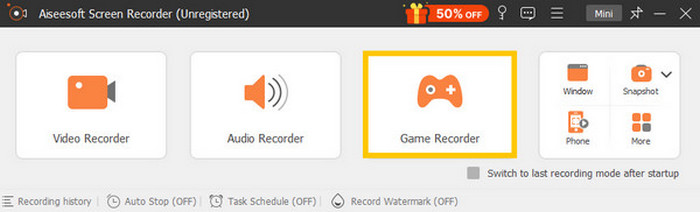
Step 2. Upon reaching the interface of FVC, find and click on the Game Recorder tool. It is located on the right-center side of the screen. From there, click the little arrow beside Select the Game to choose which window where your PS5 is screened.
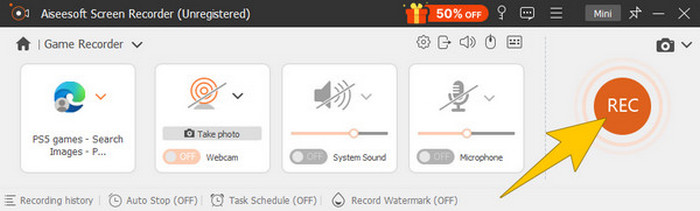
Step 3. Once you have selected the window, you will notice that the recorder will focus on it. Remarkably, you can also decide if you want to include your webcam for picture-in-picture recording, system sound, and microphone audio in your recording. When things are set, click the REC button to begin the game and recording.
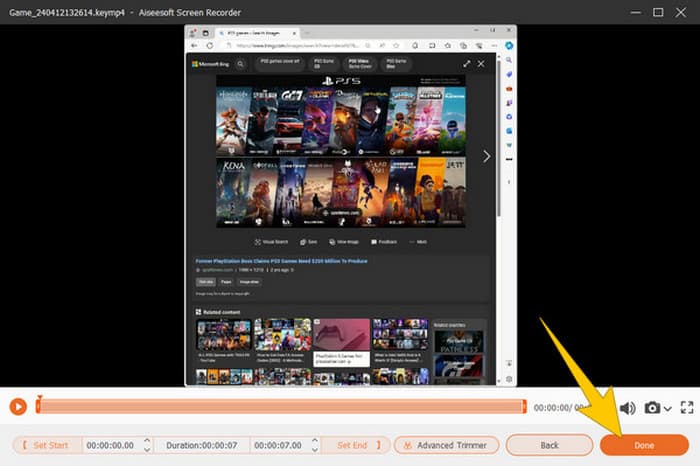
Step 4. When you are done recording, click the Stop button from the floating bar. Then, you can tweak the video using the editing tools provided from the new window. After that, click the Done button to save the recorded file on your gallery.
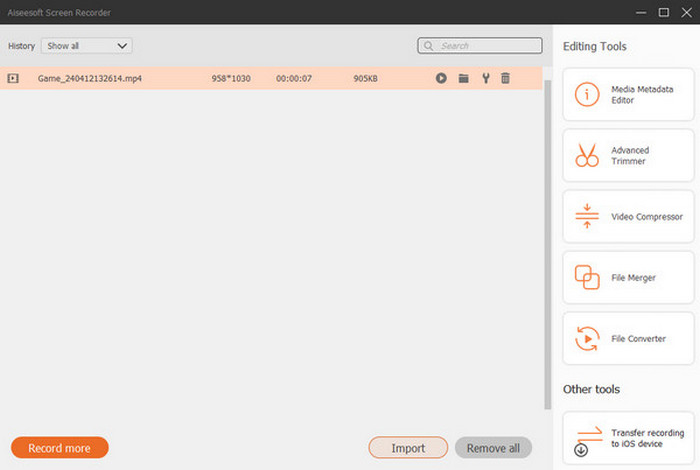
Step 5. This is an optional step. But if you want to share your recording to your social media accounts, you may right-click your most recent gameplay recording and then select the Share option. Also, you can use additional advanced editing tools to enhance your recordings.
Wenn Sie mehr über diesen Rekorder erfahren möchten, finden Sie hier weitere Tipps.
Weiterführende Informationen
5 Efficient Ways How to Record Screen to GIF on Mac & Windows
How to Record the Epic Stunts, Clutches, or Tutorials on Minecraft
Teil 3. Häufig gestellte Fragen zur Aufzeichnung des Gameplays auf der PS5
Wie schaltet man die Gameplay-Aufzeichnung auf der PS5 aus?
Um die Gameplay-Aufzeichnung auf Ihrer PS5 auszuschalten oder zu stoppen, müssen Sie nur die Schaltfläche „Erstellen“ auf Ihrem Gamecontroller drücken. Klicken Sie dann auf Ihrem Bildschirm auf die Option „Aufzeichnung beenden“.
Wo kann ich meine aufgezeichneten Gameplay-Clips auf meiner PS5 sehen?
Die aufgezeichneten Gameplay-Clips werden im Abschnitt „Aufnehmen“ der Hauptgalerie gespeichert. Sie können diese Galerie vom Startbildschirm aus aufrufen. Damit können Sie Ihre Clips anzeigen, bearbeiten und freigeben, wie es Ihre Galerie zulässt.
Wie teile ich meine Aufnahmen auf PS5?
Sie können Ihre Clips nach der Aufnahme auf Ihrer PS5 direkt aus der Capture Gallery teilen. Sie müssen nur den Clip auswählen, den Sie teilen möchten, auf Ihrem Controller auf die Schaltfläche „Optionen“ klicken und die Option „Teilen“ auswählen.
Fazit
No more asking how to record on PS5, as this article provided you with the default and best ways. Thus, have qualitative and lengthy gameplay recordings of your desired. Then, share the solutions with your co-gamers for them to have the same exciting recording experience on their PS5!
-
 5 der führenden Spielaufzeichnungssoftware, die ein Gamer kennen muss [2024]
 Sind Sie ein Spieler, der eine Spielaufzeichnung machen möchte? Dann finden Sie in diesem Artikel den besten Spielrekorder, mit dem Sie neue Gaming-Höhen erleben können.
-
 Die 5 besten Android-Bildschirmrekorder-Apps, die Sie im Jahr 2024 erwerben müssen
 Haben Sie Probleme, weil Sie auf Ihrem Android keine Bildschirmaufnahme machen können? Wenn dies der Fall ist, haben wir in diesem Artikel die Android-Bildschirmrekorder überprüft, auf die Sie herunterladen können.
-
 Die 5 besten Zoom-Meeting-Recorder zum Aufzeichnen von Meetings auf Zoom [2024]
 Müssen Sie ein Zoom-Meeting aufzeichnen, um die wichtigen Details Ihres Meetings nicht zu verpassen? In diesem Fall finden Sie in diesem Artikel die besten Zoom-Rekorder, die Sie kennen sollten.
