


 Video Converter Ultimate
 Bildschirm recorder
 Videoreparatur
 Sicherer Download
So erstellen Sie einen Screenshot von Google Maps: Planen, Screenshot machen und erkunden
Google Maps ragt als leuchtendes Beispiel für hervorragende Navigation heraus. Ob du deine nächste Autoreise planst, einen neuen Wanderweg auskundschaftest oder einfach durch den Großstadtdschungel navigierst – Google Maps ist für Reisende und Entdecker gleichermaßen zu einem unverzichtbaren Werkzeug geworden. Aber was passiert, wenn du auf die perfekte Route oder ein verstecktes Highlight stößt? Diese Momente festzuhalten ist entscheidend – und genau hier kommt ins Spiel, dass du weißt, wie man einen Google-Maps-Screenshot macht. In diesem Artikel zeigen wir dir 3 Möglichkeiten, deine Reise effektiv zu planen, die entscheidenden Screenshots mithilfe von Software-Tools und auf Mobilgeräten zu erstellen und so ein nahtloses Entdecker-Abenteuer zu starten. Worauf wartest du noch? Steig ein und lies weiter, um das volle Potenzial von Google Maps und Bildschirmaufnahmen gemeinsam auszuschöpfen.

Teil 1. So erstellen Sie mit dem Bildschirmrekorder einen Screenshot von Google Maps unter Windows/Mac
Wie macht man einen Screenshot von Google Maps? Um einen Screenshot von Google Maps zu erstellen, kannst du Software wie den von FVC ausgewählten Screen Recorder verwenden. Dieses Tool ist einfach zu bedienen und ermöglicht es dir, Bilder von allem aufzunehmen, was auf deinem Bildschirm angezeigt wird. Es kann sowohl auf Mac- als auch auf Windows-Computern kostenlos heruntergeladen werden und ist daher eine hervorragende Wahl, um Google-Maps-Screenshots und andere Aktivitäten aufzuzeichnen.
Schritt 1. Installiere dieses Google-Maps-Screenshot-Tool, indem du die offizielle Website besuchst, und lade die Software herunter, falls du dies noch nicht getan hast.
Kostenloser DownloadFür Windows 7 oder höherSicherer Download
Kostenloser DownloadFür macOS 10.7 oder höherSicherer Download
Schritt 2. Öffne die Software auf deinem Computer und wähle dann im Hauptmenü Snapshot, um das gewünschte Google-Maps-Bild aufzunehmen.
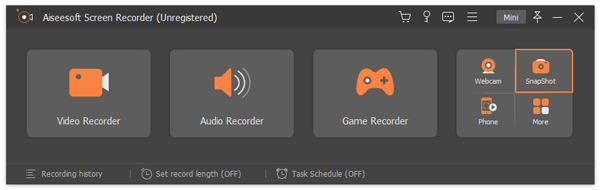
Schritt 3. Um den Bereich auszuwählen, den du erfassen möchtest, bewege deine Maus dorthin und klicke mit der linken Maustaste.
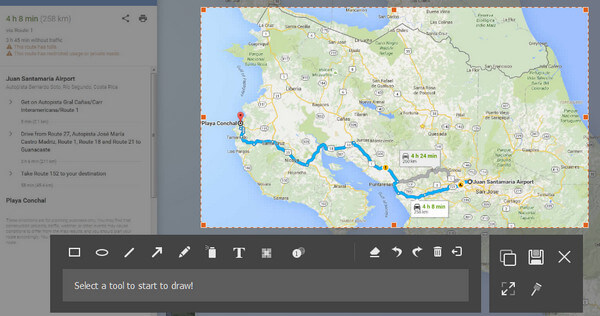
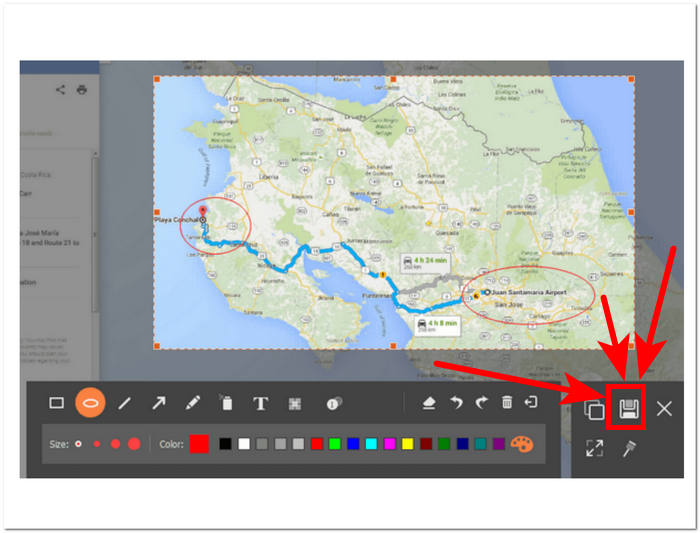
Schritt 4. Du kannst deinen Screenshot bearbeiten, indem du Formen und Text hinzufügst bzw. darauf zeichnest, um bestimmte Orte hervorzuheben oder zu betonen. Sobald du zufrieden bist, klicke auf die Schaltfläche Speichern in der unteren rechten Ecke des Tools.
Dieses Screenshot-Tool ist eine äußerst vielseitige Software zum Aufnehmen von Screenshots. Benutzer können damit nicht nur Screenshots machen, sondern auch Bildschirme, Audio und Spiele aufzeichnen. Es ist ein praktisches Tool, das für verschiedene Aufgaben zur Bildschirmaufnahme optimiert werden kann, die über das bloße Aufnehmen von Google Maps-Screenshots hinausgehen.
Teil 2. So erstellen Sie einen Screenshot von Google Maps mit dem Snipping Tool und Tastenkombinationen
Um einen Screenshot Ihrer Google Maps zu erstellen, können Sie das Standard-Snipping-Tool und die Tastenkombinationen Ihres Computers verwenden. Auf diese Weise können Sie mühelos Inhalte auf Ihrem Bildschirm erfassen, ohne zusätzliche Software verwenden zu müssen. Es ist jedoch wichtig zu beachten, dass diese Methode keine Bearbeitungsfunktionen bietet, sodass Sie Ihrem Screenshot und in diesem Fall Ihren Google Maps keine Markierungen oder Anmerkungen hinzufügen können.
Windows
Schritt 1. Öffne Google Maps in deinem Browser und suche den Ort oder die Route, die du festhalten möchtest.
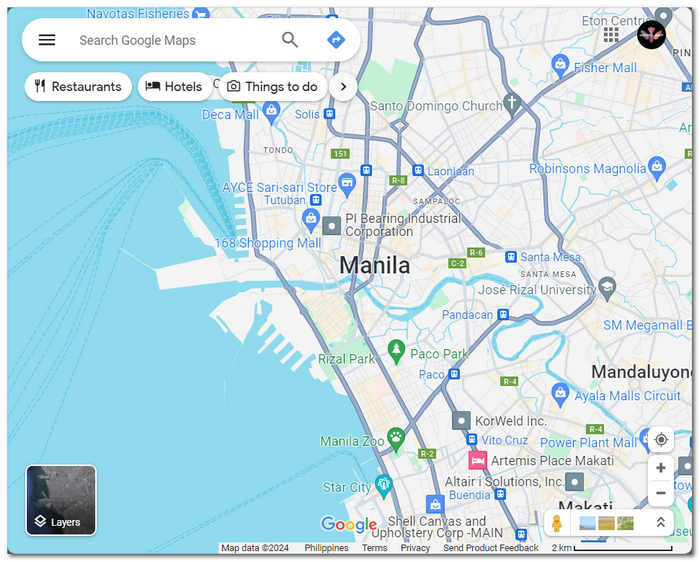
Schritt 2. Öffne das Snipping Tool, indem du entweder im Startmenü danach suchst oder gleichzeitig die Tasten Windows-Logo + Shift + S auf deiner Tastatur drückst.
Schritt 3. Wähle einen der vier verfügbaren Modi: Rechteckmodus, Freiformmodus, Fenstermodus oder Vollbildmodus.
Wenn du einen Scroll-Screenshot unter Windows machen möchtest, findest du hier weitere Informationen.
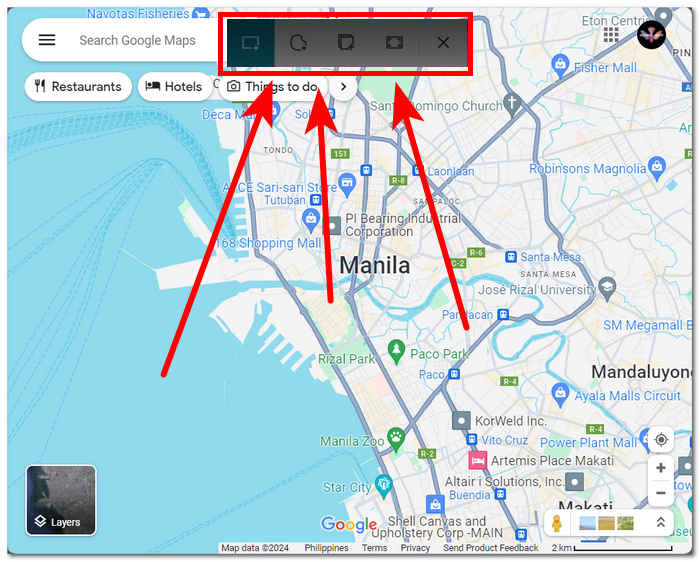
Schritt 4. Sobald du den Screenshot aufgenommen hast, kannst du ihn speichern oder per Strg + V in eine E‑Mail oder Nachrichtenplattform einfügen.
Mac
Schritt 1. Öffne Google Maps in Safari und navigiere zur gewünschten Karte.
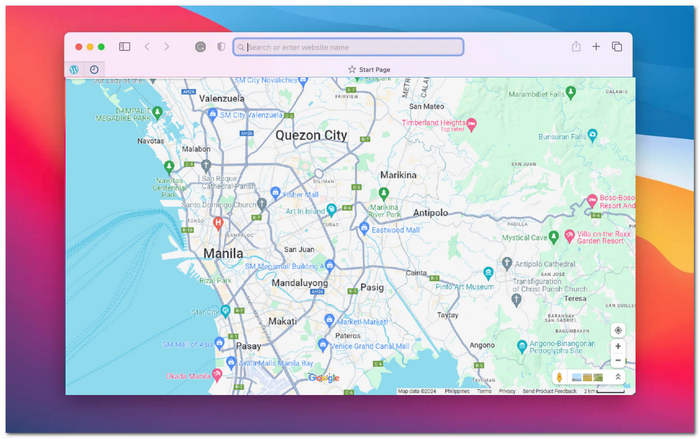
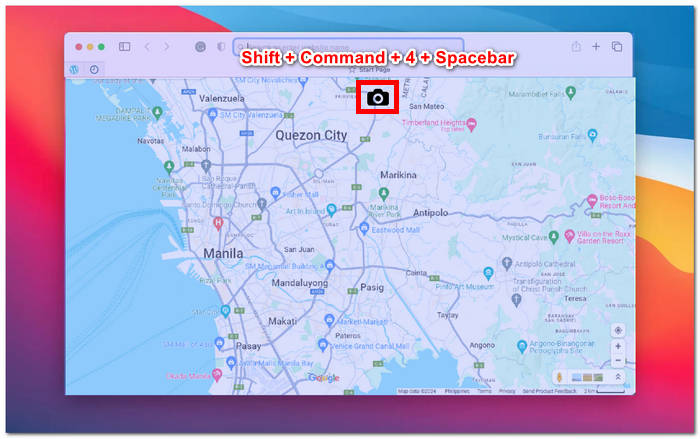
Schritt 2. Drücke und halte gleichzeitig die Tasten Shift + Befehl (Command) + 4 + Leertaste. Dein Cursor verwandelt sich automatisch in ein Kamera-Symbol.
Schritt 3. Klicke auf das Safari‑Fenster, um die gewünschte Google‑Maps‑Ansicht aufzunehmen.
Schritt 4. Sobald eine Miniaturansicht deines Screenshots auf dem Bildschirm erscheint, klicke darauf, um ihn zu bearbeiten und auf deinem lokalen Speicher zu sichern. So einfach ist das!
Für Scroll-Screenshots auf dem Mac in Google Maps findest du hier weitere Informationen.
Beim Aufnehmen von Screenshots von Google Maps haben Sie möglicherweise die standardmäßigen Snipping-Tools Ihres Computers verwendet. Dies kann Zeit sparen und das Herunterladen von Software oder die Verwendung von Tools von Drittanbietern überflüssig machen. Diese standardmäßigen Snipping-Tools verfügen jedoch nicht über Bearbeitungsfunktionen. Wenn Sie Ihren Screenshot bearbeiten möchten, müssen Sie zu diesem Zweck zusätzliche Software herunterladen oder, besser noch, Softwaretools herunterladen, die sowohl das Aufnehmen von Screenshots als auch die Bearbeitung in einem Vorgang ermöglichen, wie z. B. den von FVC empfohlenen Screen Recorder.
Teil 3. So erstellen Sie einen Screenshot von Google Maps auf iPhone/Android
Das Aufnehmen eines Google Map-Screenshots auf einem Android- oder iPhone-Gerät ist eine praktische Möglichkeit, eine Kartenansicht oder Wegbeschreibung zum späteren Nachschlagen zu speichern. Dazu müssen Sie einige einfache Schritte befolgen, die in diesem Artikel beschrieben werden. Egal, ob Sie ein Android- oder ein iPhone verwenden, mit der richtigen Anleitung ist das Aufnehmen eines Screenshots von Google Maps ein Kinderspiel.
Android
Schritt 1. Öffne auf deinem Android‑Gerät die Google Maps-App.
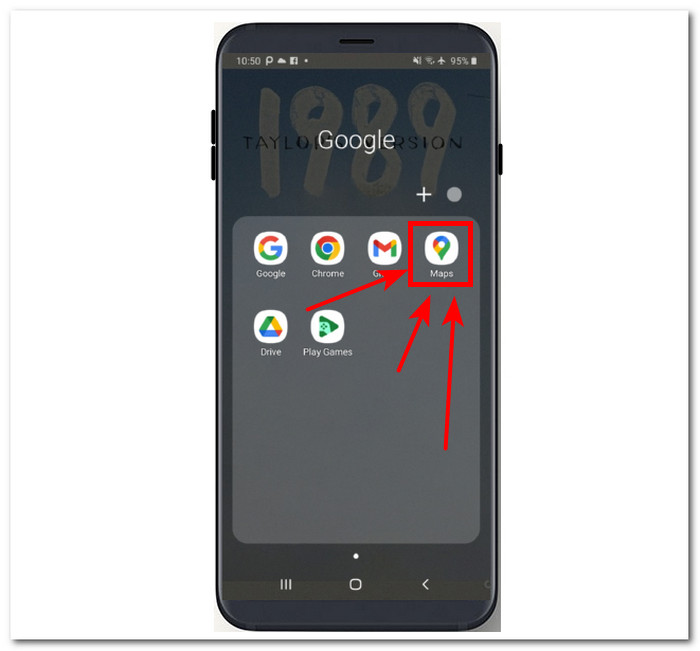
Schritt 2. Navigiere zu dem Kartenausschnitt, den du aufnehmen möchtest.
Schritt 3. Um deinen Bildschirm aufzunehmen, drücke gleichzeitig die Tasten Leiser und Power.
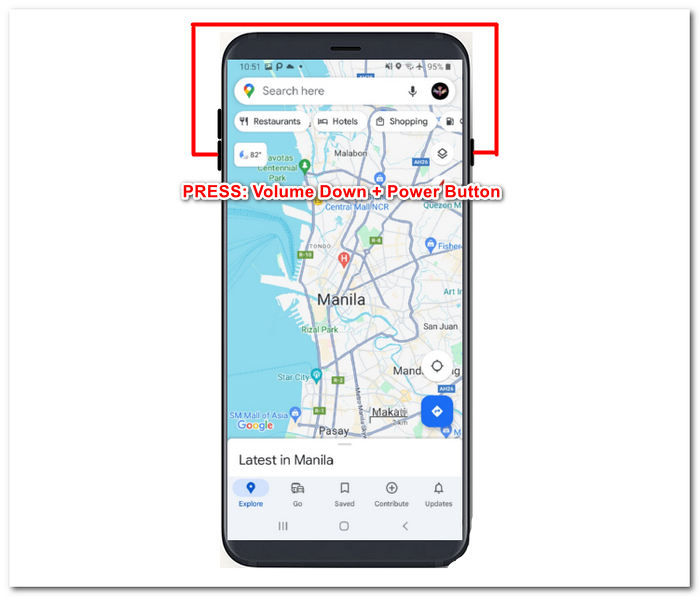
Schritt 4. Dein Google‑Maps‑Screenshot wird automatisch in der Galerie deines Geräts gespeichert, damit du ihn bei Bedarf ansehen und teilen kannst.
iPhone
Schritt 1. Öffne auf deinem iPhone die Google Maps-App.
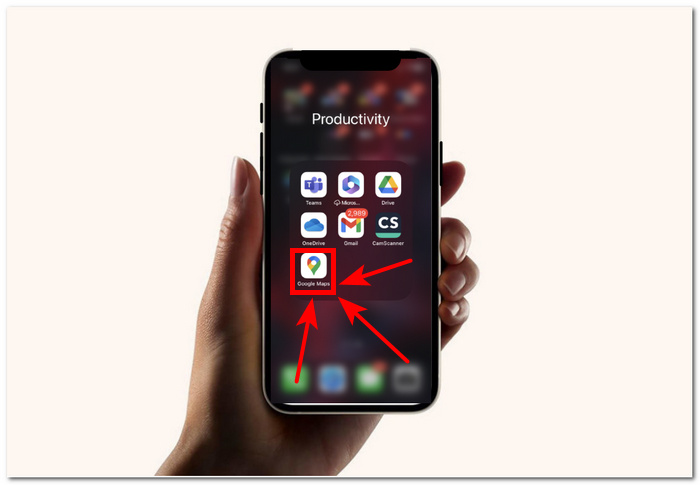
Schritt 2. Navigiere zu dem Ort, den du aufnehmen möchtest.
Schritt 3. Drücke gleichzeitig die Tasten Lauter + Power, um einen Screenshot zu machen.
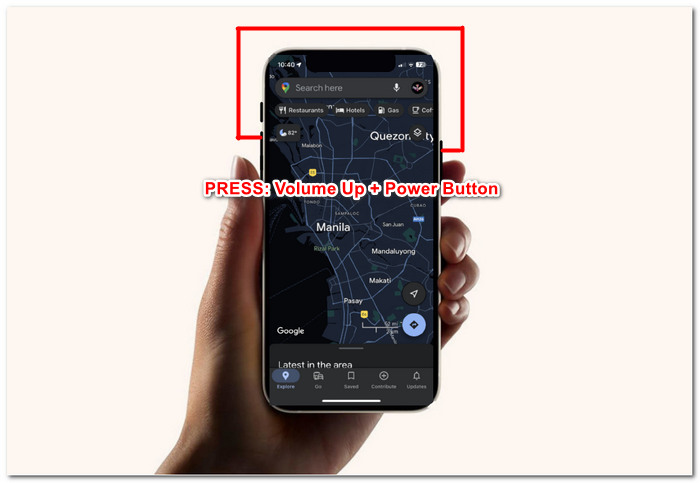
Schritt 4. Der Screenshot wird automatisch als JPG in deiner Fotos‑ bzw. Galerie‑App gespeichert.
Um einen Screenshot von Google Maps zu erstellen, ist die schnellste und einfachste Methode die Verwendung Ihres Mobilgeräts. Mit diesem Ansatz können Sie umgehend einen Screenshot erstellen, was insbesondere für Benutzer von Vorteil ist, die ständig auf ihren Mobilgeräten sind und diese Methode der Verwendung eines Computers vorziehen.
Teil 4. Häufig gestellte Fragen zum Erstellen von Screenshots von Google Maps
Kann ich auf meinem Computer einen Screenshot von Google Maps machen?
Ja, es gibt mehrere Möglichkeiten, Screenshots von Google Maps auf Ihrem Computer aufzunehmen. Sie können die standardmäßigen Screenshot-Tools auf Ihrem Gerät verwenden oder sich für Software von Drittanbietern entscheiden. Diese Methoden sind einfach zu verwenden und ermöglichen es Ihnen, das gewünschte Kartenbild schnell auf Ihrem Computer aufzunehmen.
Ist es legal, einen Screenshot von Google Maps zu machen?
Das Erstellen von Screenshots von Google Maps für den persönlichen Gebrauch ist grundsätzlich legal. Es ist jedoch wichtig zu beachten, dass die Verwendung dieser Screenshots für kommerzielle Zwecke oder deren unbefugte Verbreitung möglicherweise gegen die Nutzungsbedingungen oder Urheberrechte von Google verstößt.
Kann ich einen bestimmten Bereich von Google Maps erfassen?
Ja, viele Screenshot-Tools bieten die Möglichkeit, einen bestimmten Bereich des Bildschirms zu erfassen. Dies kann sehr hilfreich sein, wenn Sie einen bestimmten Bereich erfassen müssen, z. B. bei Google Maps. Mit dieser Funktion können Sie nur einen Screenshot des Teils des Bildschirms erstellen, den Sie erfassen möchten, und nicht des gesamten Bildschirms. So können Sie sich leichter auf die wichtigen Details konzentrieren.
Gibt es beim Aufnehmen von Screenshots von Google Maps irgendwelche Einschränkungen oder Beschränkungen?
Sie können Google Maps zwar grundsätzlich für den persönlichen Gebrauch erfassen, beachten Sie jedoch die Nutzungsbedingungen von Google. Verwenden Sie Screenshots nicht ohne entsprechende Genehmigung für kommerzielle Zwecke und beachten Sie alle Urheberrechts- oder Nutzungsbeschränkungen.
Kann ich Street View-Bilder von Google Maps aufnehmen?
Google Maps bietet keine direkte Option zum Aufnehmen von Street-View-Bildern. Um jedoch einen qualitativ hochwertigen Screenshot von Google Maps zu erhalten, können Sie eine Bildschirmaufzeichnungssoftware verwenden, um die Straßenansicht aufzuzeichnen, während Sie durch sie navigieren.
Fazit
Google Maps zu screenshotten ist eine hervorragende Möglichkeit für Reisende, Abenteurer und Alltagsnutzer, die Welt zu erkunden, ohne auf eine Internetverbindung angewiesen zu sein. Es ist zu einem grundlegenden Wissen im Umgang mit Navigation und Erkundung geworden und bietet detaillierte Karten, Wegbeschreibungen und Echtzeit-Verkehrsinformationen. Es gibt verschiedene Methoden, um Google‑Maps‑Screenshots in hoher Auflösung aufzunehmen, egal ob du einen Computer oder ein Mobilgerät verwendest. Du kannst spezialisierte Software wie den von FVC ausgewählten Screen Recorder nutzen oder die integrierten Tools und Tastenkombinationen unter Windows, Mac, Android und iPhone verwenden. So war es noch nie so einfach, die perfekte Kartenansicht festzuhalten.
-
 So erstellen Sie mühelos Scroll-Screenshots in Firefox
 Erfahren Sie, wie Sie Screenshots in Firefox scrollen, um ganze Webseiten sofort zu erfassen. Folgen Sie unserem einfachen Schritt-für-Schritt-Tutorial, um zu erfahren, wie Sie diese Funktion nutzen können.
-
 Schritt-für-Schritt-Anleitung für Screenshots im VLC Media Player
 Erfahren Sie, wie Sie mühelos VLC-Screenshots in einfachen Schritten erstellen. Folgen Sie unserer Anleitung zum schnellen und einfachen Aufnehmen von Schnappschüssen über Tastenkombinationen und Menüeinstellungen.
-
 So erstellen Sie effizient Screenshots im Windows Media Player
 Entdecken Sie die einfachsten Methoden, um mühelos Screenshots im Windows Media Player aufzunehmen. Verbessern Sie Ihr Bildschirmaufnahmeerlebnis mit unserem umfassenden Leitfaden.
