


 Video Converter Ultimate
 Bildschirm recorder
 Videoreparatur
 Sicherer Download
Monosnap Software: Produktinformationen & Alternativen im Test
Taking a screenshot is a way to save content on the screen through a quick snapshot or capture the whole content. In the likes of desktop devices such as Windows and Mac, there are a variety of ways to take a screenshot. Thus, it's a matter of user preferences regarding which method they want to use. If users find that method a bit of hassle on their end or simply not working at all, the best solution is to utilize a third-party software tool for taking and capturing a desktop screen like the Monosnap. In this article, we will take a look at the Monosnap screenshot tool for desktop devices, tackling product information, performance, and steps to utilize the tool for screen-capturing tasks. Moreover, we also include a list of alternative screenshot tools for you to get your hands on for seamless and instant screen capturing.

Teil 1. Was ist Monosnap
Monosnap ist ein kostenloses Screenshot-Tool für Desktop-Geräte wie Mac und Windows. Es ermöglicht Benutzern, regelmäßig Screenshots ihrer Desktop-Bildschirme zu erstellen. Es gilt als eines der besten kostenlosen Screenshot-Tools im Internet und ermöglicht die sofortige Umbenennung von Screenshot-Dateien. Dank der individuellen Anpassungsmöglichkeiten können Benutzer auch schnell Änderungen am Screenshot vornehmen. Monosnap ist mehr als nur ein Screenshot-Tool, sondern kann auch problemlos als Video-Bildschirmaufzeichnungstool verwendet werden.
Monosnap ist ein Softwaretool für ein Cloud-Speichersystem, das FFmpeg-Code unter LGPlv2.1 verwendet, der Open Source ist. Dadurch ist die Software vielseitiger und benutzerfreundlicher und liefert qualitativ hochwertige Ergebnisse. Hier sind einige der Funktionen, die Monosnap für Windows- und Mac-Geräte bietet.
1. Es kann den gesamten Bildschirm, bestimmte Bereiche des Bildschirms und ausgewählte Windows-Registerkarten erfassen.
2. Es verwendet seinen Cloud-basierten Speicher und bietet Benutzern Zugriff darauf, um Screenshots zu speichern. Dadurch ist es ein platzsparendes Tool für Ihr Gerät.
3. Es kann auch als Tool zur Video-Bildschirmaufzeichnung verwendet werden, das über eine zusätzliche Funktion zum Umwandeln in eine GIF-Datei verfügt.
4. Einmal-Klick-Funktion zum schnellen Speichern des Screenshots im Gerätespeicher oder in der Cloud.
5. Es bietet die Möglichkeit, die Größe von Screenshots zu ändern, sie zu drehen, zu verwischen und zuzuschneiden.
Teil 2. Monosnap-Rezension
Schritte zur Verwendung von Monosnap
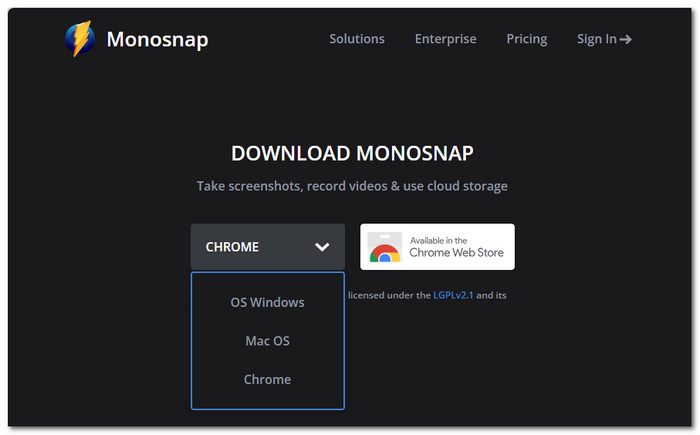
Step 1. Download Monosnap Software first from their official website, and once done, proceed to open the software from your device (Mac or Windows).
Step 2. Once you open the Monosnap tool, you can locate a pop-up logo of the tool in the lower-right part of your screen.

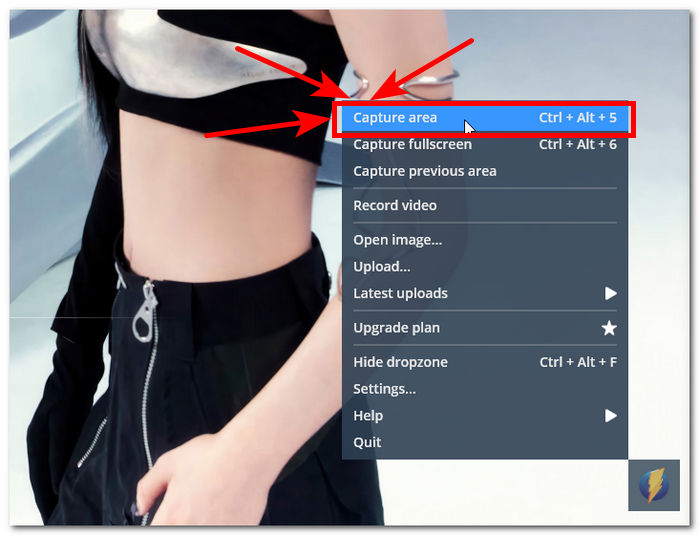
Step 3. Simply click on that logo to access the screen capture settings. From there, to take a quick screenshot of your screen, click on the Capture area or the combination key of Ctrl + Alt + 5 from your keyboard.
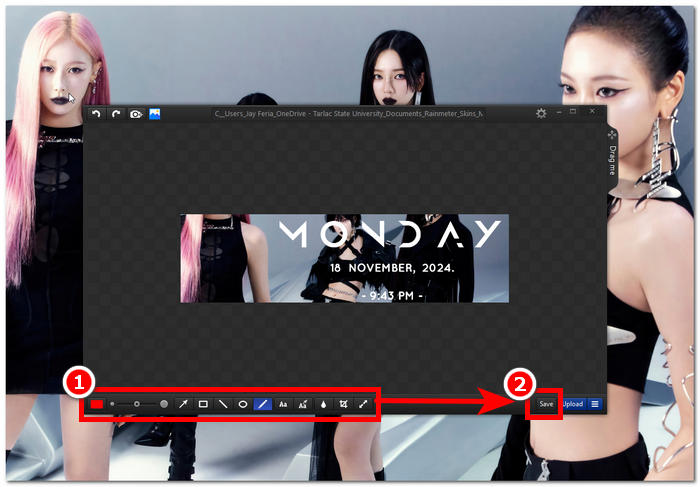
Step 4. A window containing your screenshot or the selected area you captured will appear on your screen. From there, you can customize your screenshot by adding text, highlighting, cropping, and adding shapes and arrows to emphasize it. Once you've done this, click on the Save button to save it to cloud storage or device storage.
Leistung
Unsere praktische Erfahrung mit Monosnap zum Erstellen von Screenshots von Webseiten und dem gesamten Windows-Bildschirm zeigt, dass die Leistung des Tools überraschend einfach und dennoch vollgepackt mit Funktionen ist, was es zu einem hervorragenden Screenshot-Tool macht. Um seine Leistung als Screenshot-Tool näher zu erläutern, haben wir sie unten aufgelistet.
• Sofortiger Screenshot mit einem Klick ohne Ladebildschirm oder Verzögerung beim Öffnen der Software.
• Es verfügt über ein geordnetes System, das die Bearbeitungsfunktionen von der Schaltfläche „Speichern“ trennt, um die Nutzung des Tools zu erleichtern.
• Großzügiges Speichersystem für Screenshots, sodass Benutzer auswählen und entscheiden können, welchen Ordner oder welche Speicherplattform sie verwenden möchten.
Kompatibilität
Auch die Kompatibilität von Monosnap ist erwähnenswert. Das Tool ist mit allen Desktop-Geräten kompatibel und kann als Webbrowser-Erweiterung verwendet werden. Dies ist ein wichtiger Aspekt eines Softwaretools, das von einer Vielzahl von Benutzern auf verschiedenen Geräten und Plattformen genutzt werden muss. Die Verfügbarkeit des Monosnap-Screenshot-Tools macht es für alle Nutzer attraktiver, da es den Download von folgenden Geräten/Plattformen unterstützt:
Software Version
Windows und Mac
Web Browser Extension
Chrome Web Store und Edge-Add-onsc
Speichern
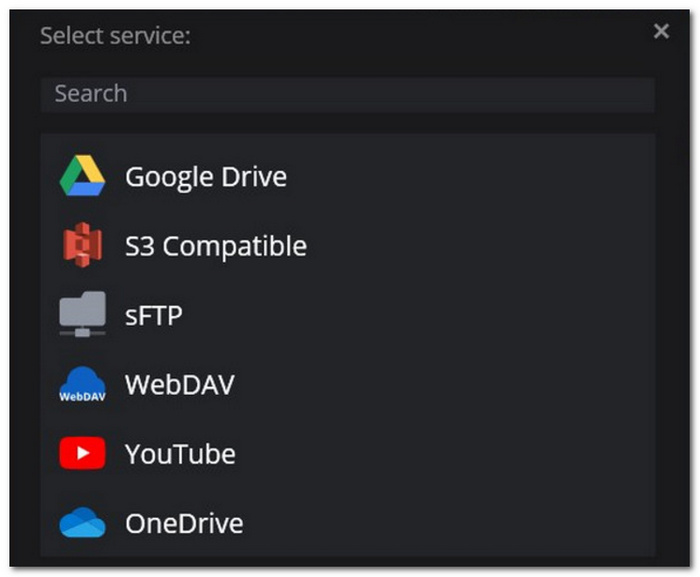
Ein weiterer beeindruckender Aspekt des Screenshot-Tools der Monosnap-Software ist die Möglichkeit, Screenshots zu speichern. Viele Screenshot-Tools bieten Nutzern jedoch nicht die Möglichkeit, zwischen Cloud- und Gerätespeicher zu wählen. Monosnap hingegen legt großen Wert auf zusätzliche Funktionen, wie beispielsweise die Möglichkeit, Screenshots sowohl auf dem Gerät als auch in Cloud-Speichersystemen wie Drive, OneDrive und anderen zu speichern.
Bearbeitung
Monosnap bietet zahlreiche nützliche Bearbeitungsfunktionen, mit denen Sie Screenshots ganz einfach anpassen können, ohne ein weiteres Tool verwenden zu müssen. Nachfolgend finden Sie eine detaillierte Beschreibung der einzelnen Bearbeitungsfunktionen von Monosnap.
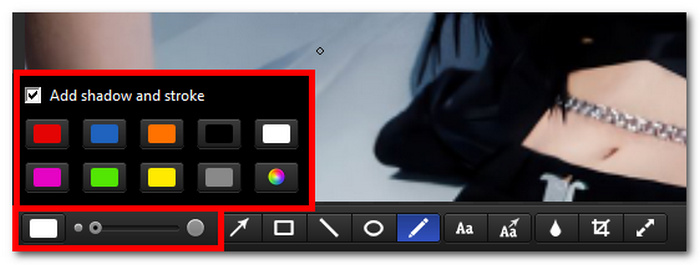
• Shadow & Stroke Color and Resizer Dial: This area allows users to select a color for the stroke and add shadows easily. Moreover, the dial right beside it pertains to the thickness of a dial for resizing text.
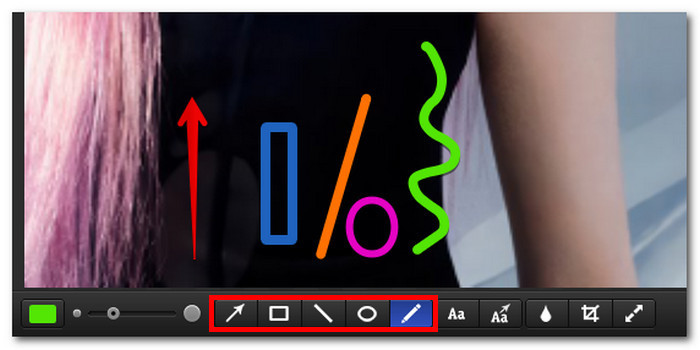
• Arrow, Rectangle, Line, Ellipse, and Brush Tool: These tools allow users to annotate or highlight a certain part of the screenshot, making it easy for them to add lines, arrows, encircle certain areas, and more.
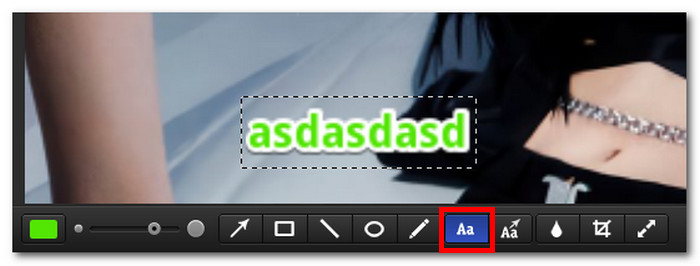
• Adding of Text: This feature allows users to instantly put text within the screenshot image before saving them, saving the inconvenience of using another photo editor just to put text in them.
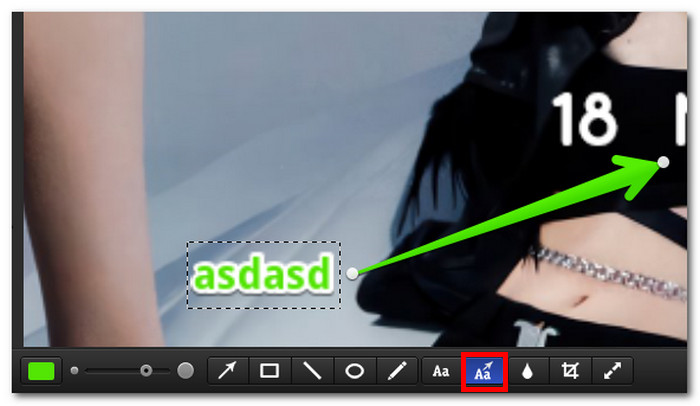
• Arrow with Text: This combines the putting of text and arrow in one tool to put in the screenshot.
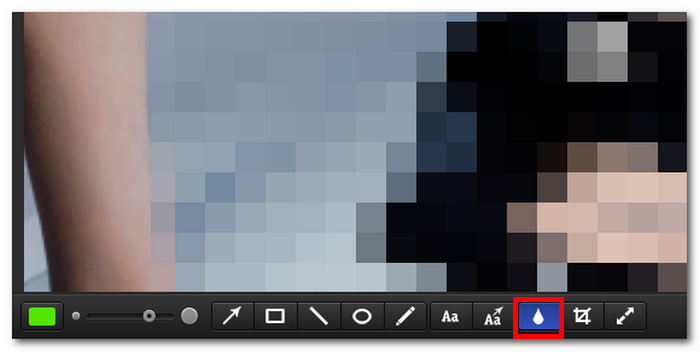
• Blur Tool: The blur tool allows users to blur a certain part of the screenshot that they prefer to be hidden.
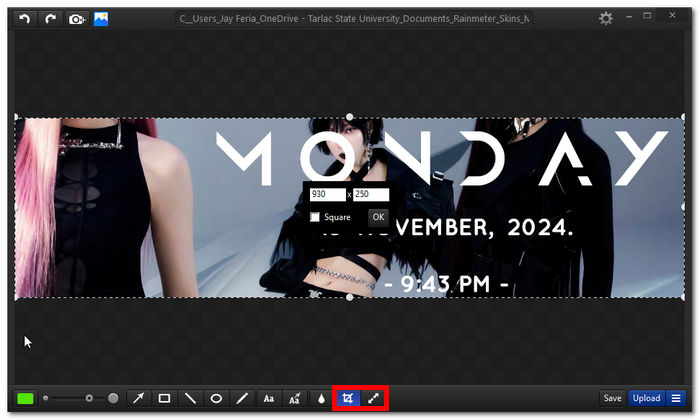
• Crop and Resize Tool: This screenshot editing feature allows users to easily crop and resize their screenshots and uploaded images within the tool.
Gesamtbemerkung
Unser Gesamturteil zum kostenlosen Screenshot-Tool Monosnap ist eine beeindruckende Bewertung von 8/10. Das liegt daran, dass das Tool alle grundlegenden Screenshot-Funktionen bietet. Als kostenloses und benutzerfreundliches Screenshot-Tool ist es zudem übersichtlich aufgebaut und somit auch ohne Vorkenntnisse leicht zu bedienen. Obwohl wir keine Anmeldung oder Kontoerstellung für die Nutzung des Cloud-Speichersystems benötigen, ist es dennoch ein hervorragendes Screenshot-Tool.
Teil 3. Beste Monosnap-Alternativen
FVC-Picked Screen Recorder
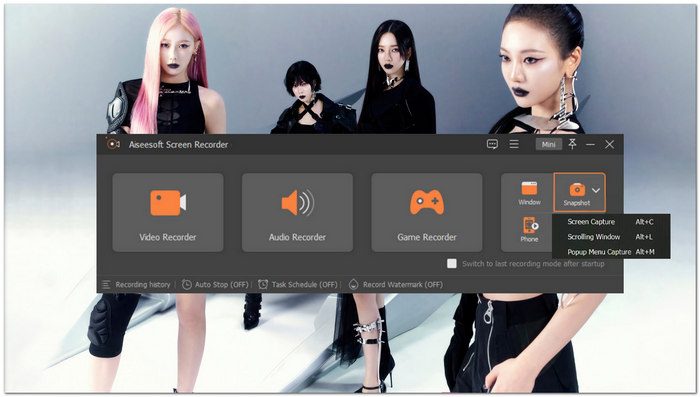
If the Monosnap software tool does not work for some reason, try this alternative screenshot tool, which is the FVC-picked screen recording software tool that is far more generous in terms of features, including screenshots, screen recording, and more. What we like about using this alternative software tool is that it has various screenshot editing settings that are absent from Monosnap, like the ability to overlay an image on top of the screenshot, airbrush tool, callout tool allowing users to put a numbering system within the screenshot and more.
Kostenloser DownloadFür Windows 7 oder höherSicherer Download
Kostenloser DownloadFür macOS 10.7 oder höherSicherer Download
Hauptfunktionen
It can be used as a screenshot tool for Android and iOS devices.
Benutzeroberfläche mit einfacher Navigation.
It is capable of taking screenshots of the whole content through scrolling screenshots and allows you to edit screenshots.
Hochwertiges Bildergebnis.
Multifunktions-Bildschirmvideorecorder, Audiorecorder, Spielerecorder und Screenshot-Tool.
Bildschirmrekorder online
If you find downloading and installing software tools quite a hassle, then you can use this online screen recorder tool. It is a hundred percent web-based and can easily be used to take a screenshot on your desktop device.
Hauptfunktionen
Webbasiertes Bildschirmaufzeichnungstool.
Kostenloses und einfach zu navigierendes Screenshot-Tool.
Es ermöglicht Video-, Audio- und Bildschirmaufnahmen.
Erfassen Sie den gesamten Bildschirm Ihres Geräts.
Hochwertiges Screenshot-Tool.
Snagit
Dieses Softwaretool ist ein kostenpflichtiges Screenshot-Tool, das auf allen Geräten verfügbar ist. Als Alternative zu Monosnap ist es ebenfalls ein benutzerfreundliches Softwaretool, das sowohl hinsichtlich der Benutzeroberfläche als auch der Qualität der Screenshots ein sehr übersichtliches und professionelles Screenshot-Tool bietet.
Hauptfunktionen
Vielseitiges und mehrfach verwendbares Screenshot-Tool für Desktop-Geräte.
Es verfügt über ein integriertes Bildbearbeitungstool.
Unterstützt Cloud-basiertes Speichersystem.
Es verfügt über eine Bibliothek für Medienorganisatoren.
Professionelles Screenshot-Tool.
Teil 4. FAQs zu Monosnap
Wofür wird Monosnap verwendet?
Das Softwaretool Monosnap wird häufig für sofortige Screenshots und Bildschirmaufnahmen verwendet, wenn diese Funktion nicht standardmäßig auf den Geräten verfügbar ist. Der schnelle Zugriff auf Bildbearbeitungsfunktionen wie Hervorheben, Zuschneiden und Größenänderung ist einer der Hauptvorteile für Benutzer.
Ist die Nutzung von Monosnap kostenlos?
Ja, es gibt zwar eine kostenlose Testversion, aber Premium-Funktionen können unabhängig vom Preis auch über die kostenpflichtigen Tarife freigeschaltet werden. Es ist eines der Softwaretools mit sehr günstigen Preisen.
In welchen Dateiformaten kann Monosnap Screenshots speichern?
Monosnap unterstützt grundsätzlich nur die Bildformate PNG und JPEG. Dies ist ausreichend, da die meisten Tools, Plattformen und Programme diese unterstützen. Wenn Sie jedoch ein Softwaretool suchen, das eine Vielzahl von Dateiformaten unterstützt, sollten Sie das von FVC ausgewählte Bildschirmaufzeichnungstool ausprobieren, da es mehr Formate unterstützt als Monosnap.
Fazit
After reviewing the Monosnap screenshot software tool, it Monosnap is great and surpassed our expectations for a screenshot tool. Despite its simplicity and few features, editing screenshots is better than having none, right? However, you may find Monosnap complicated for your convenience despite reading this in-depth look at its use. In that case, you should check on the listed alternative tools, like the FVC-picked screen recorder, as it offers more features for screenshot tasks.
-
 So erstellen Sie FaceTime-Screenshots während eines Anrufs [Leitfaden 2025]
 Sie möchten während eines Videoanrufs über FaceTime Screenshots machen, wissen aber nicht wie? Lesen Sie diesen Artikel und erfahren Sie 3 Möglichkeiten, wie Sie FaceTime-Screenshots machen.
-
 So erstellen Sie ganz einfach einen Screenshot auf dem iPhone [Anleitung 2025]
 Das Aufnehmen von Screenshots auf Ihrem iPhone war noch nie so einfach. Folgen Sie unserer Anleitung und erfahren Sie, wie Sie ganz einfach einen Screenshot auf einem iPhone erstellen. Klicken Sie hier, um mehr zu erfahren!
-
 Erfahren Sie, wie Sie die Größe eines PNG ändern und verlustfreie Qualität erzielen
 Mit unserer umfassenden Anleitung können Sie die Größe von PNG-Dateien schnell und einfach anpassen. Lesen Sie unseren Artikel und folgen Sie der Schritt-für-Schritt-Anleitung für eine nahtlose Bildvergrößerung.
