


 Video Converter Ultimate
 Bildschirm recorder
 Videoreparatur
Seien Sie eine umfassende Kritik bei der Lösung von Out-of-Sync [Audio & Video]
Du hast morgen ein Online‑Referatsprojekt für deinen Kurs. Du suchst die besten Anwendungen oder Programme, mit denen du dein Video aufnehmen kannst, um das Referat einzureichen, das morgen fällig ist. Doch statt eine Lösung für dein Problem zu finden, entsteht Chaos und Stress, weil Audio und Video nicht synchron sind. Du musst dir jedoch keine Sorgen machen, denn du hast Glück: In diesem Artikel steht alles, was du wissen musst, um dein Problem zu beheben.

Teil 1. Warum wird das Audio nicht mit dem Video synchronisiert?
Audio und Video können aus mehreren Gründen nicht synchron sein, einschließlich der folgenden: Die Übertragung oder die Verbindung zwischen Ihrer Kabel-/Satelliten-Set-Top-Box könnte das Problem beim Ansehen eines Fernsehprogramms sein. Ein unzuverlässiger DVD- oder Blu-ray DiscTM-Player oder die Disc selbst kann schuld sein, wenn Sie eines dieser Geräte an Ihr Fernsehgerät angeschlossen haben. Wenn Ihr Heimkinosystem über ein optisches Kabel mit Ihrem Fernseher verbunden ist, bemerken Sie möglicherweise eine Audioverzögerung, die manuell korrigiert werden muss. Andererseits könnten die Einstellungen Ihres Fernsehers schuld sein.
Teil 2. 3 bewährte Tools: So synchronisieren Sie Audio und Video
1. Verwenden Sie Video Converter Ultimate
Es gibt viele Möglichkeiten und Software, die online verfügbar sind, die bei dem angegebenen Problem helfen können, und dies ist eines der besten Tools, die wir empfehlen. Laden Sie den FVC Video Converter Ultimate auf Ihren Computer herunter, eine Software mit verschiedenen Funktionen, die einen Videoclip verbessern. Eine der angebotenen Funktionen kann beispielsweise das Problem der Audio- und Videosynchronisierung eines Videoclips in Windows 10 beheben, indem die Verzögerung angepasst wird. Befolgen Sie die nachstehenden Schritte, um zu erfahren, wie Sie die Software verwenden:
Schritt 1: Um die Software auf deinen Desktop herunterzuladen, klicke auf die Schaltfläche „Kostenloser Download“. Installiere anschließend die Software und passe die Einrichtung nach Wunsch an. Wenn alles in Ordnung ist, starte die Software nach der Installation.
Gratis DownloadFür Windows 7 oder neuerSicherer Download
Gratis DownloadFür MacOS 10.7 oder neuerSicherer Download
Schritt 2: Klicke in der Hauptoberfläche auf die Funktion Toolbox und fahre mit Audio Sync fort.
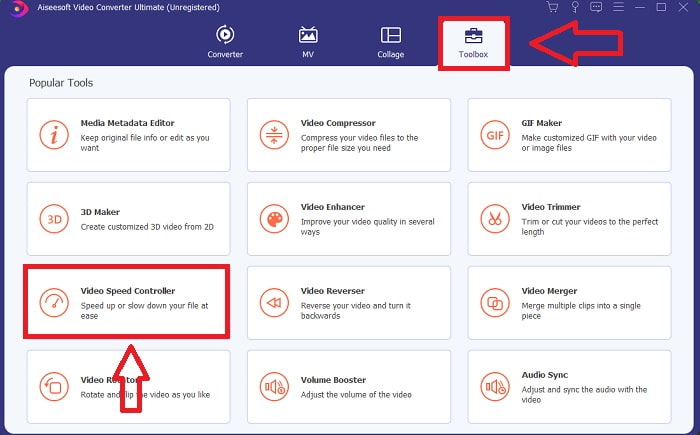
Schritt 3: Füge eine beliebige Datei hinzu, indem du auf die Schaltfläche + klickst, und fahre dann mit der Bearbeitung des Videoclips fort.
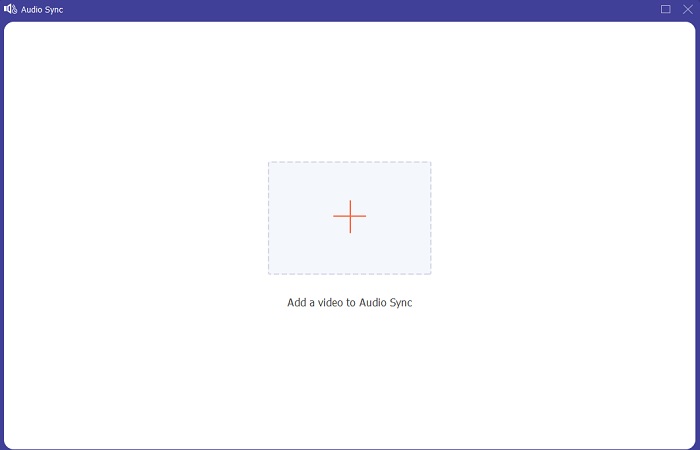
Schritt 4: Passe den Schieberegler des Audios an, um es mit dem Videoclip zu synchronisieren. Du kannst außerdem das Ausgabegerät ändern und die Lautstärke deines Videoclips anpassen.
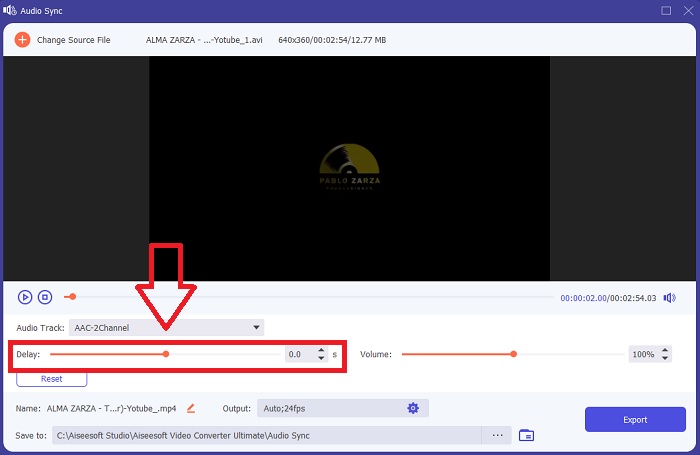
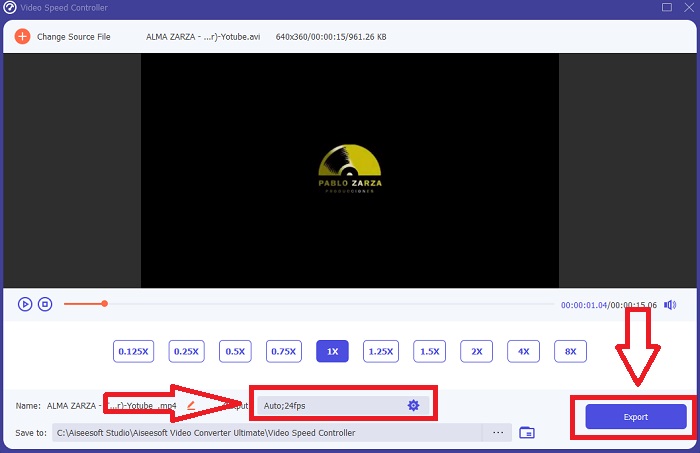
Schritt 5: Wenn du mit dem Bearbeiten der Synchronisation deines Videoclips fertig bist, klicke auf Exportieren und wähle aus, wo deine Datei gespeichert werden soll.
2. Verwenden Sie den VLC Media Player
Der VLC Media Player ist eine Anwendung, die auf jedem Betriebssystem verfügbar ist: Windows, Mac, iPhone und Android. Auch wenn er auf jedem Gerät zugänglich ist, hat jedes System eine andere Vorgehensweise, um Audiodelay zu beheben und den Ton eines Videoclips zu synchronisieren. Dieser Mediaplayer ist zwar auch für seine fehleranfällige Arbeitsweise bekannt, doch du kannst ihn ebenfalls verwenden, um die Audio‑ und Video‑Synchronisation dauerhaft zu reparieren.
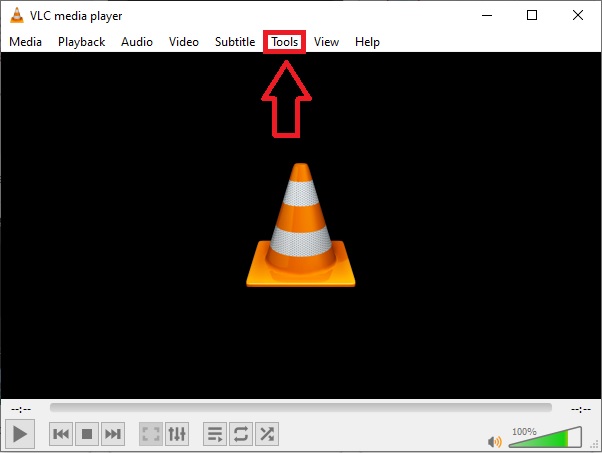
Schritt 1: Öffne den VLC Media Player unter Windows und klicke auf den Reiter Werkzeuge. Nachdem du auf den Reiter Werkzeuge geklickt hast, wähle Einstellungen.
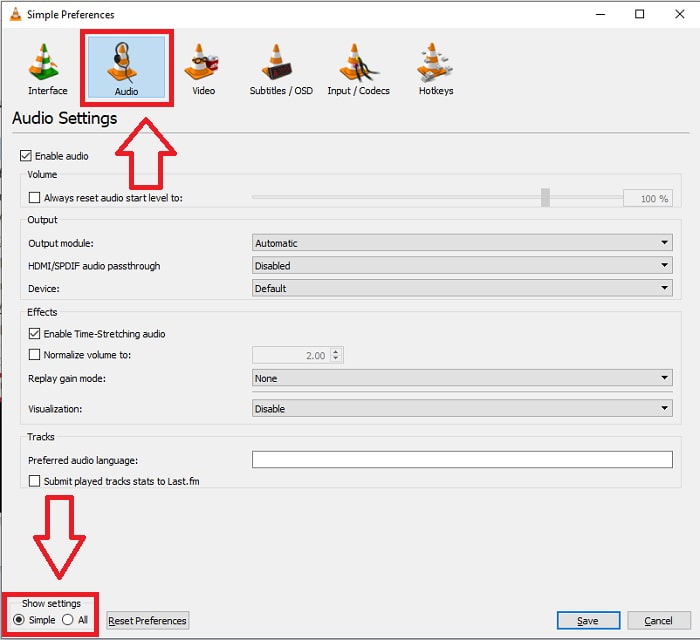
Schritt 2: Eine weitere Oberfläche wird auf deinem Bildschirm erscheinen. Fahre fort, indem du auf den Reiter Audio klickst. Wähle unten links Alle, um auf die erweiterten Einstellungen zuzugreifen.
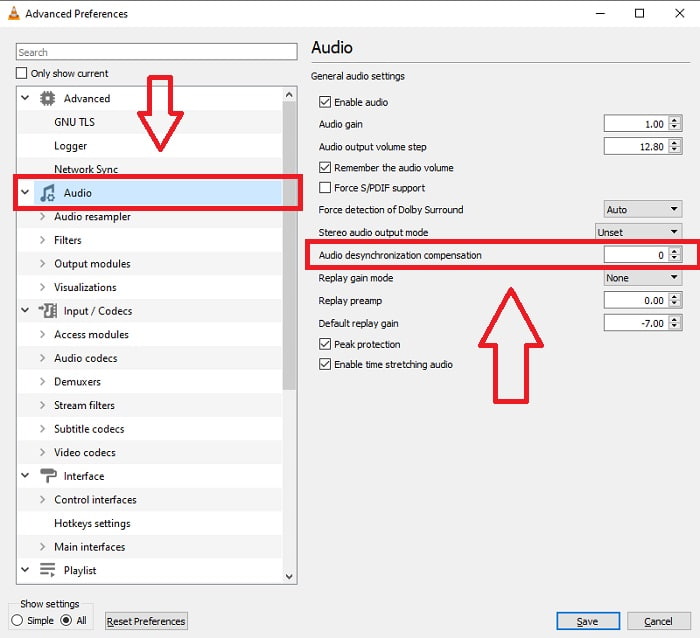
Schritt 3: Die erweiterten Einstellungen bieten dir den gesamten Einstellungsbereich. Suche im Reiter der erweiterten Einstellungen nach Audio. Nachdem du darauf geklickt hast, siehst du die allgemeinen Audioeinstellungen und kannst die Audio‑Desynchronisations‑Kompensation anpassen. Wenn der Ton dem Bild hinterherhinkt, ändere den Wert auf einen positiven Wert, um dies auszugleichen. Negative Werte solltest du verwenden, wenn der Ton vor dem Bild abgespielt wird. VLC out of sync wird mit diesem Verfahren dauerhaft behoben.
Verwandt:
So behebst du: VLC Player spielt keine MKV-Dateien ab
So behebst du: VLC spielt keine DVDs ab
3. Verwenden Sie Premiere Pro
Wenn es darum geht, sendetaugliche, hochauflösende Videos zu erstellen, ist Premiere Pro das bevorzugte Werkzeug. Mit dieser Software können alle Arten von Medien importiert werden, einschließlich Video und Audio. Anschließend können diese Medien bearbeitet und in dem für die Verbreitung benötigten Format exportiert werden. Beim Einsatz von Premiere Pro können verschiedene Videos und Standbilder zusammengeschnitten werden, um Videos zu erstellen. Videos können mit Titeln, Filtern und anderen Effekten versehen werden. Diese Software ist eine große Hilfe, wenn Audio und Video nicht synchron sind, insbesondere für Desktop‑ oder Laptop‑Nutzer. Hier sind die Schritte, um das Verfahren korrekt durchzuführen.
Schritt 1: Achte darauf, deine Audio‑ und Videodateien wie in der Abbildung gezeigt in deiner Timeline zu stapeln (auf separaten Spuren anzuordnen).
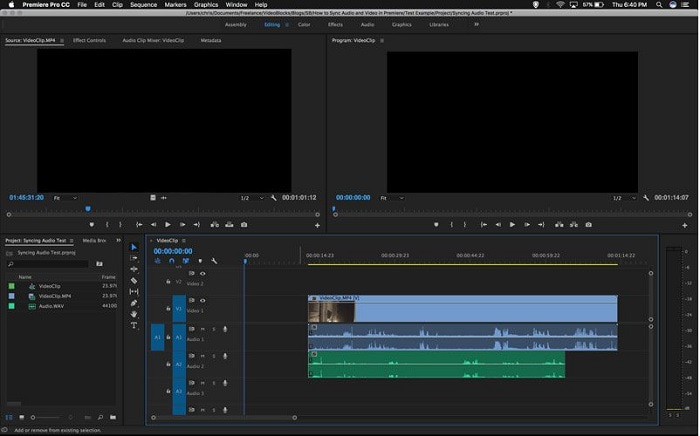
Schritt 2: Klicke mit der rechten Maustaste, um sowohl die Audio‑ als auch die Videospur auszuwählen. Es erscheint ein Dropdown‑Menü. Wähle darin Synchronisieren.
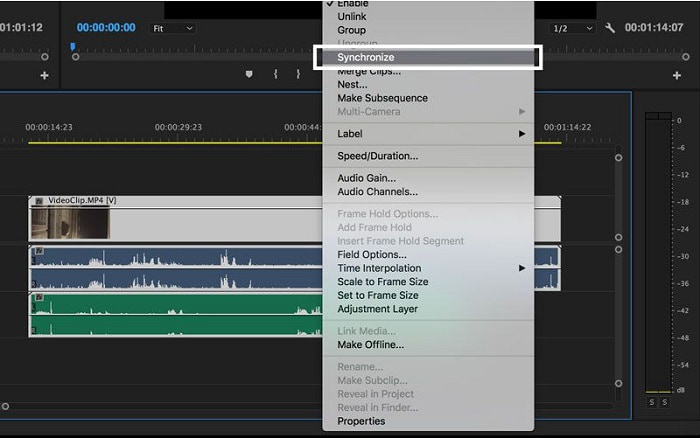
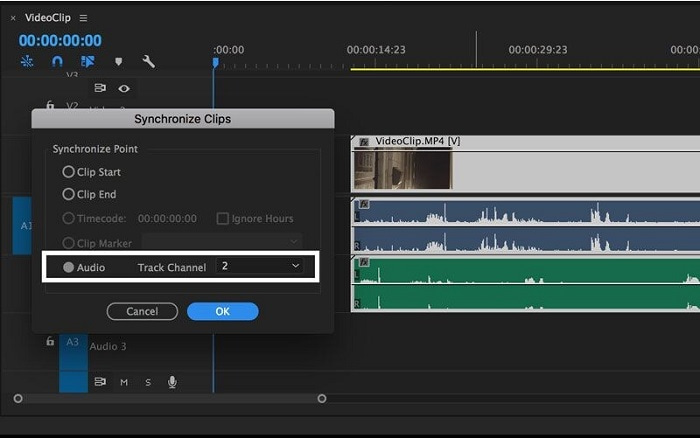
Schritt 3: Wähle nun Audio als Synchronisationspunkt. Wähle die Spur aus, die du synchronisieren möchtest. Lösche anschließend die Scratch‑Spur und wähle die Option Verknüpfen, um die Clips zu verbinden.
Teil 3. Häufig gestellte Fragen zu Audio und Video nicht synchron
Wird die Audioqualität schlechter, wenn ich die Abtastrate ändere?
Wenn Sie nur den Ton in Ihrem Videoclip anhören und keine Änderungen vornehmen möchten, müssen Sie die Abtastrate ändern, um Schritt zu halten. Sie können das Audio des Videos nur synchronisieren, indem Sie die Audioverzögerung des Videoclips in FVC Video Converter Ultimate anpassen. Sie müssen sich keine Sorgen mehr über eine Verschlechterung der Audioqualität machen, wenn Sie die Abtastrate anpassen. Mit dieser Software müssen Sie sich keine Gedanken über Audio machen, das nicht im Video synchronisiert ist. Diese Software enthält eine Funktion, die das angegebene Problem lösen kann; Es hat auch andere Funktionen, die jedem Benutzer zugute kommen und bequem verwendet werden können.
Was ist Audiodesynchronisationskompensation?
Stellen Sie in den VLC-Einstellungen eine positive oder negative Zeitverzögerung für die Audio-Desynchronisationskompensation in Millisekunden ein, indem Sie auf Audio klicken und dann das Kontrollkästchen Erweiterte Optionen aktivieren.
Was ist der andere Grund, warum Video und Audio nicht synchron sind?
Der andere Grund, warum Video und Audio nicht synchron sind, liegt in der nicht unterstützten Videoausgabe, die das Audiogerät nicht verwenden kann, und umgekehrt.
Fazit
Abschließend lässt sich sagen, dass eine Verzögerung zwischen Audio und Video für die meisten Menschen im Online‑Bereich ein schwieriges Szenario ist. Besonders seit der Pandemie sind Geräte und Online‑Hilfsmittel allgegenwärtig – aber wie soll man richtig arbeiten oder seine Aufgaben erledigen, wenn es Hürden bei diesen Online‑Angelegenheiten gibt, wie zum Beispiel das Problem, wie man Audio und Video synchronisiert, wenn eine Verzögerung auftritt? Zusammenfassend sind hier alle genannten Methoden und Alternativen dargestellt, um die offenen Fragen zu klären. Wir empfehlen, Video Converter Ultimate zu verwenden, um solche unnötigen Situationen in Zukunft zu vermeiden.
-
 Top 5 Zeitlupen-Videoplayer auf dem Computer (Windows/Mac/Linux)
 Zeitlupe ist in vielen Situationen eine sehr nützliche Funktion. Um Videos mit langsamer Geschwindigkeit anzusehen, um detailliertere Informationen in den flüchtigen Aufnahmen zu erhalten, erfahren Sie in diesem Artikel die Top 5 der Zeitlupen-Videoplayer.
-
 [2 beste Lösungen] So spielen Sie AVI-Filme ganz einfach auf dem iPhone/iPad ab
 Sie können keine AVI-Filme auf Ihrem iPhone/iPad abspielen und möchten keine Videoplayer von Drittanbietern herunterladen? Sie können 2 effiziente Methoden zum Konvertieren von AVI-Videos für die Wiedergabe auf dem iPhone kennenlernen.
-
 Kann Wii/Wii U DVDs ohne Homebrew abspielen? 2 Lösungen für Sie
 Wenn Sie DVDs in die Wii einlegen, werden Sie feststellen, dass die Wii aufgrund der regionalen Sperrung keine DVDs lesen und abspielen kann. In diesem Artikel erfahren Sie, wie Sie DVDs auf Wii/Wii U ganz einfach ohne den Homebrew-Hack abspielen können.
