


 Video Converter Ultimate
 Bildschirm recorder
 Videoreparatur
 Sicherer Download
Umfassende Anleitung zum Konvertieren von Videos in GIF mit den besten Tools
Haben Sie es satt, endlos durch Social-Media-Feeds zu scrollen und die gleichen alten statischen Bilder zu sehen? Warum hauchen Sie Ihrer Online-Präsenz nicht mit GIFs Leben ein? Diese kurzen, sich wiederholenden Animationen sind in den letzten Jahren immer beliebter geworden, und es ist leicht zu verstehen, warum. Sie sind nicht nur aufmerksamkeitsstark, sondern können auch komplexe Emotionen oder Konzepte auf eine Weise vermitteln, die ein Standbild einfach nicht kann.
Die gute Nachricht ist: Sie müssen kein professioneller Animator sein, um Ihre eigenen GIFs zu erstellen. In diesem Beitrag zeigen wir Ihnen, wie Sie Videos in GIFs umwandeln, damit Sie Ihre eigenen individuellen Animationen mit der Welt teilen, Ihre Online‑Sichtbarkeit erhöhen und die Aufmerksamkeit Ihres Publikums mit auffälligen Animationen gewinnen können!

Teil 1. Video auf dem Computer in GIF konvertieren
Das Umwandeln von Videos in GIFs ist eine unterhaltsame und kreative Möglichkeit, vorhandene Inhalte wiederzuverwenden. Wenn Sie ein Video haben, das Sie lieben, aber nicht unbedingt vollständig teilen möchten, können Sie es ganz einfach in ein GIF umwandeln und einen bestimmten Moment oder eine bestimmte Szene hervorheben. So können Sie Ihren alten Inhalten neues Leben einhauchen und Ihre Online-Präsenz frisch und spannend halten. Daher zeigen die folgenden Programme, wie Sie aus einem Video ein GIF erstellen.
1. Video Converter Ultimate (Offline-Weg)
FVC Video Converter Ultimate ist eine vielseitige Desktop‑App, mit der Sie Videos in verschiedene Formate konvertieren können, einschließlich GIF. Mit dem integrierten GIF‑Maker können Sie Ihre Lieblingsvideos ganz einfach in teilbare GIFs umwandeln, die sich perfekt für soziale Medien, Messenger‑Apps und vieles mehr eignen.
Die GIF-Maker-Funktion in FVC Video Converter Ultimate bietet eine Reihe von Anpassungsoptionen, einschließlich der Möglichkeit, die Start- und Endzeit des Videos auszuwählen, die Bildrate und Größe des GIF anzupassen und die Anzahl der Schleifen auszuwählen. Darüber hinaus können Sie Ihren GIFs Text- oder Bildwasserzeichen zu Personalisierungs- oder Brandingzwecken hinzufügen. Um diesen GIF-Maker aus dem Video zu verwenden, können Sie die folgenden Schritte ausführen:
Schritt 1. Programm herunterladen und installieren
Zuerst müssen Sie das Programm auf Ihrem Computer installieren. Klicken Sie dazu auf eine der untenstehenden Kostenlos herunterladen-Schaltflächen. Führen Sie dann die Installation aus, indem Sie dem Einrichtungsassistenten folgen. Starten Sie anschließend das Programm.
Kostenloser DownloadFür Windows 7 oder höherSicherer Download
Kostenloser DownloadFür macOS 10.7 oder höherSicherer Download
Schritt 2. GIF‑Maker aufrufen
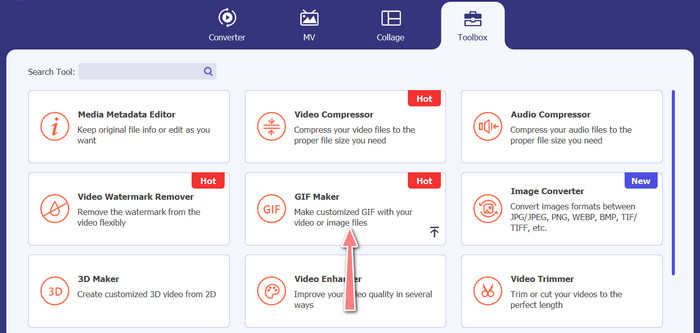
Sobald das Programm gestartet und geöffnet ist, können Sie mit dem Vorgang beginnen, indem Sie den GIF‑Maker des Programms aufrufen. Gehen Sie zum Reiter Toolbox und suchen Sie nach GIF Maker. Auf der nächsten Oberfläche sehen Sie dann den Upload‑Bereich.
Schritt 3. Video laden
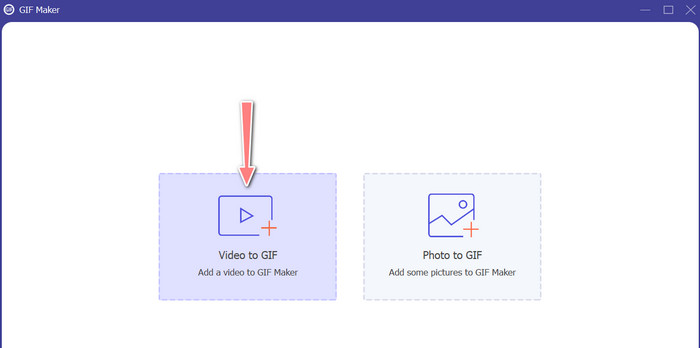
Klicken Sie nun auf die Schaltfläche Video to GIF und wählen Sie das Video aus, das Sie in ein GIF umwandeln möchten. Sie können eine Datei von der lokalen Festplatte Ihres Computers auswählen. Nachdem Sie Ihr gewünschtes Video ausgewählt haben, können Sie es bearbeiten und festlegen, wie Sie ein GIF aus einem Video erstellen möchten.
Schritt 4. Ein GIF aus einem Video erstellen
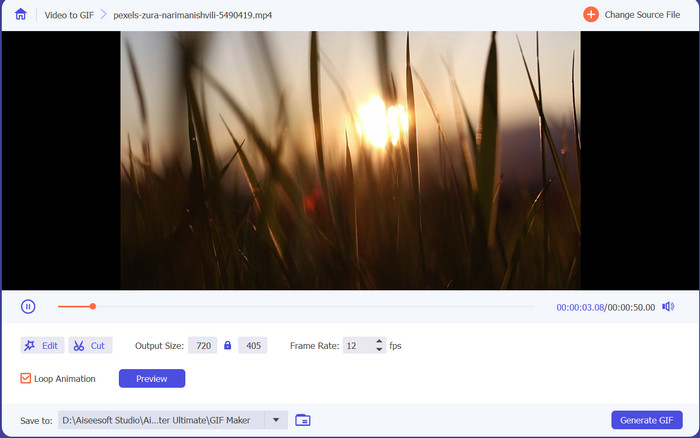
Sobald Sie Zugriff auf den GIF‑Maker haben, können Sie das hochgeladene Video schneiden, die Ausgabegröße bearbeiten, die Bildrate anpassen oder weitere Bearbeitungen vornehmen. Außerdem können Sie einstellen, ob die Animation in einer Schleife wiedergegeben werden soll oder nicht. Klicken Sie abschließend auf die Schaltfläche GIF erstellen, wenn Sie mit dem Ergebnis zufrieden sind.
Vorteile
- Fortschrittliche Videoverarbeitungsalgorithmen zum Erstellen hochwertiger GIFs.
- Passen Sie Bildrate, Größe und Qualität von GIFs an.
- Benutzerfreundliches Bedienfeld.
Nachteile
- Die Konvertierung kann abhängig von der Hardware des Computers langsam sein.
2. GIMP
GIMP (GNU Image Manipulation Program) ist eine robuste und vielseitige Open-Source-Bildbearbeitungssoftware, die Benutzern eine breite Palette von Werkzeugen und Funktionen zum Erstellen und Bearbeiten von Bildern bietet. Eines der Hauptmerkmale von GIMP ist die Fähigkeit, animierte GIFs zu erstellen. Mit diesem Video-to-GIF-Maker können Sie ganz einfach animierte GIFs erstellen, indem Sie mehrere Bilder oder Frames zu einer einzigen Animation kombinieren. Sie können Bilder in GIMP importieren, Ebenen hinzufügen und die Animationsfunktionen verwenden, um eine reibungslose und nahtlose Animation zu erstellen. Sie können Ihren GIFs auch Text, Formen und andere Elemente hinzufügen, um sie interessanter und ansprechender zu gestalten. Um GIF aus einem Video zu erstellen, sehen Sie sich die Schritte unten an.
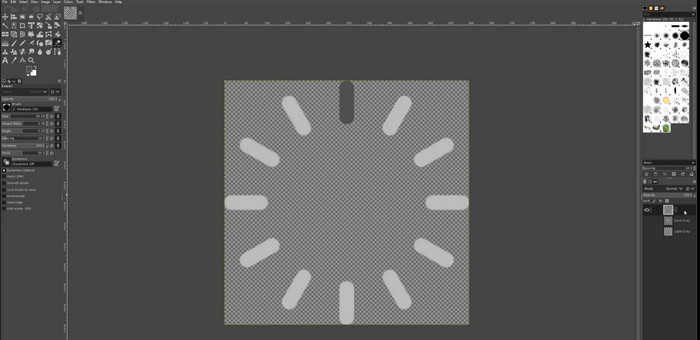
Schritt 1. Öffnen Sie GIMP und importieren Sie Ihre Videodatei, indem Sie zu Datei > Öffnen gehen und die gewünschte Videodatei auswählen.
Schritt 2. Sobald Sie das Video importiert haben, fragt GIMP Sie nach der Bildrate. Wählen Sie die gewünschte Bildrate für Ihr GIF und klicken Sie dann auf Importieren. Sie sollten die Einzelbilder des Videos nun als separate Ebenen im Ebenen‑Fenster sehen. Unerwünschte Frames können Sie entfernen, indem Sie sie mit der rechten Maustaste anklicken und Ebene löschen auswählen.
Schritt 3. Klicken Sie mit der rechten Maustaste auf die erste Ebene und wählen Sie im Menü Ebene duplizieren. Wählen Sie die Kopie aus und gehen Sie zu Filter > Animation > Überblenden. Setzen Sie die Deckkraft der Ebene auf 50% und stellen Sie den Überblendmodus auf Addition.
Schritt 4. Gehen Sie zu Datei > Exportieren als und wählen Sie das GIF‑Dateiformat, um das GIF zu exportieren. Benennen Sie Ihre Datei und wählen Sie den Ordner, in dem Sie sie speichern möchten. Achten Sie darauf, im Exportdialog Als Animation zu wählen und die gewünschte Frame‑Verzögerung festzulegen. Sie können außerdem bestimmen, wie oft Ihre Animation wiederholt werden soll oder ob sie endlos in einer Schleife laufen soll.
Vorteile
- Video to GIF in GIMP ist kostenlos und Open Source.
- Verfügbar auf mehreren Plattformen.
- Leistungsstarke Bildbearbeitungswerkzeuge.
Nachteile
- Steile Lernkurve.
- Mangelnde Integration mit anderer Software.
3. Kostenloser Online-Videokonverter
Wenn Sie Ihre Lieblingsvideos sofort in GIFs umwandeln möchten, können Sie den Free Video Converter Online von FVC verwenden. Damit können Sie viele verschiedene Videoformate hochladen und in gängige Formate, einschließlich GIF, konvertieren. Wenn Sie also nach einem Online‑Video‑zu‑GIF‑Konverter suchen, sollten Sie dieses Tool in Betracht ziehen. Außerdem ist der Vorgang einfach und nimmt nicht viel Zeit in Anspruch. Alles, was Sie tun müssen, ist Dateien hochzuladen – die Konvertierung erfolgt dann mit einem Klick. Im Folgenden finden Sie die Schritte, wie Sie ein Video kostenlos online in ein GIF umwandeln können.
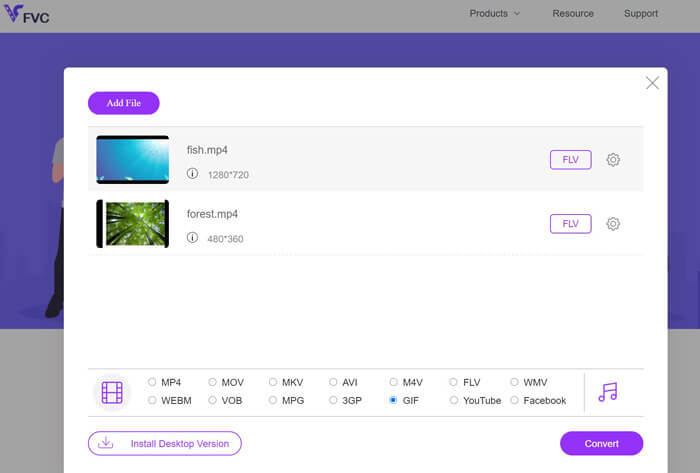
Schritt 1. Starten Sie einen Browser auf Ihrem Computer und rufen Sie die offizielle Website des Programms auf. Auf der Hauptseite sehen Sie bereits die Upload‑Schaltfläche.
Schritt 2. Klicken Sie nun auf die Schaltfläche Dateien zum Hochladen hinzufügen; anschließend werden Sie aufgefordert, den Launcher herunterzuladen, um das Hochladen zu ermöglichen. Installieren Sie ihn, und schon können Sie loslegen.
Schritt 3. Fügen Sie danach das ausgewählte Video von Ihrem Computer hinzu. Wählen Sie dann ein Format, indem Sie GIF als Ausgabevideoformat festlegen.
Schritt 4. Sie können auf das Zahnrad‑Symbol neben der Videovorschau klicken, um einige Ausgabe‑Einstellungen anzupassen. Klicken Sie abschließend auf die Schaltfläche Konvertieren, um das Video in ein GIF umzuwandeln.
Vorteile
- Konvertieren Sie Dateien ohne Qualitätsverlust.
- Unterstützt viele Dateiformate.
Nachteile
- Abhängigkeit von der Internetverbindung.
Ezgif ist ein kostenloses Online-Tool, mit dem Sie zuschneiden, die Größe ändern, Text oder Effekte hinzufügen und zwischen verschiedenen Bild- und Videoformaten konvertieren können. Es hat auch ein Tool zum Erstellen von GIFs, mit dem Benutzer animierte GIFs aus Videodateien oder Bildsequenzen erstellen können. Insgesamt ist Ezgif ein nützliches Tool für die grundlegende Bild- und GIF-Bearbeitung, und sein GIF-Maker-Tool macht es einfach, animierte GIFs zu erstellen. Aber es ist möglicherweise nicht gut für kompliziertere Bearbeitungsaufgaben, und die Tatsache, dass es Einschränkungen bei der Dateigröße und -steuerung gibt, könnte einige Benutzer stören. Erfahren Sie anhand der folgenden Schritte, wie Sie mit diesem Programm ein GIF mit einem Video erstellen.
4. EZGIF
Ezgif ist ein kostenloses Online-Tool, mit dem Sie zuschneiden, die Größe ändern, Text oder Effekte hinzufügen und zwischen verschiedenen Bild- und Videoformaten konvertieren können. Es hat auch ein Tool zum Erstellen von GIFs, mit dem Benutzer animierte GIFs aus Videodateien oder Bildsequenzen erstellen können. Insgesamt ist Ezgif ein nützliches Tool für die grundlegende Bild- und GIF-Bearbeitung, und sein GIF-Maker-Tool macht es einfach, animierte GIFs zu erstellen. Aber es ist möglicherweise nicht gut für kompliziertere Bearbeitungsaufgaben, und die Tatsache, dass es Einschränkungen bei der Dateigröße und -steuerung gibt, könnte einige Benutzer stören. Erfahren Sie anhand der folgenden Schritte, wie Sie mit diesem Programm ein GIF mit einem Video erstellen.
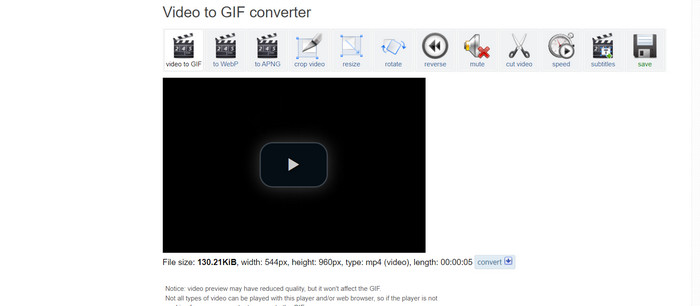
Schritt 1. Gehen Sie auf die Website von EZGIF. Wählen Sie dann bei den Optionen von EZGIF Video to GIF.
Schritt 2. Klicken Sie auf Datei auswählen, um das Video hochzuladen, das Sie in ein GIF umwandeln möchten. Sie können auch die URL des Videos eingeben.
Schritt 3. Nachdem Sie das Video hochgeladen haben, können Sie mit den Schiebereglern festlegen, wo das GIF beginnen und enden soll. Außerdem können Sie Optionen nutzen, um Text hinzuzufügen, Filter zu verwenden oder die Größe des GIF zu ändern.
Schritt 4. Klicken Sie auf die Schaltfläche In GIF konvertieren, wenn Sie mit Ihren Einstellungen zufrieden sind. Nach Abschluss der Konvertierung können Sie auf die Schaltfläche Herunterladen klicken, um Ihr GIF zu speichern.
Vorteile
- Es bietet eine Reihe von Funktionen und a GIF-Editor.
- Erstellen Sie GIFs aus Bildsequenzen.
- Völlig kostenlos zu verwenden.
Nachteile
- Die Website zeigt Werbung an.
- Eingeschränkte Bearbeitungsfunktionen.
Teil 2. Video auf Android und iPhone in GIF konvertieren
Die mobile GIPHY‑App ist ein leistungsstarkes Tool zum Erstellen und Teilen animierter GIFs für unterwegs. Mit der App können Sie Ihre Videos und Fotos in GIFs umwandeln, die in sozialen Netzwerken, Messenger‑Apps und mehr verwendet werden können. Die App bietet zudem Zugriff auf eine umfangreiche Bibliothek mit vorgefertigten GIFs, die Sie sofort durchsuchen und teilen können. Egal, ob Sie ein Reaction‑GIF, ein lustiges Meme oder einen niedlichen Tierclip suchen – bei GIPHY werden Sie fündig. Folgen Sie den Anweisungen, um Videos auf Android‑ und iOS‑Geräten in GIFs zu konvertieren.
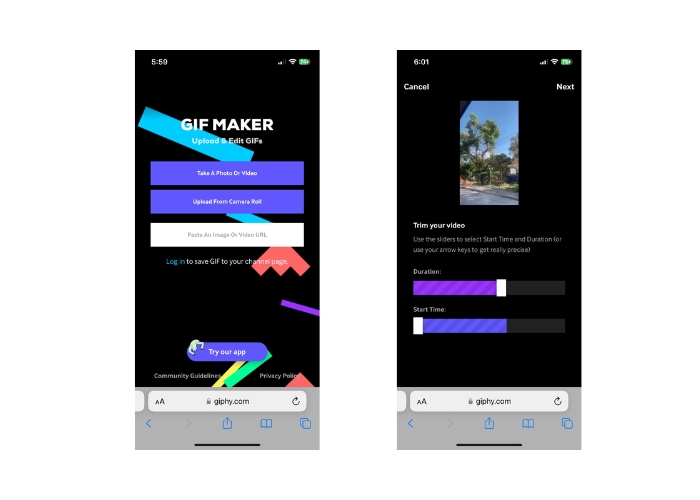
Schritt 1. Laden Sie die GIPHY‑App aus dem App Store (iOS) oder dem Google Play Store herunter und installieren Sie sie auf Ihrem Smartphone (Android). Öffnen Sie die App und tippen Sie auf das Kamera‑Symbol, um ein neues GIF zu erstellen.
Schritt 2. Wählen Sie das Video oder die Fotos aus, die Sie für Ihr GIF verwenden möchten.
Schritt 3. Nutzen Sie den Editor, um Teile Ihres Videos auszuschneiden, Filter hinzuzufügen, die Geschwindigkeit zu ändern oder die Optionen für die Schleifenwiedergabe anzupassen.
Schritt 4. Tippen Sie auf die Schaltfläche Create GIF, um Ihr GIF zu erstellen. Sobald Ihr GIF fertig ist, können Sie es in Ihrer Galerie speichern oder direkt in sozialen Netzwerken oder Messenger‑Apps teilen.
Vorteile
- Kostenlos zu benutzen.
- Plattformübergreifende Kompatibilität.
- Riesige Bibliothek mit vorgefertigten GIFs.
Nachteile
- Kopierschutz Probleme.
- Begrenzte Videolänge.
Teil 3. Häufig gestellte Fragen zum Konvertieren von Videos in GIF
Wie teile ich mein GIF, nachdem ich es erstellt habe?
Sobald Sie Ihr GIF erstellt haben, können Sie es in sozialen Medien, Messaging-Apps oder anderen Plattformen teilen, indem Sie es direkt hochladen oder einen Link zur Datei verwenden. Viele GIF-Erstellungstools bieten auch integrierte Optionen zum Teilen, um es einfach zu machen, Ihr GIF mit anderen zu teilen.
Welche Einschränkungen gibt es beim Erstellen eines GIF aus einem Video?
Das Erstellen eines GIFs aus einem Video kann zu Qualitätsverlusten führen, da GIFs normalerweise eine niedrigere Auflösung und eine begrenzte Farbpalette haben. Darüber hinaus kann es je nach verwendetem Tool Einschränkungen hinsichtlich der Länge und Größe des resultierenden GIF geben.
Was ist die ideale Länge für ein aus einem Video erstelltes GIF?
Die ideale Länge für ein aus einem Video erstelltes GIF hängt von der beabsichtigten Verwendung und der Plattform ab, auf der es geteilt wird. Für Social-Media-Plattformen liegt die empfohlene Länge normalerweise zwischen 3-6 Sekunden.
Fazit
Mit der Vielzahl an Online‑Konvertern, Software‑Anwendungen und mobilen Apps, die zur Erstellung von GIFs aus Videos zur Verfügung stehen, war es noch nie so einfach, lustige animierte Inhalte mit Freunden und Followern zu teilen. Damit Sie GIFs aus einem Video in guter Qualität erstellen können, ist es wichtig, ein Video mit guter Beleuchtung, minimalem Kamerawackeln und einer Länge zu wählen, die zur jeweiligen Plattform passt.
-
 Eine Schritt-für-Schritt-Anleitung zum Konvertieren von MP4 in GIF auf dem Desktop oder online
 Suchen Sie nach der besten Möglichkeit, Ihr MP4-Video in animierte GIFs umzuwandeln? Hier finden Sie eine ausführliche Anleitung dazu in Photoshop, Windows Movie Maker, Online-Videokonverter und mehr.
-
 Schleifen Sie GIF mit dem besten animierten GIF-Looper für Windows und Mac
 Möchten Sie das Geheimnis für das beste Loop-GIF erfahren? Willst du einen machen? Dann sind Sie hier genau richtig. Lernen Sie also, wie Sie mit dem besten verfügbaren Looper einen Loop erstellen.
-
 So teilen Sie GIFs und passen bevorzugte animierte GIF-Dateien an
 Erfahren Sie in unserer leicht verständlichen Anleitung, wie Sie GIFs in Frames aufteilen und sie an Ihre Bedürfnisse anpassen. Sparen Sie Zeit und verwenden Sie nur die Teile des GIFs, die Sie benötigen.
