


 Video Converter Ultimate
 Bildschirm recorder
 Videoreparatur
 Sicherer Download
Audio schrumpfen: So konvertieren Sie WAV in das OGG-Format für kleinere Dateigrößen
Large audio files may eat up a lot of memory on your computer or mobile device if you're dealing with them. Converting these files from WAV to OGGw format reduces their size greatly, making them easier to manage and transmit. In this post, we'll look at the advantages of converting WAV files to OGG format and show you how to do it step by step. We'll also go through some of the greatest programs for the job to ensure you get the best audio possible. So, whether you're a musician, podcaster, or simply someone who wants to organize their audio recordings, this article is for you.

Teil 1. Vergleich von OGG vs. WAV
Hier ist eine Vergleichstabelle, die die Unterschiede zwischen der Konvertierung von WAV in OGG zeigt. Sie können sie sich als Referenz ansehen.
| WAV | OGG | |
| Dateigröße | Groß | Klein |
| Kompression | Unkomprimiert | Komprimiert |
| Audio Qualität | Gute Qualität | Gute Qualität |
| Kompatibilität | Weitgehend kompatibel | Weniger kompatibel |
| Plattformunterstützung | Unterstützt auf allen Plattformen | Begrenzte Unterstützung auf einigen Plattformen |
| Bearbeitung | Einfach zu bearbeiten | Etwas schwieriger zu bearbeiten |
Teil 2. Der beste Weg, WAV in OGG oder OGG in WAV zu konvertieren
1. FVC Video Converter Ultimate
FVC Video Converter Ultimate is a powerful video conversion software that can help you convert your WAV audio files to the compressed OGG format quickly and easily. With its intuitive and user-friendly interface, you can easily select your WAV files, choose the OGG format, and initiate the conversion process with just a few clicks.
Darüber hinaus verfügt FVC Video Converter Ultimate über erweiterte Videobearbeitungsfunktionen, mit denen Sie Ihre Audiodateien vor der Konvertierung zuschneiden, zuschneiden, Wasserzeichen hinzufügen und verschiedene Filter anwenden können. Diese Funktion kann hilfreich sein, wenn Sie vor der Konvertierung in das OGG-Format kleinere Anpassungen vornehmen oder die Qualität Ihrer Audiodateien verbessern müssen. Wenn Sie OGG stapelweise in WAV oder umgekehrt konvertieren möchten, führen Sie daher die folgenden Schritte aus:
Step 1. Install the program and import OGG or WAV files
FVC Video Converter can be downloaded and installed from the official website. Launch the application and select the Plus sign button to import the audio file to be converted.
Kostenloser DownloadFür Windows 7 oder höherSicherer Download
Kostenloser DownloadFür macOS 10.7 oder höherSicherer Download
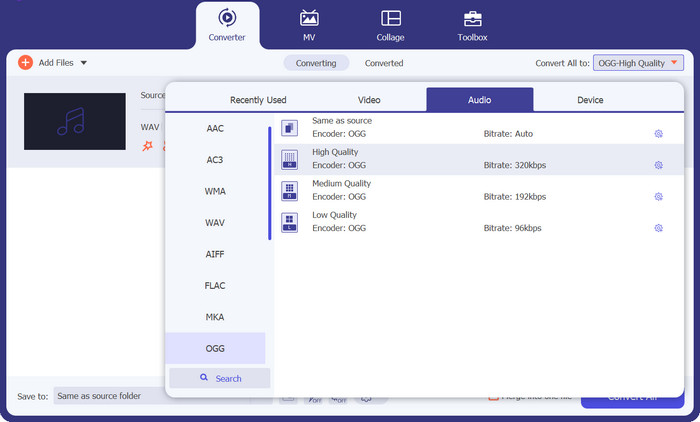
Step 2. Select OGG as the output format
By clicking on the Profile dropdown menu and selecting OGG from the list of available formats, you can choose OGG as the output format. You can also change the output settings by selecting the Settings button if necessary. This allows you to change parameters like bit rate, sampling rate, and channels.
Step 3. Enter the output location
By selecting the Browse button next to the Output Folder field, you can select the output folder where you wish to save the converted file.
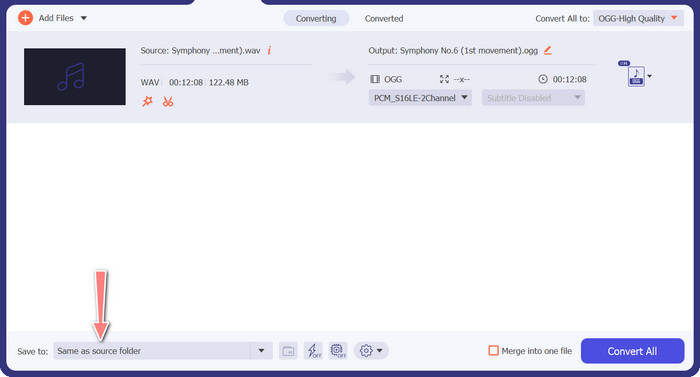
Step 4. WAV to OGG file conversion
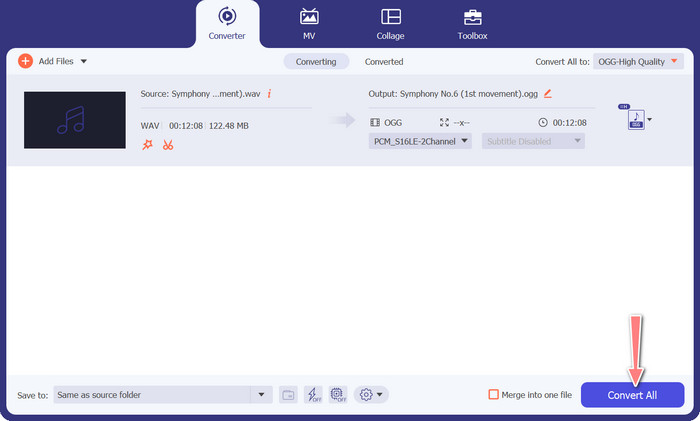
Once you're happy with your options, click the Convert All button to start the conversion. FVC Free Video Converter will start converting your WAV file to OGG format. The progress bar indicates how far along the conversion process is, as well as the projected time remaining.
2. Kostenloser Online-Audiokonverter
The Free Audio Converter Online is a powerful tool for converting WAV to OGG online. Users can rapidly add WAV or OGG files and convert them to OGG format using its simple interface. The converter also allows users to alter the output settings, such as the bit rate and sampling rate, to achieve the desired quality of OGG files. The conversion process is quick and simple, and consumers may download their modified files directly from the website.
Step 1. Navigate to the Free Video Converter Online website using your favorite web browser.
Step 2. Upload the OGG file you want to convert to WAV by clicking the Add Files to Convert button.
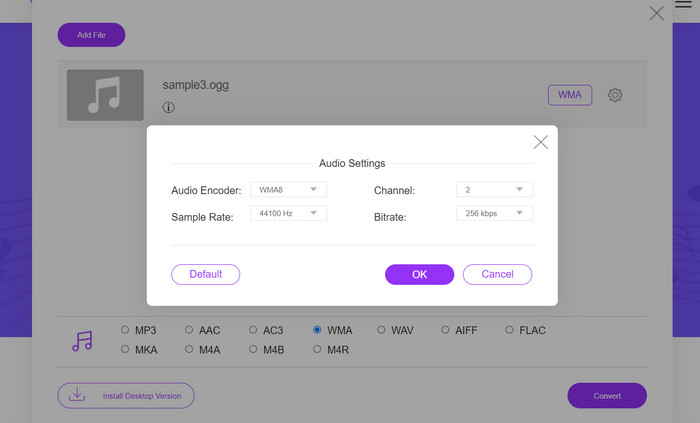
Step 3. Select OGG as the output format from the Audio format menu's list of supported formats. You can also specify the bitrate and output quality for the OGG file.
Step 4. To begin the conversion process, click the Convert button. That is how you convert OGG to WAV online.
Teil 2. Konvertieren Sie OGG in WAV oder WAV in OGG mit Audacity
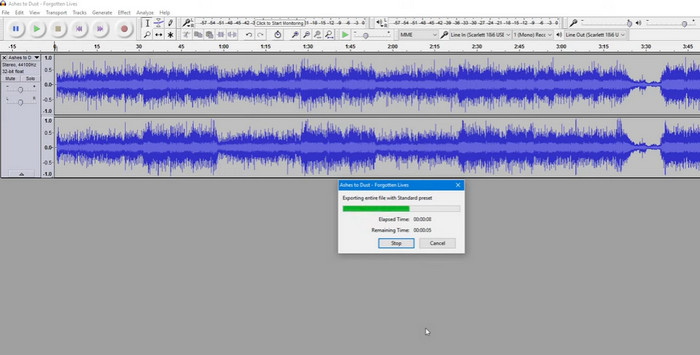
Dieses Tool ist eine Open-Source-Audiobearbeitungssoftware, die MP3-Dateien in OGG-Dateien konvertieren kann. Audacity bietet zusätzlich zur Konvertierung eine Vielzahl von Bearbeitungswerkzeugen und Effekten, mit denen Benutzer ihre Audiodateien optimieren und verbessern können, was es zu einem vielseitigen Werkzeug für Audiobearbeitungs- und Konvertierungsvorgänge macht.
Darüber hinaus ist Audacity für Windows, macOS und Linux verfügbar und somit allgemein verfügbar. Audacity ist aufgrund seiner ausgefeilten Funktionen und Benutzerfreundlichkeit eine gute Alternative für alle, die WAV-Dateien in das OGG-Format konvertieren möchten. Sehen Sie sich die Anleitung unten an, um zu erfahren, wie dieses Programm funktioniert.
Step 1. Download and install Audacity on your PC. Open Audacity, then the OGG or WAV file you want to edit. You can do this by selecting File > Open, then navigating to and selecting the WAV file on your computer.
Step 2. Once the WAV file is open in Audacity, click File, then Export. In the Export Audio dialog box, select OGG Vorbis Files as the file type.
Step 3. You can adjust the quality of your OGG file by dragging the Quality slider. Higher quality settings will increase file size, while lower quality settings will decrease file size but may reduce song quality.
Vorteile
- Es bietet die Möglichkeit, WAV stapelweise in OGG zu konvertieren.
- Konvertieren Sie OGG in WAV unter Windows, macOS und Linux.
Nachteile
- Das Programm verfügt über keine eigene Support-Community.
Teil 3. Konvertieren Sie OGG in WAV oder WAV in OGG mit VLC
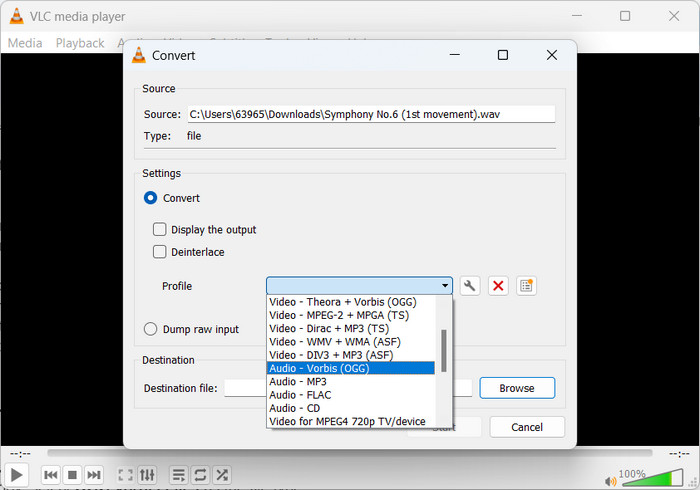
Der VLC Media Player ist ein leistungsstarkes Multimedia-Tool, das häufig zum Abspielen verschiedener Arten von Mediendateien verwendet wird. Vielen Benutzern ist jedoch möglicherweise nicht bewusst, dass dieses Programm auch gut zum Konvertieren von OGG in WAV für Mac geeignet ist. Mit seinem integrierten Konverter-Tool kann der VLC Media Player WAV-Dateien schnell und einfach in das OGG-Format konvertieren, sodass Benutzer ihre Lieblingsmusik in verschiedenen Formaten genießen können. Für alle Ihre Audiokonvertierungsanforderungen bietet der VLC Media Player eine unkomplizierte und benutzerfreundliche Lösung, unabhängig davon, ob Sie eine einzelne Datei oder einen Stapel von Dateien konvertieren möchten. Befolgen Sie diese Schritte, um zu erfahren, wie Sie eine MP3-Datei in eine OGG-Datei konvertieren:
Step 1. To play a video, run VLC and pick from the player's menu bar. The Convert / Save option will appear in a dropdown menu; select it.
Step 2. By clicking the Add button, choose the WAV file you wish to convert from the File Selection area. It's time to click the Convert / Save button when you're ready to convert or save the file.
Step 3. Click the Profile dropdown menu and choose Audio - Vorbis (OGG) as your preferred profile.
Step 4. Click the Browse button to the right of the Destination file section to specify a new location and filename for the converted file. The conversion can be kicked off by clicking the Start button at the window's bottom.
Vorteile
- Benutzerfreundliches Bedienfeld.
- Es unterstützt viele Video- und Audioformate.
Nachteile
- Möglicher Verlust der Audioqualität.
Weiterführende Lektüre:
Convert MP3 to OGG and Enjoy Superior Sound Quality
How to Free Convert MP4 to WAV on Desktop or Online [2023]
Teil 4. FAQs zum Konvertieren von OGG in WAV
Kann ich mehrere WAV-Dateien gleichzeitig in das OGG-Format konvertieren?
Ja, viele Audiokonvertierungsprogramme, einschließlich FVC Video Converter Ultimate, unterstützen die Stapelkonvertierung, sodass Sie WAV gleichzeitig stapelweise in das OGG-Format konvertieren können.
Ist es möglich, OGG-Dateien zurück in das WAV-Format zu konvertieren?
Ja, es ist möglich, OGG-Dateien mithilfe einer Audiokonvertierungssoftware wieder in das WAV-Format zu konvertieren. Beachten Sie jedoch, dass die Audioqualität beeinträchtigt werden kann, wenn die ursprüngliche WAV-Datei in das OGG-Format komprimiert wurde.
Kann ich meine WAV-Dateien in andere Audioformate außer OGG konvertieren?
Ja, die meisten Audiokonvertierungsprogramme unterstützen eine Vielzahl von Audioformaten, darunter MP3, AAC, FLAC und mehr.
Fazit
Converting your WAV to OGG format can offer several benefits, such as reducing file size and maintaining high-quality audio. Meanwhile, with the right audio conversion tools and a bit of know-how, you can easily convert your audio files to the format that best suits your needs.
-
 Ausgezeichnete OGG-Player für Windows und Mac, die Sie nicht verpassen sollten
 Wenn Sie Ihr Lieblingsaudio im OGG-Format abspielen möchten, insbesondere wenn weniger Speicherplatz vorhanden ist. In diesem Artikel erfahren Sie mehr über die 5 besten OGG-Spieler.
-
 Erfahren Sie, wie Sie MP3 in ein WAV-Format konvertieren
 Möchten Sie wissen, wie Sie MP3 in WAV konvertieren? Bestimmen Sie, welches der Tools die beste Konvertierungsqualität liefert, die Sie erhalten können.
-
 2 beste Möglichkeiten zum Bearbeiten von OGG-Metadaten, die Sie kostenlos ausprobieren sollten
 Müssen Sie OGG-Metadaten bearbeiten? Nun, Sie können die Tags problemlos bearbeiten, indem Sie die richtige Software verwenden. Wenn Sie keinen haben, ist das Lesen dieses Artikels ein Muss.
