


 Video Converter Ultimate
 Bildschirm recorder
 Videoreparatur
So fügen Sie Bilder in weniger als einer Minute schnell zu einem Video hinzu
Es gibt viele Gründe, warum Sie Bilder zu Videos hinzufügen müssen. Einige Redakteure stellten beispielsweise fest, dass das Hinzufügen von Bildern zu ihren Videos eine neue Interaktion für die anderen Benutzer schafft. Auf diese Weise können Sie damit Ihr Branding darstellen oder eine hervorragende visuelle Präsentation erstellen und Ihrem Video dabei helfen, den Benutzern die richtige Botschaft zu übermitteln. Aber wussten Sie, dass viele Tools die gleiche Aufgabe erfüllen? Wir wissen, dass es schwierig ist zu entscheiden, welches Tool am besten zu Ihnen passt. Deshalb haben wir heute bereits die drei Tools gesichtet, die wir für gut geeignet gefunden haben. Nachdem Sie diesen Artikel gelesen haben, erfahren Sie, wie Sie Ihren Videos Bilder hinzufügen.

Teil 1. Schritt-für-Schritt-Anleitung zum Hinzufügen von Bildern zu Videos mit Video Converter Ultimate
Möchten Sie mit dem ultimativen Tool ein Bild zu einem Video hinzufügen? Dann verwenden Sie den Video Converter Ultimate. Mit Hilfe dieses ultimativen Tools können Sie ganz einfach ein Bild über ein Video legen, selbst wenn Sie kein Profi im Bereich Videobearbeitung sind. Neben der Funktion, Bilder über Videos zu legen, können Sie mit diesem Tool problemlos Musik als Hintergrund hinzufügen, Untertitel einfügen und vieles mehr. Es gilt als All-in-one-Lösung für die meisten Probleme rund um Videos. Möchten Sie wissen, welche Vorteile die Nutzung bietet? Dann lesen Sie die folgenden Informationen.

FVC Video Converter Ultimate
Über 5.689.200 Downloads- Bietet hervorragende Leistung beim Konvertieren und Bearbeiten.
- Bearbeiten und erstellen Sie mit wenigen Klicks ein fantastisches Video.
- Es unterstützt mehr als 200 Formate wie MP4, MOV, FLV, WMV, AVI, MTV usw.
- Verfügbar in allen plattformübergreifenden Downloads, wie Windows und Mac.
Gratis DownloadFür Windows 7 oder neuerSicherer Download
Gratis DownloadFür MacOS 10.7 oder neuerSicherer Download
Ist es nicht erstaunlich, was man mit dem Tool machen kann? Ja, wir wissen, dass das Tool in vielerlei Hinsicht beeindruckend ist. Wenn dieses Tool Ihre Aufmerksamkeit erregt hat und Sie erfahren möchten, wie Sie mit diesem Tool ein Bild zu einem Video hinzufügen, können Sie das folgende Tutorial lesen.
Schritt 1. Klicken Sie auf die Download-Schaltfläche unten, um es direkt auf Ihr Laufwerk herunterzuladen, folgen Sie der Installation und starten Sie das Programm. Bevor Sie beginnen, wäre es hilfreich, wenn Sie sich zunächst mit der Benutzeroberfläche vertraut machen, damit Sie die weiteren Schritte leichter nachvollziehen können.
Gratis DownloadFür Windows 7 oder neuerSicherer Download
Gratis DownloadFür MacOS 10.7 oder neuerSicherer Download
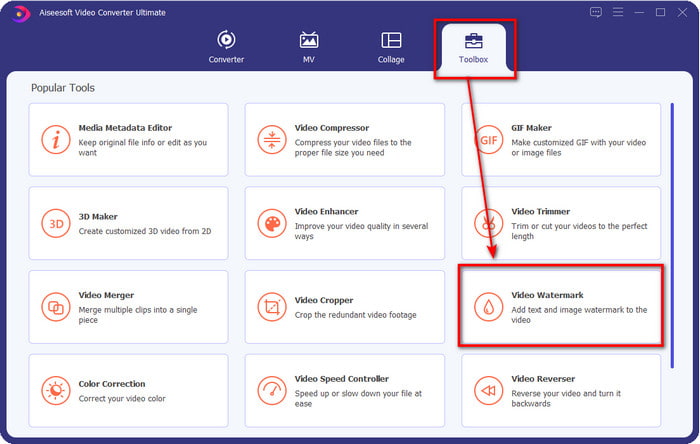
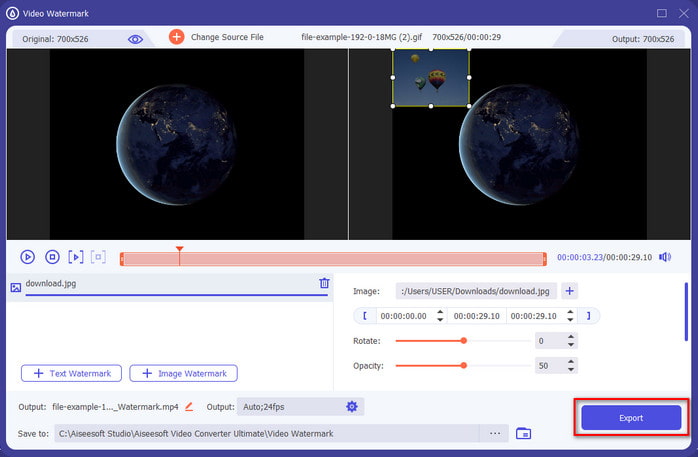
Schritt 2. Sobald das Tool auf Ihrem System läuft, klicken Sie auf Toolbox; suchen Sie darunter nach Video Watermark und öffnen Sie es.
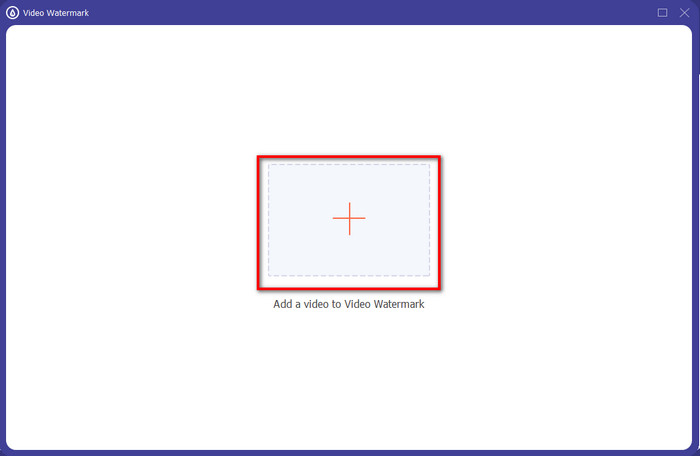
Schritt 3. Nachdem Sie auf die Schaltfläche + geklickt haben, wird ein Dateifenster angezeigt; suchen Sie die Datei und klicken Sie auf Open, sofern es sich dabei um die Videodatei handelt.
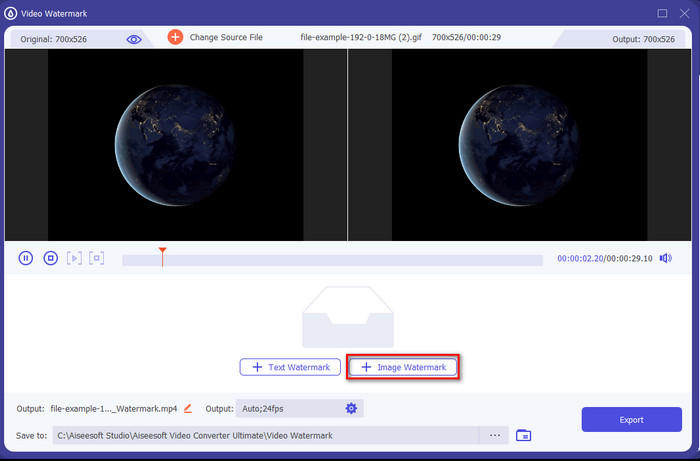
Schritt 4. Ein neues Fenster erscheint, klicken Sie auf Image Watermark, anschließend öffnet sich erneut ein Ordnerfenster, in dem Sie diesmal das Bild auswählen, das Sie zu Ihrem Video hinzufügen möchten, und drücken Sie Open.
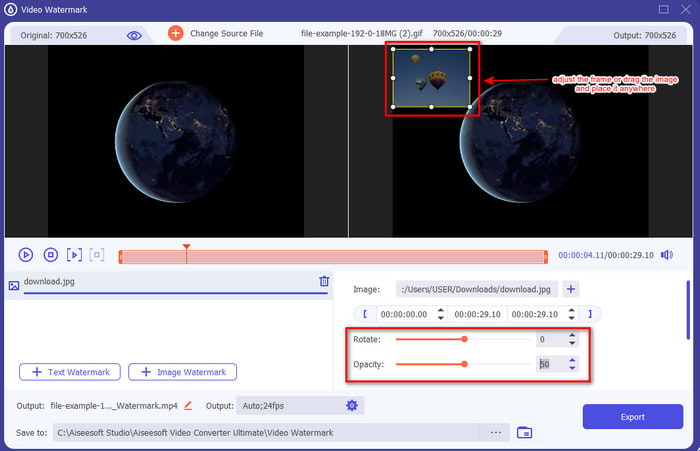
Schritt 5. Passen Sie die Größe des Bildes, das Sie in das Video eingefügt haben, und seine Position an, indem Sie den frame des Fotos ziehen. Sie können es beliebig platzieren, indem Sie das Bild gedrückt halten und ziehen. Außerdem können Sie die Sichtbarkeit des Bildes über die Einstellung der Opacity anpassen. Sie können das Bild auch drehen, indem Sie den slider bei Rotate verschieben.
Schritt 6. Wenn Sie das Bild fertig bearbeitet haben, ist es an der Zeit, auf Export zu klicken.
Verwandt:
Wie man Audio zu einem Video hinzufügt
Wie man Untertitel zu einem Video hinzufügt
Teil 2. Wie man kostenlos Bilder mit Videos im Internet überlagert
Online Video Cutter – Bild zu einem Video hinzufügen
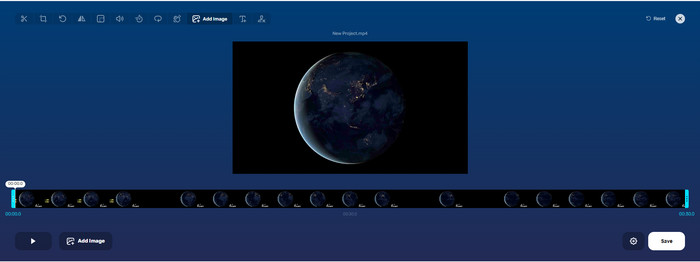
Wenn Sie Bilder online über ein Video legen möchten, können Sie den Online Video Cutter – Add Image to a Video verwenden. Dieses Online-Tool bietet eine einfache, aber effektive Möglichkeit, Fotos zu einem beliebigen Video hinzuzufügen. Obwohl das Tool gut zu bedienen ist, ist das Hochladen des Videos dennoch etwas umständlich, da es von Ihrer Internetverbindung abhängt. Außerdem können Sie hier nicht zwei Bilder hinzufügen, da dies nicht unterstützt wird. Wenn Sie das Tool dennoch verwenden möchten, folgen Sie den Schritten unten.
Schritt 1. Öffnen Sie Ihren Browser, suchen Sie das Webtool über die Suchleiste und öffnen Sie es.
Schritt 2. Klicken Sie auf Open File, um das Video hochzuladen, und dann auf Add Image, um das Bild hochzuladen, das Sie einfügen möchten.
Schritt 3. Drag das Bild, um seine Position zu ändern, klicken Sie auf Save, um es zu kodieren, und speichern Sie es anschließend auf Ihrem Computer.
Vorteile
- Kostenlos zu verwenden, und Sie müssen es nicht herunterladen.
- Es unterstützt grundlegende Bearbeitungsfunktionen für die Benutzer.
- Es hat kein Wasserzeichen auf der endgültigen Ausgabe.
Nachteile
- Es können nicht bis zu 2 oder mehr Bilder zum Video hinzugefügt werden.
- Das Hochladen des Bildes und Videos dauert einige Zeit zum Laden.
Flimmeriger
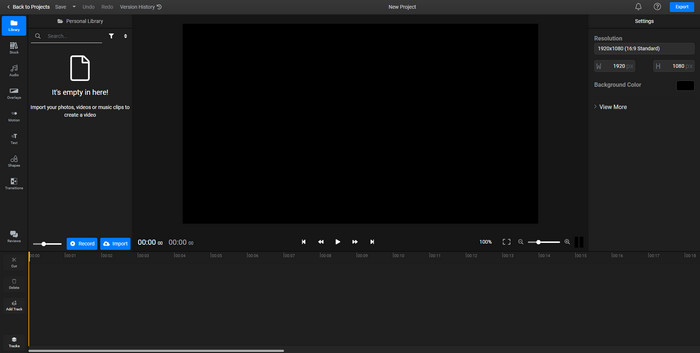
Sie können Flixier nutzen, um ein Bild kostenlos online zu einem Video hinzuzufügen. Außerdem können Sie mit diesem Onlinetool Ihre Videovorlage bearbeiten, einschließlich dem Hinzufügen von Bildern. Das Tool bietet außergewöhnliche integrierte Bearbeitungsfunktionen, mit denen Sie Ihr Video optisch verbessern können. Auch wenn das Webtool Ihnen diese besonderen Funktionen bereitstellt, wird beim Exportieren im kostenlosen Modus ein Wasserzeichen im endgültigen Ergebnis eingeblendet. Sie können jedoch auf die Premium-Version upgraden, um dieses Wasserzeichen zu entfernen.
Schritt 1. Öffnen Sie Ihre Suchmaschine, suchen Sie nach dem Namen des Tools und klicken Sie auf Choose File.
Schritt 2. Klicken Sie auf Import, um das Video und die Bilder hochzuladen, ziehen Sie das Video und das Bild auf die Timeline und stellen Sie sicher, dass das Bild über der Videospur liegt. Ändern Sie die Position des Bildes, indem Sie es im Video verschieben.
Schritt 3. Klicken Sie auf Export und dann auf Export and Download, um es auf Ihrem Desktop-Laufwerk zu speichern.
Vorteile
- Kostenlos und im Web zugänglich.
- Es bietet mehr Bearbeitungsfunktionen als das erste Online-Tool.
- Es unterstützt das Hinzufügen mehrerer Bilder zu Ihrem Video.
Nachteile
- Die endgültige Ausgabe hat am Ende ein Wasserzeichen, da sie kostenlos ist.
- Es muss die VIP-Version erworben werden, um das Wasserzeichen auf der Videoausgabe zu entfernen.
Teil 3. Häufig gestellte Fragen zum Hinzufügen von Bildern zu Videos
Beeinflusst das Hinzufügen von Bildern zu einem Video die Qualität?
Die Videoqualität wirkt sich nicht auf das hinzugefügte Bild aus. Zur Vereinfachung hat das Hinzufügen von Bildern keine signifikante Videoqualität, selbst wenn Sie viele Fotos hinzufügen. Wenn Sie das Video jedoch mit dem von Ihnen verwendeten Editor exportieren und auf niedrige Qualität einstellen, erwarten Sie die folgende Videoausgabe.
Warum werden die Bilder, die ich dem Video hinzufüge, verschwommen?
Der Hauptgrund dafür ist, dass das Bild bereits von Anfang an verschwommen ist. Um dieses Problem zu vermeiden, müssen Sie das Bild zuerst überprüfen und sicherstellen, dass es nicht verschwommen ist, bevor Sie es in Ihrem Video verwenden.
Kann ich dem Bild im Video einen Übergang hinzufügen?
Bei einigen Editoren ist es möglich, Ihrem Bild einen Übergang hinzuzufügen. Obwohl es viele verschiedene animierte Übergänge gibt, sind Schneiden, Überblenden, Wischen und Auflösen die am häufigsten verfügbaren. Obwohl dies die häufigsten sind, ist es dennoch ideal, um dem Bild einen Übergang hinzuzufügen, um das Video professioneller und aufregender zu machen.
Fazit
Nachdem Sie diesen Beitrag gelesen haben, ist es deutlich einfacher zu verstehen, wie man Fotos in ein Video einfügt – vorausgesetzt, Sie lesen den gesamten Artikel mit den verschiedenen Online- und Offline-Tools. Obwohl wir verschiedene Werkzeuge vorstellen, empfehlen wir den Nutzern dennoch, für diese Aufgabe das ultimative Tool zu verwenden. Video Converter Ultimate bietet eine leicht verständliche Benutzeroberfläche, die den Anwendern hilft, die Aufgabe effizient zu erledigen. Sind Sie noch nicht sicher, ob es zu Ihnen passt? Dann ist der Download des Tools der beste Weg, um herauszufinden, ob es Ihren Anforderungen entspricht.
-
 5 nützliche OGV-zu-WMV-Konverter zum Konvertieren Ihrer OGV-Dateien
 Es gibt 5 verschiedene OGV-zu-WMV-Konverter, die Sie zum Konvertieren der OGV-Dateien verwenden können. Dieser Artikel enthält starke Fakten zu den 5 verfügbaren OGV-Konvertern.
-
 Exemplarische Vorgehensweise für die zweitbeste AMV-zu-WMV-Konverter-Software [2022]
 Möchten Sie AMV in WMV konvertieren? Wenn ja, müssen Sie diesen Artikel lesen, um eine Vorstellung davon zu bekommen, was AMV ist und wie Sie die Datei in ein WMV-Format konvertieren.
-
 Nützlichste Tools zum Konvertieren von SWF in WMV (online und offline)
 Haben Sie Schwierigkeiten, einen Player für Ihre SWF-Dateien zu finden? Sie müssen sich keine Sorgen machen, denn Sie können es einfach in das WMV-Format konvertieren, um ein besseres Videokonsumerlebnis zu erzielen. Lesen Sie diesen Artikel, um mehr über diesen Konvertierungsprozess zu erfahren.
