


 Video Converter Ultimate
 Bildschirm recorder
 Videoreparatur
Meistern Sie die Kunst des Hinzufügens von Wasserzeichen auf iMovie mit detaillierten Schritten
Einer der besten Editoren, die Sie auf dem Mac verwenden können, ist iMovie. Dieses Tool bietet Mac‑Nutzern eine sehr intuitive Oberfläche. Obwohl das Programm hervorragend und leicht zu bedienen ist, suchen manche Nutzer dennoch nach einem Tutorial. Wenn Sie also Mac‑User sind und lernen möchten, wie man in iMovie ein Wasserzeichen zu einem Video hinzufügt, können Sie der Anleitung folgen, die wir unten für Sie zusammengestellt haben, um das Beste aus dem Tool herauszuholen.

Teil 1. Tutorial zum Hinzufügen von Wasserzeichen zu einem Video in iMovie unter macOS
Wir haben iMovie bereits vorgestellt, daher werden Sie in den folgenden Details lernen, wie Sie in iMovie ein Wasserzeichen auf ein Video setzen. Um zu lernen, wie man etwas hinzufügt, können Sie der detaillierten Anleitung unten folgen und sie bitte gründlich lesen, um die ganze Idee zu verstehen.
Schritt 1. Starten Sie iMovie auf Ihrem Mac. Falls Sie es nicht finden, können Sie einfach den Finder öffnen und danach suchen.
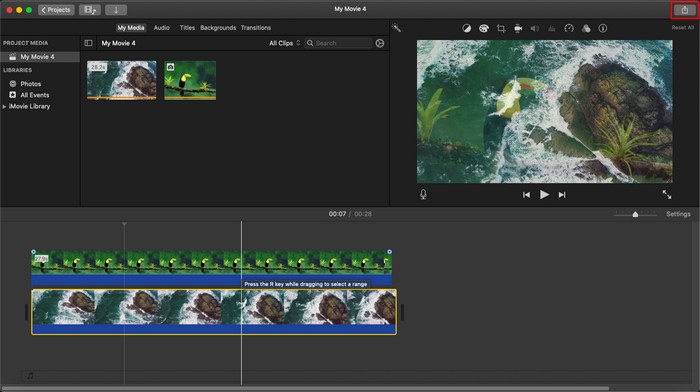
Schritt 2. Klicken Sie auf die Schaltfläche Importieren, um das Video und das Bild hochzuladen, das Sie als Wasserzeichen verwenden möchten. Ziehen Sie die Video- und Bilddatei unten in die Timeline, genau wie bei Bildern. Stellen Sie sicher, dass das Video in der Zeitleiste oben liegt. Nehmen Sie einige Anpassungen am Bild vor, indem Sie es ziehen, in der Größe verändern und mehr.
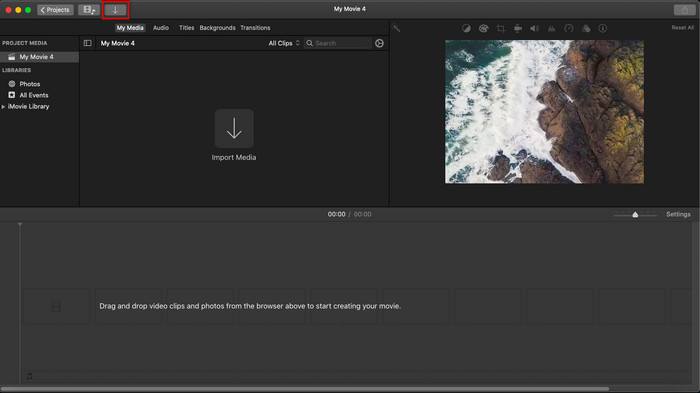
Schritt 3. Wenn Sie mit den Anpassungen zufrieden sind, klicken Sie oben rechts im Tool auf Exportieren und anschließend auf Datei exportieren.
Vorteile
- Es kann kostenlos auf jedem Apple-Gerät wie MacOS- und iOS-Geräten verwendet werden.
- Nehmen Sie schnelle Bearbeitungen an den Rohvideos vor, damit sie gut aussehen.
- Es stehen grundlegende bis durchschnittliche Bearbeitungsfunktionen zur Verfügung.
Nachteile
- Es unterstützt weniger Formate. Wenn Sie also das Video hier bearbeiten möchten, müssen Sie es in MOV oder ein anderes mit Apple-Geräten kompatibles Format konvertieren.
- Weniger Unterstützung für die professionelle Bearbeitung.
Teil 2. Bestes Tool, um Videos auf Mac-Computern mit weniger Aufwand zu verwenden und Wasserzeichen hinzuzufügen
Wenn Sie das Hinzufügen eines Wasserzeichens in iMovie als schwierig empfinden, können Sie stattdessen die beste Alternative verwenden: Video Converter Ultimate. Dieses Tool bietet eine wesentlich einfachere Möglichkeit, ein Wasserzeichen zu Ihrem Video hinzuzufügen. Stellen Sie sich vor: Das ultimative Tool ist sogar noch zugänglicher, obwohl iMovie schon leicht zu bedienen ist. Trotz der einfachen Bedienung ist das Endergebnis erstklassig. Einer seiner Vorteile gegenüber iMovie ist, dass es mehr Bildformate unterstützt, die Sie hochladen können. Möchten Sie mehr wissen? Dann lesen Sie die Funktionen, die wir unten für Sie zusammengestellt haben.

FVC Video Converter Ultimate
Über 5.689.200 Downloads- Bietet umfassende Bearbeitungsfunktionen, mit denen Sie Ihr Video herausragender als das andere machen können.
- Es unterstützt ultraschnelle Prozesse und Hardwarebeschleunigung, um das Video schnell zu importieren und zu exportieren.
- Es unterstützt Videoformate wie MOV, MKV, AVI, MP4, FLV, RMVB und mehr.
- Es hat eine sehr interaktive Benutzeroberfläche, um die beste Erfahrung zu machen.
- Verfügbar auf allen Desktop-Plattformen wie Windows und Mac.
Gratis DownloadFür Windows 7 oder neuerSicherer Download
Gratis DownloadFür MacOS 10.7 oder neuerSicherer Download
Ist es nicht erstaunlich, all diese Funktionen in einem Tool zu haben? Wenn wir uns auf derselben Seite befinden, lassen Sie uns in die Details eintauchen, wie Sie ein Video in iMovie mit einem Wasserzeichen versehen, aber mit dem ultimativen Tool müheloser.
Schritte zum Einfügen von Wasserzeichen in Videos mit dem Ultimate Tool
Schritt 1. Laden Sie die Software auf Ihren Mac herunter, folgen Sie dem Installationsvorgang und klicken Sie auf Jetzt starten, um das Tool zu öffnen.
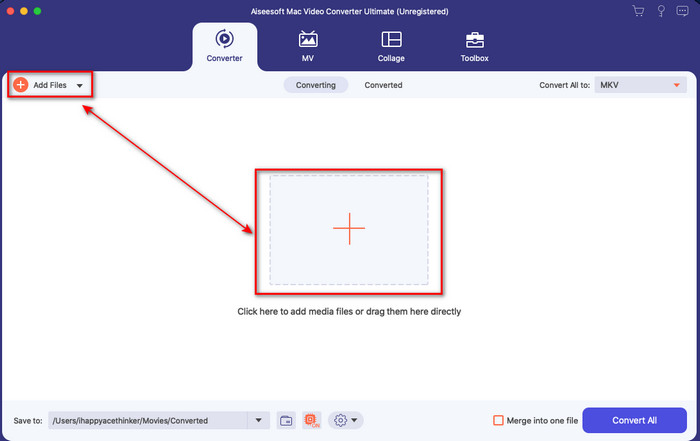
Schritt 2. Laden Sie die gewünschte Videodatei hoch, indem Sie auf die +-Schaltfläche oder auf Dateien hinzufügen klicken. Suchen Sie das Video im Ordner, der auf Ihrem Bildschirm erscheint, und klicken Sie auf Öffnen, um es zu importieren.
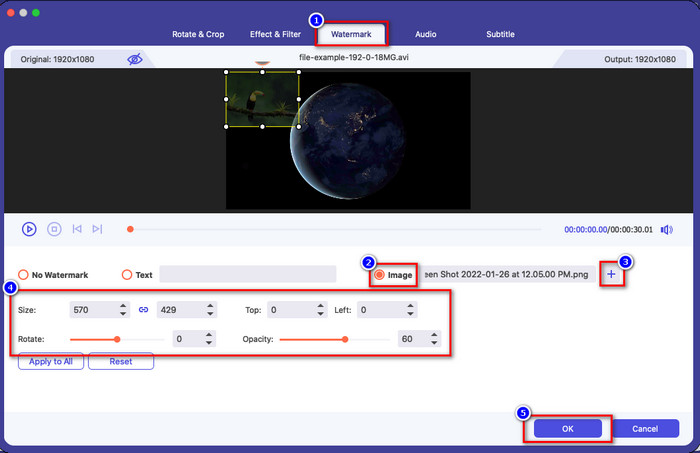
Schritt 3. Klicken Sie auf die Zauberstab-Schaltfläche, um das Bearbeitungsfenster in der Benutzeroberfläche zu öffnen. Klicken Sie dann auf den Bereich Wasserzeichen, wählen Sie Bild aus und drücken Sie die +-Schaltfläche, um das gewünschte Bild hinzuzufügen. Passen Sie anschließend die Deckkraft des Bildes an oder drehen Sie es und klicken Sie auf OK, um die von Ihnen vorgenommenen Änderungen zu speichern.
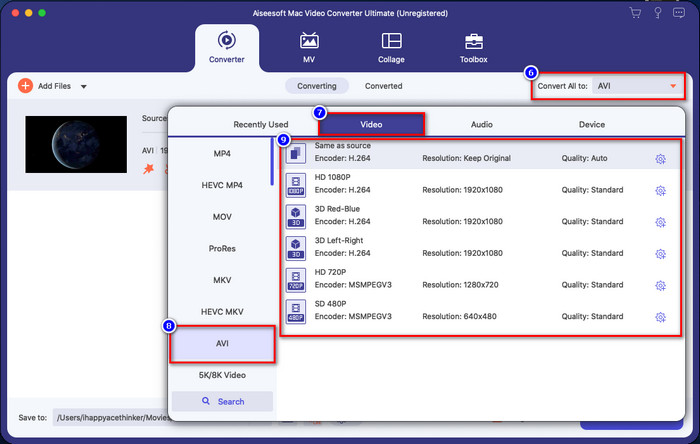
Optional. Wenn Sie das Format ändern möchten, klicken Sie auf Alle konvertieren in, wählen Sie ein Format aus der Liste und klicken Sie darauf. Wenn Sie das Format nicht ändern möchten, können Sie mit dem letzten Schritt fortfahren.
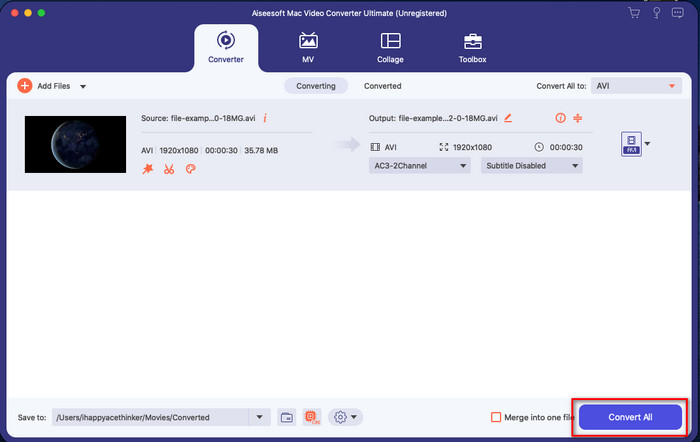
Schritt 4. Um das Video mit Wasserzeichen zu exportieren, klicken Sie auf Alle konvertieren. Dank des ultraflotten Konvertierungsprozesses müssen Sie nicht lange warten. Damit haben Sie das Bild‑Wasserzeichen in weniger als einer Minute zu Ihrem Video hinzugefügt.
Vorteile
- Es ist die beste Wahl für jeden Benutzer, der wenig oder keine Ahnung hat, wie man bearbeitet.
- Es unterstützt mehr Videoformate, die Sie hochladen können, um Zeit zu sparen und eine Konvertierung zu vermeiden.
- Auf allen Plattformen wie Windows oder Mac zum Download verfügbar.
Nachteile
- Es ist nicht kostenlos herunterzuladen, aber es ist nicht zu teuer.
- Das Herunterladen auf Ihr Laufwerk ist erforderlich.
Teil 3. Häufig gestellte Fragen zum Hinzufügen von Wasserzeichen in iMovie
Ist die Nutzung von iMovie kostenlos?
Ja, iMovie ist kostenlos, wenn Sie ein Apple‑Produkt verwenden, aber Sie können es nicht auf Android oder Windows herunterladen. Beachten Sie, dass es keine offizielle Version von iMovie auf anderen Plattformen gibt. Wenn Sie also iMovie auf einen Desktop oder ein Smartphone herunterladen, das nicht von Apple ist, können Sie davon ausgehen, dass es nicht so effektiv funktioniert wie das echte iMovie oder im schlimmsten Fall sogar einen Virus enthält. Um dies zu vermeiden, können Sie auf diesen Artikel klicken und ihn lesen, um die Alternativen zu iMovie kennenzulernen.
Ist iMovie der beste Editor auf dem Mac?
Wir können sagen, dass es eines der besten ist, aber nicht das beste, da verschiedene Editoren mehrere Bearbeitungsfunktionen bieten, die Sie bei iMovie nicht finden können. Obwohl es in gewisser Weise fehlt, ist es immer noch ein erstklassiger Editor, den Sie kostenlos auf Ihrem Mac verwenden können, um Videobearbeitung für Vlogging, Geschäft, Werbung und mehr zu machen.
Hat das Video nach dem Exportieren in iMovie ein Wasserzeichen?
Bis heute ist das Wasserzeichen des Videos nicht in den exportierten Videos enthalten. So können Sie die heruntergeladenen Videos, die Sie auf iMovie bearbeiten, frei und ohne lästiges Wasserzeichen genießen.
Kann ich das .avi-Video auf iMovie verwenden?
iMovie unterstützt kein sehr breites Spektrum an Formaten, aber Sie können auf diesen Artikel klicken und ihn lesen, um zu erfahren, was Sie tun können, damit Ihre AVI‑Datei mit iMovie kompatibel wird.
Fazit
Dieser Artikel hat bereits gezeigt, dass Sie den integrierten Editor, den Apple Ihnen zur Verfügung stellt, verwenden und mit den von uns aufgeführten Schritten ganz einfach Wasserzeichen zu Videos hinzufügen können. Obwohl Sie iMovie kostenlos nutzen können, sind wir dennoch der Meinung, dass Video Converter Ultimate an jedem beliebigen Tag das beste Tool für diese Aufgabe ist. Wenn Sie also Unterstützung möchten, können Sie es sowohl auf Ihrem Mac als auch auf Windows herunterladen, indem Sie auf die oben angegebene Download‑Schaltfläche klicken.
-
 3 Methoden zum Konvertieren von MPEG in WMV ohne Qualitätsverlust
 Möchten Sie Ihre Videos auf Ihrem bevorzugten Player ansehen, aber dieser unterstützt das Format des Videos nicht? Lesen Sie diesen Artikel, da wir Ihnen die effizientesten Wege zur Konvertierung von MPEG in WMV zeigen.
-
 2 der beliebtesten Konverteroptionen zum Konvertieren von F4V in WMV [2022]
 Sind Sie einer der Benutzer, der nach der besten Möglichkeit sucht, F4V in WMV zu konvertieren? Wenn ja, versuchen Sie, diesen Artikel zu lesen, um besser zu erfahren, wie es geht und welche Tools verfügbar sind.
-
 Die besten MXF-zu-WMV-Konverter zum kostenlosen Konvertieren von MXF in WMV
 Möchten Sie wissen, wie Sie Ihre MXF-Datei am einfachsten in das WMV-Format ändern können? Wenn Sie bereit sind, herauszufinden, wie das geht, müssen Sie diesen Artikel sorgfältig lesen.
