


 Video Converter Ultimate
 Bildschirm recorder
 Videoreparatur
 Sicherer Download
Bemerkenswerte Methoden zum Schneiden eines Videos auf Snapchat [einschließlich Offline-Methode]
Die Snapchat-App ist eine andere Anwendung, die in letzter Zeit an Beliebtheit gewonnen hat. Der ursprüngliche Schwerpunkt von Snapchat lag auf dem Austausch privater, personalisierter Fotos. Inzwischen können Sie die App jedoch für verschiedene Aufgaben verwenden, zum Beispiel zum Versenden von Videos und für Live-Videokonferenzen. Außerdem können Sie mit dieser Anwendung auch Ihre Videos schneiden. Wie wir alle wissen, akzeptiert Snapchat nur Videos mit einer Länge von bis zu 60 Sekunden. Wenn Sie ein Video in dieser mobilen Anwendung hochladen oder posten möchten, ist das Zuschneiden des Videos die beste Lösung. Lesen Sie in diesem Fall diesen Beitrag, um die ausführlichen Methoden kennenzulernen, mit denen Sie lernen, wie man ein Video auf Snapchat schneidet und Videos für Snapchat kürzt.

Teil 1. So trimmen Sie ein Video für Snapchat mit dem PC
Snapchat hat eine Begrenzung für die Länge von Videos, die gepostet werden können. Eine der besten Lösungen für dieses Problem ist es, ein Video zu verkürzen. Auf diese Weise können Sie das Video nach dem Schneiden oder Kürzen direkt zu Snapchat hinzufügen. Wenn Sie die beste Videobearbeitungssoftware suchen, um ein langes Video für Snapchat zu schneiden, verwenden Sie Video Converter Ultimate. Dieses Programm verfügt über eine hervorragende Split-Funktion, mit der Sie Ihr Video in mehrere Teile aufteilen können. Außerdem ist der Ablauf des Aufteilens von Videos ideal für nicht professionelle Nutzer. Sie können Videos mit nur wenigen Klicks aufteilen. Das Layout ist ebenfalls benutzerfreundlich, sodass Sie jede Option leicht verstehen. Darüber hinaus bietet es neben dem Aufteilen von Videos noch weitere hervorragende Funktionen. Mit Video Converter Ultimate können Sie Ihre Videos nach Ihren Wünschen zuschneiden, drehen und verbessern. Außerdem unterstützt es verschiedene Videoformate, darunter MP4, MOV, MKV, AVI und mehr. Darüber hinaus können sowohl Windows- als auch Mac-Benutzer auf das Programm zugreifen, da es für beide Betriebssysteme verfügbar ist.
Schritt 1. Klicken Sie auf die Download-Schaltfläche unten, um Video Converter Ultimate herunterzuladen. Da das Programm für Mac- und Windows-Computer verfügbar ist, finden Sie unten zwei Schaltflächen. Klicken Sie auf die Schaltfläche entsprechend dem Gerät, das Sie verwenden. Starten Sie anschließend das Programm.
Gratis DownloadFür Windows 7 oder neuerSicherer Download
Gratis DownloadFür MacOS 10.7 oder neuerSicherer Download
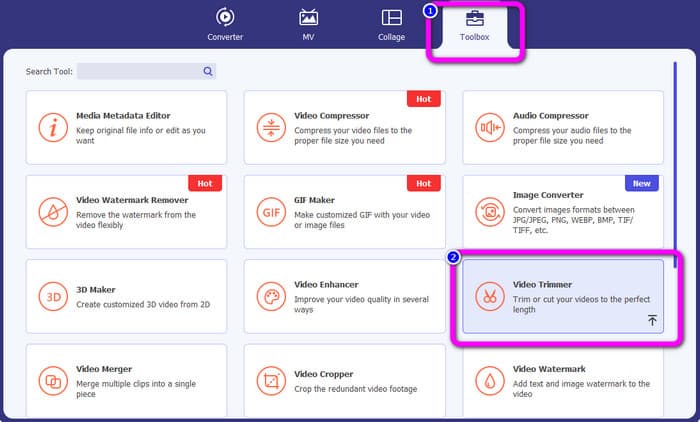
Schritt 2. Klicken Sie im oberen Bereich der Oberfläche auf den Bereich Toolbox. Wenn die Werkzeuge unter Toolbox angezeigt werden, wählen Sie das Werkzeug Video Trimmer aus.
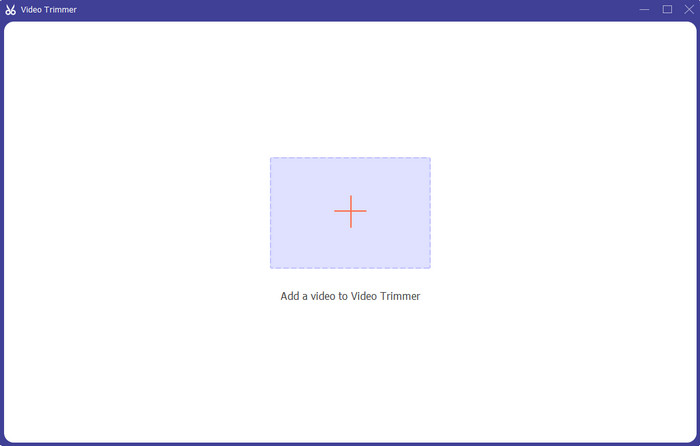
Schritt 3. Klicken Sie auf das Plus-Symbol in der Mitte der Oberfläche. Wählen Sie anschließend aus dem Dateiverzeichnis das Video aus, das Sie schneiden möchten.
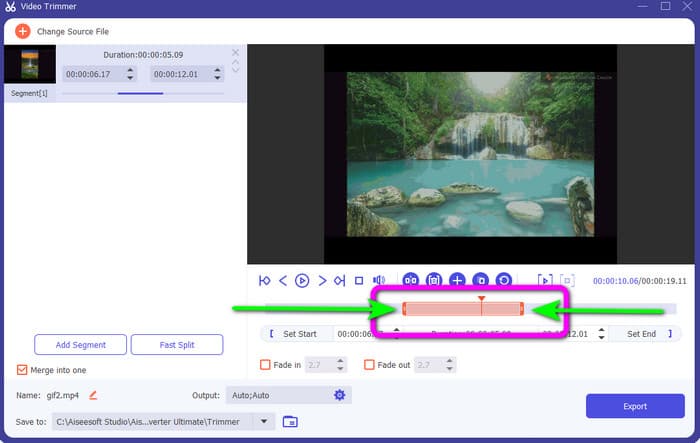
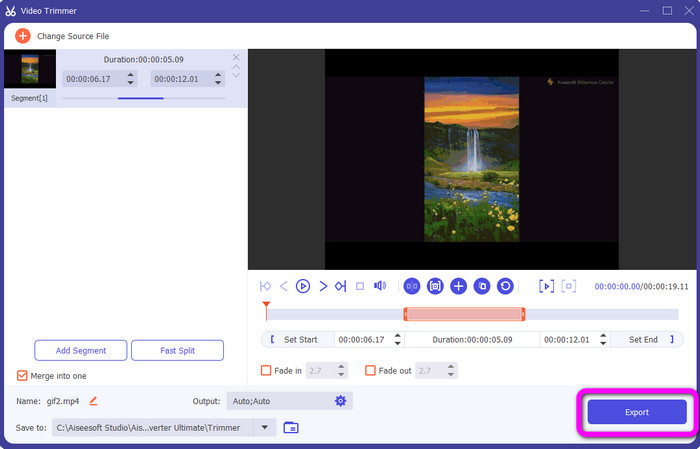
Schritt 4. Sie können das Video schneiden, indem Sie die orangefarbene Leiste im unteren Bereich des Videos anpassen. Diese Leiste hat an beiden Seiten einen Rand. Passen Sie den Rand der Leiste an, um den Teil des Videos zu beschneiden, den Sie bearbeiten möchten.
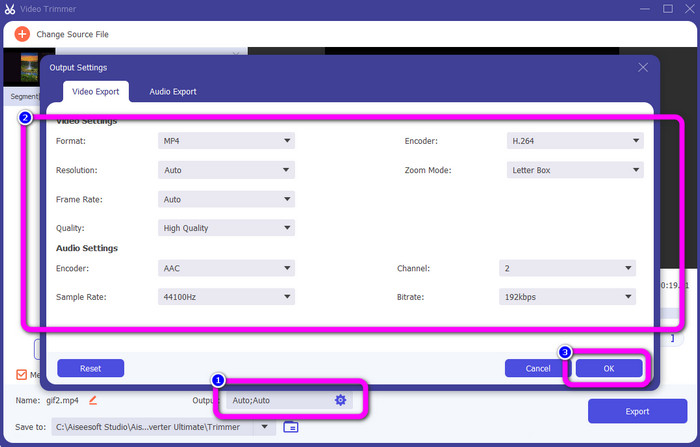
Schritt 5. Über die Option Output Settings können Sie für weitere Anpassungen Bildrate, Qualität, Auflösung und Zoommodus des Videos verändern. Außerdem können Sie die Abtastrate und Bitrate der Audiospur ändern. Klicken Sie dann auf OK.
Schritt 6. Klicken Sie für den letzten Schritt auf die Schaltfläche Export. Warten Sie den abschließenden Vorgang ab, und nach wenigen Sekunden können Sie das fertige, bearbeitete Video auf Ihrem Computer speichern.
Teil 2. Wie man ein Video auf Snapchat schneidet
In diesem Teil erfahren Sie, wie Sie ein Video auf Snapchat zuschneiden. Diese mobile Anwendung eignet sich hervorragend zum Aufnehmen von Fotos und Videos. Es gibt Ihnen viele Effekte, um sie zu verbessern und die Benutzer zufrieden zu stellen. Es gilt auch als Kommunikationsplattform für andere Menschen. Darüber hinaus ist Snapchat nicht nur zu solchen Dingen fähig. Die mobile Anwendung ermöglicht es Ihnen auch, ein Video einfach zu schneiden oder zu trimmen. Abgesehen davon können Sie mit Snapchat Ihr Video bearbeiten, indem Sie Filter ändern, Effekte hinzufügen, zuschneiden und vieles mehr. Wie andere Anwendungen konzentriert sich Snapchat jedoch auf die Aufnahme von Fotos und Videos. Sie können also keine erweiterten Bearbeitungswerkzeuge aus der Anwendung verwenden. Außerdem akzeptiert es nur kurze Videos, was für Benutzer unbefriedigend ist, die lange Videos hochladen möchten. Sehen Sie sich die folgenden Verfahren an, um ein Video auf Snapchat zu kürzen.
Schneiden Sie ein Video nach der Aufnahme
Schritt 1. Laden Sie Snapchat aus Ihrem App Store oder Google Play Store herunter. Öffnen Sie nach der Installation der mobilen Anwendung Snapchat auf Ihrem Smartphone.
Schritt 2. Nehmen Sie anschließend mit Snapchat ein Video auf. Wenn Sie mit der Aufnahme fertig sind, erscheint am unteren Bildschirmrand ein Mini-Clip. Tippen Sie darauf, um mit dem Zuschneiden zu beginnen.
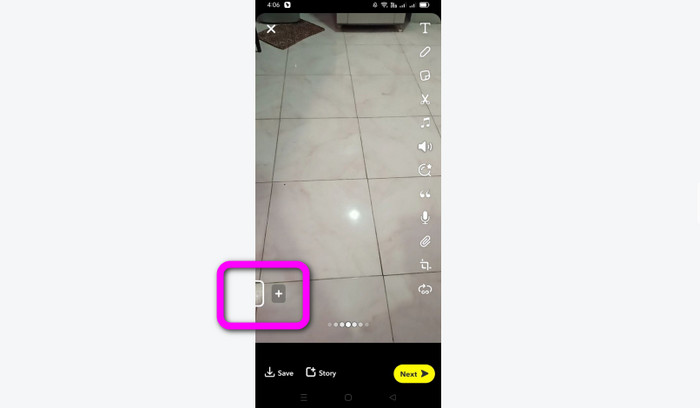
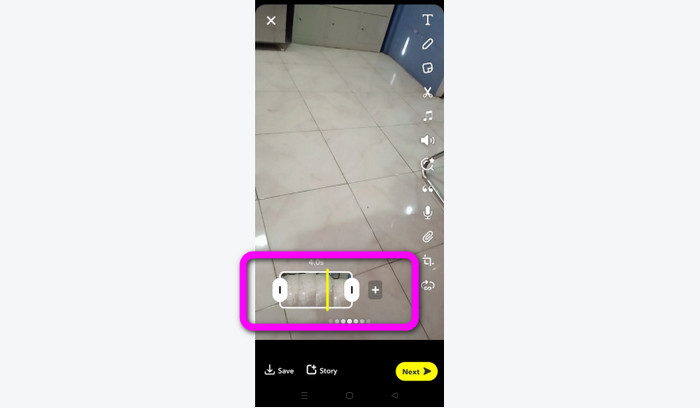
Schritt 3. Wenn der Clip auf dem Bildschirm angezeigt wird, können Sie mit dem Vorgang fortfahren. Ziehen Sie die Ränder des Clips und schneiden Sie das Video entsprechend Ihren Vorstellungen.
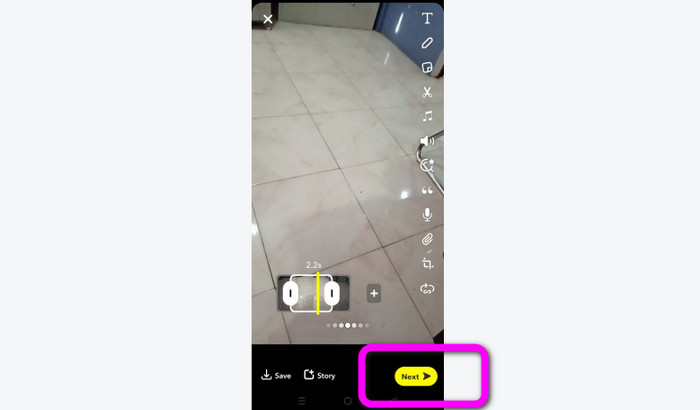
Schritt 4. Wenn Sie mit dem Endergebnis zufrieden sind, drücken Sie die Schaltfläche Next in der unteren linken Ecke der Oberfläche. Auf diese Weise können Sie Ihr zugeschnittenes Video speichern.
Schneiden Sie ein Video aus Erinnerungen
Schritt 1. Öffnen Sie die Snapchat-App auf Ihrem Smartphone. Gehen Sie anschließend zu den Memories. Dort können Sie Ihre Videos sehen. Halten Sie das gewünschte Video einige Sekunden lang gedrückt und tippen Sie auf die Option Edit.
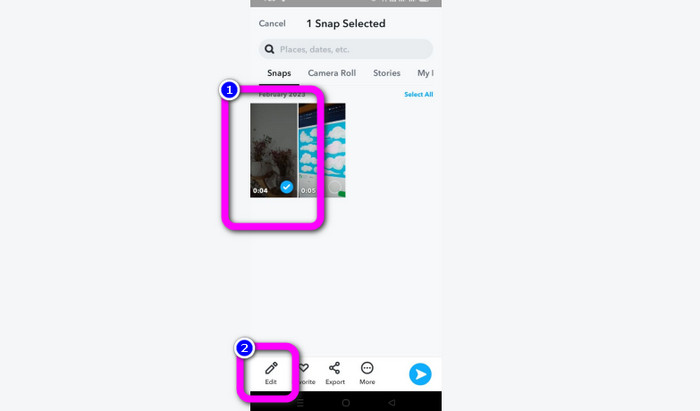
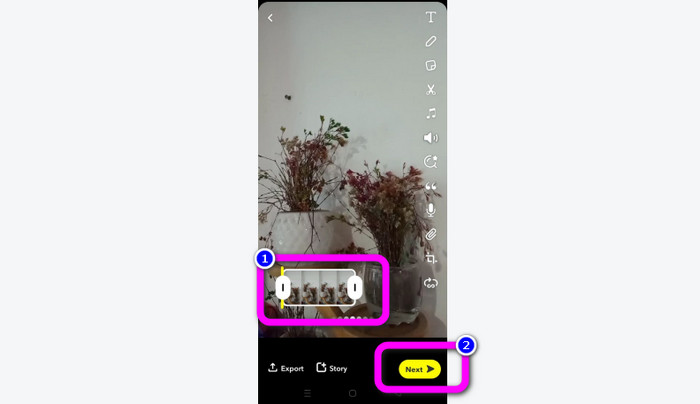
Schritt 2. Danach sehen Sie das Video im unteren Bereich des Bildschirms. Bei diesem Video können Sie den Rand anpassen, um mit dem Zuschneiden zu beginnen. Wenn Sie mit dem Zuschneiden fertig sind, klicken Sie auf die Schaltfläche Next, um Ihr endgültiges Video zu speichern.
11 bemerkenswerte Video-Trimmer, die Sie verwenden können [kostenlos und kostenpflichtig]
Ausgezeichnete Methoden, wie Sie Videos online bequem schneiden können
Teil 3. Häufig gestellte Fragen zum Schneiden eines Videos auf Snapchat
1. Was bedeutet es, ein Video auf Snapchat zu schneiden?
Ein Video zu trimmen bedeutet, einen Schnitt zu machen, der einen bestimmten Abschnitt als Anfang und einen bestimmten Abschnitt als Ende des Videoclips festlegt. Mit dieser Option können Sie die Anfangs- und Endposition eines Videos auf Snapchat auswählen. Diese Option ist ideal, wenn Sie Teile eines Videos hochladen möchten, die ursprünglich länger als 10 Sekunden gedauert haben.
2. Können Sie die Split-Funktion auf Snapchat verwenden?
Sie können diese Funktion nicht verwenden, wenn Sie ein Video von Ihrer Kamerarolle hochgeladen haben. Wenn Sie die Snapchat-Kamera zum Aufnehmen verwendet haben, können Sie dies tun. Sie können das Teilen-Werkzeug verwenden, um den Film in bearbeitbare Teile aufzuteilen und alle Teile zu entfernen, die Sie nicht beibehalten möchten.
3. Was ist die maximale Videogröße für ein einzelnes Snapchat-Video?
Wenn Sie Fotos oder Videos von Ihrer Kamerarolle an Snapchat übertragen, können Sie nur ein Video mit bis zu 2,5 MB senden. Ihre Dateien werden vor der Auslieferung komprimiert.
Fazit
Wenn Sie Snapchat zum Zuschneiden eines Videos verwenden, ist dieser Artikel für Sie gedacht. Dieser Artikel hat Ihnen die beste Methode gezeigt, wie man ein Video auf Snapchat schneidet. Wenn Sie Ihr Video für Snapchat lieber am Computer zuschneiden möchten, gibt es ein Programm, das Sie verwenden können. Video Converter Ultimate ist ein hervorragendes Programm zum Schneiden von Videos auf dem Computer. Es verfügt über eine intuitive Benutzeroberfläche und ist völlig kostenlos.
-
 6 beliebte Snapchat-Animationsfilter für Snapchat
 Möchten Sie wissen, wie Sie Snapchat-Videos am besten Filter hinzufügen können? Nun, Sie können darauf klicken und die verschiedenen Filter kennenlernen, die Sie zum Anwenden auf Snapchat-Videos verwenden können.
-
 So verlangsamen Sie ein Video auf Snapchat ganz einfach auf allen Geräten
 Die beste Möglichkeit, ein Video auf Snapchat zu verlangsamen, finden Sie bereits hier. Um zu wissen, was diese Techniken sind, um ein Video zu verlangsamen, folgen Sie ihm gründlich.
-
 Einfachste Möglichkeiten zum Entfernen von Snapchat-Text aus dem Screenshot
 Lassen Sie uns mit zuverlässigen Tools online und offline Snapchat-Text aus Fotos und Videos entfernen. Wir bieten Ihnen einfache Wege. Probieren Sie es jetzt aus und lassen Sie es uns ausprobieren!
