


 Video Converter Ultimate
 Bildschirm recorder
 Videoreparatur
 Sicherer Download
Tipps & Tricks zum Ausführen einer Zeitlupe auf CapCut mit detaillierten Schritten
Wenn du ein bestimmtes Detail im Video hervorheben möchtest, kann dir ein Zeitlupeneffekt helfen. Auch wenn es einfach ist, die Bildrate des Videos zu ändern, ist die Wahl des richtigen Werkzeugs oft mühsam. Mit einer Software wie CapCut kannst du die Aufgabe jedoch schnell und effektiv erledigen, selbst wenn du kein Profi bist. Anstatt Zeit damit zu verschwenden, nach einem Tutorial zu suchen, wie man in CapCut eine Zeitlupe macht, kannst du diesen Artikel lesen, denn wir stellen leicht nachvollziehbare Schritte bereit. Im späteren Teil fügen wir außerdem die beste Alternative hinzu, falls du der Meinung bist, dass die vorgestellte Software nicht deinen Anforderungen entspricht.

Teil 1. So machen Sie Slow-Mo auf CapCut auf Android- und iOS-Geräten
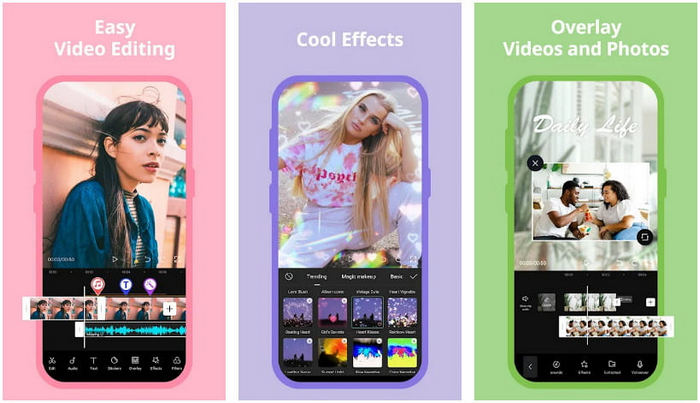
Die folgenden Informationen konzentrieren sich auf die detaillierte Vorgehensweise zum Verlangsamen eines Videos auf CapCut. Wenn Sie also die Software auf Ihrem Gerät verwenden möchten, um ein Video zu verlangsamen, sind die folgenden Schritte absolut und werden ausprobiert, bevor Sie sie hier hinzufügen. Vor allem anderen sind die Schritte hier die grundlegendsten Geschwindigkeitsregler, die Sie auf dem CapCut bekommen können.
Schritt 1. Lade CapCut auf dein Gerät herunter und öffne die App direkt nach der Installation.
Schritt 2. Nachdem du die App geöffnet hast, klicke auf Neues Projekt und füge dann das Video hinzu, das du in Zeitlupe abspielen möchtest.
Schritt 3. Tippe auf das Video, das du in die Timeline geladen hast, und klicke auf das Menü Geschwindigkeit. Wähle dann zwischen den Methoden Normal und Kurve zur Geschwindigkeitssteuerung. Für eine einfachere Art, ein Video zu verlangsamen, musst du Normal auswählen.
Schritt 4. Ziehe den Geschwindigkeitsregler des Videos nach links, um das Video zu verlangsamen, klicke auf Häkchen und anschließend auf Exportieren.
Vorteile
- Es ist einer der besten Geschwindigkeitsregler, die Sie auf Android und iOS herunterladen können.
- All-in-One-Editor, den Sie kostenlos haben können.
- Intuitive Benutzeroberfläche für eine einfache Flow-Benutzererfahrung.
Nachteile
- Begrenzte Verarbeitungsressourcen auf Ihrem Gerät.
- Wichtige Bearbeitungsfunktionen sind noch nicht verfügbar.
- Fehler und Abstürze treten manchmal auf.
Teil 2. Ultimative Alternative für CapCut, um ein Video auf dem Desktop zu verlangsamen
Auch wenn CapCut die verlangsamte Wiedergabe deines Videos ermöglicht, sehen wir dennoch einige Punkte, die dieses Tool daran hindern, zur ultimativen Lösung zu werden. Zweifellos hat FVC Video Converter Ultimate die Nase vorn und ist zur ultimativen Lösung für Probleme bei der Steuerung der Videogeschwindigkeit geworden.
Aufgrund seiner Features und Funktionsangebote ist es vielen Nutzern ans Herz gewachsen, weil es in allem, was es bietet, beeindruckend ist. Es ändert die Geschwindigkeit des Videos fehlerlos, um in weniger als einer Minute eine schöne Videoausgabe zu erstellen. Auch wenn Sie kein Profi in Sachen Videogeschwindigkeitskontrolle sind, können Sie die Software dennoch problemlos verwenden. Beeindruckend oder? Es ist mehr als das; Sie können den folgenden Details folgen, während wir Ihnen beibringen, wie Sie in weniger als einer Minute Zeitlupe mit Capcuts ultimativer Alternative machen.

FVC Video Converter Ultimate
Über 5.689.200 Downloads- Es unterstützt eine ultimative Beschleunigung und verlangsamt die Anwendung.
- Importieren Sie Ihr Video hier, denn es unterstützt mehr als 1000 Formate.
- Zusätzliche multifunktionale Merkmale und Funktionen sind verfügbar.
- Es hat eine intuitive Benutzeroberfläche für eine bessere Benutzererfahrung.
- Sie können die Software unter Windows und macOS haben.
Gratis DownloadFür Windows 7 oder neuerSicherer Download
Gratis DownloadFür MacOS 10.7 oder neuerSicherer Download
Schritt 1. Bitte klicke auf die Download-Schaltfläche unten, um die ultimative Software auf deinem Windows- oder Mac-Computer zu installieren. Klicke anschließend auf die heruntergeladene Datei, um sie sofort zu installieren, und klicke auf „Jetzt starten“, um die Software auf deinem System auszuführen.
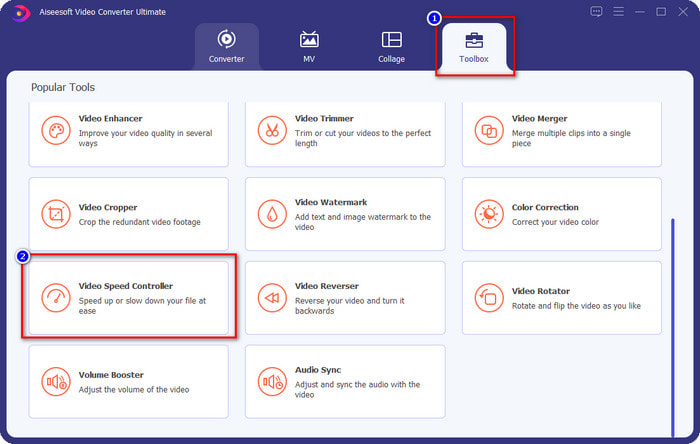
Schritt 2. Wenn das Tool auf deinem System läuft, klicke auf Toolbox und suche den Video-Geschwindigkeitsregler.
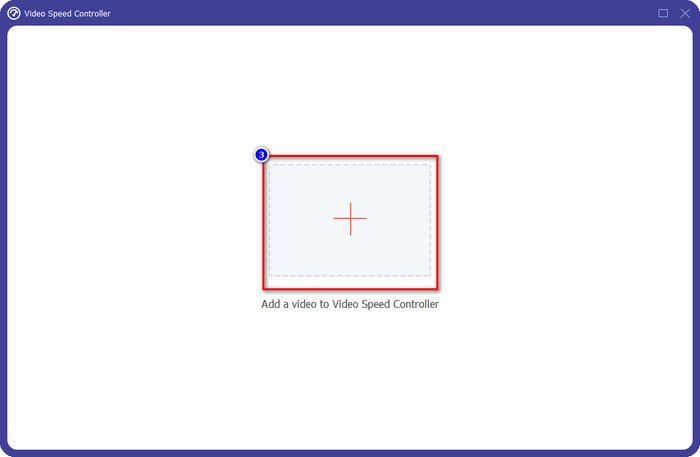
Schritt 3. Drücke die +-Schaltfläche, um den Ordner auf deinem Desktop zu öffnen. Suche die Videodatei, die du in Zeitlupe abspielen möchtest, und klicke auf Öffnen, um fortzufahren.
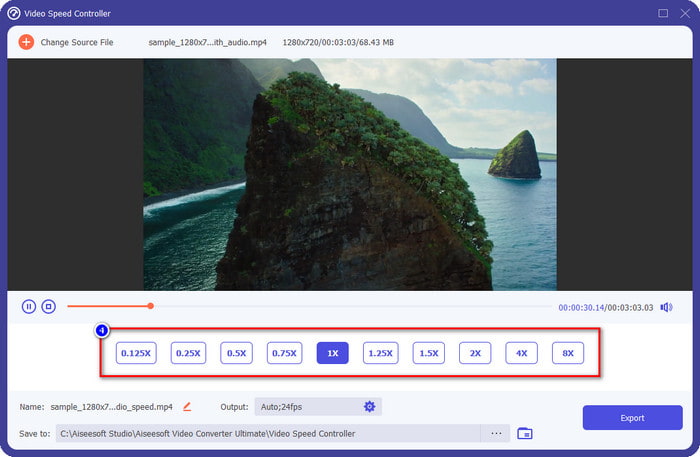
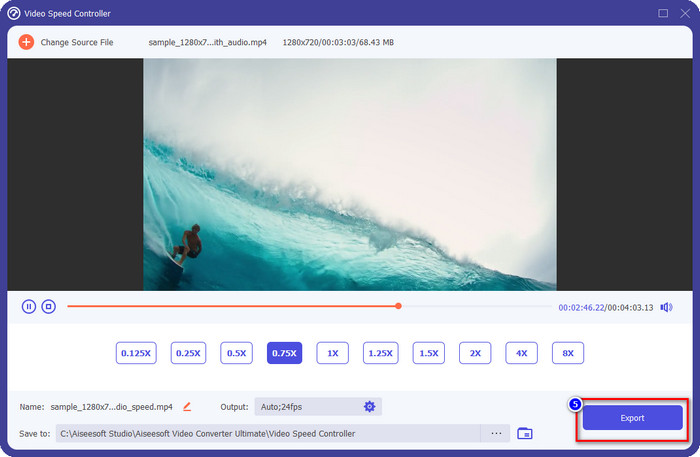
Schritt 4. Nachdem du die Videodatei hier hochgeladen hast, klicke auf die gewünschte Wiedergabegeschwindigkeit in den unten angezeigten Optionen. Jedes Mal, wenn du eine davon auswählst, erscheint eine Vorschau im Vorschaufenster. Dort wird dir dein Video mit der gewählten Geschwindigkeit angezeigt.
Schritt 5. Jetzt ist alles erledigt; klicke auf Exportieren, um damit zu beginnen, das Video mit normaler Geschwindigkeit in eine Zeitlupe umzuwandeln. Einfach, oder? Ja, ist es; selbst wenn du kein Schnitt-Experte bist, musst du dir keine Sorgen machen, wenn du dich für diese Software entscheidest.
Vorteile
- Es ist die ultimative Lösung zur Lösung des Problems der Videogeschwindigkeit und anderer Video- und Audioprobleme.
- Auch wenn Sie ein Anfänger beim Bearbeiten der Geschwindigkeit sind, können Sie die Verwendung in weniger als einer Minute schnell beherrschen.
- Es kann das Video importieren und exportieren, ohne die Rohqualität zu beeinträchtigen.
- Verfügbar in allen Mac- und Windows-Betriebssystemen.
Nachteile
- Es ist nicht für iOS und Android verfügbar.
Teil 3. Häufig gestellte Fragen zum Erstellen einer Zeitlupe auf CapCut
Gibt es eine Desktop-Version von CapCut?
Leider ist CupCat nicht für Windows und Mac verfügbar, sodass Sie es nicht auf Ihren Desktop herunterladen können, obwohl Sie es möchten. In diesem Fall dürfen Sie die App nicht auf anderen Websites Dritter oder Piraterie herunterladen, da dies illegal ist und danach immer Konsequenzen haben wird.
Kann ich CapCut kaufen?
Wenn Sie ein knappes Budget haben, ist der Kauf oder das Abonnement von CapCut nicht erforderlich, da es kostenlos ist. Keine versteckten Gebühren, sobald Sie die App auf Ihr Android- und iOS-Gerät heruntergeladen haben. Sie können das gesamte Potenzial dieses Video-Editors kostenlos nutzen.
Wie kann man Videos auf Tiktok mit CapCut beschleunigen?
Du kannst den oben genannten Schritten folgen und das TikTok-Video herunterladen, das du beschleunigen möchtest. Wenn du jedoch eine umfassende, detaillierte Anleitung dazu möchtest, wie man ein Video auf TikTok schneller macht, kannst du stattdessen diesen Artikel lesen und dich darauf verlassen.
Wird nach dem Exportieren des Videos auf Capcut ein Wasserzeichen angewendet?
Das Wasserzeichen wird nicht direkt auf das hier bearbeitete Video angewendet, sondern dem letzten Teil des Videos hinzugefügt. Aber Sie können den Videoclip mit einem Wasserzeichen schneiden, indem Sie Ihren vorgesehenen Video-Editor oder den FVC Video Converter Ultimate verwenden, um es dauerhaft zu entfernen. Sie können ein Video ohne Wasserzeichen exportieren, indem Sie auf Export ohne Wasserzeichen tippen, anstatt es zu bearbeiten.
Fazit
Da wir nun wissen, wie man ein Video in CapCut verlangsamt, haben wir jetzt die Möglichkeit, die Geschwindigkeit jedes beliebigen Videos zu ändern. Trotz der Tatsache, dass es eine kostenlose App für Android und iOS ist, gibt es immer noch Einschränkungen, die dich bei der Nutzung behindern können. Wenn du also die Lücken schließen möchtest, die diese App nicht abdecken kann, ist es unerlässlich, die beste Desktop-Alternative herunterzuladen, denn sie ist die ultimative Software, um ein Video zu verlangsamen. Um das ultimative Tool herunterzuladen, musst du oben auf die Download-Schaltfläche klicken, damit es jederzeit für dich verfügbar ist.
-
 5 professionelle Zeitlupen-Videomacher für Windows/Mac/Online
 Möchten Sie wissen, wie Sie Ihr Video in Zeitlupe abspielen können? Dann lesen Sie diesen Artikel, um herauszufinden, was die 5 professionellen Slow-Motion-Videomacher sind.
-
 Beste Möglichkeiten, iMovie zum Erstellen von Zeitlupenvideos zu verwenden [Gelöst]
 Haben Sie jemals die iMovie-App verwendet, um Ihr Video mit normaler Geschwindigkeit in Zeitlupe zu konvertieren? Dies ist die Gelegenheit, mehr über diese Anwendung zu erfahren, also lesen Sie weiter.
-
 3 beste Zeitlupenkamera, die Sie kaufen sollten
 Fällt es Ihnen schwer, die beste Kamera für Zeitlupenvideos auszuwählen? Lesen Sie weiter und betrachten Sie diese aufgelisteten besten Zeitlupenkamera-Optionen für Sie.
