


 Video Converter Ultimate
 Bildschirm recorder
 Videoreparatur
 Sicherer Download
Entdecken Sie, wie Sie die Größe eines Videos auf Android mit effektiven Methoden ändern
Ganz gleich, ob du ein Social-Media-Influencer bist oder einfach nur dein neuestes Reiseabenteuer mit Freunden und Familie teilen möchtest – das Anpassen der Videogröße kann den entscheidenden Unterschied machen. Es hilft nicht nur dabei, die Dateigröße für ein einfacheres Teilen zu optimieren, sondern kann auch das Seherlebnis für dein Publikum verbessern. In diesem Beitrag zeigen wir dir, wie du Videos auf Android skalierst – vom Anpassen des Seitenverhältnisses bis hin zur Änderung der Videoauflösung. Mit unserer einfachen, leicht nachvollziehbaren Anleitung kannst du deine Videos wie ein Profi anpassen und deine Inhalte auf das nächste Level bringen.

Teil 1. Tutorial Wie man ein Video auf Android mit Samsung Gallery zuschneidet
Die Samsung Gallery-App ist ein Muss zum Verwalten und Bearbeiten Ihrer visuellen Inhalte, wenn Sie ein Samsung-Gerät besitzen. Eine der nützlichen Funktionen der App ist die Möglichkeit, Videos unterwegs zuzuschneiden. Es ermöglicht Benutzern, unerwünschte Teile eines Videos zu entfernen oder das Seitenverhältnis anzupassen. Die Zuschneidefunktion macht es einfach und intuitiv. Mit Samsung Gallery können Sie ganz einfach qualitativ hochwertige Videos erstellen und teilen, die auf Ihre Bedürfnisse zugeschnitten sind. Sehen Sie sich die folgenden Schritte an, um Ihnen bei der Verwendung dieses Android-Videoeditor-Zuschneidewerkzeugs zu helfen.
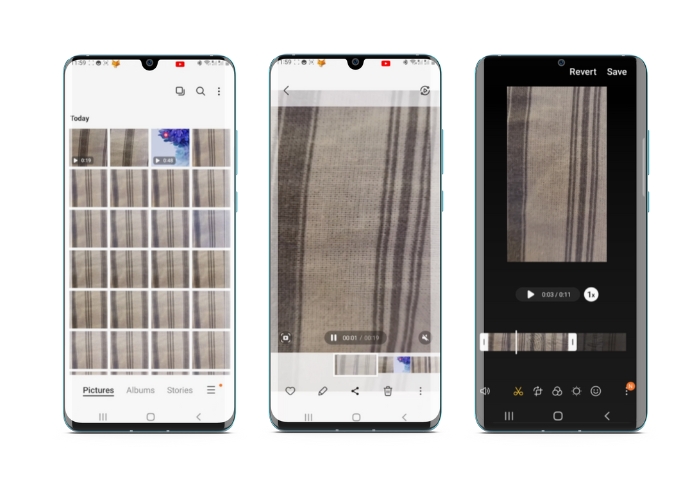
Schritt 1. Öffne die Samsung‑Galerie‑App auf deinem Gerät und suche das Video, das du zuschneiden möchtest.
Schritt 2. Tippe auf das Video, um es zu öffnen, und tippe dann unten auf dem Bildschirm auf die Schaltfläche Bearbeiten (das Stiftsymbol). Wähle im Bearbeiten-Bildschirm die Option Zuschneiden.
Schritt 3. Nun siehst du ein Rechteck über dem Video mit Ziehpunkten an jeder Ecke. Ziehe die Ziehpunkte, um das Rechteck nach Bedarf zu vergrößern oder zu verkleinern und das Video zuzuschneiden. Tippe auf die Wiedergabe-Taste, um das zugeschnittene Video in der Vorschau anzusehen.
Schritt 4. Wenn du mit dem Ergebnis zufrieden bist, tippe auf Speichern, um das zugeschnittene Video in deiner Galerie zu sichern.
Teil 2. Walkthrough So schneiden Sie ein Video auf Android mit Google Fotos zu
Google Fotos ist eine beliebte Foto- und Videoverwaltungs-App für Android-Nutzer und verfügt über eine Vielzahl von Funktionen, mit denen Sie Ihre visuellen Inhalte bearbeiten und verbessern können. Eine großartige Funktion dieses Tools ist die Möglichkeit, Videos zuzuschneiden, wodurch Sie unerwünschte Teile entfernen und sich auf die wichtigsten Momente konzentrieren können. Sie können Videos mit nur wenigen Fingertipps zuschneiden, wodurch es einfach und intuitiv ist, ausgefeilte und professionell aussehende Videoinhalte auf Ihrem Android-Gerät zu erstellen. Hier zeigen wir Ihnen Schritt für Schritt, wie Sie Videos mit Google Fotos zuschneiden.
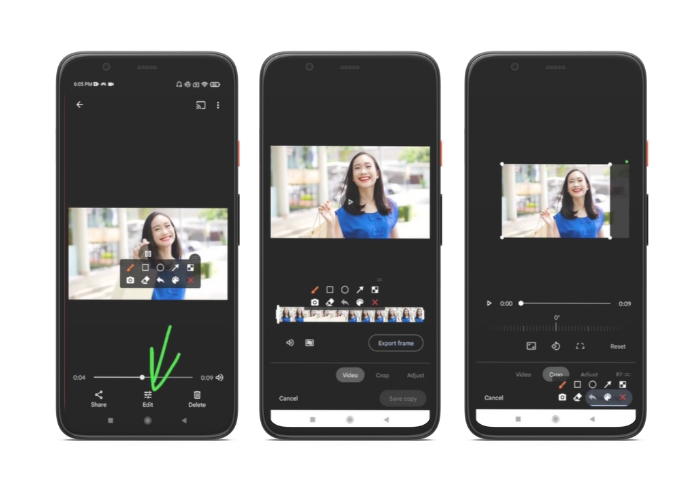
Schritt 1. Starte die Google‑Fotos‑App auf deinem Android‑Gerät und suche das Video, das du zuschneiden möchtest. Tippe anschließend unten auf dem Bildschirm auf die Schaltfläche Bearbeiten.
Schritt 2. Wähle im Bearbeitungsbildschirm die Option Zuschneiden & drehen.
Schritt 3. Nun siehst du ein Rechteck als Overlay auf dem Video, mit Ziehpunkten an jeder Ecke. Nutze die Ziehpunkte, um das Rechteck nach Bedarf zu vergrößern oder zu verkleinern und den Film zuzuschneiden.
Schritt 4. Tippe abschließend auf Speichern, um die Änderungen am Video zu sichern.
Teil 3. Anleitung zum Zuschneiden eines Videos auf Android mit einer Drittanbieter-App
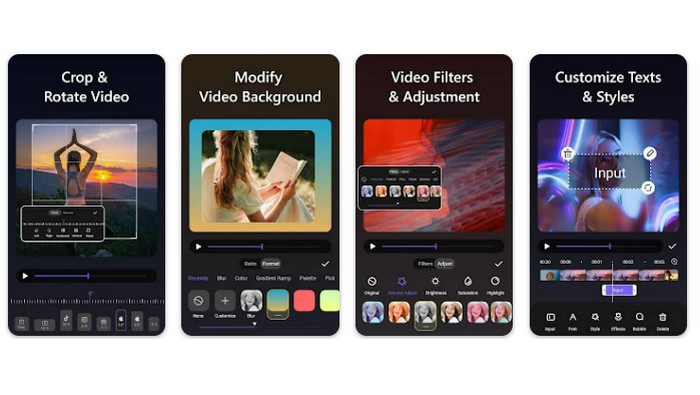
Dank Vid.fun ist das einfache Erstellen und Bearbeiten von Videos für jeden mit einem Android‑Smartphone erreichbar. Dieses Programm ermöglicht es Nutzern, ihre Filme auf vielfältige Weise zu bearbeiten – unter anderem Musik, Text und Effekte hinzuzufügen, Sequenzen zu kürzen und zu zusammenzuführen und mehr. Wie du ein Video auf Android skalierst, kannst du lernen, indem du die folgenden Schritte für dieses Programm befolgst.
Schritt 1. Lade die Vid.fun‑App aus dem Google Play Store herunter und starte dann ein neues Projekt.
Schritt 2. Wähle den Clip, den du zuschneiden möchtest, aus der Galerie oder dem Aufnahmen‑Ordner deines Geräts und ziehe ihn auf die Zeitleiste.
Schritt 3. Wähle den gewünschten Videobereich in der Zeitleiste, indem du darauf tippst; verwende dann die Schaltfläche Zuschneiden am unteren Bildschirmrand, um den Abschnitt zu bearbeiten.
Schritt 4. Auf dem Film wurde ein Rechteck eingeblendet, dessen Ecken du zum Anpassen verschieben kannst. Um den Film zuzuschneiden, ziehst du die Eckpunkte einfach an die gewünschte Position. Wenn du fertig bist, kannst du das Video an deine Liebsten senden oder online posten.
Teil 4. App-Empfehlung
Natürlich haben wir nach den mobilen Apps auch eine Empfehlung für den Desktop. Video Converter Ultimate von FVC ist eine umfassende Software zur Umwandlung von Videoformaten, die zahlreiche Werkzeuge zur Bearbeitung enthält. Besonders hervorzuheben ist die Möglichkeit, das Seitenverhältnis des Videos anzupassen.
Mit diesem Programm können Sie die Form und Größe des Videos ganz einfach ändern, indem Sie das Seitenverhältnis ändern. Wenn Sie ein Video in sozialen Medien mit einem bestimmten Seitenverhältnis teilen möchten oder wenn Sie das Video nur an eine bestimmte Bildschirmgröße anpassen müssen, ist FVC Video Converter Ultimate genau das Richtige für Sie. Finden Sie heraus, wie Sie mit Hilfe dieses Programms Videos auf Android zuschneiden können.
Schritt 1. Lade FVC Video Converter Ultimate herunter und installiere ihn
Du kannst die App herunterladen, indem du auf eine der Gratis-Download-Schaltflächen unten klickst. Sobald das Programm heruntergeladen wurde, installiere es und starte es auf deinem Computer.
Kostenloser DownloadFür Windows 7 oder höherSicherer Download
Kostenloser DownloadFür macOS 10.7 oder höherSicherer Download
Schritt 2. Importiere das Video zum Zuschneiden
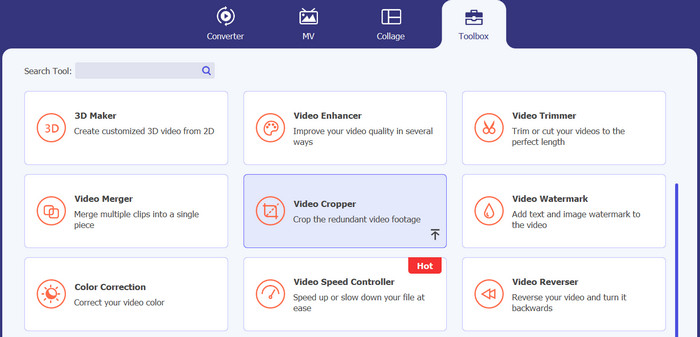
Wechsle anschließend zum Reiter „Toolbox“ oben in der Programmoberfläche. Wähle dann die Option Video-Zuschneider und füge eine Datei hinzu, indem du auf das Plus-Symbol klickst.
Schritt 3. Schneide die Videodatei zu
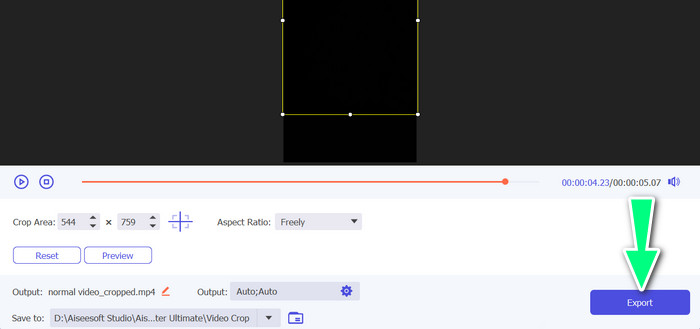
Sie können das importierte Video jetzt zuschneiden. Passen Sie mit den Schiebereglern für den Zuschneidebereich den Bereich an, den Sie aus dem Video zuschneiden möchten. Sie können auch ein bestimmtes Seitenverhältnis aus dem Dropdown-Menü auswählen. Sehen Sie sich das zugeschnittene Video in der Vorschau an, um sicherzustellen, dass der gewünschte Teil des Videos zugeschnitten wurde.

Schritt 4. Das zugeschnittene Video exportieren
Klicke abschließend unten rechts auf die Schaltfläche Exportieren, um den Zuschneidevorgang abzuschließen und das zugeschnittene Video zu speichern.
Teil 5. Häufig gestellte Fragen zum Zuschneiden von Videos auf Android
Wie beschneide ich Videos ohne Qualitätsverlust?
Eine Möglichkeit, Videos ohne Qualitätsverlust zuzuschneiden, besteht darin, ein Videobearbeitungstool zu verwenden, das zerstörungsfreies Zuschneiden unterstützt. Das bedeutet, dass die ursprüngliche Videodatei nicht verändert wird und nur der zugeschnittene Teil als neue Datei gespeichert wird.
Wirkt sich das Zuschneiden eines Videos auf Android auf dessen Qualität oder Auflösung aus?
Ja, das Zuschneiden eines Videos auf Android kann die Qualität oder Auflösung beeinträchtigen, da bei diesem Vorgang ein Teil des Originalvideos entfernt wird. Das Ausmaß, in dem die Qualität oder Auflösung beeinträchtigt wird, hängt jedoch von verschiedenen Faktoren ab, wie z. B. der Größe des Ausschnitts, der Qualität des Originalvideos und der zum Zuschneiden des Videos verwendeten Methode.
Ist es auf Android möglich, ein Video zuzuschneiden und gleichzeitig Effekte oder Filter hinzuzufügen?
Ja, es ist möglich, ein Video zuzuschneiden und gleichzeitig Effekte oder Filter auf Android hinzuzufügen. Im Google Play Store gibt es verschiedene Apps zur Videobearbeitung, die sowohl Zuschneiden als auch Videoeffekte und Videofilter anbieten. Beliebte Beispiele sind FVC Video Converter Ultimate, Filmora usw.
Fazit
Wie man ein Video auf Android zuschneidet zu lernen, ist ein einfacher Vorgang, der mit verschiedenen Apps und Programmen durchgeführt werden kann. Samsung Galerie, Google Fotos und FVC Video Converter Ultimate sind nur einige Beispiele für Tools, mit denen du Videos auf Android‑Geräten zuschneiden kannst.
-
 Anleitung zum Reparieren von Videos, die auf Android-Handys nicht abgespielt werden
 Möchten Sie wissen, warum Videos auf Ihrem Android-Gerät nicht wiedergegeben werden können? Und wenn ja, gibt es Möglichkeiten, das Problem selbst zu beheben? Lesen Sie weiter, um mehr zu erfahren.
-
 Einfachste Möglichkeiten, ein Video auf Ihren Android-Geräten zu beschleunigen [2023]
 Wussten Sie, dass Sie ein Video auf Ihrem Android beschleunigen können? Wenn Sie also wissen möchten, wie Sie ein Video auf Ihrem Android-Telefon beschleunigen können, lesen Sie diese Beschreibung.
-
 3 hervorragende Methoden zum Trimmen von Videos auf Android
 Möchten Sie Ihr Android-Gerät verwenden, um ein Video zu schneiden? Dann ist dieser Beitrag für Sie. Wir werden wertvolle Möglichkeiten zum Kürzen eines Videos auf Android besprechen.
