


 Video Converter Ultimate
 Bildschirm recorder
 Videoreparatur
 Sicherer Download
Einfach und effizient: Videos online zuschneiden mit Top-Video-Editoren
Das Zuschneiden eines Videos bedeutet, unerwünschte Teile des Filmmaterials zu entfernen, um sich auf einen bestimmten Bereich oder ein bestimmtes Motiv zu konzentrieren, das Seitenverhältnis anzupassen oder Ablenkungen zu entfernen. Traditionell benötigte man zum Zuschneiden von Videos spezielle Software und musste eine steile Lernkurve bewältigen, doch mit dem Aufkommen von Online-Video-Editoren kann heute jeder ganz einfach Videos online zuschneiden. In diesem Artikel stellen wir die besten Web-App-Tools vor, um Videos online kostenlos zuzuschneiden, und bieten eine Schritt-für-Schritt-Anleitung, wie man Videos online zuschneidet.

Teil 1. Online-Tutorial zum Zuschneiden von EZGIF-Videos
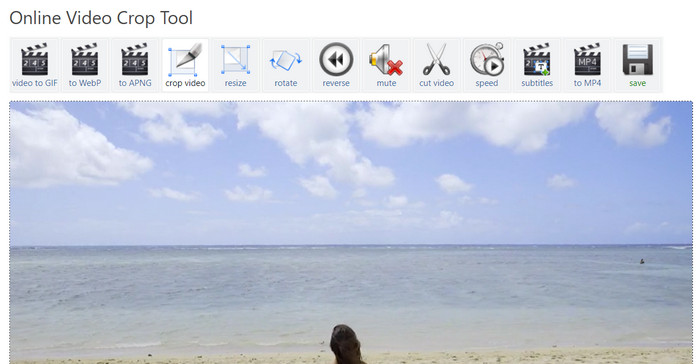
Schritt 1. Rufen Sie die Website von Ezgif (ezgif.com) auf und wählen Sie im Hauptmenü die Option Video to GIF.
Schritt 2. Laden Sie Ihr Video auf die Website hoch, indem Sie auf die Schaltfläche Choose File klicken und das Video von Ihrem Computer auswählen.
Schritt 3. Sobald das Video hochgeladen ist, wählen Sie aus der Liste der Bearbeitungstools auf der rechten Seite des Bildschirms die Option Crop video.
Schritt 4. Passen Sie den Zuschneidebereich an, indem Sie die Ränder auf die gewünschte Größe und Position ziehen. Alternativ funktioniert das Online-Zuschneidetool von EZGIF mit vorgefertigten Seitenverhältnissen. Klicken Sie auf die Schaltfläche Crop video!, um Ihr Video zuzuschneiden.
Schritt 5. Klicken Sie abschließend auf die Schaltfläche Save, um Ihr zugeschnittenes Video herunterzuladen.
Vorteile
- Mehrere Bearbeitungsoptionen.
- Es ist kein Software-Download erforderlich.
- Benutzerfreundlich.
Nachteile
- Die Ausgabe kann zu Qualitätsverlusten führen.
- Einschränkungen bei der Größe des Video-Uploads.
- Eine Internetverbindung ist erforderlich.
Teil 2. Kapwing Video Resizer Walkthrough
Schritt 1. Rufen Sie die Website von Kapwing (kapwing.com) auf und wählen Sie auf der Startseite Get Started.
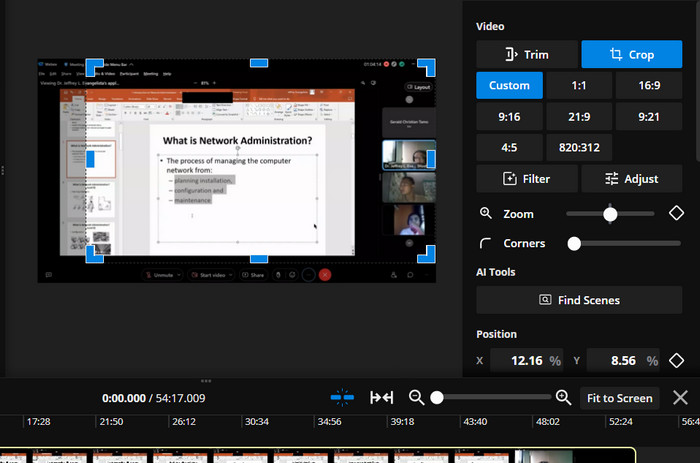
Wählen Sie Crop Video aus der Liste der Bearbeitungstools auf der linken Seite des Bildschirms.
Schritt 2. Laden Sie Ihr Video auf die Website hoch, indem Sie auf die Schaltfläche Click to upload klicken und das Video von Ihrem Computer auswählen.
Schritt 3. Fügen Sie das Video anschließend der Timeline hinzu und wählen Sie im rechten Menü Crop. Passen Sie den Zuschneidebereich an, indem Sie die Ränder auf die gewünschte Größe und Position ziehen. Verwenden Sie die Schaltfläche Preview oder Play, um zu sehen, wie Ihr zugeschnittenes Video aussehen wird.
Schritt 4. Klicken Sie auf die Schaltfläche Export Project, um Ihr Video zuzuschneiden. Klicken Sie schließlich auf die Schaltfläche Download, um Ihr zugeschnittenes Video auf Ihrem Computer zu speichern. So verwenden Sie diesen Online-Video-Resizer.
Vorteile
- Hochkomprimierungstechnologie für hochwertige Ausgabe.
- Integration mit Social-Media-Plattformen.
- Zuschneiden, Größe ändern und Videos online schneiden.
Nachteile
- Wasserzeichen im kostenlosen Plan.
- Einschränkungen bei der Größe der Videodatei.
- Es erfordert eine Internetverbindung.
Bonus: Beste Offline-Methode zum Zuschneiden von Videos
FVC Video Converter Ultimate ist eine All-in-One-Software zur Videobearbeitung, die Ihnen die volle Kontrolle über Ihre Videos gibt. FVC Video Converter Ultimate ist ein unverzichtbares Werkzeug für alle, die zu Hause oder im Büro Videos in professioneller Qualität erstellen möchten. Er kann Videos sehr zuverlässig konvertieren, bearbeiten und brennen. FVC Video Converter Ultimate kann Ihnen helfen, Videodateien in verschiedene Formate zu konvertieren, Videos zuzuschneiden, zu trimmen oder zusammenzufügen oder Untertitel bzw. Wasserzeichen hinzuzufügen.
Außerdem unterstützt diese EZGIF- oder Kapwing-Video-Resizer-Alternative eine Vielzahl von Video- und Audioformaten, einschließlich HD- und 4K-Videos. Dies macht es zum perfekten Werkzeug zum Konvertieren und Bearbeiten all Ihrer Videos.
Schritt 1. Software beschaffen
Das Programm kann heruntergeladen werden, indem Sie auf das Symbol Free Download unten klicken. Installieren Sie es anschließend auf Ihrem Computer und führen Sie es aus.
Kostenloser DownloadFür Windows 7 oder höherSicherer Download
Kostenloser DownloadFür macOS 10.7 oder höherSicherer Download
Schritt 2. Ein Video hochladen
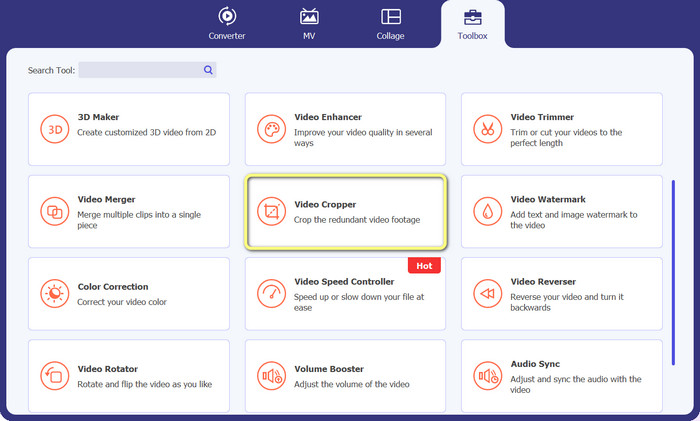
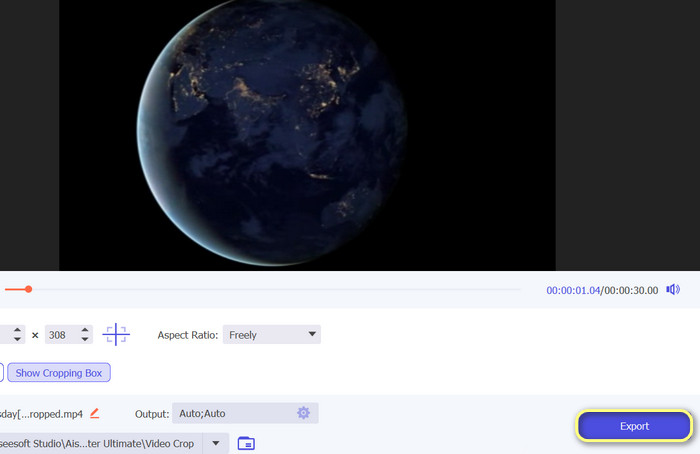
Suchen Sie im Menü Toolbox die Option Video Cropper. Klicken Sie dann auf das Plus-Symbol und wählen Sie das Video aus dem lokalen Speicher Ihres PCs aus.
Schritt 3. Das Filmmaterial zuschneiden
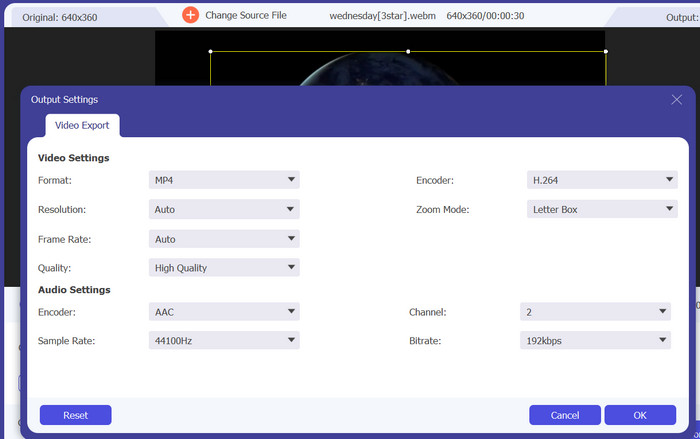
Schneiden Sie das Video zu, indem Sie diesmal das Seitenverhältnis anpassen. Alternativ können Sie das Seitenverhältnis auch anpassen, indem Sie die Begrenzungen der Schieberegler verschieben. Anschließend werden die Video- und Audio-Parameter über das Menü Output geändert.
Schritt 4. Video exportieren
Um das zugeschnittene Video zu speichern, drücken Sie nach der Echtzeit-Vorschau der Änderungen die Schaltfläche Export.
Teil 3. Häufig gestellte Fragen zum Zuschneiden von Videos online
Kann ich Videos auf meinem Mobilgerät zuschneiden?
Ja, viele Video-Apps zur Bearbeitung auf mobilen Geräten ermöglichen das Zuschneiden von Videos. Einige beliebte Optionen sind InShot, Adobe Premiere Rush und VideoShow, die sich hervorragend eignen, wenn Sie Videos auf Android zuschneiden möchten.
Kann ich das Seitenverhältnis von Videos online ändern?
Um das Seitenverhältnis eines Videos online zu ändern, müssen Sie das Video normalerweise in den Online-Videoeditor hochladen, das Seitenverhältnis auswählen, zu dem Sie wechseln möchten, und dann das bearbeitete Video speichern. Einige Online-Videoeditoren bieten möglicherweise auch zusätzliche Optionen zum Anpassen der Videoauflösung und zum Zuschneiden des Videos, um es an das neue Seitenverhältnis anzupassen.
Kann ich ein Einzelbild eines Videos online zuschneiden?
Ja, Sie können den Rahmen eines Videos online mit verschiedenen Videobearbeitungswerkzeugen zuschneiden. Beim Zuschneiden des Frames eines Videos ist es wichtig, die endgültige Größe und Auflösung des Videos zu berücksichtigen, die Sie erreichen möchten. Ein zu großer Zuschnitt des Frames kann zu einer geringeren Auflösung und einer kleineren endgültigen Videogröße führen, während ein zu kleiner Zuschnitt zu schwarzen Balken oder unerwünschten Elementen im Video führen kann.
Fazit
Videos online zuzuschneiden war noch nie so zugänglich und einfach wie heute, da zahlreiche Videobearbeitungstools diese Funktion anbieten. Jetzt können Sie Videos effektiv und effizient online in der Größe anpassen. Ganz gleich, ob Sie unerwünschte Teile des Videobildes entfernen, das Seitenverhältnis anpassen oder ein neues Video mit kleinerer Bildgröße erstellen möchten – viele Online-Video-Editoren können Ihnen helfen, diese Ziele zu erreichen.
-
 Bearbeiten wie ein Profi: So schneiden Sie Ihre iPhone-Videos mühelos zu
 Wenn Sie Ihre iPhone-Videobearbeitungsfähigkeiten auf die nächste Stufe heben möchten, sind Apps zum Zuschneiden von Videos ein Wendepunkt. Wir stellen einige der besten Apps zum Zuschneiden von Videos für das iPhone vor.
-
 Wie man ein Video auf Snapchat zuschneidet, um einen perfekten Snap zu erstellen
 Verwandeln Sie Ihre Snapchat-Geschichten oder -Videos mit fachmännischen Techniken zum Zuschneiden von Videos. In dieser Anleitung erfahren Sie, wie Sie Videos auf Snapchat zuschneiden, um eine maximale Wirkung zu erzielen.
-
 [4 Möglichkeiten] So beschleunigen Sie Ihre Videos online ganz einfach
 Möchten Sie ein Video online beschleunigen? Lesen Sie diesen Artikel, um mehr darüber zu erfahren, wie Sie ein Video auf verschiedene Arten beschleunigen können.
